
6.2. General Settings
6.2.1. Organisation Management
Organisations are defined locally by a user enrolled in the National Security Administrator role. When defining organisations, it can be assigned the webforms that will be used by that organisation when reporting ORs via the E2 Reporting Portal. It can also be determined through predefined Attributes automatically filling with the predefined value when the organisation's users create new ORs.
Administrators have to unfold ‘Administration’ and click on ‘Organisation Management’ under ‘General Settings’. The system will display the Organisation Management menu:

It displays a table of organisations with the following columns per Organisation row, which also work as filters:
· Name: it is unique for each organisation
· Phone: it is not mandatory
· Created by: the Administrator that created the organisation
· Creation date: the date when the organisation was created in E2
The last column provides a delete and edit icon per each organisation, as follows:

Above the table, on the right side, there are the following buttons:
· Import Organisations and Users
· New Organisation
6.2.1.1. Create an organisation
Administrators have to click on ‘New Organisation’ above the table of organisations, and the system will display the ‘New Organisation’ page:
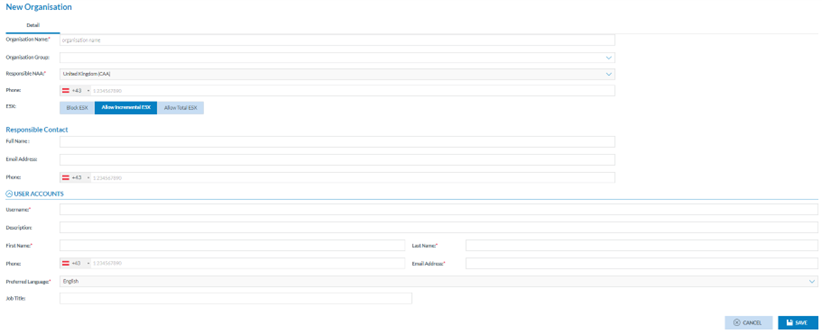
The mandatory fields are the following:
· Organisation Name: it has to be unique for each organisation
· Responsible NAA: the system sets the Authority to which the Administrator belongs. By default, it is not editable.
· E5X: by default, it is ‘Allow Incremental E5X’. Administrators can select ‘Block E5X’ or ‘Allow Total E5X’ instead:
ü Block E5X will not allow users of this organisation to import ORs through E5X files
ü ‘Allow incremental E5X’ refers to importing all the versions of the ORs through the E5X; it means the first version of each OR and all their updates.
ü ‘Allow Total E5X’ refers to import only the last version of the ORs
· Username: it refers to the user that will be created when the organisation is created
· First name: first name of the user that will be created when the organisation is created
· Last name: first name of the user that will be created when the organisation is created
· Email address: User email will be created when the organisation is created. Preferred language: by default, it is English, which is not editable.
The optional fields are the following:
· Organisation Group: drop-down menu providing the organisation groups to be selected, if any
· Phone: telephone number of the organisation
· Responsible contact fields: all of them are optional. They are to contact the responsible of the organisation:
ü Full name: it is referred to the responsible contact of the organisation
ü Email address: it is referred to the responsible contact of the organisation
ü Phone: telephone number of the responsible contact
· User account fields: the following fields are optional:
ü Description concerning the username
ü Job Title
Administrators have to fill in the mandatory fields and click the ‘Save’ button. The system will save the data in the database, create a new organisation with the new user, and add it to the organisation's table.
The created organisational user will have the Reporter and Organisation Administrator roles assigned automatically.
6.2.1.2. Edit an organisation
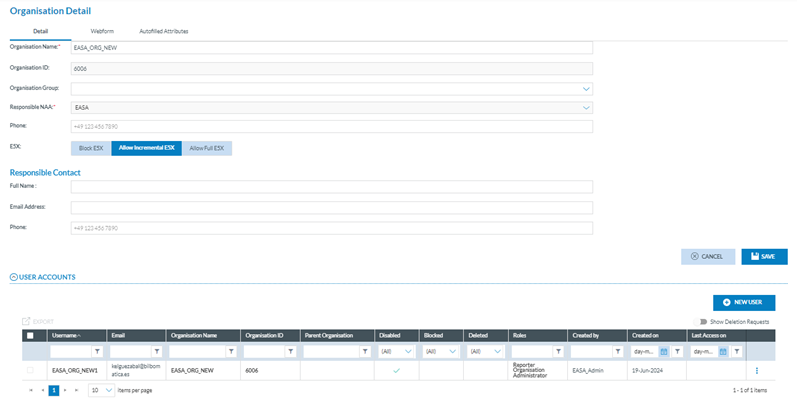
Administrators have to click on the Edit icon of the specific organisation of the table of organisations, and the system will display the Edit organisation page:
6.2.1.3. Detail tab
The page displays a Detail tab, which reproduces the Organisation creation page, with the addition of an Organisation ID, which is not editable by the system. See the previous section for further details on the fields.
Administrators can update the needed fields.
Moreover, it transforms the user accounts area with a table of accounts with the user accounts for the current organisation.
The table is preceded by a check box and the following columns that can be used as filters:
· Username: of the account
· Email: to which the account is associated
· Organisation Name: as set in the creation page or later edited
· Organisation ID: as generated by the system, it is unique for each organisation
· Parent organisation: the organisation from which the organisation is child
· Disabled: it shows a green tick if the account is disabled
· Blocked: green tick if disabled
· Deleted: green tick if deleted
· Roles: by default, the system assigns the accounts created by Administrators to the Reporter organisation' Administrator role
· Created by: the author of the account
· Created on: date of the account’s creation
· Last access on: date of last access to the account
The last section of the table per each row provides a 3-dot menu with Edit and Export options.
Above the table, there is a ‘Show Deletion Requests’ that shows, if existing, the accounts whose users have requested their deletion.
6.2.1.4. Add more account users to the Organisation
Administrators can add users through the ‘New user’ button above the accounts table.
This button opens the User account details page:
Administrators have to fill in the mandatory fields:
· Username
· First Name
· Last Name
· Email address
The ‘Disabled’ toggle will be activated and deactivated once the created user activates it through the email they receive after its creation.
The blocked toggle is deactivated; Administrators must activate it if needed to block the account.
Administrators can fill in the optional fields.
At the bottom of the page, the system displays a Roles table, where Administrators can select the roles for the user account. The available roles are Organisation Administrator, Organisation Autofilled Attributes and Reporter. Administrators can choose any one or both. They must fill in the mandatory fields and click the ‘Save’ button. The system will save the data in the database and add the account to the Edit Organisation page.
6.2.1.5. Edit a user account
Administrators can edit an account once on the Edit an Organisation page. They have to click on the abovementioned Edit option of the 3-dot menu of the specific account, and the system will display the Edit user account page:
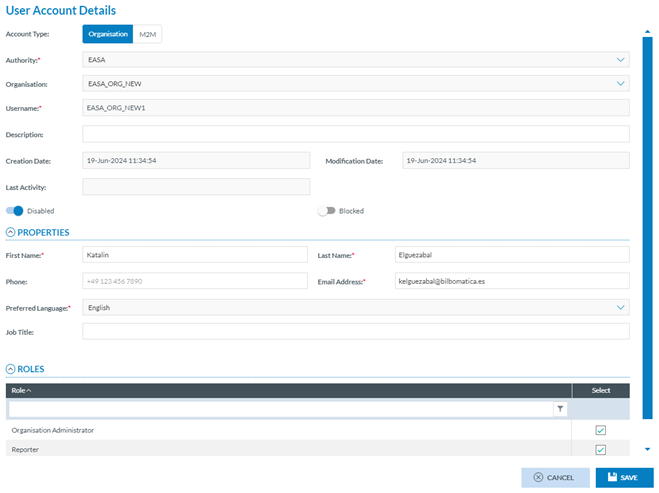
It is the same page as the previous one (adding a user account) but already has the data filled in.
Only the following fields will be editable:
· Description
· Disabled toggle
· Blocked toggle
· First Name
· Last Name
· Phone
· Email Address
· Job Title
· Roles
Administrators can update the needed fields, always keeping the mandatory fields filled.
Then, they have to click on the Save button, and the system will save the updates in the database, and the list of user accounts will be updated accordingly.
6.2.1.6. Export a user account
Individual export: Administrators have to click on the Export option of the 3-dot menu of the specific account at the table of accounts. The system will directly export it to an Excel (XLS) file.
Multiple export: Alternatively, administrators can select the checkboxes of specific accounts in the accounts table.
Administrators can also select all the accounts at a time by checking the check box on the left of the Username column.
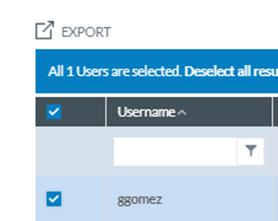
Then, they must click the Export icon above the table on the left.
The system will directly export them to an XLS file.
6.2.1.7. Webforms tab
Through this tab, administrators select the webforms available to the organisation’s users when accessing the E2 Reporting Portal, which is among the organisation's webforms defined at the Authority level.
Administrators have to click on the Webforms tab of the Edit Organisation page, and the system will display the Webforms tab:
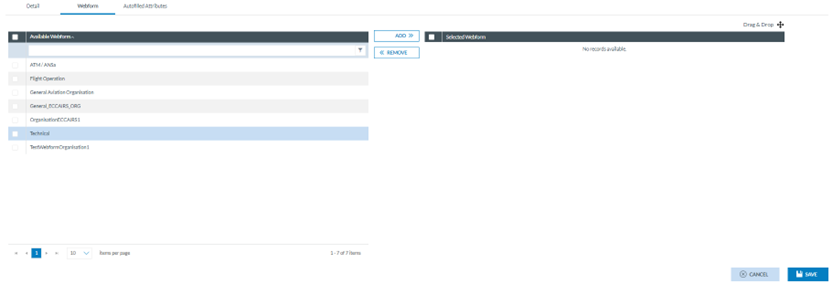
The left panel displays the list of organisation webforms available, with a checkbox to be selected.
Administrators can check the needed webforms and click the ADD button in the middle of the page.
The selected webforms will be added to the right panel where Administrators can order them by dragging and dropping them as needed:
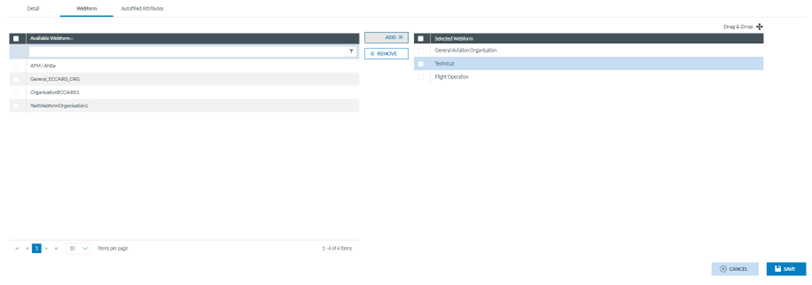
Then, Administrators have to click on the ‘Save’ button, and the webforms are saved for the specific organisation.
6.2.1.8. Autofilled Attributes tab
This tab is to help users when filling the webforms in the E2 Reporting Portal. Thus, it allows us to select Attributes and give them a value, so when users of that organisation are filling a webform, those Attributes are predefined.
Administrators have to click on the ‘Autofilled Attributes’ tab, and the system will display the ‘Autofilled Attributes’ page:
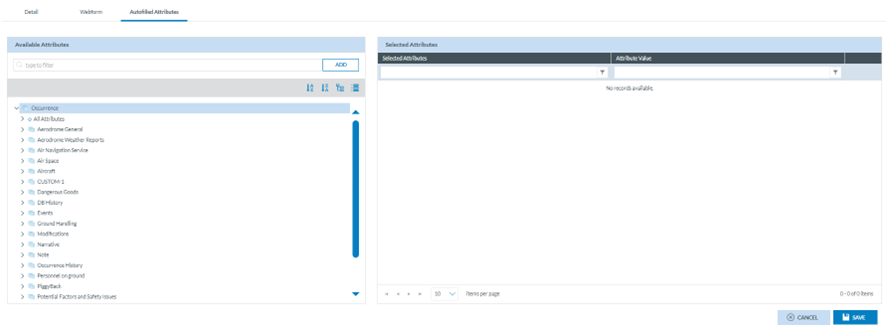
The left panel provides the ‘Available Attributes’ with the Taxonomy browser.
Administrators have to make a search through the filter or navigate through the tree to select specific Attributes. Administrators have to select the particular Attributes, one by one, and click on the ‘ADD’ button:
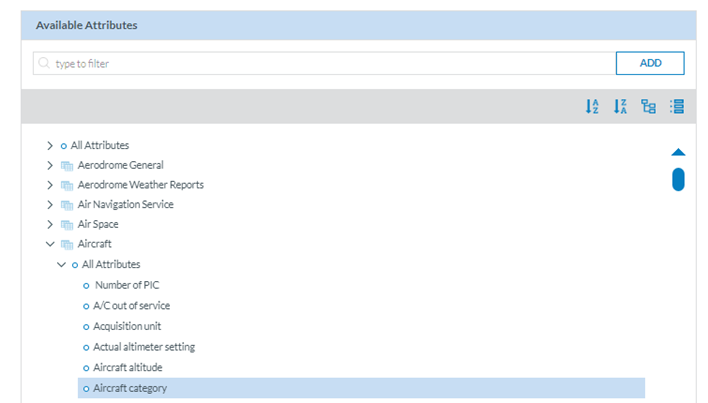
The system will transfer the Attribute to the right panel:

Each selected Attribute of the right panel will provide an Edit and a Delete icon.
To fill in the value, Administrators have to click on the edit icon, and the system will display a window to fill in the specific value:
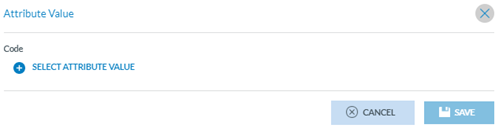
The type of value to be provided by the system will depend on the specific Attribute data type.
In the case above, Administrators have to click on ‘Select Attribute Value’, and the system will open a Select Attribute value window:
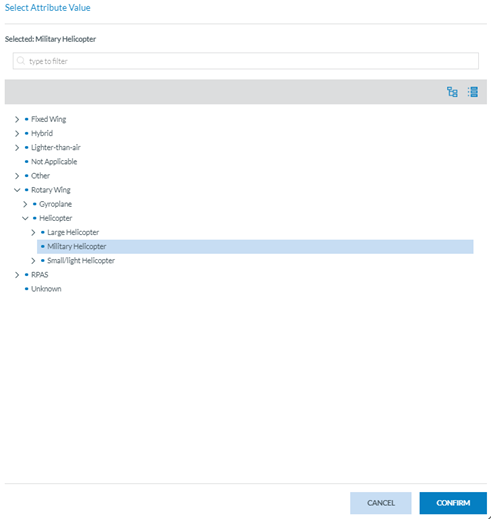
Administrators have to select a value and click the ‘Confirm’ button. The system will display a window to save the value. The system will add the value to the selected Attribute in the right panel:
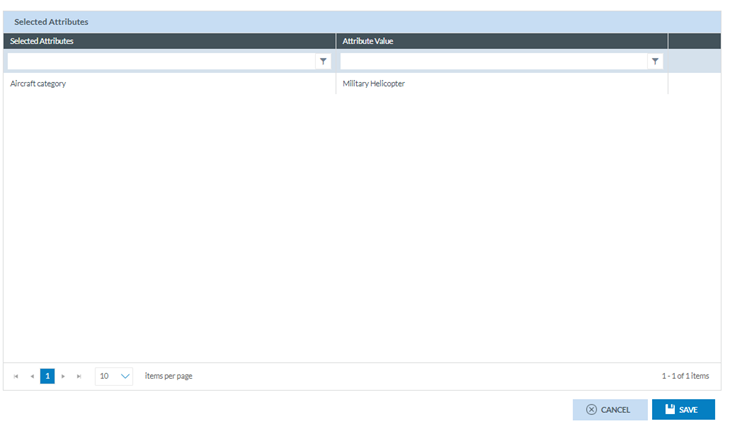
Then, Administrators have to click ‘Save’, and the system will add the selected Attributes to the specific organisation.
6.2.1.9. Delete an organisation
Administrators have to click on the Delete icon of the specific organisation on the table of organisations, and the system will display a confirmation message:
If Administrators confirm, the system will delete the organisation from the database and remove the organisation from the table of organisations. The users from the deleted organisation cannot report ORs anymore but the previously existing ones are kept and those already sent to the corresponding Authority can be manage by the Authority Officers, if they need it.
1.1.1.10 Import organisation and users
Administrators can import the organisation's and its users' data through the ‘Import Organisation & Users’ button above the table of organisations. This button opens the ‘Import Organisation & Users’ window:
Administrators must select Organisations or Users, and the ‘Download template’ option will be activated. Then, Administrators have to click on ‘Download template’, and the system will download an xls template, which Administrators have to fill in with the data of Organisations or Users depending on the selection. Once the template is filled, they have to upload it to the system through the ‘Select files’ button or by dragging and dropping it to the File area of the window:
Administrators must click the ‘Import’ button, and the Organisations or Users will be imported into the system, adding the imported data to its database.