5.3. Taxonomy structure
ECCAIRS taxonomyand elementsSRIS aretaxonomies structuredhave asthe follows:same structure in 4 levels:
-
Entities
-
Attributes
-
Value Lists
-
Values
5.3.1 Entities
Entities represent itemsobjects to which specific attributes are assigned—assigned.
An entity could be, for example, anthe “Aircraft”"Aircraft" involved in an incident or the associated"Events" “Events”describing description.the incident.
Multiple instances of an entity maycan exist whenif several itemssuch objects are involved (e.g., multiple aircraft in aan single incident).event.
Entities can have child entitiesentities, (e.g., an"Engine" “Engine”is belonginga tochild anentity “Aircraft”)of "Aircraft".
Entities maycan also be linked to other entitiesentities. (e.g., “Airspace” or “Aerodrome” where the “Aircraft” is operating).
5.3.1.1 Entities information
Entities in the Taxonomy Treetree are representedmarked bywith icon 
or. 
.When the Entity is a Linked Entity, it is also marked in green colour.
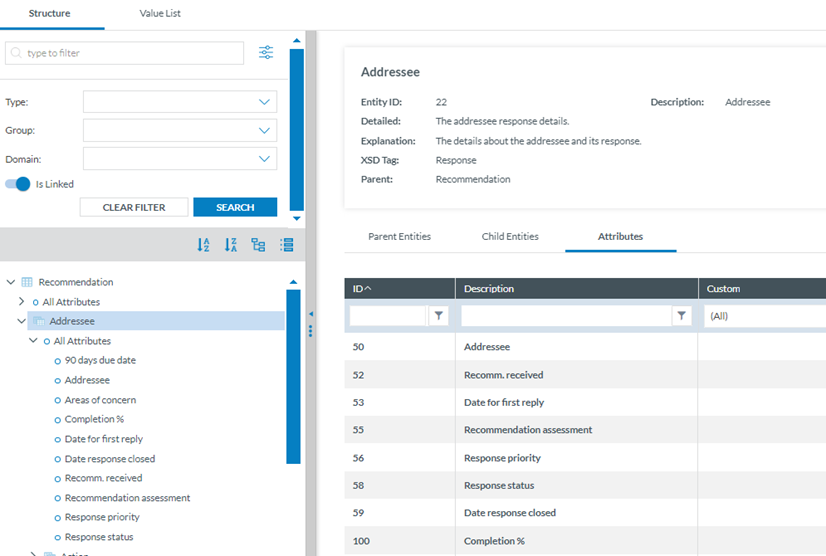
The following information will be displayed inon the right side of the screen when youthe clickOfficer clicks on an Entity in the Taxonomy Tree:tree:
·
·
·
·
Click on each tab (Parent Entities, Child Entities, Attributes) to view itsthe information.relevant information:
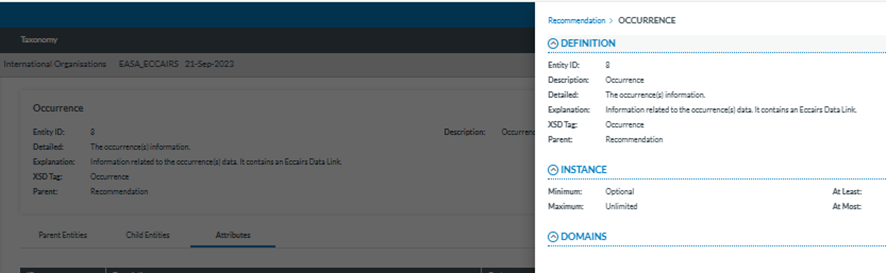
Clicking the 'eye' icon 
you can see detailed information from the entity.
5.3.2 Attributes
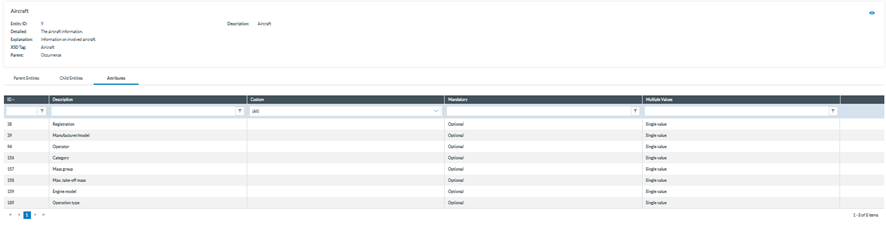
Attributes describe properties/values associated towith an entity and represented by 
.entity. An example of an attribute of the “Aircraft” entity isis, for instance, its "manufacturer/model". Attributes maycan have either single or multiple values and can be of the following types:values.
-
Number
-
Decimals
-
Text
-
Alphanumeric
-
Date
-
Time
-
DateTime
-
Longitude
-
Latitude
-
Code
-
Code and Additional Text
-
Code or Alternative Text
-
ECCAIRS Resource Locator
-
ECCAIRS Data Link
-
ECCAIRS Embedded Data
5.3.2.1 Attributes information
AttributeThe Attributes are marked with  icon in the Taxonomy Tree.
The Officer can view the information canof bean viewedAttribute from two locationsplaces withinin the Taxonomy Browser:
a. LocateFind thean attribute in the Taxonomy Tree and click onit: it (1). The information will then be displayed in the right-hand pane.
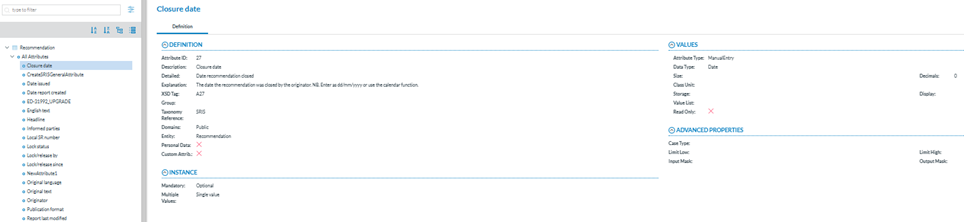
Click and clickon the 'eye'Eye' icon 
itsthe detailed information (3):information.
· Definition
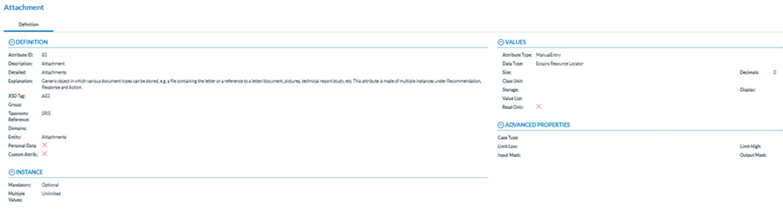
The information will be displayed:
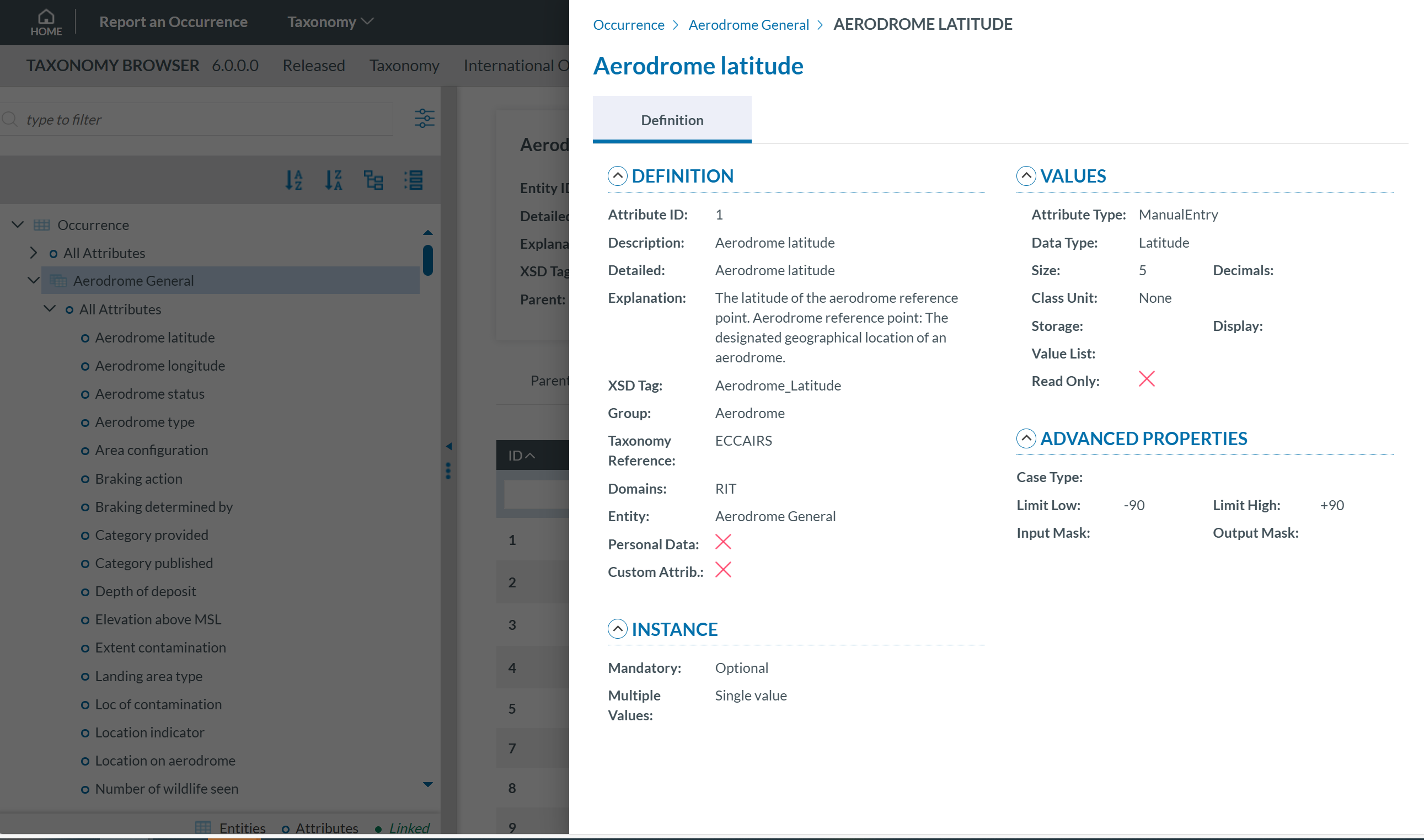
Attribute information may be displayed across two tabs:
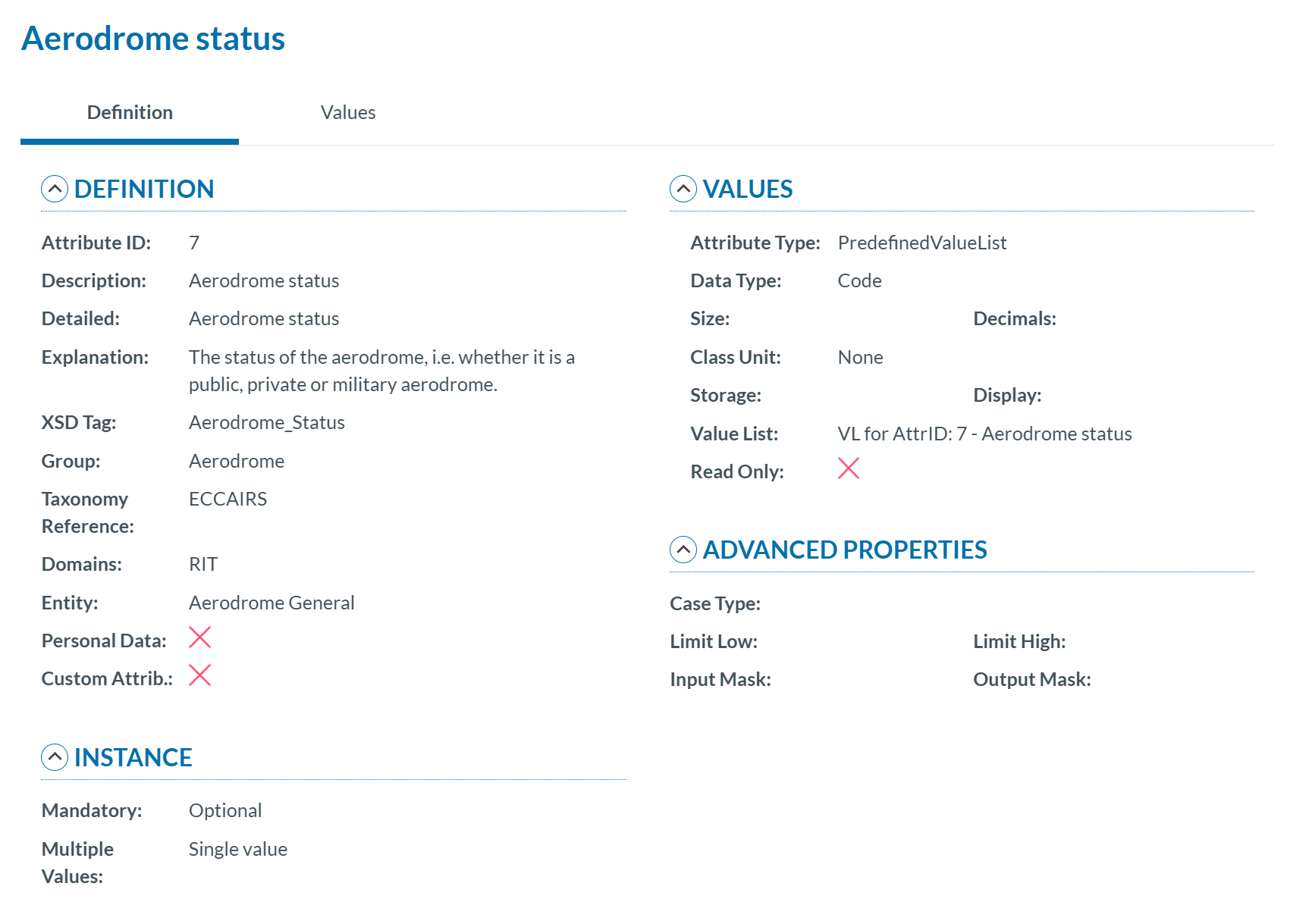
- Values:
IfIf theattributeAttribute has a predefined valuelist,List.youIn the Values tree, the Officer can navigatethroughthe valuesin the Values Treeby clicking on each element. The selected value will display itsdefinition.definition, and the Values can be searched by TaxonomyCodecode orDescriptiondescription andcan be sortedordered alphabetically.
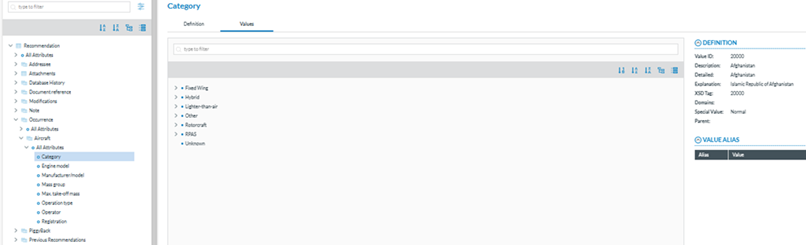
5.3.3 Value Lists
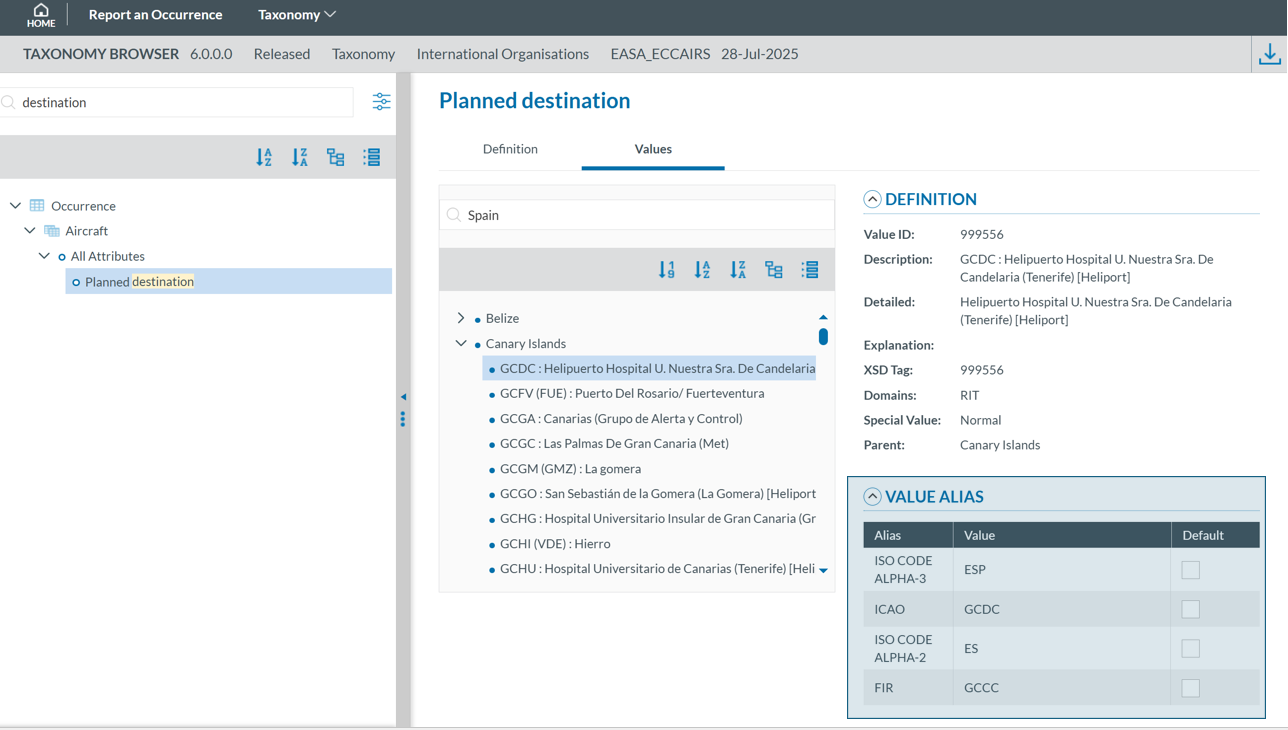
The list of values an attribute can have is defined in a Value List. The Value List can have multiple levellevels where values are organizedorganised in a tree mode.
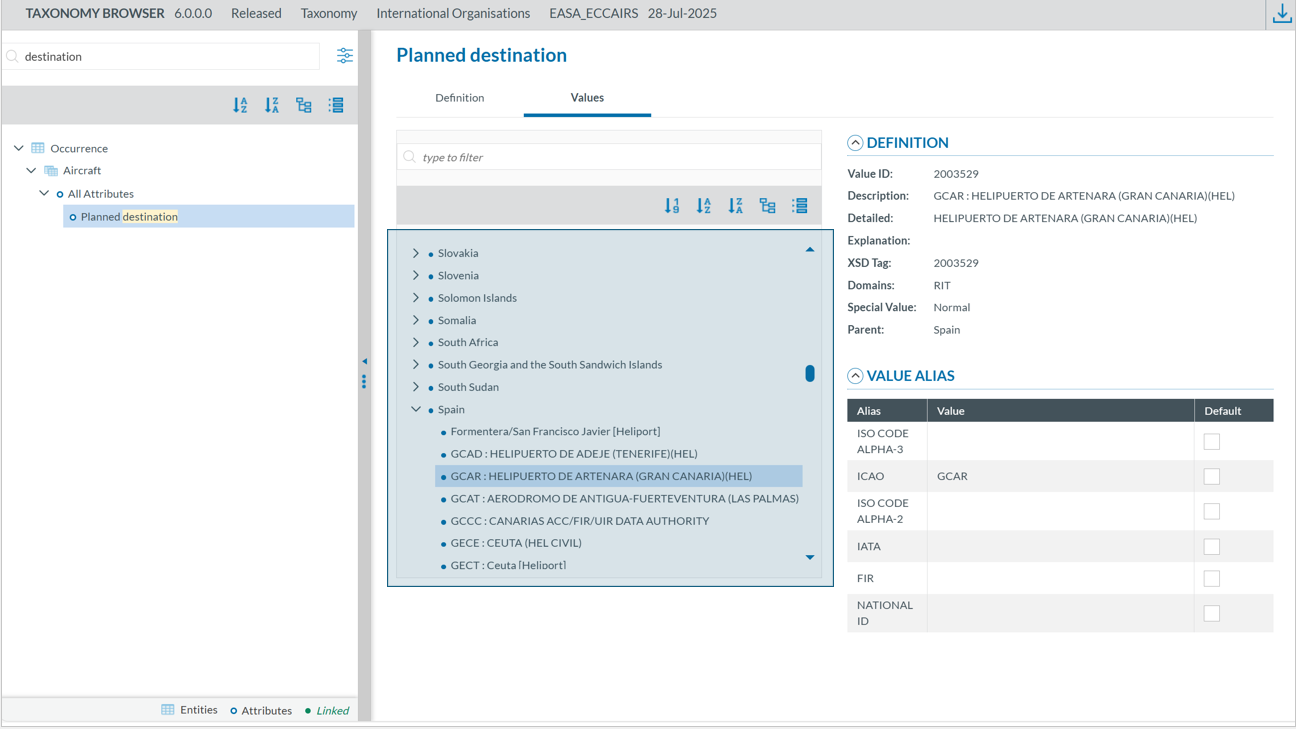
Value listList can have Alias:Aliases.
5.3.4. Values
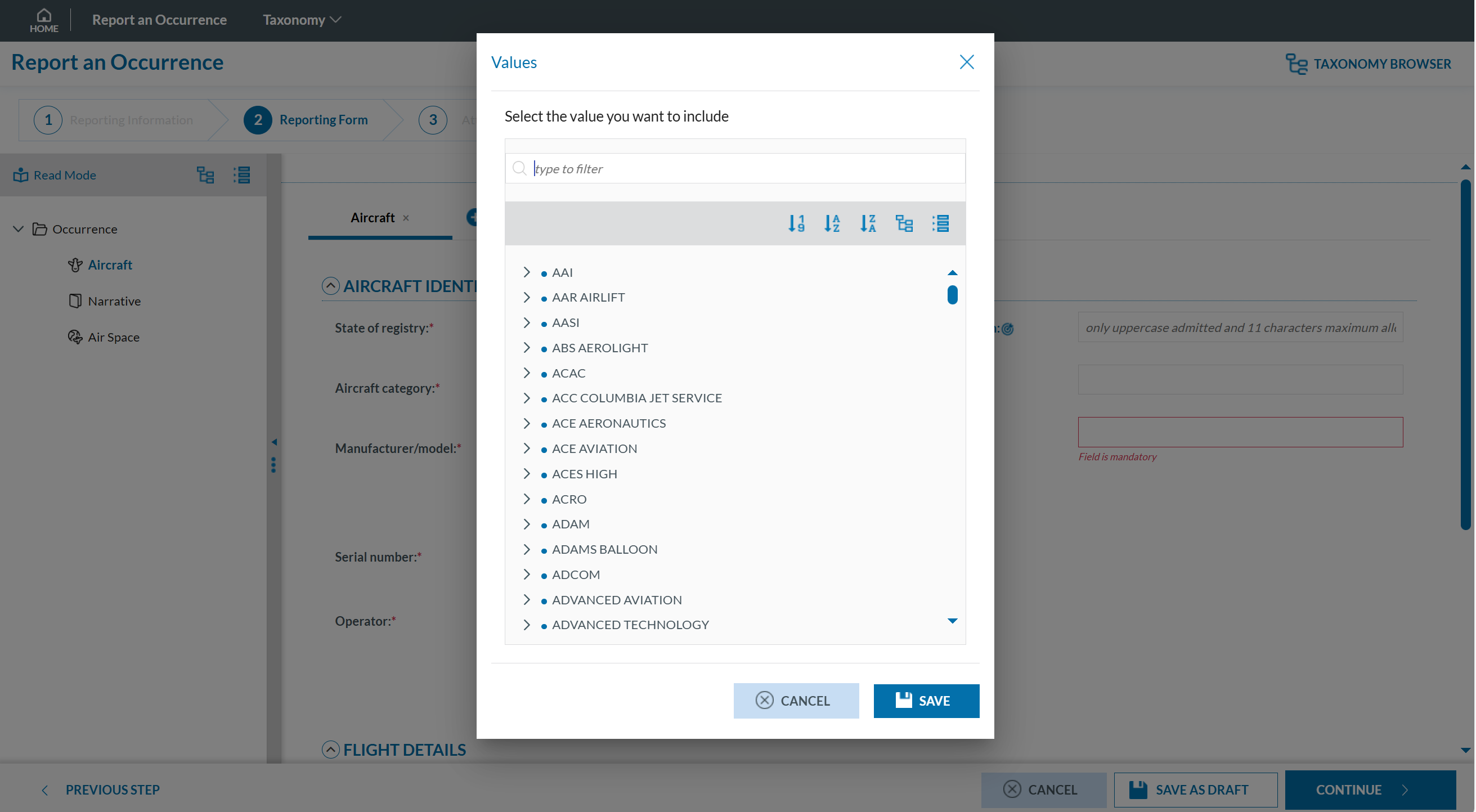
DependingValues assigned to an attribute depend on the attributetype type,of valuesthe mayAttribute. eitherThese can be manually enteredinputted or selected from a predefined list of values (Value List). For example, for the Manufacturer/Model of an aircraft, a value can be chosen from a Value List:
5.3.5.
However, for the Location Name attribute, values must be entered as free text only:

Filter the information
TheYouOfficer can filter the Parent Entities, Child Entities and Attributes table by typing the term to be searched in the filter row. YouThe Officer can restrict the results by clicking the 'filter' icon 
To delete the filter, you must click the  '
'clear filter' icon.
By default, the 'contains' condition is selected:selected.
To delete the filter, the Officer must click the '  clear filter' icon.

5.3.6. View detailed information
To view more information about the select Entity, the Officer must click the 'eye' icon.

The filter options are:
Is equal to: the filter will look for fields that match the exact same string
Is not equal to: the filter will avoid the fields that match the exact same string
Contains: the filter will display all the fields that have the string written in any position
Does not contain: the filter will display the fields that do not have the string written in any position
Start with: the filter will look for the string at the beginning of the field
Ends with: the filter will look for the string at the end of the field
Is null: field does not exist
Is not null: field exists
Is empty: fields exist but does not have information
Is not empty: field exists and has information
To
view more information about the Parent Entities, Child Entities or Attributes, the Officer can click the 'eye' icon that appears while moving the mouse over the row.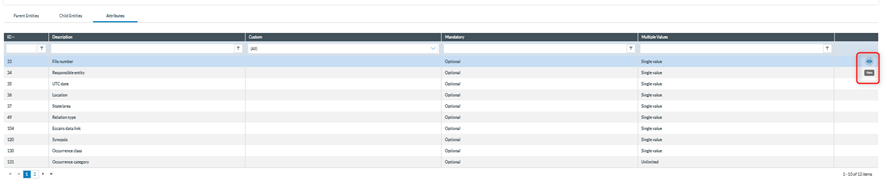
A slide-in panel with the element information will be displayed when clicking on the' eye' icon. The Officer can click outside the panel to close it and return to the previous screen.