
Report as an Organisation
To report on behalf of your organisation, there are three different ways to do sodepending ason ayour user with a Reporter role:
Online
Note that users with the roles of Preparator or Preparator LimitedLimited: You can only create ORreports online.online However,however theyyou cannot submit thesethem.
Preparator or Preparator limited
As Preparators or Preparators Limited, you are authorized to create OR within the system, but you cannot submit them to the Authority. Reports must be prepared online; although you may download the PDF form for completion, uploading it is not possible. If the report is completed offline, a designated Reporter from your organisation is responsible for submitting it.
Preparator Limited
As a Preparator Limited, you can only create, view, edit, and delete your own reports.
The status of the OR can be: Draft and Prepared.
Preparator
As a Preparator, you can:
- Create, view, edit, and delete your own reports
- View and edit all organisation reports
The status of the OR can be: Draft, Prepared and Sent.
Create an OR by a Preparator or Preparator Limited
To create an OR as a Preparator or Preparator Limited:
- Sign in to access the 'Report an Occurrence' page.

- Click the ‘ONLINE’ button next to one of the available webforms.
-
Fill out the form. Mandatory fields are highlighted —please provide the required information where available.

How to fill the Reporting Form
-
Moving between topics: You can move between topics—Occurrence, Aircraft, Narrative, and Airspace—using the navigation tree on the left pane.
-
Adding entries:
-
To add a new aircraft:
-
Click on 'Aircraft' (left pane).
-
Select 'ADD AIRCRAFT' (top-left corner of the right-hand pane).
-
-
To add a new 'Air space':
-
Click on 'Air space' (left pane).
-
Click 'ADD AIR SPACE' (top-left corner of the right-hand pane).
-
-
To add elements under 'Occurrence':
-
Click on 'Occurrence' (left pane).
-
Select "ADD SUBENTITY" (top-right corner of the right-hand pane).
-
-
-
Saving the report:
To save a draft version, click ‘SAVE AS DRAFT’ below the form.
The report will be stored in the 'Reports' list, accessible via the 'HOME' button at the top left of the page.
You will also receive an email with a link to review and edit your saved draft report.
-
Once you've completed the report, click 'CONTINUE' to proceed.
- If applicable, attach any relevant documents by clicking 'Select files...' or by drag and drop.

The system accepts files up to 4,000 MB in total. Supported formats include:
- Documents: .pdf, .doc/.docx, .ppt/.pptx, .xls/.xlsx/.xlsm, .xml, .rtf**, .odt**
- Images: .jpg/.jpeg, .png, .gif, .jtif**, .heic
- Media: .mp3, .mp4, .mov
- Others: .e5x, .e5z, .msg, .eml**, .zip**
❌ Files with .dll, .exe, .sys, or unknown extensions are not allowed.
You can add a description or remove the attached file by clicking on ‘x’ on the right.

- If needed, you can return to the previous step using the 'PREVIOUS STEP' button.
- Click 'TO BE REVIEWED' to send your report to the competent Authority.
- You will get a confirmation email, and the system will display a message saying that "You have successfully sent your report(s) for review.'
Note: If any mandatory fields are left incomplete, a warning message will appear indicating which fields are missing. If you do not have the required information at the moment, you may still proceed by clicking ‘SAVE’.
Submission of the OR by a Reporter
When a Preparator or Preparator Limited creates an OR, the application sends an email to the Organisation's Reporters so they are aware of the new reports. In the landing page, they see the OR to be reviewed under the label Prepared

Reporters can view any report in this label.
To submit a Prepared OR, Reporter has to enter in Edit mode and follow the normal reporting method. More information on this procedure can be found in the section Edit a Report.
Reporter
With the Reporter role, you can view, create, edit, delete, and submit reports on behalf of your organisation.
There are three different ways to report:
Report online
To report online on behalf of your organisation:
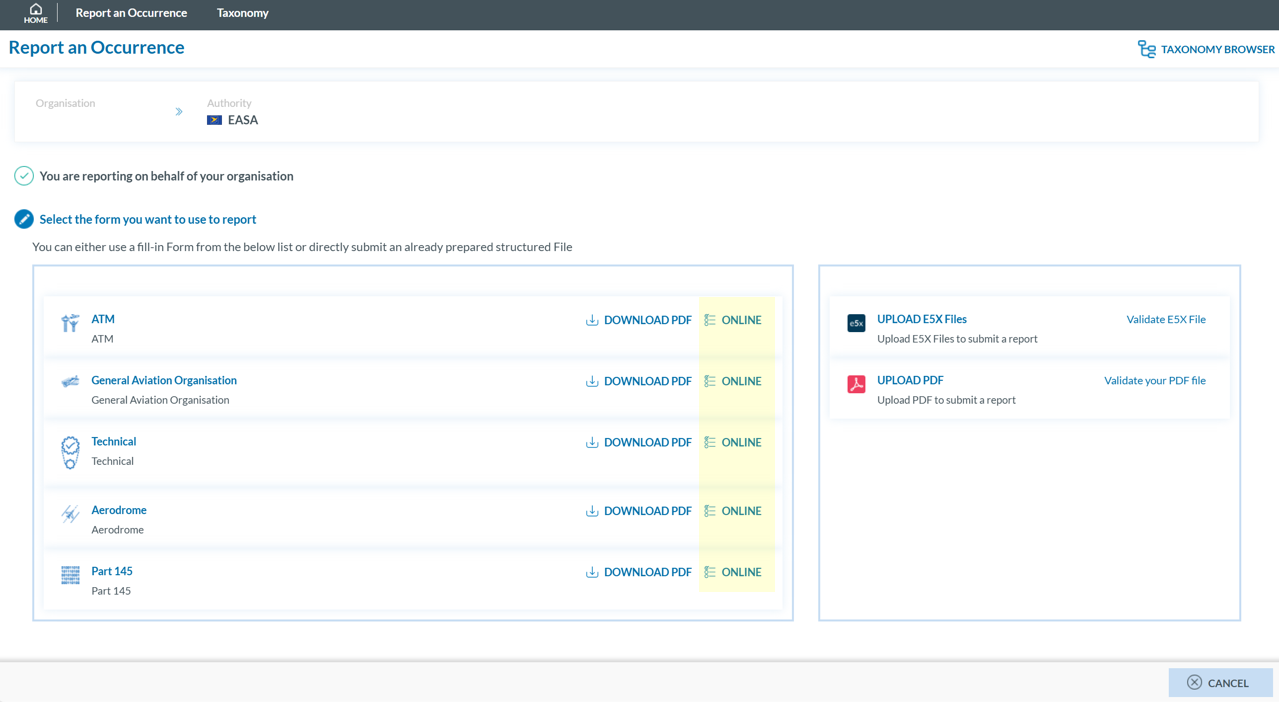
Fill out the form. Mandatory fields are highlighted —please provide the required information where available —.
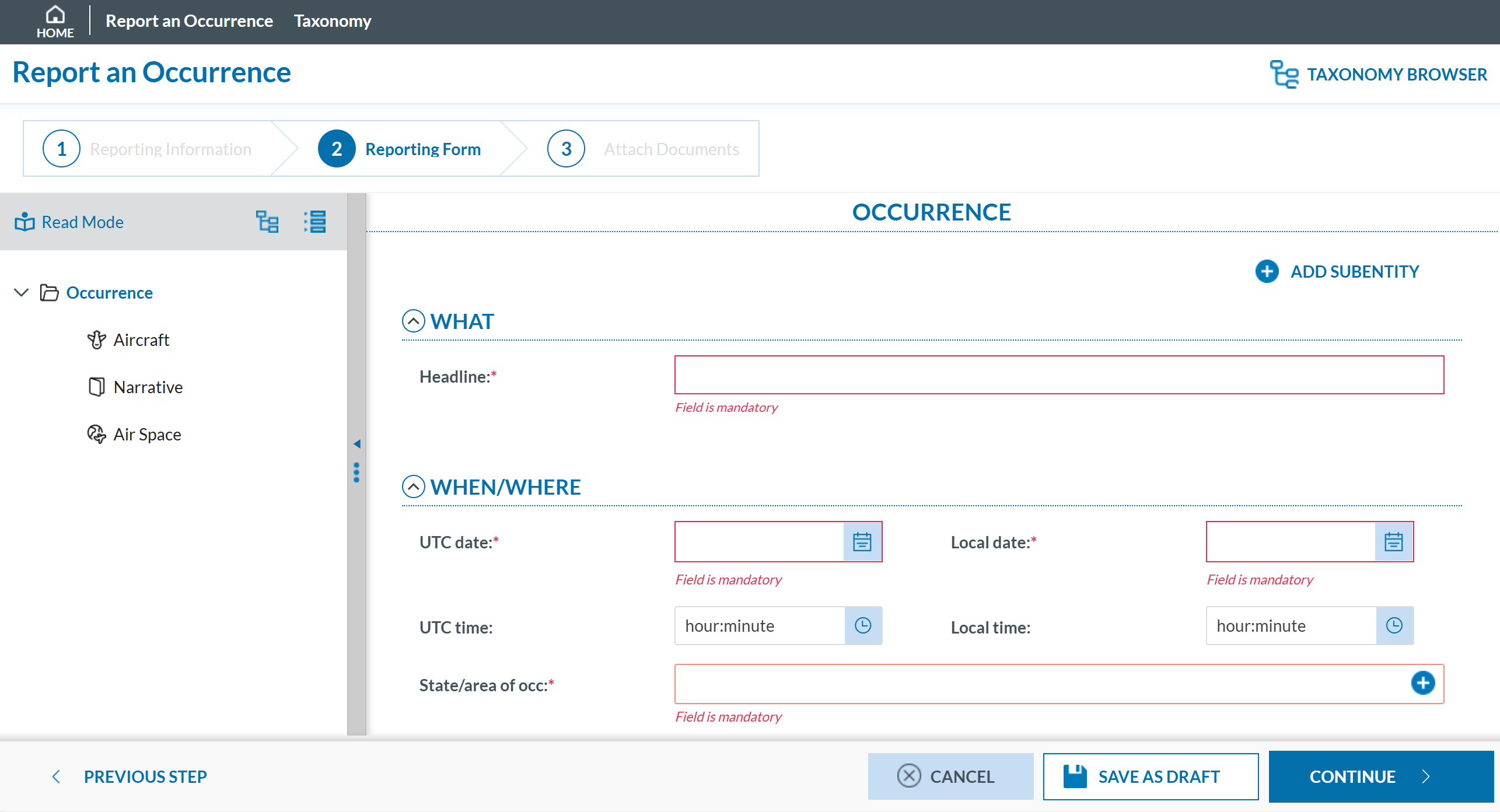
How to fill the Reporting Form
Moving between topics: You can move between topics—Occurrence, Aircraft, Narrative, and Airspace—using the navigation tree on the left pane.
Adding entries:
To add a new aircraft:
Click on 'Aircraft' (left pane).
Select 'ADD AIRCRAFT' (top-left corner of the right-hand pane).
To add a new 'Air space':
Click on 'Air space' (left pane).
Click 'ADD AIR SPACE' (top-left corner of the right-hand pane).
To add elements under 'Occurrence':
Click on 'Occurrence' (left pane).
Select "ADD SUBENTITY" (top-right corner of the right-hand pane).
Saving the report:
To save a draft version, click ‘SAVE AS DRAFT’ below the form.
The report will be stored in the 'Reports' list, accessible via the 'HOME' button at the top left of the page.
You will also receive an email with a link to review and edit your saved draft report.
Once you've completed the report, click 'CONTINUE' to proceed.
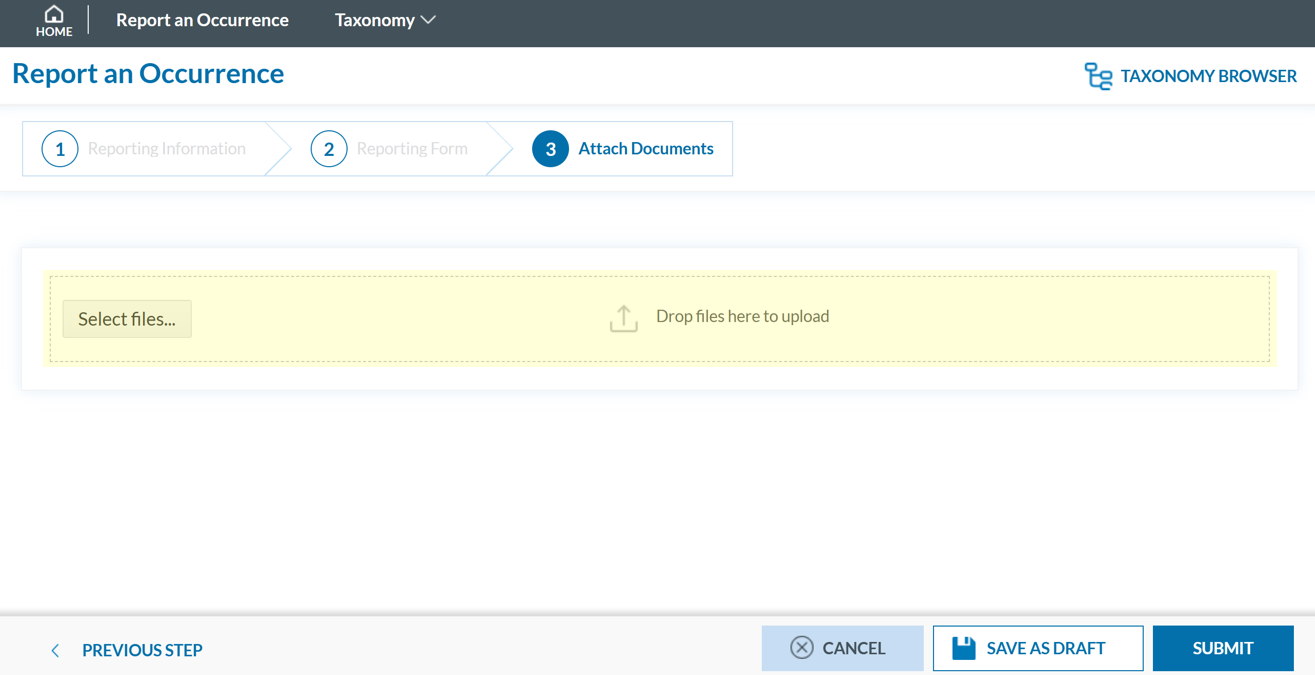
The system accepts files up to 4,000 MB in total. Supported formats include:
❌ Files with .dll, .exe, .sys, or unknown extensions are not allowed.
You can add a description or remove the attached file by clicking on ‘x’ on the right.

If needed, you can return to the previous step using the 'PREVIOUS STEP' button.
Note: If any mandatory fields are left incomplete, a warning message will appear indicating which fields are missing. If you do not have the required information at the moment, you may still proceed by clicking ‘SUBMIT’.
easa__e2.serracrOffline
Offline
This section outlines how to report offline on behalf of your organisaion and how to validate a PDF to submit a report.
Report offline
To report offline on behalf of your organisation:
_files/image_138.png)
_files/pdf.PNG)
_files/image_139.png)
Attach the saved report by clicking the ‘Select files...’ button or by using drag and drop.
_files/image_140.png)
When the process is finish you will see a message stating "Your file(s) have been successfully uploaded."
To save a draft version, you can click ‘SAVE AS DRAFT’ below the form. The report will be stored in the 'Reports' list, accessible via the 'HOME' button at the top left of the page. You will also receive an email with a link to review and edit your saved draft report.
If applicable, attach any relevant documents by clicking 'Select files...' or by drag and drop.
_files/image_141.png)
The system accepts files up to 4,000 MB in total. Supported formats include:
❌ Files with .dll, .exe, .sys, or unknown extensions are not allowed.
You can add a description or remove the attached file by clicking on ‘x’ on the right.
_files/image_142.png)
Then click ‘CONTINUE’ to proceed.
If needed, you can return to the previous step using the 'PREVIOUS STEP' button. In the 'Report Form' section, you can replace the uploaded report by clicking the pencil icon to the right of the document name. In the 'Attach Documents' section, you can upload additional files or remove them by clicking the 'X' icon.
You may click 'SUBMIT' to send your report. You will get a confirmation saying that "You have successfully submitted your report(s).'Note: If any mandatory fields are left incomplete, a warning message will appear indicating which fields are missing. If you do not have the required information at the moment, you may still proceed by clicking 'SUBMIT'. However, the UTC Date, Reporting Entity and Report identification are the only fields required in order to submit a report.
Validate your PDF
To validate your PDF:
_files/image_143.png)
_files/image_144.png)
Attach the PDF report to validate by clicking the ‘Select files...’ button or by using drag and drop. When the process is finish you will see a message stating 'Your file(s) have been successfully uploaded.'
Click 'VALIDATE'. The system will either display a message stating 'Your PDF has been successfully validated' or highlight the mandatory fields that are missing in the PDF:
_files/image_132.png)
E5X
E5XOnly organisations are allowed to report using E5X files. These files must be generated in advance by an external system. This section outlines how to validate an E5X and how to report using an E5X.
Validate an E5X file
To validate an E5X file before reporting:
_files/image_117.png)
Click 'Validate E5X File'.
_files/image_119.png)
_files/validaion%20message.PNG)
Report using an E5X file
To report through E5X on behalf of your organisation:
Sign in to access the 'Report an Occurrence' page.
_files/image_112.png)
Click 'UPLOAD E5X Files'.
_files/image_147.png)
_files/Untitled.png)
The record(s) contained in the E5X file(s) will be saved in the database as Original Reports.