# How to use "Report to" feature when reporting to ICAO

### <span style="mso-ansi-language: EN-US;">Prerequisites</span>

1. <span style="mso-ansi-language: EN-US;"> </span><span style="mso-ansi-language: EN-US;">A SIA user should have an assigned role as “Occurrence Officer” to process the occurrences.</span>
2. When one or more Original Reports (OR) about an incident or accident have been received through E2, they <span lang="EN-GB" style="text-align: justify; text-indent: -18pt;">need to be processed as</span><span style="mso-ansi-language: EN-US;"> a Validated Report (VR) and subsequently integrated into an occurrence report (OC) to report to ICAO.</span>

If notification of an incident or accident is received through another means (phone, email…), an OC can be created directly in ECCAIRS2 to report to ICAO.

### <span style="mso-ansi-language: EN-US;">Steps for reporting initial notification to ICAO</span>

<span style="font-size: 13.0pt; line-height: 107%; font-family: 'Calibri Light',sans-serif; mso-ascii-theme-font: major-latin; mso-fareast-font-family: 'Times New Roman'; mso-fareast-theme-font: major-fareast; mso-hansi-theme-font: major-latin; mso-bidi-font-family: 'Times New Roman'; mso-bidi-theme-font: major-bidi; color: #2f5496; mso-themecolor: accent1; mso-themeshade: 191; mso-ansi-language: EN-US;"> </span>

<span style="mso-ansi-language: EN-US;"> 1. Complete the required attributes in the OC for the initial notification.</span>

<span style="mso-ansi-language: EN-US;"> 2. Save the OC as a MAJOR <sup>1</sup>. </span>

[![image.png](https://help.ci-aviationreporting.eu/uploads/images/gallery/2025-11/scaled-1680-/IK2image.png)](https://help.ci-aviationreporting.eu/uploads/images/gallery/2025-11/IK2image.png)

<span style="mso-ansi-language: EN-US;"> </span><span style="mso-ansi-language: EN-US;">The OC closes and the user is redirected to the Occurrences list.</span>

<p class="callout info"><span style="mso-ansi-language: EN-US;"> <sup>1 </sup>The DRAFT version is only visible to the occurrence officer; the MINOR version is visible to users of the responsible entity.</span></p>

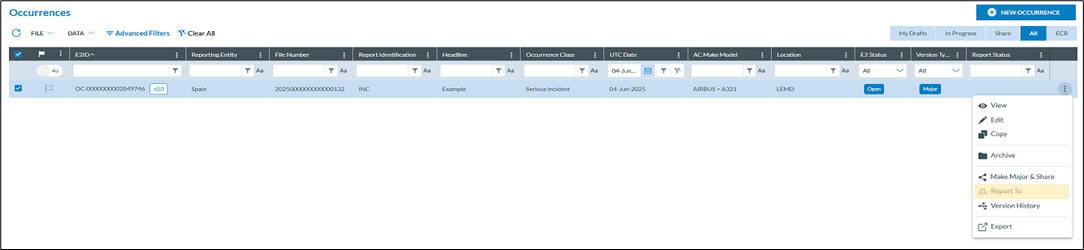
<span style="mso-bidi-font-family: Calibri; mso-bidi-theme-font: minor-latin; mso-ansi-language: EN-US;"><span style="mso-list: Ignore;"><span style="font: 7.0pt 'Times New Roman';"> </span></span></span> 3. <span style="mso-ansi-language: EN-US;">Via then kebab menu (three vertical dots), on the Occurrence list view, select “Report to”.</span>

[![image.png](https://help.ci-aviationreporting.eu/uploads/images/gallery/2025-11/scaled-1680-/ZiSimage.png)](https://help.ci-aviationreporting.eu/uploads/images/gallery/2025-11/ZiSimage.png)

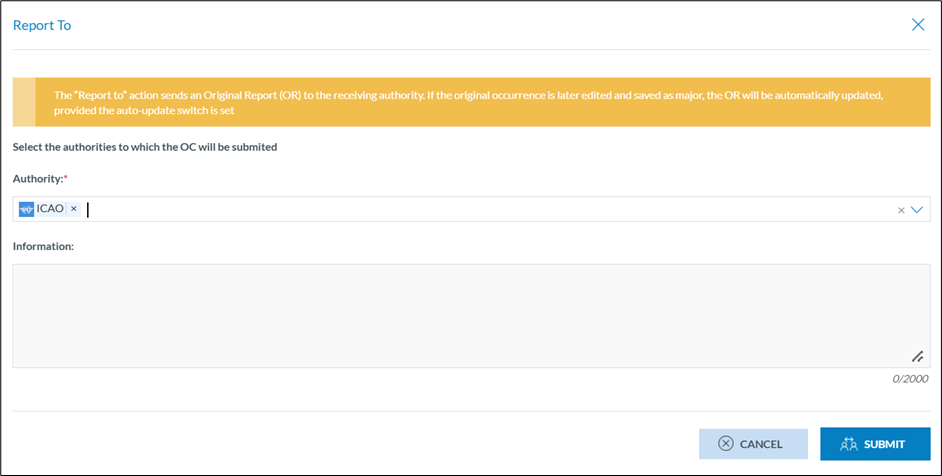
<span style="mso-bidi-font-family: Calibri; mso-bidi-theme-font: minor-latin; mso-ansi-language: EN-US;"><span> 4.<span style="font: 7.0pt 'Times New Roman';"> </span></span></span><span style="mso-ansi-language: EN-US;">In the “Report to” interface, select ICAO in Authority field and click on SUBMIT:</span>

<span style="mso-ignore: vglayout; position: absolute; z-index: 251643904; margin-left: 9px; margin-top: 127px; width: 590px; height: 172px;">![](file:///C:/Users/serrama/AppData/Local/Temp/msohtmlclip1/01/clip_image005.gif)</span>

[![image.png](https://help.ci-aviationreporting.eu/uploads/images/gallery/2025-11/scaled-1680-/2E5image.png)](https://help.ci-aviationreporting.eu/uploads/images/gallery/2025-11/2E5image.png)

<span style="mso-ansi-language: EN-US;">A confirmation message appears on the screen:</span>

<span style="mso-ansi-language: EN-US;"> </span>[![image.png](https://help.ci-aviationreporting.eu/uploads/images/gallery/2025-11/scaled-1680-/40Ximage.png)](https://help.ci-aviationreporting.eu/uploads/images/gallery/2025-11/40Ximage.png)

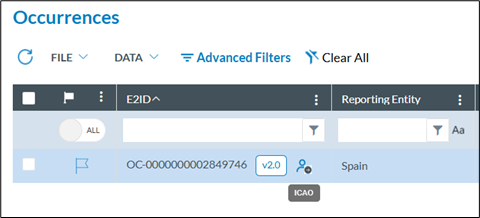
<span style="mso-ansi-language: EN-US;">Likewise, this icon appears in the Occurrences list, indicating that it has been reported. Hovering over the icon with the mouse, the icon indicates that it has been reported to ICAO.</span>

[![image.png](https://help.ci-aviationreporting.eu/uploads/images/gallery/2025-11/scaled-1680-/B29image.png)](https://help.ci-aviationreporting.eu/uploads/images/gallery/2025-11/B29image.png)

<span style="mso-ansi-language: EN-US;">After the submit, the OC is reported as an OR to ICAO.</span>

### <span style="mso-ansi-language: EN-US;">Steps for sending preliminary report or data report to ICAO</span>

<span style="font-size: 13.0pt; line-height: 107%; font-family: 'Calibri Light',sans-serif; mso-ascii-theme-font: major-latin; mso-fareast-font-family: 'Times New Roman'; mso-fareast-theme-font: major-fareast; mso-hansi-theme-font: major-latin; mso-bidi-font-family: 'Times New Roman'; mso-bidi-theme-font: major-bidi; color: #2f5496; mso-themecolor: accent1; mso-themeshade: 191; mso-ansi-language: EN-US;"> </span>

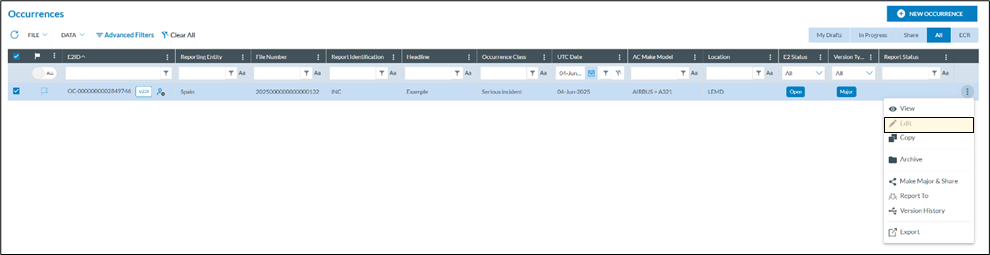
<span style="mso-bidi-font-family: Calibri; mso-bidi-theme-font: minor-latin; mso-ansi-language: EN-US;"><span style="mso-list: Ignore;"><span style="font: 7.0pt 'Times New Roman';"> </span></span></span> 1. <span style="mso-ansi-language: EN-US;">The Occurrence Officer can edit the OC to complete the preliminary report/data report.<span style="mso-spacerun: yes;"> </span></span>

[![image.png](https://help.ci-aviationreporting.eu/uploads/images/gallery/2025-11/scaled-1680-/ebLimage.png)](https://help.ci-aviationreporting.eu/uploads/images/gallery/2025-11/ebLimage.png)

<span style="mso-ansi-language: EN-US;"><span style="mso-spacerun: yes;"> </span></span><span style="mso-bidi-font-family: Calibri; mso-bidi-theme-font: minor-latin; mso-ansi-language: EN-US;"><span style="mso-list: Ignore;">2.<span style="font: 7.0pt 'Times New Roman';"> </span></span></span><span style="mso-ansi-language: EN-US;">Save the updated OC as a MAJOR. </span>

[![image.png](https://help.ci-aviationreporting.eu/uploads/images/gallery/2025-11/scaled-1680-/aElimage.png)](https://help.ci-aviationreporting.eu/uploads/images/gallery/2025-11/aElimage.png)

<span style="mso-ansi-language: EN-US;"> </span><span style="mso-bidi-font-family: Calibri; mso-bidi-theme-font: minor-latin; mso-ansi-language: EN-US;"><span style="mso-list: Ignore;">3.<span style="font: 7.0pt 'Times New Roman';"> </span></span></span><span style="mso-ansi-language: EN-US;">ICAO will automatically receive a new version of the OR (this without having to click on “Report to” again</span>

### Alternative <span style="mso-ansi-language: EN-US;">options to “Report to” via Batch Operations</span>

<span style="font-size: 13.0pt; line-height: 107%; font-family: 'Calibri Light',sans-serif; mso-ascii-theme-font: major-latin; mso-fareast-font-family: 'Times New Roman'; mso-fareast-theme-font: major-fareast; mso-hansi-theme-font: major-latin; mso-bidi-font-family: 'Times New Roman'; mso-bidi-theme-font: major-bidi; color: #2f5496; mso-themecolor: accent1; mso-themeshade: 191; mso-ansi-language: EN-US;"> </span>

<span style="mso-ansi-language: EN-US;">This process can be automated through Batch Operations (BO). A new BO can be created in the Data Management &gt; Batch Operations menu by clicking on NEW BATCH OPERATION:</span>

[![image.png](https://help.ci-aviationreporting.eu/uploads/images/gallery/2025-11/scaled-1680-/pKIimage.png)](https://help.ci-aviationreporting.eu/uploads/images/gallery/2025-11/pKIimage.png)

<span style="mso-ansi-language: EN-US;"> </span><span style="mso-ansi-language: EN-US;">Filling out the interface with the necessary information, including the predefined query that collects the OC to be reported. </span>

[![image.png](https://help.ci-aviationreporting.eu/uploads/images/gallery/2025-11/scaled-1680-/2yBimage.png)](https://help.ci-aviationreporting.eu/uploads/images/gallery/2025-11/2yBimage.png)

<span style="mso-ansi-language: EN-US;">The process can be automated with a BO using a specific attribute or occurrence status change. </span>

<div id="bkmrk--10" style="mso-element: footnote-list;"><div id="bkmrk--11" style="mso-element: footnote;"></div></div>