# 6.6. Custom Column
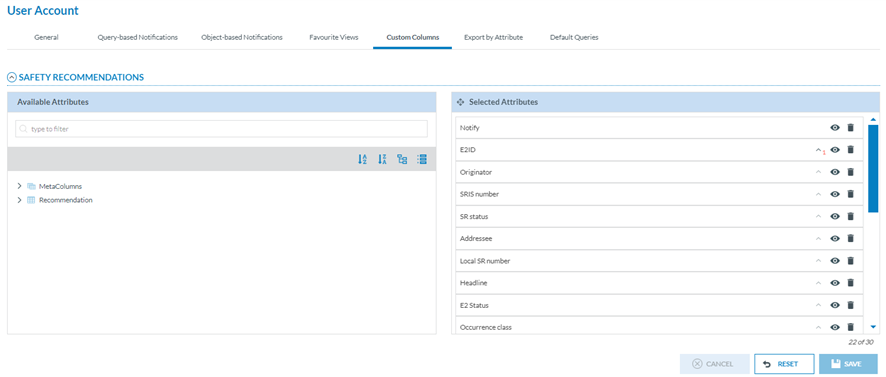
Officers can customise their SR list view. They can set which columns are available in the list, reorder, sort, etc. The columns can be attributes or metadata fields.
[](https://help.ci-aviationreporting.eu/uploads/images/gallery/2025-11/YtQimage.png)
Through this page, the Officer can select the attributes available in the list of SRs in the corresponding ‘Safety Recommendations’ menu.
By default, the list of SRs provides a list of attributes, i.e.:
[](https://help.ci-aviationreporting.eu/uploads/images/gallery/2025-11/Xjoimage.png)
Through this Custom columns menu, the Officer can decide which attributes appear in the list; the Officer can add, remove the attributes and alter their order.
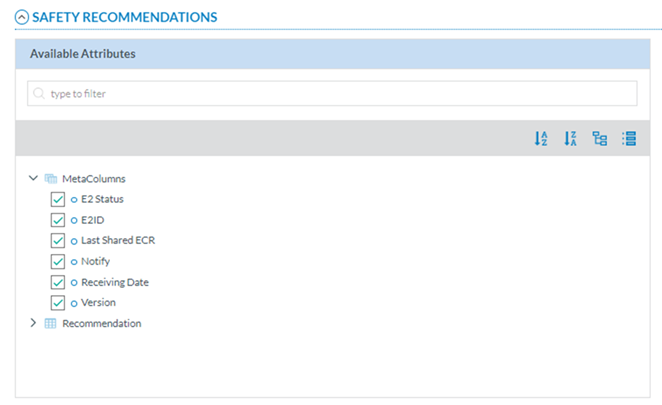
Thus, the left pane includes a search filter and the metaColumns, with all its attributes checked by default:
[](https://help.ci-aviationreporting.eu/uploads/images/gallery/2025-11/20vimage.png)
Below the metaColumns folder, is the SRIS taxonomy tree, through which the Officer can navigate to select more attributes. See the Taxonomy browser section for further details.
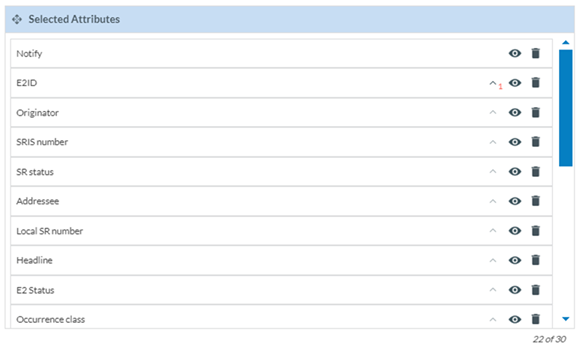
The right pane provides the selected metadata columns and attributes. By default, the system includes a list of metadata columns and attributes.
The Officer can **hide** them through the **eye** icon next to each one:
[](https://help.ci-aviationreporting.eu/uploads/images/gallery/2025-11/RpHimage.png)
The **rubbish icon** is used to delete the Attribute from the table of safety recommendations.
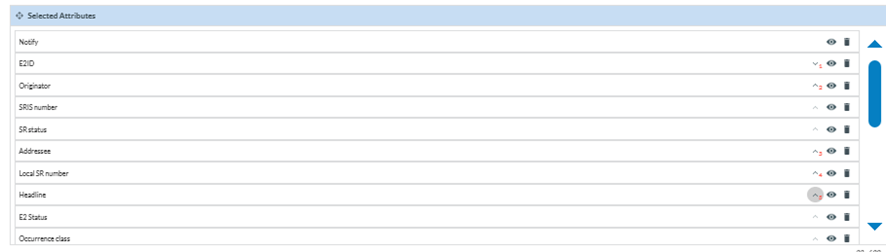
The Officer can alter their **order** by dragging and dropping them or by clicking on each arrow, i.e., E2ID is number 1, then each time the Officer marks an arrow, it sets the order of the attributes in the list:
[](https://help.ci-aviationreporting.eu/uploads/images/gallery/2025-11/tA3image.png)
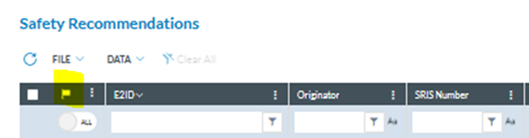
Note that ‘Notify’ does not provide a banner since it always appears at the beginning of each report row:
[](https://help.ci-aviationreporting.eu/uploads/images/gallery/2025-11/pnnimage.png)
When the Officer is updating the attributes, before saving the updates, they can always click on the ‘Reset’ button below the list of selected attributes so that the system will set the ‘Selected attributes’ page to the default selection and order.
Note that there is a maximum number of attributes per list; if the Officer does not remove any from the default selection, only two more can be selected from the available list.
Once the Officer has updated the selected attributes and metadata columns, he or she has to click on the ‘Save’ button, and the report tables will be updated accordingly.