# 5.3. Taxonomy structure

<span style="mso-ansi-language: EN-US;">ECCAIRS and SRIS taxonomies have the same structure in 4 levels:</span>

- Entities
- Attributes
- Value Lists
- Values

### 5.3.1 Entities

<span style="mso-ansi-language: EN-US;">Entities represent objects to which attributes are assigned.</span>

<span style="mso-ansi-language: EN-US;">An entity could be, for example, the "Aircraft" involved in an incident or the "Events" describing the incident.</span>

<span style="mso-ansi-language: EN-US;">Multiple instances of an entity can exist if several such objects are involved in an event.</span>

<span style="mso-ansi-language: EN-US;">Entities can have child entities, e.g. "Engine" is a child entity of "Aircraft". Entities can also be linked to other entities. </span>

#### 5.3.1.1 Entities information

<span style="mso-ansi-language: EN-US;">Entities in the Taxonomy tree are marked with </span><span lang="EN-GB" style="mso-fareast-language: EN-GB; mso-no-proof: yes;"> </span><span style="mso-ansi-language: EN-US;"><span style="mso-spacerun: yes;"> </span>icon </span>[![image.png](https://help.ci-aviationreporting.eu/uploads/images/gallery/2025-11/scaled-1680-/FjNimage.png) ](https://help.ci-aviationreporting.eu/uploads/images/gallery/2025-11/FjNimage.png)<span style="mso-ansi-language: EN-US;">. When the Entity is a Linked Entity, it is also marked in green colour.</span>

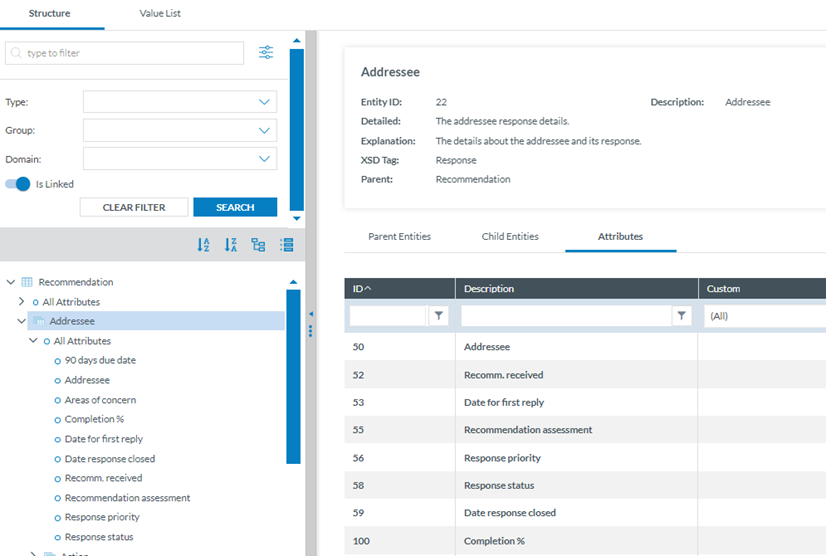
<span style="mso-ansi-language: EN-US;">The following information will be displayed on the right side of the screen when the Officer clicks on an Entity in the Taxonomy tree:</span>

<span style="font-family: Symbol; mso-fareast-font-family: Symbol; mso-bidi-font-family: Symbol; color: #1b3891; mso-themecolor: text1; mso-ansi-language: EN-US;"><span style="mso-list: Ignore;">·<span style="font: 7.0pt 'Times New Roman';"> </span></span></span><span style="mso-ansi-language: EN-US;">Entity information: A summary of the selected Entity.</span>

<span style="font-family: Symbol; mso-fareast-font-family: Symbol; mso-bidi-font-family: Symbol; color: #1b3891; mso-themecolor: text1; mso-ansi-language: EN-US;"><span style="mso-list: Ignore;">·<span style="font: 7.0pt 'Times New Roman';"> </span></span></span><span style="mso-ansi-language: EN-US;">Parent Entities: The list of its parent Entities</span>

<span style="font-family: Symbol; mso-fareast-font-family: Symbol; mso-bidi-font-family: Symbol; color: #1b3891; mso-themecolor: text1; mso-ansi-language: EN-US;"><span style="mso-list: Ignore;">·<span style="font: 7.0pt 'Times New Roman';"> </span></span></span><span style="mso-ansi-language: EN-US;">Child Entities: The list of its children Entities</span>

<span style="font-family: Symbol; mso-fareast-font-family: Symbol; mso-bidi-font-family: Symbol; color: #1b3891; mso-themecolor: text1; mso-ansi-language: EN-US;"><span style="mso-list: Ignore;">·<span style="font: 7.0pt 'Times New Roman';"> </span></span></span><span style="mso-ansi-language: EN-US;">Attributes. The list of its Attributes</span>

<span style="mso-ansi-language: EN-US;">Click on each tab (Parent Entities, Child Entities, Attributes) to view the relevant information:</span>

[![image.png](https://help.ci-aviationreporting.eu/uploads/images/gallery/2025-11/scaled-1680-/afkimage.png)](https://help.ci-aviationreporting.eu/uploads/images/gallery/2025-11/afkimage.png)

### 5.3.2 Attributes

<span style="mso-ansi-language: EN-US;">Attributes describe properties/values associated with an entity. An attribute of the “Aircraft” entity is, for instance, its "manufacturer/model". Attributes can have single or multiple values.</span>

- Number
- Decimals
- Text
- Alphanumeric
- Date
- Time
- DateTime
- Longitude
- Latitude
- Code
- Code and Additional Text
- Code or Alternative Text
- ECCAIRS Resource Locator
- ECCAIRS Data Link
- ECCAIRS Embedded Data

#### 5.3.2.1 Attributes inform<span lang="EN-GB">ation</span>

<span style="mso-ansi-language: EN-US;">The Attributes are marked with </span>[![image.png](https://help.ci-aviationreporting.eu/uploads/images/gallery/2025-11/scaled-1680-/WK1image.png) ](https://help.ci-aviationreporting.eu/uploads/images/gallery/2025-11/WK1image.png)<span lang="EN-GB" style="mso-fareast-language: EN-GB; mso-no-proof: yes;"> </span><span style="mso-ansi-language: EN-US;">icon in the Taxonomy Tree.</span>

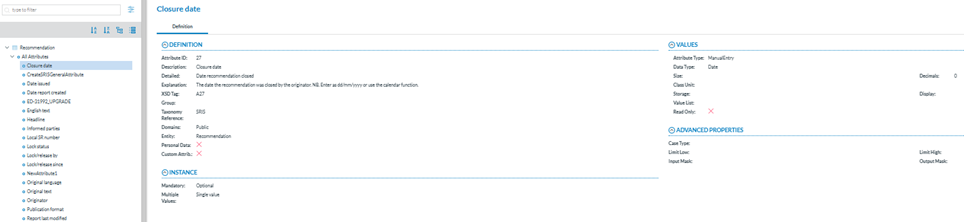
<span style="mso-ansi-language: EN-US;">The Officer can view the information of an Attribute from two places in the Taxonomy Browser:</span>

<span style="mso-bidi-font-family: Calibri; color: #0b4d6f; mso-ansi-language: EN-US;"><span style="mso-list: Ignore;">a.<span style="font: 7.0pt 'Times New Roman';"> </span></span></span><span style="mso-ansi-language: EN-US;">Find an attribute in the Taxonomy Tree and click it: </span>

[![image.png](https://help.ci-aviationreporting.eu/uploads/images/gallery/2025-11/scaled-1680-/jUNimage.png)](https://help.ci-aviationreporting.eu/uploads/images/gallery/2025-11/jUNimage.png)

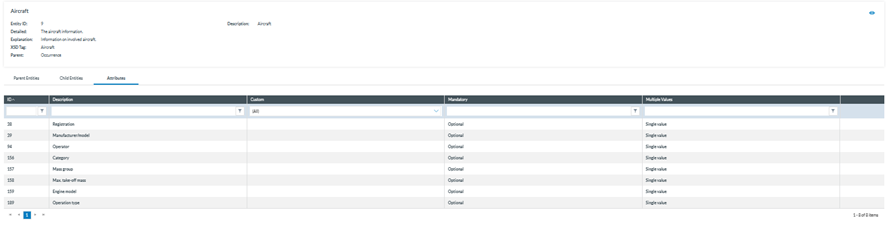
<span style="mso-bidi-font-family: Calibri; color: #0b4d6f; mso-ansi-language: EN-US;"><span style="mso-list: Ignore;">b.<span style="font: 7.0pt 'Times New Roman';"> </span></span></span><span style="mso-ansi-language: EN-US;">Select the Entity to which the Attribute belongs and click on the 'Attribute' tab. The Officer will see all the Attributes of the selected Entity.</span>

[![image.png](https://help.ci-aviationreporting.eu/uploads/images/gallery/2025-11/scaled-1680-/Fd5image.png)](https://help.ci-aviationreporting.eu/uploads/images/gallery/2025-11/Fd5image.png)

<span style="mso-ansi-language: EN-US;">Click on the 'Eye' icon to view the detailed information.</span>

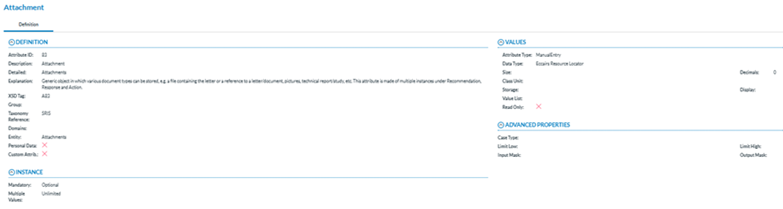
**<span lang="EN-GB" style="font-family: Symbol; mso-fareast-font-family: Symbol; mso-bidi-font-family: Symbol; color: #1b3891; mso-themecolor: text1; font-weight: normal; mso-bidi-font-weight: bold;"><span style="mso-list: Ignore;">·<span style="font: 7.0pt 'Times New Roman';"> </span></span></span>****<span lang="EN-GB" style="mso-bidi-font-family: 'Times New Roman';">Definition</span>**

[![image.png](https://help.ci-aviationreporting.eu/uploads/images/gallery/2025-11/scaled-1680-/P7yimage.png)](https://help.ci-aviationreporting.eu/uploads/images/gallery/2025-11/P7yimage.png)

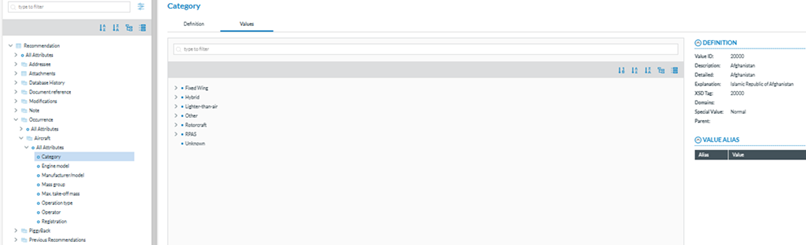
- <span lang="EN-GB">**Values:** I</span><span>f the Attribute has a predefined value List.<span> </span>In the Values tree, the Officer can navigate the values by clicking on each element. The selected value will display its definition, and the Values can be searched by Taxonomy code or description and ordered alphabetically.</span>

[![image.png](https://help.ci-aviationreporting.eu/uploads/images/gallery/2025-11/scaled-1680-/958image.png)](https://help.ci-aviationreporting.eu/uploads/images/gallery/2025-11/958image.png)

### 5.3.3 Value Lists

<span style="mso-ansi-language: EN-US;">The list of values an attribute can have is defined in a Value List. The Value List can have multiple levels where values are organised in a tree mode. Each Value List can have Aliases.</span>

### 5.3.4. Values

<span style="mso-ansi-language: EN-US;">Values assigned to an attribute depend on the type of the Attribute. These can be manually inputted or selected from a predefined list of values (Value List). </span>

### 5.3.5. Filter the information

<span style="mso-ansi-language: EN-US;">The Officer can filter the Parent Entities, Child Entities and Attributes table by typing the term to be searched in the filter row. The Officer can restrict the results by clicking the </span>[![image.png](https://help.ci-aviationreporting.eu/uploads/images/gallery/2025-11/scaled-1680-/YTrimage.png) ](https://help.ci-aviationreporting.eu/uploads/images/gallery/2025-11/YTrimage.png)<span style="mso-ansi-language: EN-US;"> '</span><span lang="EN-GB" style="mso-fareast-language: EN-GB; mso-no-proof: yes;"> </span><span style="mso-ansi-language: EN-US;"> filter' button. By default, the 'contains' condition is selected. </span>

<span style="mso-ansi-language: EN-US;">To delete the filter, the Officer must click the ' </span>[![image.png](https://help.ci-aviationreporting.eu/uploads/images/gallery/2025-11/scaled-1680-/GY7image.png) ](https://help.ci-aviationreporting.eu/uploads/images/gallery/2025-11/GY7image.png)<span style="mso-ansi-language: EN-US;">clear filter' icon.</span>

[![image.png](https://help.ci-aviationreporting.eu/uploads/images/gallery/2025-11/scaled-1680-/EtLimage.png)](https://help.ci-aviationreporting.eu/uploads/images/gallery/2025-11/EtLimage.png)

### 5.3.6. View detailed information

<span style="mso-ansi-language: EN-US;">To view more information about the select Entity, the Officer must click the 'eye' icon.</span>

[![image.png](https://help.ci-aviationreporting.eu/uploads/images/gallery/2025-11/scaled-1680-/IzKimage.png)](https://help.ci-aviationreporting.eu/uploads/images/gallery/2025-11/IzKimage.png)

<span lang="EN-GB" style="mso-ansi-language: EN-GB; mso-fareast-language: EN-GB;"> </span>

<span style="mso-ansi-language: EN-US;">To view more information about the Parent Entities, Child Entities or Attributes, the Officer can click the 'eye' icon that appears while moving the mouse over the row.</span>

[![image.png](https://help.ci-aviationreporting.eu/uploads/images/gallery/2025-11/scaled-1680-/ct3image.png)](https://help.ci-aviationreporting.eu/uploads/images/gallery/2025-11/ct3image.png)

<span lang="EN-GB" style="mso-ansi-language: EN-GB; mso-fareast-language: EN-GB;"> </span>

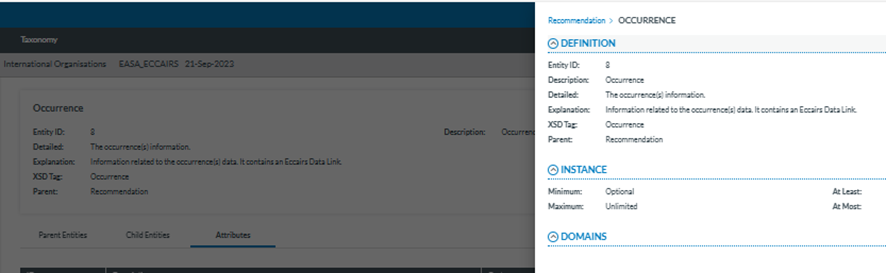
<span style="mso-ansi-language: EN-US;">A slide-in panel with the element information will be displayed when clicking on the' eye' icon. The Officer can click outside the panel to close it and return to the previous screen.</span>

[![image.png](https://help.ci-aviationreporting.eu/uploads/images/gallery/2025-11/scaled-1680-/ALPimage.png)](https://help.ci-aviationreporting.eu/uploads/images/gallery/2025-11/ALPimage.png)