SR Officer
This document describes the tasks a Safety Recommendation Officer can perform through the E2 Web Application.
- Version History
- Terms and abbreviations
- Table of Contents
- 1. Introduction & Accessing
- 2. Home (Landing page)
- 3. Safety Recommendations
- 4. Data Management
- 5. Taxonomy Browser
- 6. My account
- 6.1. My account menu
- 6.2. Personal Details
- 6.3. Query-based notifications
- 6.4. Object-based notifications
- 6.5. Favourite Views
- 6.6. Custom Column
- 6.7. Export by Attribute
- 6.8. Default Queries
- 7. SRIS2 Public portal
- 8. Metadata fields
Version History
| Version | Date | Document | Description | E2 release |
| 0.2 | 26/06/24 | ECCAIRS2 Glossary.pdf | v2.36 | |
| 0.1 | 21/02/25 | ECCAIRS2 Metadata fields.pdf | Initial draft | v2.44 |
| 0.2 | 27/02/25 | ECCAIRS2 Metadata fields.pdf | Updates in au_creaion_dae,au_modification_date, or_initial_dae,vr_initial_date,oc_initial_date | v2.45 |
| 0.3 | 03/03/25 | ECCAIRS2 Metadata fields.pdf | Revised final visual labels for Query & Columns | v2.45 |
| 0.4 | 07/04/25 | ECCAIRS2 Metadata fields.pdf | Change in the metadata fields names to show in the Query Builder and Column/Export | v2.46 |
| 0.2 | 26/06/24 | ECCAIRS2 - Safety Recommendation Officer's tasks.pdf | v2.36 | |
| 0.5 | 20/11/2025 | Safety Recommendation Officer (current document) | Consolidated version integrating the listed documents, migrated to BookStack, and featuring structural adaptations for web-native documentation. | v2.36 |
Terms and abbreviations
| Term/Abbreviation | Description |
| API | Application Programming Interface |
| BO | Batch Operation |
| CSV | Comma-separated values |
| ECCAIRS | European Co-ordination Centre for Aircraft Incident Reporting Systems |
| E2 | ECCAIRS 2 |
| ECR | European Central Repository |
| OC | Occurrence |
| OR | Original Report |
| Portable Document Format | |
| SR | Safety Recommendation |
| SRIS | European Central Repository of Safety Recommendations |
| VR | Validated Report |
| WT | Word Template |
| XML | Extensible Markup Language |
| XSD | XML Schema Definition |
For each entity or attribute in the taxonomy, you can find its definition with detailed information, an explanation, and possible values in the Taxonomy Browser.
Table of Contents
Table of Contents
Version History
Terms and abbreviations
1. Introduction & Accessing
1.1 Introduction
1.2 Accessing SRIS 2
1.3 Sign in
1.4. Reset Password
2. Home (Landing page)
3. Safety Recommendations
4. Data Management
4.1. Queries
4.2 Libraries
4.3. Word Templates
5. Taxonomy Browser
5.1. Taxonomy
5.2. Search
5.3. Taxonomy structure
5.4. List of taxonomies
6. My account
6.2. Personal Details
6.3. Query-based notifications
6.4. Object-base notifications
6.5. Favourite View
6.6 Custom Column
6.7. Export by Atributte
6.8. Default Queries
7. SRIS 2 Public portal
8. Metadata fields
1. Introduction & Accessing
1.1. Introduction
This section sets the definition of terms and terminology used in the documentation explaining the functioning of the entire ECCAIRS 2 - SRIS 2 through the perspective of different roles.
1.1.1. About ECCAIRS 2 - SRIS 2
ECCAIRS 2 (European Coordination Centre for Accident and Incident Reporting Systems) is the second version of an IT system designed to support a collaborative network of National Aviation Authorities (NAAs) and Safety Investigation Authorities (SIAs) from EU Member States, along with the European Union Aviation Safety Agency (EASA). Its core mission is to facilitate the collection, sharing, and analysis of safety-related information to enhance the safety of public transportation.
Key Objectives:
- Integration of original reports from disparate, currently incompatible sources.
- Providing an occurrence reporting solution for Member States without an automated system.
ECCAIRS 2 (E2 hereafter) implements collection and dissemination requirements for:
- Reports and Occurrences, as well as,
- Safety recommendations from the Safety Investigation Authorities,
Member States' safety data is consolidated in two central databases:
- ECR-ECCAIRS – The European Central Repository for Occurrences (required by Regulation (EU) 376/2014), which aggregates national and European-level reports.
- ECR-SRIS – The European Central Repository for Safety Recommendations (required by Regulation (EU) 996/2010).
System Architecture & Functionality
E2 is an integrated system supported by two distinct but interconnected taxonomies:
- ECCAIRS Taxonomy (previously linked to ADREP) – Facilitates the collection and processing of original occurrence reports.
- SRIS Taxonomy – Enables the recording, tracking, and public dissemination of safety recommendations, including responses.
Occurrence Reporting Process
- Based on the ECCAIRS Taxonomy, which standardizes definitions and classifications.
- Reports are submitted via the E2 Web Application, validated, and converted into occurrences.
- Data can be shared at the European level (ECR) or optionally with other authorized entities within the E2 system.
There are three types of reports in the process:
-
- Original Report (OR): It is a description of the safety event submitted by a Reporter through the E2 Reporting Portal.
- Validated Report (VR): It is a copy of the OR validated by an Occurrence Officer through the E2 Web Application. It is editable, allowing enrichment. The Officer can also create a VR from scratch.
- Occurrence (OC): It is the main enriched report, representing the complete occurrence after integrating all related VRs. It consolidates all relevant information and is finally shared with the European Central Repository (ECR) for further analysis and safety oversight. The Officer can also create and OC from scratch.
In broad terms the reports lifecycle includes receiving an OR, validating it into VR, integrating the VR into an OC, and finally sharing the Occurrences with the European Central Repository (ECR):

In some cases, managing an occurrence can be more complex, as a single event (such as an accident or incident) may generate multiple OR from different reporters. Each OR is validated into a VR, and all VRs are eventually merged into a single OC to be shared with the ECR or forwarded to another authority. Furthermore, if changes are made to an OR or VR after processing has begun, they may conflict with existing data—therefore, the process includes mechanisms to identify and resolve such conflicts:
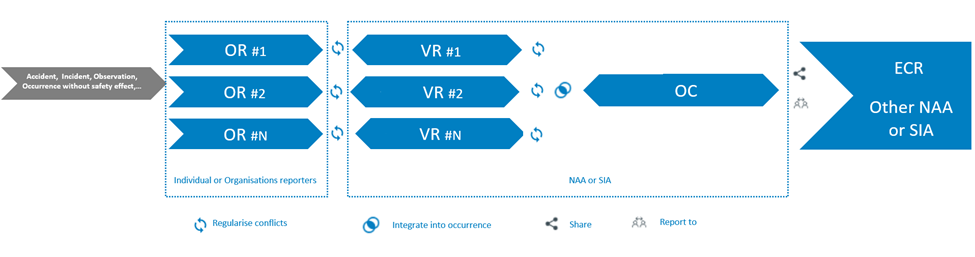
If an OR is sent to a non-competent authority, it may be transferred to the appropriate one.

The following picture shows the status workflow of the Original Reports, Validated Reports, Occurrences; and how they are related to each other.
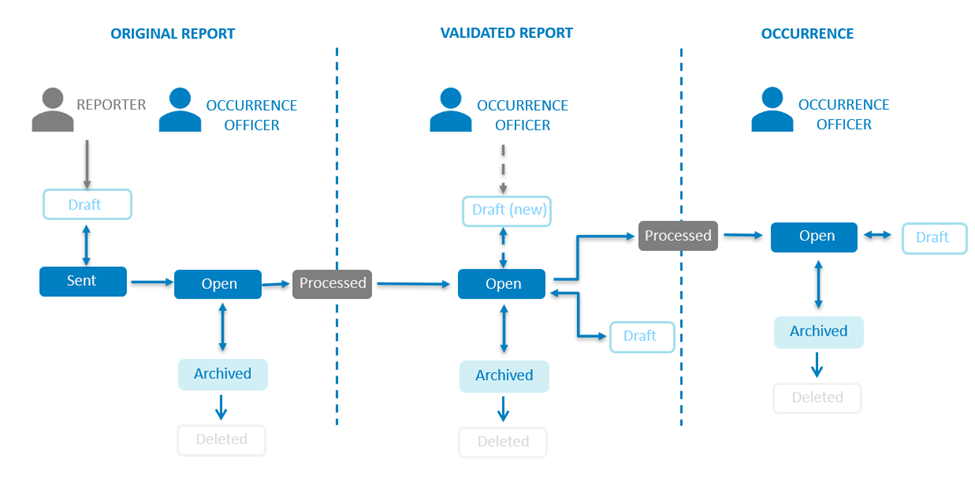
The roles involved are ‘Reporters’ and ‘Occurrence Officers’:
- Reporters, include individual and organisation Reporters, as well as those users that choose to report an Occurrence without registration.
- Occurrence Officers, include all the users that are part of an Authority, and have permissions to view, create and edit documents.
Safety Recommendations Process
- Powered by the SRIS Taxonomy to support Safety Investigation Authorities (SIAs).
- Enables the recording, tracking, and publication of safety recommendations, along with response monitoring, on a dedicated public portal.
The system process:
-
- Safety Recommendation (SR): It is the proposal of a Safety Investigation Authority based on information derived from an investigation made with the intention of preventing accidents or incidents and which in no case has the purpose of creating a presumption of blame or liability for an Occurrence. In addition to Safety Recommendations arising from Occurrence investigations, Safety Recommendations may result from diverse sources, including safety studies. It is finally shared with the European Central Repository of Safety Recommendations (ECR-SRIS) for further analysis and dissemination.

The following picture describes the lifecycle of the SR’s life from its creation to its publication, or archive and deletion.
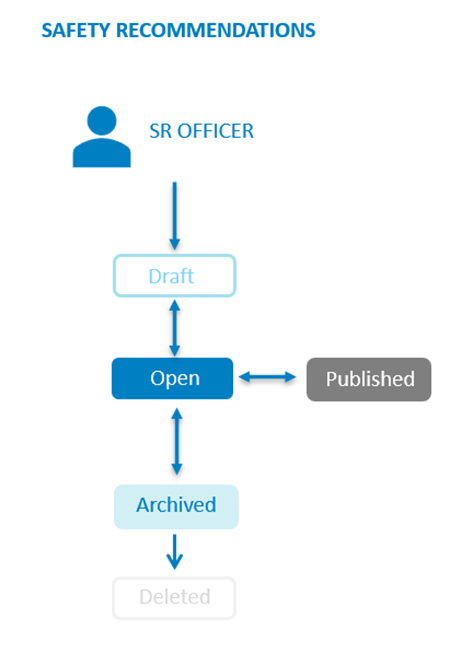
SR Officers, include all the users that are part of the accident investigation Authority, and have permissions to view, create and edit Safety Recommendations.
Original Reports, Validated Reports, Occurrences and Safety Recommendations Records exist in two type of versions: major versions that are shared and minor versions that only available for the Authority. There are also draft versions that are visible to the user only.
1.1.2. ERCS
Regulation (EU) 376/2014 on Occurrence Reporting, requires that member states risk classify all Occurrences using the European Risk Classification Scheme (ERCS). The goal of this risk classification is to enable a harmonised assessment of aviation safety risks across Europe and across the different technical domains, such as commercial air transport operations, leisure flying, ATM/ANS, or aerodromes and ground handling.
The European Risk Classification Service (ERCS) wizard is a tool to help users fill in the information. It is based on what is captured in the Support Master Tables. Each table defines the restrictions and dependencies between the Value List values of the Attributes involved in the ERCS calculation.
There exist 3 Support Master Tables:
· ERCS KRALevel1/Severity
· ERCS Barriers
· ERCS Matrix
1.1.3. Taxonomy
Background:
The E2 portal collects information on incidents concerning civil aviation. This information comes from people from different origin, technical and not technical. Bringing together data that has used different definitions makes it very difficult to analyse and draw meaningful conclusions. That is why a specific classification to unify the terms concerning the aviation reporting was needed and introduced in the portal. First a group of forward-thinking people got together at global level under the guidance of ICAO to develop a common aviation Taxonomy. This was called the Accident/ Incident Data Reporting System (or ADREP). After some time, the management of this Taxonomy at a detailed level has passed to EASA forming the basis of the ECCAIRS system. Today, it is known as the ECCAIRS Taxonomy and it is a vital building block for sharing data at European Level and beyond.
Definition:
The Taxonomy of ECCAIRS is the catalogue of structured and hierarchised information describing what information can be stored in the ECCAIRS Repository and how this information is (possibly) encoded in the data fields of the aviation Reports. There is an ECCAIRS Taxonomy for ORs, VRs and OCs and a SRIS Taxonomy for SRs. Each Authority can create custom Taxonomies based on the standard ECCAIRS or SRIS Taxonomy.
The Taxonomy is organised in Parent Entities, Entities and Attributes.
- Entity: It is an item to which a set of Attributes can be associated. Entities are used to represent items to which a set of Attributes can be associated. An Entity can be, for instance, the "aircraft", "ship", etc. involved in the Occurrence, or the related "events" description. There may be multiple instances of Entities since more than one of these items can be involved. Entities can have Parent Entities and Child Entities.
- Attribute: It is the smallest item that gives information about an aviation incident or an accident or safety event. A safety event can be described through a list of Attributes.
- Value Lists: The list of values an Attribute can have is defined in a Value List. The Value List can have multiple level where values are organised in a tree mode. Value Lists can have Alias.
- Support Tables: They contain information that helps other processes of the ECCAIRS 2 platform. Support Tables are used at Taxonomy level to amplify the Attributes information. The Support Tables are:
· Alias
· Attribute Groups
· Conversion Factors
· Domains
· Measurement Units
· Measurement Unit Classes
1.1.4. View and Sections
Sections: A section is a cohesive set of Attributes of the ECCAIRS2 or SRIS central or custom Taxonomy depicting a sub-domain of a safety event that is registered in an E2 Report.
Topics: A topic is a specific group of Attributes, linked to an Occurrence that can be viewed by a user role. For navigation purposes, Sections can be grouped together in Topics.
Views: A View is a visual representation of ordered data (Attributes) concerning a safety event (accident or incident) to facilitate human analysis and its collection and introduction in a Report. Views are grouping of Topics placed in a particular sequence (hierarchical tree).
Webforms: The Webforms are used by the Reporters when using the E2 Reporting Portal to report an Occurrence (Original Report). A Webform is associated to a released View available at Authority level.
1.1.5. Queries
The Query Builder allows Authority users build Queries to search Original Reports, Validated Reports, Occurrences and Safety Recommendations with Attributes or metadata fields that meet the given conditions.
The Queries are executed against the documents indexed in Elastic Search.
1.1.6. Safety Recommendation Officer
The following sections describe all the functionalities and tasks that Safety Recommendation Officers can perform using the E2 Web Application. They can only access information—such as reports, queries, and views—that is owned by their respective Authority.
For simplification purposes in this document, we shall refer to this actor as the “Officer”.
Officers can find essential information in the following sections:
- Safety Recommendations – outlines all tools for managing SR.
- Data Management – includes Queries to filter and export reports SR, plus Word Templates.
- Taxonomy Browser – helps locate entities and attributes with clear definitions.
1.2. Accessing SRIS2
Follow these steps to access the Reporting Portal to Report an Occurrence:
- Go to E2 Central Hub homepage.
- Click on the 'Report an Occurrence' banner.

You will be redirected to the Reporting Portal homepage.

You can access the ECCAIRS 2 - SRIS 2 Web Application the by clicking on 'SIGN IN TO ECCAIRS'.
If you do not yet have an account, contact your Authority administrator to create a new one.
1.3. Sign in
Important notes
Correct Access URL
If you have created a shortcut to the URL https://api.aviationreporting.eu/idp/login, please be aware that this address points to the dedicated login server only. When accessed directly, the system does not know where to redirect the user after authentication, resulting in a failed or incomplete login process.
To ensure proper access and functionality, always use the official entry point:
Valid URL: https://e2.aviationreporting.eu
This address initiates the login flow correctly and allows the system to return you to the appropriate reporting environment after authentication.
Automatic Time Zone Configuration
For the time being it’s essential that your device’s time zone is set to automatic. If your local time doesn’t match the server time, the system may interpret your authentication token as expired—even if it was just generated.
How to ensure your time zone is set automatically:
- On Windows: Go to Settings → Time & Language → Date & Time Enable:
- “Set time automatically”
- “Set time zone automatically”
- On macOS: Go to System Preferences → Date & Time Check the box: “Set time zone automatically using current location”
- On mobile devices (Android/iOS): Make sure “Automatic date & time” is enabled in your system settings.
This configuration ensures your access token remains valid and prevents login issues related to time synchronization.
Sign in
To sign in, please follow these steps:
-
Visit the E2 Reporting Portal at https://e2.aviationreporting.eu/.
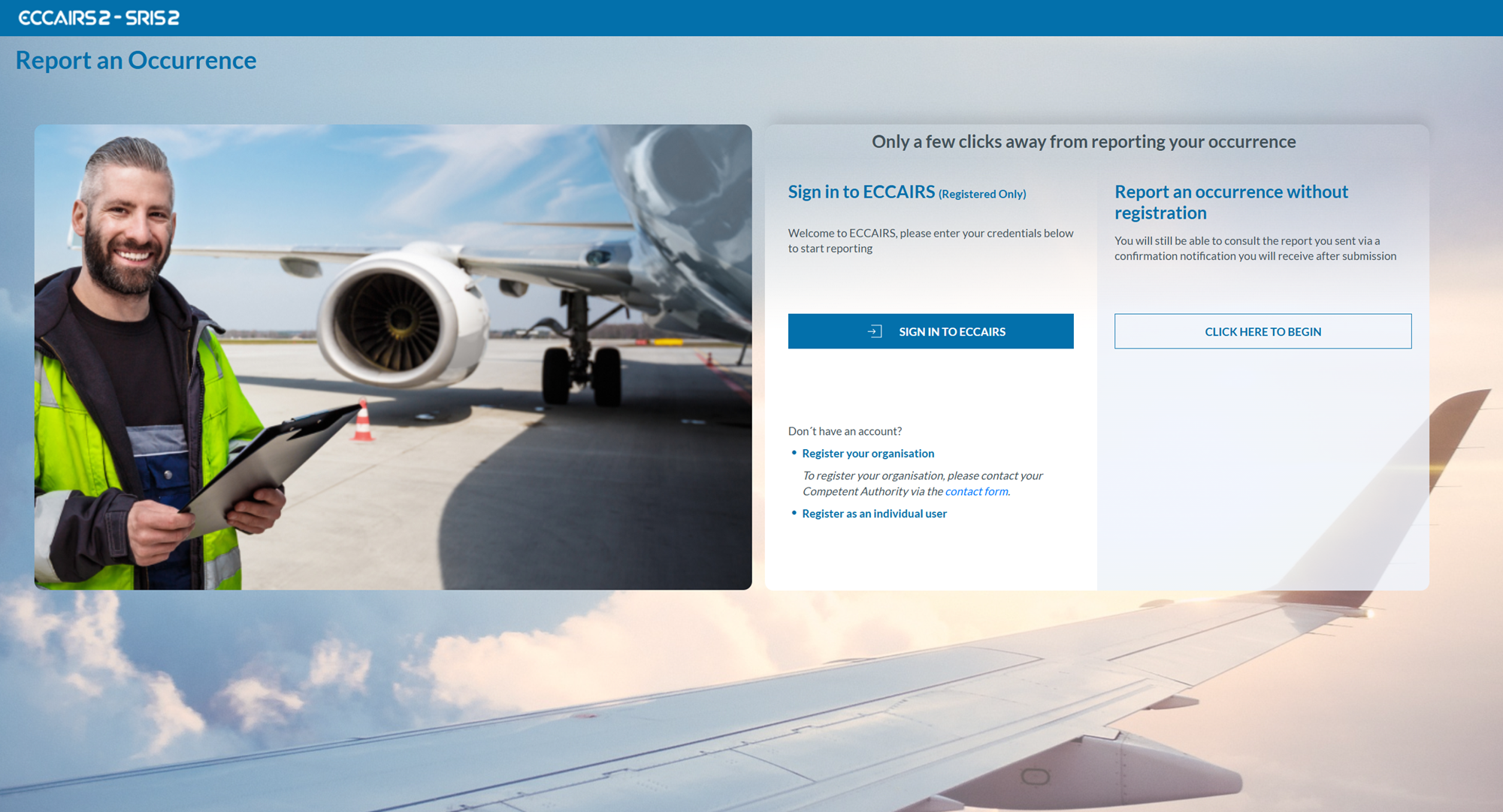
- Click on 'SIGN IN TO ECCAIRS'. You will be redirected to the following page:
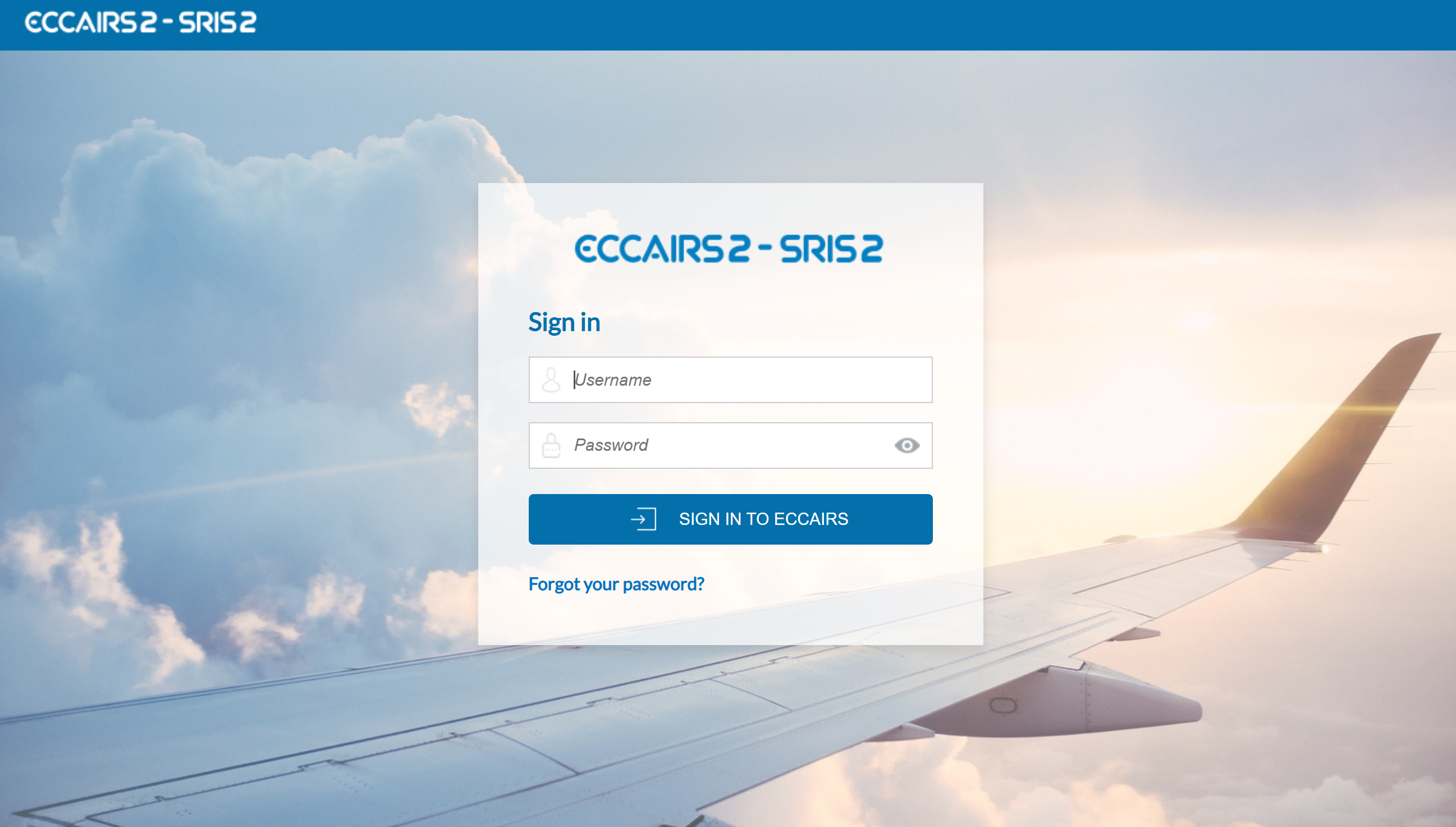
- Fill out your Username and Password.
-
Click on 'SIGN IN TO ECCAIRS'. The system will display the following page:

- Please check your email. The system will send a one-time security code to the email address linked to your user account. The message will be sent from the address 'do-not-reply@aviationreporting.eu'.
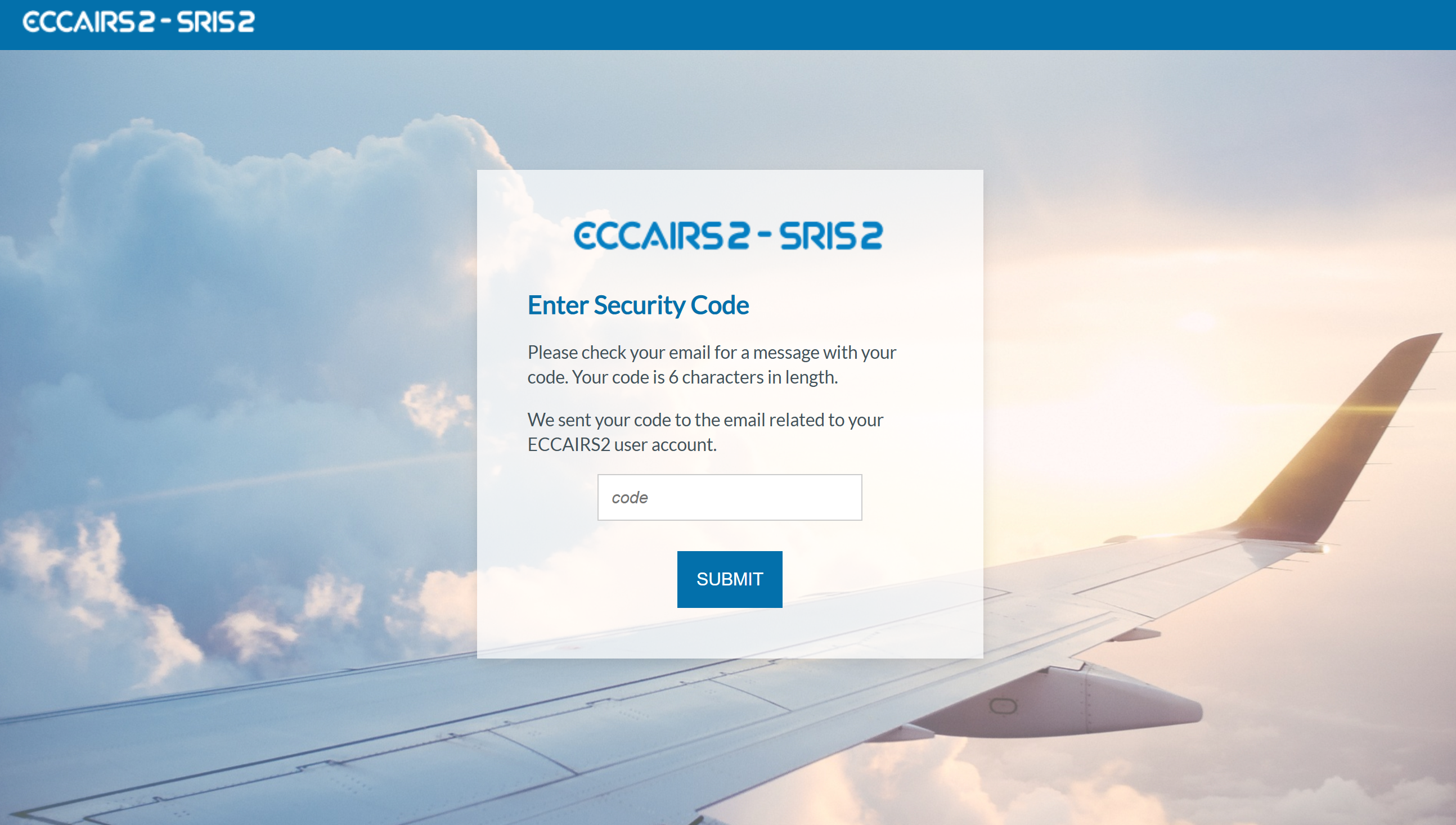
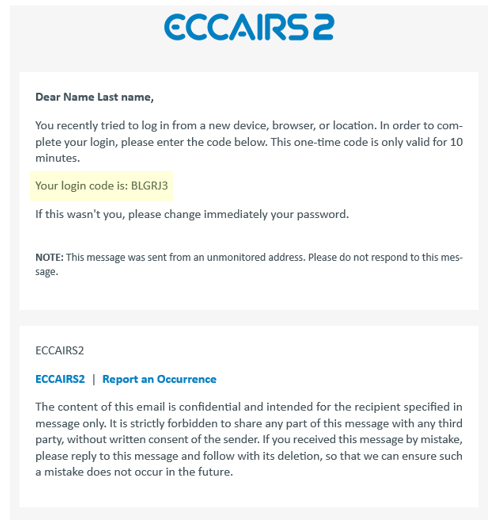
-
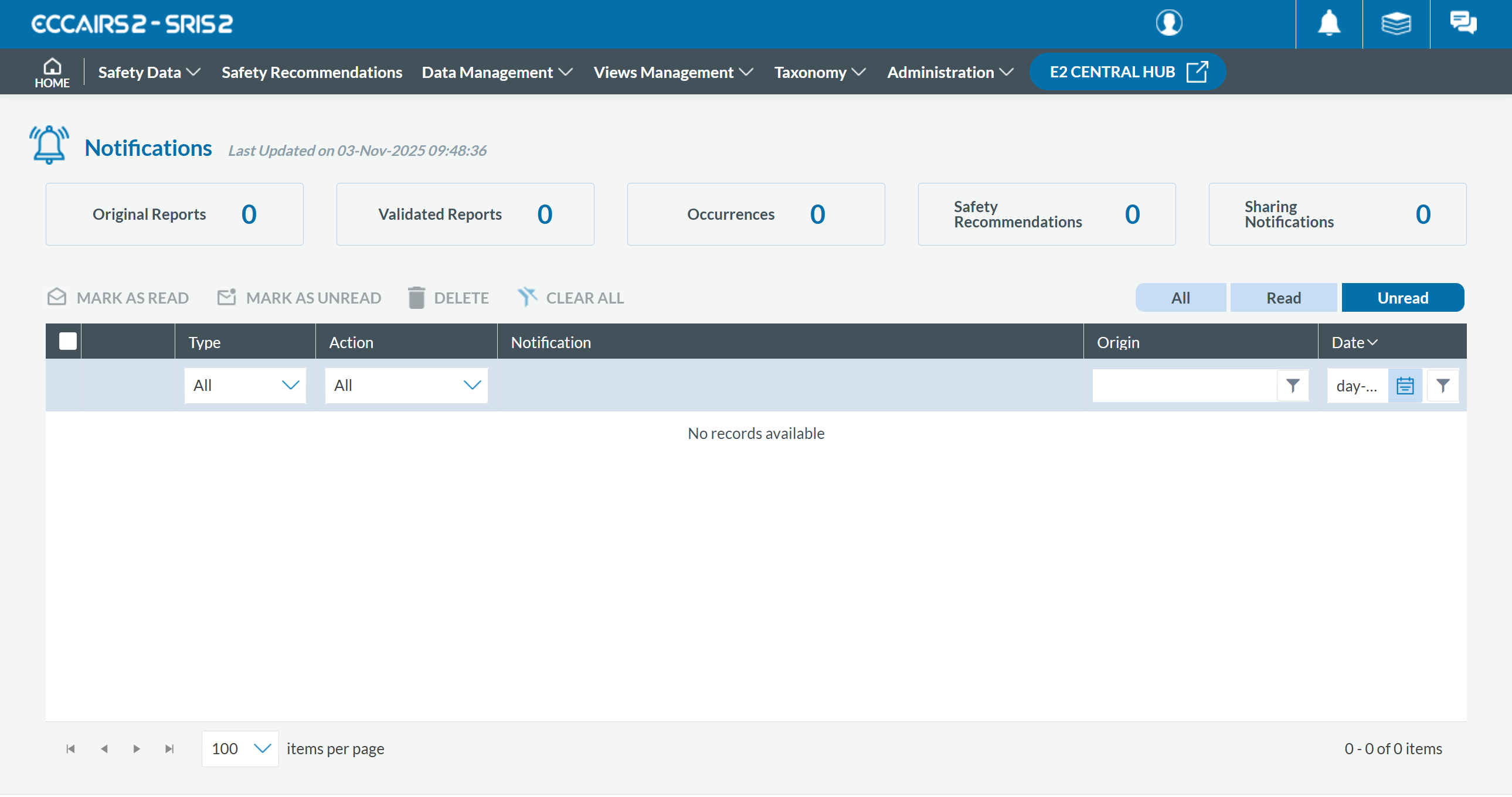
Enter your security code and click 'SUBMIT'. You will be redirected to the 'Home' page.
1.4. Reset Password
To reset your password if you've forgotten it, please follow these steps:
- Visit the E2 Reporting Portal at https://e2.aviationreporting.eu/.
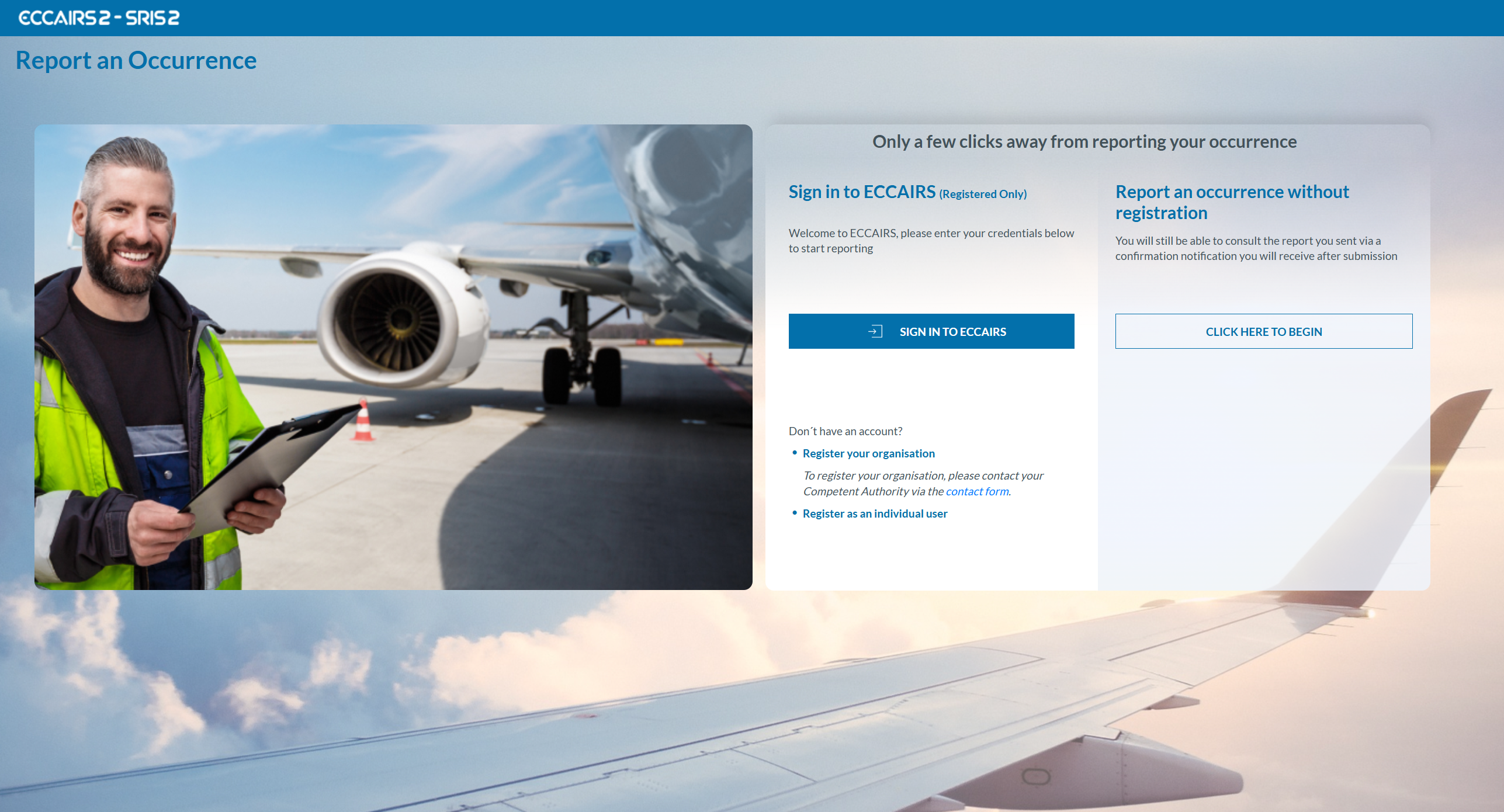
- Click on 'SIGN IN TO ECCAIRS'. You will be redirected to the following page:
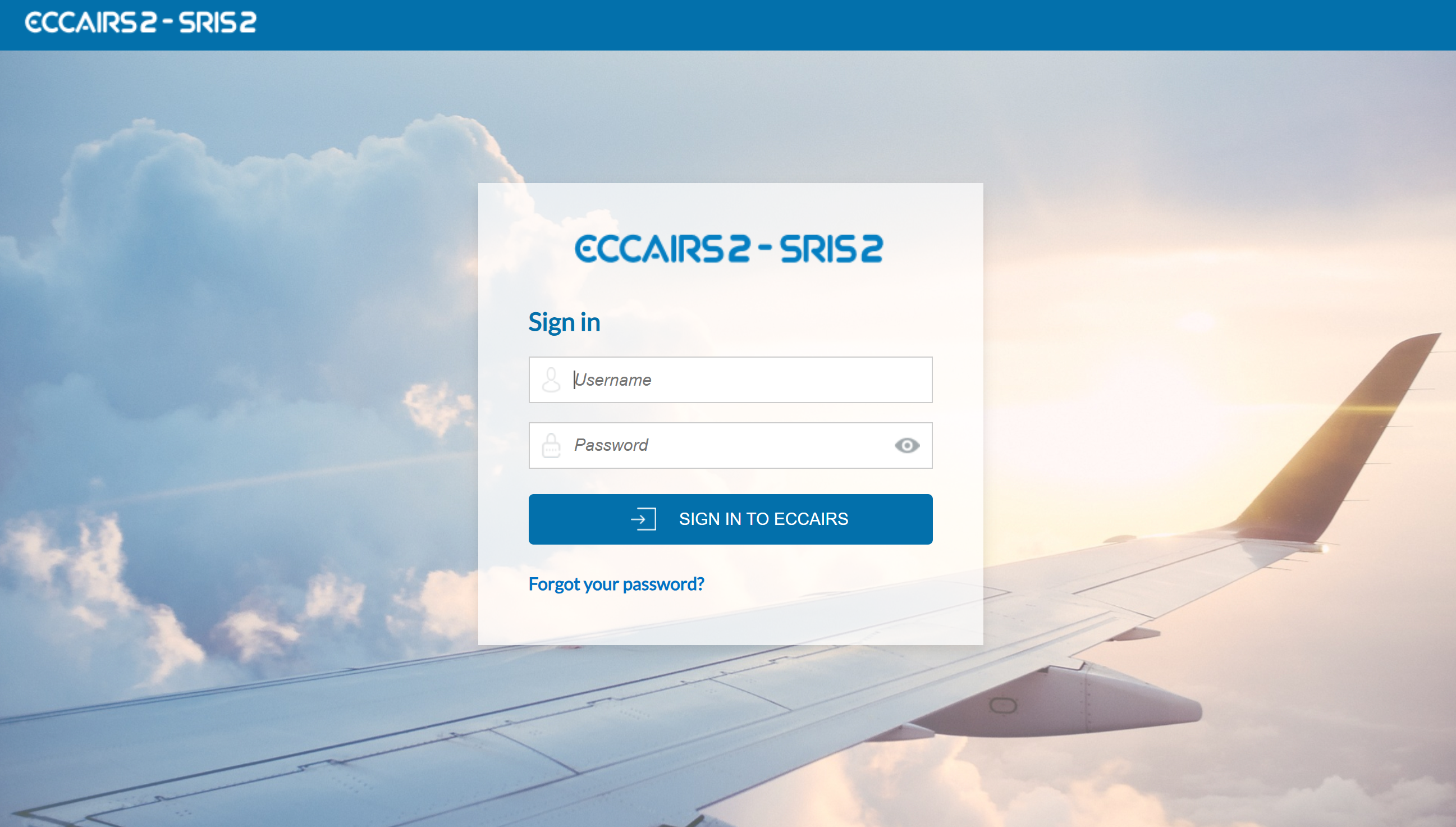
-
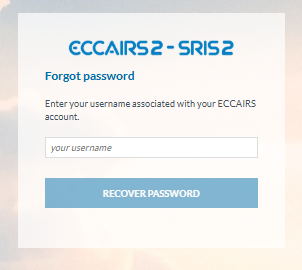
Click on the 'Forgot your password?' link and fill out your username (not your email):

- Click 'RECOVER PASSWORD'. You will receive an email with instructions on how to recover the password.
If you're already signed in, you can reset your password via your user icon:
- Click 'Reset password' The system will display:
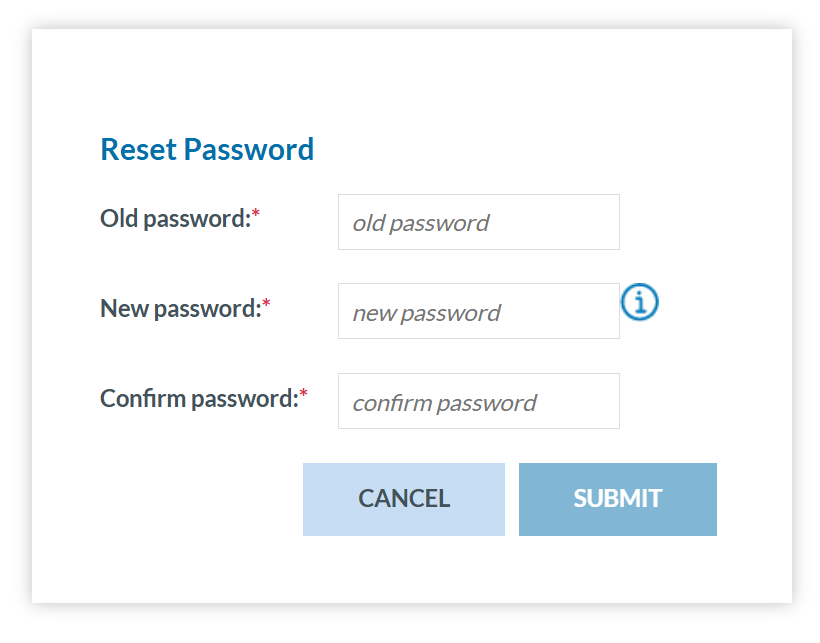
- Fill-in the formular and click 'SUBMIT'.
2. Home (Landing page)
When the Officer accesses the E2 Web Application or when navigating its sections and clicks on ‘Home’, the system displays the landing page:
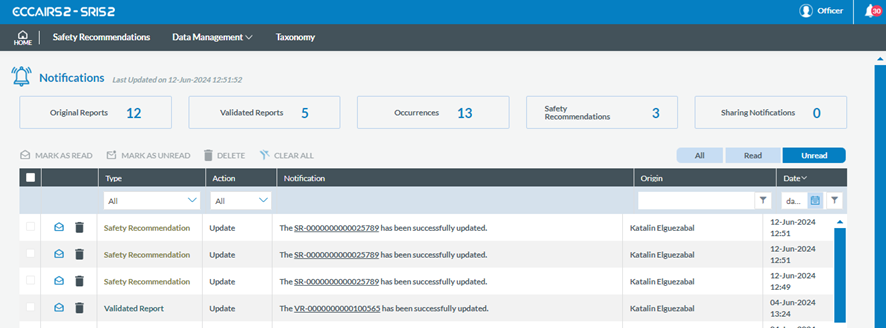
On top of the page, in the right-hand side corner, the system displays the Officer’s username and a bell with the number of unread notifications, if any:
· Original Reports: all OR-related notifications (N/A for Safety Recommendation Officers)
· Validated Reports: all VR-related notifications (N/A for Safety Recommendation Officers)
· Occurrences: all OC-related notifications (N/A for Safety Recommendation Officers)
· Safety Recommendations: all SR-related notifications
· Sharing Notifications: all notifications related to elements (queries, libraries or word templates) shared with the Officer

By default, the list only includes the unread notifications, including:
· The notifications generated, based on the query-based notifications settings created by the Authority administrator for the Officer
· The query-based notifications, previously defined by the Officer, through ‘My Account’. See Query-based notifications section for further details
· The object-based notifications set by the Officer through the notification alerts of the lists of SRs together with ‘My Account’ object-based notifications settings. See Object-based notifications section for further detail.
The Officer can update the results through the ‘All’, ‘Read’ and ‘Unread’ tabs above the list.
The Officer can also restrict the results through the filter buttons as indicated above.
Each notification of the list is divided into columns:
· A check box: to select the specific notification.
· Mail and delete icon: if the mail is open, it is read so the icon can mark it as ‘unread’; if closed, it is unread, so the icon can mark it as ‘read’. The delete icon deletes the notification.
· Type: This can be safety recommendations, queries, libraries or word templates. The type drop-down menu can filter it.
· Action: This can be All, Creation, Update, Deletion, or Shared. The action drop-down menu can filter it.
· Notification: it summarises the notified action, i.e. The SR-0000000000006010 has been successfully updated.
· Origin: it provides the author of the notified action.
· Date: apart from the date of the notified action, it includes a filter to search based on the date.
Above the list of notifications, the system displays the following tabs:

After selecting the specific notification, the Officer can click mark them as read, unread or delete the notification.
The Officer can access the content of the specific notified action by double-clicking on any section of its row.
3. Safety Recommendations
Safety Recommendation (SR): Safety recommendations derived from investigations are is-sued by accident investigation authorities to prevent accidents and incidents.
The system recognises the Officer's landing page when the Officer logs in to the E2 Web Application. See section Home (Landing page) for further details.
The Officer uses the Safety Recommendation menu on the upper left side to manage Safety Recommendations.

The Safety Recommendation menu stores the Safety Recommendations (SRs) issued by the SIAs (Safety Investigation Authorities).
Safety Recommendations Versioning
The version of an SR is indicated by two figures, separated by a dot:
· Draft Version:
ü Format: It is always represented as 0.0, regardless of the previous and next ver-sion.
ü Visibility: It can only be seen by the user currently editing the SR.
· Minor version:
ü Format (e.g. 5.1)
o It is determined by the digits after the dot.
o It always has a 1-9 after the dot
ü Visibility: It can only be seen by users who belong to the SR’s responsible Entity (Authority)
· Major version:
ü Format (e.g. 5.0)
o It is determined by the digits before the dot.
o It always has a 0 after the dot
ü Visibility: If a SR is shared, this version can be seen by other Authorities
Safety Recommendations can be saved as drafts, minor, or major versions.
Only major versions can be shared with other Authorities.
3.1. Management of SRs
To access SRs, Officers can click on Safety Recommendations in the navigation menu, and the system will display the list of SRs:

The SRs list is divided into columns. Each column refers to an attribute/metadata field of the SR. The columns are set by default. Each row of the SR list is clickable.
The Officer can alter the position of each column by dragging and dropping them.
Next to the title of each column, there is 3 points menu through which the Officer can filter the columns to be displayed:
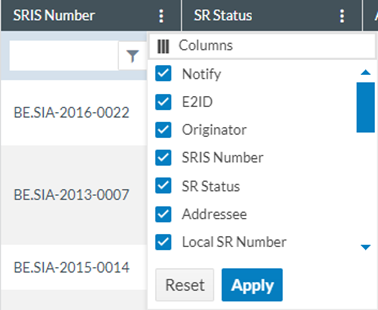
Below each column, there is a drop-down menu through which the Officer can filter the data for the specific column:

This drop-down menu will display operators according to the attribute or field type. Addition-ally, for text or alphanumeric columns, filtering can be case-sensitive .
.
The My Account-Custom columns tab can also update the attributes and order. See the Custom columns section for further details on their update.
3.2. Status filters and status
Above the list of SRs, on the right side, the system displays the filter tabs:

The list of results will restrict the SRs based on the selected tab:
· My Drafts: refers to SRs the Officer is editing. The list of SRs will show ‘Draft’ on the ‘E2 Status’ column and cannot be edited by another Authority Officer.
· In Progress: refers to ‘Open’ SRs. The list of SRs will show ‘Open’ on the ‘E2 Status’ column, and if another Officer is editing the SR, it will show a ‘padlock’ icon.
· All: refers to all the SRs belonging to the Officer’s Authority regardless of status.
· ECR-SRIS refers to all SRs shared with the ECR-SRIS by all the Authorities belonging to the ECR.
The status of the SRs can be the following:
· Draft: It is an SR saved as ‘Draft’ by the specific Officer. They can only be accessed by the Officer who is currently editing the report.
· Open: Any Officer of the Authority can edit an open SR.
· Archived: Officers can archive the list's SRs. Once archived, they can be restored to ‘Open’ or deleted.
· Published: The Officer published this SR, which will be visible on the SRIS2 Public portal.
3.3. 3-dot menu for an SR – SRs features
On the last section of each row, the system displays a 3-dot menu with different options depending on the status of the SR:
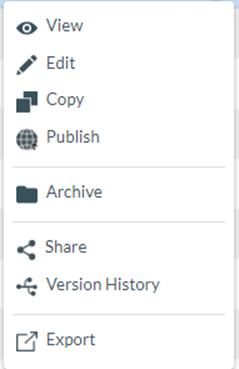
3.3.1. View
When clicking on ‘View’ in the 3-dot menu (or double-clicking in the list on any row), the sys-tem will display the content of the SR with the view the Officer has saved in ‘My Account’. See Favourite Views section of My Account for further details.
Otherwise, the system displays a page where the Officer has to select the specific view:

Once a view is selected, the SR is opened in view mode.
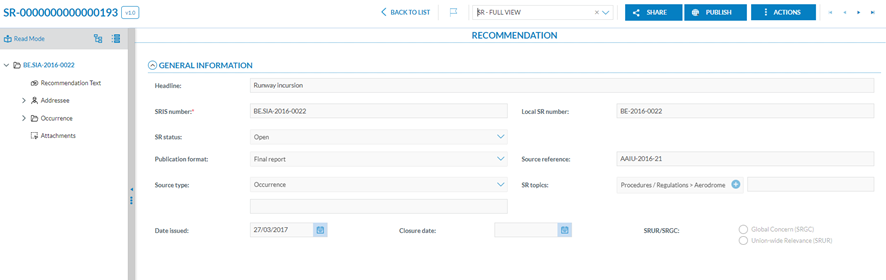
The Officer can share the SR by clicking the ‘Share’ button as explained in the Share section or publish it by clicking the ‘Publish’ button described in the Publish section.
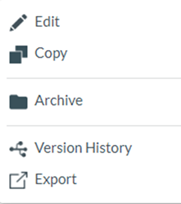
3.3.2. Edit
This option is only available for ‘Open’ SRs belonging to the Officer’s Authority and not blocked. It is also available for ‘Published’ SRs. It is unavailable for those SRs shared with the Officer’s Authorities from other Authorities or the ECR-SRIS.
When the Officer clicks on the ‘Edit’ option of the 3-dot menu of the specific SR of the list of SRs, the system will display its content with the view the Officer has saved in ‘My Account’. See Favourite Views of My Account section for further details.
Otherwise, the system displays a page where the Officer has to select the specific view to open the SR:

Officers have to select a view from this menu, and the system will display the ‘Edit SR’ page with the information of that SR:
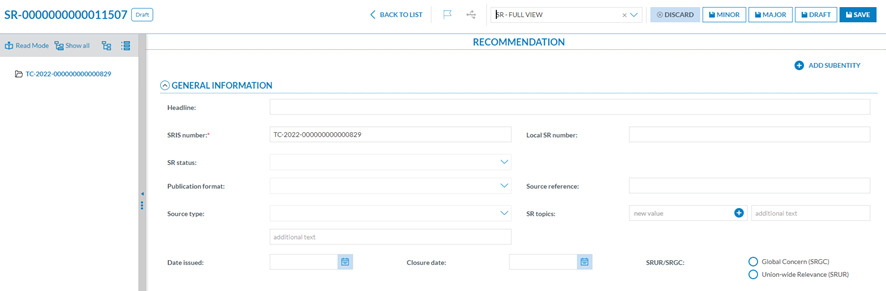
The page works like the View page explained in the previous section, with the following differences:
· The fields are editable, and the SRIS number is mandatory, so it cannot be left empty.
· There is no ‘Actions’ button. Instead, the system provides the following buttons de-pending on the status of the SR:
ü For Open SRs:
o Save: to save the updates of the draft and keep on updating the SR.
o Minor: to save the SR as a minor version
o Major: to save the SR as a major version
o Draft: to save a draft version
o Discard: to delete the draft. It displays a confirmation message. If the Officer confirms the action, the system will return to the list of SRs, and the updates will be lost.
ü For Published SRs:
o Save as Minor: to save the SR as a minor version
o Save as Major: to save the SR as a major version
3.3.3. Copy
All SRs can be copied or duplicated except for blocked open SRs.
When the Officer clicks on the ‘Copy’ option of the 3-dot menu of the specific SR, the system will display the Copy SR page with the view the Officer has saved in ‘My Account’. See Favourite Views of My Account section for further details.

Otherwise, the system displays a page where the Officer has to select the specific view to open the copied SR:

This is similar to the editing page. The Officer can update the necessary fields, making sure to change the SRIS number, which cannot be repeated, and click on one of the saving options. See the previous sections for further details on the saving options for Open and Published SRs.
For Archived SRs, there will not be a discard button, and the saving options will be the following:
· Minor, Major and Draft buttons: to save the specific versions and close the SR.
3.3.4. Share
Only SRs saved as a major version can be shared with ECR. Officers have to click on the Share option of the 3-dot menu of the SR to be shared, and the system will display the Sharing window:
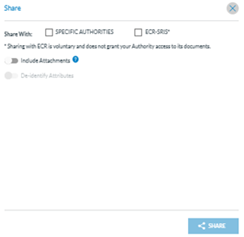
This window is also accessible through the ‘Share’ button when viewing the SR. See the View section for further details on this button.
Officers can check the ECR-SRIS checkbox and/or the ‘Specific Authorities’.
If the ‘Specific Authorities’ checkbox is checked, the system will display the Authorities drop-down menu below:
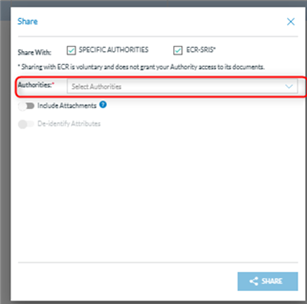
In that case, officers must select the Authorities with whom they wish to share the SR.
· The Officer can choose whether they want to share the attachments by enabling the toggle.
ü All the attachments will be shared with the Authorities previously selected in the Authority Settings option ‘Sharing of Attachments’ if enabled.
Once Officers click the ‘Share’ button, the SR will be shared with the selected Authorities and enabled to publish.
3.3.5. Publish
Only Open, major versions shared to ECR-SRIS and not blocked SRs can be published. It can be done either through the ‘Publish’ button displayed when viewing the SR (See View section for further detail on this button) or through the ‘Publish’ option of the 3-dot menu of the specific SR at the list of SRs. Thus, Officers can click the ‘Publish’ button or option, and the system will display a confirmation message.
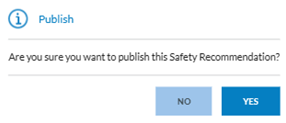
If Officers confirm the action, the system will publish the SR, and the E2 Status will turn to ‘Published’ for the specific SR in the list of SRs. Once published, the SR becomes visible in the SRIS2 Public portal.
3.3.6. Unpublish
Only published SRs can be unpublished. Officers can do it through the ‘Unpublish’ option of the 3-dot menu of the published SRs of the list or through the ‘Unpublish’ button displayed when viewing the SR (See View section for further detail on this button).
The system will display a confirmation message. If Officers confirm the action, the system will unpublish the SR, and its E2 Status will be updated accordingly in the list of SRs. Once un-published, the SR is not visible in the SRIS2 Public portal.
3.3.7. Archive
Only Open (i.e. not blocked) SRs can be archived. Officers can click on the ‘Archive’ option of the 3-dot menu of the specific SR, and the system will display a message indicating that the SR has been archived. The list of SRs will be updated accordingly, and the E2 status of that SR will be ‘Archived’.
3.3.8. Restore
Only Archived SRs can be restored. Officers can click on the ‘Restore’ option of the 3-dot menu of the specific archived SR, and the system will display a message indicating that the SR has been restored. The list of SRs will be updated accordingly, and the E2 Status of that SR will turn to ‘Open’.
3.3.9. Delete
Only Archived SRs or Draft SRs can be deleted. Officers can click on the ‘Delete’ option of the 3-dot menu of the specific archived SR, and the system will display a message indicating that the SR has been successfully deleted. The list of SRs will be updated accordingly, and it will no longer include the deleted SR.
3.3.10. Version History
Officers can see the version history of all SRs. Officers have to click on the ‘Version History’ option of the 3-dot menu of the specific SR, and the system will display a modal view that shows all the changes that the SR has been through, including modification dates and users, as well as changes in the attributes, if edited.

Officers can also restrict the Changes through the Actions drop-down menu and filter the result only to the desired action/s (i.e. Edited), and the window will be updated accordingly.
Actions: All the Actions a document can go through are registered in the Version History with a different colour:
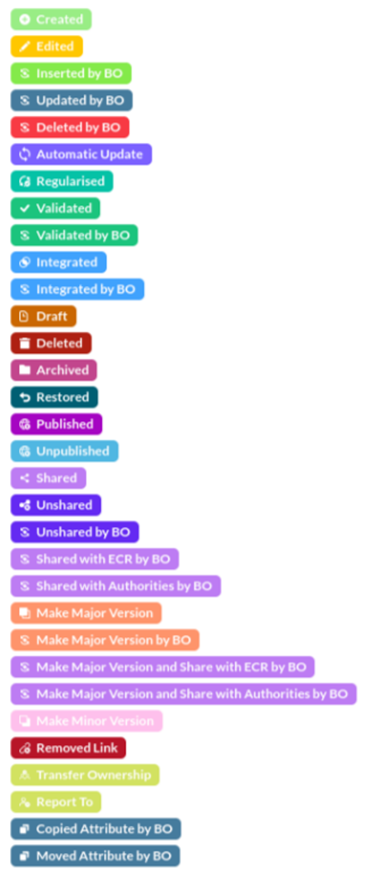
Together with each action, the Modification Date and the user account of the user who made the action are included. For some of the actions, such as ‘Edit’, a ‘Show Changes’ section is included, showing the attributes that were added, changed, or deleted.
3.3.11. Export
The Officer can export one or more SRs in different file formats.
· To export one report: This 3-dot menu option works for each SR of the list.
· Export in bulk: The export option can be performed by selecting multiple SRs on the list and clicking the File drop-down menu above the list of reports.
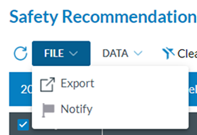
The system displays the Export window once they select the specific SRs and click on Export. (The window is the same for individual exports):
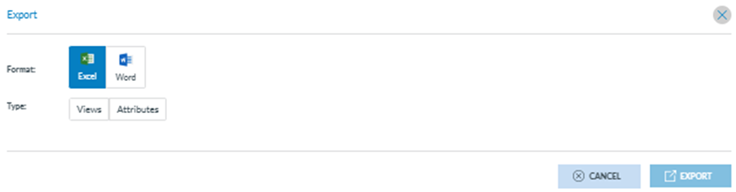
Officers can export SRs to Word and Excel format.
· Excel Format: When it is selected, the system will display:
ü Views
A view is a template used to view the data; this export will take the same attribute se-lection in the same order as displayed in the view. The system displays the views drop-down menu with all the views available for the Officer, and they must select the specific view to export the SRs, i.e.:
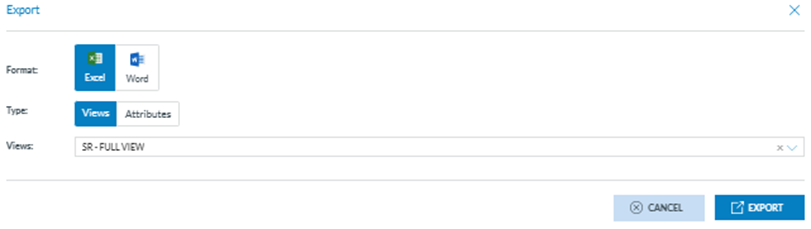
Then, click on the ‘Export’ button. The system will send an email notification to the Officer with a link to the export file.
ü Attributes
When the Officer selects ‘Attributes’, the system will display the Attributes List drop-down menu and the ‘New Attribute List’ button:
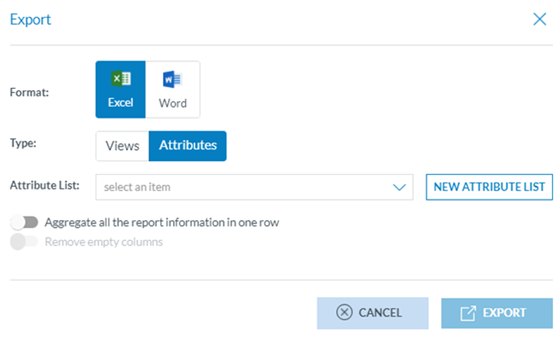
An Attribute List is an export profile available for the Officer, where they can save ex-port preferences. If no Attribute List item is available, the Officer can create one on the fly.
The Attribute Lists can also be created through the ‘My Account’ menu ‘Export by Attribute’ tab. See section Export by Attribute for details.
When the Officer clicks on ‘New Attribute List’, the system will display the Attributes List pop-up window:
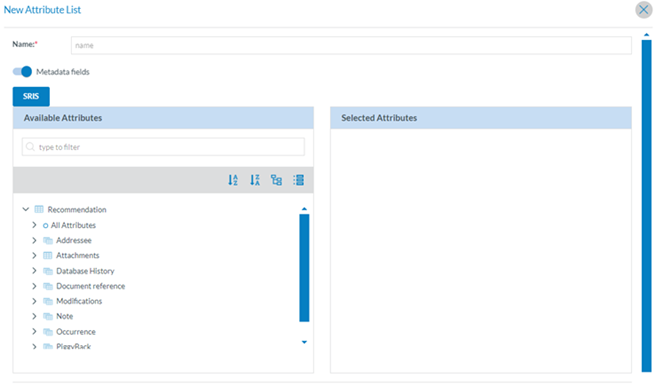
The Officer has to fill in the Name field, which must be unique for each Attribute List. The metadata fields check is activated by default. The Officer can deactivate it so the metadata of the selected SRs will not be exported.
Below, the system displays the taxonomy tree, through which the Officer can navigate and select the specific attributes they want to be exported.
The arrows unfold the items contained under each Entity. See the Taxonomy browser section for further details on its navigation. The Officer can also write in the Filter field to find the specific attributes. The Officer then checks the specific one/s they need, and they will appear under the ‘Selected Attributes’ title, i.e.:
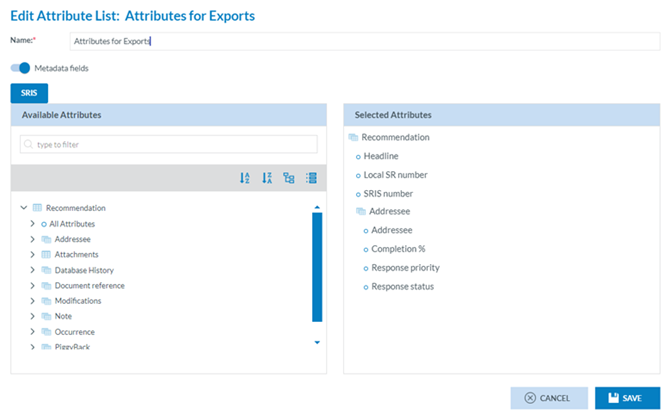
The Officer has to click on ‘Save’, and the system will return to the Attributes List selection window:

The Officer must select the corresponding created ‘Attribute List’ from the drop-down menu and decide whether to ‘Aggregate all the report information in one row’ or ‘Remove empty columns’. Then, the Officer clicks on ‘Export’, and the system will email the Officer’s address to send the Excel file with the SR/s.
ü Word format
When exporting SRs to a Word format, the system picks the data in the SR and transforms it into a Word Template to generate ready-to-distribute documents.
When it is selected, the system will display: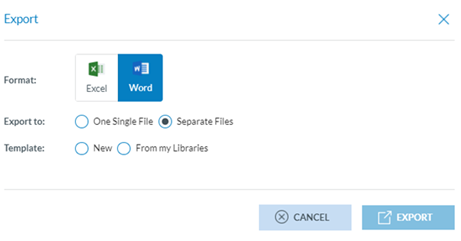
o Export to radio button:
We present two alternative options: ‘One Single File’, if the Officer wants a compressed file containing one Word document for all the reports or ‘Separate Files’, if the Officer wants a compressed file containing one Word document per report.
o Template radio button:
When the Officer selects ‘New’, the system will display a files section where the template can be uploaded through the ‘Select files’ button. The Officer can also drag the file/s and drop them in this section.
Officers can select ‘From my Libraries’ if a template is already available in the libraries available to the Officer.
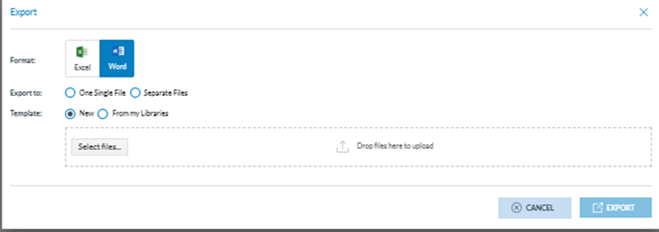
The Officer must upload the template file and click ‘Export’. The system will email the Officer a download link when the export is ready.
From my Libraries: when the Officer clicks on this option, the system will display the Libraries pop-up window:
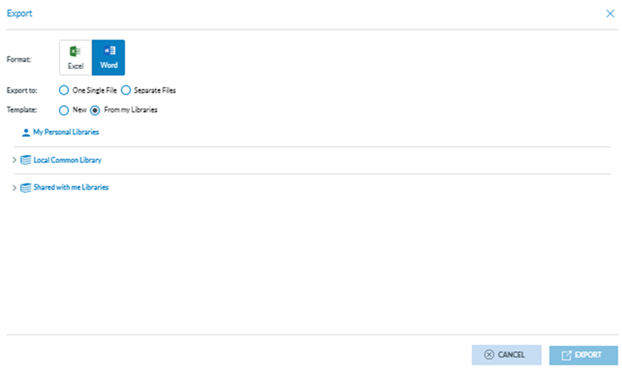
The system will display below ‘My Personal Libraries’ with the tree of Libraries available to the Officer.
The Officer will unfold the libraries through the arrows, select the specific template, and click on ‘Export’. Then, the system will email the Officer’s address so that the Officer can send the Word file with the SRs.
Nonetheless, the creation of word templates is also managed through the Data Management menu, ‘Word Templates’. See section Create a Word Template for further details.
3.4. Creation of an SR from scratch
Once in the SRs list, the Officer can click on ‘New Safety Recommendation’ above the list of SRs:

The system will display the view the Officer has previously defined through ‘My Account’. See Favourite Views of My Account section for further details, i.e.:
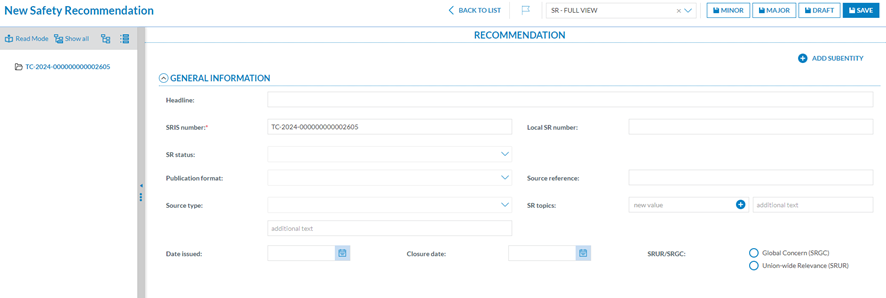
If no View had been previously defined on ‘My Account’, the Officer has to select one on the ‘View’ drop-down menu. The Officers have to fill in at least the mandatory fields. The management of this form is like the editing page. See the Edit section for further details.
3.5. Data Menu – Re-execution of Queries
Next to the File menu, above the list of SRs, the system displays the Data menu:
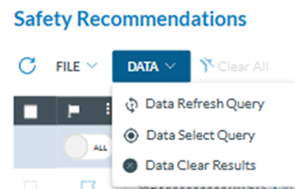
Data select Query: This button displays a modal window with the libraries available to the Officer to choose a query:
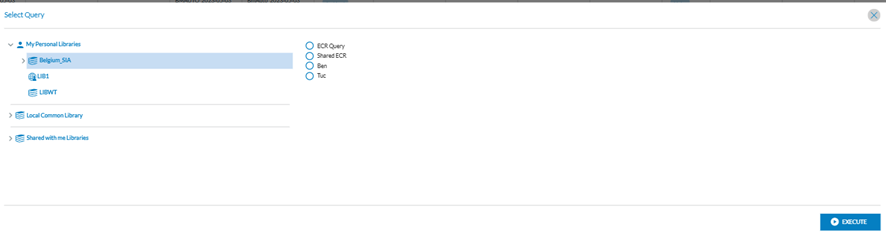
The Officer has to navigate the available libraries, select a query, and click ‘Execute’.
The system will update the list of SRs based on the query conditions.
The last 10 queries executed through this button will be available through the ‘Data Refresh Query’ option.
Data Refresh Query: When the Officer has selected queries through the ‘Data Select Query’, as explained above, the system will show them in the Re-Execute Query window where the Officer will select a specific query and will click on ‘Execute’:
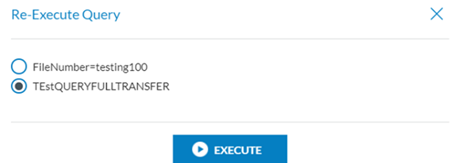
The system will execute the query and update the results list based on the selected query.
Data Clear Results: This button deletes the application of the queries in the list of results. When the Officer clicks on it, the system updates the list of SRs, removing all the filters and presenting all the results.
 Refresh icon: to refresh the page.
4. Data Management
4.1 Queries
Queries are a powerful tool the Officer can use to filter SRs through various stages in the plat-form. The Officer can:
· Filter the number of SRs displayed based on the Officer’s selected parameters.
· Export the result of a query to JSON or CSV formats.
4.1.1. Create a query
The Officer can access the Query Builder through the 'Data Management’ menu at the top of the page, then click on the 'Queries' option (Data Management > Queries).
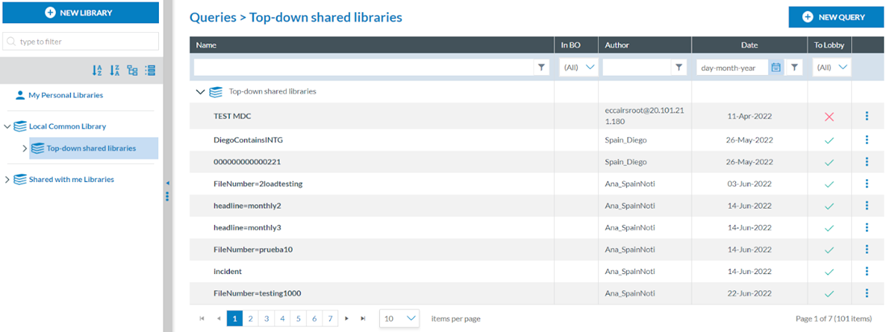
In this section, the Officer will be able to create queries, share them with other users or manage queries shared by other users with the Officer.
‘In BO’ column refers to the case if the query is included in a batch operation or not. The Officer can see the BOs that are using the query by hovering over the ‘edit properties’ option in the 3-dot menu (N/A for Safety Recommendations)
‘To Lobby’ column, with a filter for ‘yes’ or ‘no’. The query can be exported between UAT and PROD environments or between Authorities depending on whether the query to be exported has custom attributes or not. If it has custom attributes, it cannot be exported.
The Officer will have a library tree on the left panel, including all the libraries available to the Officer. Those are the folders that can have categories and subcategories. Find more information about Libraries in the section Query libraries.
To view the Queries inside a library, category or subcategory, the Officer has to click on the corresponding folder. The right side of the window will display the list of queries available for that selected folder:
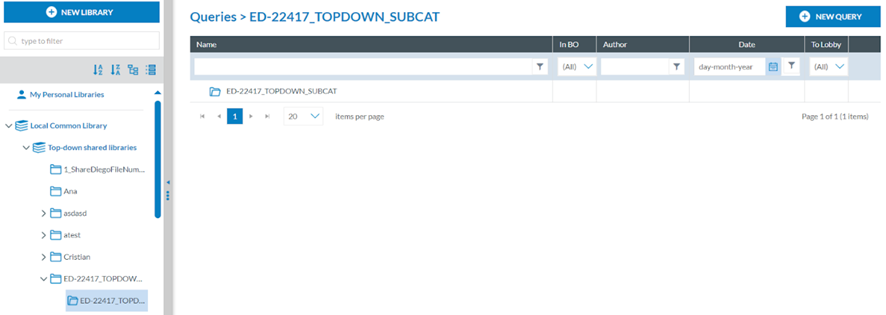
The Officer can click the 'New Query' button to create a new one in the selected Library or folder. A new window will be displayed with the Query Builder:
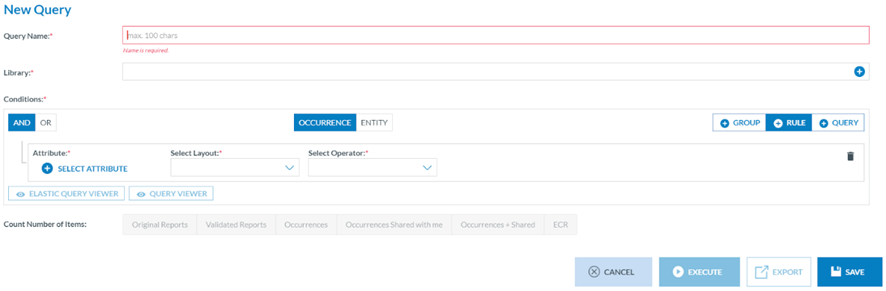
The Query Builder allows the Officer to build queries to search SRs with attributes or metadata fields that meet the given conditions.
The queries are executed against the safety recommendations indexed in ElasticSearch.
The Officer has to fill in a unique Query Name for each of the Officer’s queries and select a Library where to store the query. See Libraries section for more information.
Before executing, exporting or saving a query from the Query Builder, it is required to select over which reports the query will be executed on the ‘Count Number of Items’ section:

They will be activated as soon as the mandatory fields of the query are filled.
SRIS queries (based on SRIS Taxonomy)
· Safety Recommendations: including ‘Archived’ ones (Draft versions are not included).
· ECR: All safety recommendations shared to the ECR by mine and other Authorities (major versions only)
4.1.2. Query conditions – Attributes and metadata
Once in the Query Builder, the Officer has to select the query parameters to set each rule by clicking on ‘Select Attribute’ under the ‘Conditions’ section.

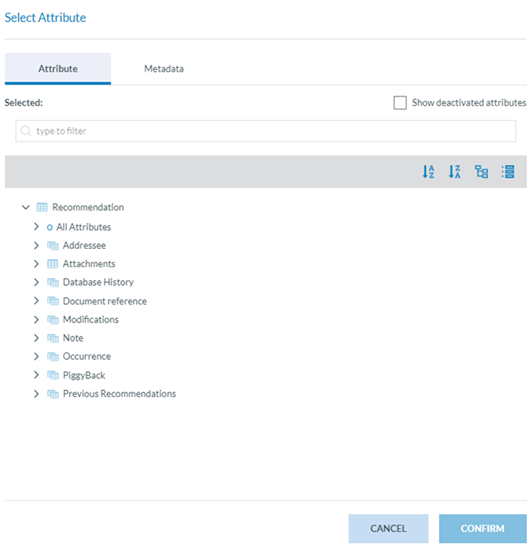
The system will display a modal window where the Officer can choose between:
· Attributes: Any of the attributes available for the Officer’s Authority Taxonomy:
· Metadata: additional information found at the database level that can be relevant for the Officer to query by:
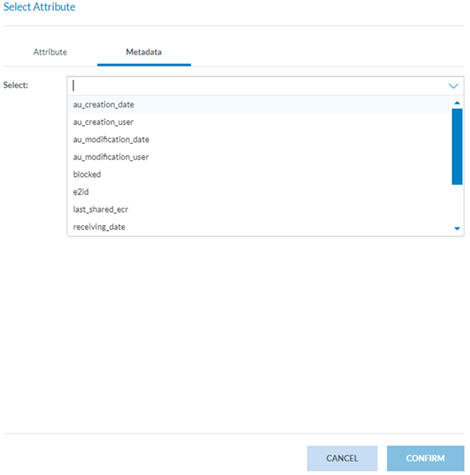
ü e2id – E2 identifier of SRs
ü Audit fields – they refer to the information of the specific version of the re-port:
o au_creation_date: the date when the report has been created
o au_creation_user: user who has created the report
o au_modification_date: the last date the report was updated
o au_modification_user: the last user that updated the report
ü blocked – it is set to TRUE when the report is blocked to prevent the users from editing it
ü responsible_entities_id – id of the responsible Entity (Authority in E2)
ü status – the report status, as described in the section Management of the SRs
ü Version – version number
4.1.3. Query structure
The queries are made using at least one rule. A rule is a condition the search made by the query has to meet.
Queries can also include various rules and groups of rules. A query can include one or more existing queries (subqueries). Queries cannot be edited while included as a subquery of another query.
A rule contains a condition to be met concerning an attribute or metadata field. Layouts and operators vary depending on the attribute and metadata field type, i.e.:
If the Officer selects ‘Closure Date’ as an attribute, the system will display ‘Value’ as the unique possible selectable layout and the Select Operator filter:
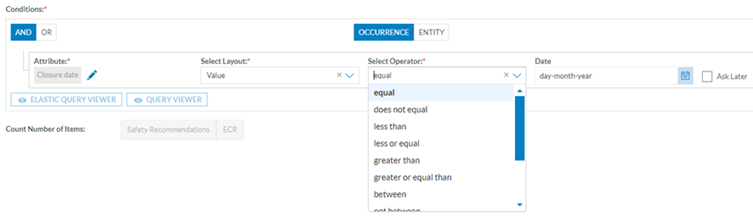
This will generate a ‘Date’ field to be filled by the Officer.
Attributes
· Alphanumeric and Text attributes or metadata fields can be searched in documents by a complete word using the layout ‘Value (Word)’ or by a string of characters using the layout ‘Text’. i.e.:
ü Value (Word) as in ‘Aircraft’ (complete word)
ü Text begins with ‘Airc’ (a string of characters)
|
Data Type |
Layout |
Operators |
|
Alphanumeric, Text |
Value (Word) |
equal does not equal in not in is null is not null |
|
Text |
in not in begins with does not begin with ends with does not end with is null is not null |
· Code attributes can be searched in documents using layouts:
ü Value: selecting one or more values of the value list
ü Level: when the value list has more than one level, selecting all the values of a branch (level) in the value list, starting from the selected value(s)
ü Alias: when the value list has alias(es), selecting one of them
|
Data Type |
Layout |
Operators |
|
Code |
Value |
equal does not equal in not in is null is not null |
|
Level * if the Value List has more than one level |
equal does not equal in not in is null is not null |
|
|
Alias * if the Value List has alias(es) |
in not in begins with does not begin with ends with does not end with |
· Code and Additional Text, Code or Alternative Text attributes can be searched in documents using layouts:
ü Value: selecting one or more values of the value list
ü Level: when the value list has more than one level, selecting all the values of a branch in the value list
ü Alias: when the value list has alias(es), select one of them.
ü Text: typing a string of characters
|
Data Type |
Layout |
Operators |
|
Code and Additional Text, Code or Alternative Text |
Value |
equal does not equal in not in is null is not null |
|
Level * if the Value List has more than one level |
equal does not equal in not in is null is not null |
|
|
Alias * if the Value List has alias(es) |
in not in begins with does not begin with ends with does not end with |
|
|
Text Used to search in the Text part of the Attribute |
in not in begins with does not begin with ends with does not end with is null is not null |
· Date and DateTime attributes can be searched in documents using layouts:
ü Value: when searching by date or range of dates
ü Date of the Month (1-31): when searching by the day of the month
ü Date of Week (1-7): when searching by the day of the week
ü Month (1-12): when searching by the month
ü Year: when searching by year
|
Data Type |
Layout |
Operators |
|
Date, DateTime |
Value |
equal does not equal less than less or equal greater than greater or equal between not between |
|
Day of the Month (1-31) |
equal does not equal less than less or equal greater than greater or equal between not between |
|
|
Day of Week (1-7) |
equal does not equal less than less or equal greater than greater or equal between not between |
|
|
Month |
equal does not equal less than less or equal greater than greater or equal between not between |
|
|
Year |
equal does not equal less than less or equal greater than greater or equal between not between |
· Time attributes can be searched in documents using layouts:
ü Value: when searching by hours and minutes
|
Data Type |
Layout |
Operators |
|
Time |
Value |
equal does not equal less than less or equal greater than greater or equal between not between is null is not null |
· Latitude and Longitude attributes can be searched in documents using layouts:
ü Value: when searching by degrees, minutes and seconds or range of them
|
Data Type |
Layout |
Operators |
|
Latitude, Longitude |
Value |
equal does not equal less than less or equal greater than greater or equal between not between is null is not null |
· Decimal attributes can be searched in documents using layouts:
ü Value: when searching by a decimal number
|
Data Type |
Layout |
Operators |
|
Decimals |
Value |
equal does not equal less than less or equal greater than greater or equal between not between is null is not null |
· Number attributes can be searched in documents using layouts:
ü Value: when searching by an integer number
|
Data Type |
Layout |
Operators |
|
Number |
Value |
equal does not equal less than less or equal greater than greater or equal between not between is null is not null |
· ECCAIRS Resource Locator attributes can be searched in documents using layouts:
ü File Name: When searching by the Name of an attached field
ü Description: When searching by the description given in the attached field
|
Data Type |
Layout |
Operators |
|
ECCAIRS Resource Locator |
File Name |
equal does not equal in not in is null is not null |
|
Description |
equal does not equal in not in is null is not null |
· ECCAIRS Embedded data attributes can be searched in documents using layouts:
ü ECCAIRS number: when searching the former document's ECCAIRS number
|
Data Type |
Layout |
Operators |
|
ECCAIRS Embedded Data |
ECCAIRS number |
in not in begins with does not begin with ends with does not end with is null is not null |
· ECCAIRS Data link attributes can be searched in documents using layouts:
ü ECCAIRS number: when searching the former document's ECCAIRS number
|
Data Type |
Layout |
Operators |
|
ECCAIRS Data Link |
ECCAIRS number |
in not in begins with does not begin with ends with does not end with is null is not null |
Groups can include one or more rules and one or more groups combined with and/or clauses. The Officer can click the ‘Add Rule’ button to add more rules. For groups, on the ‘Group’ tab. If the Officer wants different sets of rules to be evaluated together, the Officer has to click on the 'Add group' button. The Officer can also add groups inside other groups.
Groups and rules can be rearranged, dragging and dropping them where needed.
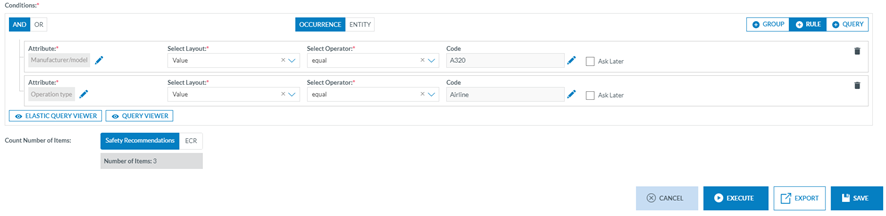
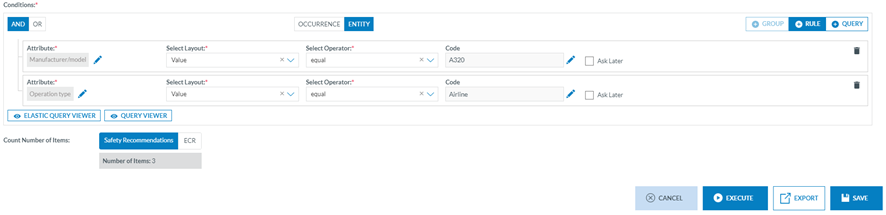
For each group, at the top centre of the group, there are the OCCURRENCE/ENTITY alternative tabs; if conditions of the given attributes shall be met in any instance of the Entity or if the conditions shall be met in the same instance of the Entity. Thus, when specifying restrictions in a query, the restrictions can be evaluated across all the entities of a record at once OR can be evaluated by each Entity of a record one by one. By default, the restrictions of a query will be evaluated across all the entities of a record at once, with the OCCURRENCE option selected by default.
With the selector OCCURRENCE/ENTITY, the Officer can change that, and the restrictions will be evaluated Entity by Entity. There is a limitation in creating groups based on the restriction selected here. If a group is restricted to ENTITY, no more groups can be added inside that ENTITY group.
Example of search by occurrence and by Entity:
1. OCCURRENCE: If we want to obtain the Safety Recommendations where the Manufacturer model (39) is equal to ‘BOEING > 787’ and the Operation Type (189) is equal to ‘Commercial Air Transport > Cargo’ independently if the conditions are met in different aircraft of a safety recommendation:
2. ENTITY: If we want to obtain the Safety Recommendations where the Manufacturer model (39) is equal to ‘BOEING > 787’ and the Operation Type (189) is equal to ‘Commercial Air Transport > Cargo’ when the conditions are met in the same aircraft.
The Officer can set rules with and/or clauses and combine them as needed with groups by clicking on the ‘Group tab’ and selecting and/or clauses, i.e.:

Subqueries
The Officer can add a subquery to the query through the ‘Query’ tab. The aim is to add an already existing query available for the Officer to the current query. When the Officer clicks on the ‘Query’ tab, the system will display the subquery section:

The Officer can click on ‘Select Query’, and the system will display a window to select the subquery:
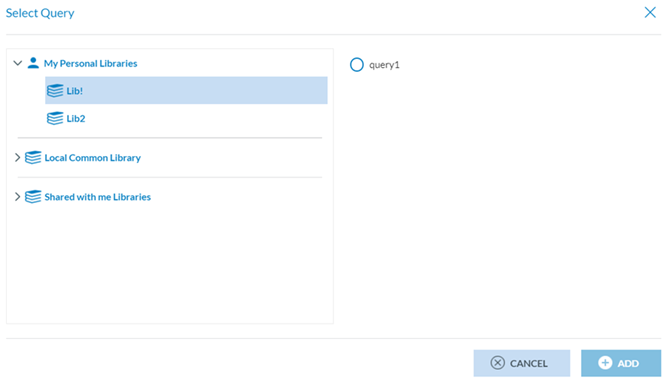
The Officer must select a query from the available libraries and click ‘Add’. The system will add the subquery to the conditions of the current query. A query included as a subquery of another query cannot be edited.
4.1.4. Query action buttons
Once the query is completed, the Officer can click on:
· Cancel button: the system will return to the Queries page.
· Execute button: the system will display the list of results according to the conditions set by the query.
· Execute button: the system will display the table of the specific reports based on the query's conditions. To re-execute the queries, the system provides the data menu that works as explained in the Data Menu – Re-execution of Queries section.
· Export button: this button only works when the Officer selects a type of report (SR or ECR) with results for the current query. The Officer has to click on ‘Export’, and the system will display a modal window where the Officer can select the format (JSON or CSV):
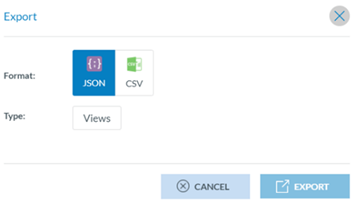
· Export in JSON: The window displays a Views tab. When the Officer clicks on it, the system displays a ‘Views’ modal window. The Officer must select one of the available views and click ‘Export’.
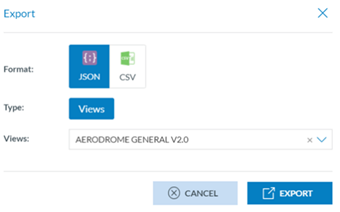
Once the process is finished, an email will be sent to the Officer with a zip file with the query results in the selected format.
· Export in CSV: The Officer clicks on the ‘CSV’ tab, and the system displays a modal window where the Officer has to select between ‘Views’ and ‘Attributes’:
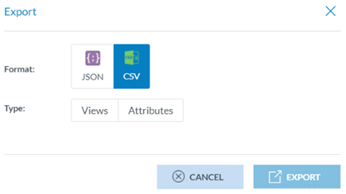
· If the Officer clicks ‘Views’, the system will display a ‘Views’ modal window. The Of-ficer must select one of the available views and click ‘Export’. Once the process is finished, an email will be sent to the Officer with a zip file with the query results in CSV format.
· If the Officer selects ‘Attributes’, the system will display an Attributes List drop-down menu and a new Attributes List button:
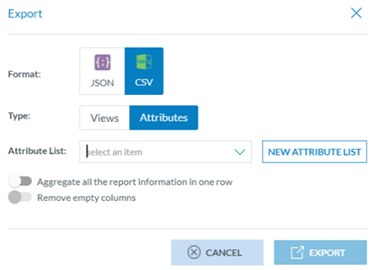
If the attributes needed do not match any available Attribute Lists, the Officer can click on ‘New Attribute List’, and the system will display a modal window to create it:

The Officer has to fill in the mandatory ‘Name’ field and deactivate the ‘Metadata fields’ if needed.
Below, the system displays the Taxonomy tree with all the SRIS entities and attributes. The Officer can filter or navigate the tree to select the corresponding attributes. Once selected, they appear on the right-side panel. Attributes under the same Entity can be reordered by dragging and dropping them. Then, the Officer has to click on the Save button:
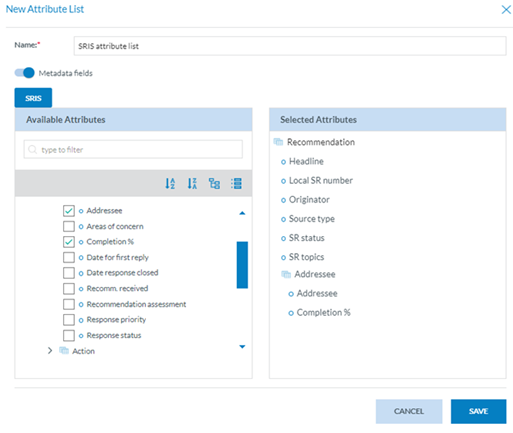
The Officer will select the created Attribute List on the drop-down menu and will click on the ‘Export’ button:
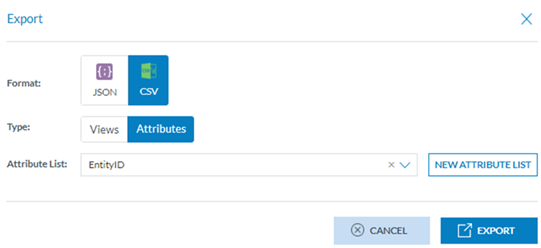
Once the process is completed, the Officer will receive an email with the CSV file, including the results of the executed query.
4.1.5. Management of queries – table of queries
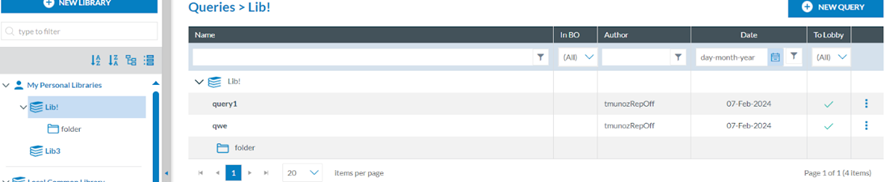
4.1.5.1. Editing a query
The Officer has to double-click on the specific query of the queries list or click on the ‘Edit’ option of the query’s 3-dot menu, and the system will display the editing page of the query:
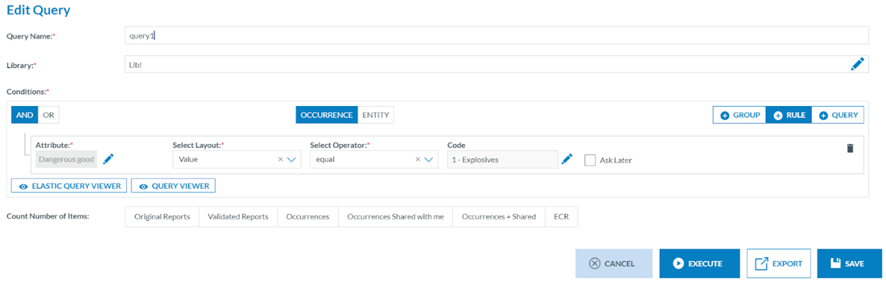
The Officer has to introduce the needed update and click on ‘Save’, ‘Export’ or ‘Execute’, as required. See the Query action buttons section for further details.
This page also provides:
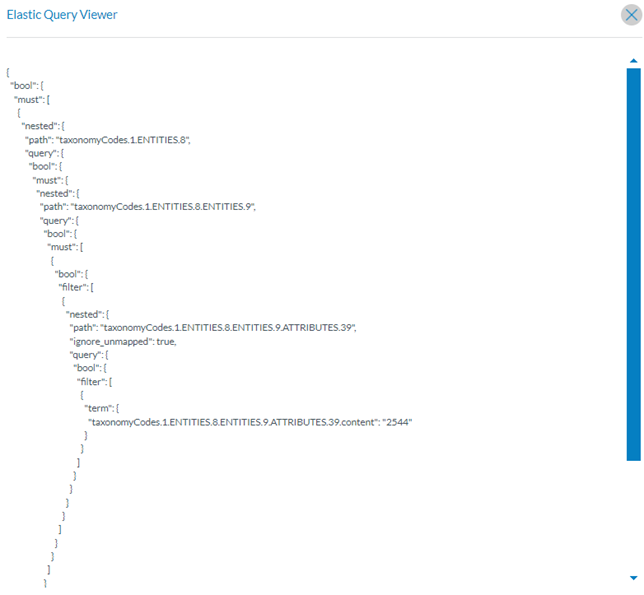
· Elastic Query Viewer button: it accesses the ElasticSearch Query Viewer window as follows:
· Query viewer button: it opens the query viewer window as follows

4.1.5.2. Duplicating a query
The Officer can make a copy of an existing query and modify it.
The Officer has to click on the copy icon of the 3-dot menu of the specific query of the list of queries, and the system will display the Copy query window:
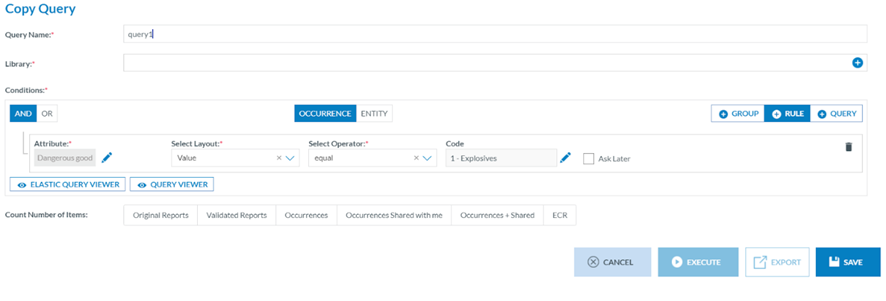
It is like the editing page above but with the mandatory Library field empty. The Officer has to fill out the library field with a library different from the original one, and then the Execute and Export button will be activated. The Save button is not available unless a Library is selected. The Officer has to introduce the needed update and click on ‘Save’, ‘Export’ or ‘Execute’, as required. See the Query action buttons section for further details.
4.1.5.3. Sharing a query
Officers of the same Authority can exchange queries with each other, which will result in a notification to the receiving officers.
The Officer has to click on the Sharing option of the 3-dot menu of the specific query of the list of queries, and the system will display the Share query window:

The Officer has to select ‘Share to User’, and then the system will display the ‘Users’ tab below.
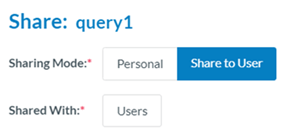
The Officer has to click on ‘Users’, and the system will display the Available Users section:

The Officer has to check the specific Users, click the ‘ADD’ button, then click the ‘Save’ button. The system will save the updates of the query in the database and return to the list of queries that will have added a Shared icon to the specific query:

The Officer then can click on the ‘Edit share’ option that will be added to the 3-dot menu of that query and add more users or remove some of them.
4.1.5.4. Deleting a query
The Officer has to click on the ‘Delete’ option of the specific query 3-dot menu of the list of queries, and the system will delete it and update the table of queries accordingly. A query can-not be deleted if used in Batch Operations or Query-based Notifications. See the Query-based notifications section for further details.
4.2. Libraries
All information presented in this section concerning the creation and management of libraries also applies to Word-templates.
The system provides the libraries available to the Officer on the left panel of the Queries menu:
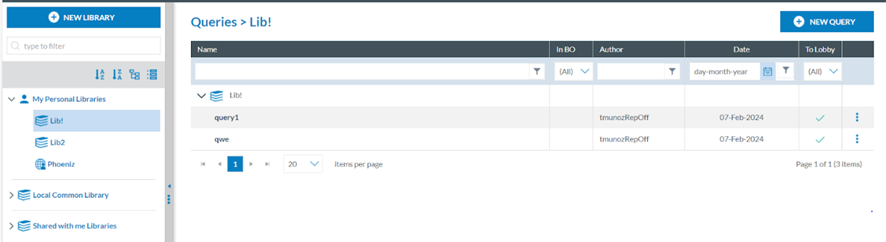
4.2.1. My Personal Libraries
The queries stored in personal libraries are only available to the owner of the libraries. The owner can decide to share a particular query from the Personal Libraries or share the complete Library with other Authority users. Only users with permission to execute queries will be eligible.
4.2.2. Local Common Library
The queries stored in the Local Common Library are available for all Authority users with per-missions to queries. Officers cannot create, edit or delete queries in the Local Common Library. They can execute the queries or copy them to their Personal Libraries.
4.2.3. Shared with me libraries
When the library owner or query has shared it with the Officer, it will appear under these users' ‘Shared with me libraries’. They can execute the queries or copy them to their Personal Libraries.
4.2.4. Creation of a library
Once in the ‘Data management’ ‘Queries’ menu, the Officer has to click on ‘New Library’, and the system will display a modal window to create the Library:
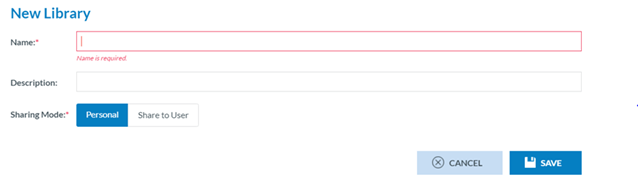
The Officer has to fill in the mandatory Name field, provide a description (if needed), and specify the Sharing mode, which can be ‘Personal’ or ‘Share to User’.
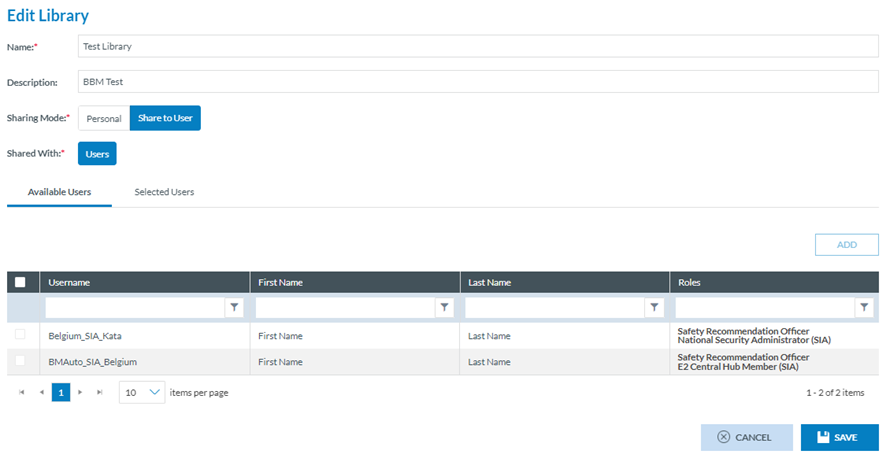
Therein, the Officer has to select the specific users through the check box and click the ‘ADD’ button, which will be activated. The selected users will be available on the ‘Selected Users’ tab.
The Officer has to click on ‘Save’ for both Personal or Shared to User, and the Library will be saved accordingly and will appear in the left pane under ‘My Personal Libraries’:
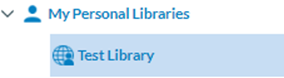
If the created Library is ‘Shared to user’, it will show the ‘Shared’ icon 
4.2.4. Management of My Personal Libraries
Next to each Library under My Personal Libraries of the Officer, the system provides the deleting, adding category and editing buttons.
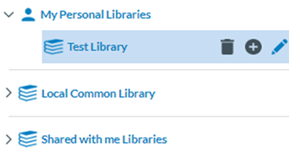
4.2.4.1. Deleting a Library
The Officer has to click on the Delete icon (rubbish) next to the specific Library, and the system will delete the Library from the My Personal Libraries tree as long as it has no more queries. Otherwise, the system will display a warning message and will not delete the Library. The library tree will be updated accordingly.
4.2.4.2. Adding a category or folder to a Library
The Officer has to click on the ‘+’ button next to the specific Library, and the system will display a folder below the Library:
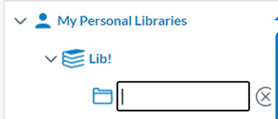
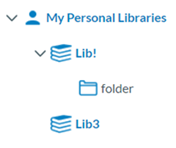
The Officer has to type a Name and click on ‘Intro’. The folder or category will be added to the tree and will be available to store queries of the Officer:

Next to the folder or category, the management buttons will appear as follows:
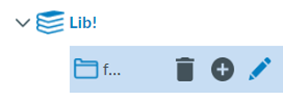
The category can only be deleted if it does not include queries.
The ‘+’ button is to add subcategories. It works the same way as adding categories to the Library.
The edit button only updates the Name, not the location of the category.
4.2.4.3. Editing a Library
The Officer has to click on the editing (pencil) icon next to the specific Library, and the system will display the editing window:

This page is the same as the library creation window of the previous section. The Officer must update the corresponding fields and click ‘Save’. The changes will be saved in the database and Library tree.
4.3. Word Templates
Word Templates in ECCAIRS2 are used to export reports in Word format. The Word template has to include the complete path of the attributes according to the Authority’s released taxonomy so that the system can fill each template field with the Attribute's corresponding value in the SR.
Each table in the Word Template corresponds to an entity in the taxonomy. i.e.: 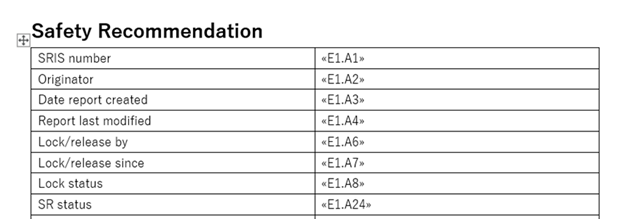
The Word Template will have tags included in token « » with the following characteristics:
· Attribute: A
· Attribute custom: AC
· Entity: E
· Separation token: .
· ID: TaxonomyCode
Example:
«E1.A1» ->ENTITY.1.ATTRIBUTE.1
«E1.E45.AC1» ->ENTITY.1.ENTITY.45.ATTRIBUTES_CUSTOM.1
Depending on the attribute data type, it should be indicated what part of the Attribute will be included in the Word Template:
|
Attribute Data Type |
Field |
Example |
|
Date, Time, Text, Alphanumeric, Number |
content (default) |
«E1.A1» |
|
Code |
content (default) |
«E1.A1» |
|
Code and Additional Text |
content (default) additionalText |
«E1.A1» «E1.A1.additionalText» |
|
Code or Alternative Text |
content (default) alternativeText |
«E1.A1» «E1.A1.alternativeText» |
|
Decimal |
content (default) unit |
«E1.A1» «E1.A1.unit» |
|
ECCAIRS Resource Locator |
filename (default) description |
«E1.A1» «E1.A1.description» |
|
ECCAIRS Embedded Data |
eccairsNumber (default) |
«E1.A1» |
|
ECCAIRS Data Link |
eccairsNumber (default) |
«E1.A1» |
|
Latitude & Longitude |
|
«E1.A1.degree» «E1.A1.minutes» «E1.A1.seconds» «E1.A1.direction» |
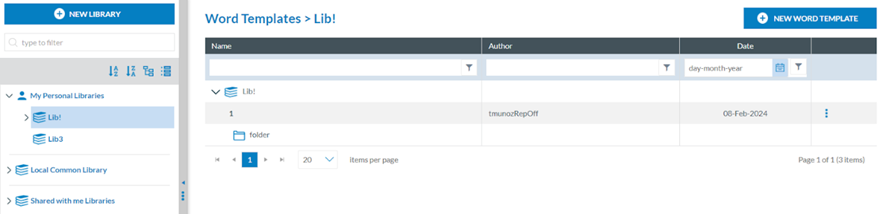
Once the Word template is configured, the Officer can save it into E2 libraries. This is the sec-ond Data management menu:
4.3.1. Create a Word Template
To create a Word Template (from now on WT), the Officer has to click on ‘New WT’ at the top of the page, and the system will display a modal window:
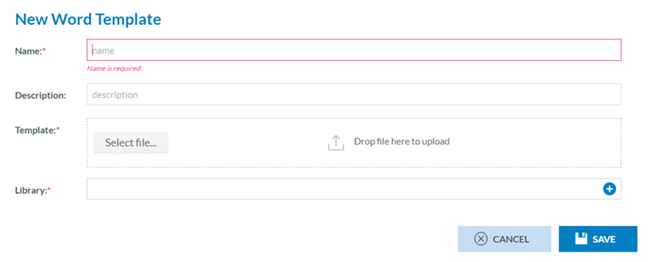
The Officer has to fill in the Name that has to be different from the existing ones, upload the needed Word Template file to the Template section through the ‘Select file’ button or drag and drop it to the section and select a Library, a category and a subcategory.
Then, the Officer has to click on the ‘Save’ button. The system will save the WT in the database, return to the WTs page, and add the specific WT to the table of WTs.

The saved WT will be available in the Export options for the SRs in Word format. See the Export section of SRs for further details.
4.3.2. Management of Word Templates
4.3.2.1. Edit a WT
The Officer has to double-click on the Name of the specific WT of the list of WTs or click on the ‘Edit’ option of the 3-dot menu of the WT on the list, and the system will display the Edit window:
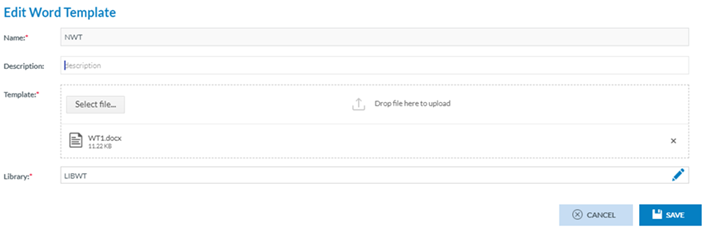
The Name field cannot be updated; only the other fields of the WT, including the Library, can be updated.
The Officer has to update the corresponding fields and click ‘Save’. The system will save the updates in the database and return to the WT menu with the updated list of WTs.
4.3.2.2. Copy a WT
The Officer has to click on the ‘Copy’ option of the 3-dot menu of the WT on the list, and the system will display the Copy WT window:
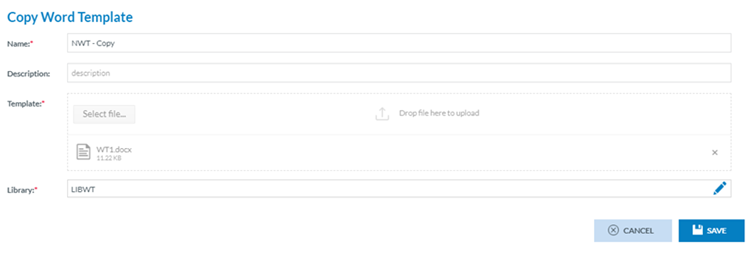
The management of this window is the same as the editing option above, with the only difference being that the Name field can be updated. The Officer can select a library different from where the WT was stored previously.
4.3.2.3. Share a WT
The Officer has to click on the ‘Share’ option of the 3-dot menu of the WT on the list, and the system will display the Share WT window:

This option works as described in the ‘Share a query’ section Management of queries – table of queries with the only difference being the information shared.
4.3.2.4. Download a WT
The Officer has to click on the ‘Share’ option of the 3-dot menu of the WT on the list of WTs, and the system will download the WT.
4.3.2.5. Delete a WT
The Officer has to click on the ‘Delete’ option of the 3-dot menu of the WT on the list of WTs, and the system will delete it from the database and update the list of WTs accordingly.
5. Taxonomy Browser
5.1. Taxonomy
The E2 system is built around the ECCAIRS taxonomy, constituted by ADREP taxonomy + ECCAIRS/EU specific taxonomy. While most of it is centrally maintained, in accordance with specific governance through the NA’s established Data and Quality Working Group, there is also the possibility for Authorities to maintain their own custom taxonomy, which allows them to adapt their usage of E2 to their own processes.
The taxonomy browser is a portal of the E2 System that provides detailed information of all the ECCAIRS taxonomy structures, entities, attributes and value lists in an easy-to-use UI.
The taxonomy browser is only for consulting purposes.
The Officer has to access the taxonomy menu to access the central or custom taxonomy for the Officer’s Authority. See the List of taxonomies section for further details.
The Taxonomy tree and the search bar are displayed on the left side of the screen. They can be hidden by clicking on the 'arrow' icon. The left panel is resizable by clicking on the 3-dot menu and moving it to the left or the right.
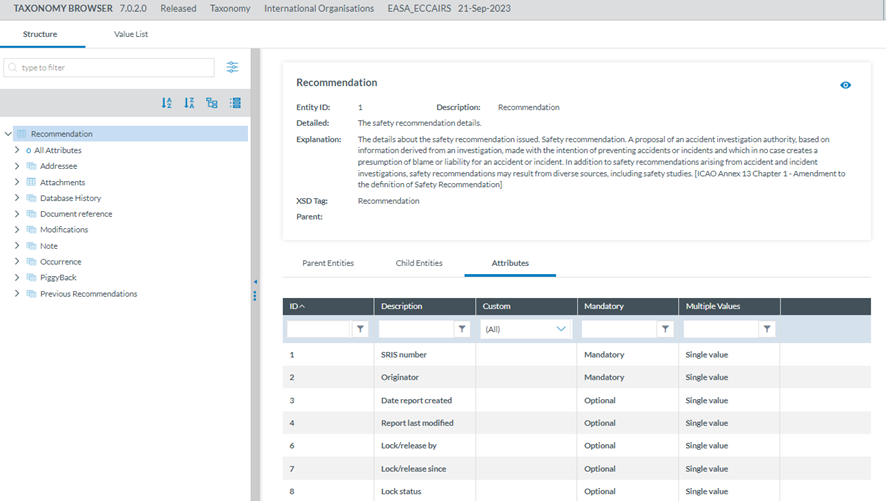
5.2. Search
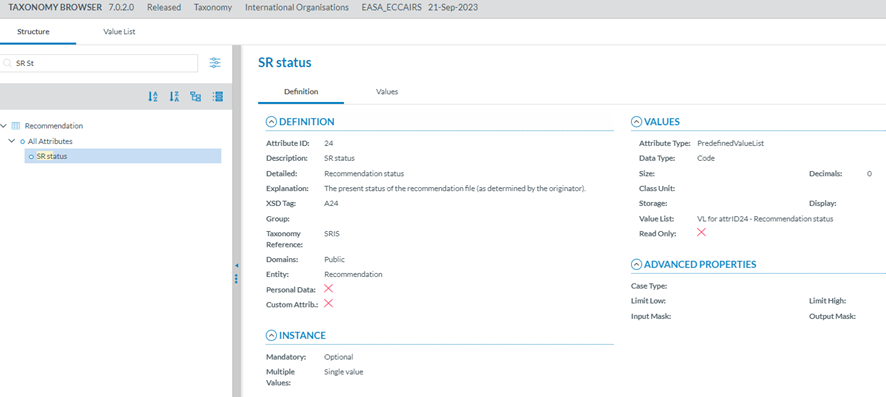
Entities and Attributes can be found by typing the Taxonomy Code or the Description in the Search box.
By Taxonomy code:

By Description:
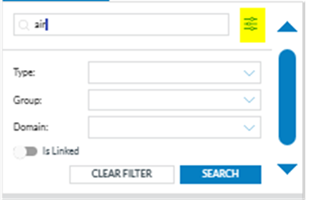
A layer with more filters will be displayed if the Officer clicks the 'Advanced search' button.
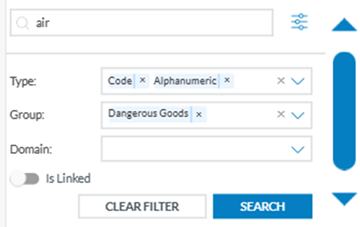
The Officer can search attributes by:
· Type: attribute data type
· Group: the attributes are grouped by specific criteria defined by the taxonomy administrators, i.e. Maintenance, Management, etc.
· Domain: Attributes belonging to a certain domain, i.e., RIT, a subset of the ECCAIRS aviation taxonomy.
· For each filter, the Officer can select as many values as needed. Then, the Officer must click the 'Search' button to refresh the tree with the introduced filters.
Additionally, the Officer can indicate if they want the linked entities shown in the Taxonomy tree. They are shown in green and cursive letters.
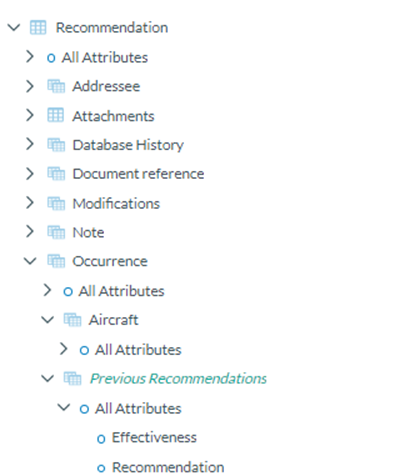
The Taxonomy Tree can be ordered alphabetically by clicking on the 'A-Z' icon or 'Z-A' icon : 
You can collapse or expand all item of the Taxonomy Tree with the following buttons:
- Expand all

- Collapse all


5.3. Taxonomy structure
ECCAIRS and SRIS taxonomies have the same structure in 4 levels:
-
Entities
-
Attributes
-
Value Lists
-
Values
5.3.1 Entities
Entities represent objects to which attributes are assigned.
An entity could be, for example, the "Aircraft" involved in an incident or the "Events" describing the incident.
Multiple instances of an entity can exist if several such objects are involved in an event.
Entities can have child entities, e.g. "Engine" is a child entity of "Aircraft". Entities can also be linked to other entities.
5.3.1.1 Entities information
Entities in the Taxonomy tree are marked with icon  . When the Entity is a Linked Entity, it is also marked in green colour.
The following information will be displayed on the right side of the screen when the Officer clicks on an Entity in the Taxonomy tree:
· Entity information: A summary of the selected Entity.
· Parent Entities: The list of its parent Entities
· Child Entities: The list of its children Entities
· Attributes. The list of its Attributes
Click on each tab (Parent Entities, Child Entities, Attributes) to view the relevant information:
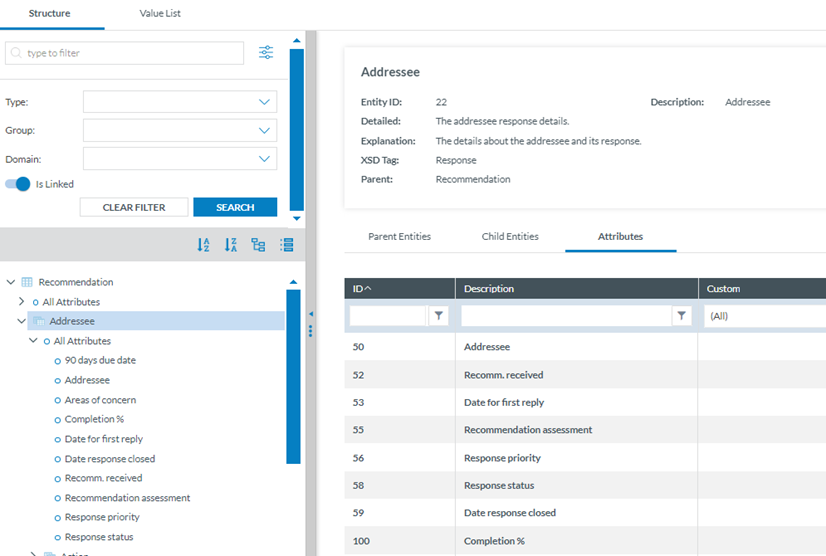
5.3.2 Attributes
Attributes describe properties/values associated with an entity. An attribute of the “Aircraft” entity is, for instance, its "manufacturer/model". Attributes can have single or multiple values.
-
Number
-
Decimals
-
Text
-
Alphanumeric
-
Date
-
Time
-
DateTime
-
Longitude
-
Latitude
-
Code
-
Code and Additional Text
-
Code or Alternative Text
-
ECCAIRS Resource Locator
-
ECCAIRS Data Link
-
ECCAIRS Embedded Data
5.3.2.1 Attributes information
The Attributes are marked with  icon in the Taxonomy Tree.
The Officer can view the information of an Attribute from two places in the Taxonomy Browser:
a. Find an attribute in the Taxonomy Tree and click it:
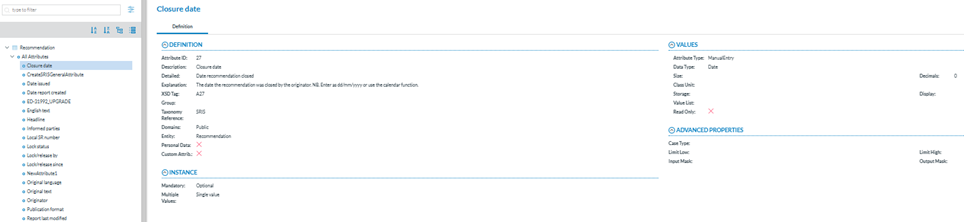
b. Select the Entity to which the Attribute belongs and click on the 'Attribute' tab. The Officer will see all the Attributes of the selected Entity.
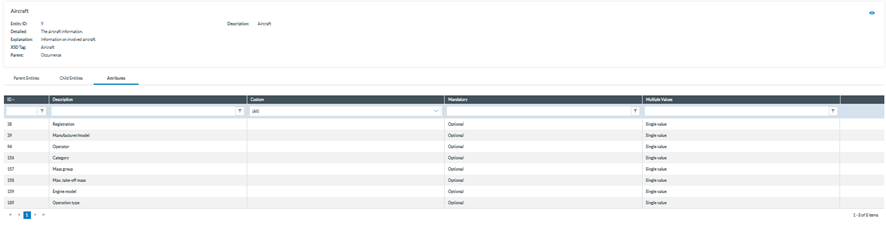
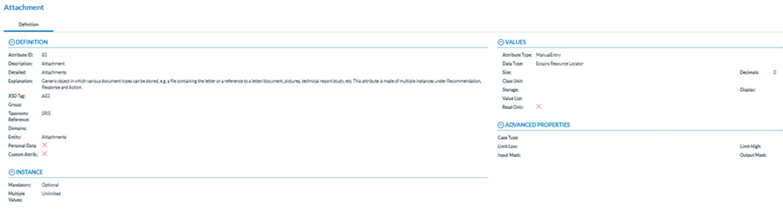
Click on the 'Eye' icon to view the detailed information.
· Definition
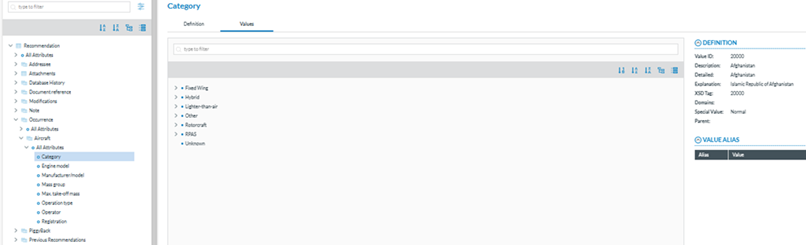
- Values: If the Attribute has a predefined value List. In the Values tree, the Officer can navigate the values by clicking on each element. The selected value will display its definition, and the Values can be searched by Taxonomy code or description and ordered alphabetically.
5.3.3 Value Lists
The list of values an attribute can have is defined in a Value List. The Value List can have multiple levels where values are organised in a tree mode. Each Value List can have Aliases.
5.3.4. Values
Values assigned to an attribute depend on the type of the Attribute. These can be manually inputted or selected from a predefined list of values (Value List).
5.3.5. Filter the information
The Officer can filter the Parent Entities, Child Entities and Attributes table by typing the term to be searched in the filter row. The Officer can restrict the results by clicking the  ' filter' button. By default, the 'contains' condition is selected.
To delete the filter, the Officer must click the '  clear filter' icon.

5.3.6. View detailed information
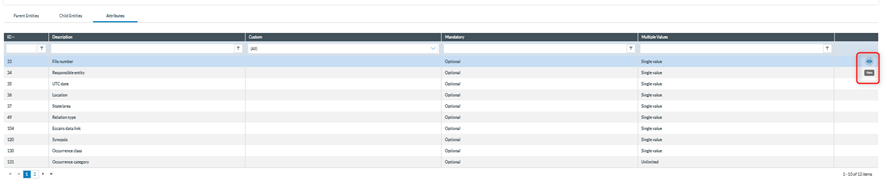
To view more information about the select Entity, the Officer must click the 'eye' icon.

To view more information about the Parent Entities, Child Entities or Attributes, the Officer can click the 'eye' icon that appears while moving the mouse over the row.
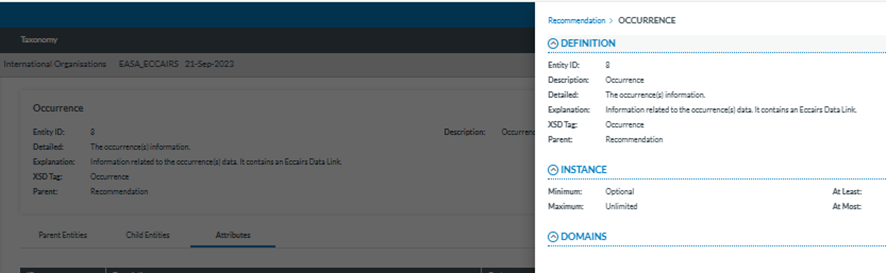
A slide-in panel with the element information will be displayed when clicking on the' eye' icon. The Officer can click outside the panel to close it and return to the previous screen.
5.4. List of Taxonomies
The Officer can access the list of taxonomies through the ‘Taxonomy’ menu displayed in the top menu:

If there is one, the last SRIS-released taxonomy and the custom taxonomy for the Authority of the Officer will be listed.
It includes the SRIS last released taxonomy:

If the Officer clicks on any of them, the system will display the taxonomy browser of that taxonomy. Click on the 3-dot button of each taxonomy of the list, and the system will display the following menu:
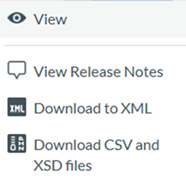
Download an XML with the taxonomy or CSV and XSD files with the taxonomy to view the taxonomy browser and release notes.
The View option accesses the Taxonomy browser of the selected taxonomy. See the section Taxonomy browser for further details.
5.4.1 View Release Notes
Release Notes are generated automatically when a new taxonomy version is released. It includes all the changes the new Taxonomy reflects: attributes, value lists and values that have been added, edited or deleted.
The Taxonomy version has four digits and consists of the following fields:
· Major
· Minor
· Revision
· Build
When a new Taxonomy is released, depending on the changes in its items, the version is auto-matically populated based on these rules:
· Major: It will be increased if any of these changes have been applied:
o Add Entity
o Delete Entity
o Add entity relation
o Delete entity relation
o Change Entity (only allowed changes)
· Minor: It will be increased if any of these changes have been applied:
o Delete Attribute
· Revision: It will be increased if any of these changes have been applied:
o Add Attribute
o Change attribute (only allowed changes)
ü Attribute values related:
o Change value limits
· Build: it will be increased if any of these changes have been applied:
ü Attribute values related:
o Add values
o Delete values
o Move values
o Change values (only allowed changes)
o Change value lists (only allowed changes)
The Name of the SRIS central taxonomy is ‘SRIS’ concatenated with the four-digit version code. e.g.: SRIS '6.3.0.1'. If a Custom Taxonomy exists for the Officer’s Authority, the Name will be SRIS_DE_ '6.3.0.1' (C#), where the # is the number of the custom taxonomy starting from cero (0).
When the Officer selects ‘View Release Notes', the system opens the Release Notes of the specific taxonomy:
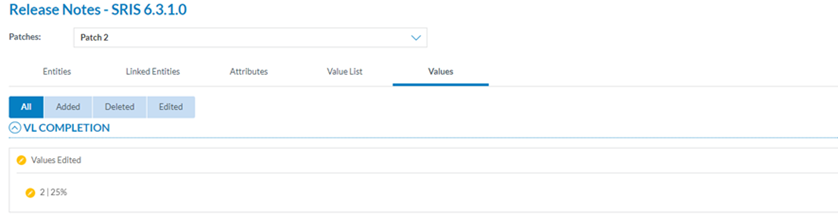
The page provides the following tabs with the corresponding release notes:
· Entities
· Linked entities
· Attributes
· Value List
· Values
Download XML: it downloads the released taxonomy in XML format.
Download CSV and XSD files: It downloads a zip file of the released taxonomy with the CSV and XSD files.
6. My account
6.1. My account menu
Users can edit their personal settings through the “My Account” management interface. This menu is accessible once the Officer clicks on their username

6.2. Personal Details
This is the first tab of “My Account” page.
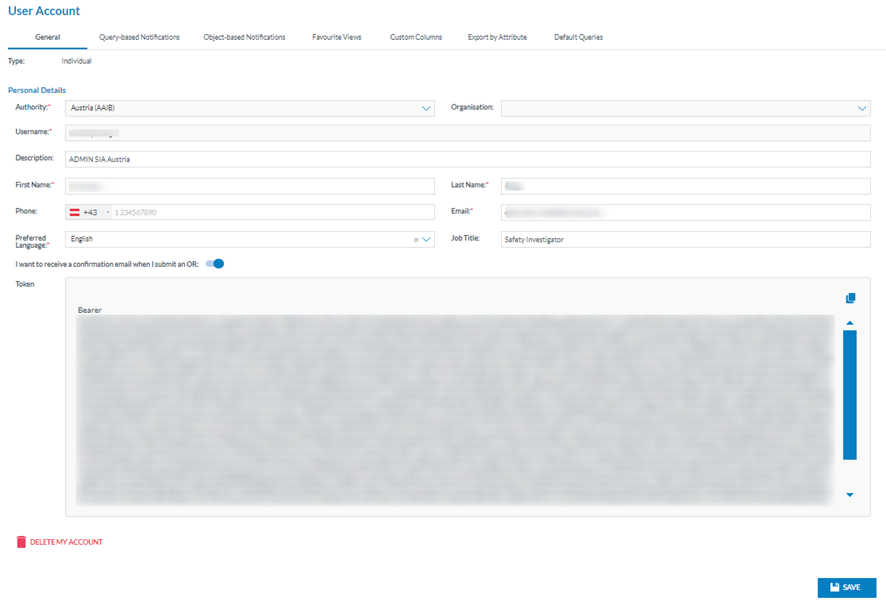
The first tab is ‘General’, indicating the type of account (individual or organisation) and the edit page for the personal details.
The personal details fields are the following:
· Organisation: to which the user belongs
· Username: of the user, it is not editable
· Description: optional field and editable
· First name: of the user, editable mandatory field
· Last name: of the user, editable mandatory field
· Phone: optional and editable
· Email: mandatory and editable
· Preferred language: mandatory and editable; doesn’t affect system behaviour at this stage of development.
· Job title: optional and editable
· ‘I want to receive an email when I submit an ‘OR’ toggle
· Token: it connects the Officer to the API. It is not editable
· Delete my account icon: it sends a request to the Authority administrator to delete the account after a confirmation message
The Officer can update the editable fields by clicking on the ‘Save’ button. The system will save the updates on the Personal details in the database.
6.3. Query-based notifications
E2 can notify selected users of the creation, update, deletion, or sharing of actions over SRs that meet the conditions of a query through query-based notifications.

It displays the table of query-based notifications indicating per notification row the following columns that also work as filters:
· Notification name: unique for each notification
· Source: Safety Recommendation
· Triggering action: create, update, delete
· Query name: unique for each notification
· Created by: the author of the notification
· Email preferences: frequency of notification emails
When the user clicks on the last section of each notification row, the system displays the edit and configuration icons:
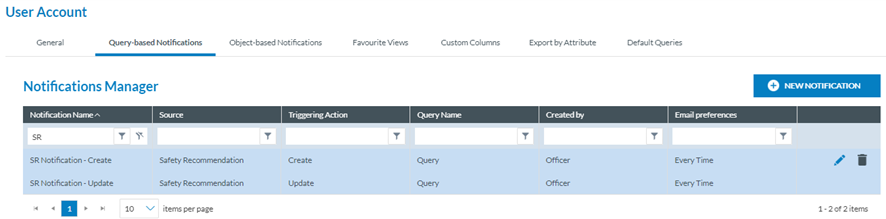
6.3.1. Create a notification
The Officer can create their own notifications. The Officer has to click on ‘New Notification’ above the table, and the system will display the ‘New Notification’ page:
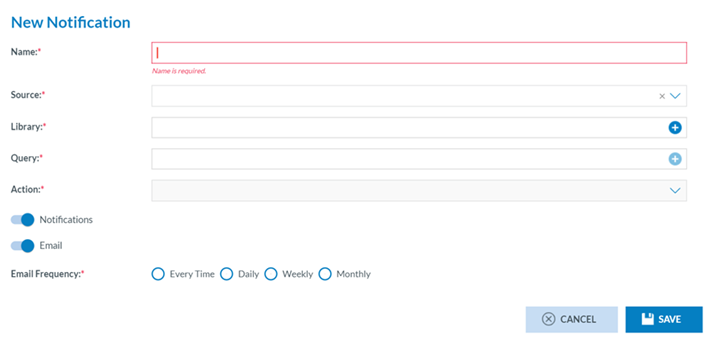
The fields are the following;
· Name: unique per notification
· Source: The Officer has to select Safety Recommendation
· Library: where the query is stored
· Query: conditions to generate the notification
· Action: Update, create or delete
· Notifications toggle: to activate the notifications on the landing page
· Email frequency toggle that can be every time, daily, weekly or monthly
Name, source, Library and query are mandatory.
The Officer has to fill in the Name, select a Source, and select a Library through the Library ‘+’ icon that opens the Library selection page:
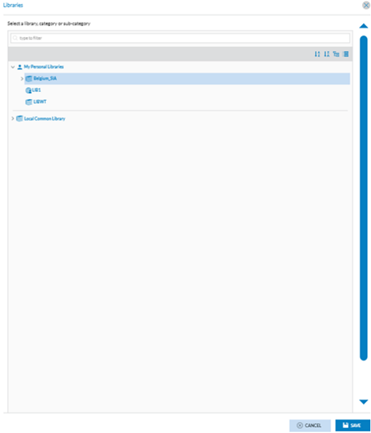
The Officer has to select a Library and click on Save.
Then, the Officer has to click on the ‘+’ icon of the Query field, and the system will display the queries available for the selected library:
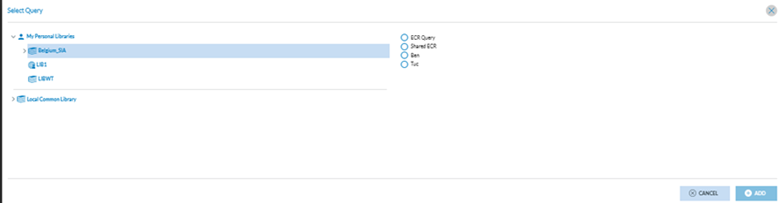
The Officer has to select a query and click on ‘Add’, and the system will enable the ‘Action’ drop-down menu with the following options:

The Officer must check one option and set the Notifications and Email toggles as needed.
By default, both toggles are activated. When the Email toggle is activated, the Officer has to set the Email frequency by checking the corresponding radio button.

And click on the Save button below. The system will save the notification with the selected query in the database and my account's list of query-based notifications.
The Officer can edit and delete the notifications that have been created.
6.3.2. Edit a notification:
The Officer clicks on the edit icon at the last section of the specific notification of the table, and the system displays the Edit notification page:
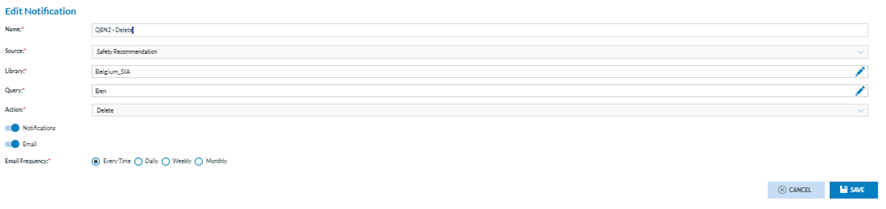
The page displays the same fields as the creation page described above.
The Source and Action will not be editable. Officers must update the needed fields, ensuring that the mandatory fields are filled out and clicking on ‘Save’. The system will save the database updates and update the table of query-based notifications accordingly.
6.4. Object-based notifications
Object-based notifications are manually defined in the SRs list on each or multiple records.
The third tab of ‘My Account’ is ‘Object-based’ notifications. The Officer clicks on it, and the system displays the Object-based tab:

This page is to activate the notifications both on the landing page of the Officer and/or in the email on updates on SRs.
By default, it activates notifications and emails with updates on all the reports with An every-time frequency.
The Email frequency options are: Every time, daily, weekly and monthly.
The Officer can update the toggles and frequencies as needed and click on the ‘Save’ button.
The system will save the database updates and set the landing page notifications and the re-ports emails as selected.
6.5. Favourite Views
Views display the information contained in a record, featuring varying numbers of attributes/entities, a specific design, and other custom elements. They enable certain users within organisations to concentrate on the elements relevant to their tasks. The fourth tab of the ‘My Account’ menu opens the ‘Favourite Views’:
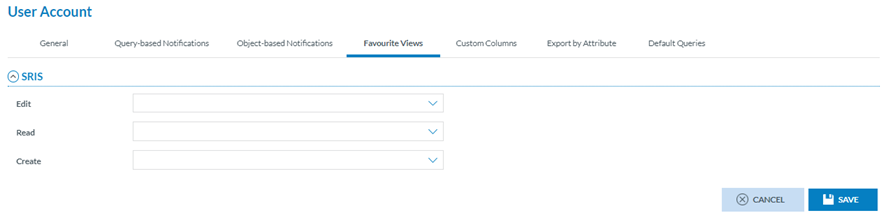
The page displays the following drop-down menus with the available views:
· Edit: favourite view for editing reports
· Read: favourite view for reading reports
· Create: favourite view for creating reports
Thus, the Officer must select a view in the specific drop-down menu and click Save in the image above. The system will save the updates in the database. When the Officer in the SR list clicks on ‘Edit’ or, accesses the ‘View’ mode or clicks on ‘New’, the system will offer the view of the specific SR, the view selected in this menu.
6.6. Custom Column
Officers can customise their SR list view. They can set which columns are available in the list, reorder, sort, etc. The columns can be attributes or metadata fields.
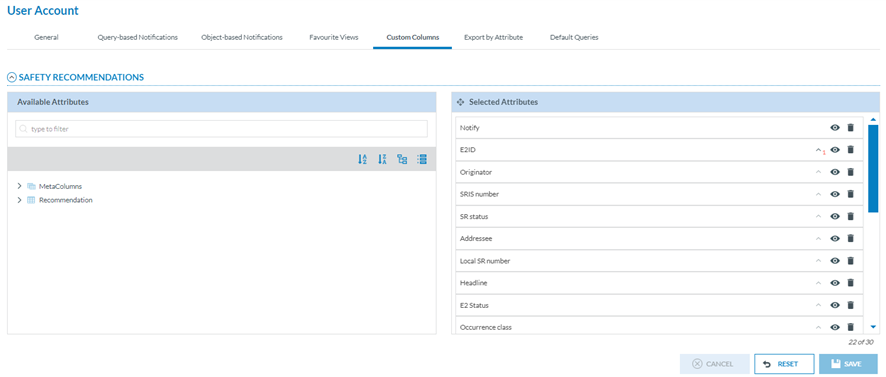
Through this page, the Officer can select the attributes available in the list of SRs in the corresponding ‘Safety Recommendations’ menu.
By default, the list of SRs provides a list of attributes, i.e.:

Through this Custom columns menu, the Officer can decide which attributes appear in the list; the Officer can add, remove the attributes and alter their order.
Thus, the left pane includes a search filter and the metaColumns, with all its attributes checked by default:
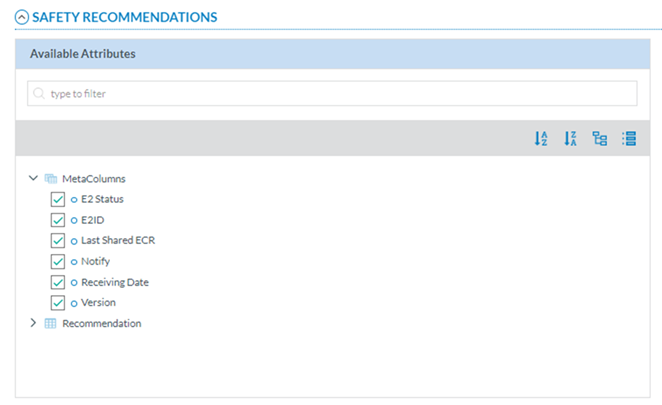
Below the metaColumns folder, is the SRIS taxonomy tree, through which the Officer can navigate to select more attributes. See the Taxonomy browser section for further details.
The right pane provides the selected metadata columns and attributes. By default, the system includes a list of metadata columns and attributes.
The Officer can hide them through the eye icon next to each one:
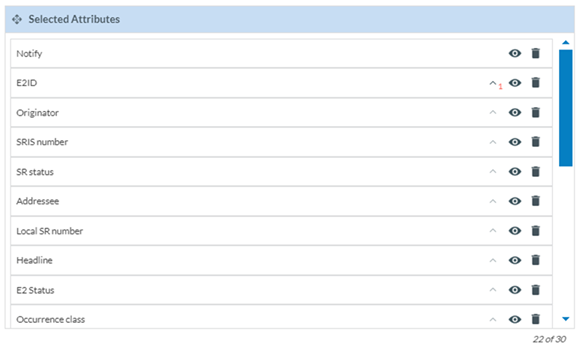
The rubbish icon is used to delete the Attribute from the table of safety recommendations.
The Officer can alter their order by dragging and dropping them or by clicking on each arrow, i.e., E2ID is number 1, then each time the Officer marks an arrow, it sets the order of the attributes in the list:
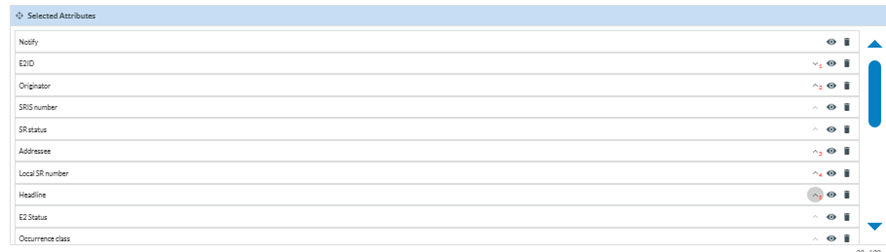
Note that ‘Notify’ does not provide a banner since it always appears at the beginning of each report row:
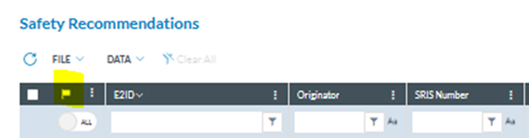
When the Officer is updating the attributes, before saving the updates, they can always click on the ‘Reset’ button below the list of selected attributes so that the system will set the ‘Selected attributes’ page to the default selection and order.
Note that there is a maximum number of attributes per list; if the Officer does not remove any from the default selection, only two more can be selected from the available list.
Once the Officer has updated the selected attributes and metadata columns, he or she has to click on the ‘Save’ button, and the report tables will be updated accordingly.
6.7. Export by Attribute
Officers can define attribute Lists containing a list of attributes and metadata fields. These At-tribute Lists will be available to the Officer when exporting SRs from the list.
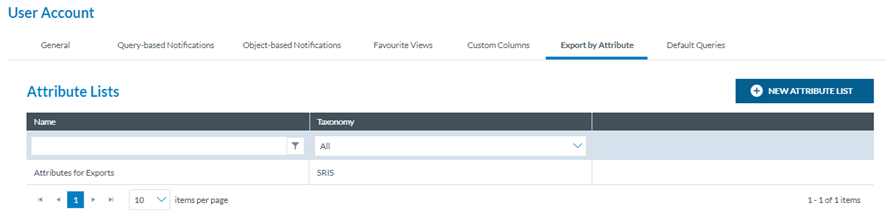
Each row of the table refers to a list of attributes defined by the Officer and concerning the Authority’s SRIS taxonomy, central or custom.
These lists are available in the Exports options of the SRs list of the Safety Recommendations menu, i.e.:
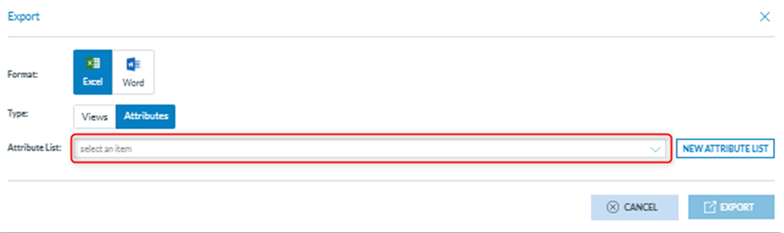
On the last section of each Attribute list of the table, when the Officer moves the mouse over it, a Delete icon and an Edit icon appear:
The Delete icon deletes the attributes list without asking for confirmation.
6.7.1 Edit an attribute list
The edit icon opens the editing attributes’ list page:
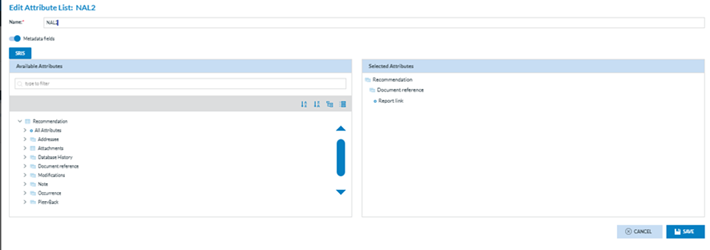
The mandatory name field is editable.
A ‘Metadata fields’ toggle exists so the list can include or hide the metadata fields.
Below, there is a left pane with the taxonomy attributes. See Taxonomy browser for further de-tails on its navigation. The attributes can also be searched by Description or Taxonomy code in the Search field.
The right pane includes the selected attributes.
The Officer can update the Name, Metadata toggle or any of the selected attributes (drag and drop to change the order or remove from the right panel) and click ‘Save’, and the updates will be saved in the database. The table of Attributes lists will be updated accordingly.
6.7.2 Create an attribute list
The Officer can click on ‘New Attribute List’ above the table of attributes lists, and the system will open the following page:
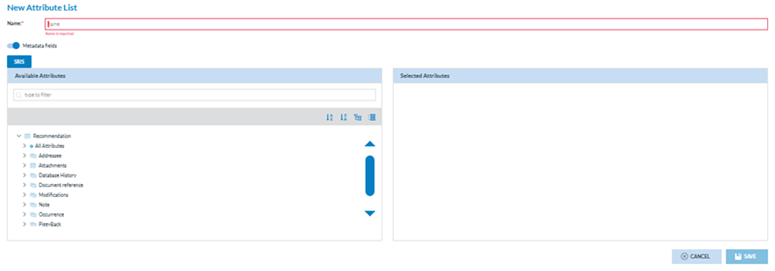
It works like the editing page of the previous section. The Officer has to add a mandatory name, update the metadata fields toggle if needed and add the required attributes to the list through the Taxonomy tree left page. The selected attributes will appear on the right pane. The Officer can click the ‘Save’ button when all the attributes are chosen. The system will save the record in the database, and the list of attributes will be updated accordingly.
6.8. Default Queries
Officers can select the queries the system triggers when opening the SRs list from the Safety Recommendations menu.

The Officer can select the queries the system triggers through this page when opening the SR menu.
The Officer has to click on the ‘+’ icon of the query field of the SRs, and the system will open the Select Query window:
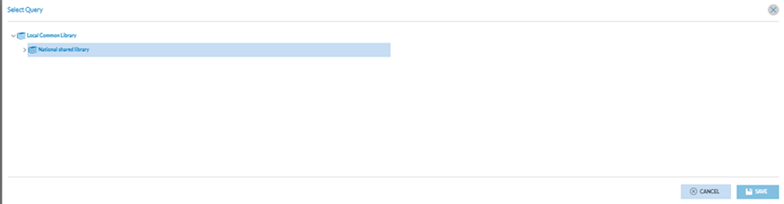
This window will provide on the left the libraries available to the Officer. The Officer has to select the corresponding Library or category, and the right pane will present the stored queries in the selected location. The Officer can only choose one and click the ‘Save’ button, which will be activated. The updates will be saved in the database.
When the Officer saves the default query, it will be triggered any time the SR menu is opened in the E2 Web Application, providing the list of SRs according to the set query.
7. SRIS2 Public portal
The SRIS2 Public portal collects all the published safety recommendations that Safety Investigation Authorities (SIAs) issue.
The URL to the SRIS2 Public portal is https://sris.aviationreporting.eu/safety-recommendations
It provides a list of all the published SRs with the following columns concerning each SR:
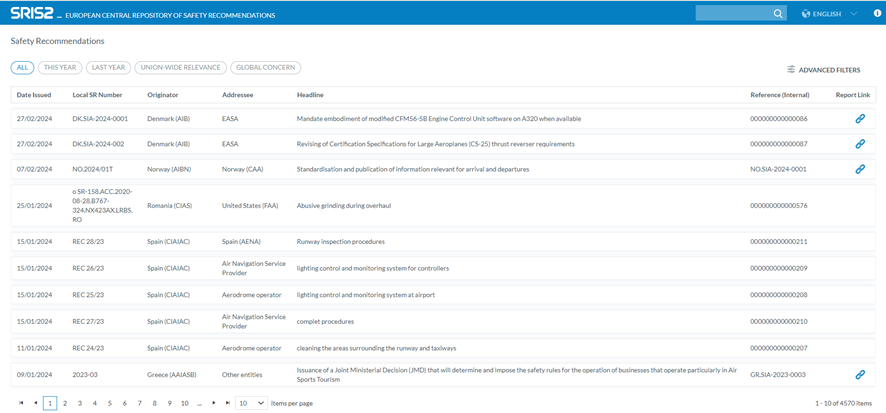
· Date issued: The date the final recommendation was sent by the originator
· Local SR Number: The number or reference used to identify the Safety Recommendation at a National (Local) level. This may be different to the automatically generated SRIS number
· Originator: The identification of the entity/organisation that issued the safety recommendation
· Addressee: The Name of the organisation to which the safety recommendation was addressed
· Headline: A short message (about 10 words) to describe the safety issue, area of concern or intent of the Safety Recommendation
· Reference (Internal): The file number identifying the safety recommendation record
· Report link (if existing): reference that can be directly followed by clicking the link icon.
Above the table, the system presents the following tabs to filter the results of the table:
· All: to display all the published SRs.
· This year: to display the SRs of the current year.
· Last year: to display the previous year's SRs.
· Union-Wide Relevance.
· Global Concern.
Opposite the tabs (above the table), the system displays the ‘Advanced Filters’ button that opens the corresponding Advanced Filters screen:
They include the following filters:
· Date Issued Between (Date to be filled) and (Date to be filled)
· Originator equal to: a drop-down menu with all the available Originators
· Addressee equal to: Users have to click on the ‘Add Addressee’ button that dis-plays a window with all the available addressees per country to be selected:
· Original Text [Word] Contain: Free text field
· SR Topics equal to: Users must click on the ‘Add New Topic’, and the system will display a window to select the topics. Only one topic can be selected at a time:
· Headline Contain: free text field.
· Addressee text Contain: free text field.
· English Text [Word] Contain: free text field.
Users can insert the necessary parameters in the filters and click on the ‘Search’ button, and the system will restrict the table results based on that information.
Access to SR detailed information: Users can click on each SR of the table, and the detail of each SR will be displayed:
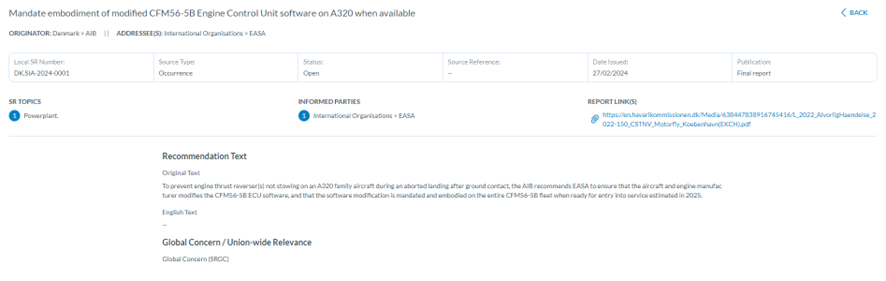
Search field: Opposite to the SRIS2 Header, there is a Search field.

It helps users find the specific SRs in the list of results.
The Language drop-down menu next to the Search field is currently unavailable.
The Information icon on top of the page on the right side opens a PDF with SRIS2 information on the legislation applicable to the website.
8. Metadata fields
This section includes the list of metadata fields used in E2.
8.1. Metadata fields accessibility
The metadata fields stored in an OR, VR, OC, or SR (report, from now on), along with the taxonomy entities and attributes, provide essential information that is automatically populated by the system throughout the report lifecycle. These metadata fields are visible when reports are exported, when they are selected as custom columns in the report lists, utilized in queries, or when API methods are executed.
8.1.1. Metadata fields list
The following table includes the list of the E2 metadata fields:
|
Metadata field name for both Query and Columns/Exports |
Metadata field name in API response |
Description |
|
ºIsActive |
active |
Indicates if the report is currently active. |
|
ºCreationDate |
creationDate |
The date when this version of the report was created. |
|
ºCreationUser |
creationUser |
Identifier of the user who created the report. |
|
ºModificationDate |
lastmodificationDate |
The date when this version of the report was last modified. |
|
ºModificationUser |
lastmodificationUser |
Identifier of the user who last modified the report. |
|
ºIsBlocked |
blocked |
Specifies whether the report is blocked by a process. |
|
ºE2ID |
e2Id |
The |
|
ºHasNotes |
hasNotes |
Indicates whether the report contains any notes. |
|
ºE5zMigrationFile |
e5zName |
Name of the migration file (e5z or e5x). |
|
ºE5zMigrationFileXMLFile |
xmlName |
Name of the XML file inside the migration file (e5z or e5x). |
|
ºORInitialDate |
orInitialDate |
Date the report was first sent (v0.1). |
|
ºVRInitialDate |
vrInitialDate |
Date the report was first validated or manually created (v0.1). |
|
ºOCInitialDate |
ocInitialDate |
Date the report was first processed as an occurrence or created from scratch (v0.1 or V1.0) |
|
ºSRInitialDate |
receivingDate |
Date the report was first submitted as a recommendation. |
|
ºWebformID |
pdfCode |
Code of the webform used to report the case. |
|
ºReporterFirstname |
firstName |
First name of the user who submitted the report. |
|
ºReporterLastname |
lastName |
Last name of the user who submitted the report. |
|
ºReporterTelephone |
telephone |
Telephone number of the user who submitted the report. |
|
ºReporterEmail |
|
Email address of the user who submitted the report. |
|
ºOrganisationID |
organisation_id |
ID of the organisation of the reporting user. |
|
ºOrganisationname |
name |
Name of the organisation of the reporting user. |
|
ºRelatedE2IDs |
relatedReports |
Contains |
|
ºOC_ReportToGeneratedORID |
asOR |
In an OC, the |
|
ºOC_ReportedToAuthorityID |
authorityId |
In an OC, the ID of the authority to which it was reported. |
|
ºOC_ReportToGeneratedORDate |
reportDate |
In an OC, the date the OR was generated from the report. |
|
ºOR_ReportToGeneratedORDate |
reportToDate |
In an OR, the date it was reported to this authority. |
|
ºOR_ReportToGeneratedORAuthorityID |
reportToFromAuthority |
In an OR, the authority that reported it to this one. |
|
ºReportingEntityID |
reportingEntityId |
ID of the entity that submitted the report (attribute 447). |
|
ºReportingMethod |
reportingMethod |
Method used to report the occurrence (e.g., online, e5x). |
|
ºResponsibleEntityID |
responsibleEntityId |
ID of the authority responsible for managing the report (Authority table in MySQL). |
|
ºSharedWithAuthorityIDs |
sharedEntitiesId |
Authority IDs that the report is shared with. |
|
ºSharedWithAuthorityIDsAttachments |
sharedAttachmentsEntitiesId |
Authorities allowed to view attachments in shared reports. |
|
ºSharedWithExclusionAttributes |
deidentifiedTaxonomyCodes |
List of attribute IDs excluded from sharing with the authority. |
|
ºStatus |
status |
Current status of the report (e.g., open, sent, draft). |
|
ºTransferDate |
transferredDate |
Date the report was transferred. |
|
ºTransferFromAuthorityID |
transferredFromAuthority |
Authority from which the report was transferred. |
|
ºConflictingE2ID |
updated |
|
|
ºHasAutomaticChanges |
has_automatic_changes |
Indicates whether automatic changes exist in the report. |
|
ºReportVersion |
version |
Version number of the report. |
|
ºLastSharedECR |
lastSharedEcr |
Date the report was last shared to the ECR |