# 6. My account

# 6.1. My account menu

<span lang="EN-GB">Users can edit their personal settings through the “My Account” management interface. This menu is accessible once the Officer clicks on their username</span>

[![image.png](https://help.ci-aviationreporting.eu/uploads/images/gallery/2025-11/scaled-1680-/Q0Mimage.png)](https://help.ci-aviationreporting.eu/uploads/images/gallery/2025-11/Q0Mimage.png)

<span lang="EN-GB" style="mso-ansi-language: EN-GB; mso-fareast-language: EN-GB;">  
</span>

# 6.2. Personal Details

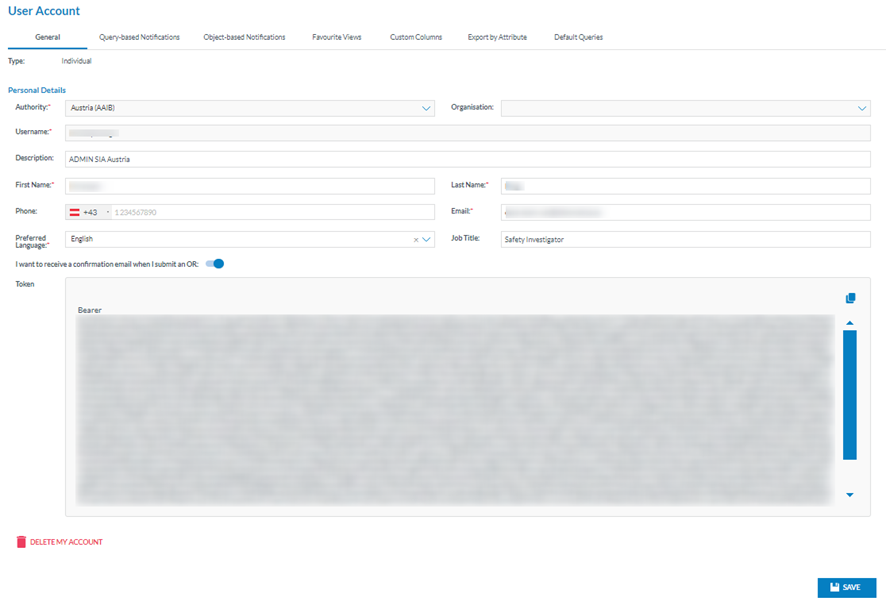
<span lang="EN-GB">This is the first tab of “My Account” page.</span>

[![image.png](https://help.ci-aviationreporting.eu/uploads/images/gallery/2025-11/scaled-1680-/FzJimage.png)](https://help.ci-aviationreporting.eu/uploads/images/gallery/2025-11/FzJimage.png)

<span lang="EN-GB">The first tab is ‘General’, indicating the type of account (individual or organisation) and the edit page for the personal details. </span>

<span lang="EN-GB">The personal details fields are the following:</span>

<span lang="EN-GB" style="font-family: Symbol; mso-fareast-font-family: Symbol; mso-bidi-font-family: Symbol; color: #1b3891; mso-themecolor: text1;"><span style="mso-list: Ignore;">·<span style="font: 7.0pt 'Times New Roman';"> </span></span></span><span lang="EN-GB">Authority: not editable, to which the user belongs</span>

<span lang="EN-GB" style="font-family: Symbol; mso-fareast-font-family: Symbol; mso-bidi-font-family: Symbol; color: #1b3891; mso-themecolor: text1;"><span style="mso-list: Ignore;">·<span style="font: 7.0pt 'Times New Roman';"> </span></span></span><span lang="EN-GB">Organisation: to which the user belongs</span>

<span lang="EN-GB" style="font-family: Symbol; mso-fareast-font-family: Symbol; mso-bidi-font-family: Symbol; color: #1b3891; mso-themecolor: text1;"><span style="mso-list: Ignore;">·<span style="font: 7.0pt 'Times New Roman';"> </span></span></span><span lang="EN-GB">Username: of the user, it is not editable</span>

<span lang="EN-GB" style="font-family: Symbol; mso-fareast-font-family: Symbol; mso-bidi-font-family: Symbol; color: #1b3891; mso-themecolor: text1;"><span style="mso-list: Ignore;">·<span style="font: 7.0pt 'Times New Roman';"> </span></span></span><span lang="EN-GB">Description: optional field and editable</span>

<span lang="EN-GB" style="font-family: Symbol; mso-fareast-font-family: Symbol; mso-bidi-font-family: Symbol; color: #1b3891; mso-themecolor: text1;"><span style="mso-list: Ignore;">·<span style="font: 7.0pt 'Times New Roman';"> </span></span></span><span lang="EN-GB">First name: of the user, editable mandatory field</span>

<span lang="EN-GB" style="font-family: Symbol; mso-fareast-font-family: Symbol; mso-bidi-font-family: Symbol; color: #1b3891; mso-themecolor: text1;"><span style="mso-list: Ignore;">·<span style="font: 7.0pt 'Times New Roman';"> </span></span></span><span lang="EN-GB">Last name: of the user, editable mandatory field</span>

<span lang="EN-GB" style="font-family: Symbol; mso-fareast-font-family: Symbol; mso-bidi-font-family: Symbol; color: #1b3891; mso-themecolor: text1;"><span style="mso-list: Ignore;">·<span style="font: 7.0pt 'Times New Roman';"> </span></span></span><span lang="EN-GB">Phone: optional and editable</span>

<span lang="EN-GB" style="font-family: Symbol; mso-fareast-font-family: Symbol; mso-bidi-font-family: Symbol; color: #1b3891; mso-themecolor: text1;"><span style="mso-list: Ignore;">·<span style="font: 7.0pt 'Times New Roman';"> </span></span></span><span lang="EN-GB">Email: mandatory and editable</span>

<span lang="EN-GB" style="font-family: Symbol; mso-fareast-font-family: Symbol; mso-bidi-font-family: Symbol; color: #1b3891; mso-themecolor: text1;"><span style="mso-list: Ignore;">·<span style="font: 7.0pt 'Times New Roman';"> </span></span></span><span lang="EN-GB">Preferred language: mandatory and editable; doesn’t affect system behaviour at this stage of development.</span>

<span lang="EN-GB" style="font-family: Symbol; mso-fareast-font-family: Symbol; mso-bidi-font-family: Symbol; color: #1b3891; mso-themecolor: text1;"><span style="mso-list: Ignore;">·<span style="font: 7.0pt 'Times New Roman';"> </span></span></span><span lang="EN-GB">Job title: optional and editable</span>

<span lang="EN-GB" style="font-family: Symbol; mso-fareast-font-family: Symbol; mso-bidi-font-family: Symbol; color: #1b3891; mso-themecolor: text1;"><span style="mso-list: Ignore;">·<span style="font: 7.0pt 'Times New Roman';"> </span></span></span><span lang="EN-GB">‘I want to receive an email when I submit an ‘OR’ toggle</span>

<span lang="EN-GB" style="font-family: Symbol; mso-fareast-font-family: Symbol; mso-bidi-font-family: Symbol; color: #1b3891; mso-themecolor: text1;"><span style="mso-list: Ignore;">·<span style="font: 7.0pt 'Times New Roman';"> </span></span></span><span lang="EN-GB">Token: it connects the Officer to the API. It is not editable</span>

<span lang="EN-GB" style="font-family: Symbol; mso-fareast-font-family: Symbol; mso-bidi-font-family: Symbol; color: #1b3891; mso-themecolor: text1;"><span style="mso-list: Ignore;">·<span style="font: 7.0pt 'Times New Roman';"> </span></span></span><span lang="EN-GB">Delete my account icon: it sends a request to the Authority administrator to delete the account after a confirmation message</span>

<span lang="EN-GB">The Officer can update the editable fields by clicking on the ‘Save’ button. The system will save the updates on the Personal details in the database.</span>

# 6.3. Query-based notifications

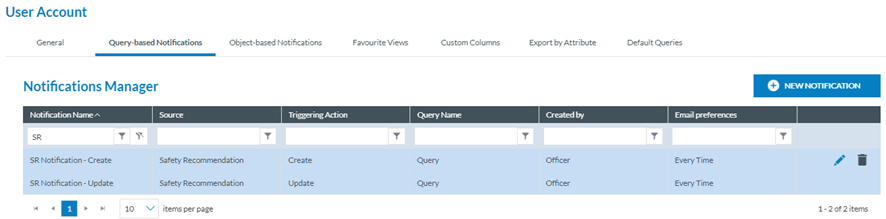
<span style="mso-ansi-language: EN-US;">E2 can notify selected users of the creation, update, deletion, or sharing of actions over SRs that meet the conditions of a query through query-based notifications. </span>

[![image.png](https://help.ci-aviationreporting.eu/uploads/images/gallery/2025-11/scaled-1680-/UOoimage.png)](https://help.ci-aviationreporting.eu/uploads/images/gallery/2025-11/UOoimage.png)

<span lang="EN-GB">It displays the table of query-based notifications indicating per notification row the following columns that also work as filters:</span>

<span lang="EN-GB" style="font-family: Symbol; mso-fareast-font-family: Symbol; mso-bidi-font-family: Symbol; color: #1b3891; mso-themecolor: text1;"><span style="mso-list: Ignore;">·<span style="font: 7.0pt 'Times New Roman';"> </span></span></span><span lang="EN-GB">Notification name: unique for each notification</span>

<span lang="EN-GB" style="font-family: Symbol; mso-fareast-font-family: Symbol; mso-bidi-font-family: Symbol; color: #1b3891; mso-themecolor: text1;"><span style="mso-list: Ignore;">·<span style="font: 7.0pt 'Times New Roman';"> </span></span></span><span lang="EN-GB">Source:</span> <span lang="EN-GB">Safety Recommendation</span>

<span lang="EN-GB" style="font-family: Symbol; mso-fareast-font-family: Symbol; mso-bidi-font-family: Symbol; color: #1b3891; mso-themecolor: text1;"><span style="mso-list: Ignore;">·<span style="font: 7.0pt 'Times New Roman';"> </span></span></span><span lang="EN-GB">Triggering action: create, update, delete</span>

<span lang="EN-GB" style="font-family: Symbol; mso-fareast-font-family: Symbol; mso-bidi-font-family: Symbol; color: #1b3891; mso-themecolor: text1;"><span style="mso-list: Ignore;">·<span style="font: 7.0pt 'Times New Roman';"> </span></span></span><span lang="EN-GB">Query name: unique for each notification</span>

<span lang="EN-GB" style="font-family: Symbol; mso-fareast-font-family: Symbol; mso-bidi-font-family: Symbol; color: #1b3891; mso-themecolor: text1;"><span style="mso-list: Ignore;">·<span style="font: 7.0pt 'Times New Roman';"> </span></span></span><span lang="EN-GB">Created by: the author of the notification</span>

<span lang="EN-GB" style="font-family: Symbol; mso-fareast-font-family: Symbol; mso-bidi-font-family: Symbol; color: #1b3891; mso-themecolor: text1;"><span style="mso-list: Ignore;">·<span style="font: 7.0pt 'Times New Roman';"> </span></span></span><span lang="EN-GB">Email preferences: frequency of notification emails</span>

<span style="mso-ansi-language: EN-US;">When the user clicks on the last section of each notification row, the system displays the edit and configuration icons:</span>

[![image.png](https://help.ci-aviationreporting.eu/uploads/images/gallery/2025-11/scaled-1680-/D12image.png)](https://help.ci-aviationreporting.eu/uploads/images/gallery/2025-11/D12image.png)

### 6.3.1. Create a notification

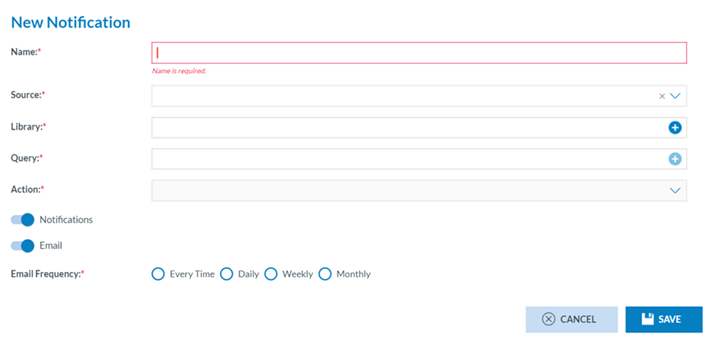
<span style="mso-ansi-language: EN-US;">The Officer can create their own notifications. The Officer has to click on ‘New Notification’ above the table, and the system will display the ‘New Notification’ page:</span>

[![image.png](https://help.ci-aviationreporting.eu/uploads/images/gallery/2025-11/scaled-1680-/lNLimage.png)](https://help.ci-aviationreporting.eu/uploads/images/gallery/2025-11/lNLimage.png)

<span style="mso-ansi-language: EN-US;">The fields are the following;</span>

<span style="font-family: Symbol; mso-fareast-font-family: Symbol; mso-bidi-font-family: Symbol; color: #1b3891; mso-themecolor: text1; mso-ansi-language: EN-US;"><span style="mso-list: Ignore;">·<span style="font: 7.0pt 'Times New Roman';"> </span></span></span><span style="mso-ansi-language: EN-US;">Name: unique per notification</span>

<span style="font-family: Symbol; mso-fareast-font-family: Symbol; mso-bidi-font-family: Symbol; color: #1b3891; mso-themecolor: text1; mso-ansi-language: EN-US;"><span style="mso-list: Ignore;">·<span style="font: 7.0pt 'Times New Roman';"> </span></span></span><span style="mso-ansi-language: EN-US;">Source: The Officer has to select Safety Recommendation</span>

<span style="font-family: Symbol; mso-fareast-font-family: Symbol; mso-bidi-font-family: Symbol; color: #1b3891; mso-themecolor: text1; mso-ansi-language: EN-US;"><span style="mso-list: Ignore;">·<span style="font: 7.0pt 'Times New Roman';"> </span></span></span><span style="mso-ansi-language: EN-US;">Library: where the query is stored</span>

<span style="font-family: Symbol; mso-fareast-font-family: Symbol; mso-bidi-font-family: Symbol; color: #1b3891; mso-themecolor: text1; mso-ansi-language: EN-US;"><span style="mso-list: Ignore;">·<span style="font: 7.0pt 'Times New Roman';"> </span></span></span><span style="mso-ansi-language: EN-US;">Query: conditions to generate the notification</span>

<span style="font-family: Symbol; mso-fareast-font-family: Symbol; mso-bidi-font-family: Symbol; color: #1b3891; mso-themecolor: text1; mso-ansi-language: EN-US;"><span style="mso-list: Ignore;">·<span style="font: 7.0pt 'Times New Roman';"> </span></span></span><span style="mso-ansi-language: EN-US;">Action: Update, create or delete</span>

<span style="font-family: Symbol; mso-fareast-font-family: Symbol; mso-bidi-font-family: Symbol; color: #1b3891; mso-themecolor: text1; mso-ansi-language: EN-US;"><span style="mso-list: Ignore;">·<span style="font: 7.0pt 'Times New Roman';"> </span></span></span><span style="mso-ansi-language: EN-US;">Notifications toggle: to activate the notifications on the landing page</span>

<span style="font-family: Symbol; mso-fareast-font-family: Symbol; mso-bidi-font-family: Symbol; color: #1b3891; mso-themecolor: text1; mso-ansi-language: EN-US;"><span style="mso-list: Ignore;">·<span style="font: 7.0pt 'Times New Roman';"> </span></span></span><span style="mso-ansi-language: EN-US;">Email frequency toggle that can be every time, daily, weekly or monthly</span>

<span style="mso-ansi-language: EN-US;">Name, source, Library and query are mandatory.</span>

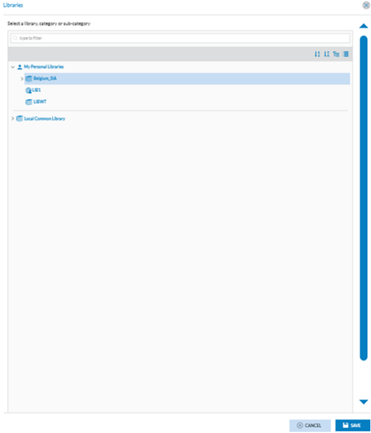
<span lang="EN-GB">The Officer has to fill in the Name, select a Source, and select a Library through the Library ‘+’ icon that opens the Library selection page:</span>

[![image.png](https://help.ci-aviationreporting.eu/uploads/images/gallery/2025-11/scaled-1680-/3M7image.png)](https://help.ci-aviationreporting.eu/uploads/images/gallery/2025-11/3M7image.png)

<span lang="EN-GB" style="mso-ansi-language: EN-GB; mso-fareast-language: EN-GB;">  
</span>

<span lang="EN-GB">The Officer has to select a Library and click on Save.</span>

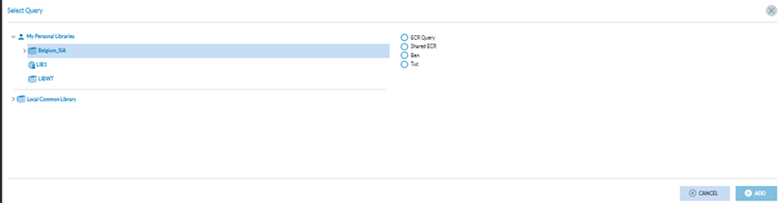
<span lang="EN-GB">Then, the Officer has to click on the ‘+’ icon of the Query field, and the system will display the queries available for the selected library:</span>

[![image.png](https://help.ci-aviationreporting.eu/uploads/images/gallery/2025-11/scaled-1680-/xTzimage.png)](https://help.ci-aviationreporting.eu/uploads/images/gallery/2025-11/xTzimage.png)

<span style="mso-ansi-language: EN-US;">The Officer has to select a query and click on ‘Add’, and the system will enable the ‘Action’ drop-down menu with the following options:</span>

[![image.png](https://help.ci-aviationreporting.eu/uploads/images/gallery/2025-11/scaled-1680-/Khiimage.png)](https://help.ci-aviationreporting.eu/uploads/images/gallery/2025-11/Khiimage.png)

<span style="mso-ansi-language: EN-US;">The Officer must check one option and set the Notifications and Email toggles as needed.</span>

<span style="mso-ansi-language: EN-US;">By default, both toggles are activated. When the Email toggle is activated, the Officer has to set the Email frequency by checking the corresponding radio button. </span>

[![image.png](https://help.ci-aviationreporting.eu/uploads/images/gallery/2025-11/scaled-1680-/45zimage.png)](https://help.ci-aviationreporting.eu/uploads/images/gallery/2025-11/45zimage.png)

<span style="mso-ansi-language: EN-US;">And click on the Save button below. The system will save the notification with the selected query in the database and my account's list of query-based notifications.</span>

<span style="mso-ansi-language: EN-US;">The Officer can edit and delete the notifications that have been created.</span>

### 6.3.2. Edit a notification:

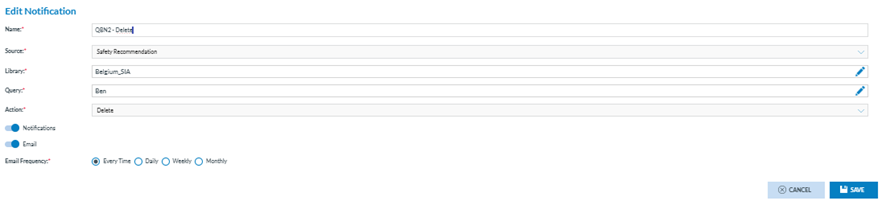
<span style="mso-ansi-language: EN-US;">The Officer clicks on the edit icon at the last section of the specific notification of the table, and the system displays the Edit notification page:</span>

[![image.png](https://help.ci-aviationreporting.eu/uploads/images/gallery/2025-11/scaled-1680-/zsKimage.png)](https://help.ci-aviationreporting.eu/uploads/images/gallery/2025-11/zsKimage.png)

<span lang="EN-GB" style="mso-ansi-language: EN-GB; mso-fareast-language: EN-GB;"> </span>

<span style="mso-ansi-language: EN-US;">The page displays the same fields as the creation page described above.</span>

<span style="mso-ansi-language: EN-US;">The Source and Action will not be editable. Officers must update the needed fields, ensuring that the mandatory fields are filled out and clicking on ‘Save’. The system will save the database updates and update the table of query-based notifications accordingly.</span>

# 6.4. Object-based notifications

<span style="mso-ansi-language: EN-US;">Object-based notifications are manually defined in the SRs list on each or multiple records.<span style="mso-spacerun: yes;"> </span></span>

<span style="mso-ansi-language: EN-US;">The third tab of ‘My Account’ is ‘Object-based’ notifications. The Officer clicks on it, and the system displays the Object-based tab:</span>

[![image.png](https://help.ci-aviationreporting.eu/uploads/images/gallery/2025-11/scaled-1680-/pxgimage.png)](https://help.ci-aviationreporting.eu/uploads/images/gallery/2025-11/pxgimage.png)

<span style="mso-ansi-language: EN-US;">This page is to activate the notifications both on the landing page of the Officer and/or in the email on updates on SRs.</span>

<span style="mso-ansi-language: EN-US;">By default, it activates notifications and emails with updates on all the reports with An every-time frequency.</span>

<span style="mso-ansi-language: EN-US;">The Email frequency options are: Every time, daily, weekly and monthly.</span>

<span style="mso-ansi-language: EN-US;">The Officer can update the toggles and frequencies as needed and click on the ‘Save’ button.</span>

<span style="mso-ansi-language: EN-US;">The system will save the database updates and set the landing page notifications and the re-ports emails as selected.</span>

# 6.5. Favourite Views

<span style="mso-ansi-language: EN-US;">Views display the information contained in a record, featuring varying numbers of attributes/entities, a specific design, and other custom elements. They enable certain users within organisations to concentrate on the elements relevant to their tasks. The fourth tab of the ‘My Account’ menu opens the ‘Favourite Views’:</span>

[![image.png](https://help.ci-aviationreporting.eu/uploads/images/gallery/2025-11/scaled-1680-/9Zzimage.png)](https://help.ci-aviationreporting.eu/uploads/images/gallery/2025-11/9Zzimage.png)

<span lang="EN-GB">The page displays the following drop-down menus with the available views:</span>

<span lang="EN-GB" style="font-family: Symbol; mso-fareast-font-family: Symbol; mso-bidi-font-family: Symbol; color: #1b3891; mso-themecolor: text1;"><span style="mso-list: Ignore;">·<span style="font: 7.0pt 'Times New Roman';"> </span></span></span><span lang="EN-GB">Edit: favourite view for editing reports</span>

<span lang="EN-GB" style="font-family: Symbol; mso-fareast-font-family: Symbol; mso-bidi-font-family: Symbol; color: #1b3891; mso-themecolor: text1;"><span style="mso-list: Ignore;">·<span style="font: 7.0pt 'Times New Roman';"> </span></span></span><span lang="EN-GB">Read:<span style="mso-spacerun: yes;"> </span>favourite view for reading reports</span>

<span lang="EN-GB" style="font-family: Symbol; mso-fareast-font-family: Symbol; mso-bidi-font-family: Symbol; color: #1b3891; mso-themecolor: text1;"><span style="mso-list: Ignore;">·<span style="font: 7.0pt 'Times New Roman';"> </span></span></span><span lang="EN-GB">Create:<span style="mso-spacerun: yes;"> </span>favourite view for creating reports</span>

<span style="mso-ansi-language: EN-US;">Thus, the Officer must select a view in the specific drop-down menu and click Save in the image above. The system will save the updates in the database. When the Officer in the SR list clicks on ‘Edit’ or, accesses the ‘View’ mode or clicks on ‘New’, the system will offer the view of the specific SR, the view selected in this menu.</span>

<span lang="EN-GB" style="mso-ansi-language: EN-GB; mso-fareast-language: EN-GB;">  
</span>

# 6.6. Custom Column

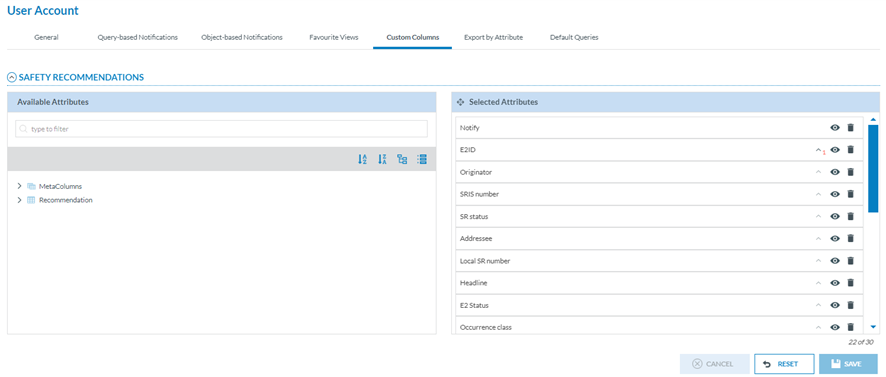
<span style="mso-ansi-language: EN-US;">Officers can customise their SR list view. They can set which columns are available in the list, reorder, sort, etc. The columns can be attributes or metadata fields.</span>

[![image.png](https://help.ci-aviationreporting.eu/uploads/images/gallery/2025-11/scaled-1680-/YtQimage.png)](https://help.ci-aviationreporting.eu/uploads/images/gallery/2025-11/YtQimage.png)

<span style="mso-ansi-language: EN-US;">Through this page, the Officer can select the attributes available in the list of SRs in the corresponding ‘Safety Recommendations’ menu.</span>

<span style="mso-ansi-language: EN-US;">By default, the list of SRs provides a list of attributes, i.e.:</span>

[![image.png](https://help.ci-aviationreporting.eu/uploads/images/gallery/2025-11/scaled-1680-/Xjoimage.png)](https://help.ci-aviationreporting.eu/uploads/images/gallery/2025-11/Xjoimage.png)

<span style="mso-ansi-language: EN-US;">Through this Custom columns menu, the Officer can decide which attributes appear in the list; the Officer can add, remove the attributes and alter their order.</span>

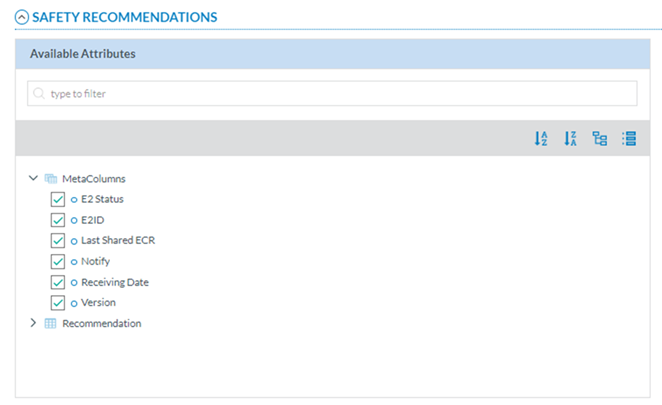
<span style="mso-ansi-language: EN-US;">Thus, the left pane includes a search filter and the metaColumns, with all its attributes checked by default:</span>

[![image.png](https://help.ci-aviationreporting.eu/uploads/images/gallery/2025-11/scaled-1680-/20vimage.png)](https://help.ci-aviationreporting.eu/uploads/images/gallery/2025-11/20vimage.png)

<span style="mso-ansi-language: EN-US;">Below the metaColumns folder, is the SRIS taxonomy tree, through which the Officer can navigate to select more attributes. See the </span><span lang="EN-GB"><span lang="EN-US" style="mso-ansi-language: EN-US;">Taxonomy browser</span></span><span style="mso-ansi-language: EN-US;"> section for further details.</span>

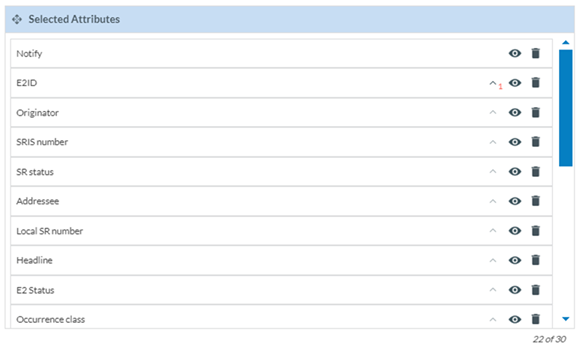
<span style="mso-ansi-language: EN-US;">The right pane provides the selected metadata columns and attributes. By default, the system includes a list of metadata columns and attributes.</span>

<span style="mso-ansi-language: EN-US;">The Officer can **<span style="mso-bidi-font-family: 'Times New Roman';">hide</span>** them through the **<span style="mso-bidi-font-family: 'Times New Roman';">eye</span>** icon next to each one:</span>

[![image.png](https://help.ci-aviationreporting.eu/uploads/images/gallery/2025-11/scaled-1680-/RpHimage.png)](https://help.ci-aviationreporting.eu/uploads/images/gallery/2025-11/RpHimage.png)

<span style="mso-ansi-language: EN-US;">The **<span style="mso-bidi-font-family: 'Times New Roman';">rubbish icon</span>** is used to delete the Attribute from the table of safety recommendations.</span>

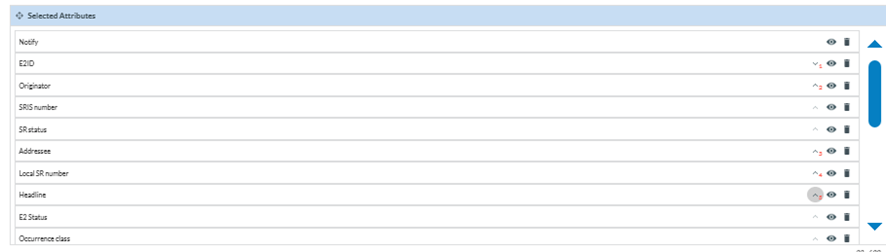
<span style="mso-ansi-language: EN-US;">The Officer can alter their **<span style="mso-bidi-font-family: 'Times New Roman';">order</span>** by dragging and dropping them or by clicking on each arrow, i.e., E2ID is number 1, then each time the Officer marks an arrow, it sets the order of the attributes in the list:</span>

[![image.png](https://help.ci-aviationreporting.eu/uploads/images/gallery/2025-11/scaled-1680-/tA3image.png)](https://help.ci-aviationreporting.eu/uploads/images/gallery/2025-11/tA3image.png)

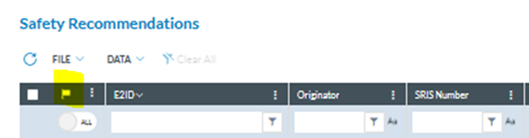
<span style="mso-ansi-language: EN-US;">Note that ‘Notify’ does not provide a banner since it always appears at the beginning of each report row:</span>

[![image.png](https://help.ci-aviationreporting.eu/uploads/images/gallery/2025-11/scaled-1680-/pnnimage.png)](https://help.ci-aviationreporting.eu/uploads/images/gallery/2025-11/pnnimage.png)

<span style="mso-ansi-language: EN-US;">When the Officer is updating the attributes, before saving the updates, they can always click on the ‘Reset’ button below the list of selected attributes so that the system will set the ‘Selected attributes’ page to the default selection and order. </span>

<span style="mso-ansi-language: EN-US;">Note that there is a maximum number of attributes per list; if the Officer does not remove any from the default selection, only two more can be selected from the available list.</span>

<span style="mso-ansi-language: EN-US;">Once the Officer has updated the selected attributes and metadata columns, he or she has to click on the ‘Save’ button, and the report tables will be updated accordingly.</span>

# 6.7.	Export by Attribute

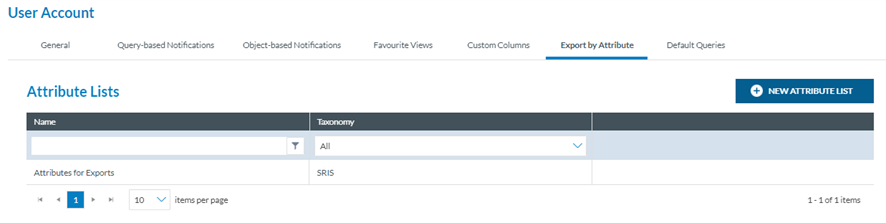
<span style="mso-ansi-language: EN-US;">Officers can define attribute Lists containing a list of attributes and metadata fields. These At-tribute Lists will be available to the Officer when exporting SRs from the list.</span>

[![image.png](https://help.ci-aviationreporting.eu/uploads/images/gallery/2025-11/scaled-1680-/NeVimage.png)](https://help.ci-aviationreporting.eu/uploads/images/gallery/2025-11/NeVimage.png)

<span style="mso-ansi-language: EN-US;">Each row of the table refers to a list of attributes defined by the Officer and concerning the Authority’s SRIS taxonomy, central or custom.</span>

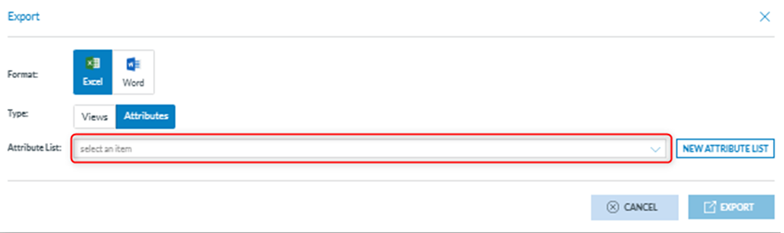
<span style="mso-ansi-language: EN-US;">These lists are available in the Exports options of the SRs list of the Safety Recommendations menu, i.e.:</span>

[![image.png](https://help.ci-aviationreporting.eu/uploads/images/gallery/2025-11/scaled-1680-/UStimage.png)](https://help.ci-aviationreporting.eu/uploads/images/gallery/2025-11/UStimage.png)

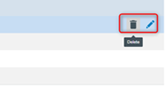
<span style="mso-ansi-language: EN-US;">On the last section of each Attribute list of the table, when the Officer moves the mouse over it, a Delete icon and an Edit icon appear:</span>

[![image.png](https://help.ci-aviationreporting.eu/uploads/images/gallery/2025-11/scaled-1680-/cIlimage.png)](https://help.ci-aviationreporting.eu/uploads/images/gallery/2025-11/cIlimage.png)

<span style="mso-ansi-language: EN-US;">The **<span style="mso-bidi-font-family: 'Times New Roman';">Delete</span>** icon deletes the attributes list without asking for confirmation.</span>

### <span style="color: #206ea7;">6.7.1 </span>Edit an attribute list

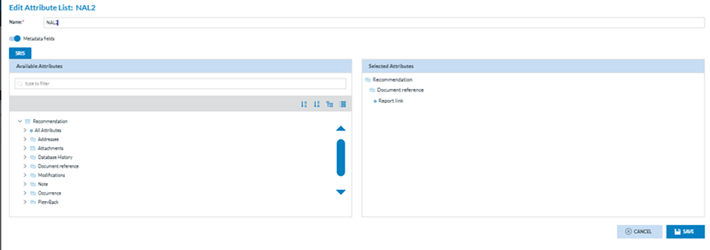
<span lang="EN-GB">The edit icon opens the editing attributes’ list page:</span>

[![image.png](https://help.ci-aviationreporting.eu/uploads/images/gallery/2025-11/scaled-1680-/o9nimage.png)](https://help.ci-aviationreporting.eu/uploads/images/gallery/2025-11/o9nimage.png)

<span style="mso-ansi-language: EN-US;">The mandatory name field is editable.</span>

<span style="mso-ansi-language: EN-US;">A ‘Metadata fields’ toggle exists so the list can include or hide the metadata fields.</span>

<span style="mso-ansi-language: EN-US;">Below, there is a left pane with the taxonomy attributes. See </span><span lang="EN-GB">[<span lang="EN-US" style="mso-ansi-language: EN-US;">Taxonomy browser</span>](#_Taxonomy_browser)</span><span style="mso-ansi-language: EN-US;"> for further de-tails on its navigation. The attributes can also be searched by Description or Taxonomy code in the Search field.</span>

<span style="mso-ansi-language: EN-US;">The right pane includes the selected attributes.</span>

<span style="mso-ansi-language: EN-US;">The Officer can update the Name, Metadata toggle or any of the selected attributes (drag and drop to change the order or remove from the right panel) and click ‘Save’, and the updates will be saved in the database. The table of Attributes lists will be updated accordingly.</span>

### <span style="color: #206ea7;">6.7.2 </span>Create an attribute list

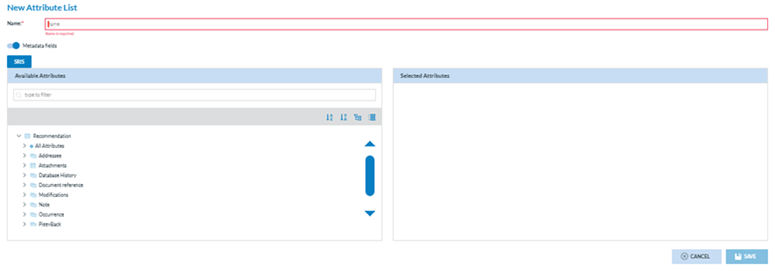
<span lang="EN-GB">The Officer can click on ‘New Attribute List’ above the table of attributes lists, and the system will open the following page:</span>

[![image.png](https://help.ci-aviationreporting.eu/uploads/images/gallery/2025-11/scaled-1680-/Ksmimage.png)](https://help.ci-aviationreporting.eu/uploads/images/gallery/2025-11/Ksmimage.png)

<span style="mso-ansi-language: EN-US;">It works like the editing page of the previous section. The Officer has to add a mandatory name, update the metadata fields toggle if needed and add the required attributes to the list through the Taxonomy tree left page. The selected attributes will appear on the right pane. The Officer can click the ‘Save’ button when all the attributes are chosen. The system will save the record in the database, and the list of attributes will be updated accordingly.</span>

# 6.8. Default Queries

<span style="mso-ansi-language: EN-US;">Officers can select the queries the system triggers when opening the SRs list from the Safety Recommendations menu.</span>

[![image.png](https://help.ci-aviationreporting.eu/uploads/images/gallery/2025-11/scaled-1680-/zw0image.png)](https://help.ci-aviationreporting.eu/uploads/images/gallery/2025-11/zw0image.png)

<span style="mso-ansi-language: EN-US;">The Officer can select the queries the system triggers through this page when opening the SR menu.</span>

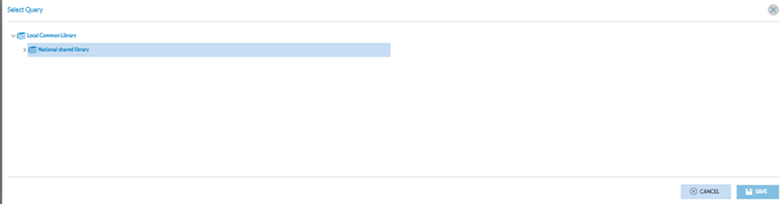
<span style="mso-ansi-language: EN-US;">The Officer has to click on the ‘+’ icon of the query field of the SRs, and the system will open the Select Query window: </span>

[![image.png](https://help.ci-aviationreporting.eu/uploads/images/gallery/2025-11/scaled-1680-/loZimage.png)](https://help.ci-aviationreporting.eu/uploads/images/gallery/2025-11/loZimage.png)

<span style="mso-ansi-language: EN-US;">This window will provide on the left the libraries available to the Officer. The Officer has to select the corresponding Library or category, and the right pane will present the stored queries in the selected location. The Officer can only choose one and click the ‘Save’ button, which will be activated. The updates will be saved in the database. </span>

<span style="mso-ansi-language: EN-US;">When the Officer saves the default query, it will be triggered any time the SR menu is opened in the E2 Web Application, providing the list of SRs according to the set query.</span>