5. Taxonomy Browser
5.1. Taxonomy
The E2 system is built around the ECCAIRS taxonomy, constituted by ADREP taxonomy + ECCAIRS/EU specific taxonomy. While most of it is centrally maintained, in accordance with specific governance through the NA’s established Data and Quality Working Group, there is also the possibility for Authorities to maintain their own custom taxonomy, which allows them to adapt their usage of E2 to their own processes.
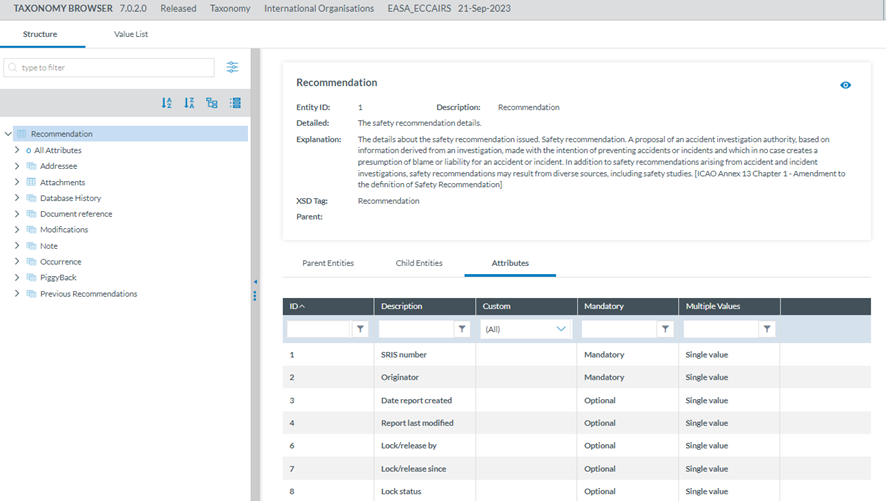
The taxonomy browser is a portal of the E2 System that provides detailed information of all the ECCAIRS taxonomy structures, entities, attributes and value lists in an easy-to-use UI.
The taxonomy browser is only for consulting purposes.
The Officer has to access the taxonomy menu to access the central or custom taxonomy for the Officer’s Authority. See the List of taxonomies section for further details.
The Taxonomy tree and the search bar are displayed on the left side of the screen. They can be hidden by clicking on the 'arrow' icon. The left panel is resizable by clicking on the 3-dot menu and moving it to the left or the right.
5.2. Search
Entities and Attributes can be found by typing the Taxonomy Code or the Description in the Search box.
By Taxonomy code:

By Description:
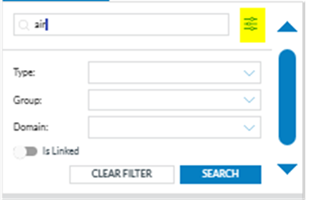
A layer with more filters will be displayed if the Officer clicks the 'Advanced search' button.
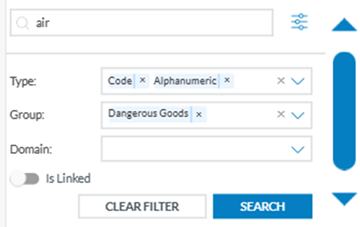
The Officer can search attributes by:
· Type: attribute data type
· Group: the attributes are grouped by specific criteria defined by the taxonomy administrators, i.e. Maintenance, Management, etc.
· Domain: Attributes belonging to a certain domain, i.e., RIT, a subset of the ECCAIRS aviation taxonomy.
· For each filter, the Officer can select as many values as needed. Then, the Officer must click the 'Search' button to refresh the tree with the introduced filters.
Additionally, the Officer can indicate if they want the linked entities shown in the Taxonomy tree. They are shown in green and cursive letters.
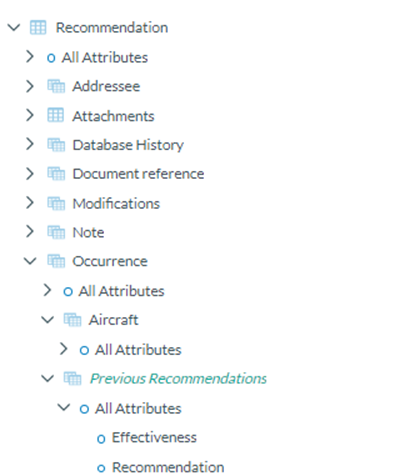
The Taxonomy Tree can be ordered alphabetically by clicking on the 'A-Z' icon or 'Z-A' icon : 
You can collapse or expand all item of the Taxonomy Tree with the following buttons:
- Expand all

- Collapse all


5.3. Taxonomy structure
ECCAIRS and SRIS taxonomies have the same structure in 4 levels:
-
Entities
-
Attributes
-
Value Lists
-
Values
5.3.1 Entities
Entities represent objects to which attributes are assigned.
An entity could be, for example, the "Aircraft" involved in an incident or the "Events" describing the incident.
Multiple instances of an entity can exist if several such objects are involved in an event.
Entities can have child entities, e.g. "Engine" is a child entity of "Aircraft". Entities can also be linked to other entities.
5.3.1.1 Entities information
Entities in the Taxonomy tree are marked with icon  . When the Entity is a Linked Entity, it is also marked in green colour.
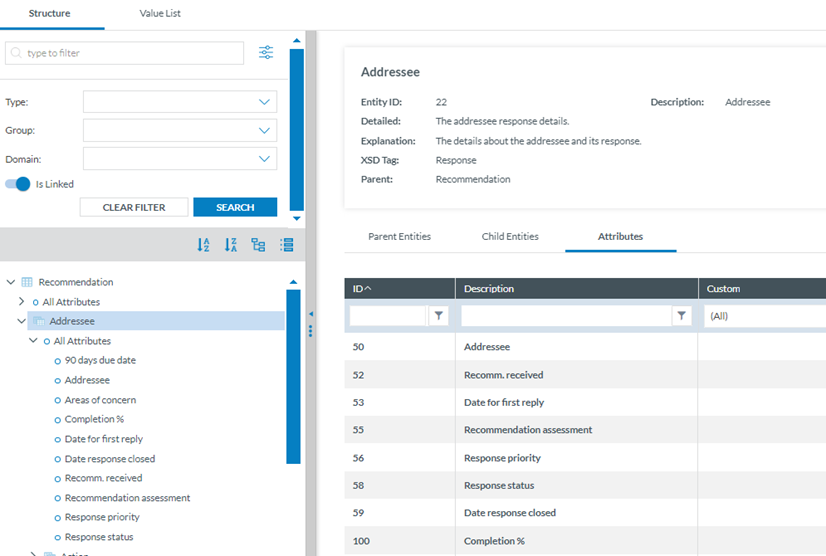
The following information will be displayed on the right side of the screen when the Officer clicks on an Entity in the Taxonomy tree:
· Entity information: A summary of the selected Entity.
· Parent Entities: The list of its parent Entities
· Child Entities: The list of its children Entities
· Attributes. The list of its Attributes
Click on each tab (Parent Entities, Child Entities, Attributes) to view the relevant information:
5.3.2 Attributes
Attributes describe properties/values associated with an entity. An attribute of the “Aircraft” entity is, for instance, its "manufacturer/model". Attributes can have single or multiple values.
-
Number
-
Decimals
-
Text
-
Alphanumeric
-
Date
-
Time
-
DateTime
-
Longitude
-
Latitude
-
Code
-
Code and Additional Text
-
Code or Alternative Text
-
ECCAIRS Resource Locator
-
ECCAIRS Data Link
-
ECCAIRS Embedded Data
5.3.2.1 Attributes information
The Attributes are marked with  icon in the Taxonomy Tree.
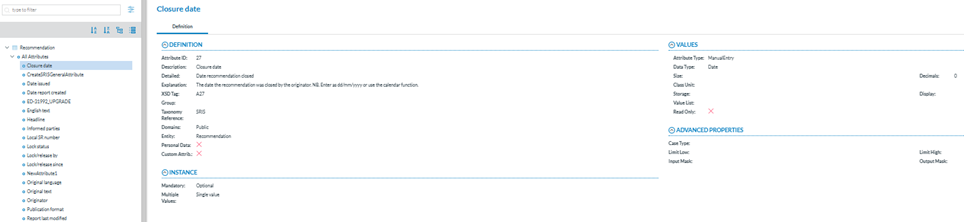
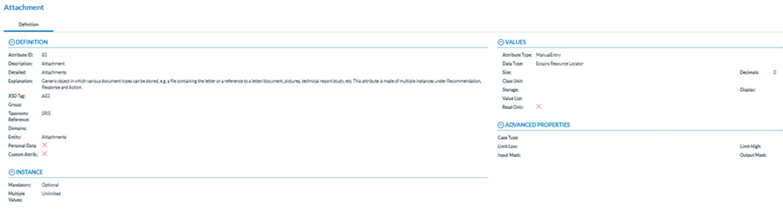
The Officer can view the information of an Attribute from two places in the Taxonomy Browser:
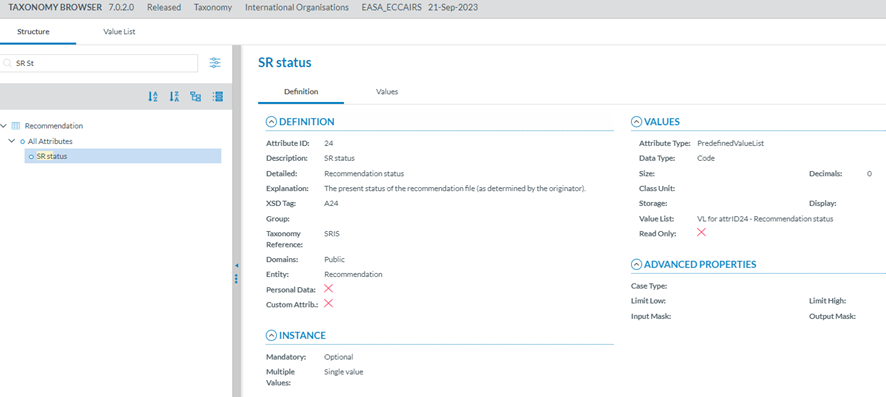
a. Find an attribute in the Taxonomy Tree and click it:
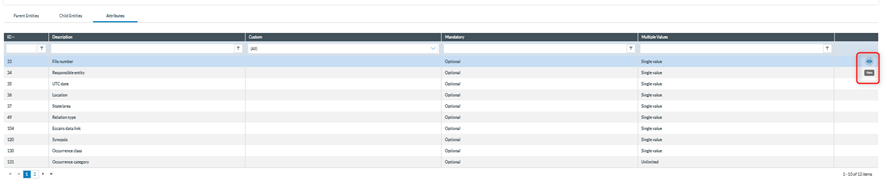
b. Select the Entity to which the Attribute belongs and click on the 'Attribute' tab. The Officer will see all the Attributes of the selected Entity.
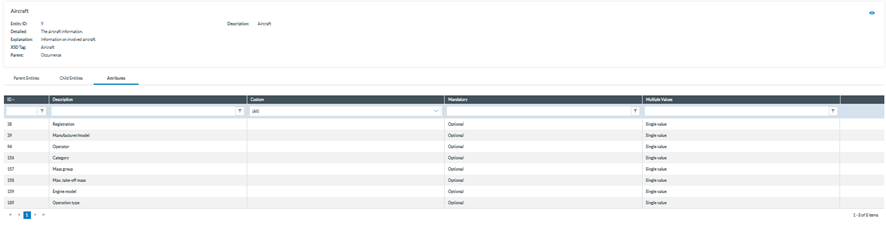
Click on the 'Eye' icon to view the detailed information.
· Definition
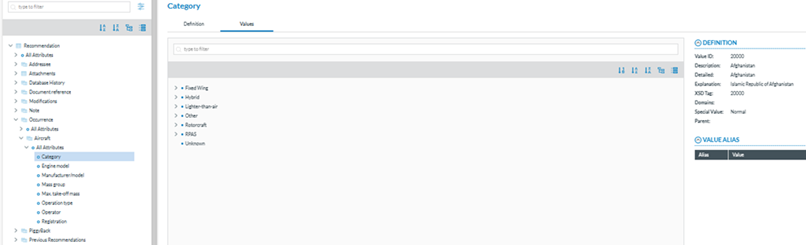
- Values: If the Attribute has a predefined value List. In the Values tree, the Officer can navigate the values by clicking on each element. The selected value will display its definition, and the Values can be searched by Taxonomy code or description and ordered alphabetically.
5.3.3 Value Lists
The list of values an attribute can have is defined in a Value List. The Value List can have multiple levels where values are organised in a tree mode. Each Value List can have Aliases.
5.3.4. Values
Values assigned to an attribute depend on the type of the Attribute. These can be manually inputted or selected from a predefined list of values (Value List).
5.3.5. Filter the information
The Officer can filter the Parent Entities, Child Entities and Attributes table by typing the term to be searched in the filter row. The Officer can restrict the results by clicking the  ' filter' button. By default, the 'contains' condition is selected.
To delete the filter, the Officer must click the '  clear filter' icon.

5.3.6. View detailed information
To view more information about the select Entity, the Officer must click the 'eye' icon.

To view more information about the Parent Entities, Child Entities or Attributes, the Officer can click the 'eye' icon that appears while moving the mouse over the row.
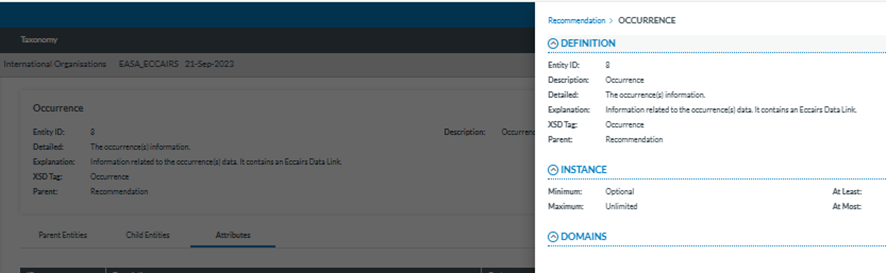
A slide-in panel with the element information will be displayed when clicking on the' eye' icon. The Officer can click outside the panel to close it and return to the previous screen.
5.4. List of Taxonomies
The Officer can access the list of taxonomies through the ‘Taxonomy’ menu displayed in the top menu:

If there is one, the last SRIS-released taxonomy and the custom taxonomy for the Authority of the Officer will be listed.
It includes the SRIS last released taxonomy:

If the Officer clicks on any of them, the system will display the taxonomy browser of that taxonomy. Click on the 3-dot button of each taxonomy of the list, and the system will display the following menu:
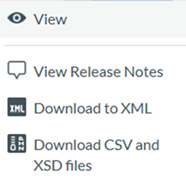
Download an XML with the taxonomy or CSV and XSD files with the taxonomy to view the taxonomy browser and release notes.
The View option accesses the Taxonomy browser of the selected taxonomy. See the section Taxonomy browser for further details.
5.4.1 View Release Notes
Release Notes are generated automatically when a new taxonomy version is released. It includes all the changes the new Taxonomy reflects: attributes, value lists and values that have been added, edited or deleted.
The Taxonomy version has four digits and consists of the following fields:
· Major
· Minor
· Revision
· Build
When a new Taxonomy is released, depending on the changes in its items, the version is auto-matically populated based on these rules:
· Major: It will be increased if any of these changes have been applied:
o Add Entity
o Delete Entity
o Add entity relation
o Delete entity relation
o Change Entity (only allowed changes)
· Minor: It will be increased if any of these changes have been applied:
o Delete Attribute
· Revision: It will be increased if any of these changes have been applied:
o Add Attribute
o Change attribute (only allowed changes)
ü Attribute values related:
o Change value limits
· Build: it will be increased if any of these changes have been applied:
ü Attribute values related:
o Add values
o Delete values
o Move values
o Change values (only allowed changes)
o Change value lists (only allowed changes)
The Name of the SRIS central taxonomy is ‘SRIS’ concatenated with the four-digit version code. e.g.: SRIS '6.3.0.1'. If a Custom Taxonomy exists for the Officer’s Authority, the Name will be SRIS_DE_ '6.3.0.1' (C#), where the # is the number of the custom taxonomy starting from cero (0).
When the Officer selects ‘View Release Notes', the system opens the Release Notes of the specific taxonomy:
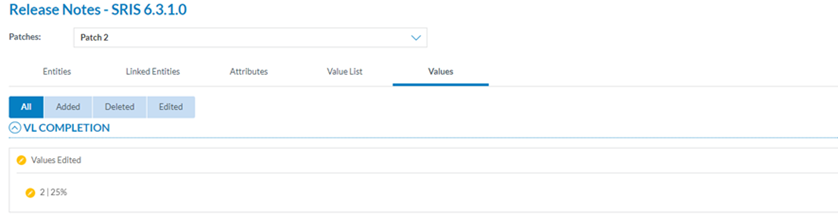
The page provides the following tabs with the corresponding release notes:
· Entities
· Linked entities
· Attributes
· Value List
· Values
Download XML: it downloads the released taxonomy in XML format.
Download CSV and XSD files: It downloads a zip file of the released taxonomy with the CSV and XSD files.