Taxonomy structure
ECCAIRS taxonomy elements are structured as follows:
-
Entities
-
Attributes
-
Value Lists
-
Values
Entities
Entities represent items to which specific attributes are assigned—for example, an “Aircraft” involved in an incident or the associated “Events” description.
Multiple instances of an entity may exist when several items are involved (e.g., multiple aircraft in a single incident).
Entities can have child entities (e.g., an “Engine” belonging to an “Aircraft”).
Entities may also be linked to other entities (e.g., “Airspace” or “Aerodrome” where the “Aircraft” is operating).
Entities information
Entities in the Taxonomy Tree are represented by  or
or  .
.
The following information will be displayed in the right side of the screen when you click on an Entity in the Taxonomy Tree:
-
Entity information: A brief summary of the selected Entity.
-
Parent Entities: The list of its parent Entities
-
Child Entities: The list of its children Entities
-
Attributes. The list of its Attributes
Click on each tab (Parent Entities, Child Entities, Attributes) to view its information.
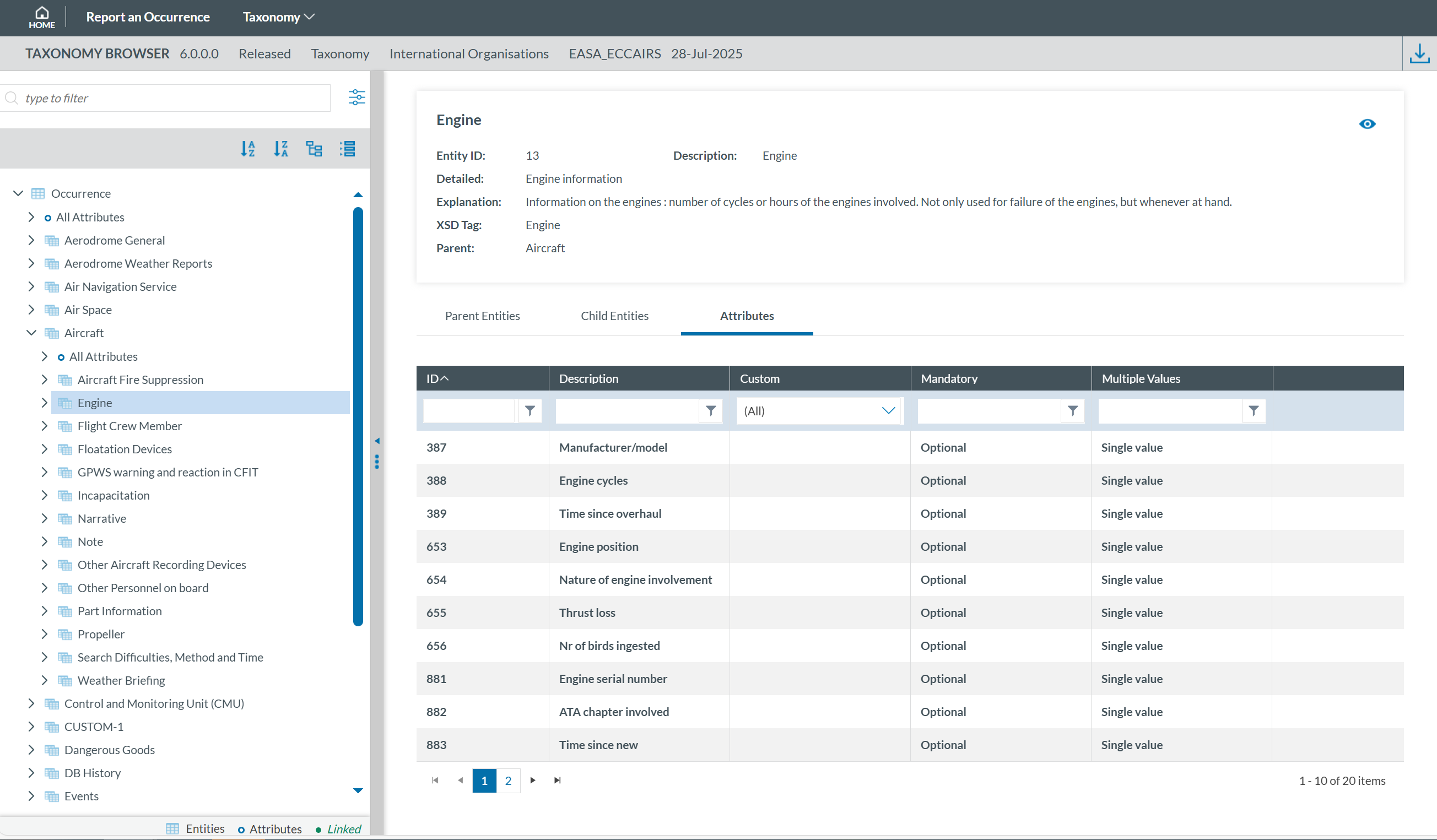
Clicking the 'eye' icon  you can see detailed information from the entity.
Attributes
Attributes describe properties/values associated to an entity and represented by  . An example of an attribute of the “Aircraft” entity is its "manufacturer/model". Attributes may have either single or multiple values and can be of the following types:
-
Number
-
Decimals
-
Text
-
Alphanumeric
-
Date
-
Time
-
DateTime
-
Longitude
-
Latitude
-
Code
-
Code and Additional Text
-
Code or Alternative Text
-
ECCAIRS Resource Locator
-
ECCAIRS Data Link
-
ECCAIRS Embedded Data
Attributes information
Attribute information can be viewed from two locations within the Taxonomy Browser:
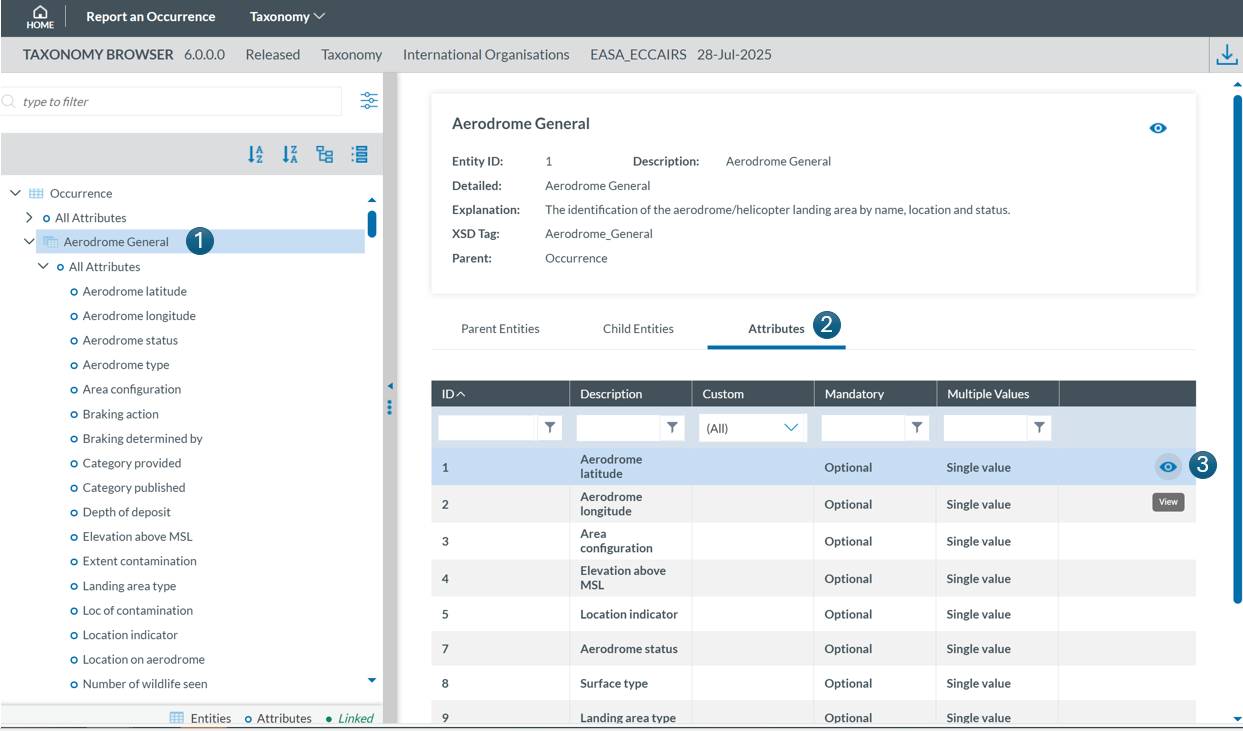
- Locate the attribute in the Taxonomy Tree and click on it (1). The information will then be displayed in the right-hand pane.

-
Select the entity to which the attribute belongs in the Taxonomy Tree (1), then click the 'Attribute' tab in the right-hand pane (2). Finally locate the attribute in the list and click the 'eye' icon
 to view its detailed information (3):

The information will be displayed:
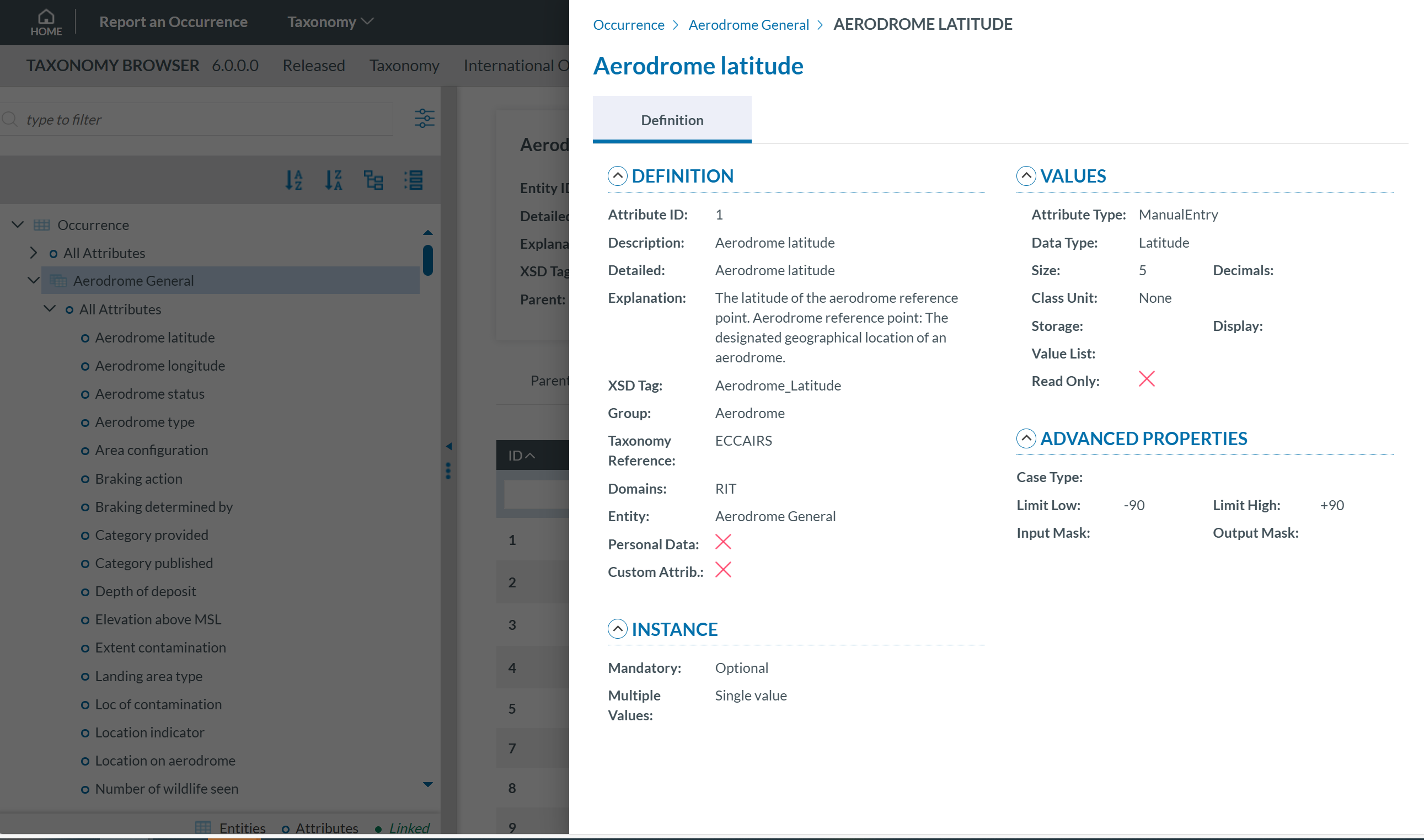
Attribute information may be displayed across two tabs:
- Definition
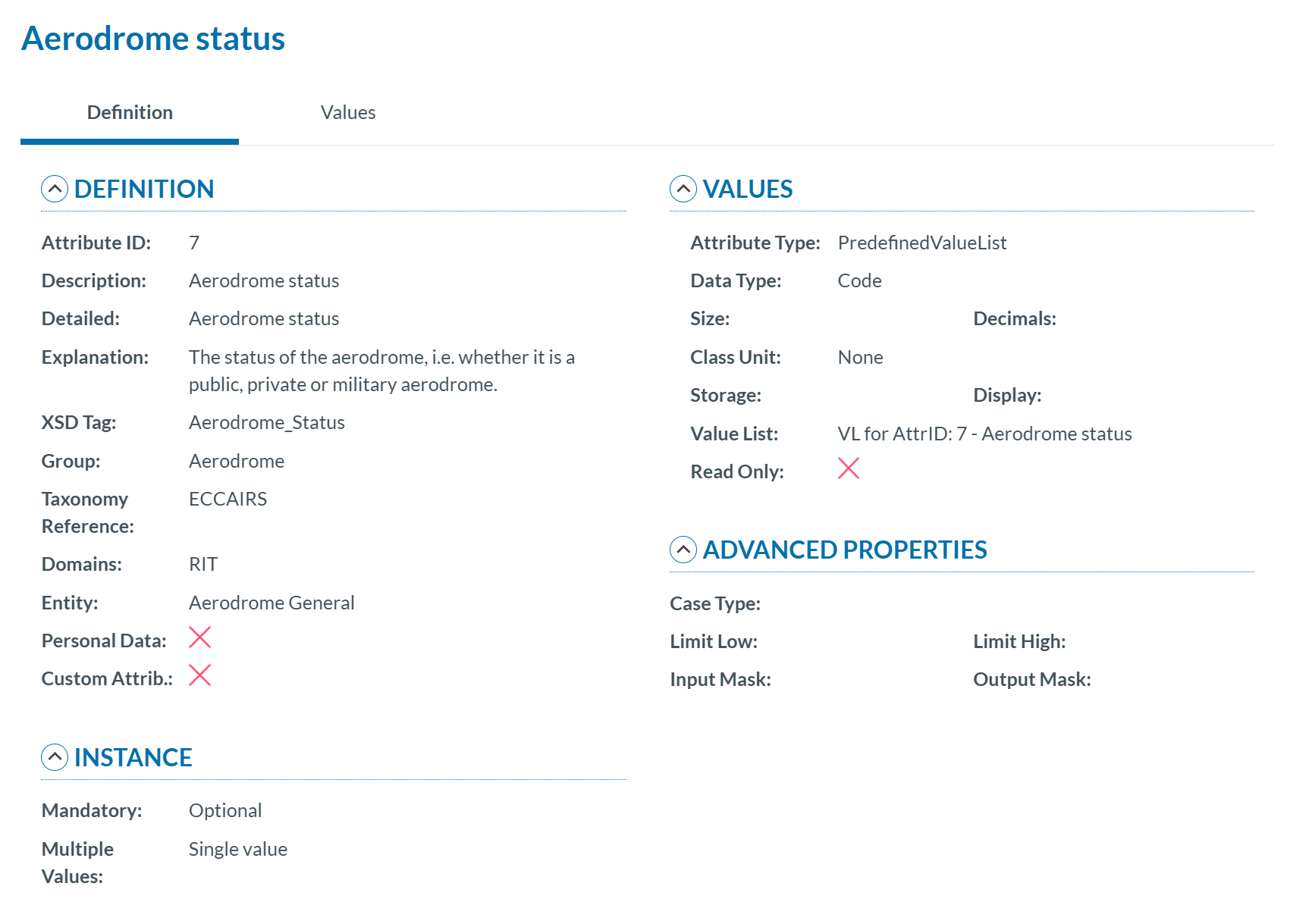
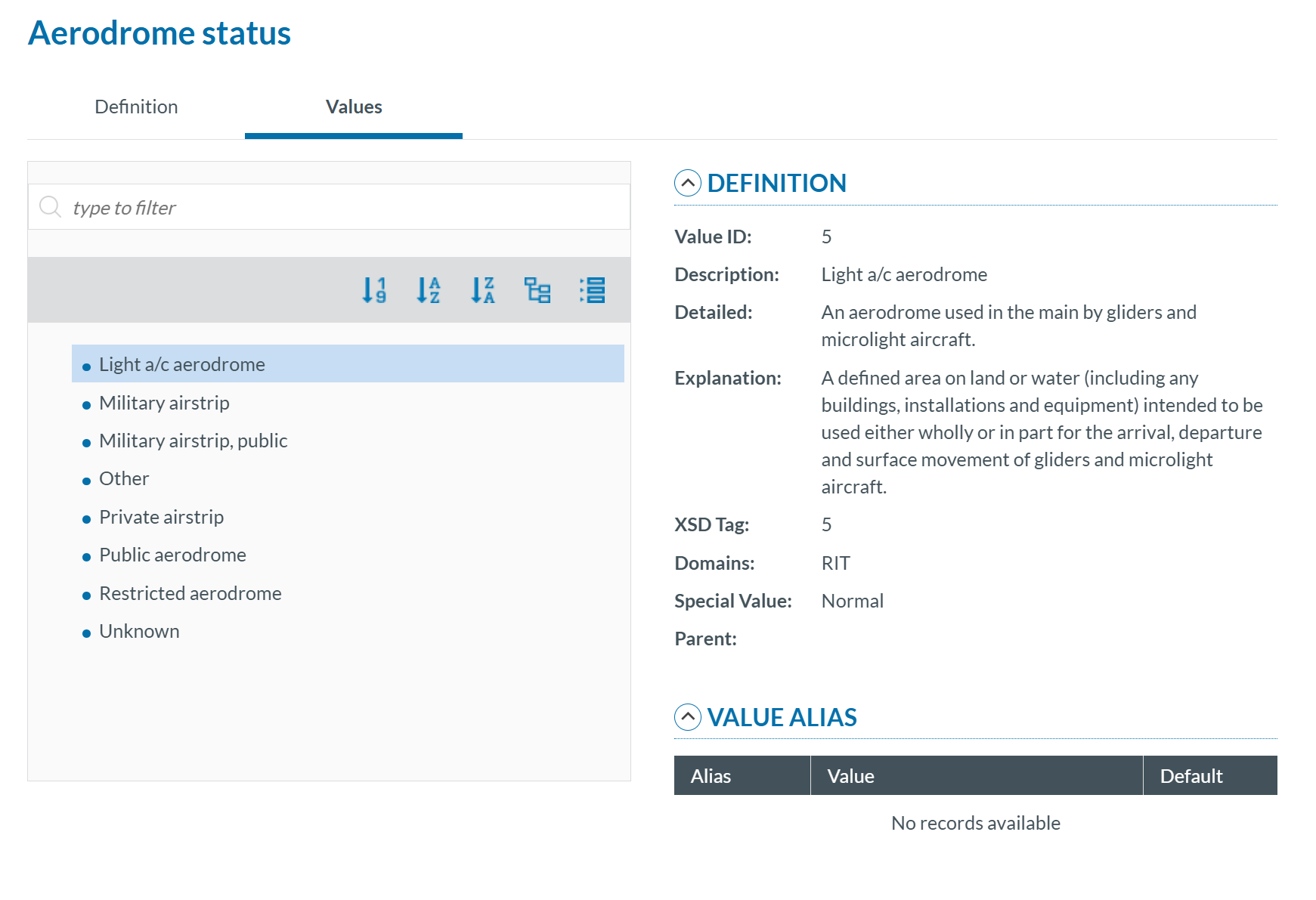
- Values: If the attribute has a predefined value list, you can navigate through the values in the Values Tree by clicking on each element. The selected value will display its definition. Values can be searched by Taxonomy Code or Description and can be sorted alphabetically.
Value Lists
The list of values an attribute can have is defined in a Value List. The Value List can have multiple level where values are organized in a tree mode.
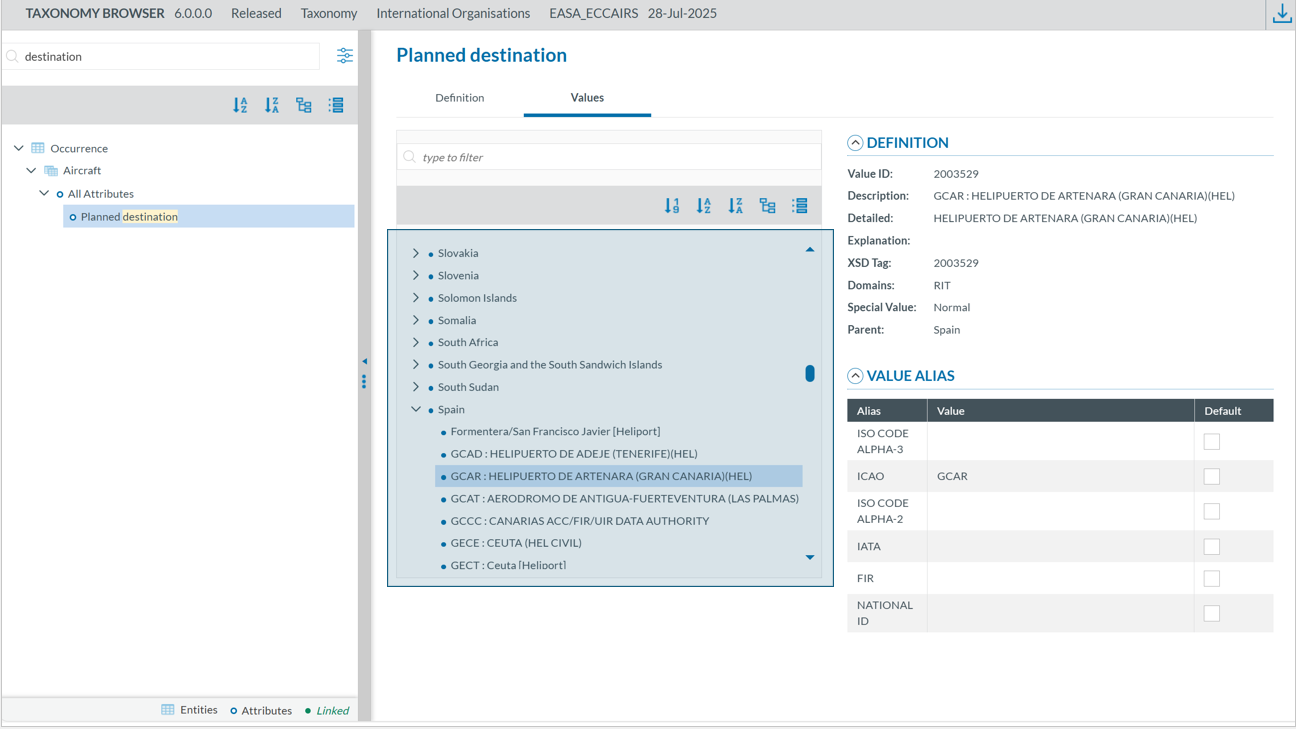
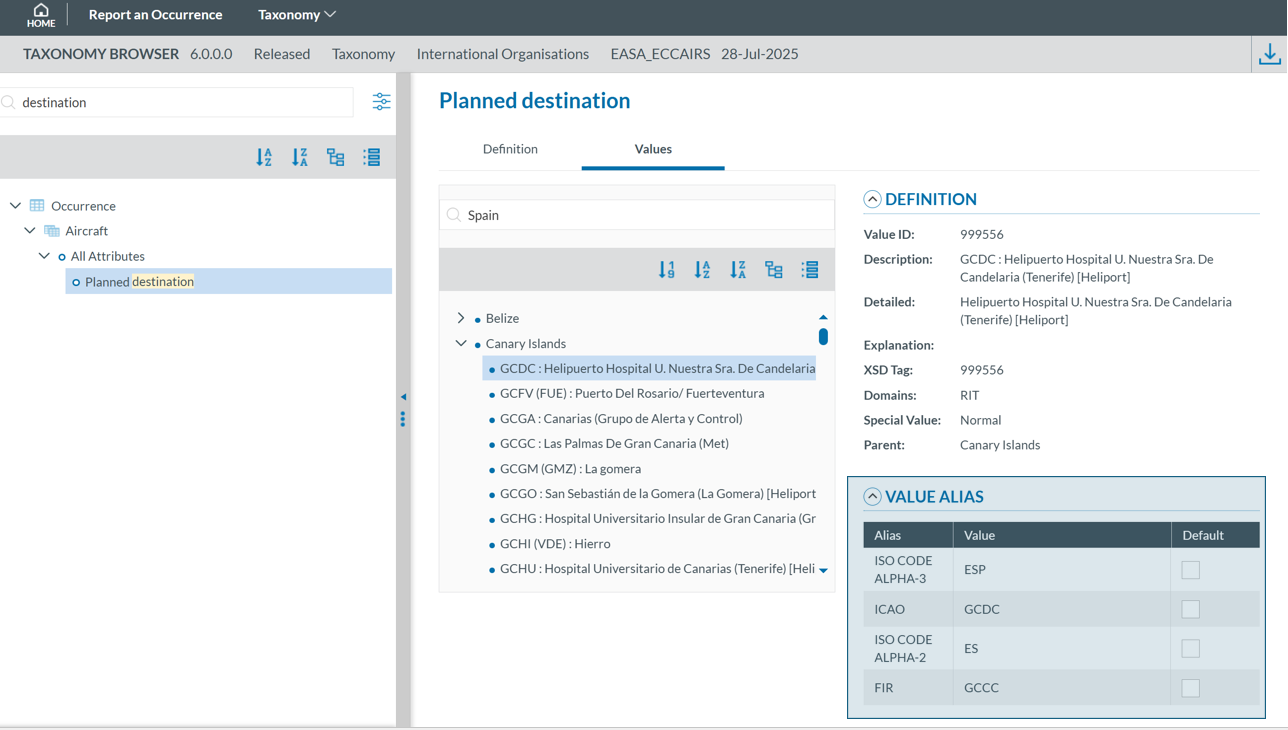
Value list can have Alias:
Values
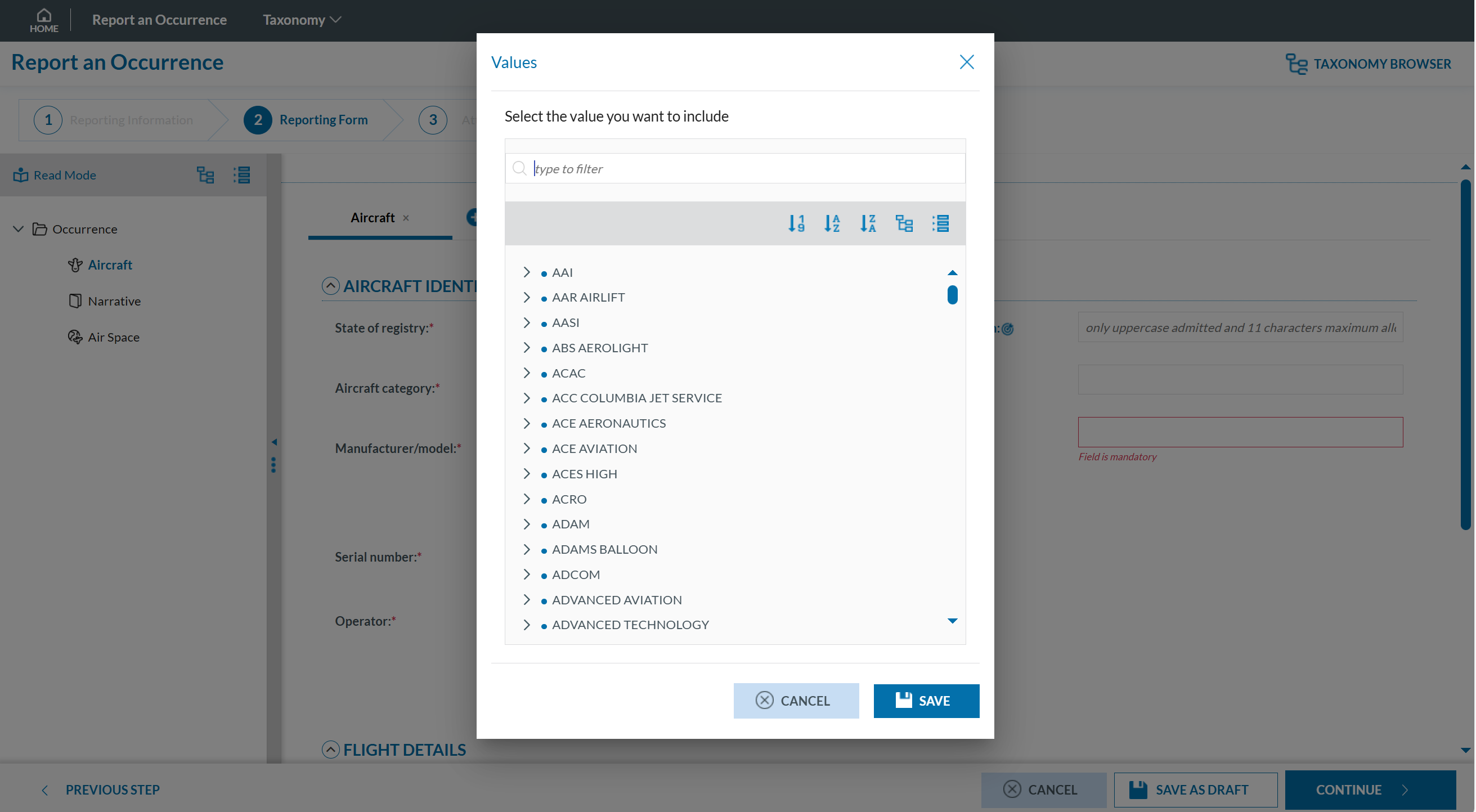
Depending on the attribute type, values may either be manually entered or selected from a predefined list (Value List). For example, for the Manufacturer/Model of an aircraft, a value can be chosen from a Value List:
However, for the Location Name attribute, values must be entered as free text only:

Filter the information
You can filter the Parent Entities, Child Entities and Attributes table by typing the term to be searched in the filter row. You can restrict the results by clicking the 'filter' icon  To delete the filter, you must click the
  'clear filter' icon.
By default, the 'contains' condition is selected:
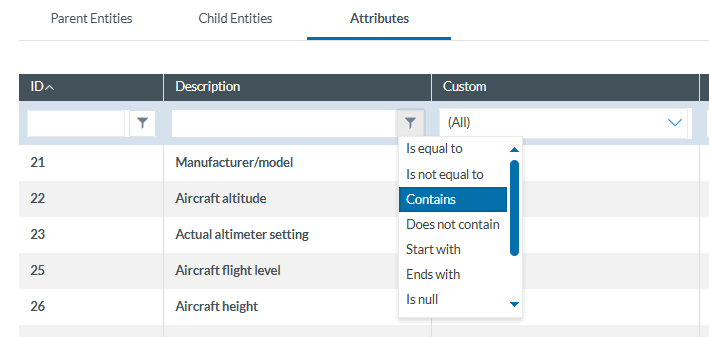
The filter options are:
-
Is equal to: the filter will look for fields that match the exact same string
-
Is not equal to: the filter will avoid the fields that match the exact same string
-
Contains: the filter will display all the fields that have the string written in any position
-
Does not contain: the filter will display the fields that do not have the string written in any position
-
Start with: the filter will look for the string at the beginning of the field
-
Ends with: the filter will look for the string at the end of the field
-
Is null: field does not exist
-
Is not null: field exists
-
Is empty: fields exist but does not have information
-
Is not empty: field exists and has information