# Report with registration
# Introduction
To report with registration, you first need to be registered and signed in.
You can report as an individual or as an organisation.
Please follow the links below for more information.
- [Registration as an individual](https://help.ci-aviationreporting.eu/books/reporting-portal/page/registration-as-an-individual "Registration as an individual")
- [Registration of an organisation](https://help.ci-aviationreporting.eu/books/reporting-portal/page/registration-of-an-organisation)
# Registration as an individual
To begin your registration as an individual, please follow these steps:
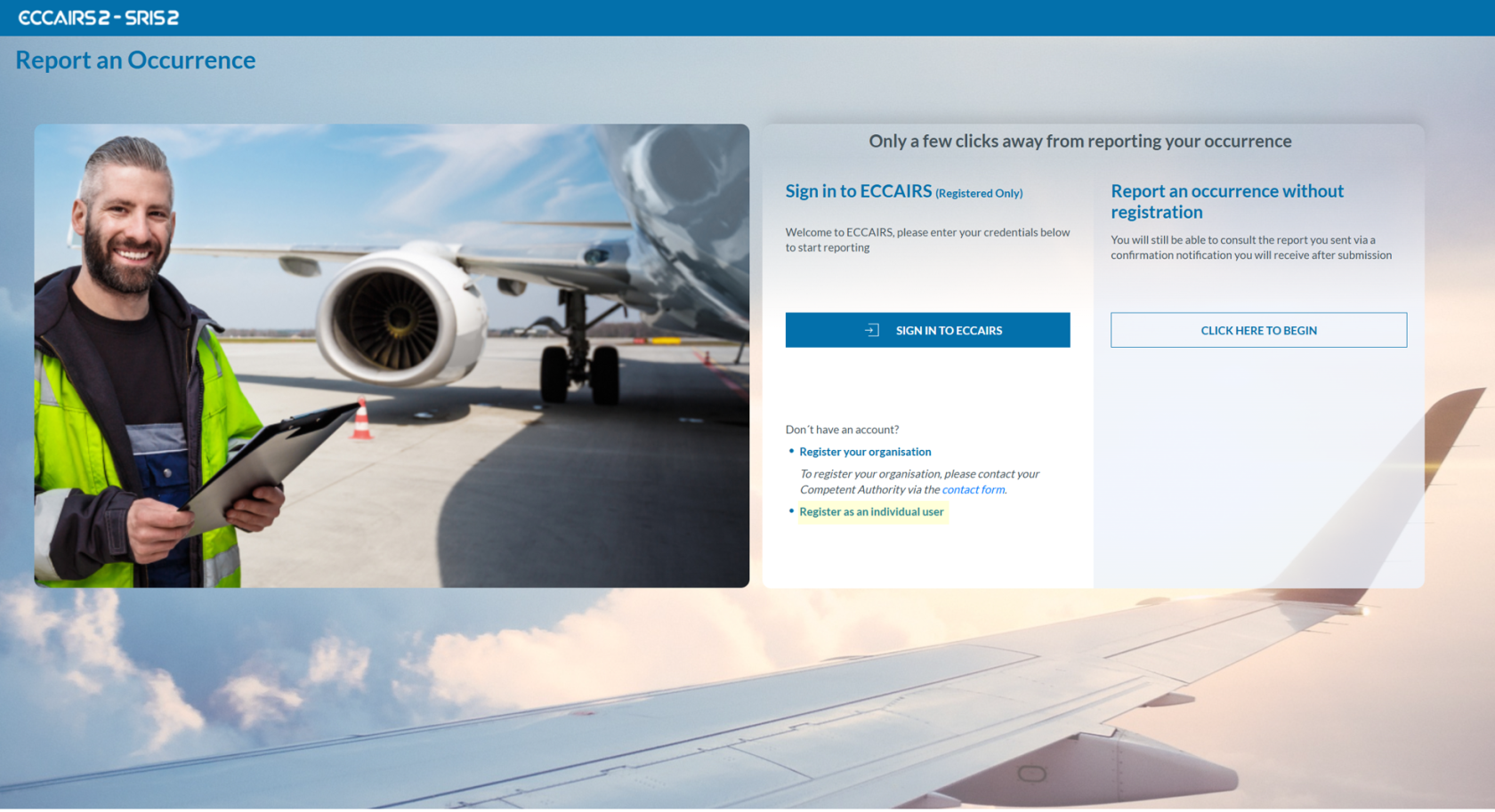
1. Visit the E2 Reporting Portal at [https://e2.aviationreporting.eu/](https://e2.aviationreporting.eu/).
[](https://help.ci-aviationreporting.eu/uploads/images/gallery/2025-10/vSEimage.png)
2. On the center-bottom section, click on ‘Register as an individual user’ to proceed with creating your personal account.
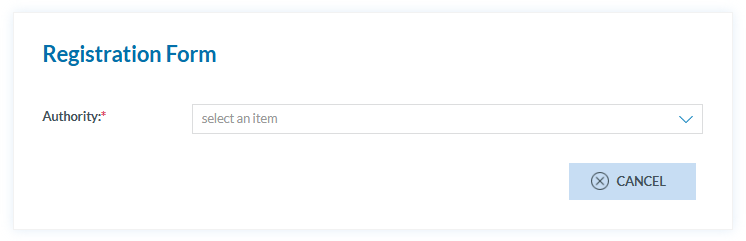
3. You will need to select the appropriate authority that will receive the submitted reports.
[](https://help.ci-aviationreporting.eu/uploads/images/gallery/2025-10/sEmimage.png)
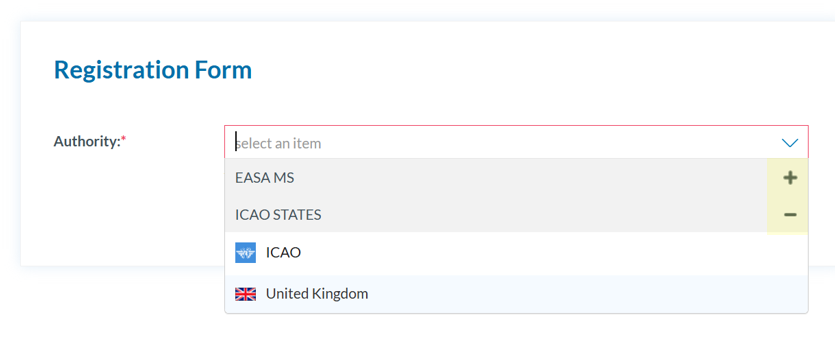
In the dropdown menu, the list of authorities can be expanded or collapsed using the '+' or '−' symbol located to the right of 'EASA MS' or 'ICAO STATES':
[](https://help.ci-aviationreporting.eu/uploads/images/gallery/2025-10/TQNimage.png)
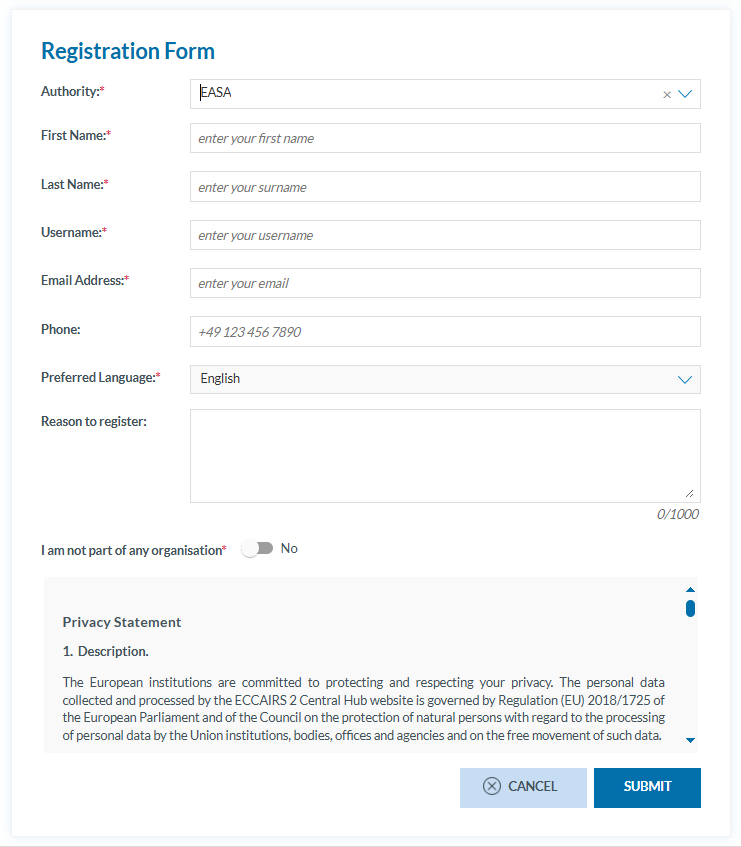
4. The system will display a registration form as follows:
[](https://help.ci-aviationreporting.eu/uploads/images/gallery/2025-10/jtqimage.png)
You must fill in all the mandatory fields—this includes all fields except 'Phone' and 'Reason to register', which are optional.
Usernames must be unique. If your chosen name is already taken, you'll be asked to select a different one.
To confirm that you are not part of any organization, set the toggle switch to 'No'.
Once you have completed the form and clicked the 'SUBMIT' button, the system will display the following message:
[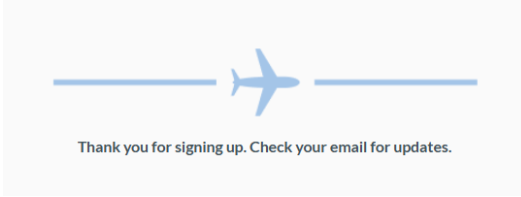](https://help.ci-aviationreporting.eu/uploads/images/gallery/2025-10/a1fimage.png)
5. Check your email. The system will then automatically send you an email confirming that your request has been successfully received:
[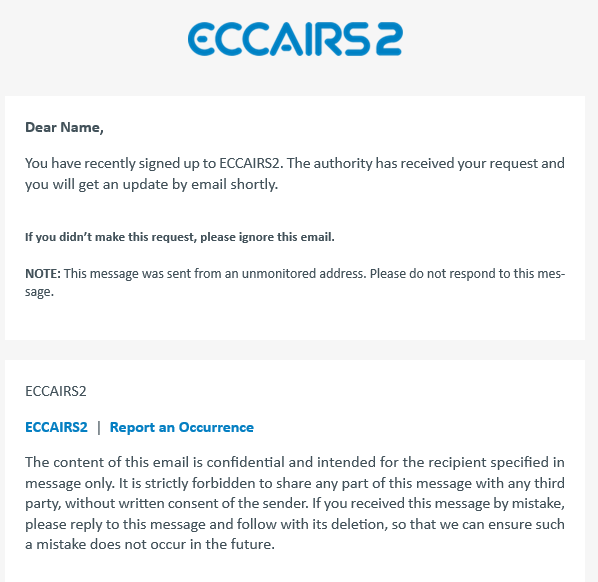](https://help.ci-aviationreporting.eu/uploads/images/gallery/2025-10/individual-registration-proccess-start-confirmation.PNG)
The authority indicated in the form is responsible for approving or denying the registration.
a. If your registration is denied, you will receive an email notification similar to the one shown below.
[](https://help.ci-aviationreporting.eu/uploads/images/gallery/2025-10/image-116.png)
You can find the contact details of the Authority to know further details.
b. If the registration is approved, you will receive an email as follows:
[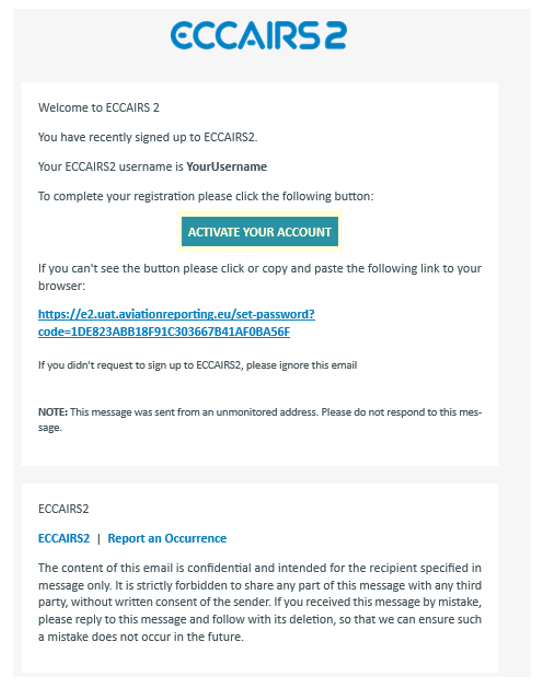](https://help.ci-aviationreporting.eu/uploads/images/gallery/2025-10/image-115.png)
6. Once you have received the activation email, by clicking on 'ACTIVATE YOUR ACCOUNT' you will be securely redirected to the portal where you can set your password.
[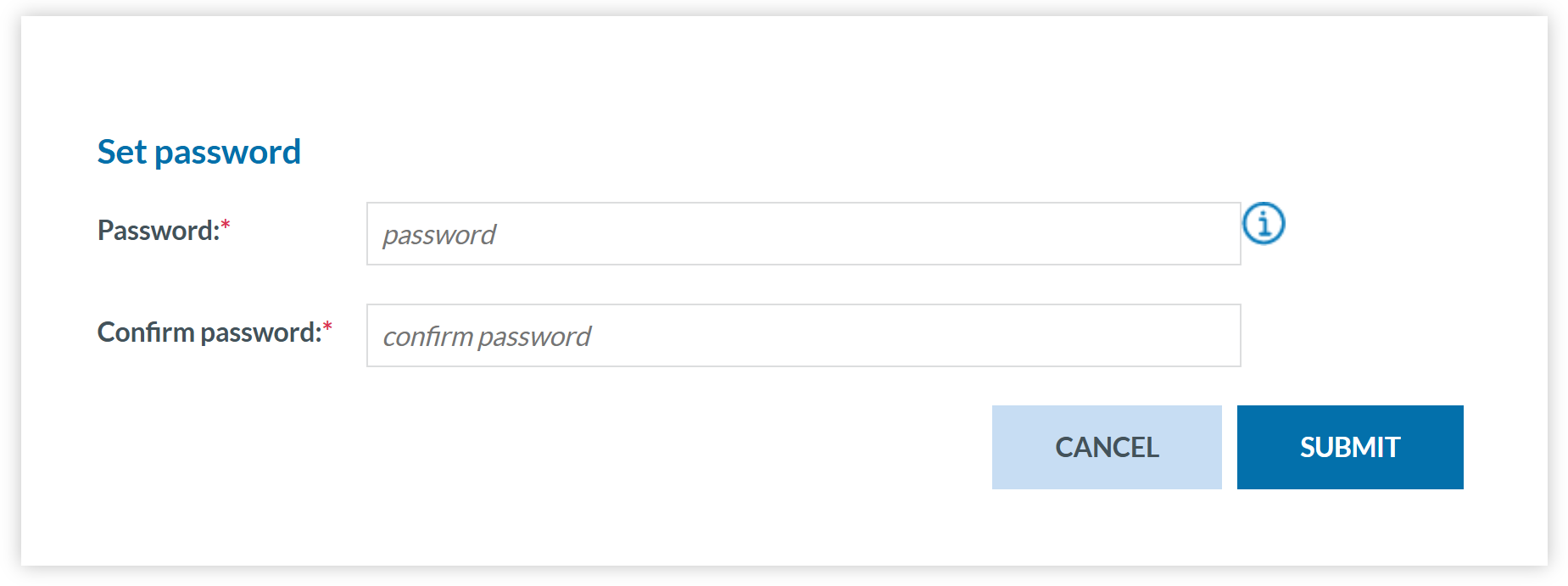](https://help.ci-aviationreporting.eu/uploads/images/gallery/2025-10/individual-registration-set-a-password.PNG)
7. Click 'SUBMIT' and you will receive a confirmation email shortly.
Note that the grants and generated web forms will be related to the competent Authority the Reporter has selected.
# Registration of an organisation
To begin registering your organisation, please follow these steps:
1. Visit the E2 Reporting Portal at [https://e2.aviationreporting.eu/](https://e2.aviationreporting.eu/).
[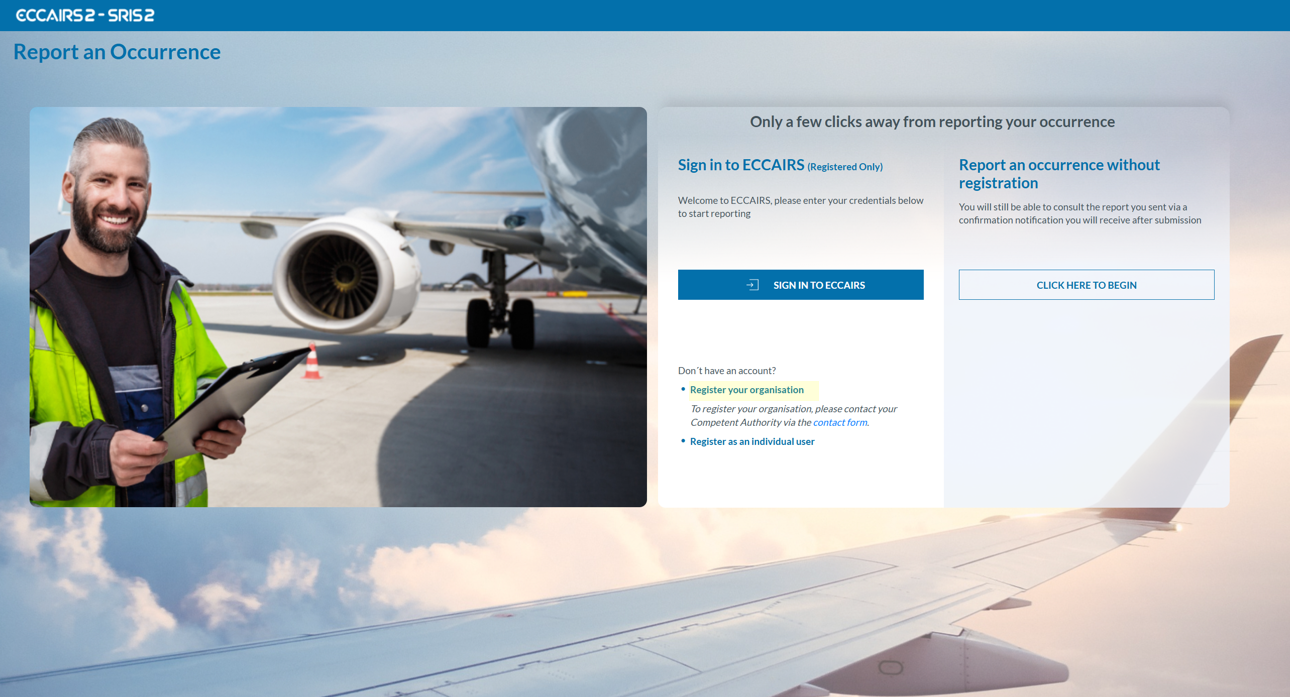](https://help.ci-aviationreporting.eu/uploads/images/gallery/2025-10/image-112.png)
2. On the center-bottom section, click on 'Register your Organisation' (If you click the 'contact form' link, you will access the same page). The system will display a Registration Request form to fill out as follows:
[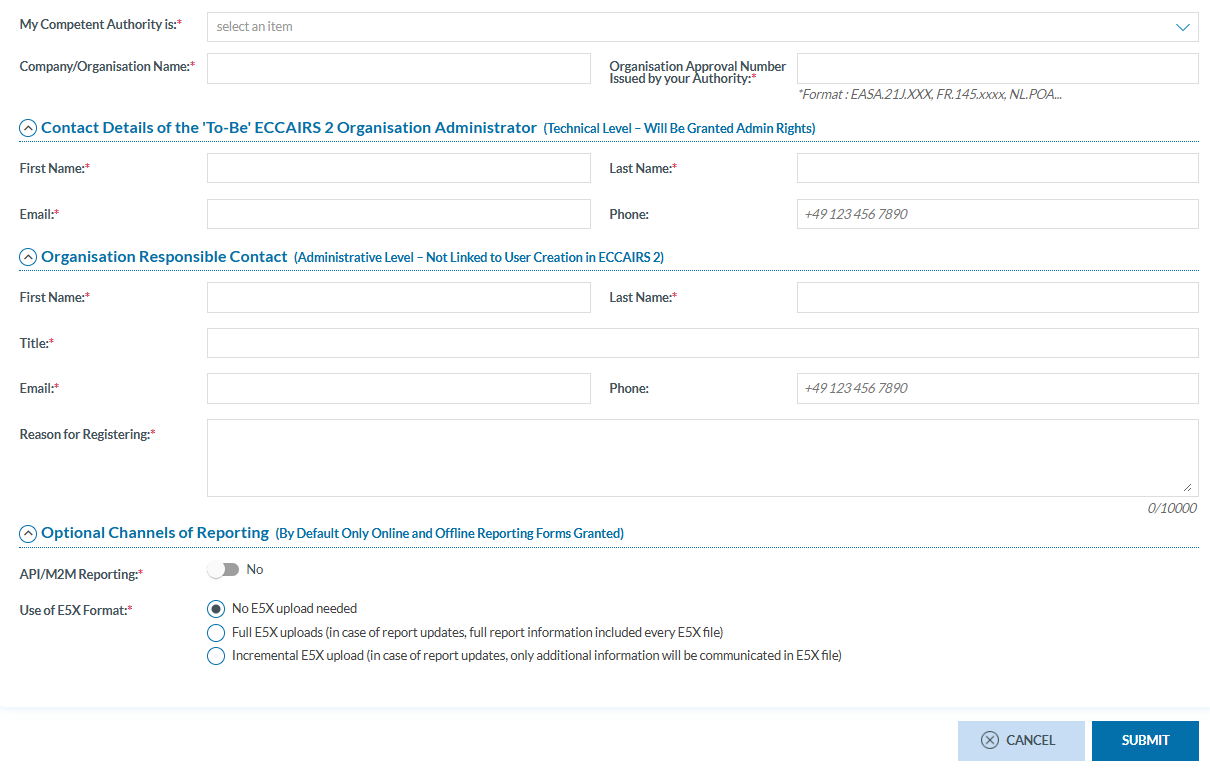](https://help.ci-aviationreporting.eu/uploads/images/gallery/2025-10/11cimage.png)
All fields are mandatory, except for ‘Phone,’ which is optional.
3. Please click 'SUBMIT', and you will receive an email containing instructions to complete the registration process.
# Sign in
#### Important notes
##### Correct Access URL
If you have created a shortcut to the URL https://api.aviationreporting.eu/idp/login, please be aware that this address points to the dedicated login server only. When accessed directly, the system does not know where to redirect the user after authentication, **resulting in a failed or incomplete login process.**
To ensure proper access and functionality, always use the official entry point:
**Valid URL**: [https://e2.aviationreporting.eu](https://e2.aviationreporting.eu/)
This address initiates the login flow correctly and allows the system to return you to the appropriate reporting environment after authentication.
##### Automatic Time Zone Configuration
For the time being it’s essential that your device’s time zone is set to automatic. If your local time doesn’t match the server time, the system may interpret your authentication token as expired—even if it was just generated.
How to ensure your time zone is set automatically:
- **On Windows:** Go to *Settings* → *Time & Language* → *Date & Time* Enable:
- “Set time automatically”
- “Set time zone automatically”
- **On macOS:** Go to *System Preferences* → *Date & Time* Check the box: “Set time zone automatically using current location”
- **On mobile devices (Android/iOS):** Make sure “Automatic date & time” is enabled in your system settings.
This configuration ensures your access token remains valid and prevents login issues related to time synchronization.
#### Sign in
To sign in, please follow these steps:
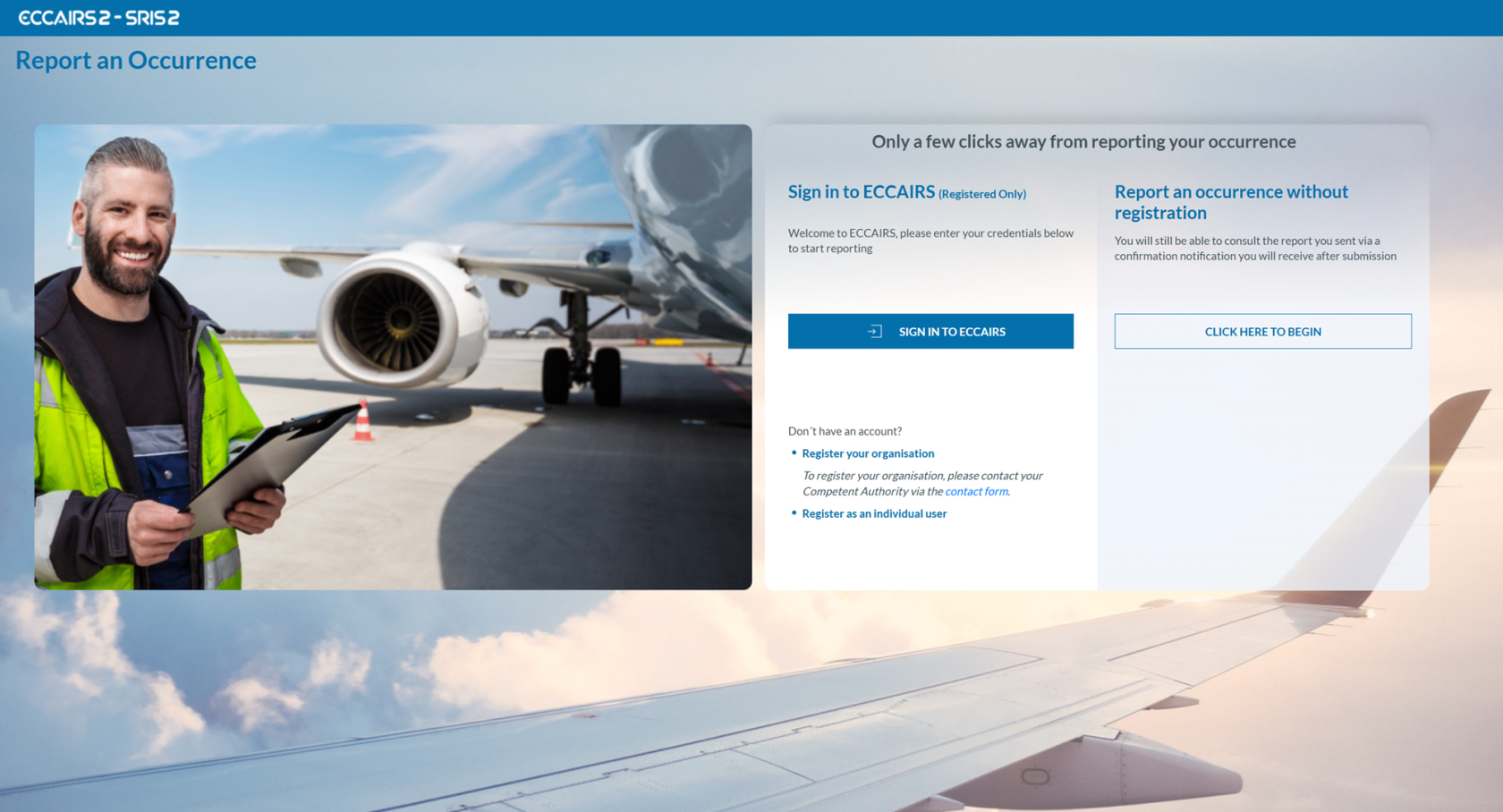
1. Visit the E2 Reporting Portal at [https://e2.aviationreporting.eu/](https://e2.aviationreporting.eu/).
[](https://help.ci-aviationreporting.eu/uploads/images/gallery/2025-10/qSpimage.png)
2. Click on 'SIGN IN TO ECCAIRS'. You will be redirected to the following page:
[](https://help.ci-aviationreporting.eu/uploads/images/gallery/2025-10/IUnimage.png)
3. Fill out your Username and Password.
4. Click on 'SIGN IN TO ECCAIRS'. The system will display the following page:
[](https://help.ci-aviationreporting.eu/uploads/images/gallery/2025-10/X34image.png)
5. Please check your email. The system will send a one-time security code to the email address linked to your user account. The message will be sent from the address 'do-not-reply@aviationreporting.eu'.
[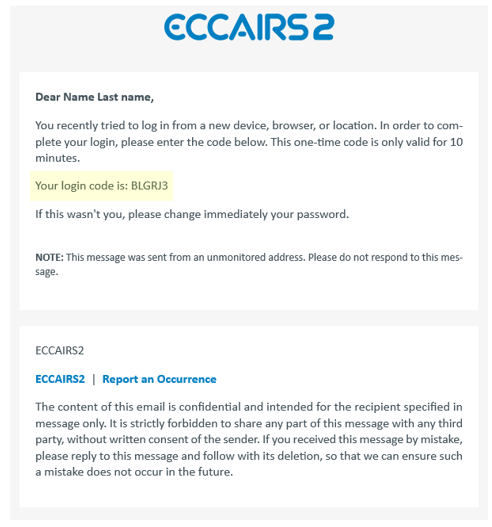](https://help.ci-aviationreporting.eu/uploads/images/gallery/2025-10/URkimage.png)
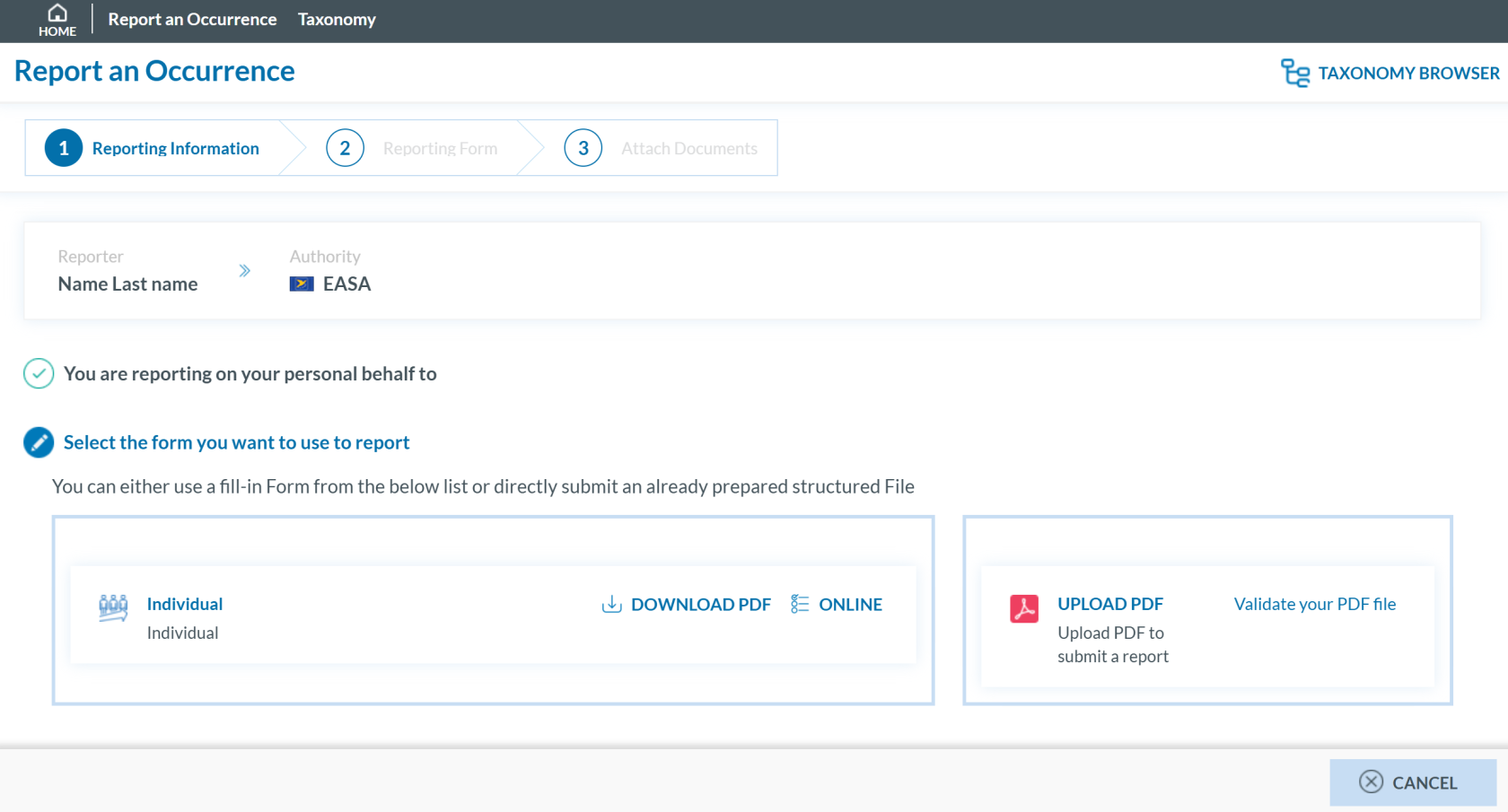
6. Enter your security code and click 'SUBMIT'. You will be redirected to the 'Report and Occurrence' page.
[](https://help.ci-aviationreporting.eu/uploads/images/gallery/2025-10/eWpimage.png)
# Report as an Individual
As an **individual registered reporter**, there are two ways to submit a report:
- Online
- Offline
### Report online
To report **online** as an **individual** **registered reporter:**
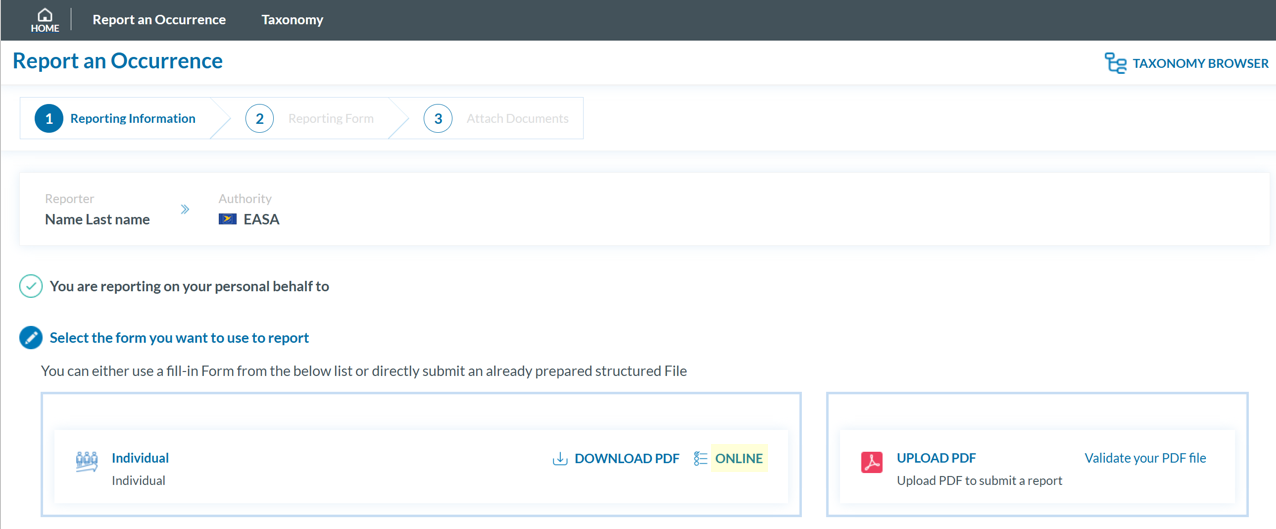
1. Sign in to access the 'Report an Occurrence' page.
[](https://help.ci-aviationreporting.eu/uploads/images/gallery/2025-10/6a8image.png)
2. Click the ‘ONLINE’ button next to one of the available webforms.
3. Fill out the form. Mandatory fields are highlighted —please provide the required information where available.
[](https://help.ci-aviationreporting.eu/uploads/images/gallery/2025-10/719image.png)
How to fill the Reporting Form
1. **Moving between topics**: You can move between topics—*Occurrence*, *Aircraft*, *Narrative*, and *Airspace*—using the navigation tree on the left pane.
2. **Adding entries**:
1. To add a new aircraft:
1. Click on 'Aircraft' (left pane).
2. Select 'ADD AIRCRAFT' (top-left corner of the right-hand pane).
2. To add a new 'Air space':
1. Click on 'Air space' (left pane).
2. Click 'ADD AIR SPACE' (top-left corner of the right-hand pane).
3. To add elements under 'Occurrence':
1. Click on 'Occurrence' (left pane).
2. Select "ADD SUBENTITY" (top-right corner of the right-hand pane).
3. **Saving the report**:
To save a draft version, click ‘SAVE AS DRAFT’ below the form.
The report will be stored in the 'Reports' list, accessible via the 'HOME' button at the top left of the page.
You will also receive an email with a link to review and edit your saved draft report.
4. Once you've completed the report, click **'CONTINUE'** to proceed.
If any mandatory fields are left incomplete, a warning message will appear indicating which fields are missing. If you do not have the required information at the moment, you may still proceed by clicking ‘SUBMIT’.
### Report offline
This section outlines how to report offline as an individual registered reporter and how to validate a PDF to submit a report.
##### Report Offline
To report **offline** as an **individual registered reporter**:
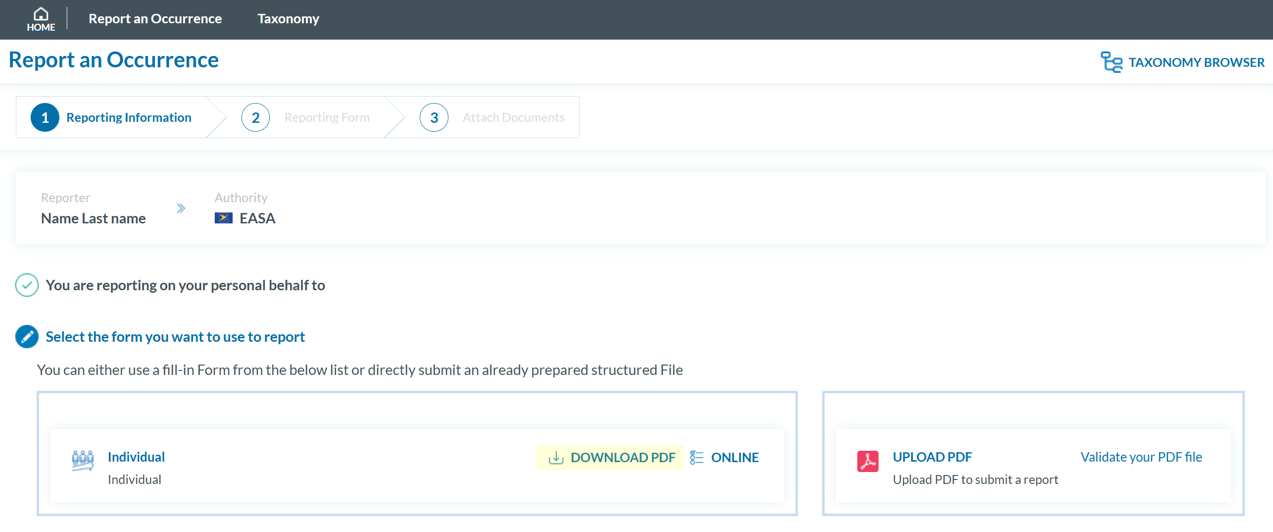
1. Sign in to access the 'Report an Occurrence' page.
[](https://help.ci-aviationreporting.eu/uploads/images/gallery/2025-10/UiCimage.png)
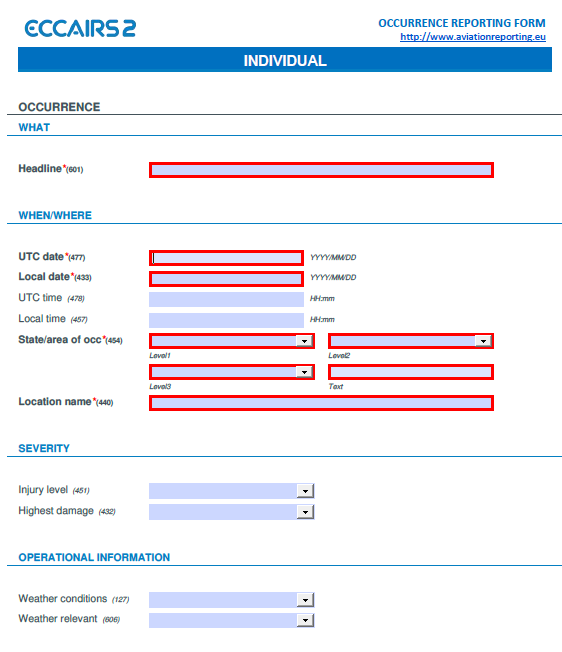
2. Click ‘DOWNLOAD PDF’ to obtain the reporting form in PDF format.
3. Use the free Acrobat Reader (Adobe's website) to fill the form. Other PDF applications may not work or corrupt the PDF form.
[](https://help.ci-aviationreporting.eu/uploads/images/gallery/2025-10/QwNimage.png)
3. Save the file to your device.
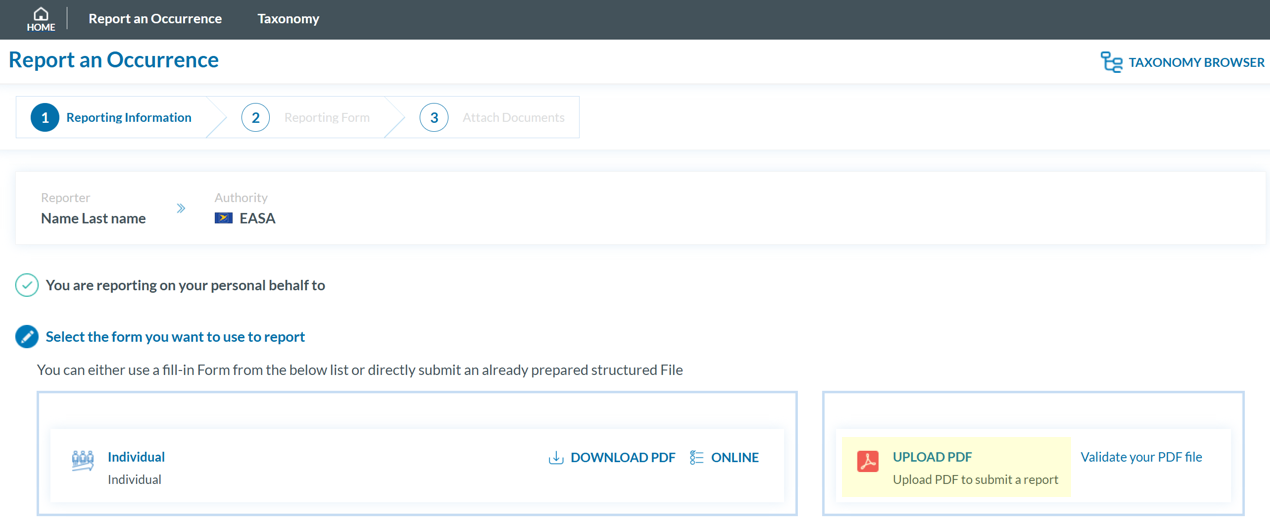
4. Click ‘UPLOAD PDF’.
[](https://help.ci-aviationreporting.eu/uploads/images/gallery/2025-10/nfcimage.png)
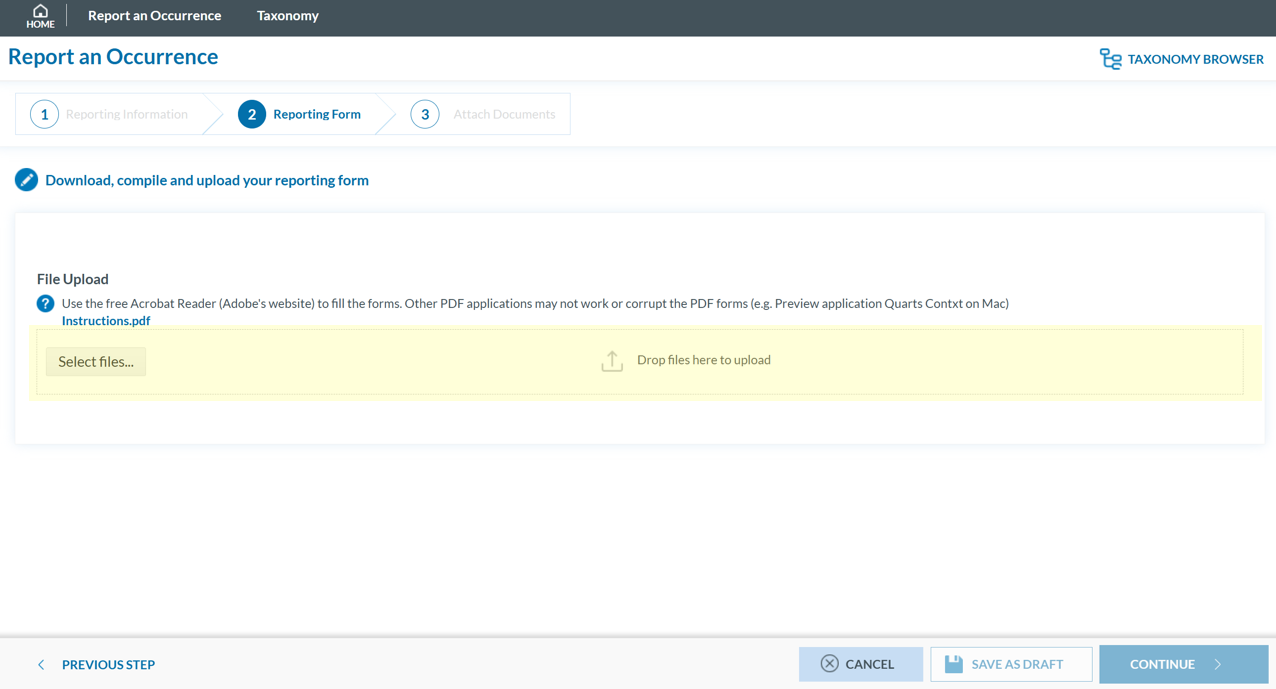
4. Attach the saved report by clicking the ‘Select files...’ button or by using drag and drop.
[](https://help.ci-aviationreporting.eu/uploads/images/gallery/2025-10/cz7image.png)
5. When the process is finish you will see a message stating "Your file(s) have been successfully uploaded."
To save a draft version, you can click ‘SAVE AS DRAFT’ below the form. The report will be stored in the 'Reports' list, accessible via the 'HOME' button at the top left of the page. You will also receive an email with a link to review and edit your saved draft report.
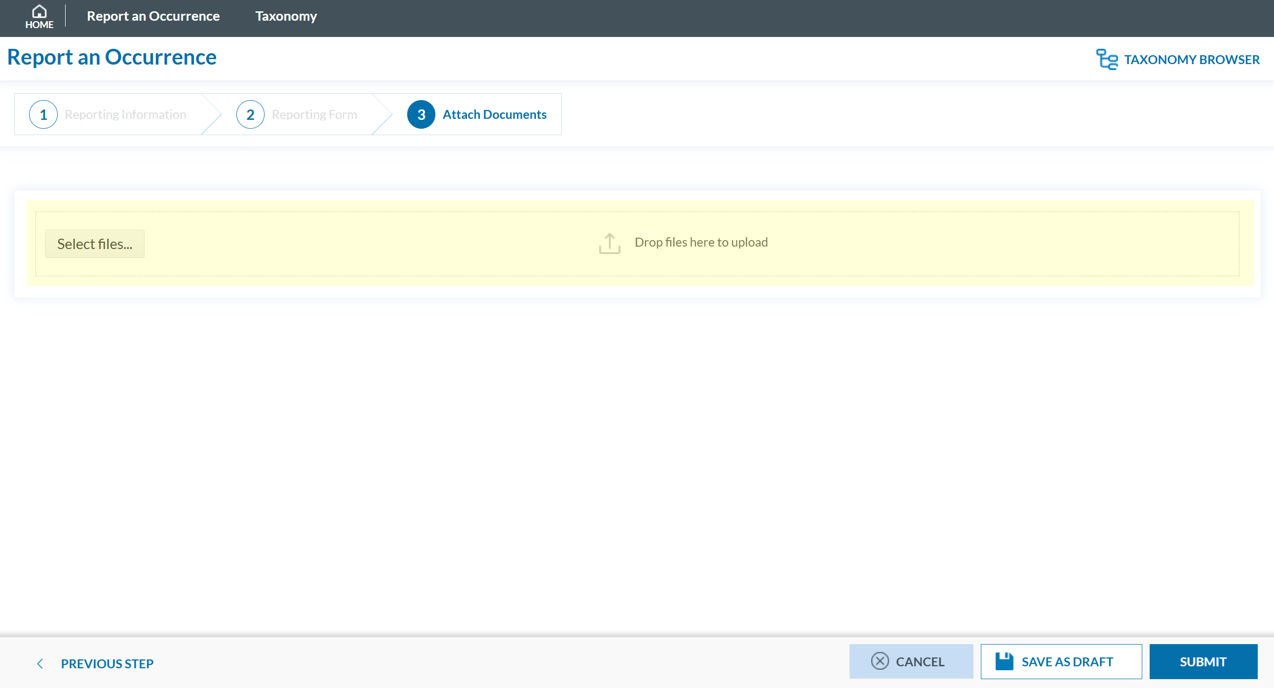
6. If applicable, attach any relevant documents by clicking 'Select files...' or by drag and drop.
[](https://help.ci-aviationreporting.eu/uploads/images/gallery/2025-10/RSMimage.png)
The system accepts files up to 4,000 MB in total. Supported formats include:
- Documents: .pdf, .doc/.docx, .ppt/.pptx, .xls/.xlsx/.xlsm, .xml, .rtf\*\*, .odt\*\*
- Images: .jpg/.jpeg, .png, .gif, .jtif\*\*, .heic
- Media: .mp3, .mp4, .mov
- Others: .e5x, .e5z, .msg, .eml\*\*, .zip\*\*
❌ Files with .dll, .exe, .sys, or unknown extensions are not allowed.
You can add a description or remove the attached file by clicking on ‘x’ on the right.
[](https://help.ci-aviationreporting.eu/uploads/images/gallery/2025-10/HkHimage.png)
Then click ‘CONTINUE’ to proceed.
7. If needed, you can return to the previous step using the 'PREVIOUS STEP' button. In the 'Report Form' section, you can replace the uploaded report by clicking the pencil icon to the right of the document name. In the 'Attach Documents' section, you can upload additional files or remove them by clicking the 'X' icon.
8. You may click 'SUBMIT' to send your report.
9. You will get a confirmation saying that "You have successfully submitted your report(s).'
If any mandatory fields are left incomplete, a warning message will appear indicating which fields are missing. If you do not have the required information at the moment, you may still proceed by clicking 'SUBMIT'. However, the **UTC Date** is the only field required in order to submit a report.
#### Validate your PDF
To validate your PDF:
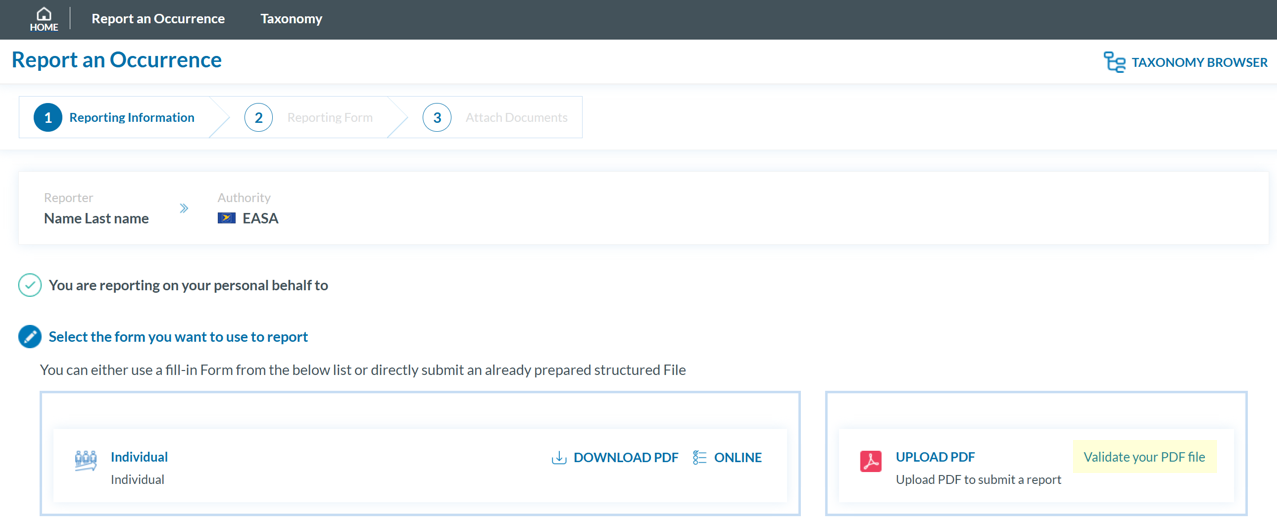
1. Sign in to access the 'Report an Occurrence' page.
[](https://help.ci-aviationreporting.eu/uploads/images/gallery/2025-10/elOimage.png)
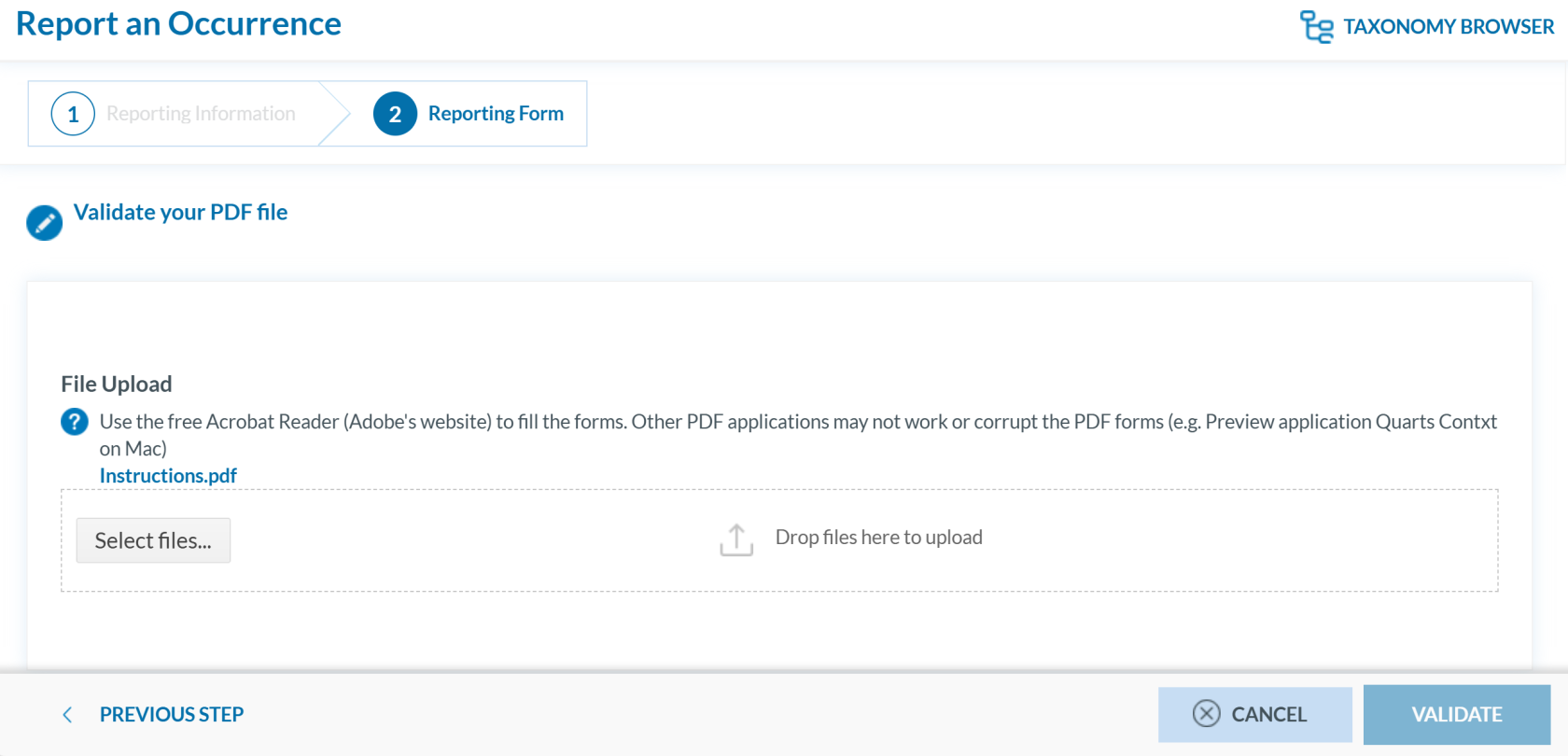
2. Click 'Validate your PDF File'. The system will open the validation page:
[](https://help.ci-aviationreporting.eu/uploads/images/gallery/2025-10/wuRimage.png)
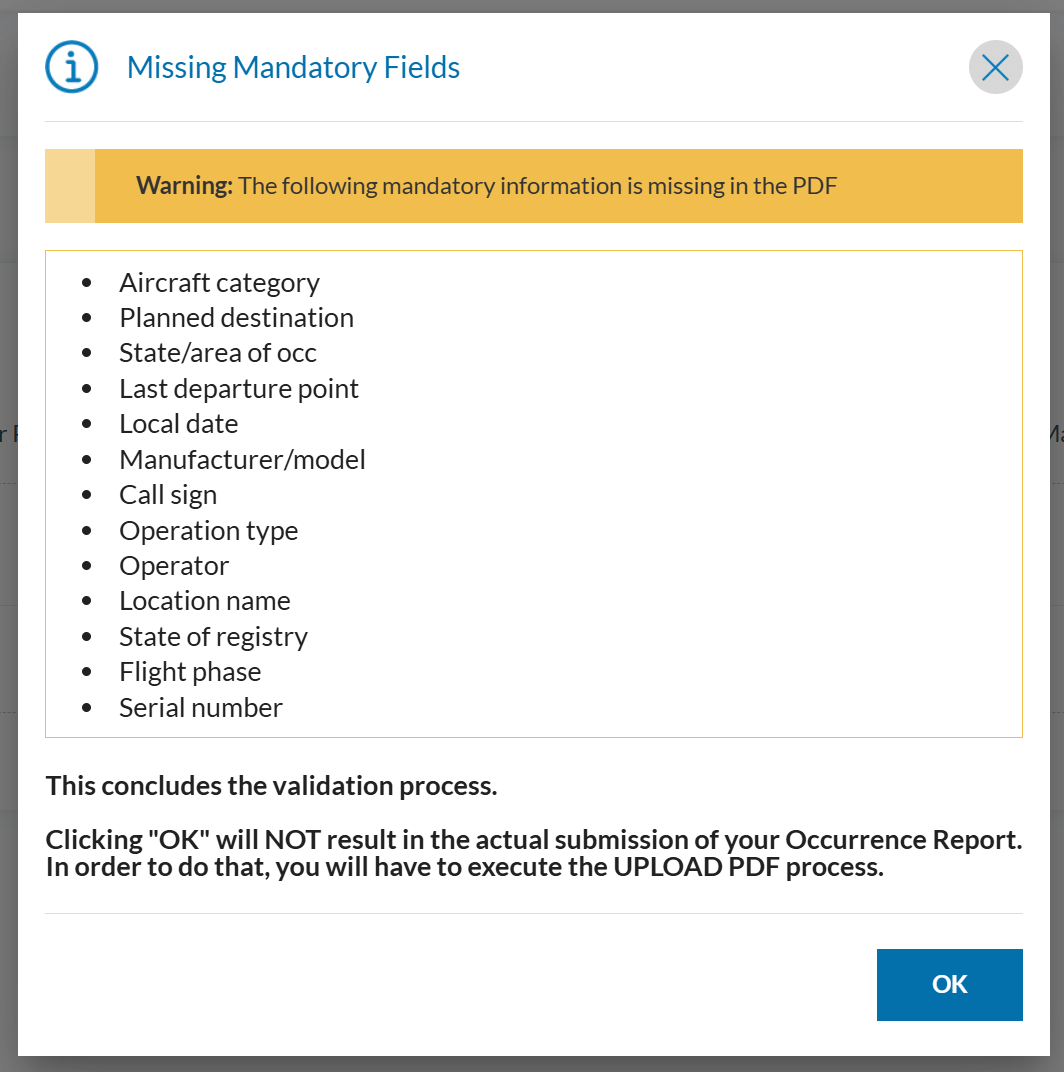
3. Attach the PDF report to validate by clicking the ‘Select files...’ button or by using drag and drop. When the process is finish you will see a message stating 'Your file(s) have been successfully uploaded.'
4. Click **'**VALIDATE'. The system will either display a message stating 'Your PDF has been successfully validated' or highlight the mandatory fields that are missing in the PDF:
5. [](https://help.ci-aviationreporting.eu/uploads/images/gallery/2025-10/iaPimage.png)
# Report as an Organisation
To report on behalf of your organisation, there are different ways to do depending on your user role:
- **Preparator or Preparator Limited:** You can only **create reports online** however you cannot submit them.
- **Reporter:** You can **create and submit reports online, offline** or you can submit **E5X**.
### Preparator or Preparator limited
As **Preparators** or **Preparators Limited,** you are authorized to create OR within the system, but **you cannot submit them to the Authority**. Reports must be prepared online; although you may download the PDF form for completion, uploading it is not possible. If the report is completed offline, a designated **Reporter** from your organisation is **responsible for submitting it.**
#### Preparator Limited
As a **Preparator Limited**, you can only create, view, edit, and delete **your own reports**.
The status of the OR can be: Draft and Prepared.
#### Preparator
As a **Preparator**, you can:
- Create, view, edit, and delete **your own reports**
- **View and edit all organisation reports**
The status of the OR can be: Draft, Prepared and Sent.
#### Create an OR by a Preparator or Preparator Limited
To create an OR as a Preparator or Preparator Limited:
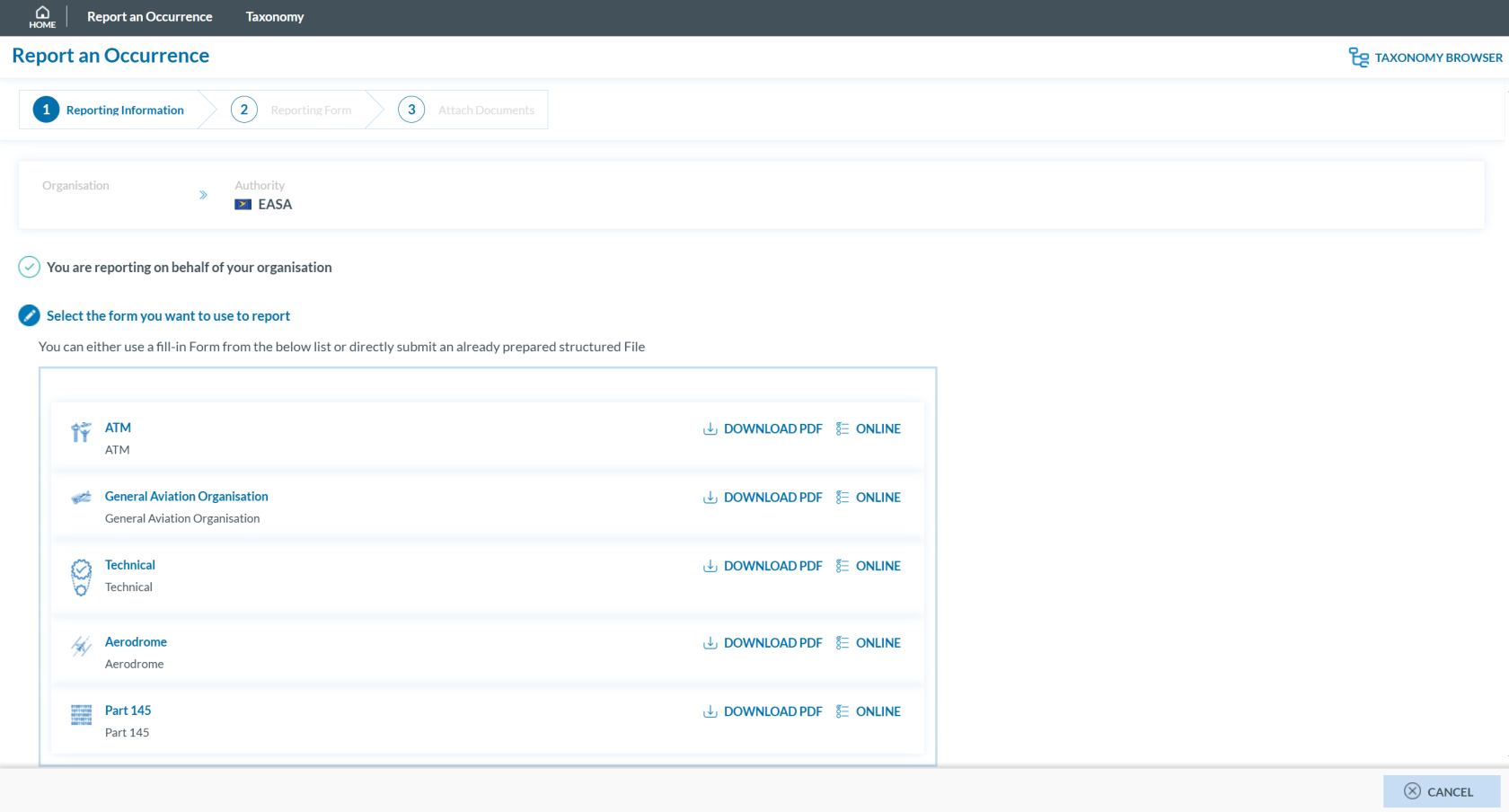
1. Sign in to access the 'Report an Occurrence' page.
[](https://help.ci-aviationreporting.eu/uploads/images/gallery/2025-10/lLdimage.png)
2. Click the ‘ONLINE’ button next to one of the available webforms.
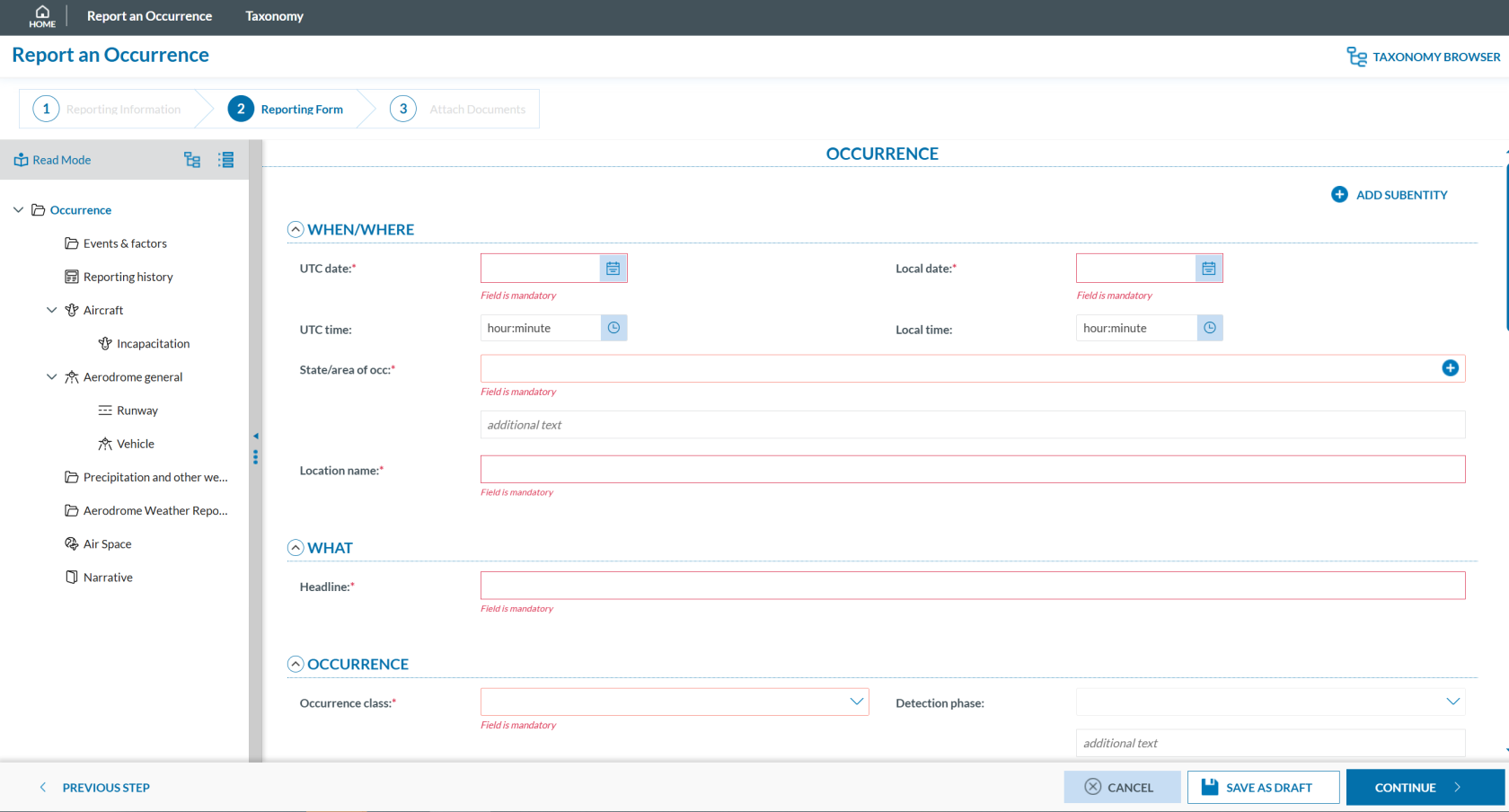
3. Fill out the form. Mandatory fields are highlighted —please provide the required information where available.
[](https://help.ci-aviationreporting.eu/uploads/images/gallery/2025-10/jJfimage.png)
How to fill the Reporting Form
1. **Moving between topics**: You can move between topics—*Occurrence*, *Aircraft*, *Narrative*, and *Airspace*—using the navigation tree on the left pane.
2. **Adding entries**:
1. To add a new aircraft:
1. Click on 'Aircraft' (left pane).
2. Select 'ADD AIRCRAFT' (top-left corner of the right-hand pane).
2. To add a new 'Air space':
1. Click on 'Air space' (left pane).
2. Click 'ADD AIR SPACE' (top-left corner of the right-hand pane).
3. To add elements under 'Occurrence':
1. Click on 'Occurrence' (left pane).
2. Select "ADD SUBENTITY" (top-right corner of the right-hand pane).
3. **Saving the report**:
To save a draft version, click ‘SAVE AS DRAFT’ below the form.
The report will be stored in the 'Reports' list, accessible via the 'HOME' button at the top left of the page.
You will also receive an email with a link to review and edit your saved draft report.
4. Once you've completed the report, click **'CONTINUE'** to proceed.
If any mandatory fields are left incomplete, a warning message will appear indicating which fields are missing. If you do not have the required information at the moment, you may still proceed by clicking ‘SAVE’.
#### Submission of the OR by a Reporter
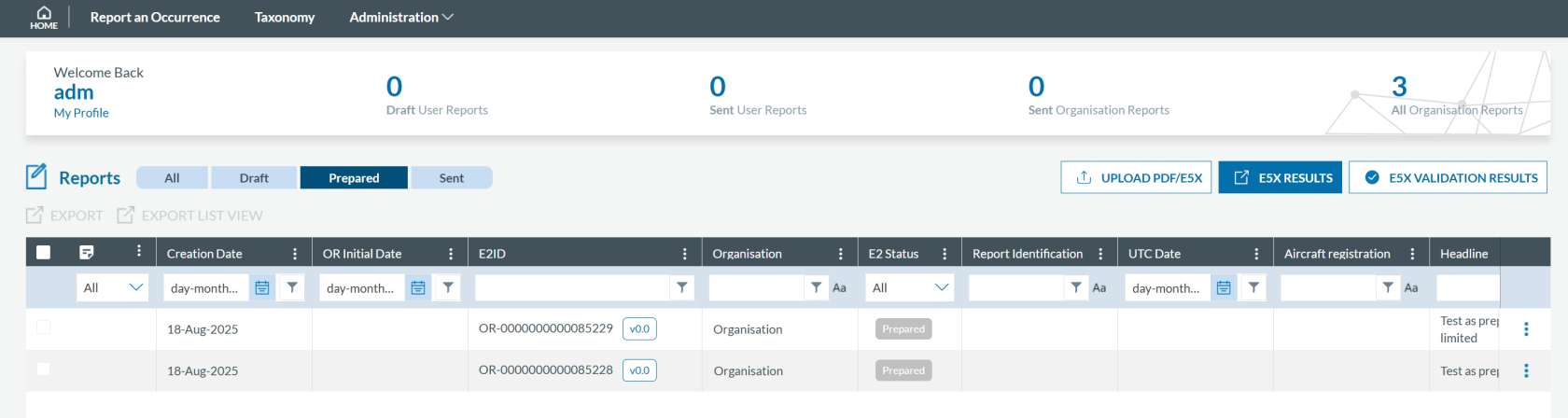
When a **Preparator** or **Preparator Limited** creates an OR, the application sends an email to the Organisation's Reporters so they are aware of the new reports. In the landing page, they see the OR to be reviewed under the label Prepared
[](https://help.ci-aviationreporting.eu/uploads/images/gallery/2025-10/UqEimage.png)
Reporters can view any report in this label.
To submit a Prepared OR, Reporter has to enter in Edit mode and follow the normal reporting method. More information on this procedure can be found in the section Edit a Report.
### Reporter
With the **Reporter** role, you can view, create, edit, delete, and submit reports on behalf of your organisation.
There are three different ways to report**:**
- Online
- Offline
- E5X
#### Report online
To report **online on behalf of your organisation**:
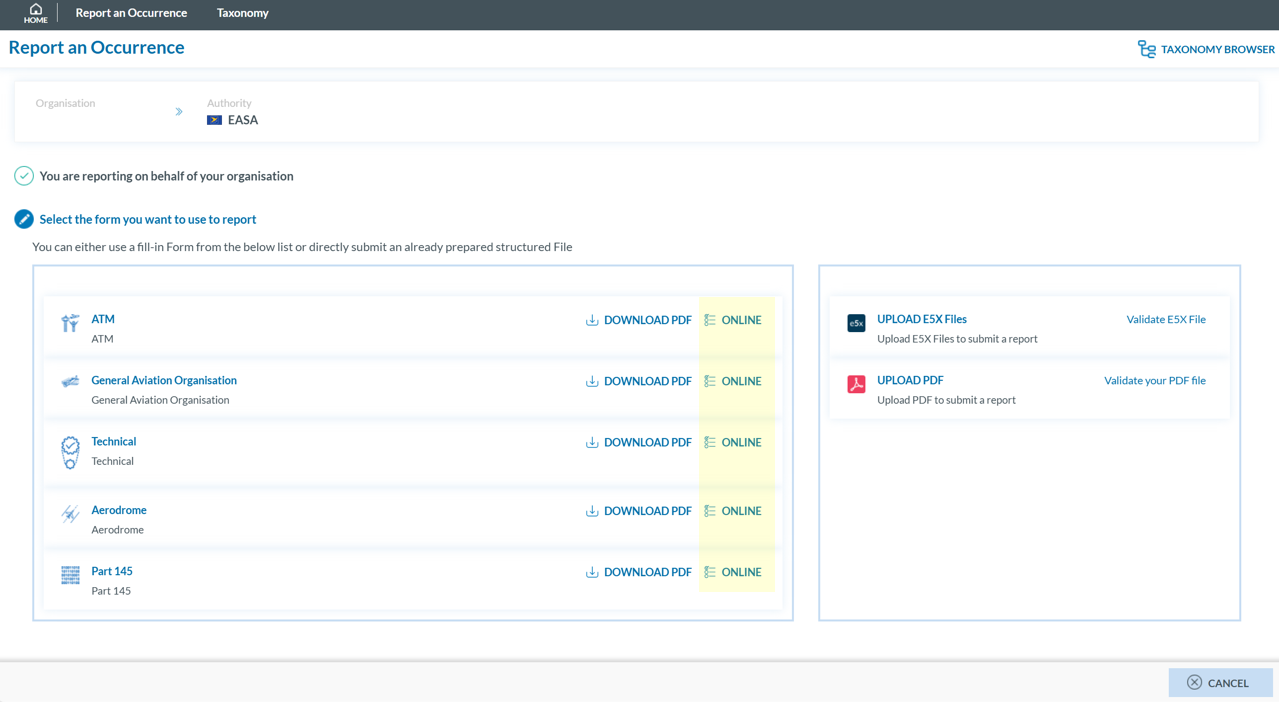
1. Sign in to access the 'Report an Occurrence' page.
[](https://help.ci-aviationreporting.eu/uploads/images/gallery/2025-10/sQyimage.png)
2. Click the ‘ONLINE’ button next to one of the available webforms.
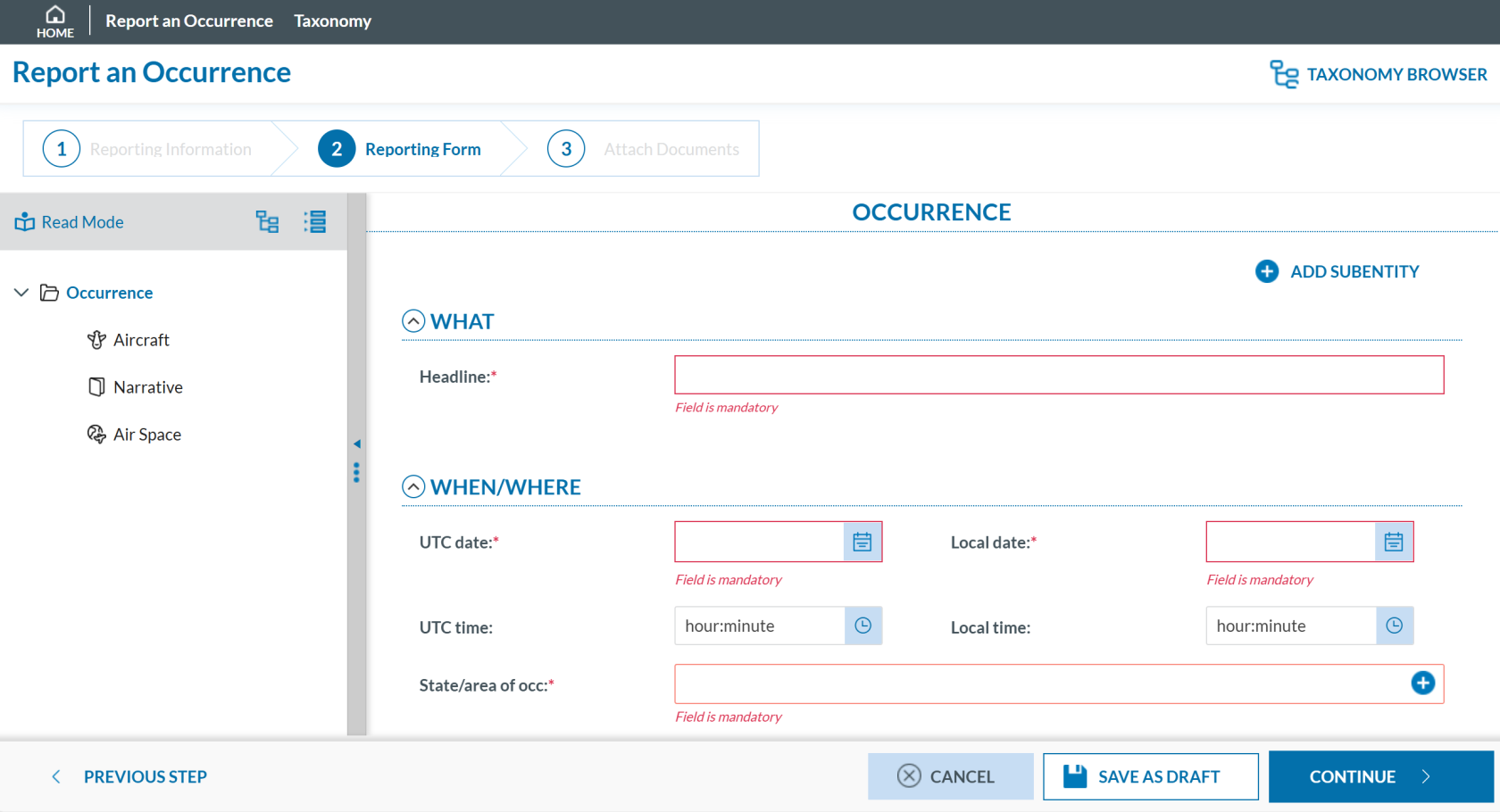
3. Fill out the form. Mandatory fields are highlighted —please provide the required information where available —.
[](https://help.ci-aviationreporting.eu/uploads/images/gallery/2025-10/Xstimage.png)
How to fill the Reporting Form
1. **Moving between topics**: You can move between topics—*Occurrence*, *Aircraft*, *Narrative*, and *Airspace*—using the navigation tree on the left pane.
2. **Adding entries**:
1. To add a new aircraft:
1. Click on 'Aircraft' (left pane).
2. Select 'ADD AIRCRAFT' (top-left corner of the right-hand pane).
2. To add a new 'Air space':
1. Click on 'Air space' (left pane).
2. Click 'ADD AIR SPACE' (top-left corner of the right-hand pane).
3. To add elements under 'Occurrence':
1. Click on 'Occurrence' (left pane).
2. Select "ADD SUBENTITY" (top-right corner of the right-hand pane).
3. **Saving the report**:
To save a draft version, click ‘SAVE AS DRAFT’ below the form.
The report will be stored in the 'Reports' list, accessible via the 'HOME' button at the top left of the page.
You will also receive an email with a link to review and edit your saved draft report.
4. Once you've completed the report, click **'CONTINUE'** to proceed.
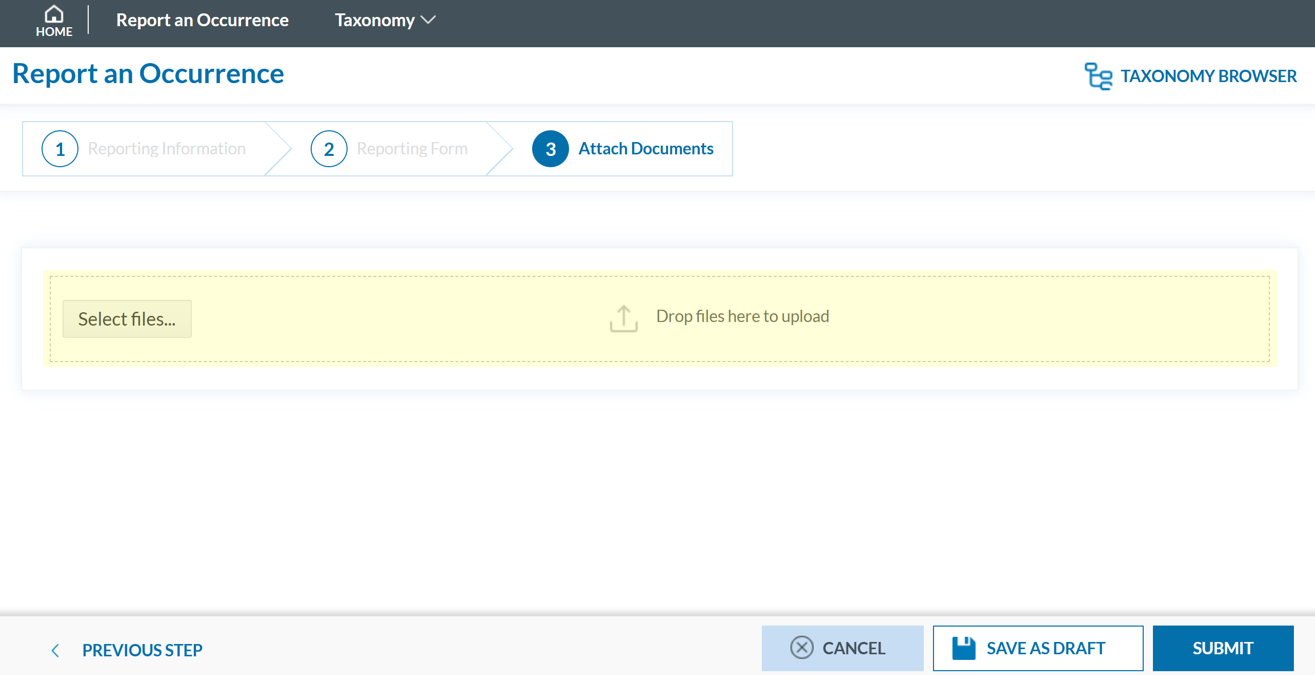
4. If applicable, attach any relevant documents by clicking 'Select files...' or by drag and drop.
[](https://help.ci-aviationreporting.eu/uploads/images/gallery/2025-10/df0image.png)
The system accepts files up to 4,000 MB in total. Supported formats include:
- Documents: .pdf, .doc/.docx, .ppt/.pptx, .xls/.xlsx/.xlsm, .xml, .rtf\*\*, .odt\*\*
- Images: .jpg/.jpeg, .png, .gif, .jtif\*\*, .heic
- Media: .mp3, .mp4, .mov
- Others: .e5x, .e5z, .msg, .eml\*\*, .zip\*\*
❌ Files with .dll, .exe, .sys, or unknown extensions are not allowed.
You can add a description or remove the attached file by clicking on ‘x’ on the right.
[](https://help.ci-aviationreporting.eu/uploads/images/gallery/2025-10/s4Bimage.png)
If needed, you can return to the previous step using the 'PREVIOUS STEP' button.
5. Click 'SUBMIT' to send your report to the competent Authority.
6. You will get a confirmation saying that "You have successfully submitted your report(s).'
If any mandatory fields are left incomplete, a warning message will appear indicating which fields are missing. If you do not have the required information at the moment, you may still proceed by clicking ‘SUBMIT’.
#### Report offline
This section outlines how to report offline on behalf of your organisaion and how to validate a PDF to submit a report.
##### Report offline
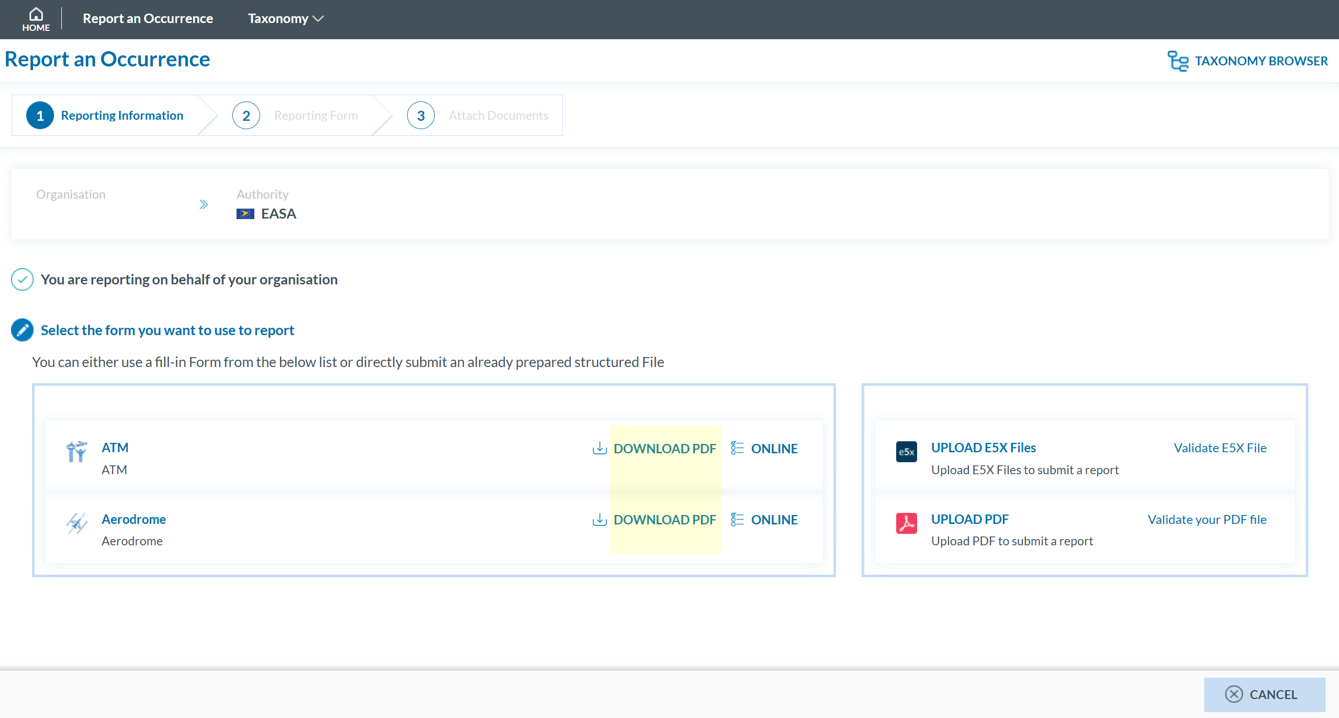
To report **offline on behalf of your organisation**: 1. Sign in to access to the 'Report an Occurrence' page.
[](https://help.ci-aviationreporting.eu/uploads/images/gallery/2025-10/hYoimage.png)
2. Click ‘DOWNLOAD PDF’ to obtain the reporting form in PDF format.
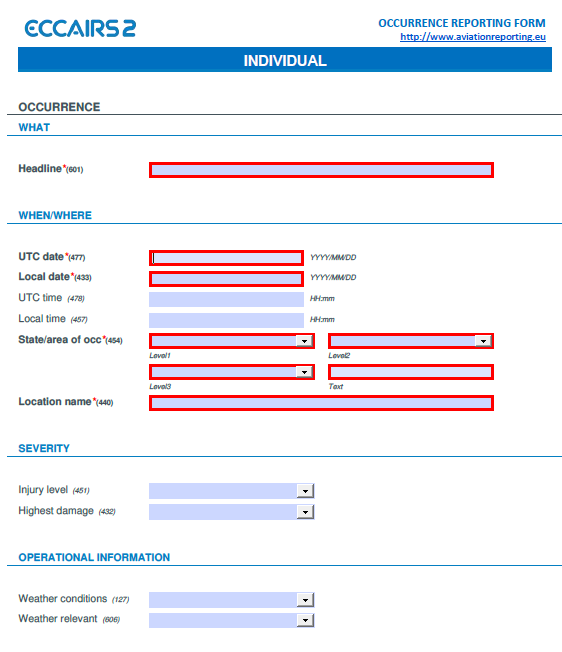
3. Use the free Acrobat Reader (Adobe's website) to fill the form. Other PDF applications may not work or corrupt the PDF form.
[](https://help.ci-aviationreporting.eu/uploads/images/gallery/2025-10/cTNimage.png)
4. Save the file to your device.
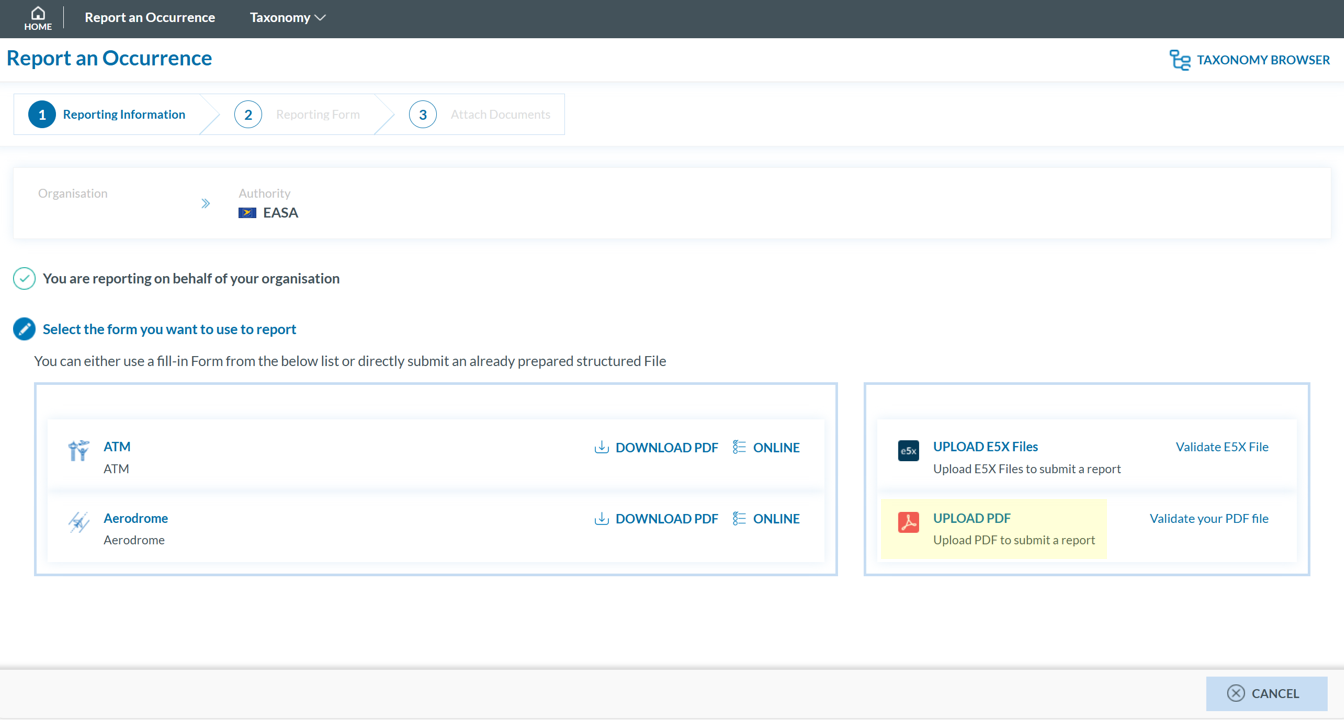
5. Click ‘UPLOAD PDF’.
[](https://help.ci-aviationreporting.eu/uploads/images/gallery/2025-10/1Meimage.png)
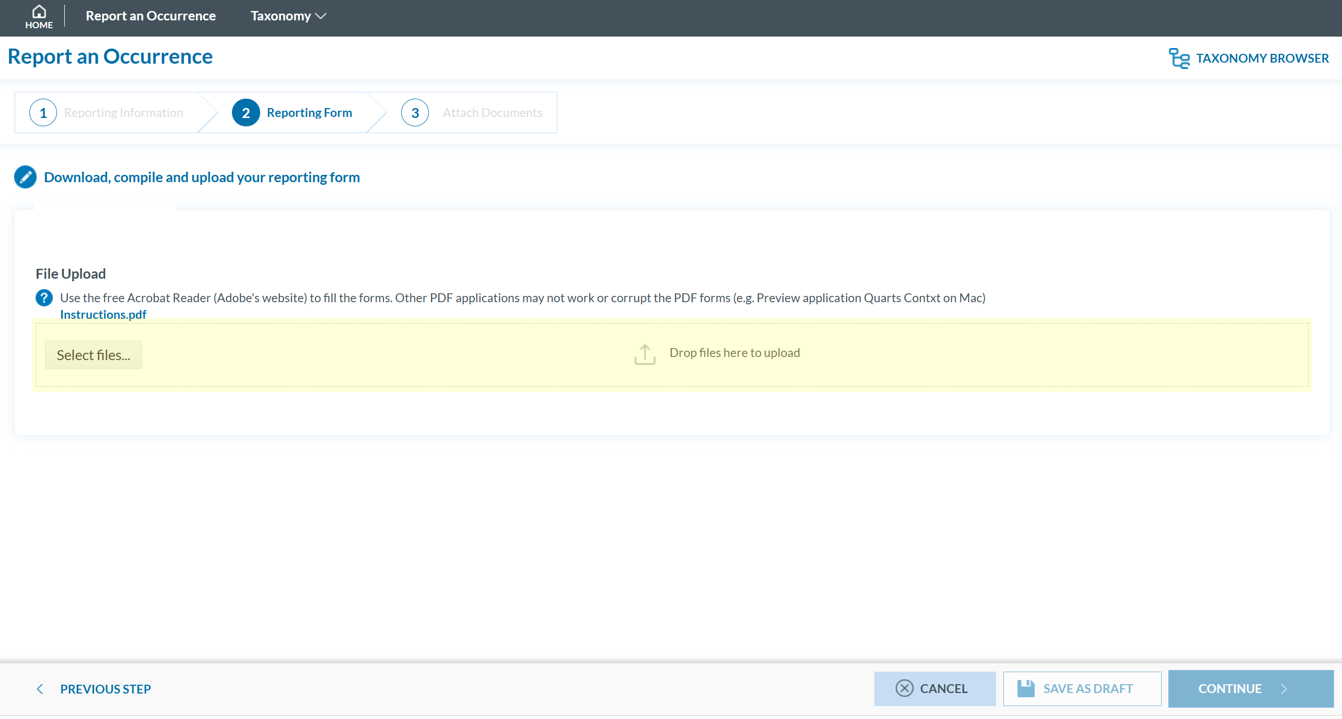
6. Attach the saved report by clicking the ‘Select files...’ button or by using drag and drop.
[](https://help.ci-aviationreporting.eu/uploads/images/gallery/2025-10/1AXimage.png)
7. When the process is finish you will see a message stating "Your file(s) have been successfully uploaded."
To save a draft version, you can click ‘SAVE AS DRAFT’ below the form. The report will be stored in the 'Reports' list, accessible via the 'HOME' button at the top left of the page. You will also receive an email with a link to review and edit your saved draft report.
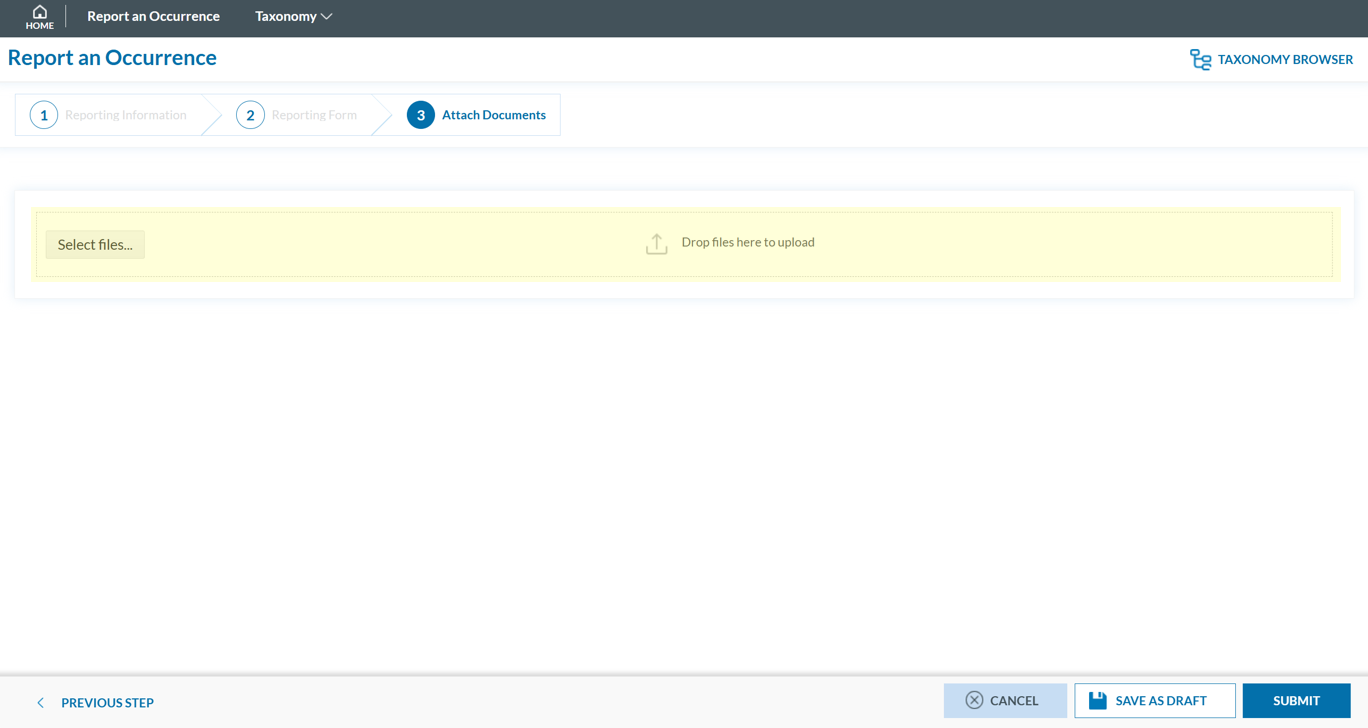
8. If applicable, attach any relevant documents by clicking 'Select files...' or by drag and drop.
[](https://help.ci-aviationreporting.eu/uploads/images/gallery/2025-10/POSimage.png)
The system accepts files up to 4,000 MB in total. Supported formats include:
- Documents: .pdf, .doc/.docx, .ppt/.pptx, .xls/.xlsx/.xlsm, .xml, .rtf\*\*, .odt\*\*
- Images: .jpg/.jpeg, .png, .gif, .jtif\*\*, .heic
- Media: .mp3, .mp4, .mov
- Others: .e5x, .e5z, .msg, .eml\*\*, .zip\*\*
❌ Files with .dll, .exe, .sys, or unknown extensions are not allowed.
You can add a description or remove the attached file by clicking on ‘x’ on the right.
[](https://help.ci-aviationreporting.eu/uploads/images/gallery/2025-10/4GGimage.png)
Then click ‘CONTINUE’ to proceed.
9. If needed, you can return to the previous step using the 'PREVIOUS STEP' button. In the 'Report Form' section, you can replace the uploaded report by clicking the pencil icon to the right of the document name. In the 'Attach Documents' section, you can upload additional files or remove them by clicking the 'X' icon.
10. You will get a confirmation saying that "You have successfully submitted your report(s).'
11. You may click 'SUBMIT' to send your report.
If any mandatory fields are left incomplete, a warning message will appear indicating which fields are missing. If you do not have the required information at the moment, you may still proceed by clicking 'SUBMIT'. However, the **UTC Date, Reporting Entity and Report identification** are the only fields required in order to submit a report.
##### Validate your PDF
To validate your PDF:
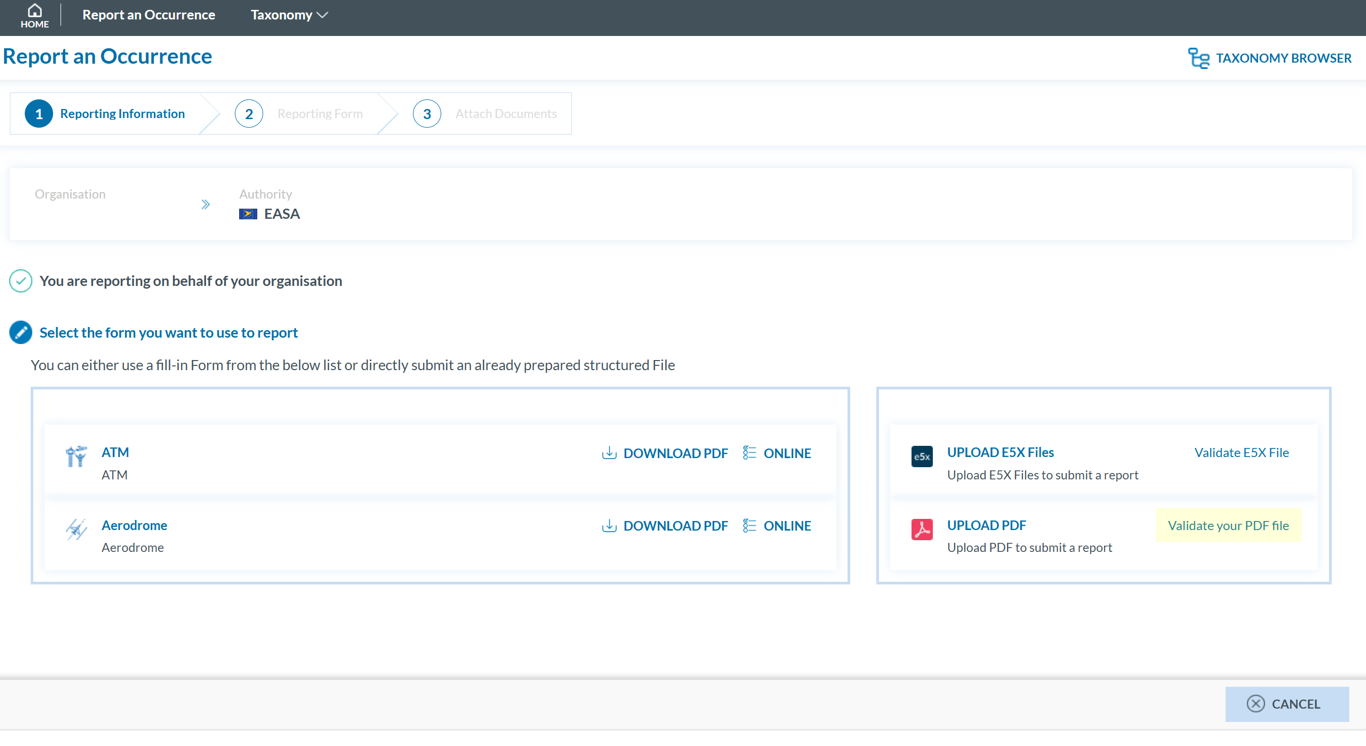
1. Sign in to access the 'Report an Occurrence' page.
[](https://help.ci-aviationreporting.eu/uploads/images/gallery/2025-10/MRqimage.png)
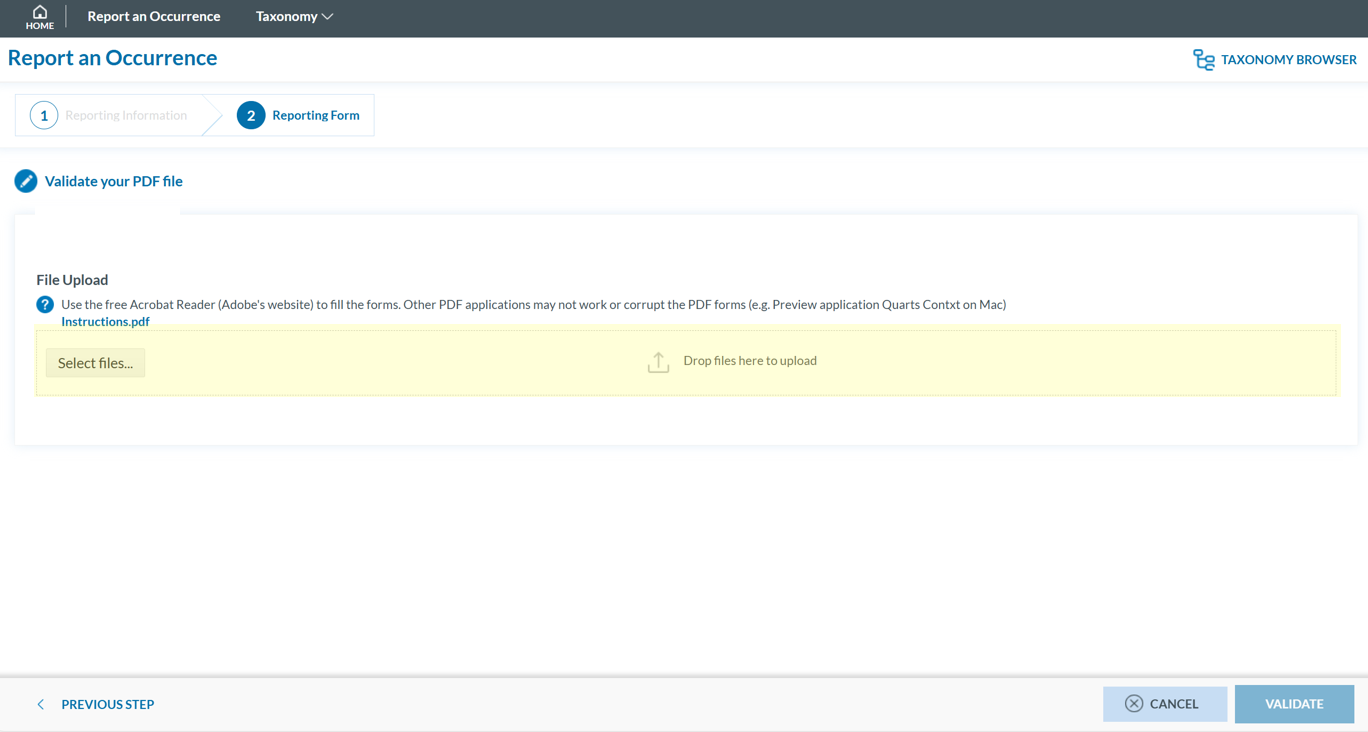
2. Click 'Validate your PDF File'. The system will open the validation page:
[](https://help.ci-aviationreporting.eu/uploads/images/gallery/2025-10/omVimage.png)
3. Attach the PDF report to validate by clicking the ‘Select files...’ button or by using drag and drop. When the process is finish you will see a message stating 'Your file(s) have been successfully uploaded.'
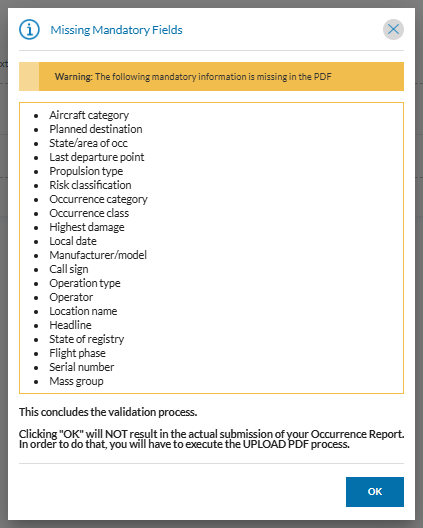
4. Click **'**VALIDATE'. The system will either display a message stating 'Your PDF has been successfully validated' or highlight the mandatory fields that are missing in the PDF:
[](https://help.ci-aviationreporting.eu/uploads/images/gallery/2025-10/IQUimage.png)
#### E5X
Only organisations are allowed to report using E5X files. These files must be generated in advance by an external system. This section outlines how to validate an E5X and how to report using an E5X.
##### Validate an E5X file
To validate an E5X file before reporting:
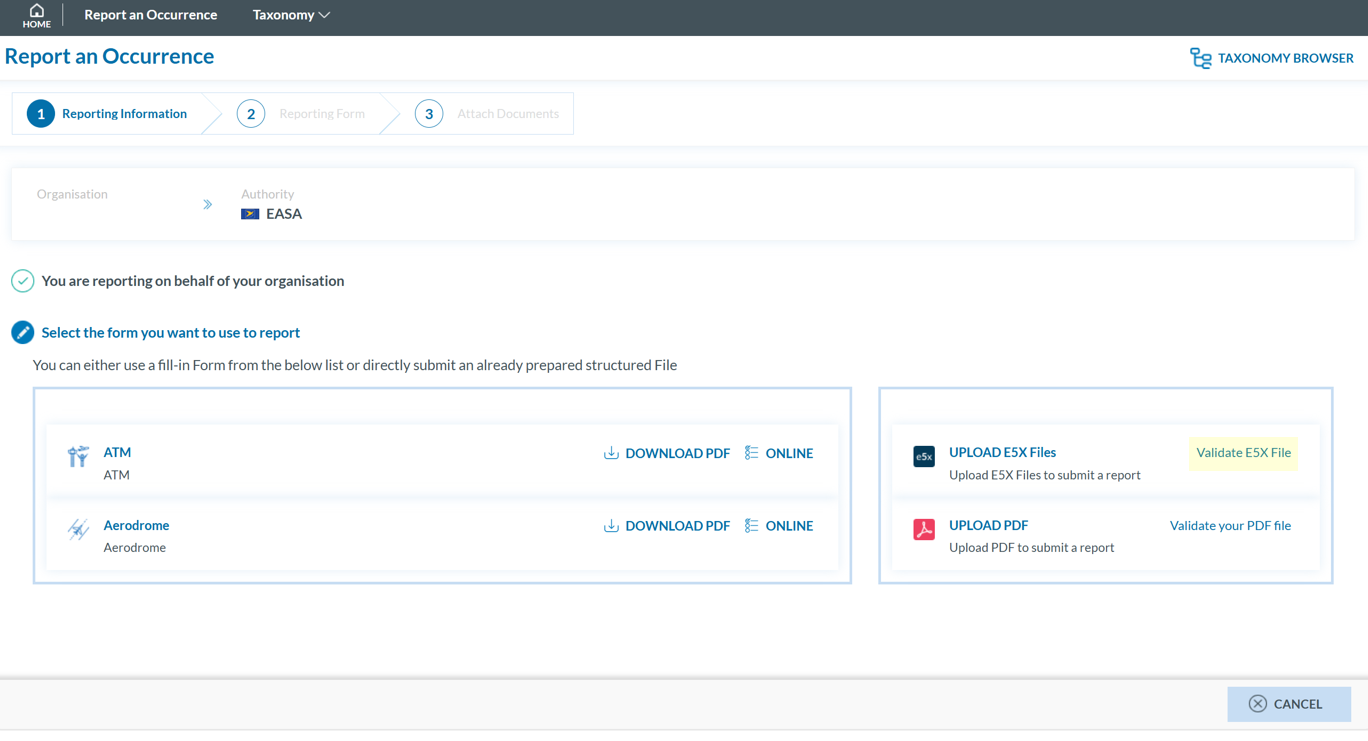
1. Sign in to access the 'Report an Occurrence' page.
[](https://help.ci-aviationreporting.eu/uploads/images/gallery/2025-10/SVqimage.png)
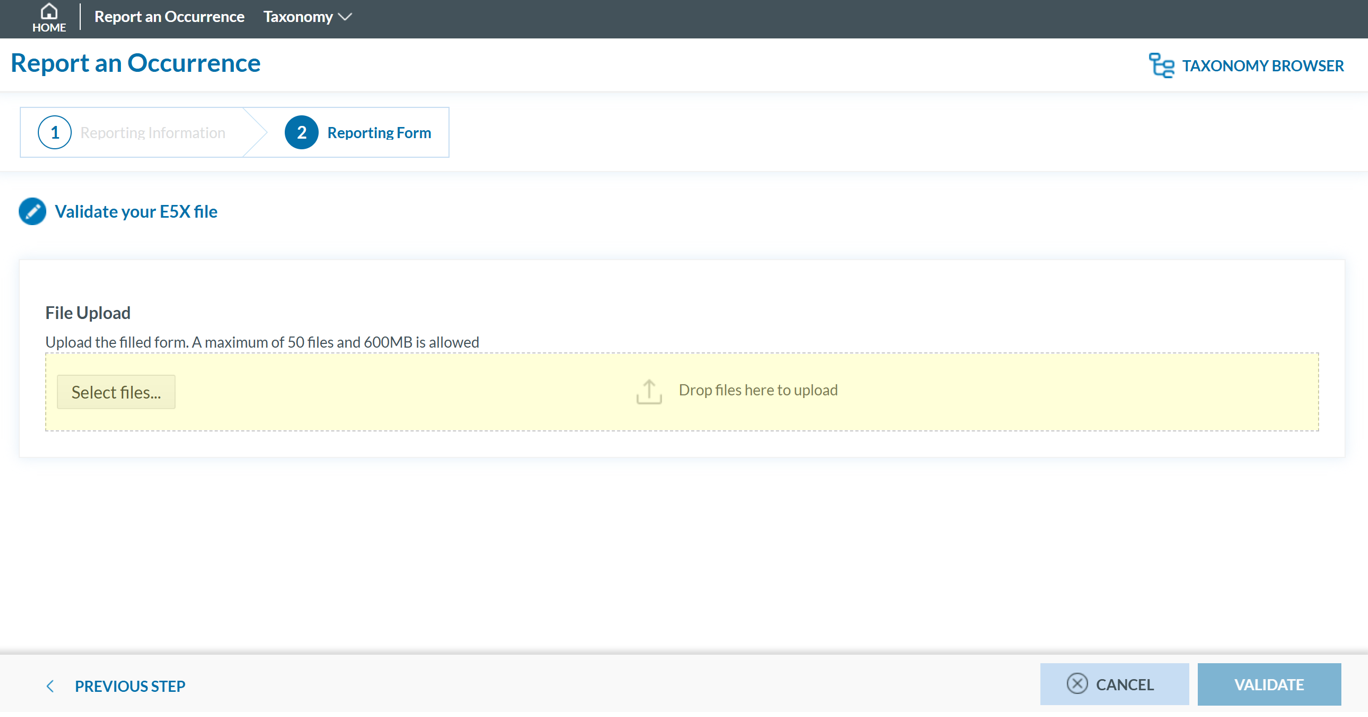
2. Click 'Validate E5X File'**.**
[](https://help.ci-aviationreporting.eu/uploads/images/gallery/2025-10/J7Mimage.png)
3. Click 'Select files...' or drag and drop to upload (max 50 files, 600 MB total).
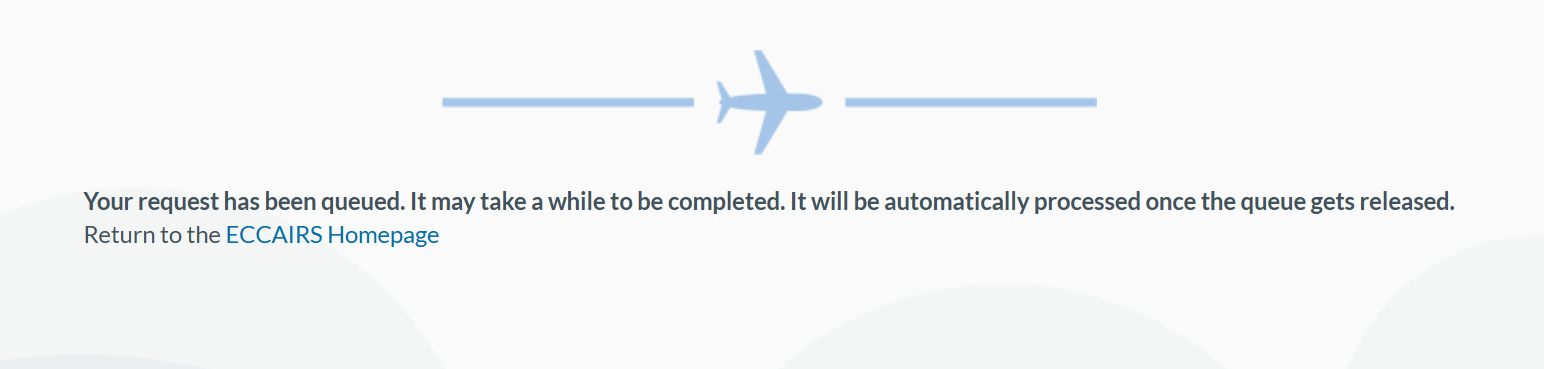
4. Click 'VALIDATE'. The following message is displayed, and an automatic confirmation email will be sent to the Reporter’s email address.
[](https://help.ci-aviationreporting.eu/uploads/images/gallery/2025-10/PFJimage.png)
##### Report using an E5X file
To report through **E5X on behalf of your organisation:**
1. Sign in to access the 'Report an Occurrence' page.
[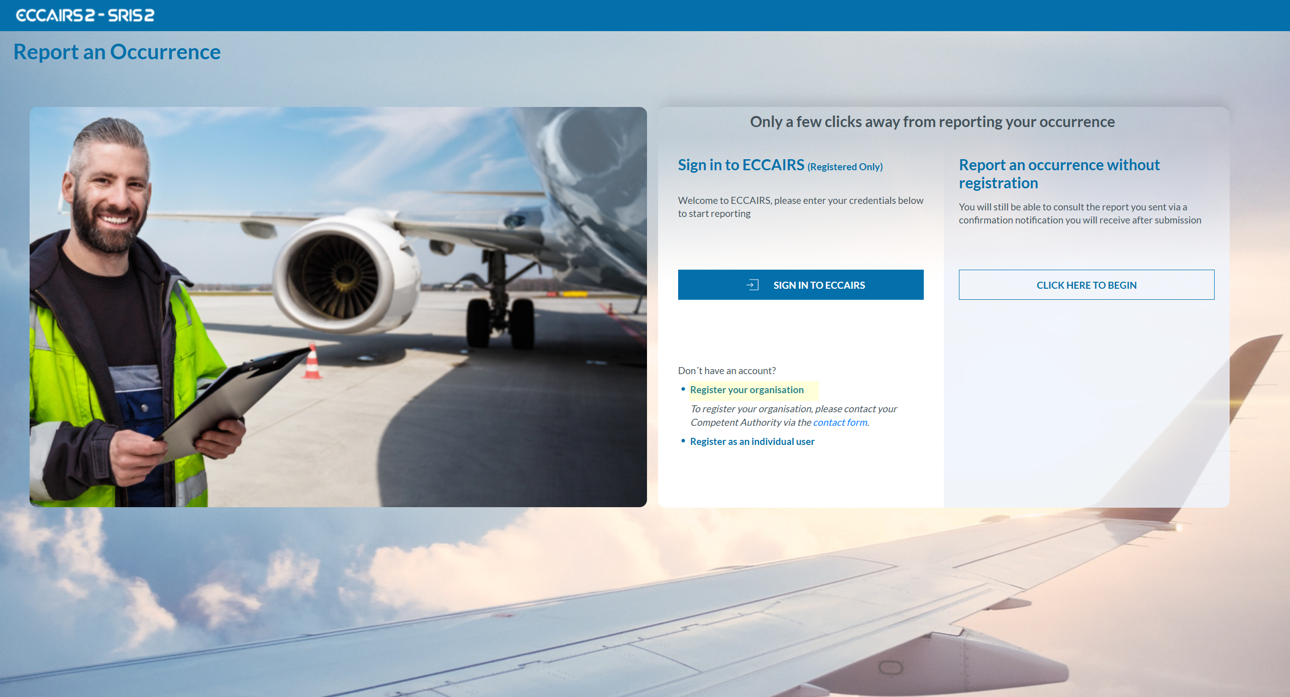](https://help.ci-aviationreporting.eu/uploads/images/gallery/2025-10/HQ7image.png)
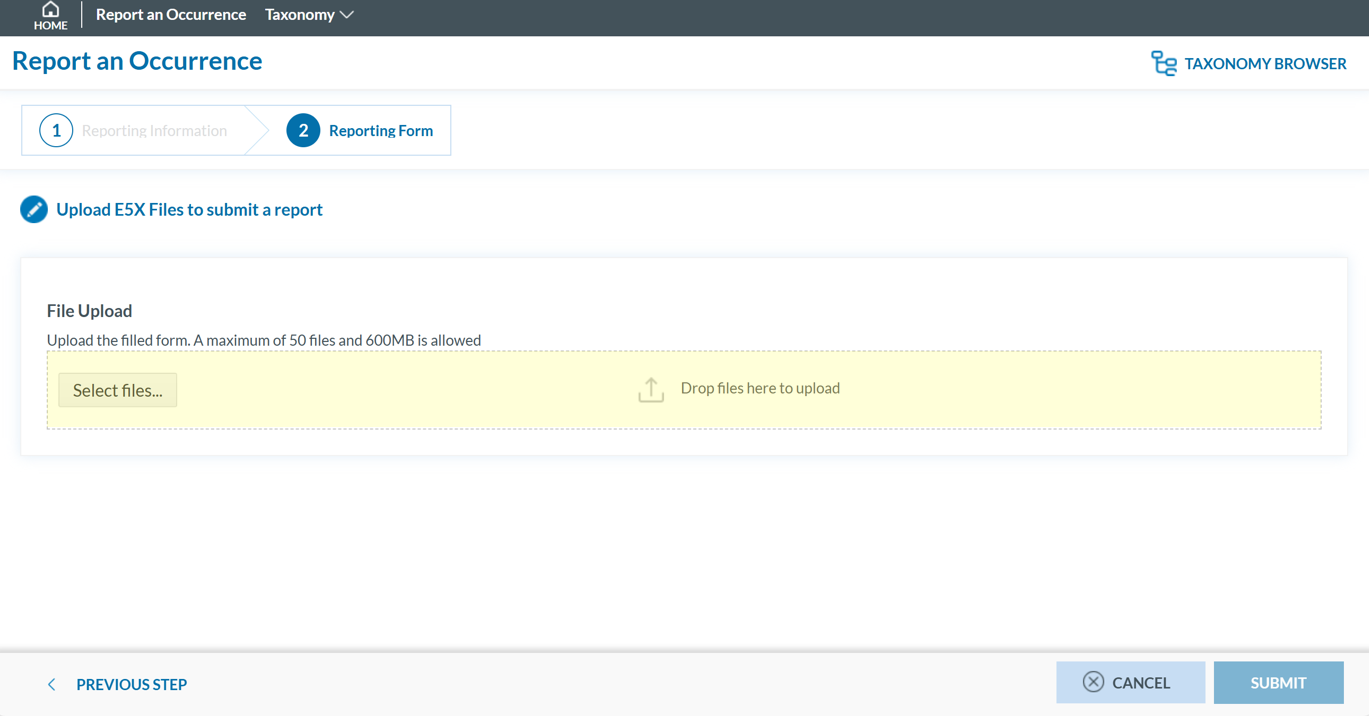
2. Click 'UPLOAD E5X Files'**.**
[](https://help.ci-aviationreporting.eu/uploads/images/gallery/2025-10/wIcimage.png)
3. Click 'Select files...' or drag and drop to upload (max 50 files, 600 MB total).
4. Click 'SUBMIT'. The following message is displayed, and an automatic confirmation email will be sent to the Reporter’s email address.
[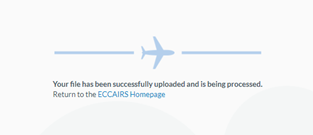](https://help.ci-aviationreporting.eu/uploads/images/gallery/2025-10/vMPimage.png)
The record(s) contained in the E5X file(s) will be saved in the database as Original Reports.
# Reset Password
To reset your password **if you've forgotten it,** please follow these steps:
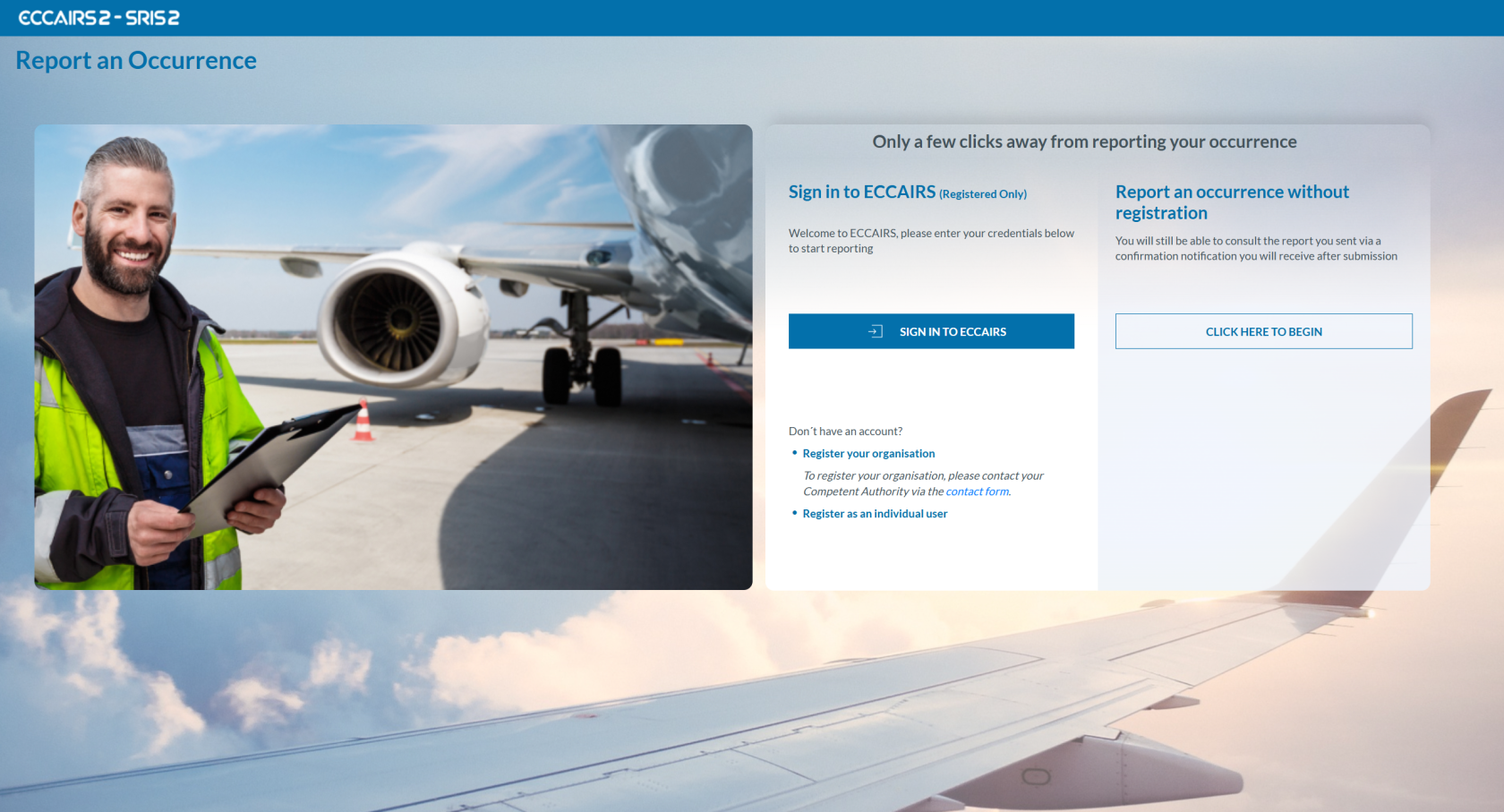
1. Visit the E2 Reporting Portal at [https://e2.aviationreporting.eu/](https://e2.aviationreporting.eu/).
[](https://help.ci-aviationreporting.eu/uploads/images/gallery/2025-10/wUcimage.png)
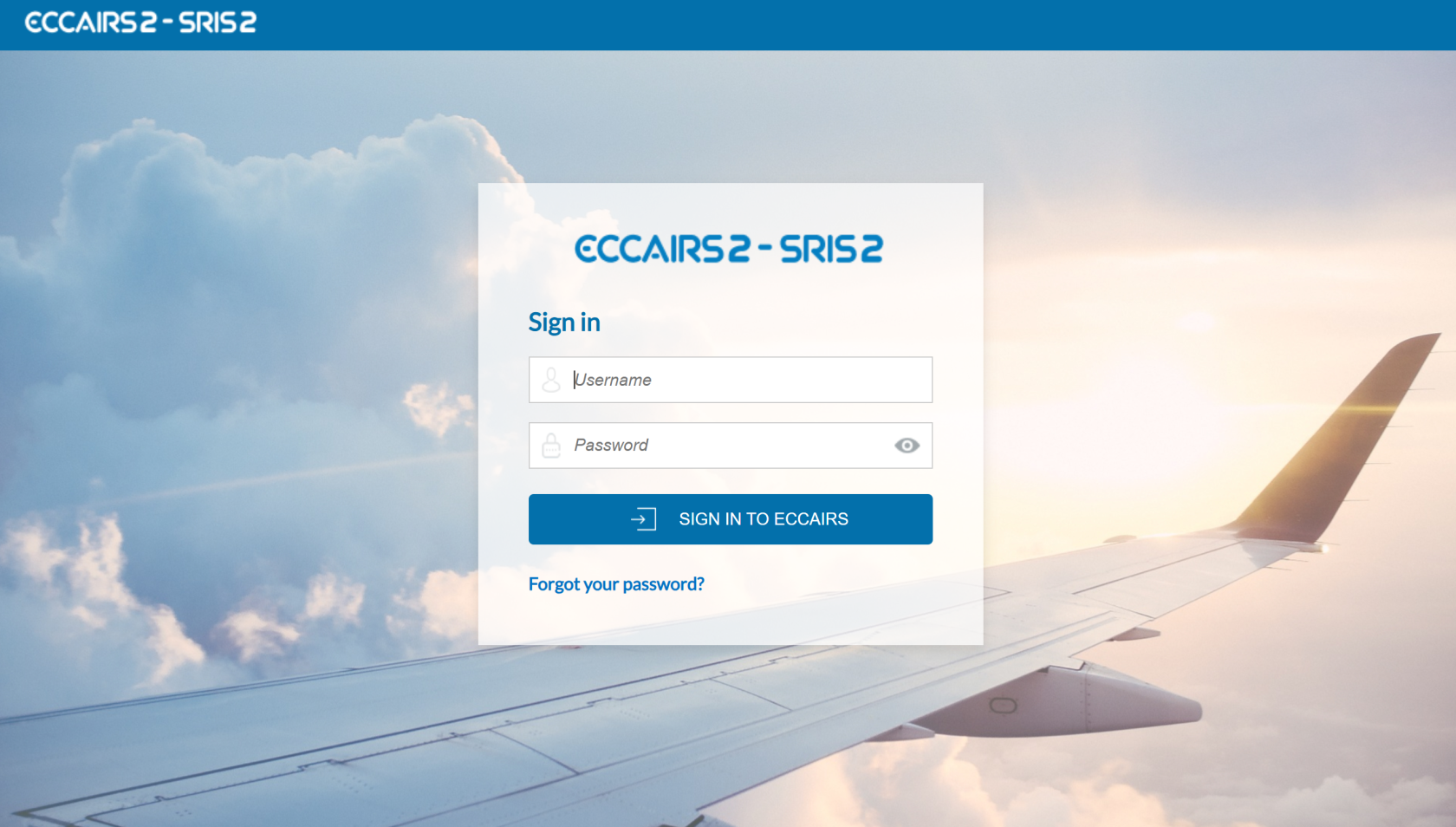
2. Click on 'SIGN IN TO ECCAIRS'. You will be redirected to the following page:
[](https://help.ci-aviationreporting.eu/uploads/images/gallery/2025-10/LWcimage.png)
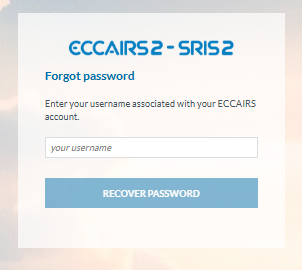
3. Click on the 'Forgot your password?' link and fill out your username (not your email):
[](https://help.ci-aviationreporting.eu/uploads/images/gallery/2025-10/LpYimage.png)
4. Click 'RECOVER PASSWORD'. You will receive an email with instructions on how to recover the password.
**If you're already signed in, you can reset your password** via your user icon:
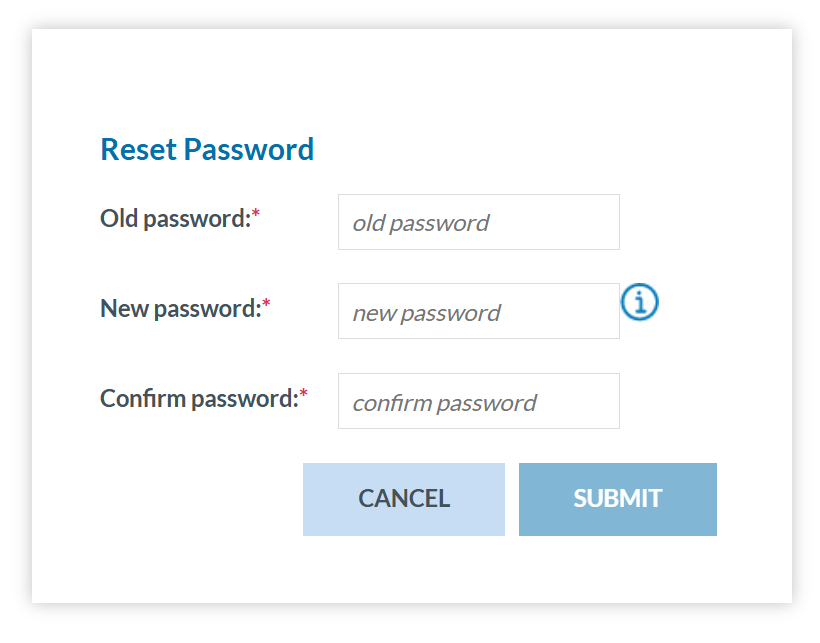
1. Click 'Reset password' The system will display:
[](https://help.ci-aviationreporting.eu/uploads/images/gallery/2025-10/Mkjimage.png)
2. Fill-in the formular and click 'SUBMIT'.