OO How-To's
Here you will find supplementary content for Occurrence Officers, including step-by-step instructions and examples for relevant topics.
- Version History
- How to link entities
- How to create an Export by Attribute list
- How to set up notifications
- How to set up custom columns
- How to validate an E5X-file
Version History
| Version | Date | Document | Description | E2 release |
| 0.1 | 04/04/2025 | How to create an Export by Attribute list.docx | Initial version | 2.36 |
| 0.1 | 06/11/2024 | How to link entities.docx | Initial version | 2.41 |
| 0.1 | 17/06/2024 |
How to validate an E5X-file.docx |
Initial version | 2.35 |
| 0.1 | 06/02/2024 | How to set up notifications.docx | Initial version | 2.32 |
| 0.1 | 21/07/2023 | How to setup custom columns.docx | Initial version | 2.27 |
| 0.2 | 20/11/2025 | How to create an Export by Attribute list | Migration to BookStack platform. | 2.36 |
| 0.2 | 20/11/2025 | How to link entities | Migration to BookStack platform. | 2.41 |
| 0.2 | 20/11/2025 |
How to validate an E5X-file |
Migration to BookStack platform. | 2.35 |
| 0.2 | 20/11/2025 | How to set up notifications | Migration to BookStack platform. | 2.32 |
| 0.2 | 20/11/2025 | How to setup custom columns | Migration to BookStack platform. | 2.27 |
How to link entities
Some background
What is understood with linking entities?
Linking entities is a fundamental aspect to ensure the accuracy, traceability, and quality of data in accident and incident reports. Linking entities helps create a cohesive view of complex events by connecting various elements such as separation, aircraft, events… Linking entities involves creating relationships between different data elements within an accident or incident report.
Why link entities?
- Improved Data Relationships and Context
- Enhanced Data Consistency and Accuracy
- Easier Data Analysis and Reporting
- Supports Comprehensive Investigations
- Facilitates Data Sharing and Interoperability
How to identify linkable entities?
From within the Taxonomy browser, it can be identified for which entities relationships can be
created.
- Open the taxonomy browser
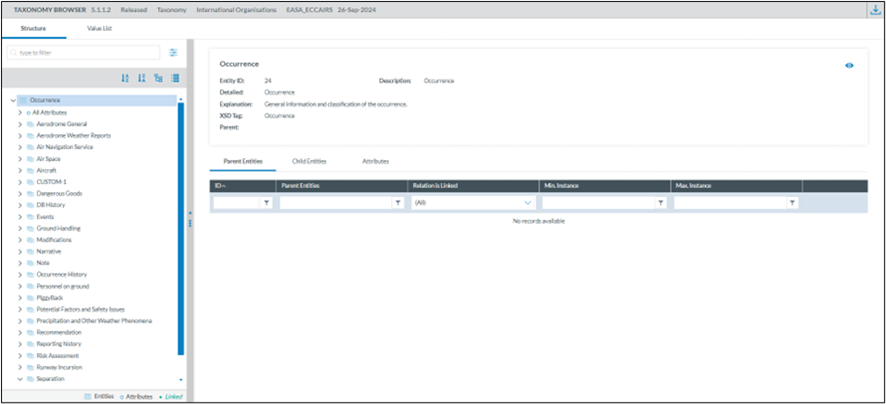
2. Select an entity and open the “Child Entities” tab and filter on “Relation is Linked”
Example 1
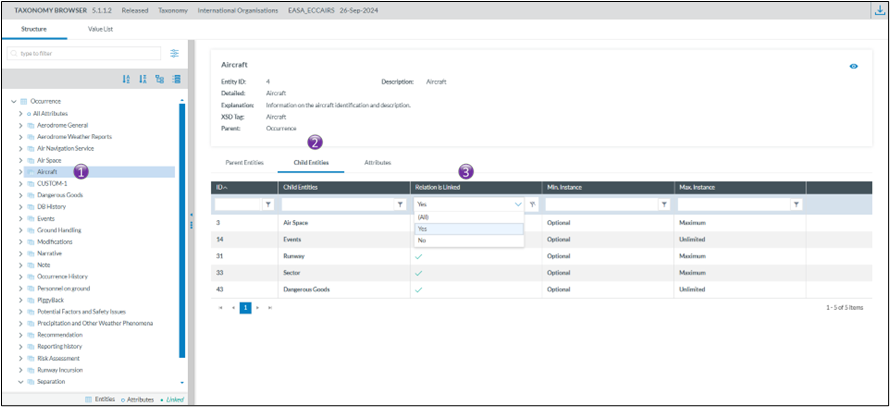
In the first example, Aircraft can be liked to
- Airspace
- Events
- Runway
- Sector
- Dangerous Goods
Example 2
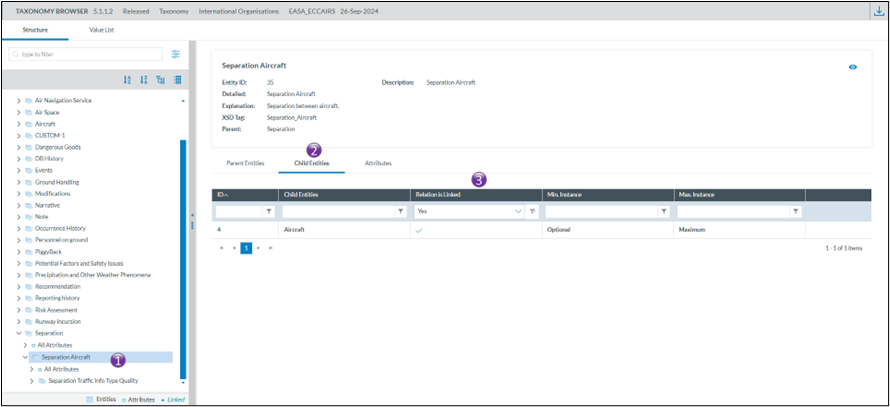
In the second example, Separation Aircraft can be linked to
- Aircraft
How to create relationships between entities
Creating relationships or links between entities is done when a document is in edit mode.
There is a prerequisite, the entities for which a relationship is to be created need to be on the view used for editing the document.
When a link between entities is possible, then the link option becomes visible
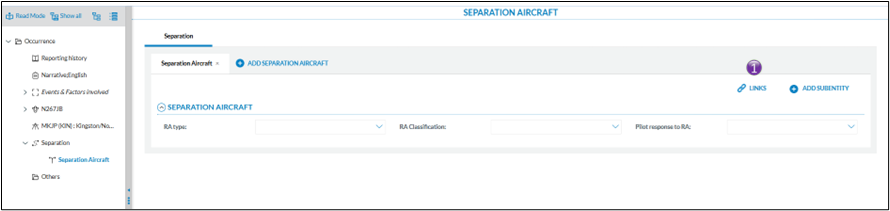
Clicking on the link will show which relationships are possible
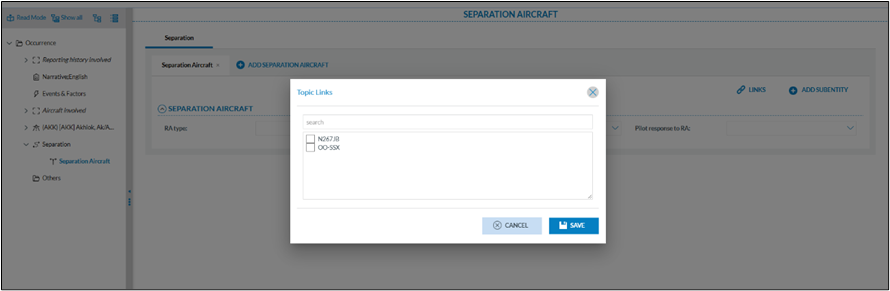
In the example above, the Separation Aircraft entity can be linked to the aircraft as defined in the
occurrence. It is possible to have both aircraft selected.
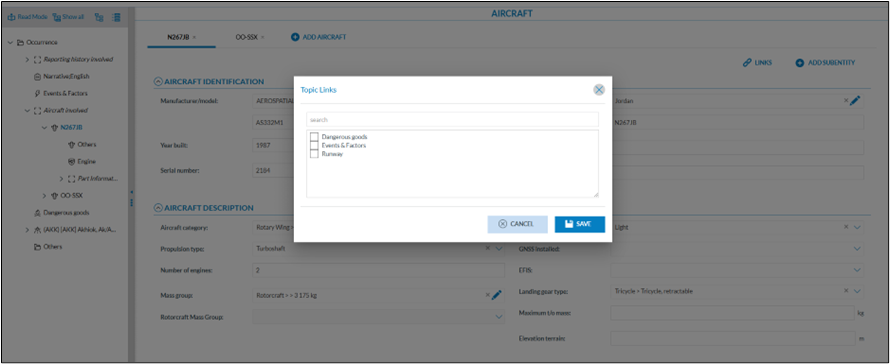
In the example below, the aircraft N267JB can be linked to different entities
Good practice
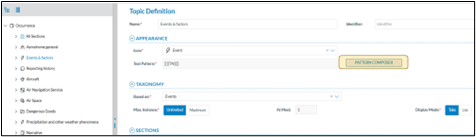
When linking entities, it’s essential to use clear and consistent naming conventions. This can be effectively achieved with the “pattern composer” when creating views, as it enables systematic and meaningful naming. A well-designed naming pattern makes entities easier to identify, enhances readability, and simplifies future maintenance across systems.
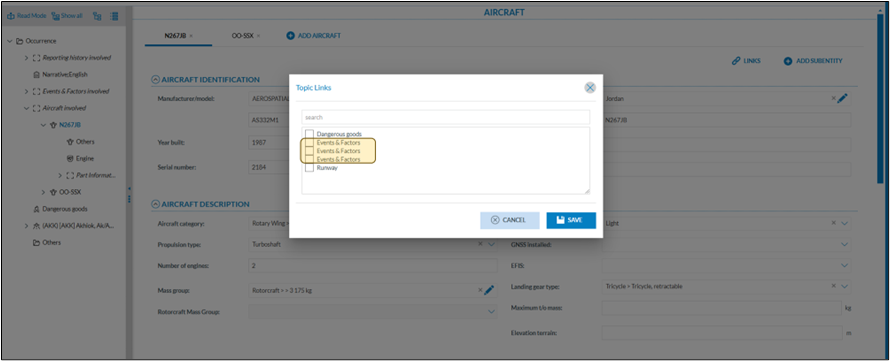
This to avoid having difficulties to what entity another entity is linked as seen below
How to see which relationships, or links exist on an entity?
When a link is established, the related entity appears in the tree view in a slightly different color
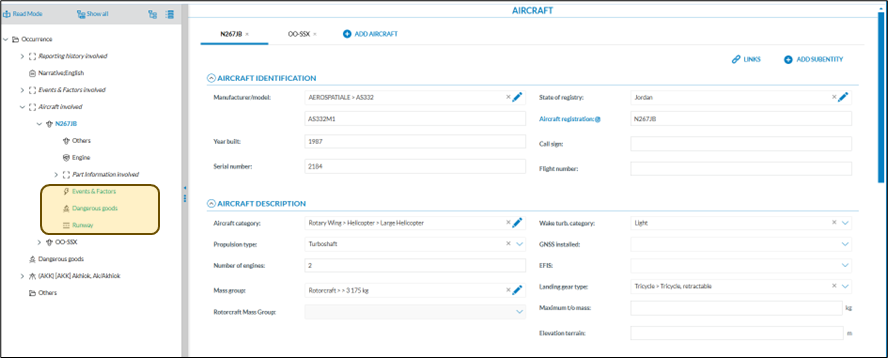
When clicking on the related link in the tree view, E2 navigates to the appropriate entity
How to create an Export by Attribute list
Introduction
Depending on how users intend to utilise the data from E2, they may require different data fields. E2 offers a functionality that allows users to create custom export attribute lists tailored to their specific needs.
Export attribute lists are user bound, that is they cannot be shared amongst other users. Every Authority user has access to this feature.
Accessing the export by attribute list functionality
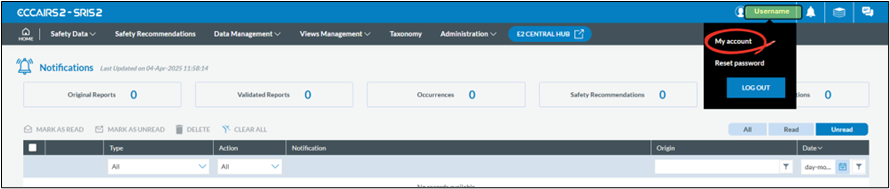
To gain access to click on your username and select My Account:
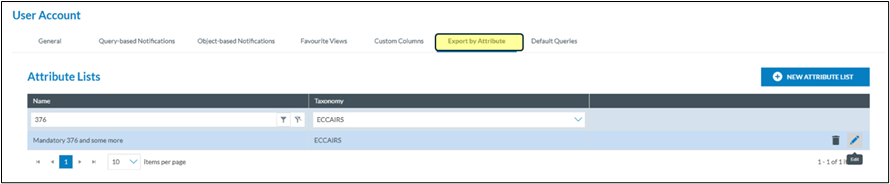
Click on the Export by attribute
Add an export by attribute list
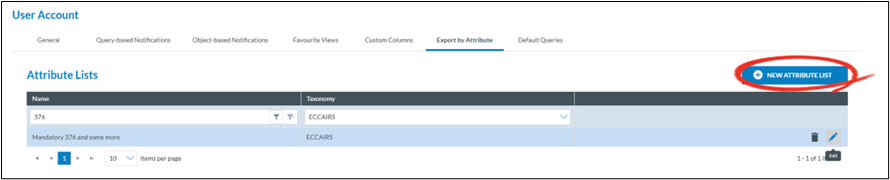
Click on new attribute list

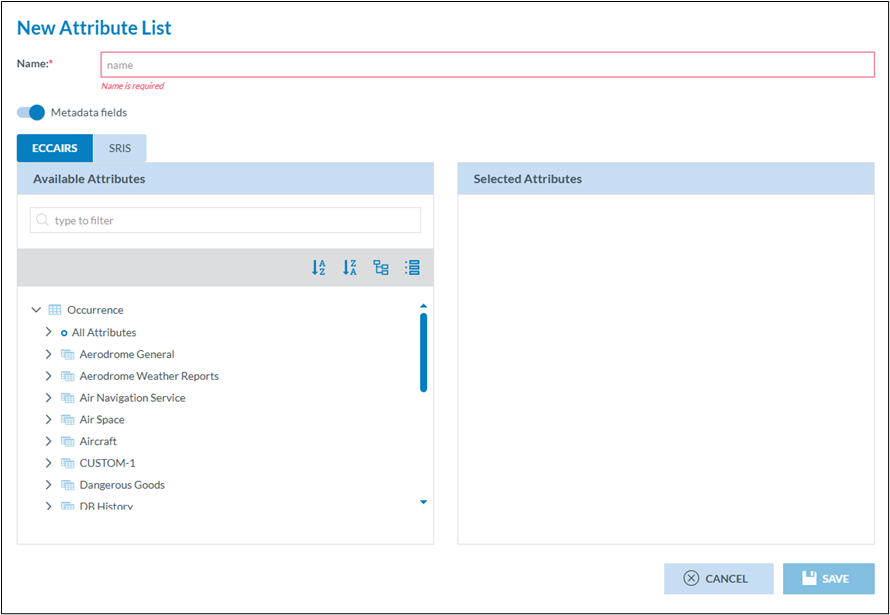
1. Each export by attribute list needs to have a meaningful name
2. When exporting, E2 allows that ALL meta data fields are exported too. This switch, which is set by default to true, can be turned off if this is not required
3. And export list is based on a certain taxonomy. Depending on how your Authority is setup you can chose between ECCAIRS and SRIS. This chose will define what attributes van be selected in (4)
4. This list contains ALL attributes you have access to
5. This list contains your selected attributes
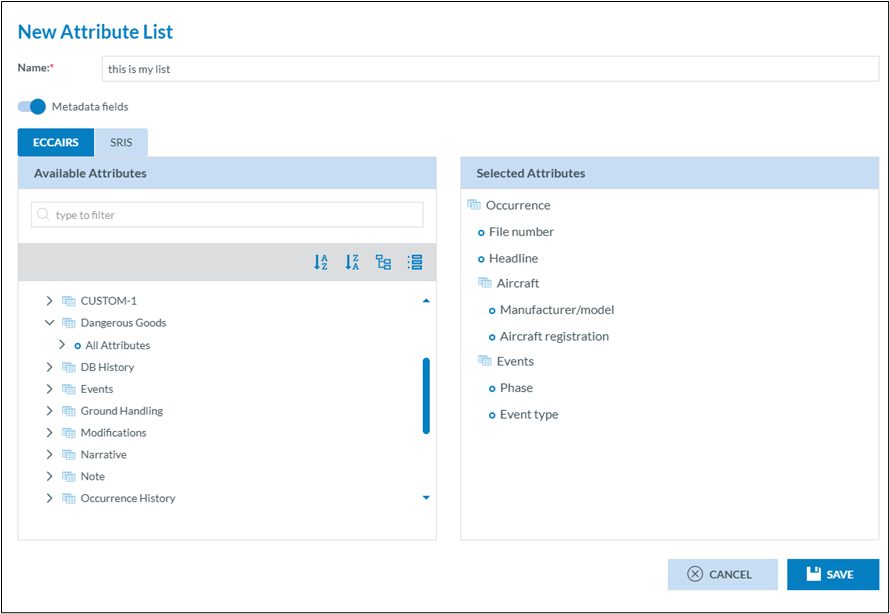
Click Save, and the list will be instantly available for use.
Editing an export by attribute list
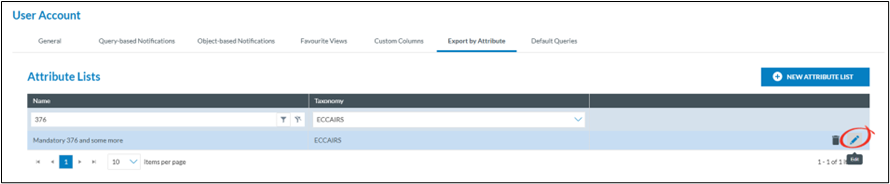
Export by attribute lists can always be modified, even if they have been used before.
Click on the pencil of the export by attribute lists you want to change and the same interface as creatin a new export by attribute lists is shown.
Deleting an export by attribute list
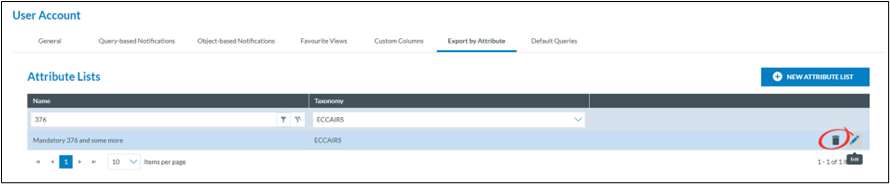
Export by attribute lists can always be deleted, regardless of they have been used before.
Click on the trash can of the export by attribute lists you want to delete.
Creating an export by attribute list in the fly
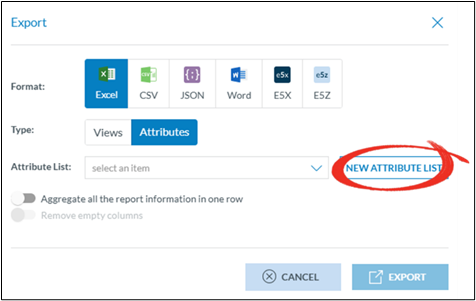
In many cases, when exporting data, users may find that the existing attribute lists are not suitable. To avoid leaving the list view with selected documents, they can create an export attribute list on the fly.
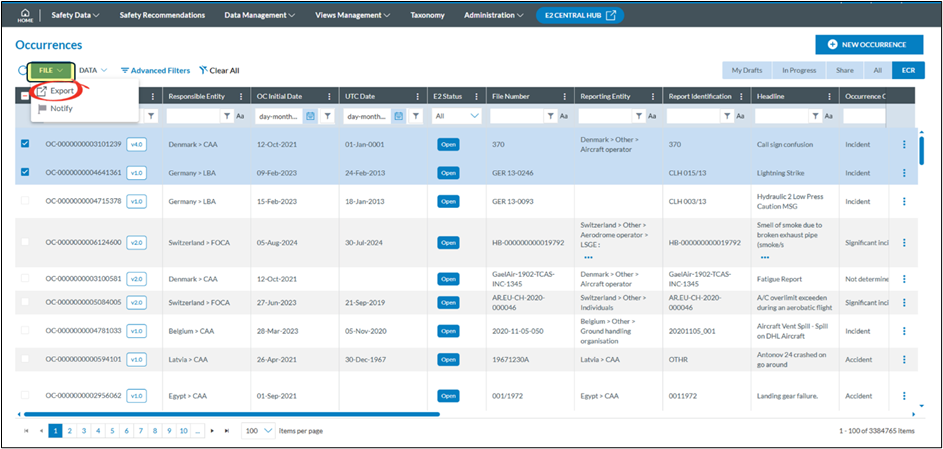
· Select the documents you want to export
· Click on file
· Click on export
· Select attributes
· Select new attribute list
The new attribute creation window will be shown
How to set up notifications
Some background
What are notifications?
Notifications in ECCAIRS 2 refer to the email messages or dashboard alerts generated by the system to inform users about specific events or actions. These notifications serve as a means of communication and provide important information related to Original Reports, Validate Reports and Occurrences being created, modified, or deleted.
Means of notifications
There are 3 means if notifications that can be used in combination.
Email Notification
When an event occurs that triggers a notification, an email is sent by the system to the users informing him about the event. The email contains a hyperlink to the Original Report, the Validated Report or the Occurrence that triggered the notification
Dashboard notification
When an event occurs that triggers a notification, the user’s dashboard will be modified. It will display the nature of the notification, whether it is an Original Report, a Validate Report, an Occurrence, or a Safety recommendation
The dashboard will also show system notifications such as when a query or a view or other was shared with the users; These notifications are system generated and fall outside the scope of this document

Setting up a notification
There are 2 levels where notifications can be setup
Setup by the authority
The National Authority Administrator(s) can setup a notification schemes within the Authority. Each user that is targeted in the scheme will be notified based on certain criteria
Accessing the Notification manager
Depending on the permissions the option to manage notifications becomes available on the home page.

The notification manager

Creating a new or updating an existing notification
Clicking on either an existing notification or clicking on new notification will open the notification setup page
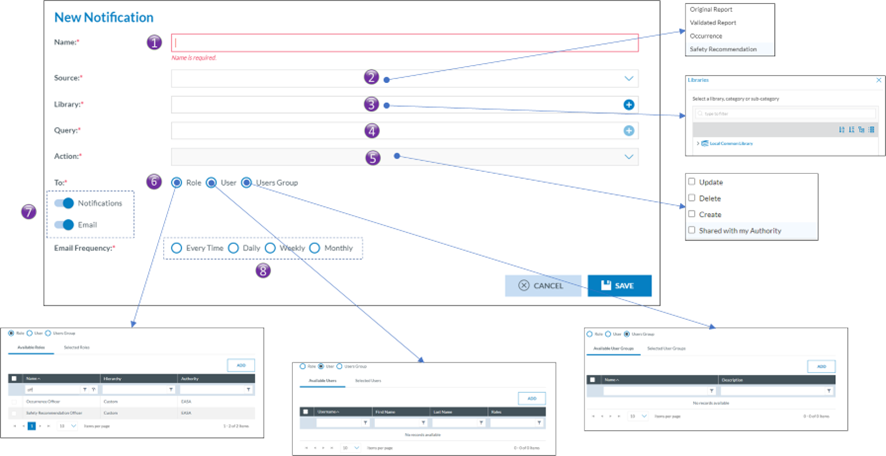
1. Name of the notification.
Every notification is to have a name
2. Source
a. Occurrence Report
b. Validated Report
c. Occurrence
d. Safety Recommendation
3. Library
Just like queries, notifications are stored in libraries.
4. Query
A query can be used to filter out those Occurrence Reports, Validated Reports, Occurrences or, Safety Recommendations for which the notification is to be triggered. Any query form the Local Common Library can be used
5. Action
a. Update
b. Delete
c. Create
6. Whom to notify
The target audience is set up in the whom to notify, Eccairs2 allows for three types of audiences.
Only users that have the permission Notification in one of their roles can be targeted. Users also having the “Reporter Role” will be exempt of being notified
a. Based on role(s)
users that have a certain role will be notified. Example all users that have the Occurrence Officer role
b. Based on user(s)
When using based on users, Eccairs 2 allows you to target certain users that need to get notified.
c. Based on user groups(s)
beside the two previous options, if user groups have been setup, then the notification can also be set up so that all users in a certain user group will receive a notification
7. Type of notification
Eccairs 2 allows for two types of notification, either by email or as a notification in the dashboard. Both can be used together
8. Frequency
a. Every time
Each time a notification is triggered, the notification will be sent to the users, either as an email or via a dashboard update, or combination thereof.
b. Daily
Each night a summary of all notifications is made, subsequently the dashboard is updated and/or email a summary email is sent. It is mostly used with the type of notification set to email.
c. Weekly
Each week a summary of all notifications is made, subsequently the dashboard is updated and/or email a summary email is sent. It is mostly used with the type of notification set to email.
d. Monthly
Each month a summary of all notifications is made, subsequently the dashboard is updated and/or email a summary email is sent. It is mostly used with the type of notification set to email.
Setup by the user
Besides the Notifications setup by the Authority, each user having the notification permission in one of his roles can also set up their own notifications.
Accessing the user notifications
Via the My account the user gains access to his account settings:

The notification list view
In the user account, in the query-based Notifications, an overview is given of all notifications that a user has been enrolled in. This list also includes the notifications that have been setup by his Authority. Via this interface a user can select not to get notified by the notification that was setup by the Authority.

Creating a new notification at user level
By clicking on New Notification, the user gains access to the notification configuration interface:
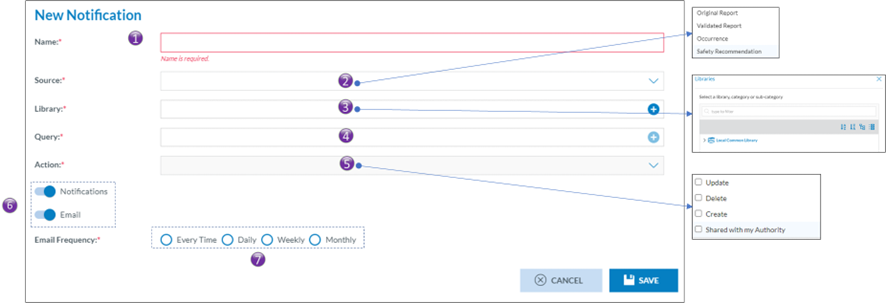
1. Name of the notification.
Every notification is to have a name
2. Source
a. Occurrence Report
b. Validated Report
c. Occurrence
d. Safety Recommendation
3. Library
Just like queries, notifications are stored in libraries.
4. Query
A query can be used to filter out those Occurrence Reports, Validated Reports, Occurrences or, Safety Recommendations for which the notification is to be triggered. Any query form the Local Common Library can be used
5. Action
a. Update
b. Delete
c. Create
6. Type of notification
Eccairs 2 allows for two types of notification, either by email or as a notification in the dashboard. Both can be used together
7. Frequency
a. Every time
Each time a notification is triggered, the notification will be sent to the users, either as an email or via a dashboard update, or combination thereof.
b. Daily
Each night a summary of all notifications is made, subsequently the dashboard is updated and/or email a summary email is sent. It is mostly used with the type of notification set to email.
c. Weekly
Each week a summary of all notifications is made, subsequently the dashboard is updated and/or email a summary email is sent. It is mostly used with the type of notification set to email.
d. Monthly
Each month a summary of all notifications is made, subsequently the dashboard is updated and/or email a summary email is sent. It is mostly used with the type of notification set to email.
Other type of notifications
Besides the notifications that are setup at Authority or user level, Eccairs2 also sends out other notifications, making the user aware of certain events. As these are system driven, the user cannot modify them
Types of other notifications
· Query sharing, an email will be sent, and a dashboard update will be performed when a query was shared to the user from another user.
· View Sharing, an email will be sent, and a dashboard update will be performed when a query was shared to the user from another user.
· User account inactivity. An email will be sent to the user when his account was inactive for 90 days.
· Delete user, an email is sent to an administrator in case a user requests that his account is to be deleted.
How to set up custom columns
Some background
What are custom columns?
The Original Report, Validated Reports, Occurrences and Safety recommendation list views allow users to see specific data fields in a tabular format, enabling them to browse, sort, filter, and export data efficiently. ECCAIRS2 offers the possibility to set up per document type which attributes can be shown in the list view. Up to 30 attributes and Custom Attributes can be added to a list view, and this per document type.
· Original Reports
· Validated Reports
· Occurrences
· Safety Recommendations
Although list views are widely used throughout ECCAIRS2, it is only the above list views that are concerned. Furthermore, the setup of custom columns is only available for Authority users, not for reporters that submit their reports.
Setting up custom columns
ECCAIRS2 has been developed so the user can setup a different list view per document type.
Defaults columns per document type
ECCAIRS2 has setup a series of default attributes in the custom column templates for each document type. These attributes will be shown in the respective list views.
| # | Original Reports | Validated Reports | Occurrences | *Safety Recommendations |
| 1 | Notify | Notify | Notify | Notify |
| 2 | E2ID | E2ID | E2ID | E2ID |
| 3 | Reporting entity | Reporting entity | Reporting entity | SRIS number |
| 4 | File number | File number | File number | SR status |
| 5 | Report identification | Report identification | Report identification | Addressee |
| 6 | Headline | Headline | Headline | Local SR number |
| 7 | Occurrence class | Occurrence class | Occurrence class | Headline |
| 8 | UTC date | UTC date | UTC date | E2 Status |
| 9 | Manufacturer/model | Manufacturer/model | Manufacturer/model | Occurrence class |
| 10 | Aircraft registration | Aircraft registration | Aircraft registration | Date issued |
| 11 | Location name | Location name | Location name | Manufacturer/model |
| 12 | Responsible entity | Responsible entity | Responsible entity | Registration |
| 13 | State/area of occ | State/area of occ | State/area of occ | Location |
| 14 | Local date | Local date | Local date | Version |
| 15 | Operator | Operator | Operator | Report link |
| 16 | Operation type | Operation type | Operation type | State/area |
| 17 | Call sign | Call sign | Call sign | Local date |
| 18 | Injury level | Injury level | Injury level | Operator |
| 19 | Fatal, passengers | Fatal, passengers | Fatal, passengers | Operation type |
| 20 | Fatal, crew total | Fatal, crew total | Fatal, crew total | Response status |
| 21 | Total fatalities | Total fatalities | Total fatalities | Last Shared ECR |
| 22 | Aircraft damage | Aircraft damage | Aircraft damage | Receiving Date |
| 23 | E2 Status | E2 Status | E2 Status | |
| 24 | Flight phase | Flight phase | Flight phase | |
| 25 | Occurrence moderator | Occurrence moderator | Occurrence moderator | |
| 26 | Version | Version | Version | |
| 27 | Report status | Report status | Report status | |
| 28 | Sent date | Receiving Date | Last Shared ECR | |
| 29 | Receiving Date | |||
| 30 | Sent date |
*Safety Recommendations only become visible if the Authority is also a SIA NAA
What attributes can be selected?
ECCAIRS2 doesn’t distinguish between ECCAIRS attributes, custom attributes or exposed meta data fields. All attributes and fields, up to 30, can be added to the custom column templates.
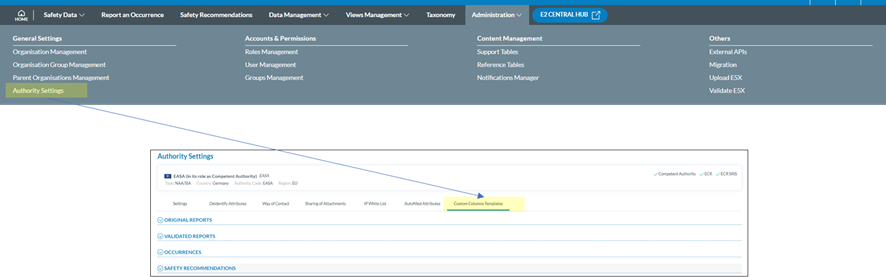
Setup at Authority level
Depending on the permissions the option to manage custom columns at Authority level becomes available on the home page.
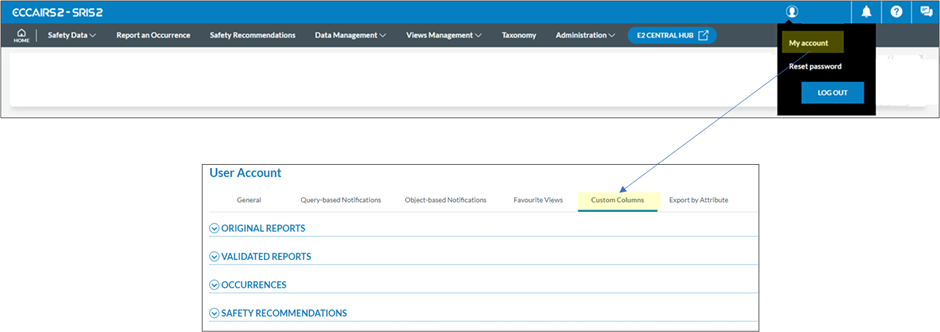
Setup at user level
Every user can configure the custom columns per document type by himself.
Interface
Although there are small nuances between the Authority and the ECCAIRS user’s setup, the interface is the same.
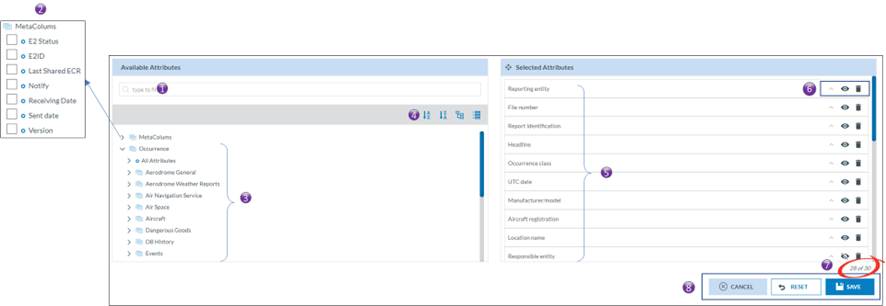
1. Allows to search through the available attributes and meta data fields.
2. Exposed meta data fields than be added to the template.
3. Available attributes. Clicking on “>” expand the entity revealing its attributes.
4. Allows the attributes to be sorted in ascending or descending order and allows to expand or collapse the full entity tree view.
5. The selected attributes in the template
6. Attribute options
a. Sort order.
b. View/hide.
c. Remove.
7. Shows how many attributes have been added to the template out of 30.
8. Interface Actions
These actions only apply to the template that is being edited
a. Cancel, will revert to the previously saved version.
b. Reset
i. For the Authority, it will set the selected attributes back to their original values.
ii. For the user, it will copy the Authority settings to the user’s template.
c. Save, will save the settings.
How to add, remove, sort, hide, and change the position of attributes and fields?
Adding
Adding an attribute or a field is done by putting a tick box in the tick box of the attribute in the list of available attributes/fields.
Removing
Removing an attribute or a field can either be done by unticking the tick box of the attribute is the list of available attributes/fields. Or by clicking on the trash can icon in the list of selected attributes
Sorting
It is possible to sort the list view according to multiple attributes/fields. By clicking on the ^ of an attribute/field the sort order will be set. A small digit will appear next to the ^ indicating that the column will be sorted. The number indicates in the sorting sequence.
For example a small digit 1 indicates that the column will be sorted first according to that column, a 2 will indicate that it will be first sorted by another column and then sorted by that.
Changing the sort order from ascending to descending can be done by clicking on the ^ again.
Viewing/hiding.
The Authority may make certain attributes and fields available to the users, yet it may decide not to show them by default. It is the user who can then decide to show them.

Changing the position of the Attributes in the list view.
When an attribute or field is added to the template it is always added at the end. Changing the position of the attribute or fields in the template can be done by dragging the attributes or field in to the right position.
What are the effects on user’s list views?
The custom column settings may influence the list views of users. There are Three cases that the custom column settings, set by the Authority, can have an influence on the Eccairs2 users.
1. A new user.
The custom column settings will automatically be copied into the new user’s custom column settings. The user can modify them whenever necessary.
2. An existing user without having changed his custom column settings.
The custom column settings will automatically be updated in the user’s custom column settings. The user can modify them whenever necessary.
3. An existing user having changed his custom column settings.
The changed authority settings do NOT have an influence on the personal preferences of the user’s custom column settings.
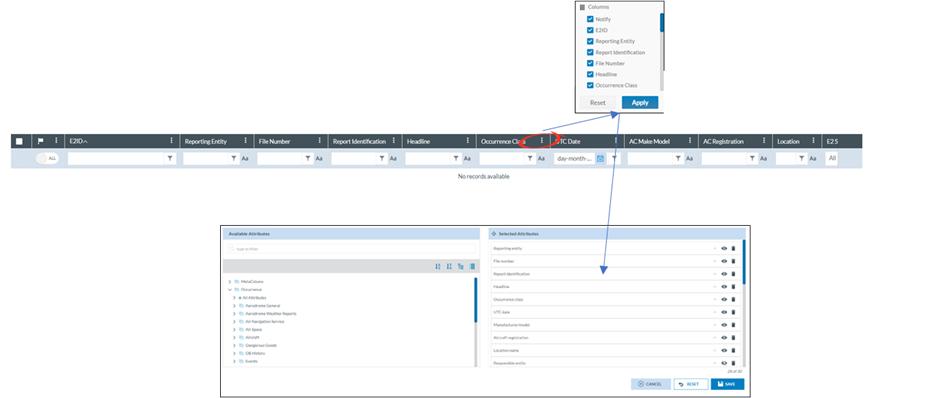
When a user modifies a sort order, adds/removes an attribute, or changes the order of a column, it will automatically be reflected in the user’s custom column template.
How to validate an E5X-file
Who can validate an e5x-file
Only users of registered organisations and Authority users can submit e5x-files. Therefore, it is their prerogative to also validate e5x-files and not submitting them to their Authority
In many cases users of registered organisations and Authority users have an IT service that generates an e5x-file based on data stored in a legacy system. Allowing the IT service to validate, that is check, the e5x-fle, E2 caters for e5x-file validation.
As a user from an Authority
Depending on the permissions the option to validate e5x, becomes available under the administration menu.

The Validation e5x-file interface
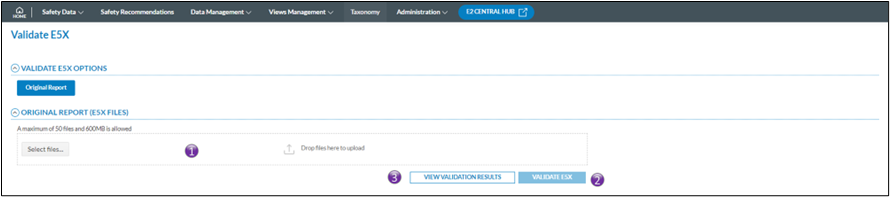
1. Click either on select files, or drag and drop the files on top of the “Drop files here”; It is possible to validate >1 e5x-file at the time
2. Click on validate e5x-file and the validation process will start. You will get an email conformation that the e5x-file(s) was (were) uploaded. The file(s) is(are) put on a processing queue, that means that they are not validated immediately.
3. View the Validations results opens the validation results window. It will give a full overview of all previously validated report request
View Validation results
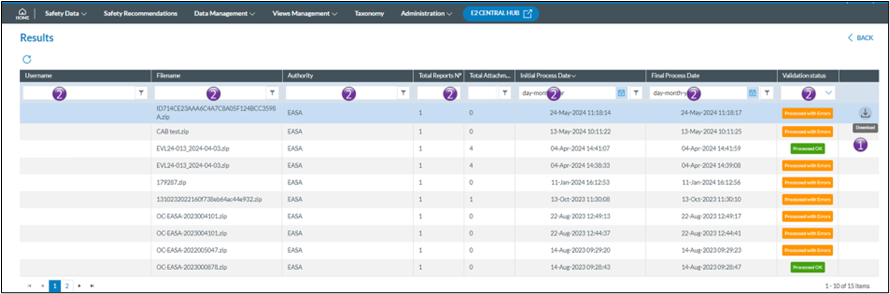

2. It is possible to limit the number of rows shown by applying filters in the column headers
Filters are type sensitive that is depending on the type of column a filter is applied, different filter methods are available
As a user from a registered organisation

The validation Interface
From the home page a direct access to the e5x validation is provided by clicking on the Upload PDF/E5X button
1. Upload PDF/E5X
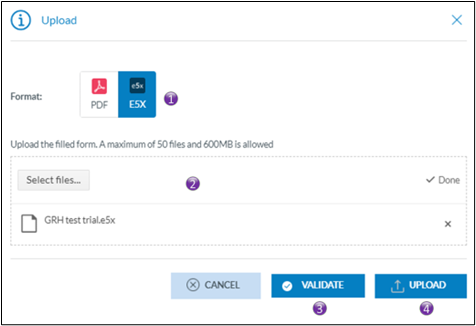
1. By selecting e5x, the validation button will appear
2. Click either on select files, or drag and drop the files on top of the “Drop files here”; It is possible to validate >1 e5x-file at the time
3. Click on validate and the validation process will start. You will get an email conformation that the e5x-file(s) was(were) uploaded. The file(s) is(are) put on a processing queue, that means that they are not validated immediately
4. This interface is also used for directly uploading e5x-files, no prior validation will be done and upon success or partial success the e5x-file will be submitted to the Authority
View validation results
2. E5X Validation results
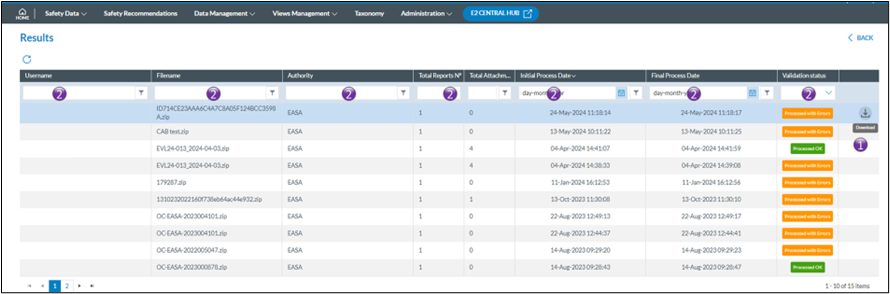

2. It is possible to limit the number of rows shown by applying filters in the column headers
Filters are type sensitive that is depending on the type of column a filter is applied, different filter methods are available