# 7.7. Export by Attribute
Officers can define attribute lists containing attributes and metadata fields. These Attribute Lists will be available to the Officer when exporting ORs, VRs and OCs from the lists.
[](https://help.ci-aviationreporting.eu/uploads/images/gallery/2025-11/Spnimage.png)
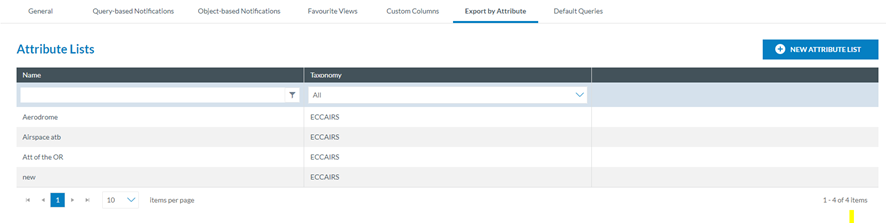
It is the table of Attribute Lists. Each row refers to a list of attributes defined by the Officer concerning the Authority’s ECCAIRS taxonomy, either central or custom.
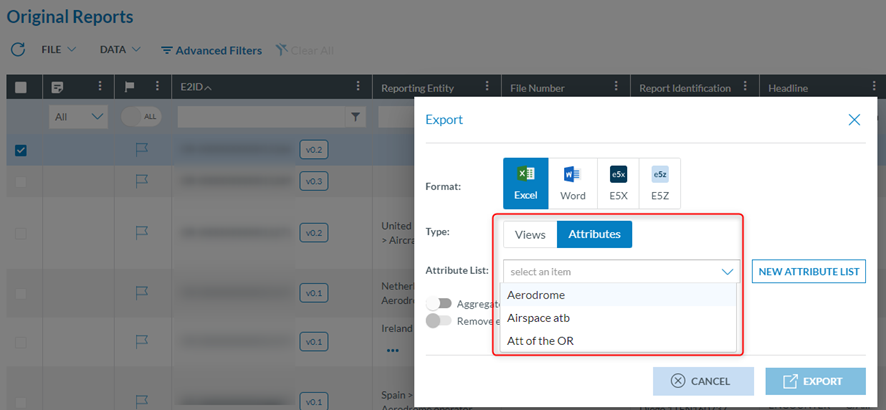
These lists are available in the Exports options of the ORs, VRs and OCs menus of the Safety Data menu, i.e.:
[](https://help.ci-aviationreporting.eu/uploads/images/gallery/2025-11/XV4image.png)
On the last section of each Attribute List of the table, when the Officer moves the mouse over it, a Delete icon and an Edit icon appear:
[](https://help.ci-aviationreporting.eu/uploads/images/gallery/2025-11/EUeimage.png)
The Delete icon deletes the Attribute List directly without asking.
### 7.7.1 Edit an attribute list
The edit icon opens the editing attributes’ list page:
[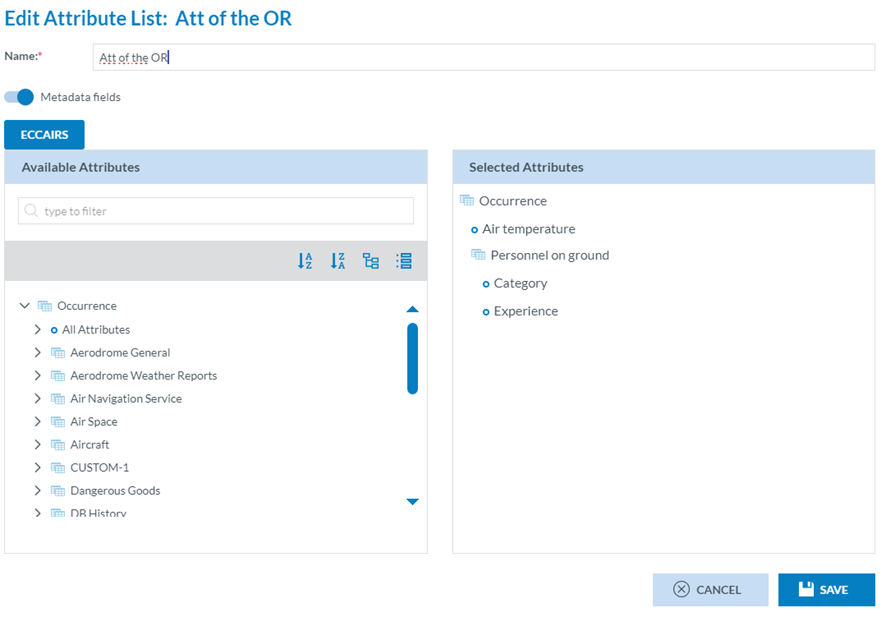](https://help.ci-aviationreporting.eu/uploads/images/gallery/2025-11/dJnimage.png)The mandatory name field is editable.
A ‘Metadata fields’ toggle exists, so the list can include or hide the metadata fields.
Below, there is a left pane with the taxonomy attributes. See Taxonomy browser for further details on its navigation. The attributes can also be searched by Description or Taxonomy code in the Search field.
The right pane includes the selected attributes.
The Officer can update the Name, Metadata toggle or any of the selected attributes (drag and drop to change the order or remove from the right panel) and click on ‘Save’ and the updates will be saved in the database. The table of Attributes lists will be updated accordingly.
### 7.7.2 Create an attribute list
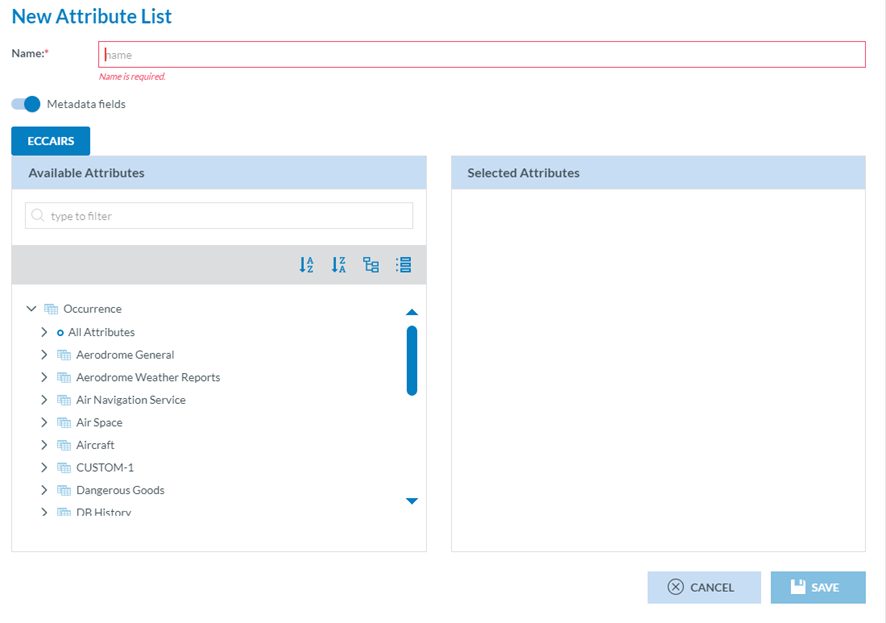
The Officer can click on ‘New Attribute List’ above the table of attributes lists, and the system will open the following page:
[](https://help.ci-aviationreporting.eu/uploads/images/gallery/2025-11/qOFimage.png)
It works as the editing page of the previous section. The Officer has to add a mandatory name, update the metadata fields toggle if needed and add the required attributes to the list through the Taxonomy tree left page. The selected attributes will appear on the right pane. The Officer can click the ‘Save’ button when all the attributes are selected. The system will save the record in the database, and the list of attributes will be updated accordingly.