# 2. Home (Landing page)
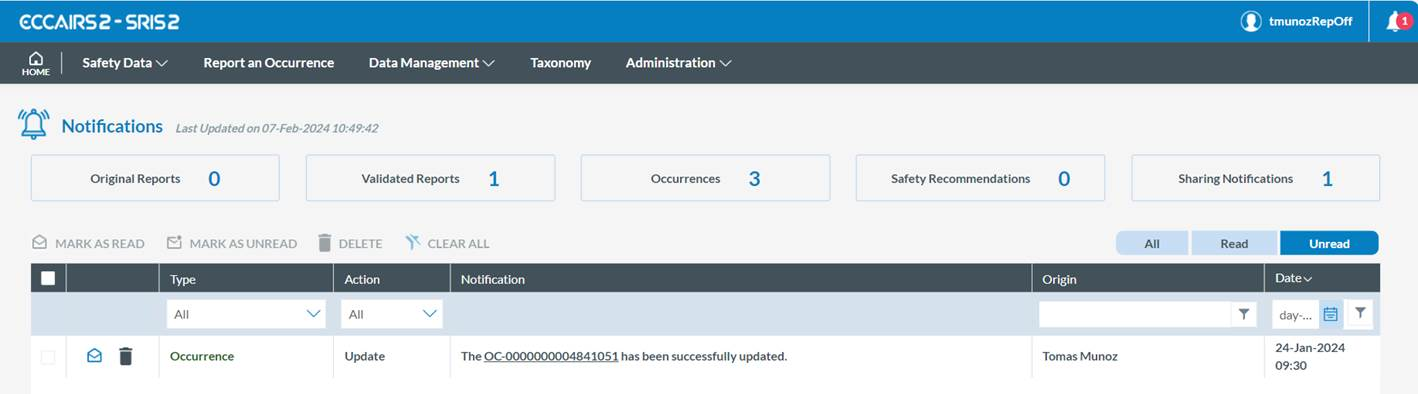
When the Officer accesses the E2 Web Application or when navigating its sections and clicks on ‘Home’, the system displays the landing page:
[](https://help.ci-aviationreporting.eu/uploads/images/gallery/2025-11/5Fsimage.png)
On top of the page, in the right-side corner, the system displays the Officer’s username and a bell with the number of unread notifications:
[](https://help.ci-aviationreporting.eu/uploads/images/gallery/2025-11/B2Aimage.png)
Below the menus bar, the system displays filter buttons with the number of:
· Original Reports: all ORs related notifications
· Validated Reports: all VRs related notifications
· Occurrences: all OCs related notifications
· Safety Recommendations: all SRs related notifications (N/A for Occurrence Officers)
· Sharing Notifications: all notifications related to elements (queries, libraries or word templates) shared with the Officer
Below those buttons, the system displays the list of notifications:
[](https://help.ci-aviationreporting.eu/uploads/images/gallery/2025-11/gaximage.png)
By default, the list only includes the unread notifications, including:
· The notifications generated based on the query-based notification settings created by the Authority administrator for the Officer
· The query-based notifications defined by the Officer himself through ‘My account’. See Query-based notifications section for further details
· The object-based notifications are set by the Officer through the notification alerts of the lists of ORs, VRs, and OCs together with ‘My Account’ object-based notification settings. See Object-based notifications section, which apply to all kinds of reports, for further detail
The Officer can filter notifications based on the ‘All’, ‘Read’ and ‘Unread’ tabs above the list.
The Officer can also restrict the results through the filter buttons mentioned above.
Each notification of the list is divided into columns:
· A check box: to select the specific notification.
· Mail and delete icon: if the mail is open, it is read so the icon can mark it as ‘unread’; if closed, it is unread, so the icon can mark it as ‘read’. The delete icon deletes the notification.
· Type: All, OR, VR, OC, Safety Recommendations (SR), Query, Library or Word Template. The type drop-down menu can filter it.
· Action: All, Creation, Update, Deletion, Shared. The action drop-down menu can filter it.
· Notification: it summarises the notified action, i.e. The OC-0000000004890000 has been successfully updated.
· Origin: it provides the author of the notified action.
· Date: apart from the date of the notified action, it includes a filter to search based on the date.
Above the list of notifications, the system displays the following tabs:
[](https://help.ci-aviationreporting.eu/uploads/images/gallery/2025-11/jySimage.png)
After selecting the specific notification, the Officer can click it to mark it as read, mark it as unread or delete the notification.
The Clear All button removes all the filters and shows the default list of notifications for the specific Officer.
The Officer can access the content of the specific notified action by double-clicking on any section of its row.