# 5. Taxonomy Browser
# 5.1. Taxonomy
The E2 system is built around the ECCAIRS taxonomy, constituted by ADREP taxonomy + ECCAIRS/EU specific taxonomy. While most of it is centrally maintained, in accordance with specific governance through the NA’s established Data and Quality Working Group, there is also the possibility for Authorities to maintain their own custom taxonomy, which allows them to adapt their usage of E2 to their own processes.
The taxonomy browser is a portal of the E2 System that provides detailed information of all the ECCAIRS taxonomy structures, entities, attributes and value lists in an easy-to-use UI.
The taxonomy browser is only for consulting purposes.
The Officer has to access the taxonomy menu to access the central or custom taxonomy for the Officer’s Authority. See the List of taxonomies section for further details.
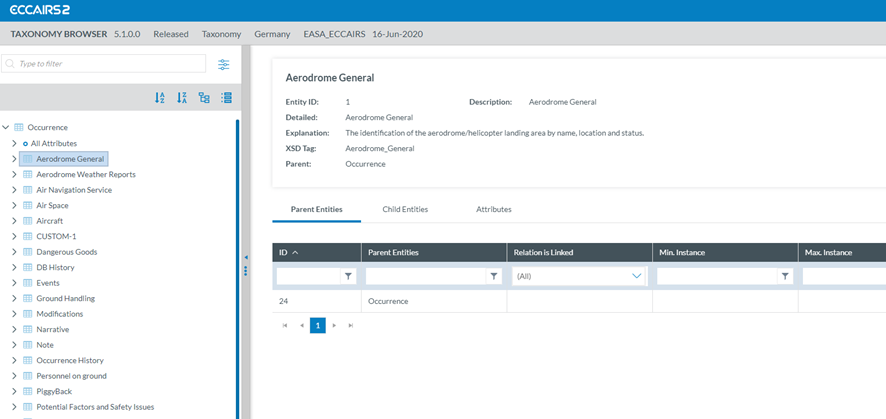
The Taxonomy tree and the search bar are displayed on the left side of the screen. They can be hidden by clicking on the 'arrow' icon. The left panel is resizable by clicking on the 3-dot menu and moving it to the left or the right.
The Officer can navigate the tree by unfolding the arrows and clicking the displayed elements. The information on the selected element will be displayed on the right side.
[](https://help.ci-aviationreporting.eu/uploads/images/gallery/2025-11/XQGimage.png)
# 5.2. Search
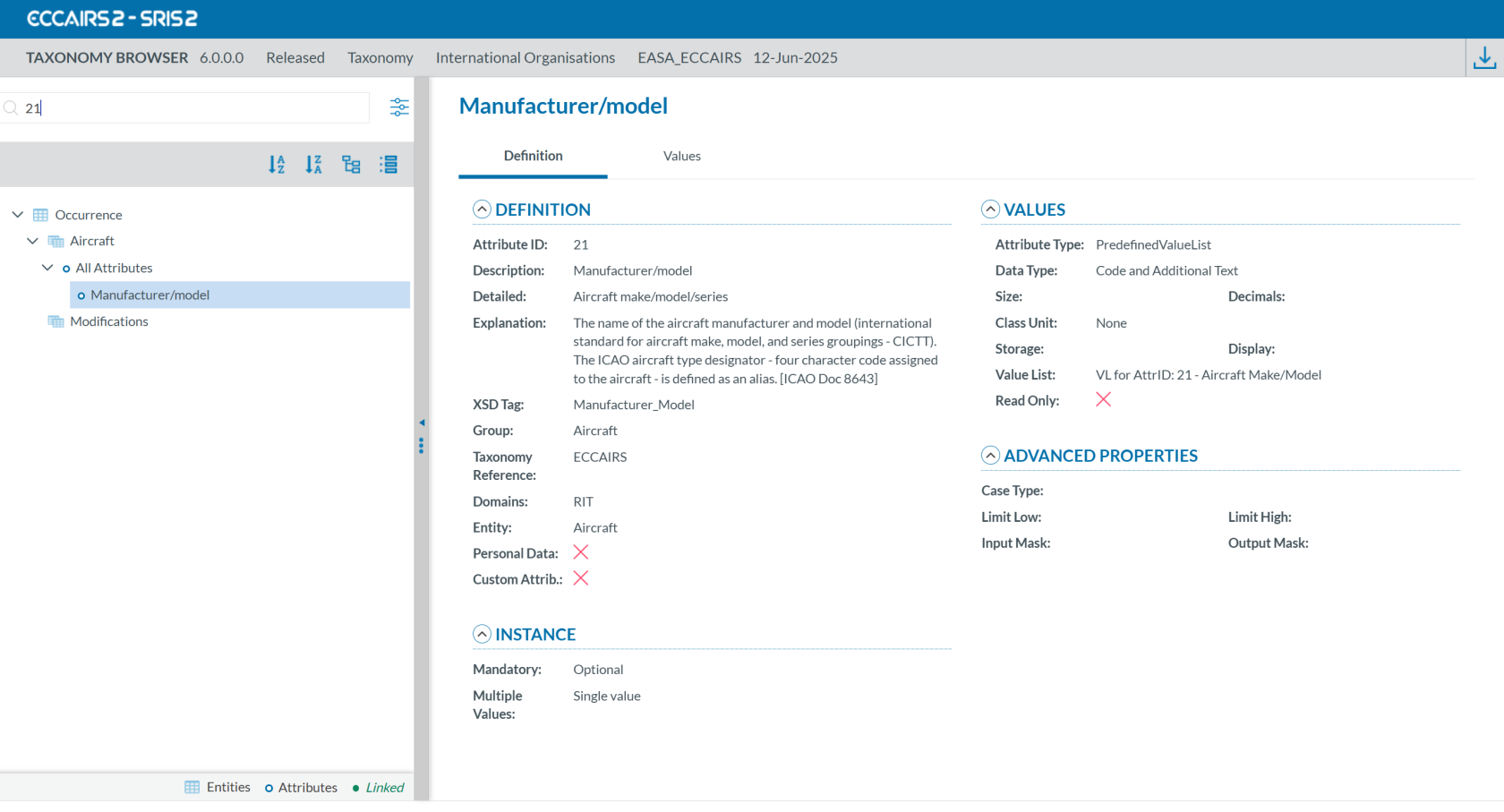
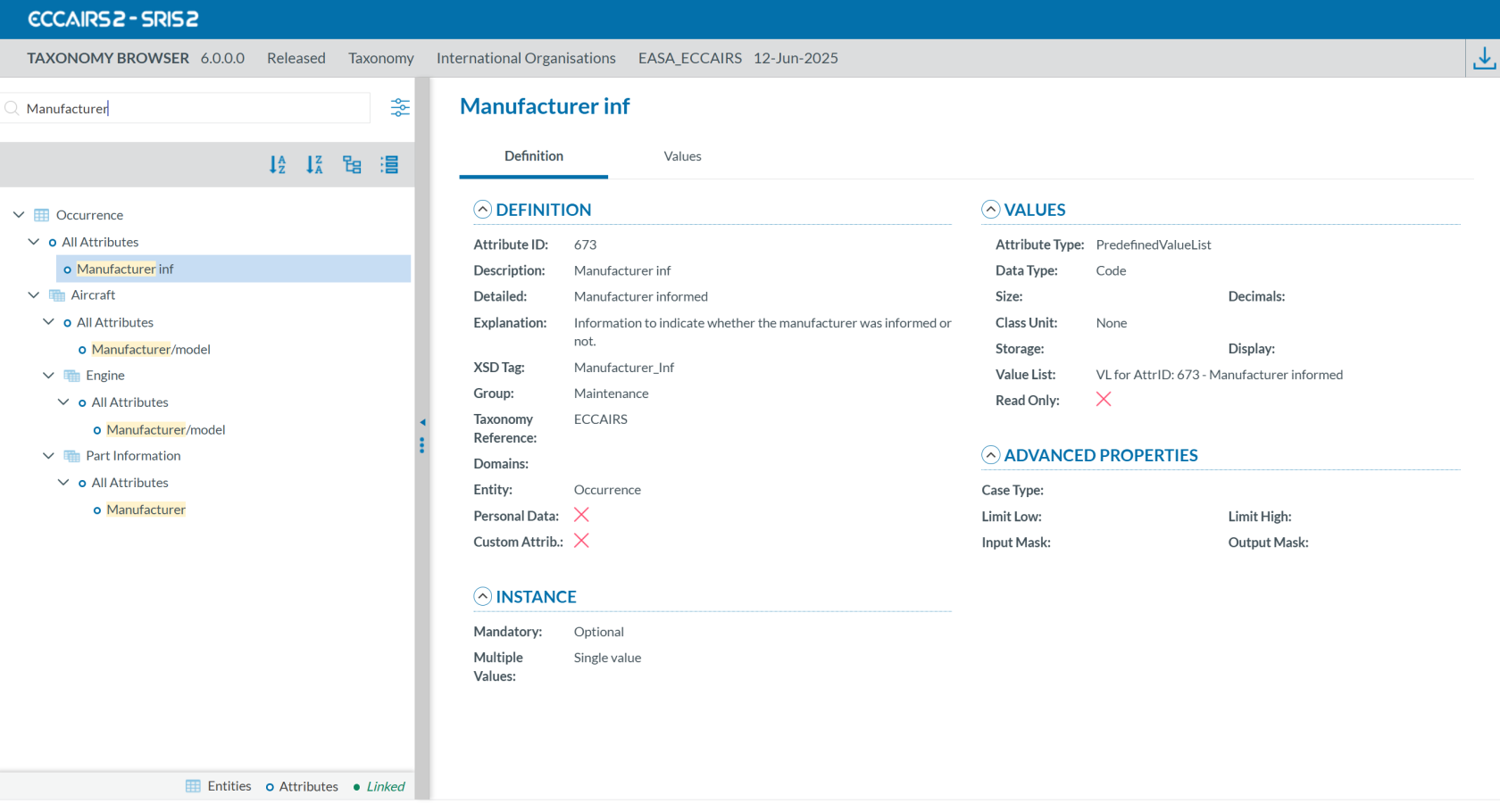
Entities and attributes can be found by entering the taxonomy code or description in the search box located at the top left.
For example, if you search by Taxonomy Code using '21':
[](https://help.ci-aviationreporting.eu/uploads/images/gallery/2025-10/q7jimage.png)
If you search by description using 'Manufacturer':
[](https://help.ci-aviationreporting.eu/uploads/images/gallery/2025-10/iTzimage.png)
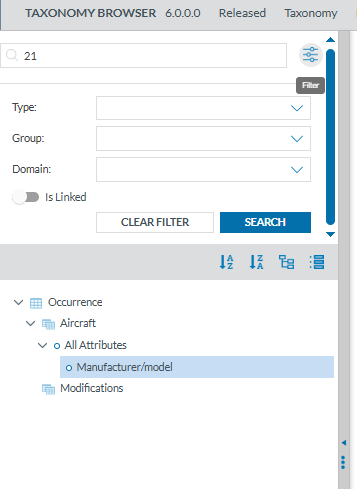
If you click on the 'Filter' button:[ ](https://help.ci-aviationreporting.eu/uploads/images/gallery/2025-11/dqdimage.png), a layer with more filters will be displayed.
[](https://help.ci-aviationreporting.eu/uploads/images/gallery/2025-10/dhaimage.png)
For each filter you can select one or more values. When you have finished click on 'SEARCH' to refresh the tree with your filters.
[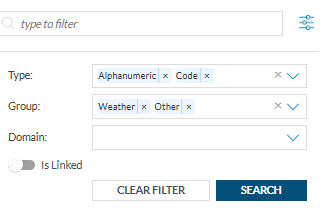](https://help.ci-aviationreporting.eu/uploads/images/gallery/2025-10/OPfimage.png)
The Taxonomy Tree can be ordered alphabetically by clicking on the 'A-Z' icon or 'Z-A' icon :
[](https://help.ci-aviationreporting.eu/uploads/images/gallery/2025-10/S96image.png)
You can collapse or expand all item of the Taxonomy Tree with the following buttons:
- Expand all [](https://help.ci-aviationreporting.eu/uploads/images/gallery/2025-10/xRoimage.png)
- Collapse all [](https://help.ci-aviationreporting.eu/uploads/images/gallery/2025-10/KGiimage.png)
When an entity is a Linked Entity, it is highlighted in green in the Taxonomy Tree with the toggle switch:
[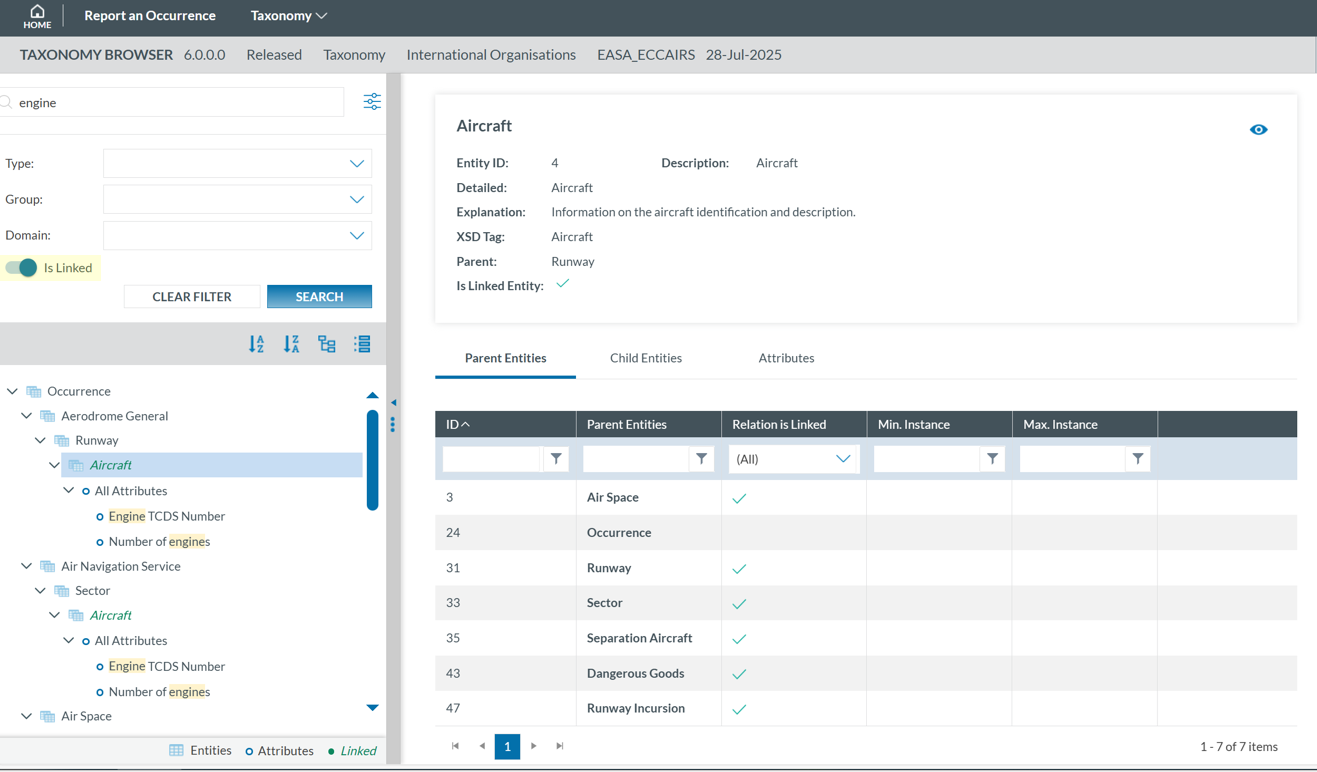](https://help.ci-aviationreporting.eu/uploads/images/gallery/2025-10/WQuimage.png)
# 5.3. Taxonomy structure
ECCAIRS taxonomy elements are structured as follows:
- Entities
- Attributes
- Value Lists
- Values
### 5.3.1 Entities
Entities represent items to which specific attributes are assigned—for example, an “Aircraft” involved in an incident or the associated “Events” description.
Multiple instances of an entity may exist when several items are involved (e.g., multiple aircraft in a single incident).
Entities can have child entities (e.g., an “Engine” belonging to an “Aircraft”).
Entities may also be linked to other entities (e.g., “Airspace” or “Aerodrome” where the “Aircraft” is operating).
#### 5.3.1.1 Entities information
Entities in the Taxonomy Tree are represented by [ ](https://help.ci-aviationreporting.eu/uploads/images/gallery/2025-10/6pOimage.png)or [](https://help.ci-aviationreporting.eu/uploads/images/gallery/2025-10/QXCimage.png).
The following information will be displayed in the right side of the screen when you click on an Entity in the Taxonomy Tree:
- Entity information: A brief summary of the selected Entity.
- Parent Entities: The list of its parent Entities
- Child Entities: The list of its children Entities
- Attributes. The list of its Attributes
Click on each tab (Parent Entities, Child Entities, Attributes) to view its information.
[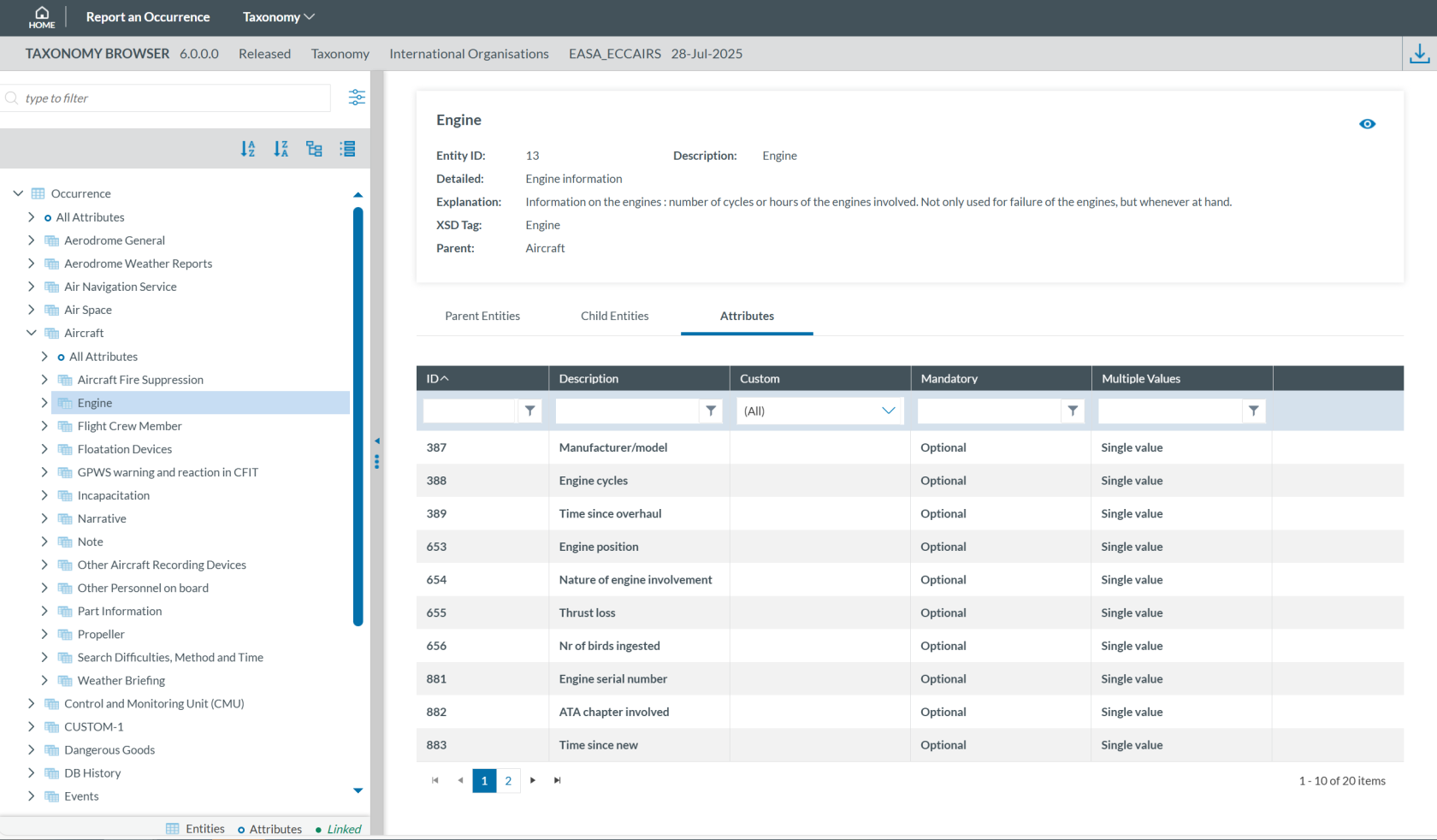](https://help.ci-aviationreporting.eu/uploads/images/gallery/2025-10/BBUimage.png)
Clicking the 'eye' icon [ ](https://help.ci-aviationreporting.eu/uploads/images/gallery/2025-10/D2Simage.png) you can see detailed information from the entity.
### 5.3.2 Attributes
Attributes describe properties/values associated to an entity and represented by [](https://help.ci-aviationreporting.eu/uploads/images/gallery/2025-10/cDZimage.png). An example of an attribute of the “Aircraft” entity is its "manufacturer/model". Attributes may have either single or multiple values and can be of the following types:
- Number
- Decimals
- Text
- Alphanumeric
- Date
- Time
- DateTime
- Longitude
- Latitude
- Code
- Code and Additional Text
- Code or Alternative Text
- ECCAIRS Resource Locator
- ECCAIRS Data Link
- ECCAIRS Embedded Data
#### 5.3.2.1 Attributes information
Attribute information can be viewed from two locations within the Taxonomy Browser:
- Locate the attribute in the Taxonomy Tree and click on it (1). The information will then be displayed in the right-hand pane.
[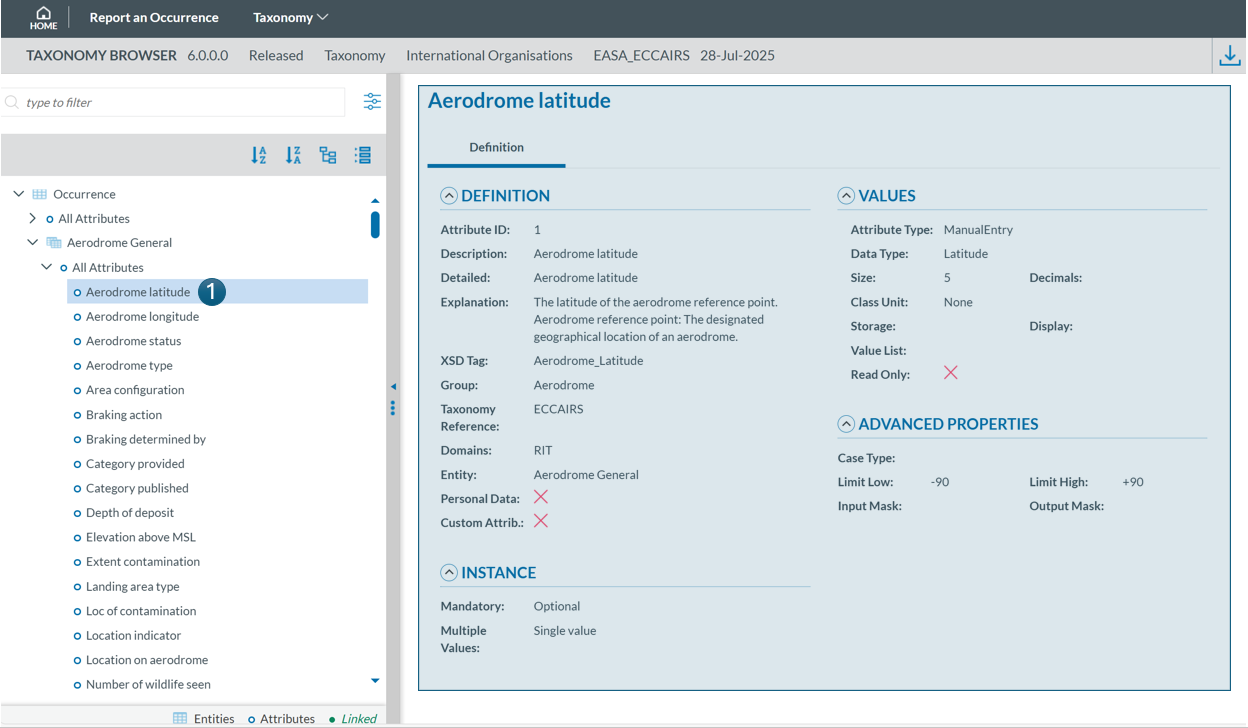](https://help.ci-aviationreporting.eu/uploads/images/gallery/2025-10/yQeimage.png)
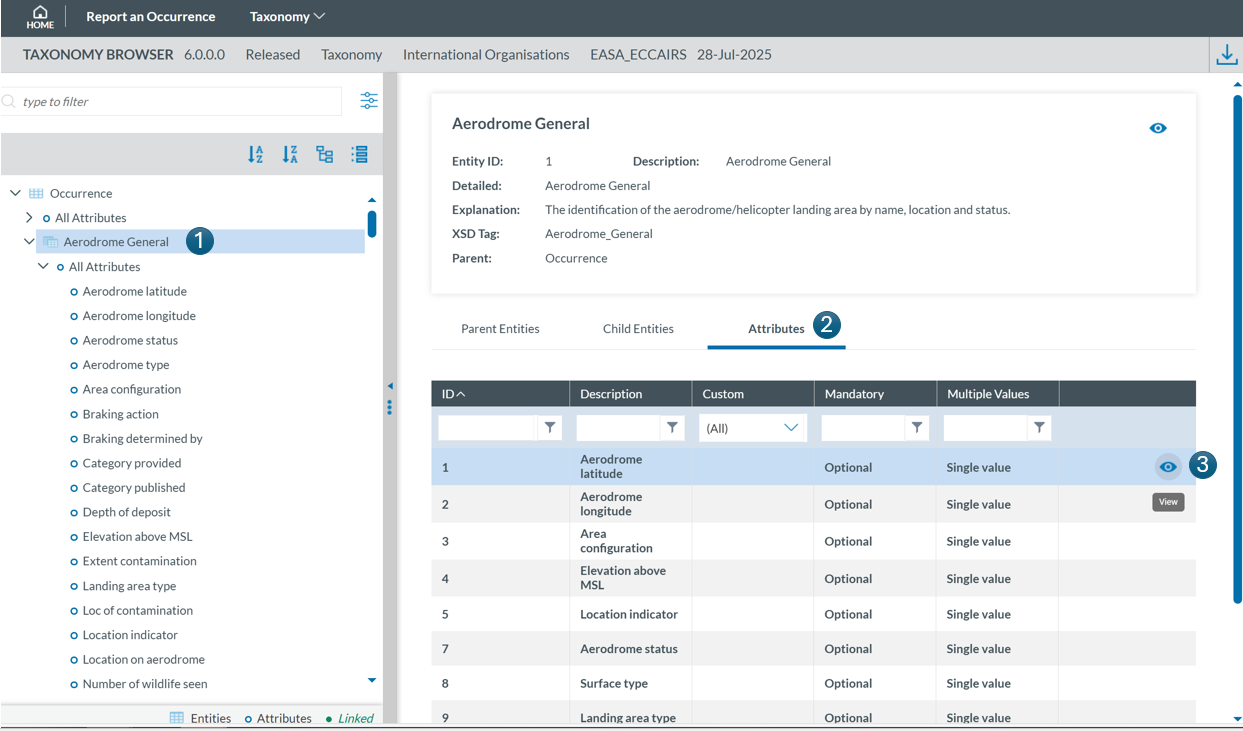
- Select the entity to which the attribute belongs in the Taxonomy Tree (1), then click the 'Attribute' tab in the right-hand pane (2). Finally locate the attribute in the list and click the 'eye' icon [ ](https://help.ci-aviationreporting.eu/uploads/images/gallery/2025-10/FuOimage.png)to view its detailed information (3):
[](https://help.ci-aviationreporting.eu/uploads/images/gallery/2025-10/HXFimage.png)
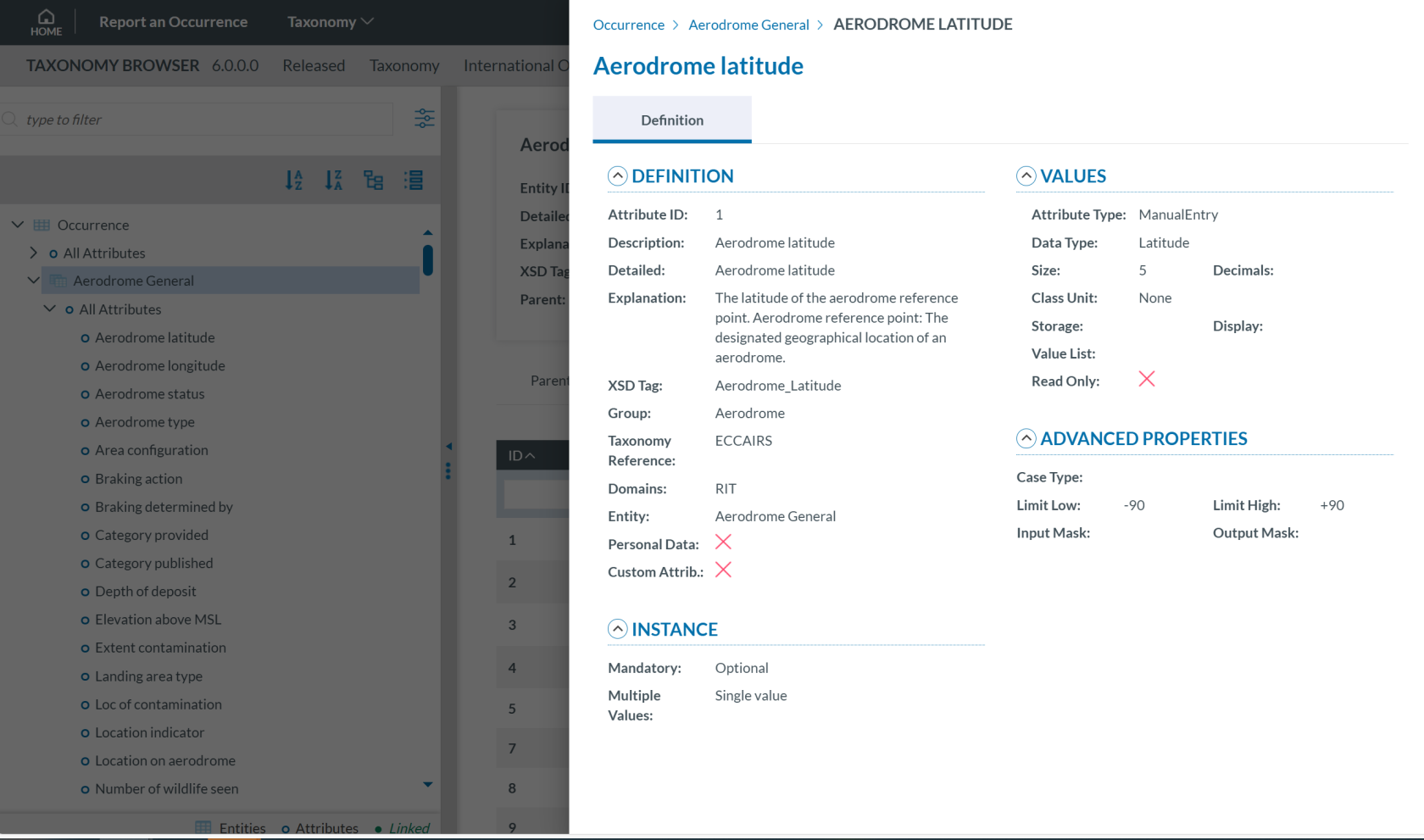
The information will be displayed:
[](https://help.ci-aviationreporting.eu/uploads/images/gallery/2025-10/xbAimage.png)
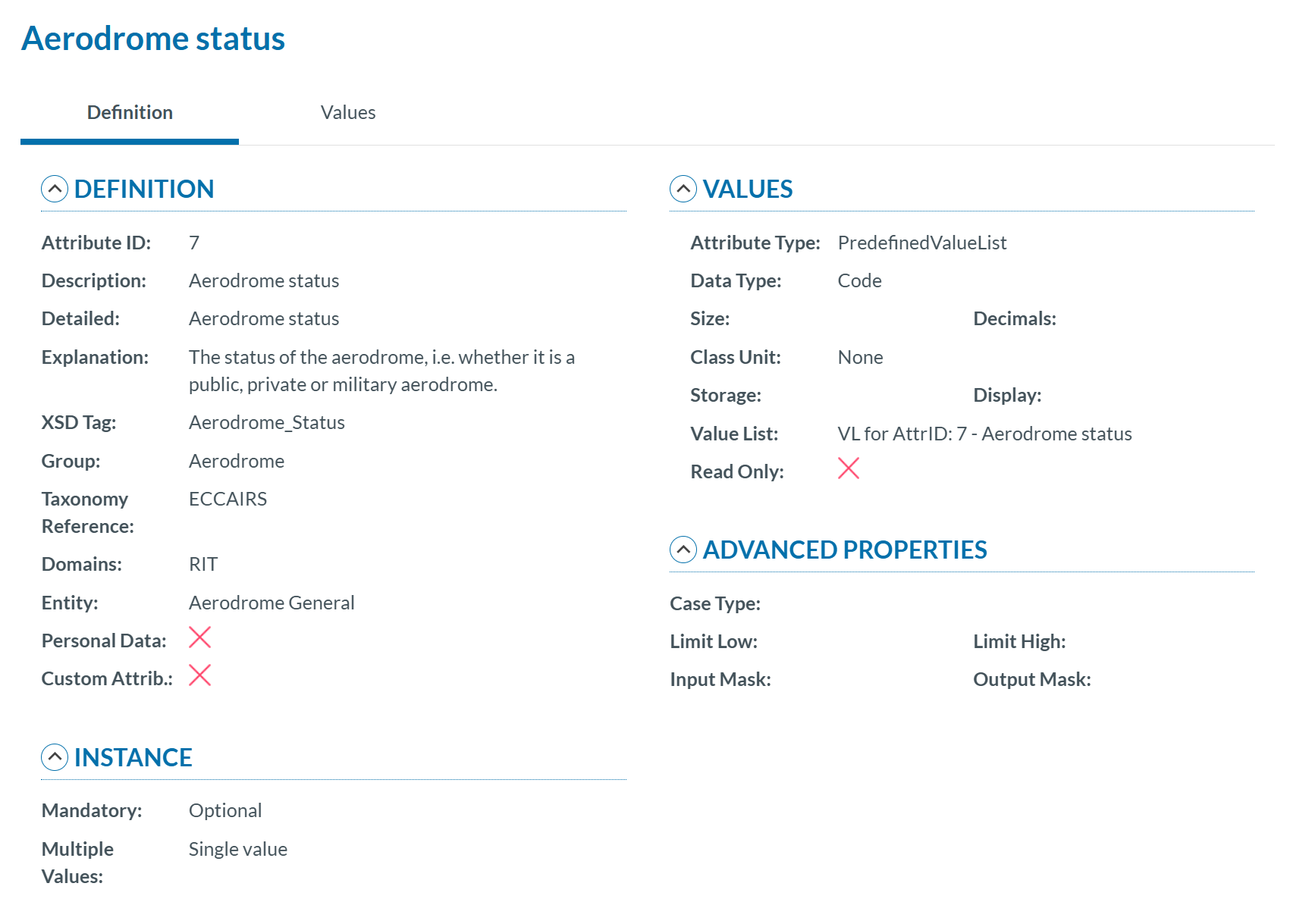
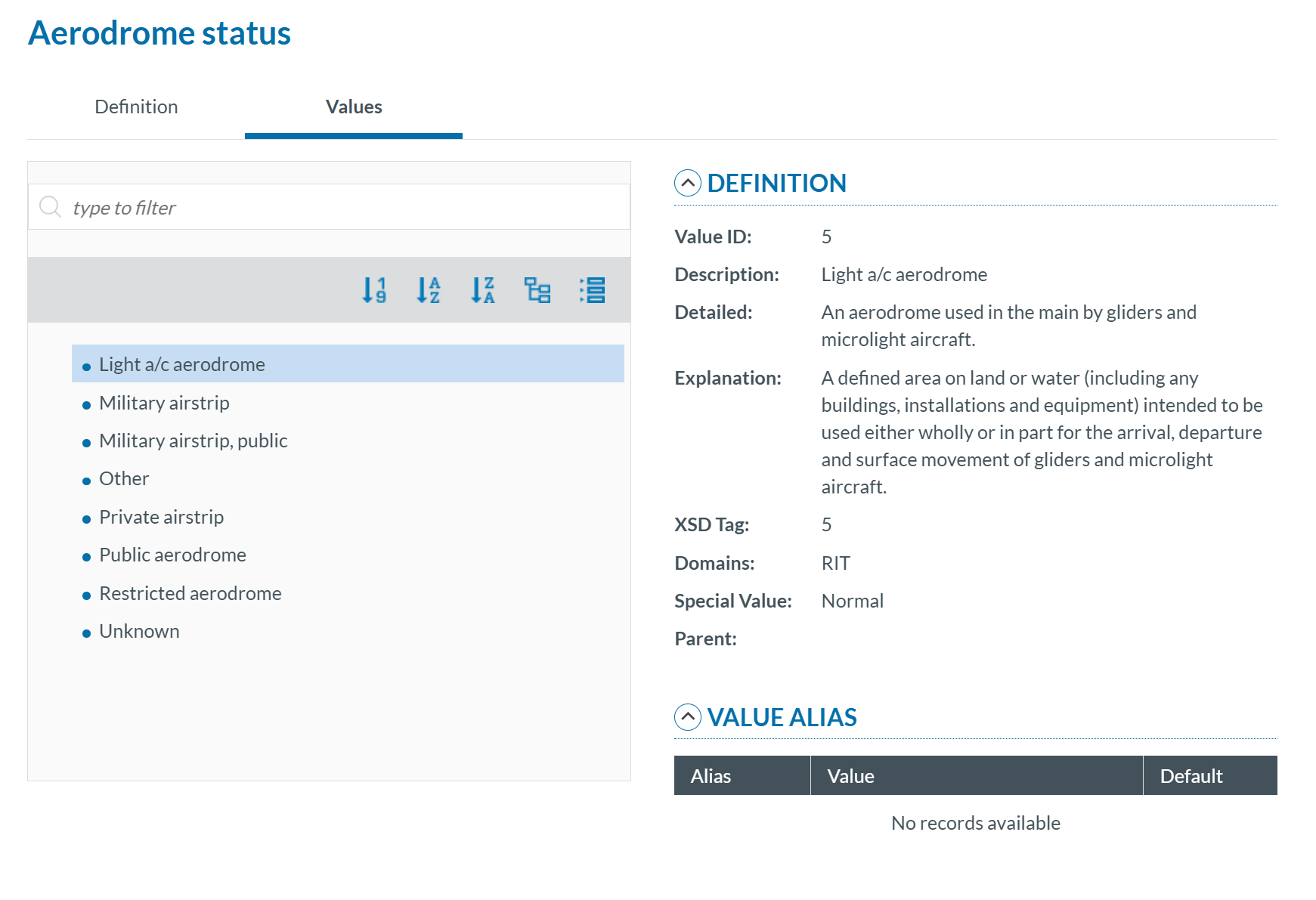
Attribute information may be displayed across two tabs:
- **Definition**
[](https://help.ci-aviationreporting.eu/uploads/images/gallery/2025-10/2iQimage.png)
- **Values:** If the attribute has a predefined value list, you can navigate through the values in the Values Tree by clicking on each element. The selected value will display its definition. Values can be searched by Taxonomy Code or Description and can be sorted alphabetically.
[](https://help.ci-aviationreporting.eu/uploads/images/gallery/2025-10/sP6image.png)
### 5.3.3 Value Lists
The list of values an attribute can have is defined in a Value List. The Value List can have multiple level where values are organized in a tree mode.
[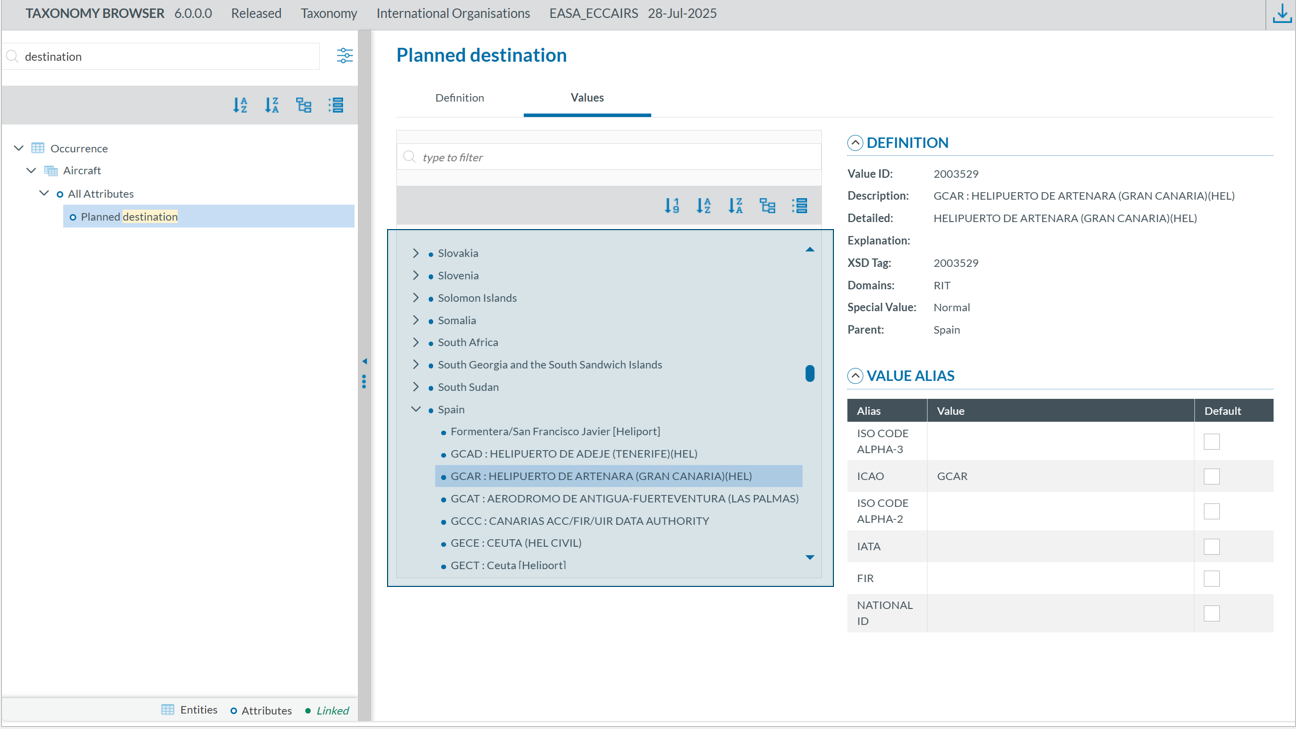](https://help.ci-aviationreporting.eu/uploads/images/gallery/2025-10/BLoimage.png)
Value list can have Alias:
[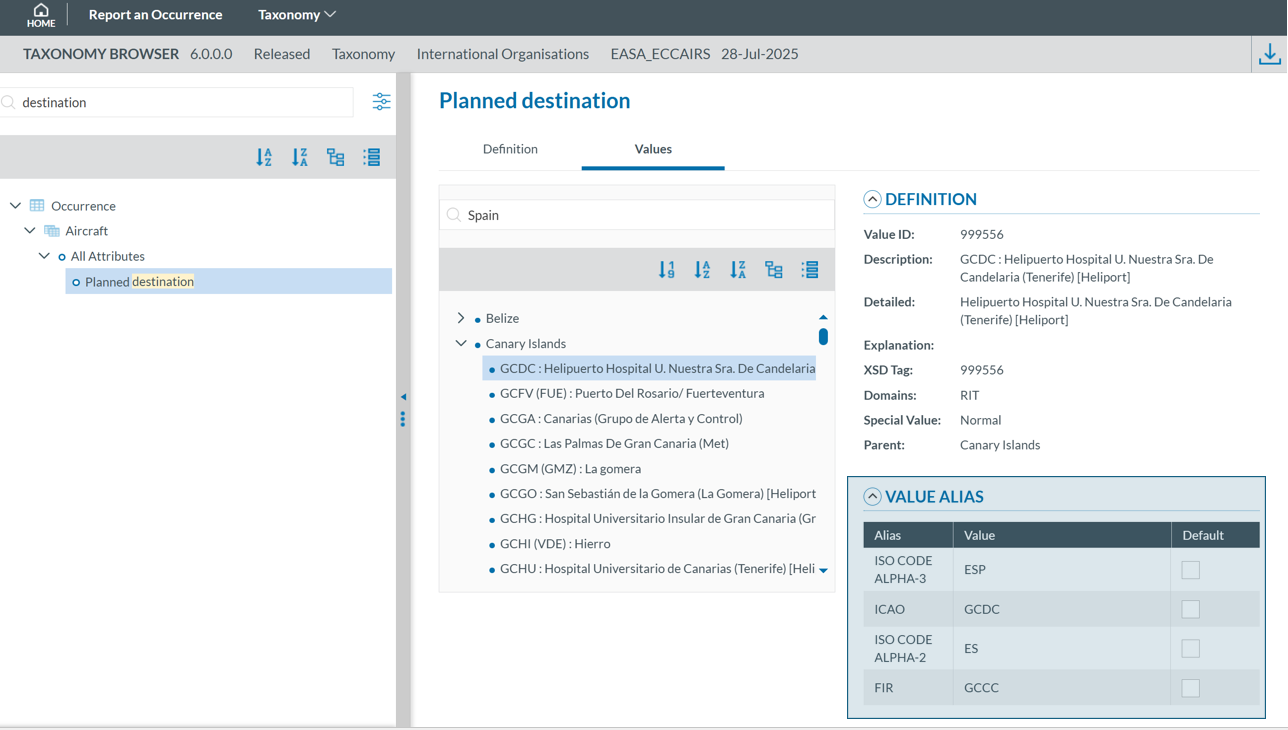](https://help.ci-aviationreporting.eu/uploads/images/gallery/2025-10/In5image.png)
### 5.3.4. Values
Depending on the attribute type, values may either be manually entered or selected from a predefined list (Value List). For example, for the Manufacturer/Model of an aircraft, a value can be chosen from a Value List:
[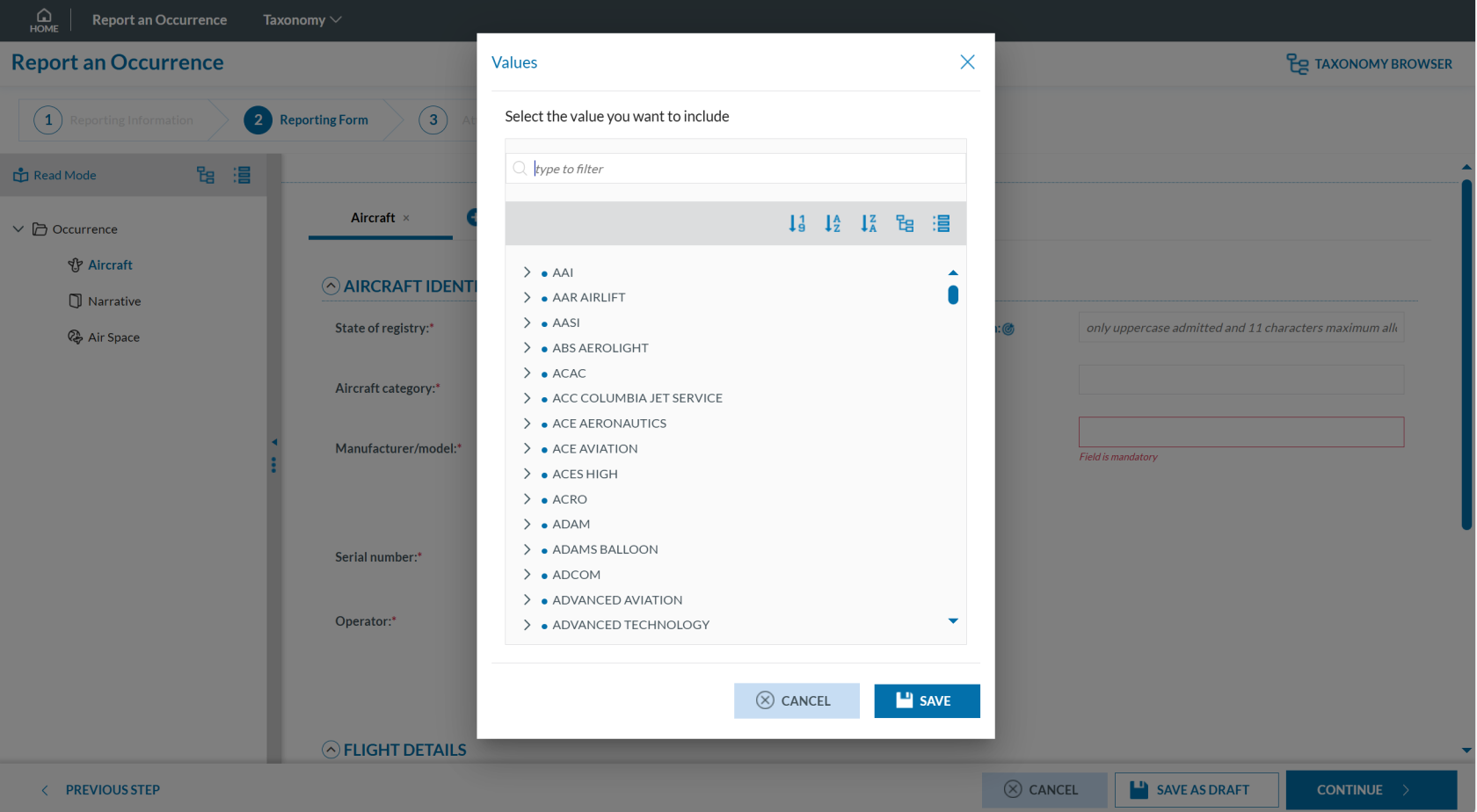](https://help.ci-aviationreporting.eu/uploads/images/gallery/2025-10/ddsimage.png)
However, for the Location Name attribute, values must be entered as free text only:
[](https://help.ci-aviationreporting.eu/uploads/images/gallery/2025-10/SjWimage.png)
### Filter the information
You can filter the Parent Entities, Child Entities and Attributes table by typing the term to be searched in the filter row. You can restrict the results by clicking the 'filter' icon [ ](https://help.ci-aviationreporting.eu/uploads/images/gallery/2025-10/4LVimage.png) To delete the filter, you must click the [ ](https://help.ci-aviationreporting.eu/uploads/images/gallery/2025-10/l8aimage.png) 'clear filter' icon.
By default, the 'contains' condition is selected:
[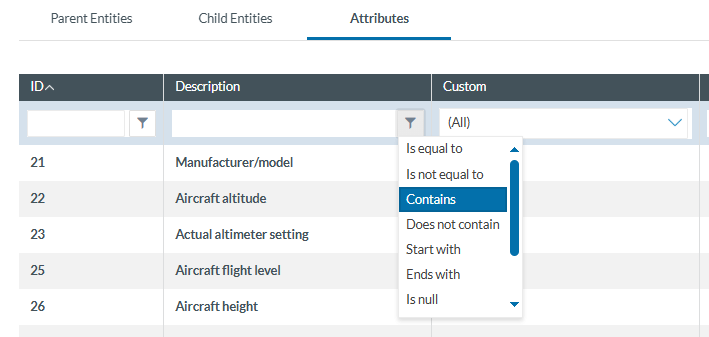](https://help.ci-aviationreporting.eu/uploads/images/gallery/2025-10/mz4image.png)
The filter options are:
- Is equal to: the filter will look for fields that match the exact same string
- Is not equal to: the filter will avoid the fields that match the exact same string
- Contains: the filter will display all the fields that have the string written in any position
- Does not contain: the filter will display the fields that do not have the string written in any position
- Start with: the filter will look for the string at the beginning of the field
- Ends with: the filter will look for the string at the end of the field
- Is null: field does not exist
- Is not null: field exists
- Is empty: fields exist but does not have information
- Is not empty: field exists and has information
# 5.4. List of Taxonomies
You can access the list of taxonomies through the ‘Taxonomy’ menu displayed in the bar next to 'Report an Occurrence':
[](https://help.ci-aviationreporting.eu/uploads/images/gallery/2025-10/BeTimage.png)
By clicking on this link, the system displays the list of taxonomies in force for the Reporter’s competent Authority:
[](https://help.ci-aviationreporting.eu/uploads/images/gallery/2025-10/yn0image.png)
If the competent Authority the user is reporting to has defined a custom taxonomy, the system displays both the central and the custom taxonomies:
[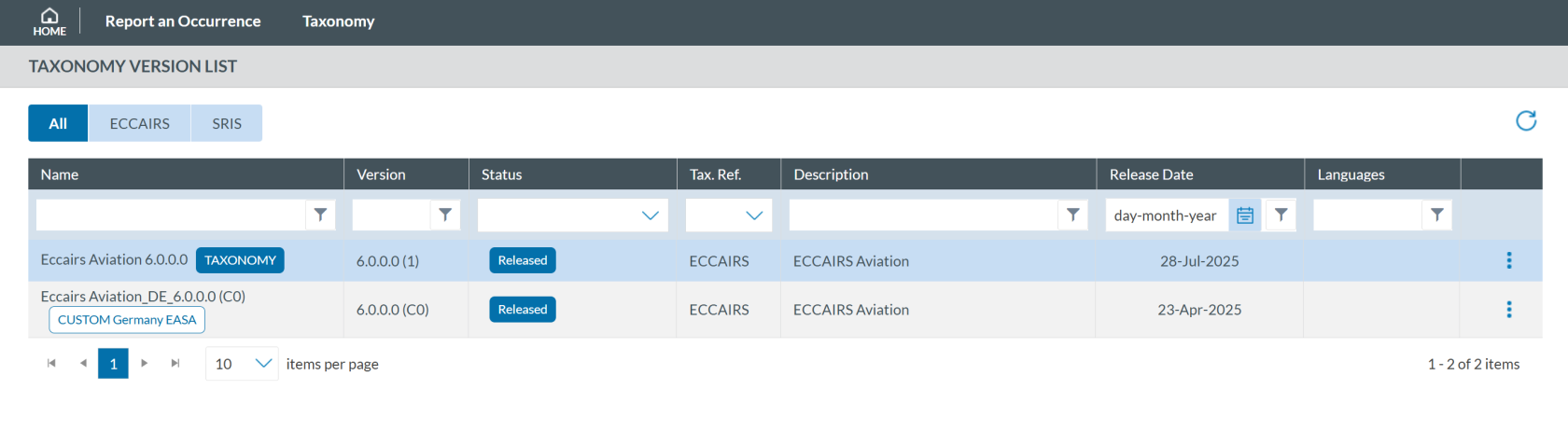](https://help.ci-aviationreporting.eu/uploads/images/gallery/2025-10/Y0Qimage.png)
If you click on any of them,you will access the taxonomy browser for that taxonomy. By clicking on the 3-dots button of each taxonomy of the list, the system will display the following options:
[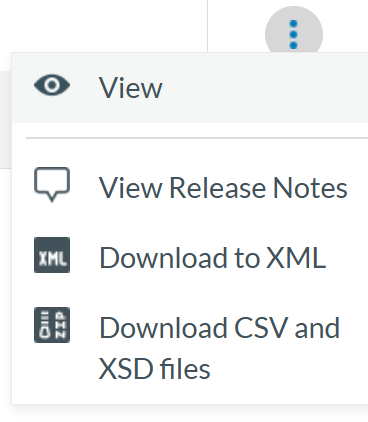](https://help.ci-aviationreporting.eu/uploads/images/gallery/2025-10/5RZimage.png)
- 'View' shows the taxonomy as detailed in Taxonomy section.
- ‘View Release Notes’ this option shows the user the changes made in the Taxonomy with the latest update.
[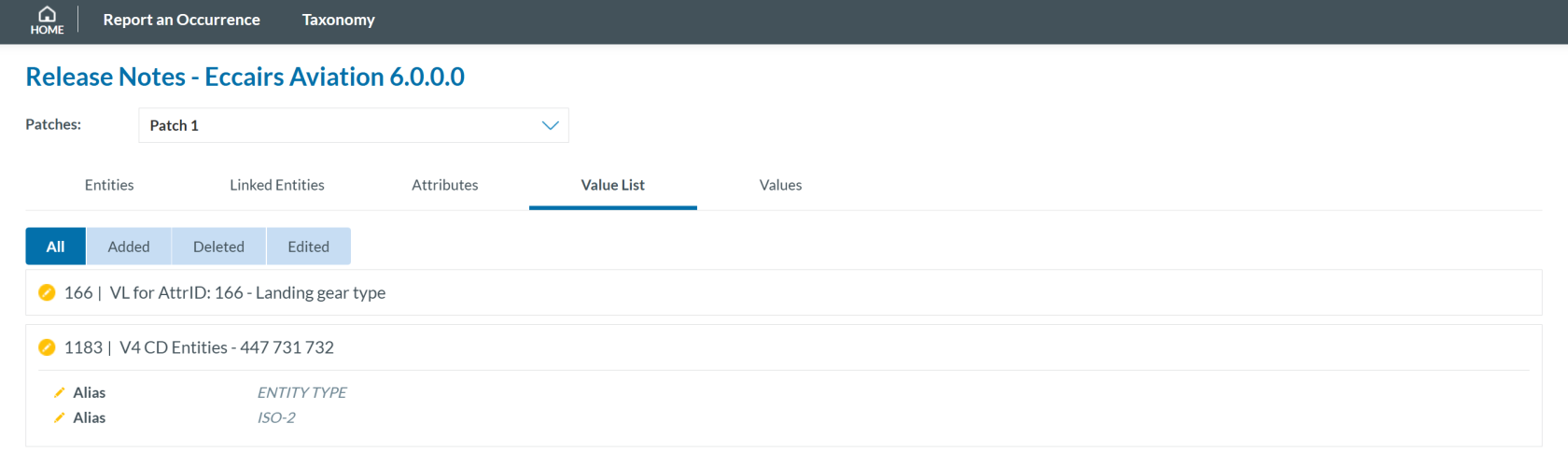](https://help.ci-aviationreporting.eu/uploads/images/gallery/2025-10/VROimage.png)
- ‘Download to XML’ allows any user to download the taxonomy in an xml file format with all the Entities and Attributes.
- ‘Download CSV and XSD files’ by clicking in this option the user downloads a compressed file in zip format that includes all the Value List and Attribute List in that Taxonomy