NSA How-To´s
Here you will find supplementary content for National Security Administrators, including step-by-step instructions and examples for relevant topics.
- Version History
- How to use MABOs
- How to use MABOs (Videos)
- How o M2M User
- How to create an Export by Attribute list
- How to share-transfer-report to
- How o apply for an E2 automation
- How to use the Value List Management Tool
- How to use the Value List Management Tool (Video)
- How to contribue o a collaboraive RefX
- How to resend and activation email
- How to check for completeness
- How to set up notifications
- How to set up custom columns
- How to validate an E5X-file
- How to organise organisations in groups
- How to create a Form
- How to understand user status
Version History
| Version | Date | Document | Description | E2 release |
| 0.1 | 04/11/2025 | How to understand user status.docx | Initial version | 2.53 |
| 0.1 | 13/10/2025 | How to use MABOs.docx | Initial version | 2.52 |
| 0.1 | 23/10/2025 | How to use MABO - Pre-recorded video tutorial (https://youtu.be/DvZE4opxjCU) | Initial version | 2.52 |
| 0.1 | 23/10/2025 | How to use MABO - Demo Session Recording (https://youtu.be/_f5N0kIAhBA) | Initial version | 2.52 |
| 0.1 | 07/10/2025 | How to create an M2M user.docx | Initial version | 2.51 |
| 0.1 | 12/09/2025 | How to share-transfer-report to.docx | Initial version | 2.51 |
| 0.1 | 26/08/2025 | How to apply for an E2 automation.docx | Initial version | 2.51 |
| 0.1 | 05/08/2025 | How to use the VL management tool.docx | Initial version | 2.50 |
| 0.1 | 06/10/2025 | How to use the VL management tool - Video Tutorial (https://youtu.be/V7L_RVTlhPM) | Initial version | 2.50 |
| 0.1 | 27/05/2025 | How to contribute to a collaborative RefX.docx | Initial version | 2.47 |
| 0.1 | 12/05/2025 | How to resend an activation email.docx | Initial version | 2.47 |
| 0.1 | 17/06/2024 |
How to validate an E5X-file.docx |
Initial version | 2.35 |
| 0.1 | 11/04/2025 | How to check for completeness.docx | Initial version | 2.46 |
| 0.1 | 04/04/2025 | How to create an Export by Attribute list.docx | Initial version | 2.36 |
| 0.1 | 06/02/2024 | How to set up notifications.docx | Initial version | 2.32 |
| 0.1 | 21/07/2023 | How to setup custom columns.docx | Initial version | 2.27 |
| 0.1 | 01/06/2023 | How to organise organisations in groups.docx | Initial version | 2.26 |
| 0.1 | 31/05/2023 | How to Create a Form.docx | Initial version | 2.26 |
| 0.2 | 20/11/2025 | How to understand user status | Migration to BookStack platform. | 2.53 |
| 0.2 | 20/11/2025 | How to use MABOs | Migration to BookStack platform. | 2.52 |
| 0.2 | 20/11/2025 | How to use MABOs (Videos) | Consolidation and Migration to BookStack platform. | 2.52 |
| 0.2 | 20/11/2025 | How to create an M2M user | Migration to BookStack platform. | 2.51 |
| 0.2 | 20/11/2025 | How to share-transfer-report to | Migration to BookStack platform. | 2.51 |
| 0.2 | 20/11/2025 | How to apply for an E2 automation | Migration to BookStack platform. | 2.51 |
| 0.2 | 20/11/2025 | How to use the Value List Management Tool | Migration to BookStack platform. | 2.50 |
| 0.2 | 20/11/2025 | How to use the Value List Management Tool - Video Tutorial | Migration to BookStack platform. | 2.5 |
| 0.2 | 20/11/2025 | How to contribute to a collaborative RefX | Migration to BookStack platform. | 2.47 |
| 0.2 | 20/11/2025 | How to validate an E5X-file | Migration to BookStack platform. | 2.35 |
| 0.2 | 20/11/2025 | How to resend an activation email | Migration to BookStack platform. | 2.47 |
| 0.2 | 20/11/2025 | How to check for completeness | Migration to BookStack platform. | 2.46 |
| 0.2 | 20/11/2025 | How to create an Export by Attribute list | Migration to BookStack platform. | 2.36 |
| 0.2 | 20/11/2025 | How to set up notifications | Migration to BookStack platform. | 2.32 |
| 0.2 | 20/11/2025 | How to setup custom columns | Migration to BookStack platform. | 2.27 |
| 0.2 | 20/11/2025 | How to organise organisations in groups | Migration to BookStack platform. | 2.26 |
| 0.2 | 20/11/2025 | How to Create a Form | Migration to BookStack platform. | 2.26 |
How to use MABOs
Some background
Batch operations (BOs) have been integral to E2 since early on. Whether run manually or continuously, a BO executes a single task on documents returned by its linked query.
The query determines the result set, effectively controlling the scope of the operation.
Despite their power, BOs are constrained to executing only one task per document. This limitation led to the development of Batch Operation Groups. A Batch Operation Group contains a collection of individual BOs that are executed sequentially, in the defined order within the group. Batch Operation Groups support scheduled execution and can be configured to run daily, weekly, or monthly.
Although Batch Operation Groups allow multiple BOs to be executed in a defined sequence, the restriction to daily, weekly, or monthly schedules remains a drawback.
Despite this limitation, many Authorities are using Batch Operation Groups effectively, some batch operation groups containing over a thousand BOs.
Enters the Multi Action Batch Operations
What are Multi-Action Batch Operations (MABOs)?
Multi-Action Batch Operations (MABOs) combine the functionality of Batch Operation Groups and individual BOs. The query defined in the MABO determines the result set on which multiple actions can be executed.
What happens with the already existing BOs and BO Groups?
With the introduction of MABOs came a redesigned user interface. All existing BOs have been automatically migrated to align with the new interface.
This transformation requires no user intervention, BOs also remain within their original groups, and no additional action is needed from the user.
The MABO interface
There are 2 types of MABOs
· Attribute MABOs
· Report MABOs
Although both types are accessed in the same manner, they are mutually exclusive and cannot be combined within a single operation. Each MABO must operate independently as either an attribute or a report MABO.
The attribute MABO
The attribute MABO is used to change values of attributes based on conditions and restrictions
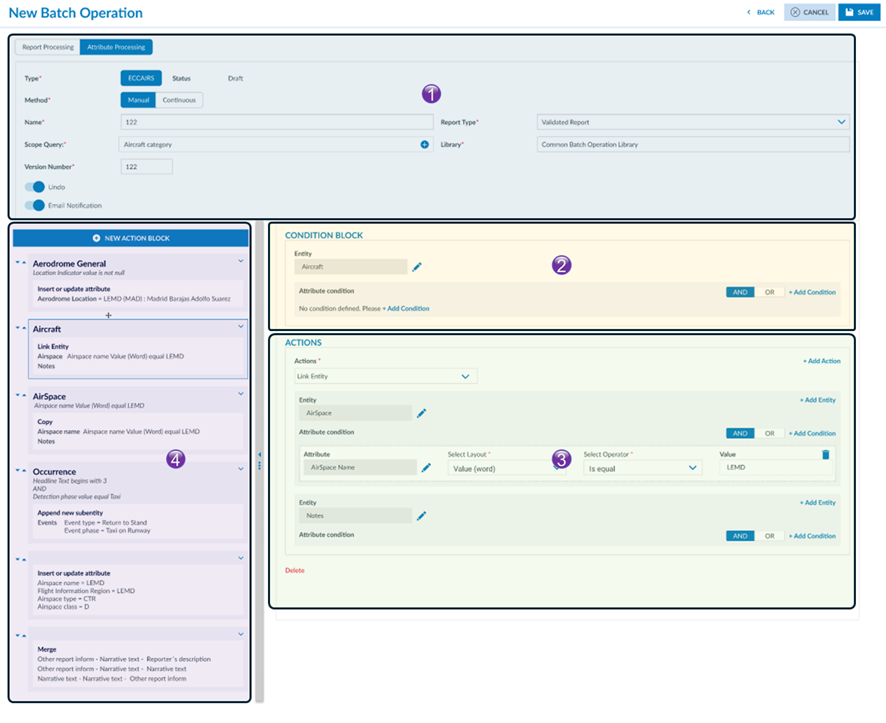
The interface can be broken down in 4 panels. Each panel will be further explained in detail:
1. This panel describes the MABO properties.
2. This panel defines the conditional logic for an entity for which certain actions are to be performed.
3. This panel sets out which actions are to be performed on what attributes.
4. This panel is the summary of all entities for which actions are to be executed.
MABO properties (1)
This panel describes the properties of a MABO. It defines what the batch operation is, where it is stored and upon which data the steps (4) are executed
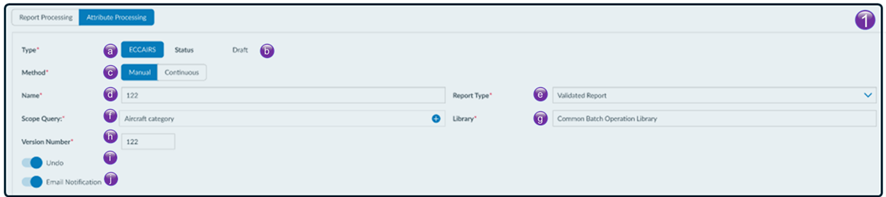
a) Batch operations can be performed on different taxonomies, this indicates for which taxonomy the MABO is created. The current taxonomies are either ECCAIRS or SRIS
b) The status informs if the MABO is in draft, has been released or was archived
c) Multi Action Batch Operations (MABOs) can be configured to run in two modes:
· Manual: Execution must be initiated by a user.
· Continuous: The MABO runs automatically whenever the specified conditions are met.
Switching Execution Mode:
· You can switch between manual and continuous modes at any time.
· This flexibility allows users to adapt operations to evolving business or data quality requirements.
Best Practice:
· It is highly recommended to start with manual execution to:
o Identify any latent issues or unexpected behaviours.
o Safely verify the logic and results of the batch operation.
o Build confidence in the MABO configuration.
Once the MABO performs reliably, you can transition to continuous execution.
d) Although the name is a free text field, giving a MABO a meaningful name is important. In future a MABO may need to be modified according to business needs, having a meaningful name allows for finding it back easy
Best practice is to use a naming convention that includes key information such as the entity, action type, and target scope
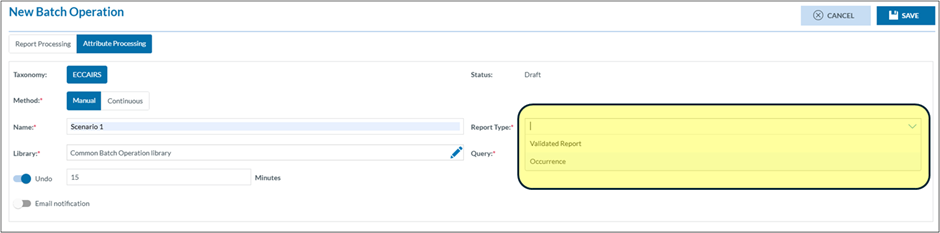
e) Report type, depending on the report type, whether it be an Original Report (OR), a Validated Report (VR), an Occurrence (OR) or a Safety Recommendation (SR), it will drive the allowed actions. Each document type has its own allowed actions that can be performed.
For example:
· Some actions may only be allowed on Validated Reports, such as linking entities or updating attributes.
· Other actions, like narrative merging or copying content, may be restricted for Original Reports.
f) The Scope Query in a MABO defines the initial set of documents that will be retrieved from the database before the batch operation begins.
· The result set is fetched once at the start of the MABO execution and is loaded into memory.
· All processing and condition evaluation are performed only on this in-memory dataset.
· If a MABO modifies an attribute that was part of the original scope query, the result set remains unchanged during that execution.
g) MABOs are saved in a library. Organising MABOs into libraries can help to streamline managing multiple MABOs it will make it easier to find them.
Best practice is before starting to create MABOs, is to think about how to organise them in libraries, especially when working in teams.
h) When modifying a MABO, it is good practice to provide a version number.
i) The Undo feature provides a grace period during which the modifications made by a MABO are temporarily held and not yet committed to the database. This mechanism adds a safety net to MABO executions, allowing users to test logic in production-like settings while maintaining control and data integrity. The Undo option is available only for MABOs set to manual execution. It is not supported for continuously running MABOs.
· During this period
o All changes made by the MABO are stored temporarily.
o The user who executed the MABO can review the results.
o If the outcome is incorrect, the user can roll back the entire MABO operation.
Best practice
· Set a sufficiently long grace period especially when
o The MABO performs complex transformations.
o The dataset being processed is large or sensitive.
o Manual review is expected.
· If unsure whether the grace period is long enough
o Export the affected documents before the grace period ends.
o This provides a backup reference for potential rollback or troubleshooting.
j) j) Setting this switch on will send an email when the MABO has finished
Source entity conditional logic (2)
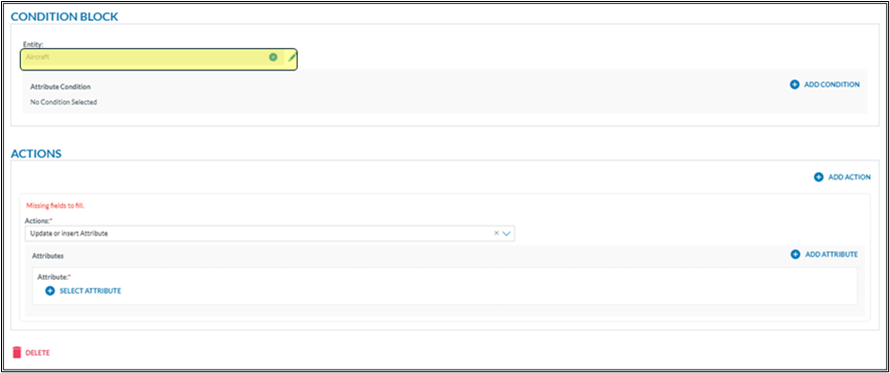
In the properties the scope of the documents that are subject of the MABO are defined with the Scope query. In this panel the entity for which action are to be performed are specified. And which condition on that entity do apply
Examples can be found further down in the Step-by-Step section of this document

a) All taxonomy entities can be selected. If an entity is selected which doesn’t exist in the occurrence, then the action will not be executed, and the MABO move to the next step
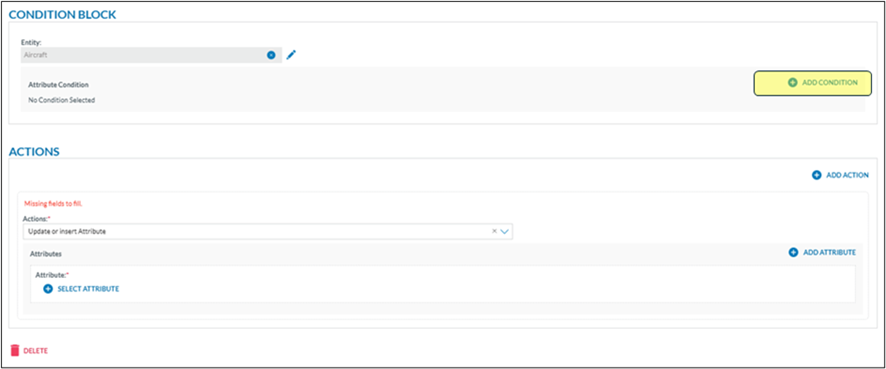
b) Add Condition. This function allows to define a filter so that the associated actions are only executed if a specific attribute of the selected entity meets a defined condition. This ensures precise control over when actions are triggered, based on the entity's data?
Multiple condition can be added linking them with AND and OR operators. There is no possibility to have condition groups like in the query builder.
c) AND and OR, allow to compose logical combined conditions.
Step actions (3)
In this panel the actual actions are defined, this is where MABO gets its name, from Multi Action Batch Operation
Whereas in panel 1, the properties are defined and in panel 2 the entity conditions are set out, in this panel the actions are defined
Examples can be found further down in the Step-by-Step section of this document
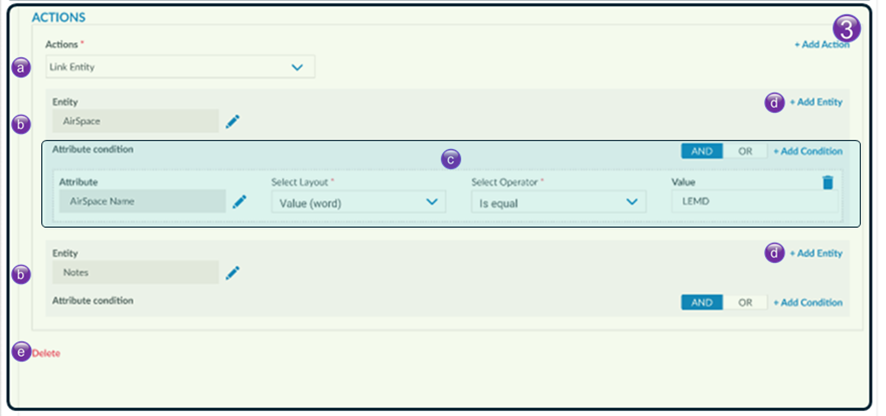
a) The allowed actions depend on the selected report type in the MABO properties (part 1)
b) On what entity are the actions to be performed. Depending on the selected action in a), the interface will change.
c) Define Actions on Target Entities
In this section, you configure the actions to be executed on the selected target entities. The actions defined in step a) are applied here. The interface dynamically adapts based on the selected action type. For example, a Copy action will present a different interface than an Insert or Update Attribute action.
Each action can be applied to multiple attributes of the chosen entity. Moreover, within the same block, the same type of action can also be applied to additional entities if needed.
It is also possible to restrict the execution of an action by adding a condition based on an attribute of the target entity. For example, as in the image above, in the case of a Link action, it can be configured to execute only when the Airspace name is equal to "LEMD".
Like the filtering options available for source entities, multiple conditions can be combined using logical operators such as AND and OR to provide greater flexibility and precision.
d) clicking delete will clear all actions in the block
Steps summary (4)
Not only gives this panel of the MABO configuration view a summary of all the steps, but it also allows to add new steps and to order the steps in a specific order.
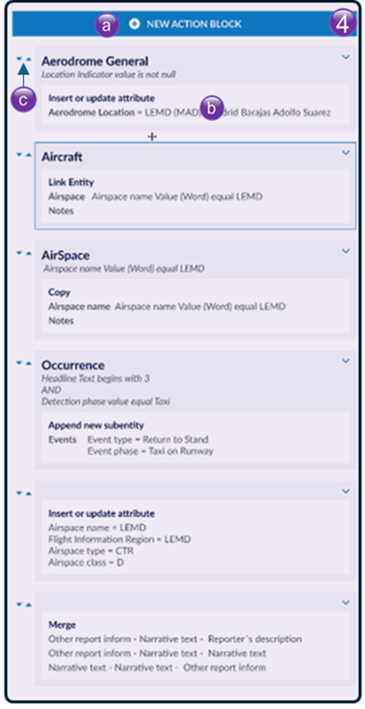
a) clicking this button will add a new step to the MABO. Panels 2 and 3 will be cleared.
b) per step a short description is automatically generated. Which Entity is concerned, what actions are performed and under which conditions.
c) the steps can be reordered, either by drag and drop or by using the 2 small up/down arrows next to the step.
The Report MABO
The report MABO is used to apply actions on the whole document. The actions that can be performed depend on the type of document.
On an Original Report (OR) the actions are
· Validate report
· Archive report
On a Validated Report (VR) the actions are
· Integrate into Occurrence
· Archive report
On an Occurrence (OC) the actions are
· Archive Document
· Make a major version
· Make a major version & share to ECR
· Make major version & Share with authorities
· Report to
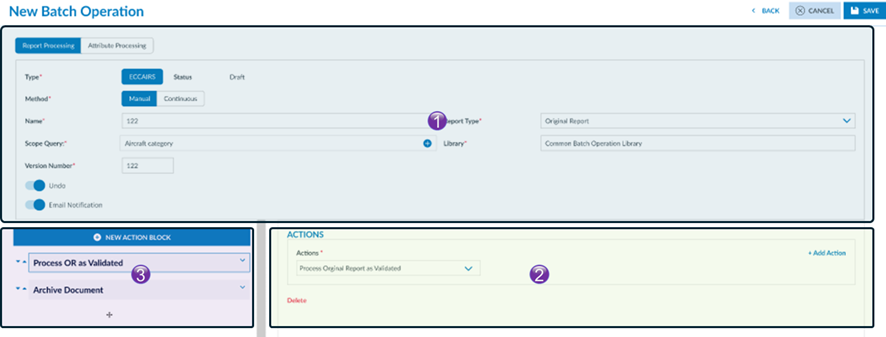
The interface can be broken down in 3 panels.
1. This panel describes the MABO properties
2. This panel sets out which actions are to be performed on the document
3. This panel is the summary of all actions that are to be executed
The detailed description of the panels is the same as written for the attribute MABO. The only difference is here that there are only 3 panels, the condition panel is not applicable for report MABOs
New BO actions
· Update or insert attribute
if an attribute doesn’t exist in the entity, then it will be added and the value inserted. If the attribute exists, it will be updated.
· Append Sub-Entity
This action allows the user to add a sub-entity to the entity defined in the code block.
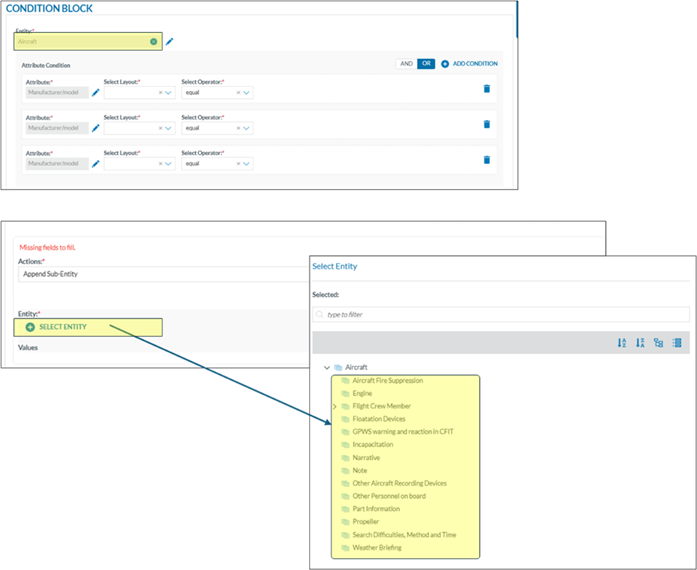
· Link Entity
this action allows to link the entity of the condition block
· Unlink Entity
this action allows to link the entity of the condition block
· Delete Entity
This action allows to delete the entity defined in de condition block
Ordering Continuous MABO’s
In some cases, different continuous MABO’s are triggered by the same query (result set). MABO’s are executed in alphabetical order.
Adding a prefix to the MABO’s allows to order them in any specific order
Example:
01-update some attributes à creates a new version
02-perform some specific tasks on attributes à creates a new version
03-perform some other tasks on attributes à creates a new version
04-Make-major-and-share à version remains the same
Continuous MABOs triggering other continuous MABOs
To avoid MABOs entering in endless loops, it is not possible for continuous attribute MABOs to trigger other continuous attribute MABOs
Abstract example
1. MABO A is triggered when aircraft = A, and it changes aircraft to B.
2. MABO B is triggered when aircraft = B, and it changes aircraft to A.
3. This triggers MABO A again.
à Repeat infinitely…
Continuous Attribute MABOs Triggering Continuous Report MABOs Is Allowed
1. Continuous Attribute MABO updates a value (e.g., Occurrence Status, Event Type…).
2. That update could trigger a Continuous Report MABO.
3. This doesn't re-trigger the attribute MABO, because:
a. Report MABOs don’t change values, they work on the whole document.
b. Therefore, no change is made that loops back to retrigger the original continuous attribute MABO.
Abstract Example
1. Continuous (OR) Report MABO Validates an OR
2. Continuous (VR) Attribute MABO updates certain values in that VR
3. Continuous (VR) Report MABI integrates the VR into an OC
Building a MABO Step by step
Given that report MABOs closely resemble the more complex attribute MABOs in terms of functionality, and most features are shared or similar, the attribute MABO will be used as the primary focus in the example for simplicity and clarity.
Preparatory steps
Create a new MABO
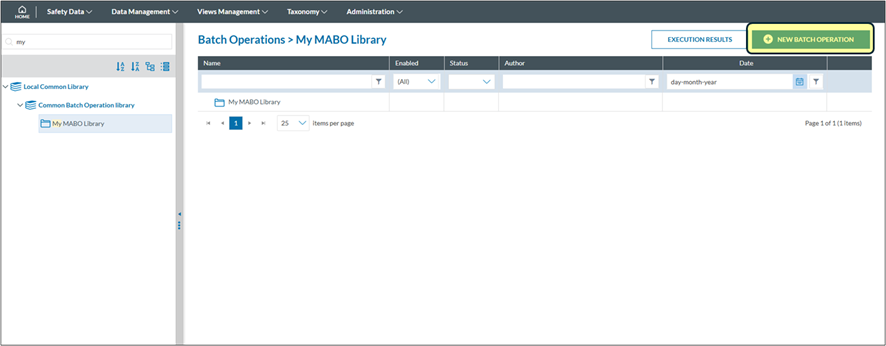
Select the type of MABO
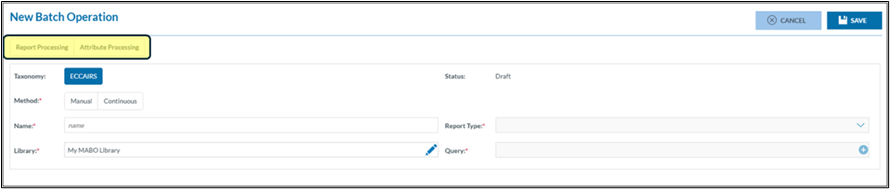
In the example scenario’s the focus will be on attribute processing
Select Manual or Continuous
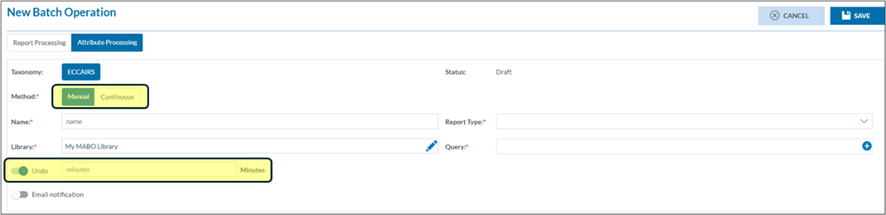
In the example scenario’s the focus will be on the manual method.
It is a good practice when starting to develop MABOs, to set a grace period. This is period is expressed in minutes. The execution of the MABO can be reverted during this period if the result is not correct.
Name, Library and Query
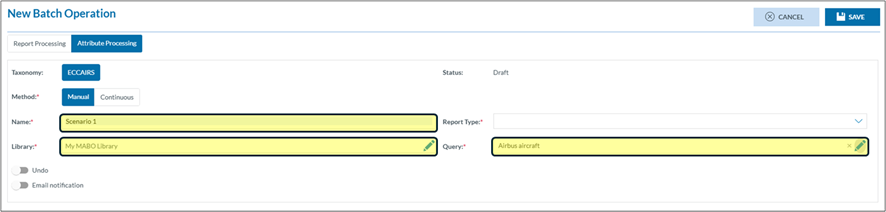
· Give the MABO a meaning full name.
· Indicate in which library it needs to be save
· Select the query to be used. This query defines the documents that are targeted. None of the actions performed in the MABO do influence the result set returned by this query
Select the report type
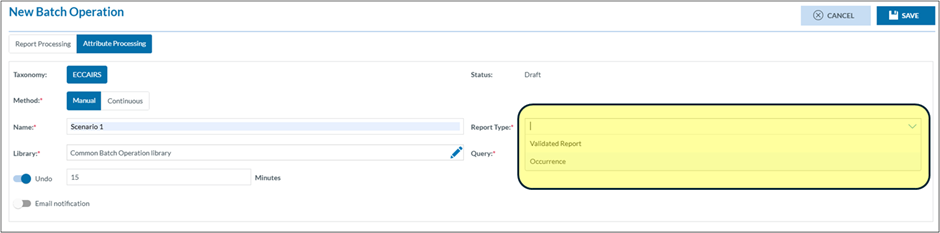
MABOs can either be executed on Validated Reports or on Occurrences. The selection of the report type will define which actions that can be performed. In these scenario’s the focus will be on Validated reports
The bases
Scenario 1
The query of the MABO will return all Airbus aircraft
The goal is to complete as much information on the aircraft as possible
Determine the number of engines and propulsion type
Different Airbus types have a different number of engines.
Select the aircraft entity
Add a condition
Target the A400M

Also target A380 and A340 by adding a condition. Using the OR operator
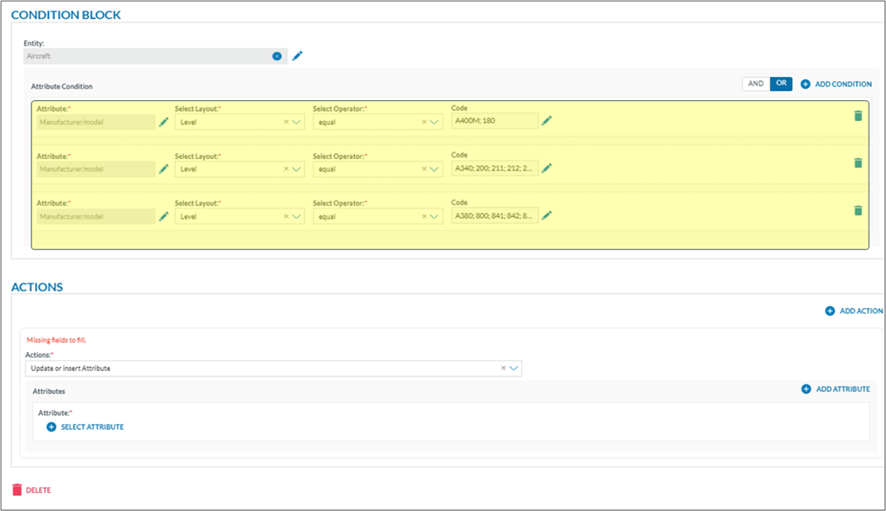
The above conditions will target all Airbus aircraft having 4 engines.
In the actions 4 will be entered in the number of engines attribute
Add an action
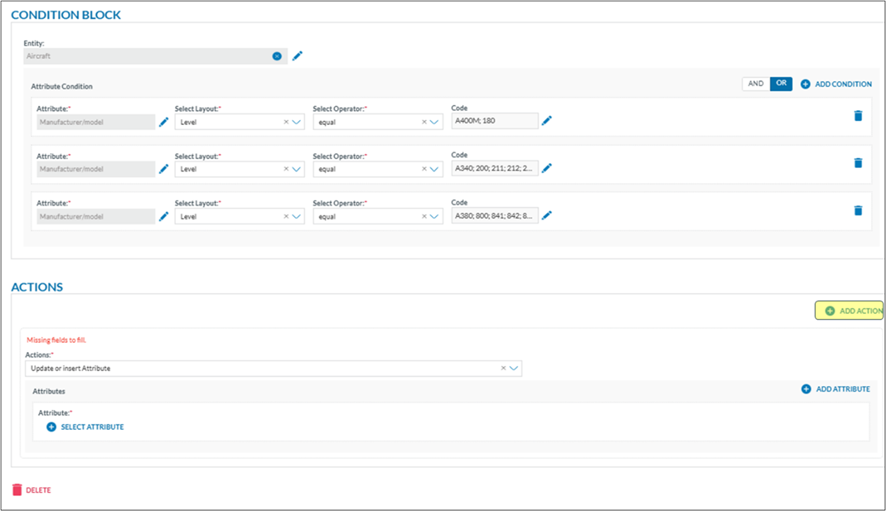
Select the number of engines
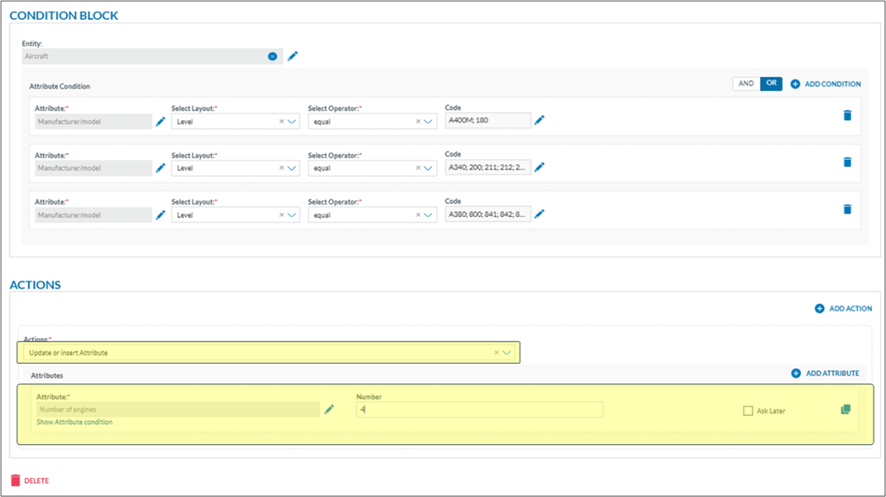
By using the action update or insert, the attribute will either be updated or inserted if absent
As the A400 has propellers, we also add the propulsion type for that aircraft
Add an attribute
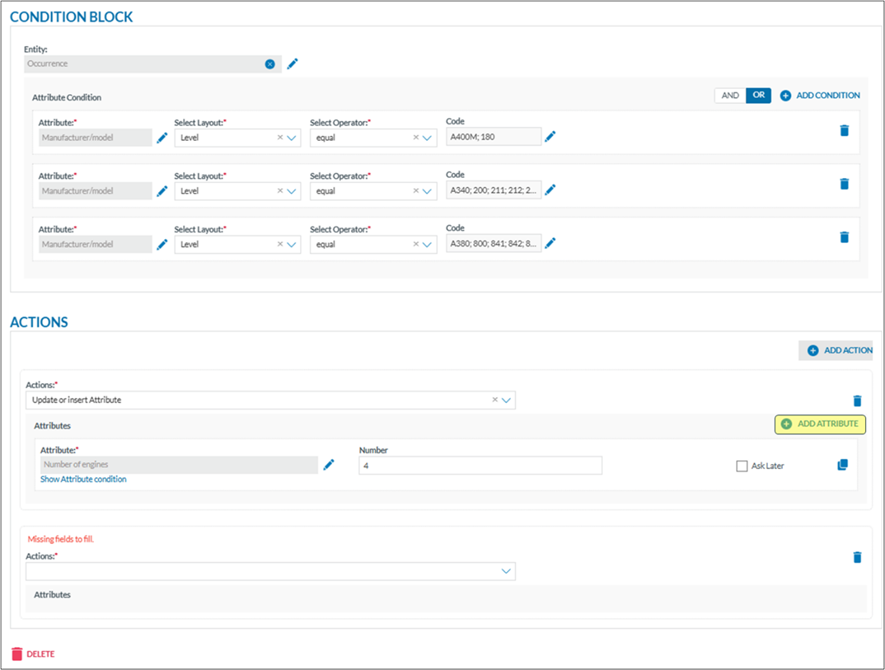
Add the propulsion type
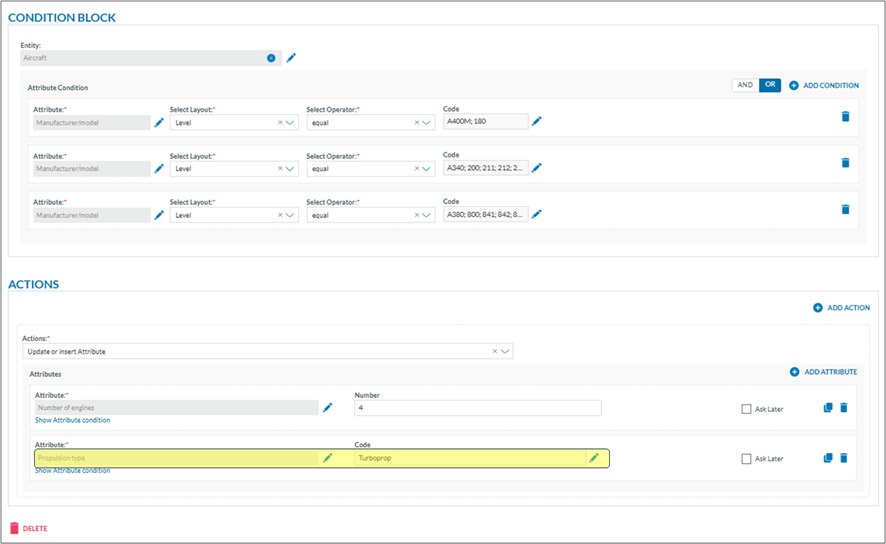
If this query is executed, then A380, A340 and A400M will have 4 engines and have all the turbo prop as propulsion type. Which is wrong. Only the A400M should have the turbo prop as propulsion type
Add a condition to only target the A400M
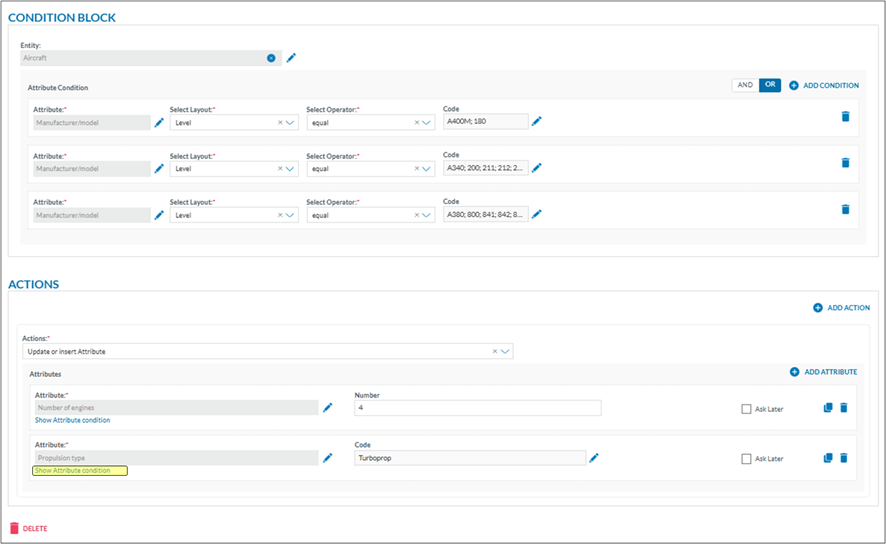
Target the A400M
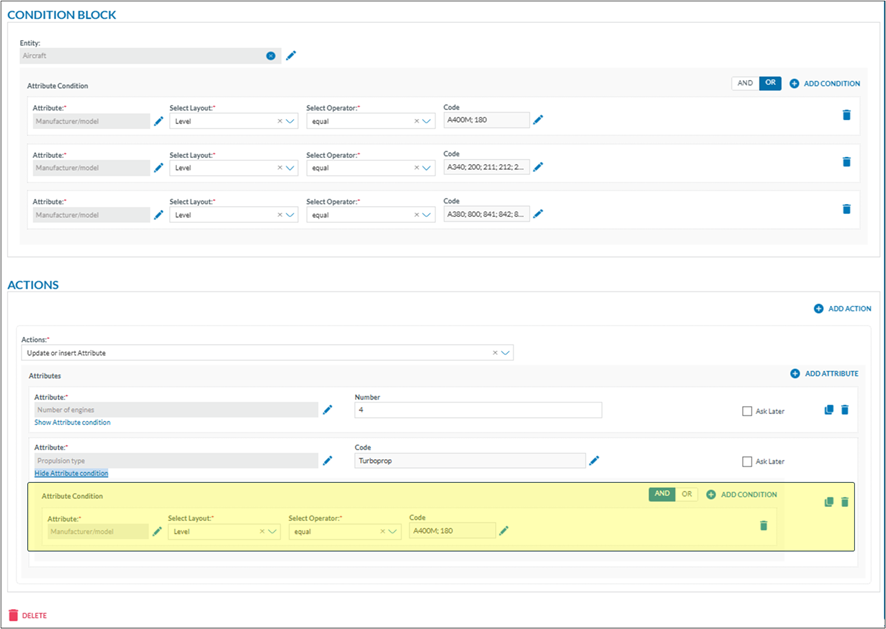
The A380 and A340 have a turbofan as propulsion type.
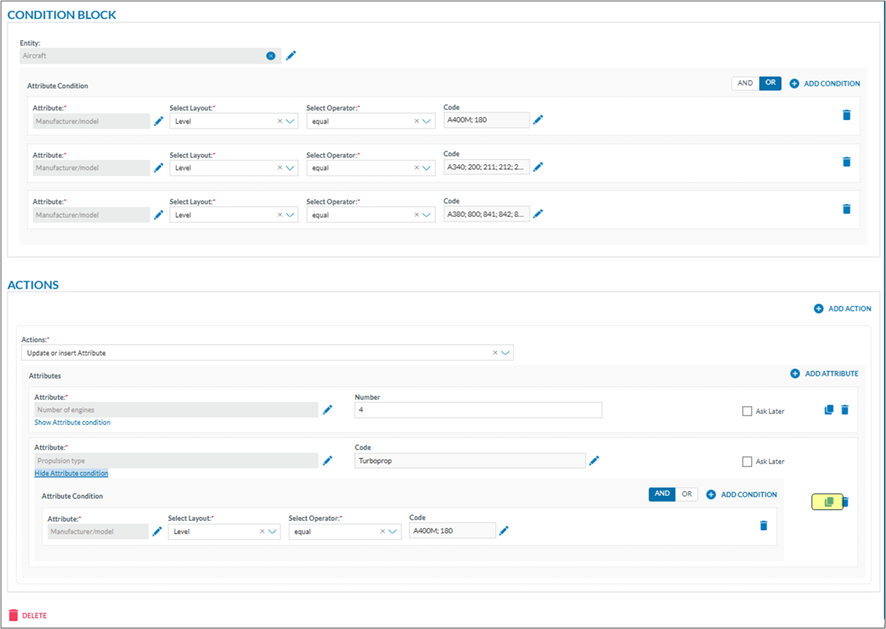
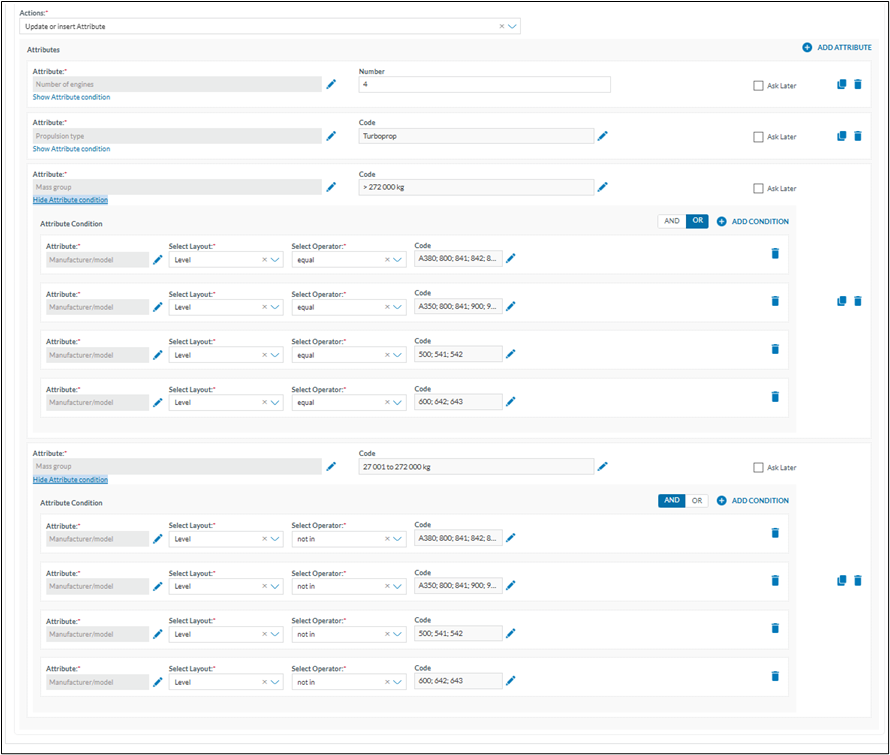
Add an attribute & add the condition to only apply to the A380 and A340. This can be done using the copy function
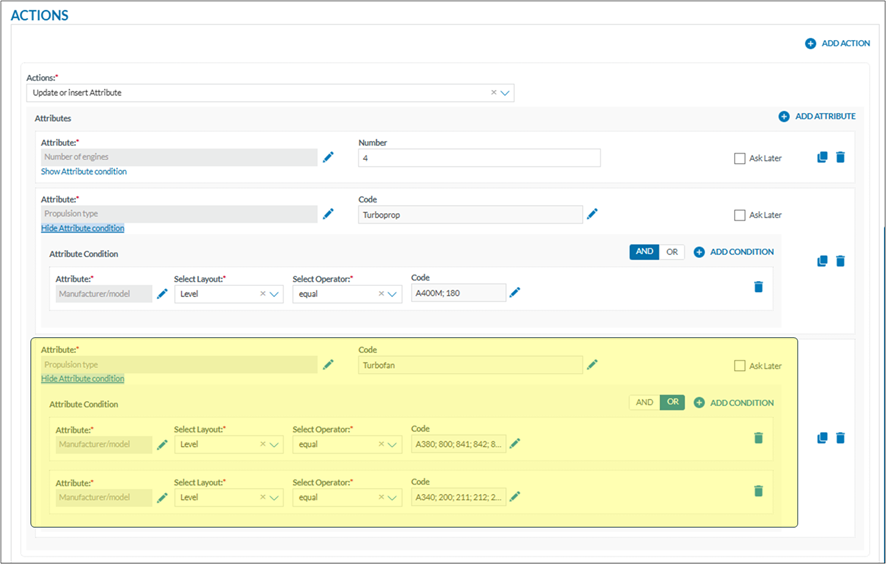
Executing this MABO, will assign 4 engines to A380/A340/A400M and will assign the correct propulsion type
Add landing gear type
Regardless of the type of airbus, the landing gear is always tricycle
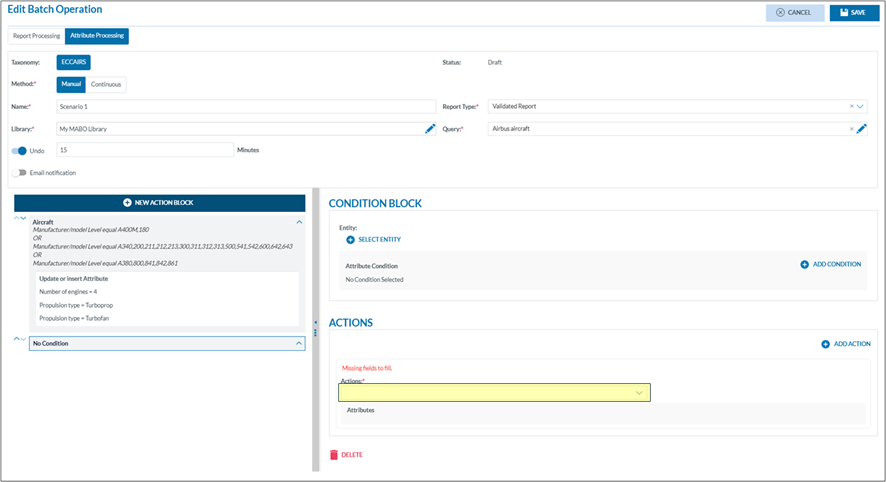
The first action block limits the aircraft to A380/A340 and A400M. A new action block is needed
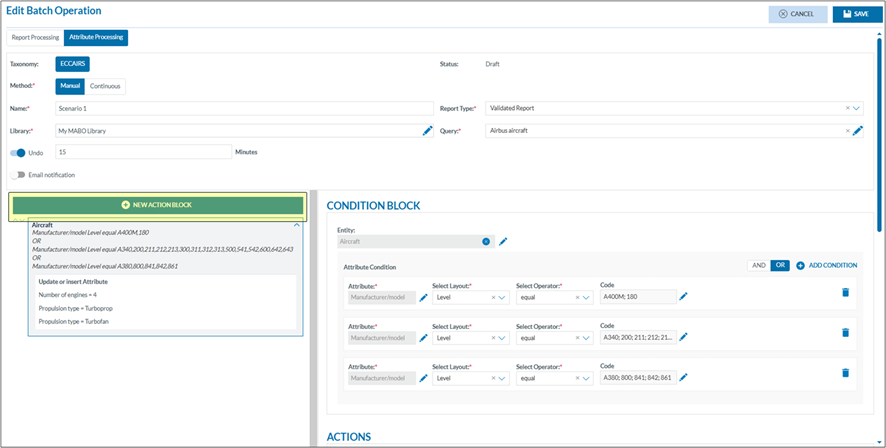
All Airbus Aircraft have a tricycle landing gear, so there is no need have a condition block.
It is possible to extend this block to other attributes
How to use MABOs (Videos)
Pre-recorded video tutorial
Demo Session Recording
How o M2M User
What is an M2M user?
A “machine-to-machine” (M2M) user is basically a "device". In automated communication, M2M devices are designed to communicate with each other autonomously, without requiring human input. They can send and receive data or instructions to perform tasks, monitor conditions, or exchange information with other devices. An M2M user in Eccairs2, will use the exposed API methods allowing to perform tasks related to Submitting reports.
Setting Up an M2M user
What permissions does a user need to have?
Before a user can setup a M2M user, a dedicated role (M2M CRUD) is to be assigned to him. It is the E2 Support Team that will add this permission to the National Security Administrator. This will be done for the first time that an M2M user is to be created in one of the Authority’s organisations.
How to access the M2M creation?
Depending on the user’s permissions, the Organisation management can be opened


As a M2M user can only exist in an existing Organisation, the organisation is to be opened in detail
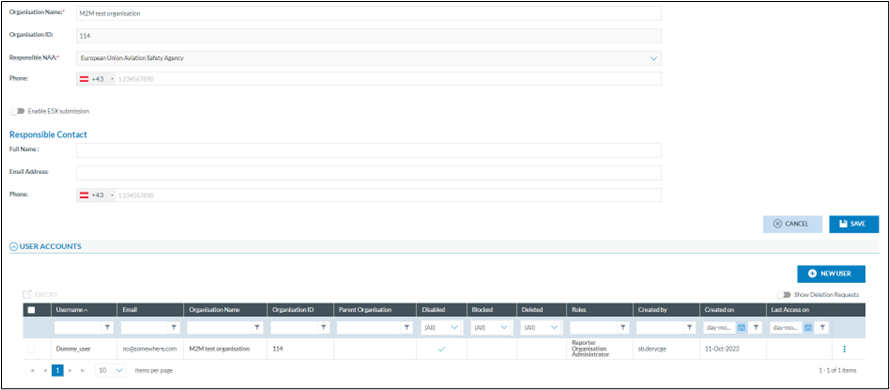
How to add the M2M user to the organisation?
Although a M2M user is not the same as a human user, they are created in the same way.
By clicking on the “new user” button, the user create account window opens
Click on the M2M tab which will open the M2M user creation window. If the M2M is not visible, this indicates that the user willing to create the M2M user doesn’t have the permission (M2M CRUD role) assigned to him. This M2M CRUD role is either to be given by the E2 support Team for the first time or is to be given by the Authority’s nation security administrator.
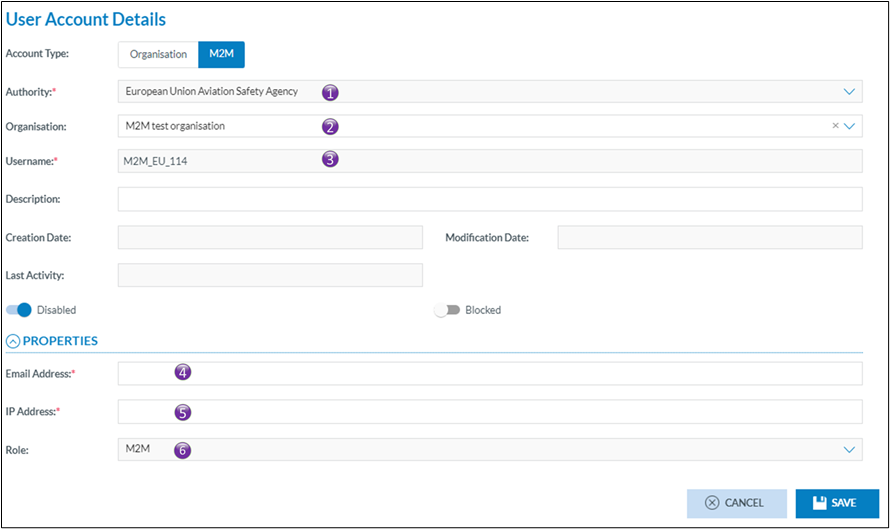
1. Is the name of the Authority in which the M2M user is created. This is prefilled and cannot be modified. It is the Authority of the user that creates the M2M user
2. Is the name of the organisation in which the M2M is to be created
3. Is the username, the username is automatically generated by the system. It ensures that the username is unique throughout Eccairs2. As this is an automatically assigned username, that means, when creating a M2M user for the same organisation in another environment it will not be the same
4. Is the email address to where the activation email for the M2M will be sent. Often this is the email address of the person responsible for the M2M interfacing
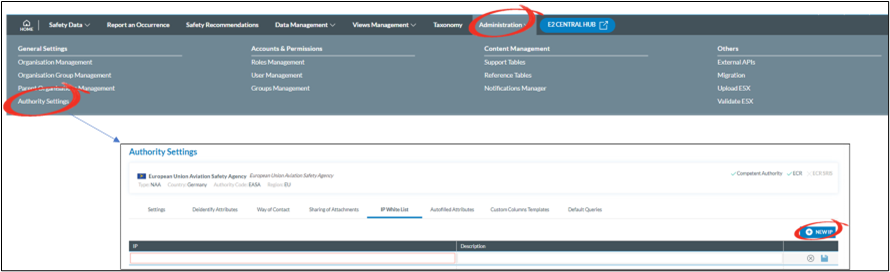
5. Before access to E2 is allowed via a M2M interface, E2 is to know the IP-address(es) of the machine(s) with whom it will communicate. Here only one IP address can be added. If more than one IP address is to be added, then this is to be done via the Authority settings.
6. The role assigned to the M2M user, this is Automatically done by the system and cannot be changed. If this is empty, then a configuration error has occurred, and it is key to create a service desk ticket.
Frequently asked questions
How many M2M user can an organisation have?
Only one M2M is allowed per organisation. The access to E2 is given via the whitelisted IP addresses so no need for extra M2M users
Who will activate the account?
As with all accounts, an activation email will be sent to the email address mentioned in the M2M user’s profile (4). The activation email will be valid for 6 hours
What to do if a M2M activation code has expired?
In the event an M2M activation code expired (> 72 hours), the M2M user can no longer be activated by the user. The activation code can be resent following these steps
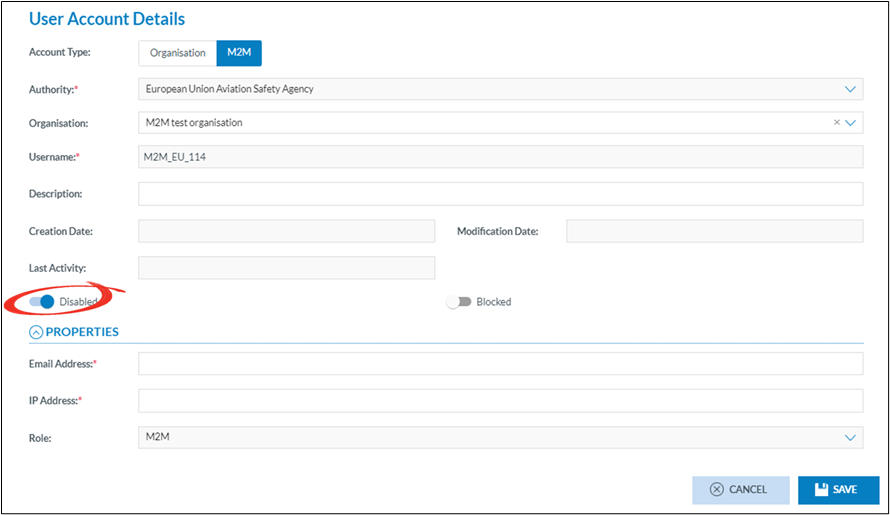
1. Enable the M2M Account
2. Open the ECCAIRS logon screen and click forgot password
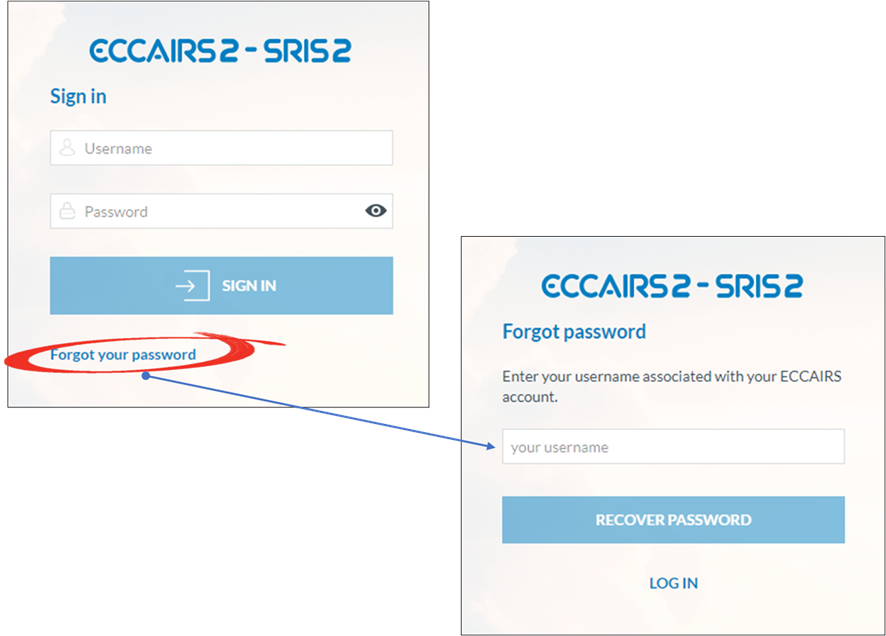
An email will be sent to the email address linked to the username, which is not necessarily the same as the user resending the activation email
What if the email address of the M2M user changed?
Like with all other accounts, email addresses can easily be modified.
How to create an Export by Attribute list
Introduction
Depending on how users intend to utilise the data from E2, they may require different data fields. E2 offers a functionality that allows users to create custom export attribute lists tailored to their specific needs.
Export attribute lists are user bound, that is they cannot be shared amongst other users. Every Authority user has access to this feature.
Accessing the export by attribute list functionality
To gain access to click on your username and select My Account:
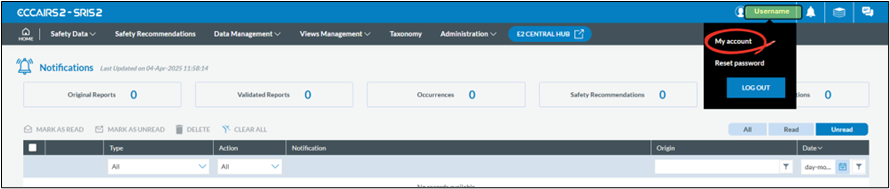
Click on the Export by attribute
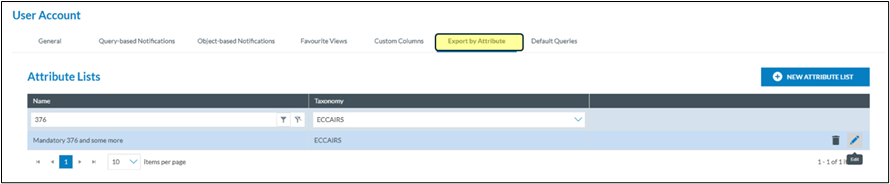
Add an export by attribute list
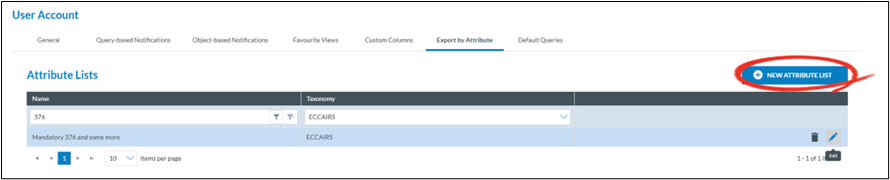
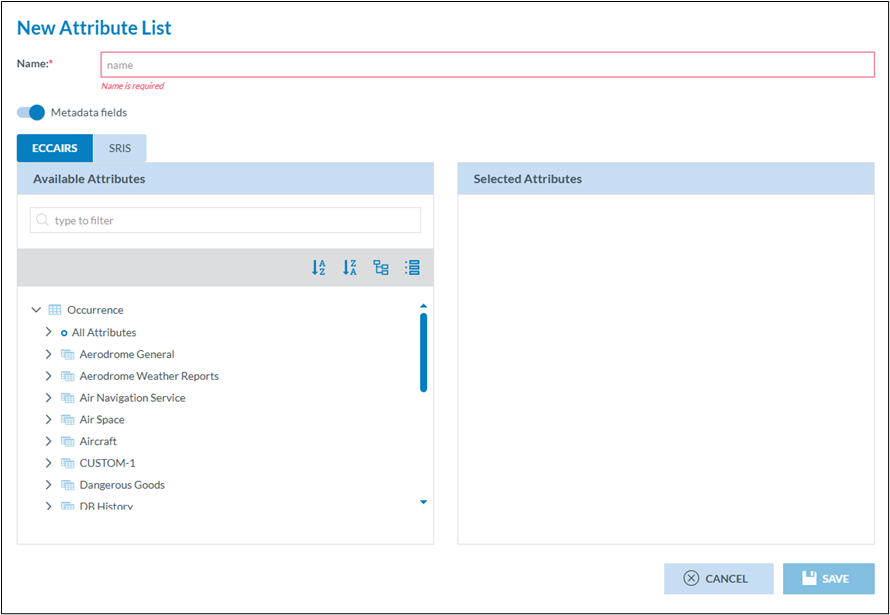
Click on new attribute list

1. Each export by attribute list needs to have a meaningful name
2. When exporting, E2 allows that ALL meta data fields are exported too. This switch, which is set by default to true, can be turned off if this is not required
3. And export list is based on a certain taxonomy. Depending on how your Authority is setup you can chose between ECCAIRS and SRIS. This chose will define what attributes van be selected in (4)
4. This list contains ALL attributes you have access to
5. This list contains your selected attributes
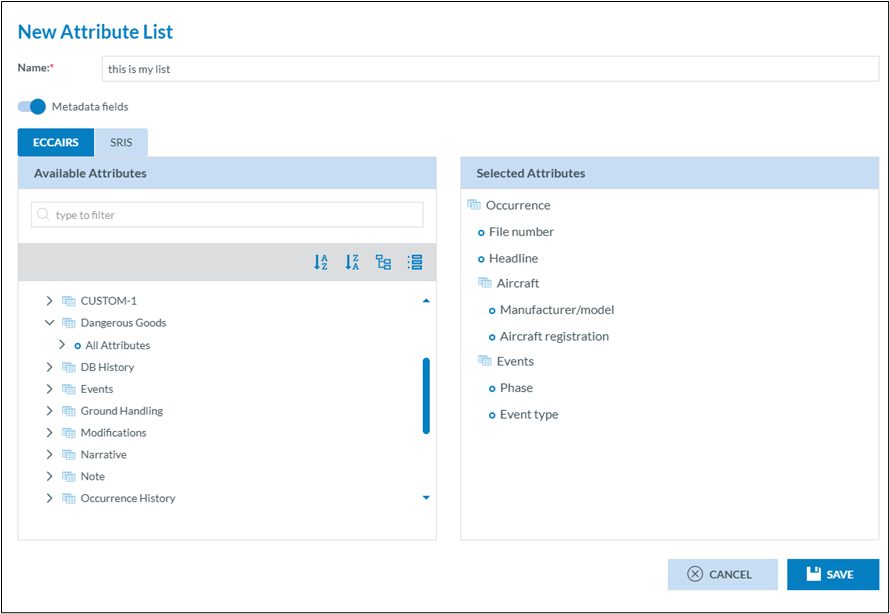
Click Save, and the list will be instantly available for use.
Editing an export by attribute list
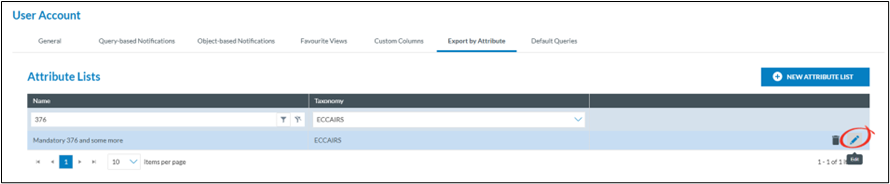
Export by attribute lists can always be modified, even if they have been used before.
Click on the pencil of the export by attribute lists you want to change and the same interface as creatin a new export by attribute lists is shown.
Deleting an export by attribute list
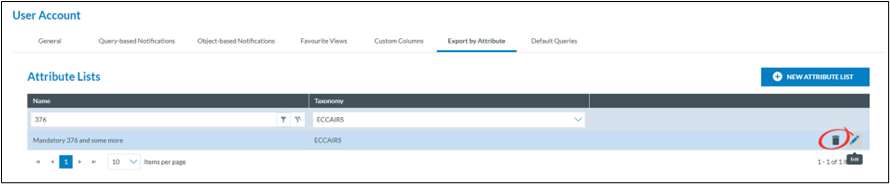
Export by attribute lists can always be deleted, regardless of they have been used before.
Click on the trash can of the export by attribute lists you want to delete.
Creating an export by attribute list in the fly
In many cases, when exporting data, users may find that the existing attribute lists are not suitable. To avoid leaving the list view with selected documents, they can create an export attribute list on the fly.
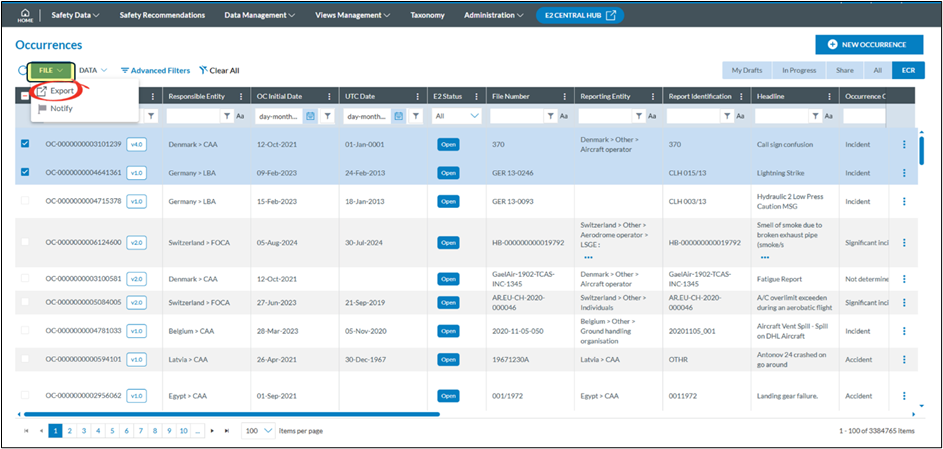
· Select the documents you want to export
· Click on file
· Click on export
· Select attributes
· Select new attribute list
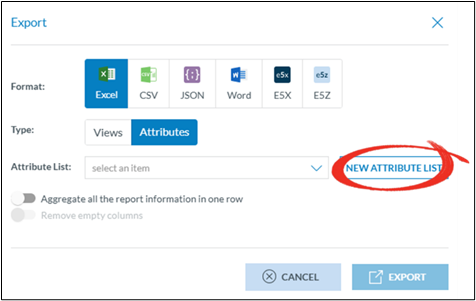
The new attribute creation window will be shown
How to share-transfer-report to
Some background
Although ECCAIRS 2 is mainly used to process reports submitted to an Authority, it may sometime be necessary to inform other Authorities, to ask other Authorities to contribute or to pass on a report to another Authority. ECCAIRS2 provide the means to cater for these needs.
ECCAIRS2 introduced three actions:
· Transfer Full Ownership of an Original Report
· Report an Occurrence to
There is some confusion between the terms “Share”, “Transfer Full Ownership” and “Report to”. It is essential to clarify the distinctions to hold effective communication between parties as misunderstandings caused by this confusion may lead to incorrect processing of reports and occurrences.
Actions
Sharing an Occurrence
Ultimately an Occurrence needs to be shared by the Competent Authority with the European Central Repository (ECR). At the same time E2 provides the means of sharing an Occurrence with other Authorities.
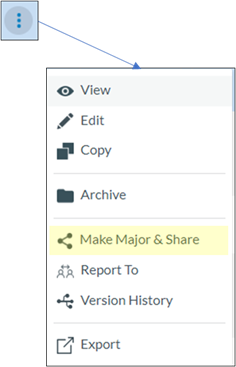
This functionality is combined in the make major and share action.
It is possible to directly set the Occurrence in the major version status, share it with the ECR and share it to multiple Authorities at the same time.
At the end of each Occurrence list view row there are three vertical dots.

The “include attachments” switch allows for attachments to be shared too.
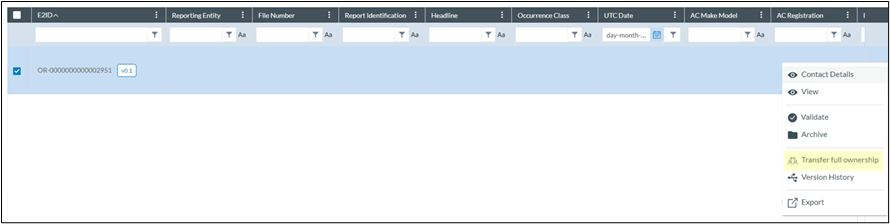
Transfer full ownership.
Notwithstanding that ECCAIRS2 has put a lot of fail saves in place to prevent reporters submitting reports to the wrong Authority, this sometimes happens. In most cases this happens with unregistered users or registered users not belonging to a registered organisation that must choose to which Competent Authority they have to report to.
In the event an Authority received such an erroneously submitted report, it may decide to contact the reporter if contact details are available or to re-allocate the report directly to the correct Authority. The latter is done via the Transfer ownership.
When the transfer ownership interface appears, the user can choose the correct Competent Authority from the proposed list.
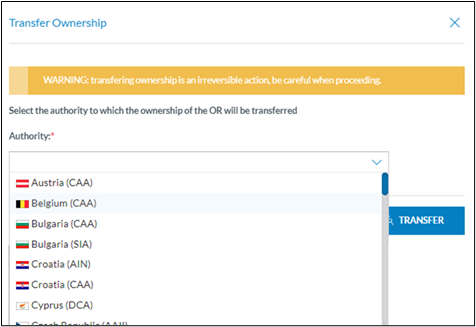
Be aware that this is an irreversible action and cannot be undone.
The report will completely disappear from the Authority’s radar; it will be as it was never received.
Report To
This action is used when an Occurrence concerns 2 Authorities (e.g., CAA & SIA). It will create 2 separate streams. Both streams can be worked on separately, yet there is only 1 Authority that can share the occurrence with the ECR as competent Authority.
Process flow
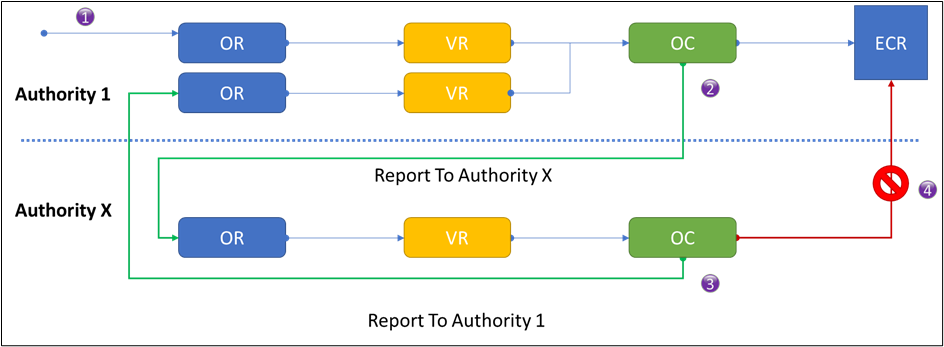
1. A report is Submitted by a reporter to Authority 1. This Authority processes the Original Report up to a Major version of an Occurrence and shares it with the ECR
4. Although there is nothing that prevents Authority X to also share the Occurrence with the ECR. It should refrain from doing so to avoid unnecessary duplicates in the ECR
Interface
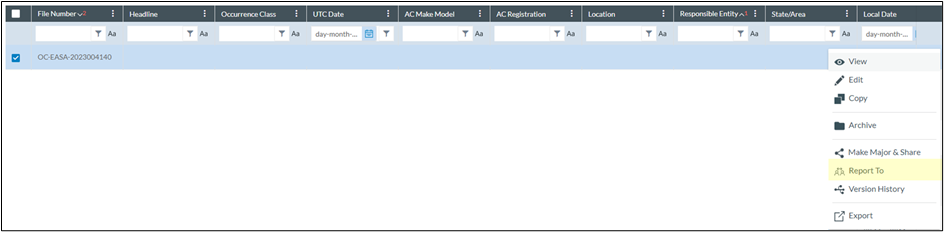
In the interface, select the Authority to whom the Occurrence is to be reported to
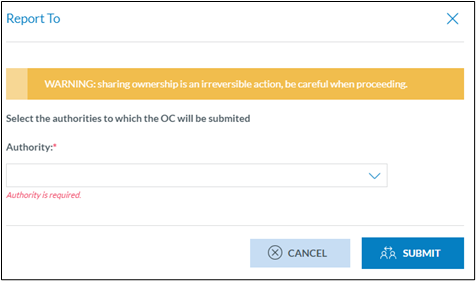
After the submit, the Occurrence is reported as an Original Report to the addressed Authority. The second flow is established
Setup a notification
Via the notification manager a notification can be setup to be informed about a report you received

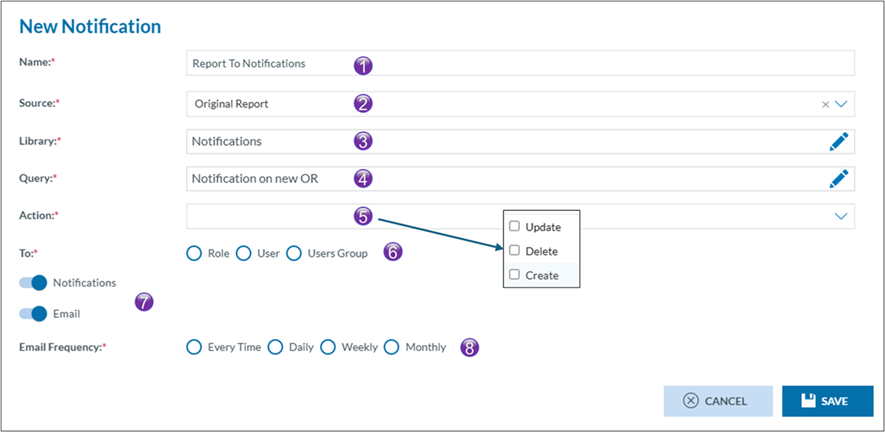
1. The name of the notification
2. As an Occurrence (OC) which is sent to your Authority using the “Report To” will create an Original Report (OR), the source needs to be Original Report
3. In which library is the notification to be saved
4. Which query will target the Original Reports
5. On what action is the notification to be triggered (multiple selections are possible)
6. Who will be notified
a. Role à all users having a specific role
b. Targeted individual users
c. Users belong to a group
7. How will the users be notified
a. On their landing page (notifications)
b. Via a email
8. At what frequency will the notifications be sent
How o apply for an E2 automation
What is E2 Automation
Besides submitting reports using either the online web forms or the offline PDF forms, an organisation may also choose to submit their reports directly from their legacy SMS system. Many SMS providers include functionality to interface with external applications such as E2, allowing reports to be transmitted automatically without requiring manual re-entry.
What is an M2M user?
A “machine-to-machine” (M2M) user is basically a "device". In automated communication, M2M devices are designed to communicate with each other autonomously, without requiring human input. They can send and receive data or instructions to perform tasks, monitor conditions, or exchange information with other devices. An M2M user in Eccairs2, will use the exposed API methods allowing to perform tasks related to Submitting reports.
Types of automation
In general, there are two types of automation
· The SMS provider interfaces directly with E2 using the API methods. They create the reports using the exposed API methods
· The SMS provider interfaces with E2 by submitting reports in the E5X-format
Regardless how the SMS provider interfaces with E2, the following stages are common.
Stages
Submitting reports by an organisation is done in 3 stages
1. The sandbox stage
This stage is a purely technical IT step, designed to demonstrate that the organisation or its software provider is capable of connecting to E2 and transmitting reports via the API method.
· Objective: Prove technical connectivity and ability to submit reports through the API.
· Support: The E2 Support Team provides sufficient assistance to ensure that the organisation or SMS provider can establish a connection and successfully send reports.
· Report quality: At this stage, the content, quality, or completeness of the reports is not evaluated—only the technical submission process matters.
· Involvement: The Authority is not involved. Only the SMS provider and the E2 Support Team participate.
· Duration: If a software provider already has a proven record of connecting to E2 and submitting reports, this stage may be significantly shortened or even skipped.
2. The UAT stage
Once an organisation or its software provider is able to successfully send reports via the API interface in the Sandbox environment, access will be granted to the UAT (User Acceptance Testing) environment.
· E2 Support will notify the SMS provider to contact the relevant Authority to which the organisation reports.
· The organisation, either using its own system or software supplied by the SMS provider, will submit reports through this environment.
This UAT stage continues until the Authority confirms successful validation and gives the official green light for production.
3. The production stage
The is the last stage, connecting and sending reports to E2 using the API should be flowless and the quality should be of high enough quality.
URLs
· PROD --> https://api.aviationreporting.eu
· UAT --> https://api.uat.aviationreporting.eu
· SANDBOX --> https://api.sandbox.aviationreporting.eu
What data is to be provided?
· Stage 1 (Sandbox)
The name, first name and email address of the focal point at the organisation dealing with technical issues
The IP addresses of the organisation servers from which the API will be invoked
(format 111.222.333.444/xy)
· Stage 2 (UAT)
The name, first name and email address of the focal point at the organisation dealing with submitting test reports
· Stage 3 (Production)
Same as stage 2
What will the E2 Support Team do?
· Setup the Sandbox
· Provide technical assistance in stage 1
What is the Authority to do?
· Setup the UAT and Production environments
· Validate the submitted test reports in UAT
· Give feed back to the organisation
· Give the green light to go to production
Setting Up an M2M user
What permissions does a user need to have?
Before a user can setup a M2M user, a dedicated role (M2M CRUD) is to be assigned to him. It is the E2 Support Team that will add this permission to the National Security Administrator. This will be done for the first time that an M2M user is to be created in one of the Authority’s organisations.
How to access the M2M creation?
Depending on the user’s permissions, the Organisation management can be opened


As a M2M user can only exist in an existing Organisation, the organisation is to be opened in detail
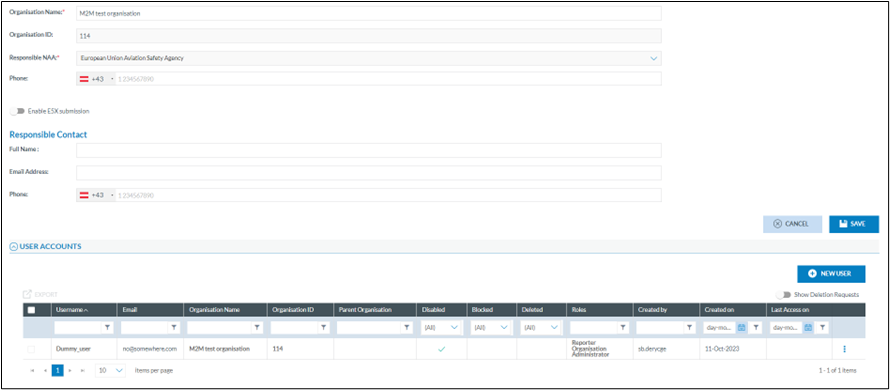
How to add the M2M user to the organisation?
Although a Machine-to-Machine (M2M) user is not the same as a human user, it is created in the same way.
1. Click on the “New User” button – the User Creation window will open.
2. Select the M2M tab – this will open the M2M User Creation window.
3. If the M2M tab is not visible, it means that the user attempting to create the M2M account does not have the required M2M CRUD role.
Assigning the M2M CRUD Role:
· The first time, this role is assigned by the E2 Support Team.
· Afterwards, it is managed by the Authority’s national security administrator.
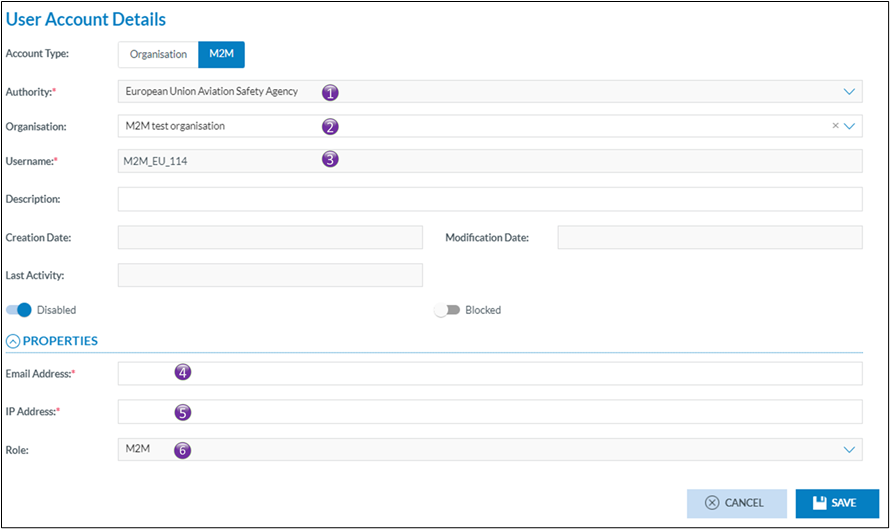
1. Is the name of the Authority in which the M2M user is created. This is prefilled and cannot be modified. It is the Authority of the user that creates the M2M user
2. Is the name of the organisation in which the M2M is to be created
3. Is the username, the username is automatically generated by the system. It ensures that the username is unique throughout Eccairs2. As this is an automatically assigned username, that means, when creating a M2M user for the same organisation in another environment it will not be the same
4. Is the email address to where the activation email for the M2M will be sent. Often this is the email address of the person responsible for the M2M interfacing
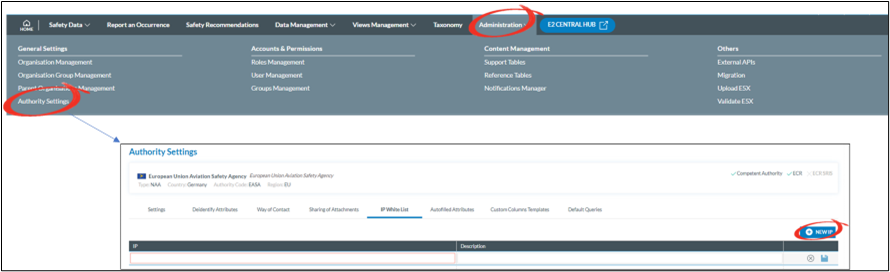
5. Before access to E2 is allowed via a M2M interface, E2 is to know the IP-address(es) of the machine(s) with whom it will communicate. Here only one IP address can be added. If more than one IP address is to be added, then this is to be done via the Authority settings.
6. The role assigned to the M2M user, this is Automatically done by the system and cannot be changed. If this is empty, then a configuration error has occurred, and it is key to create a service desk ticket.
Frequently asked questions
How many M2M user can an organisation have?
Only one M2M is allowed per organisation. The access to E2 is given via the whitelisted IP addresses so no need for extra M2M users
Who will activate the account?
As with all accounts, an activation email will be sent to the email address mentioned in the M2M user’s profile (4). The activation email will be valid for 6 hours
What to do if a M2M activation code has expired?
In the event an M2M activation code expired (> 72 hours), the M2M user can no longer be activated by the user. The activation code can be resent following these steps
1. Enable the M2M Account
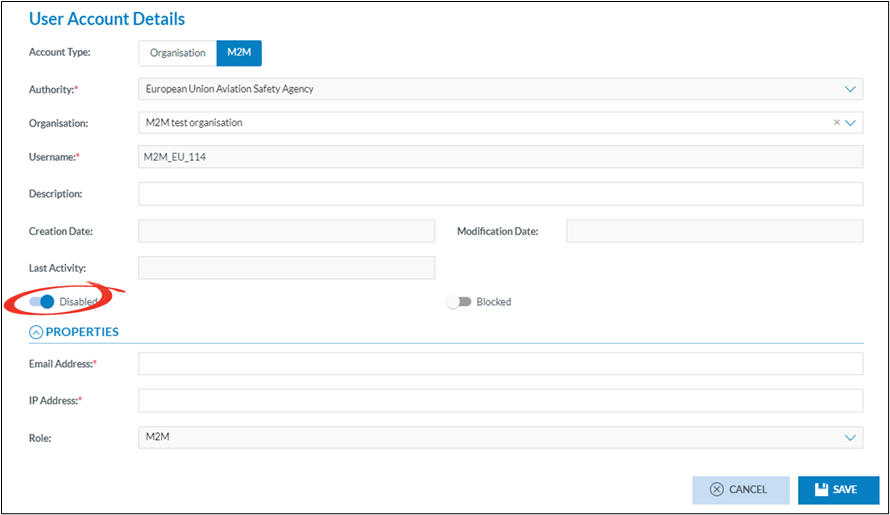
2. Open the ECCAIRS logon screen and click forgot password
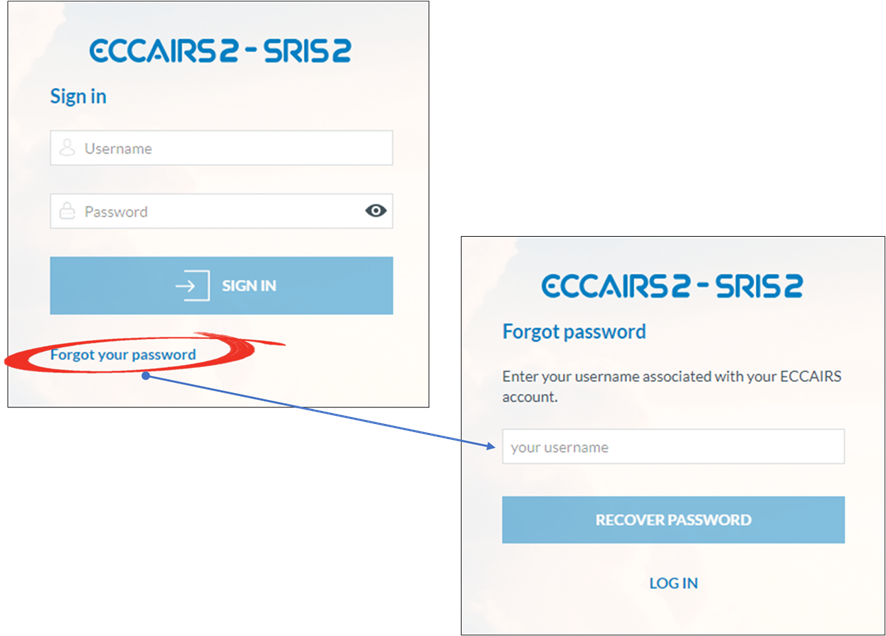
An email will be sent to the email address linked to the username, which is not necessarily the same as the user resending the activation email
What if the email address of the M2M user changed?
Like with all other accounts, email addresses can easily be modified.
How to use the Value List Management Tool
Abstract
The Value List Management Tool in E2 enables authorized users to create, edit, and disable values in value lists efficiently, with full tracking and collaborative functionality.
Some background
Value lists are a fundamental component of the taxonomies used in ECCAIRS 2 (E2). The management of these value lists is performed at the EASA ECCAIRS level, meaning it is the responsibility of the ECCAIRS system administrators.
In ECCAIRS 5, an add-on application called the Taxonomy Manager was available. This tool enabled Authorities to contribute directly to specific value lists for which they were considered the source or had authoritative knowledge.
For example, the operators value list, reporting entities… could be maintained by the relevant National Aviation Authorities.
These contributions were collected and reviewed at set intervals. The Joint Research Centre (JRC) then consolidated the inputs from various Authorities, and the resulting updates were incorporated into a new taxonomy release.
Although the Taxonomy Manager gave the Authorities the possibility to independently give their contributions, it was still a time-consuming task for the JRC to gather all data, consolidate it and release a new taxonomy.
The JRC was still responsible for:
- Collecting all submissions from multiple Authorities,
- Validating and consolidating the data to ensure consistency and integrity, and
- Publishing the updates through an official taxonomy release.
As a result, even with decentralized input, the central coordination and release cycle placed a significant workload on the JRC.
In ECCAIRS 2 (E2), the Taxonomy Manager tool from ECCAIRS 5 is no longer available. As a result, the responsibilities previously handled via that tool have been redistributed between the E2 Taxonomy Working Group and the E2 System Administrators
Enters the E2 Collaborative Value List Manager
Since the Value List Manager from ECCAIRS 1 (E1) is not compatible with ECCAIRS 2 (E2), a new functionality was developed to support value list management within E2. Unlike the E1 approach, this new feature Is not an add-on or external application, it Is fully embedded within the E2 platform.
The targeted value list for collaborative management
The decision to designate a value list as collaborative—meaning it can be updated or maintained by multiple contributors, is the joint prerogative of the Taxonomy Working Groups and the ECCAIRS System Administrators.
These values lists are released as collaborative value lists for now
· Operators
Workflows
Global overview
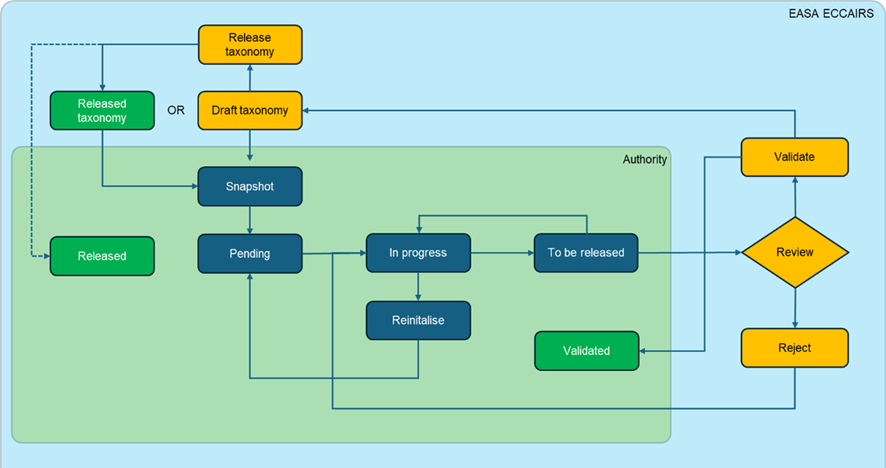
Validated workflow
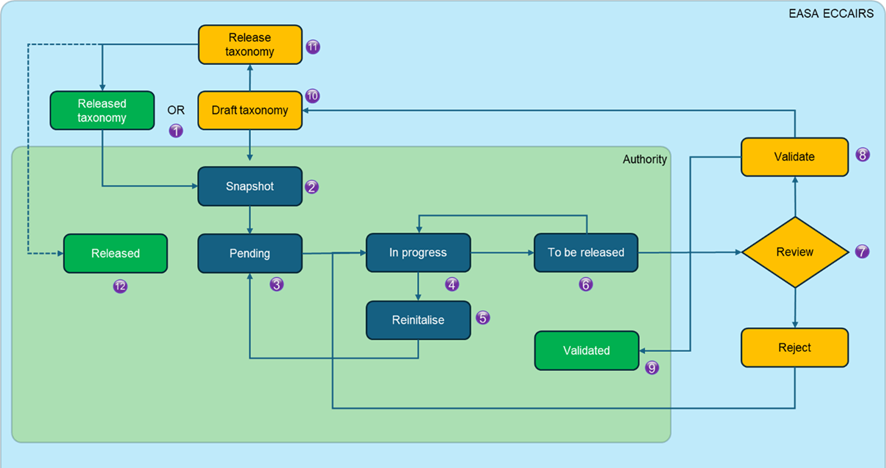
1. The EASA ECCAIRS system administrators create a snapshot of the value list from a released taxonomy or from a draft taxonomy
2. The snapshot is delegated to the Authority
4. When the value list is being worked on, it gets the status in progress
5. If deemed necessary, the value list can be reset to its initial state so voiding all modifications done to it so far
7. ECCAIRS system administrators assess the Value List
8. If the ECCAIRS system administrators assess the list to be correct and of good quality, they validate the value list
10. The validated value list is automatically incorporated in the draft taxonomy
11. The ECCAIRS system administrators release the draft taxonomy, and the life cycle start all over again
12. When a Draft taxonomy, that included a validated snapshot is released, then the status of that snapshot is changed to ‘Released’ and a new ‘Pending’ snapshot is generated for the authority to continue working on it
Rejected workflow
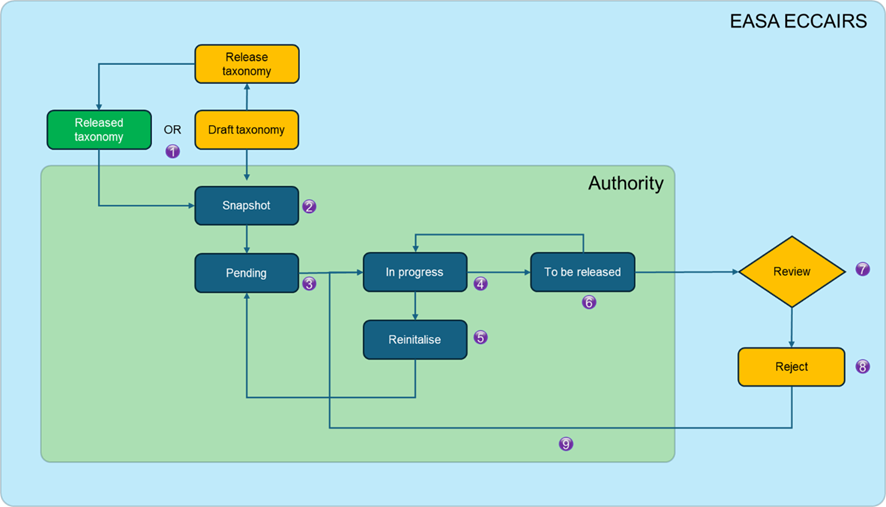
1. The ECCAIRS system administrators create a snapshot of the value list from a released taxonomy or from a draft taxonomy
2. The snapshot is delegated to the Authority
4. When the value list is being worked on, it gets the status in progress
5. If deemed necessary, the value list can be reset to its initial state so voiding all modifications done to it so far
6. When all modifications to the value list are done, it can be released for assessment by the ECCAIRS system administrators, it gets the status to be released
7. The ECCAIRS system administrators review the value list
8. If the Value list is incorrect or of poor quality, it will be rejected by the EASA ECCAIRS system administrators. A reason for rejection will be added
Using the collaborative value list manager (CVLM)
Accessibility
A dedicate role is to be assigned to users that will use the collaborative value list manager. This can be assigned at central level or by the National Security Admin of each authority. This role is not the same as the “National Taxonomy Administrator” role, which allows users to manage the custom taxonomy
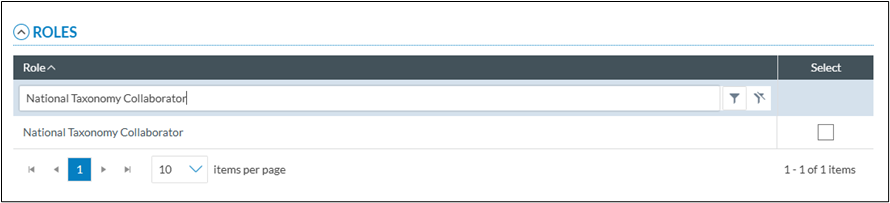
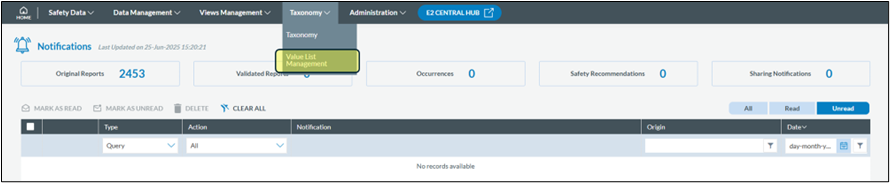
Accessing the CVLM
If you have been given the National Taxonomy Collaborator role, you can access the CVLM via the taxonomy menu
The CVLM List view
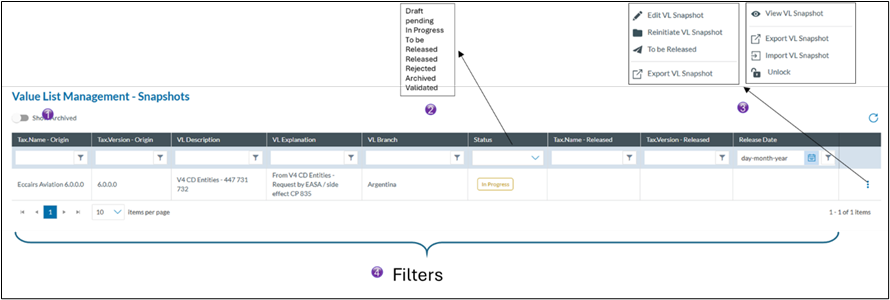
1. With this switch you can visualise all archived snapshots
2. These are the different status a snapshot can have
· Draft
· Pending. When a new snapshot is made available or the snapshot has been re-initialised, the status pending is given
· In progress, when a value list is being worked on.
· To be released, a value list is up to date and is send to the ECCAIRS system administrators for assessment. The value list can be put back to in progress for as long as it has not been validated
· Released, it has been validated and is part of the released taxonomy
· Rejected, the value list was rejected by the ECCAIRS system administrators
· Archived, the archived are automatically generated when a snapshot is Reinitiated
· Validated, the value list was of good quality and correct and will be part of the next taxonomy release. No more modifications are possible
3. These are the different actions that can be performed on the snapshot. This list will contain actions depending on the status of the snapshot
4. The header filters allow you to filter out certain snapshots
View the snapshot
This option opens the Value list in read only mode. No modifications can be brought to the Value List. The value list only shows the part that has been delegated to your Authority.
This option is available regardless of the snapshot status.

1. Search Functionality
The integrated filter allows users to search within a Value List for a specific entry. This search is comprehensive, it checks not only the value description, but also the detailed description, explanation, and all defined aliases.
2. Visual Change Tracking
To improve clarity when identifying modified entries, a colour-coding system has been implemented. Values that have been affected, either added, edited, or deactivated, are visually highlighted, making it easier to track changes during the editing and review process.
Edit the snapshot
A snapshot can only be edited when it is in the “pending” or “in progress” status
Edit an existing value

1. Search Functionality
The integrated filter allows users to search within a Value List for a specific entry. This search is comprehensive, it checks not only the value description, but also the detailed description, explanation, and all defined aliases.
2. Clicking the "New Value" button adds a new value at the hierarchical level below the currently selected entry. The position can be adjusted later if needed.
3. Visual Change Tracking
To improve clarity when identifying modified entries, a colour-coding system has been implemented. Values that have been affected, either added, edited, or deactivated, are visually highlighted, making it easier to track changes during the editing and review process.
4. The Value ID field is read-only and cannot be modified. When a new value is added, the system automatically assigns a Value ID
5. These attributes are editable (except the XSD Tag).
6. The aliases associated with a value are displayed and can be edited. Users may modify alias values or set one as the default. However, adding or removing aliases is not permitted, as alias management is handled at the ECCAIRS System level.
7. No changes are committed until the Save button is clicked. Once saved, the value is assigned the appropriate colour according to the applied change, refer to the defined colour scheme for details.
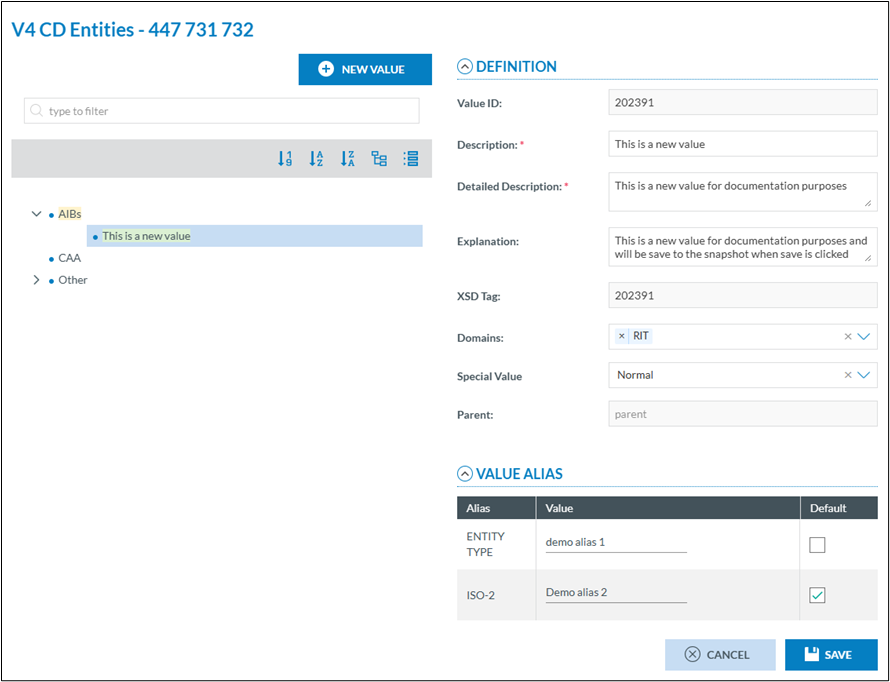
Add a new value
By clicking on the add new value button the right pane is blanked, a new value.
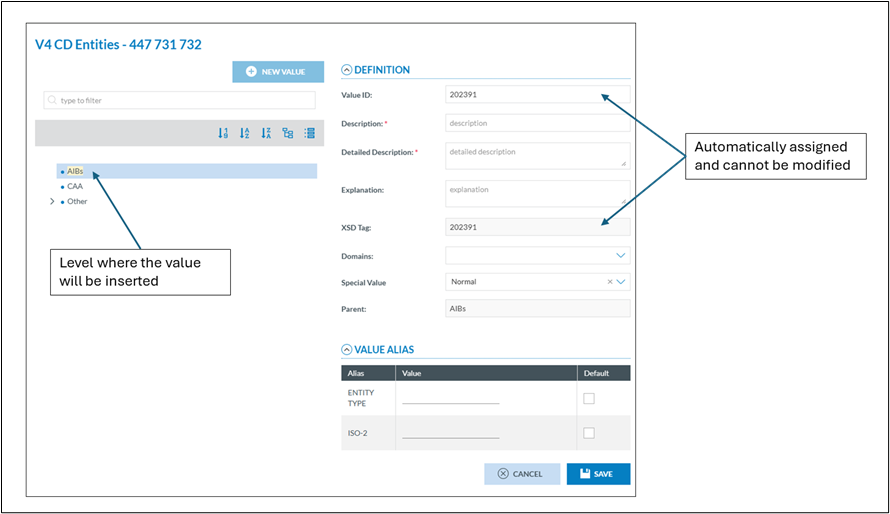
The attributes marked with a red asterisk (*) are mandatory.
When save is clicked the value is save in the snapshot and will be assigned the correct colour according to the colour scheme.
Deactivate a value
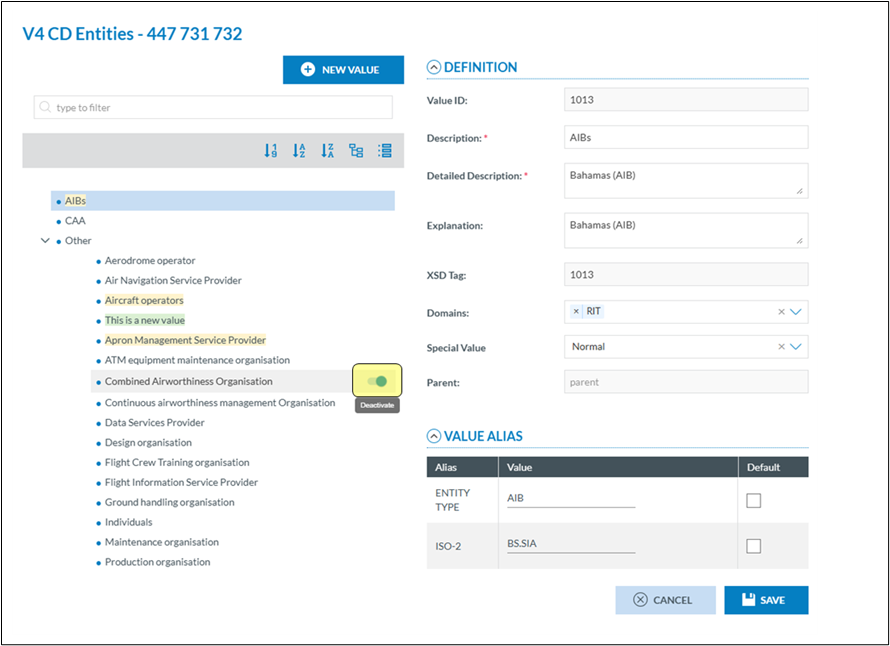
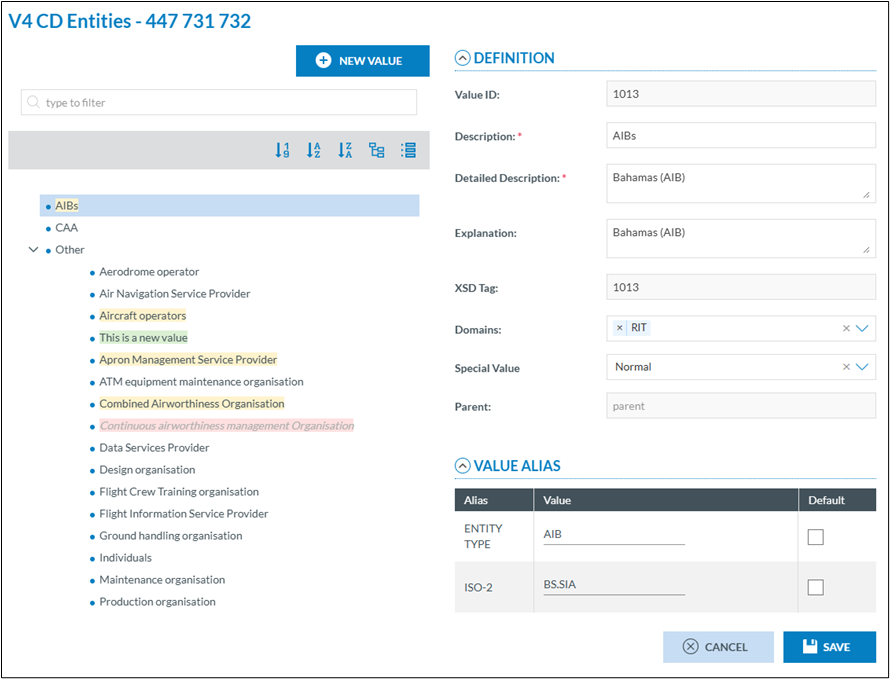
Values from a value list are never physically deleted. They are given a deactivated status. This means that the value can no longer be used by reporters in their reports, yet in the already submitted ORs.
or existing VRs and OCs, they are still visible. Also, in the value list, they will appear in a greyed-out colour in the taxonomy.
When hovering with the mouse over a value, a switch becomes visible. Setting the switch to the left will disable the value, setting it to the right (default) will active the value.
Changing the position of a value
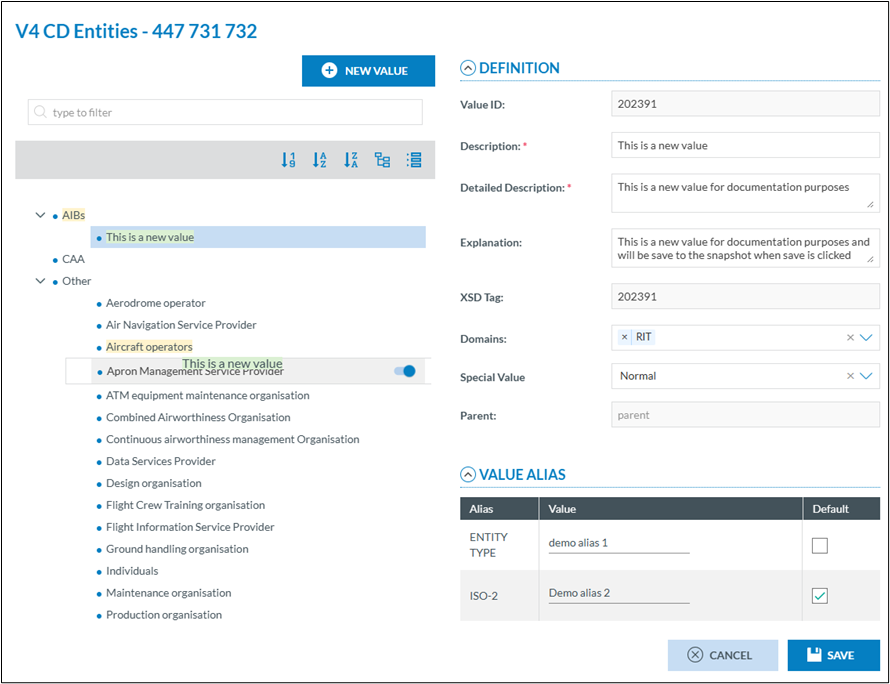
Changing the position of a value within a Value List can be done easily using the built-in drag-and-drop functionality in E2. This intuitive feature allows users to reposition values directly within the hierarchy, ensuring the list structure reflects the desired order.
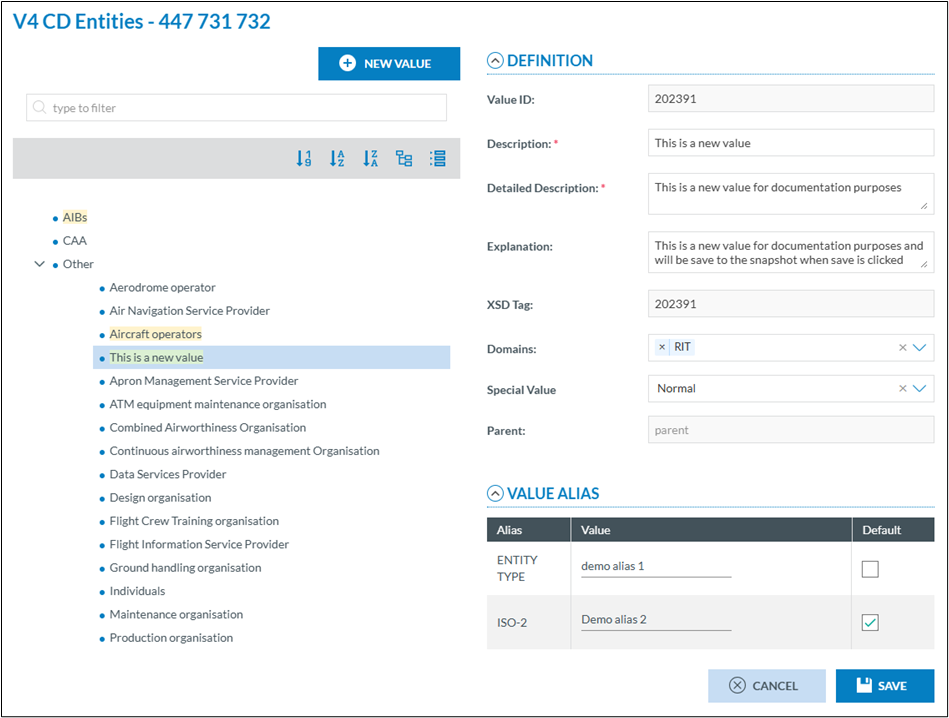
Reinitiate the snapshot
In some cases, it may be desirable to start over completely and discard all previously made changes to a Value List. E2 allows users to do this by using the reinitialise function, which reverts the list to its original state, effectively voiding all modifications made up to that point.
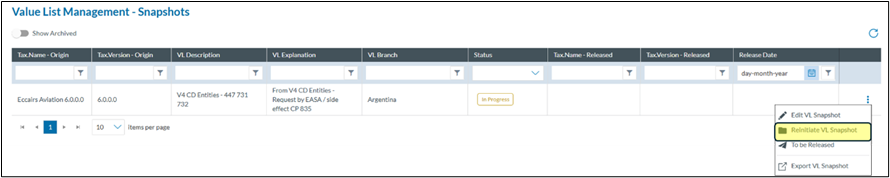
To reinitialise, you archive the value list, and a new pending snapshot is created which allows you to start over again.
The value list is set back to the pending status
Set the snapshot to be release
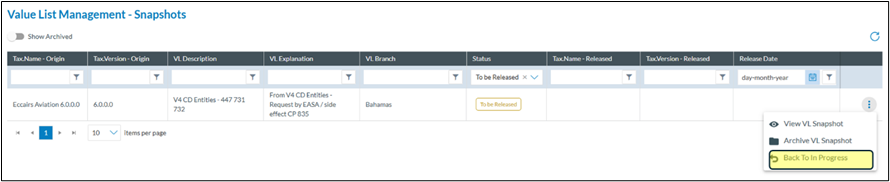
When all modifications for your Authority have been done, you can set the snapshot to the to be released status. This status will trigger an action by the system administrators to validate the snapshot or to reject it.
If the snapshot is in the “To be Release status”, it can be set back to in progress. Once the ECCAIRS system administrators have validated the snapshot it gets the status Validated and cannot be changed anymore
Export/import snapshot
Instead of having to add, modify or disable values one by one, the CVLM offers the possibility to first export the values list for editing and import the value list back into the CVLM once done.
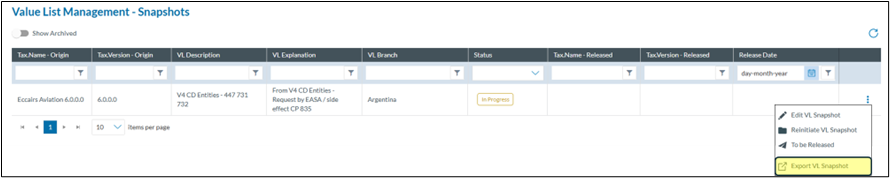
Clicking on the export VL Snapshot will do 2 things:
1. It will lock the Snapshot, this to prevent that multiple instances are created.
2. It will create an excel file which is automatically downloaded in the Download folder.
Special care is to be taken when editing the Excel file. The exported Excel file has 3 sheets:
1. Help: containing a brief explanation what needs to be considered when editing values.
2. Properties: this sheet contains certain characteristics and may NOT be edited.
3. Values: This sheet contains the value list values.
Depending on the value list that is being edited, the Values sheet may contain more or less columns, yet the 13 first columns are always there.
Value List Rules
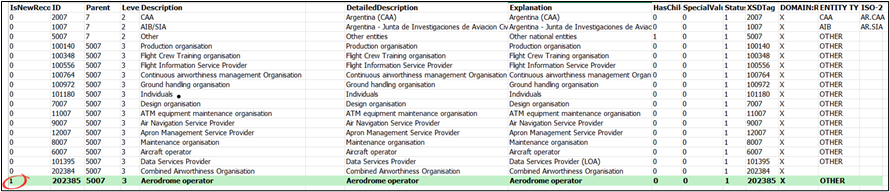
1. IsNewRecord must be:
0: Value does not change
1: New value
2: Value has changed
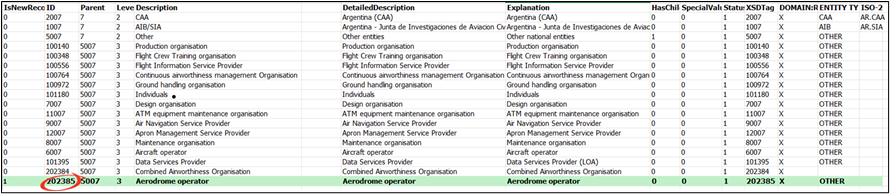
2. ID must be unique across the entire Value List or Snapshot (not just within the Excel sheet). The IDs assigned to the values in the Excel file are for reference only and may change when imported into the list.
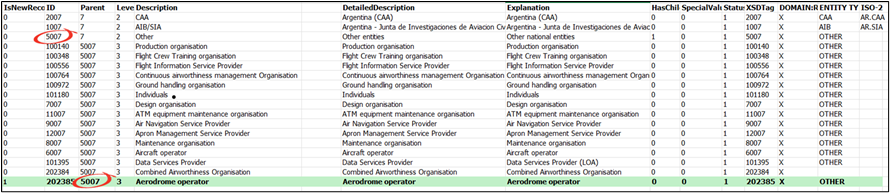
3. The ID of a Parent Value cannot be the same as the ID of a Child Value. Each Parent Identifier must exist in the Value List, Snapshot, or within the Excel file. The level of a Child Value must be its Parent's level + 1.
4. Value’s level cannot exceed the maximum number of levels defined in the Value List. Furthermore it must be > 1
5. Description is limited to 600 characters
6. AlternativeDescription is limited to 600 characters
7. Detailed Description is limited to 1200 characters
8. Explanation is limited to 3600 characters
9. The HasChild field must be:
0: No child values present
1: Child values exist
(Set to 1 only if the value has children; otherwise, use 0.)
10. The SpecialValue field must be
Special Value has an influence on the position of th value in the Value List. By default (0) the value will be in alphabetical order. 1,2 and 3 will put the value at the end of the list.
0: Normal (default)
1: None
2: Other
3: Unknown
11. The Status field must be:
1: Active
2: Inactive
When creating a new value (IsNewRecord = 1), the Status must not be 2.
If a value has Status = 2, all its child values must also have Status = 2.
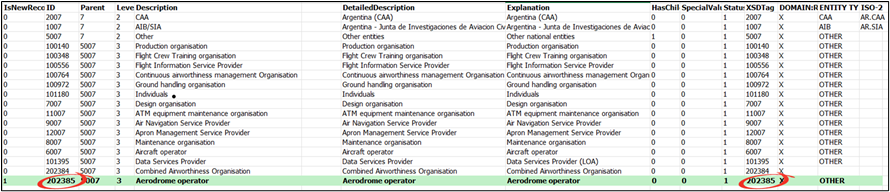
12. The XsdTag of a value must be equal to its ID.
13. For values in the RIT Domain, an 'X' must be entered in the Domain column.
14. Any Alias assigned to a value must already exist in the defined Aliases which are defined at EASA-ECCAIRS level
Example

Assume a new level 3 Aerodrome to be inserted
As this is a new entry, IsNewRecord = 1
Look for the highest ID in the sheet and add 1 to it
Copy the ID of its parent into the parent column
The XSDTag is to be the same as the ID
Once the value list is edited, it can be imported back into E2 using the import action
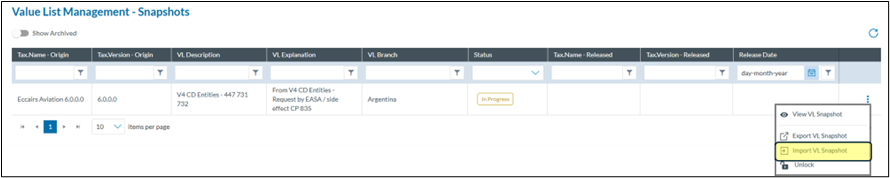
When clicking this option, E2 will prompt for the file to import
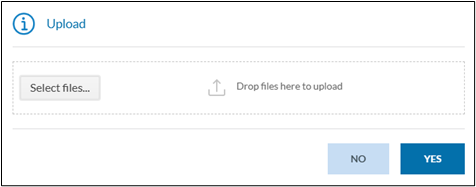
Either drag the file into the prompt window or select the file by clicking on select files.
The result of the import will be sent to you by email and the value list will be unlocked.
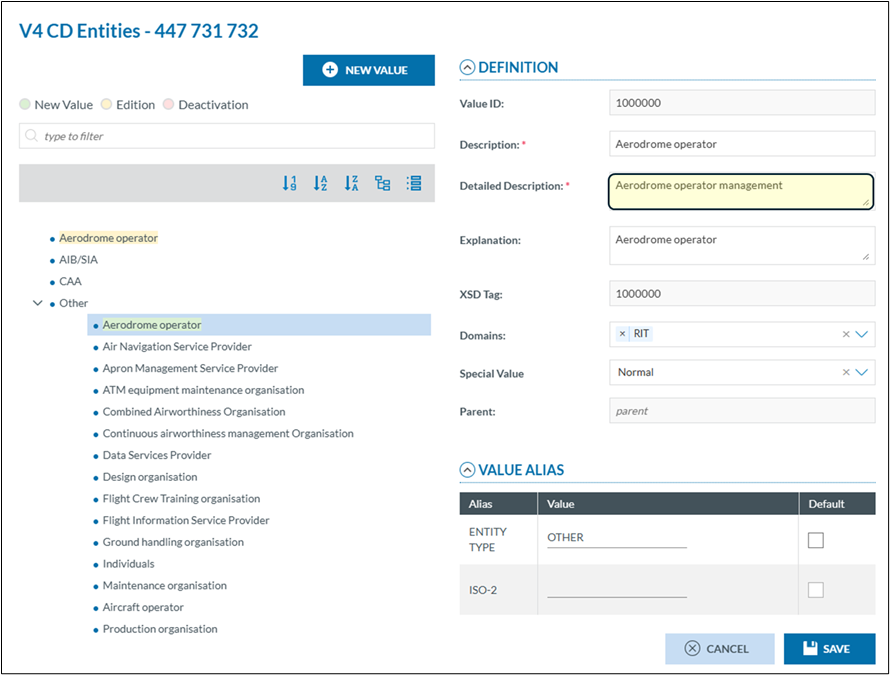
Editing values through an Excel file
If only changing some values, it is not necessary to have all the rows in the Excel file.
All unnecessary rows can be deleted

1. As it is a modification, the IsNewRecord should be 2
2. Change whatever column you want to modify, bearing the restrictions in mind
Once done upload the excel file
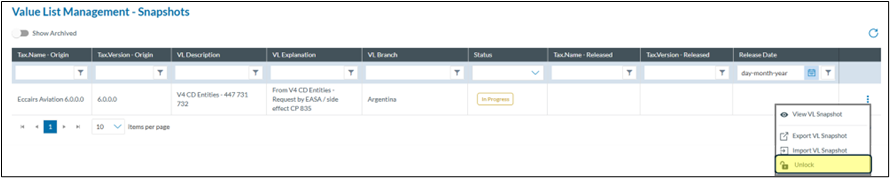
Unlocking a value list
In case a value list was exported, and nothing needs to be changed then it can be unlocked without having to import anything by clicking unlock
Rejected snapshot
When after assessment by the ECCAIRS system administrators as snapshot is rejected, you will be informed. You will see the status as Rejected in the list and see the reason for rejection in the list view

The ECCAIRS System Administrators can push a snapshot back into “In Progress” status, allowing further modifications. However, this is not an automatic process, it requires a manual action by the administrators. If you need to continue editing a previously submitted snapshot, you can request that it be returned to “In Progress” status.
How to use the Value List Management Tool (Video)
Tutorial Video
How to contribue o a collaboraive RefX
What is a collaborative RefX?
A collaborative RefX database is a shared reference table in which each Authority can upload and maintain the relevant data associated with a specific ECCAIRS2 entity. This setup allows all participating Authorities, European or non-European, to contribute to and all Authorities and their reporters to benefit from a unified and up-to-date dataset, improving data quality and consistency across the network.
Which collaborative RefX do exist?
Although the number of collaborative RefX databases is theoretically unlimited, E2 currently supports only the Aircraft Registration RefX. This specific RefX will be used as the primary example throughout this document. However, the principles and procedures outlined in this “How To” apply equally to any future RefX databases that may be introduced.
Which Authority users can make modification to the RefX?
Every user, whether it be an Authority user or a reporter, has access to the RefX. However, managing the Authority data is restricted to users whose roles include the Reference Table Definition permission. Typically, these are Nation Security Administrators.

How to access the management of RefX databases?
Depending on the permissions the option to manage RefX databases can be found on the home page.

1. The internal ID of the RefX, This ID will later be used when accessing the RefX via an API (this is still to be developed)
2. The name of the RefX
3. An explanation of what the RefX is about
4. The status if the RefX. This status is set by E2 System administrators and indicates that the RefX can be used
5. Possible actions on the RefX
View Table Properties
This Read Only view shows details of what the Refx is made up:
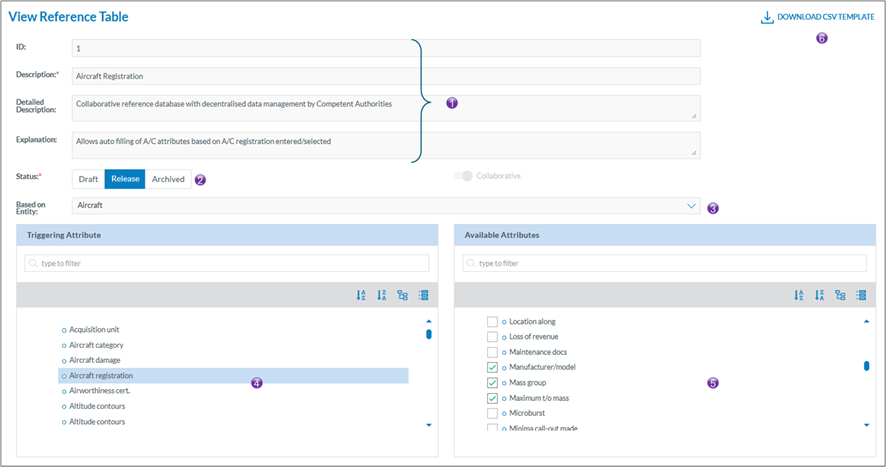
1. General Information. Displays the same details as shown in the list view.
2. RefX Database Status. Indicates the current status of the RefX database.
3. Base Entity. Shows the entity on which the RefX is based. Only attributes from this entity can be included in the RefX.
4. Triggering Attribute. Represents the primary key of the RefX database. Lookups within RefX are performed based on the value of this attribute.
5. Selected Attributes. Lists the attributes included in the RefX database. As noted, this view is read-only and cannot be modified.
6. CSV Template Download. Provides a downloadable CSV template used for uploading data into the RefX database. The template includes both the triggering attribute (see point 4) and the checked attributes (see point 5).
Table Values
Manually adding values in a RefX table is not possible. Values need to be imported using a template. This template can be obtained in the view properties of the RefX (see point 6 above).
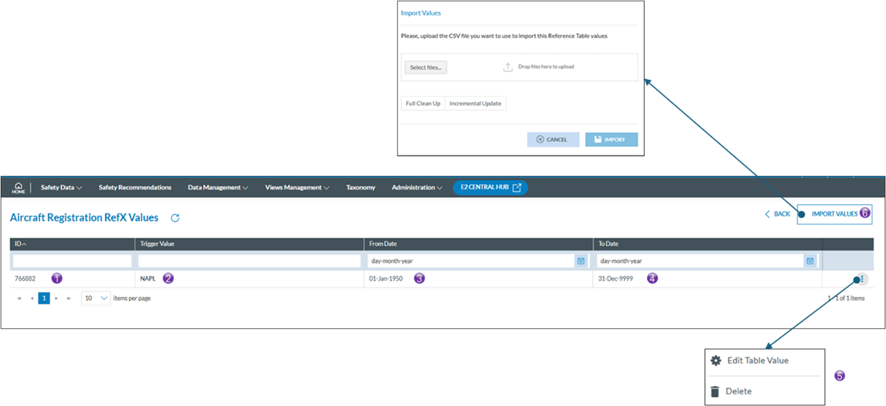
1. Internal ID of the table value
2. This is the triggering value
3. It may be that Authorities re-use aircraft registration numbers, the From date is the date as of which the aircraft was registered.
4. It may be that Authorities re-use aircraft registration numbers, the To date is the date until when the aircraft was registered. If no To date is known the 31 December 9999 entered
5. Possible actions on the selected table row
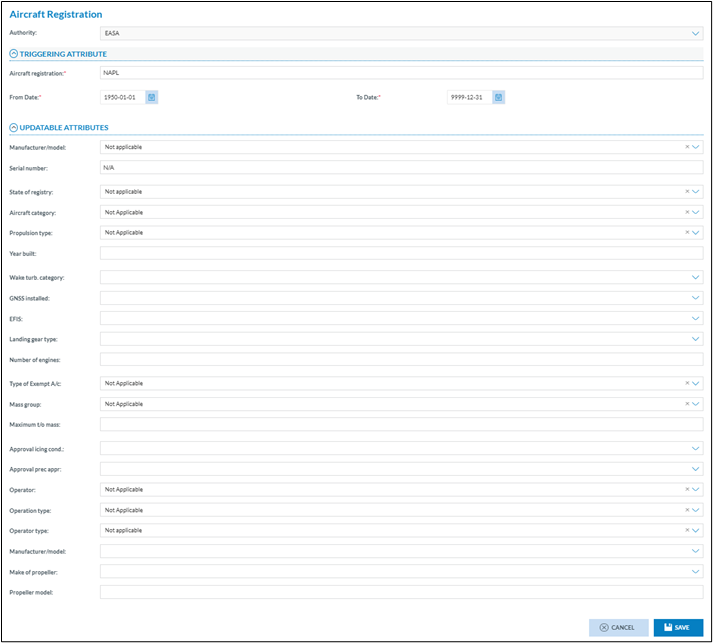
a. Edit table value
E2 allows users to manually edit table values. When clicking Edit, a modal window opens, enabling direct modification of the values. Once the changes are saved, the updated values become immediately available to all users.
Please note that these modifications are not retroactive. This means that any changes made to the reference data (RefX) will not affect values already stored in the database.
b. Delete the table value entry
Can be easily be deleted without consequence of data already in the database. Deleting values is often used when duplicates are detected.
6. Import values, opens a modal window to upload the values
Uploading values
As mentioned earlier, data can only be uploaded in the RefX table using a CSV-file according to a specific template
The CSV template
The CSV-file contains all attributes that were selected in point 5 from View Table Properties in the view reference table. Please note that the order and the naming of the column headers is NOT to be altered or changed of position. This may lead to the failing of the upload.
Each column header, except to and from date contain the attribute number between “<attribute>”

1. From_date is the date as of which the aircraft was registered, the format yyyy-mm-dd
2. To_date is the date until when the aircraft was registered. If no To date is known is to be provided 9999-12-31
3. Trigger attribute, in this Aircraft registration RefX it is attribute 244 which is the aircraft registration
4. These are all selected attributes see point 5 from View Table Properties in the view reference table
5. This fixed text is NOT to be removed
Attributes in the Aircraft Registration RefX
These are the attributes currently defined in the RefX table
· From_date (yyyy-mm-dd)
· To_date (yyyy-mm-dd)
· [Trigger Attribute] - Aircraft registration <244>
· Manufacturer/model <21>
· Serial number <254>
· State of registry <281>
· Aircraft category <32>
· Propulsion type <232>
· Year built <327>
· Wake turb. category <313>
· GNSS installed <128>
· EFIS <90>
· Landing gear type <166>
· Number of engines <209>
· Type of Exempt A/c <1090>
· Mass group <319>
· Maximum t/o mass <175>
· Approval icing cond. <39>
· Approval prec appr <40>
· Operator <215>
· Operation type <214>
· Operator type <216>
· Manufacturer/model <387>
What kind of data is to be provided in the CSV and in what format?
· The to and from dates are to be provided in this format yyyy-mm-dd
· The trigger attribute is in this case the Aircraft registration, so it needs to adhere to the attribute format, which is Upper case
· If an attribute has a Value List, then it is the ID of its value in the value list
Examples
if the propulsion type is Turbofan, then Propulsion type <232> should be 5
If Manufacturer/model is Airbus/A320 then Manufacturer/model <21> should be 2544
Although Excel seems to be the best solution to look into the CSV-file or to edit values, Excel has the tendency to change the yyyy-mm-dd into dd/mm/yyyy, if the saved, the file will fail to upload as it the dates do not respect the yyyy-mm-dd format.
Make sure that there are no empty lines at the end of the CSV-file as this will cause the file not being uploaded
The Upload
Once the CSV-file is created it can be upload using the import values
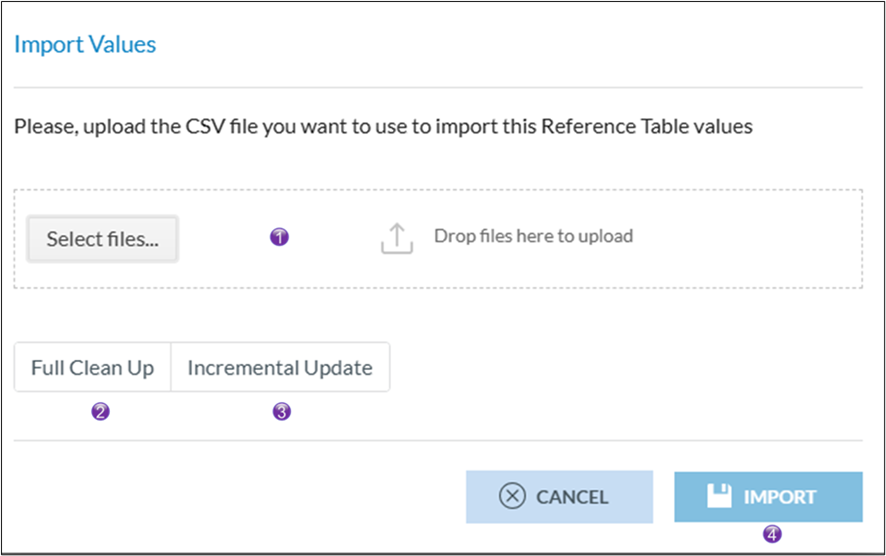
1. Either select the CSV-file to upload or drag and drop it into the box
2. A full clean up will erase ALL entries of you authority and then replace them with the entries in the selected CSV-file
3. An incremental Update will (using From_date, To_date and trigger attribute as key)
a. Add missing Values
b. Modify existing values
It will NOT remove any values, if values have become obsolete, they can be rendered obsolete by providing a To-date
4. Clicking import will start the upload of the CSV-file
How to resend and activation email
What is an activation email?
An activation email is sent when a user account is created.
It contains a hyperlink to the account activation page.
This link is active for 72 hours after having been sent.
Steps to resend
An activation email cannot be resent as such. However, following these steps will mimic the activation process
Step 1
Access the user account
As an Organisation Manager or as a National Security manager you need to activate the user account
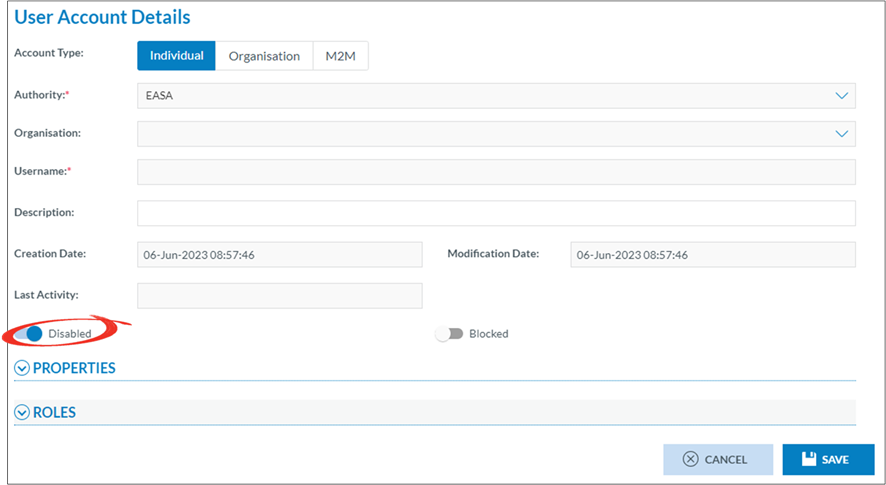
Step 2
Set the disabled switch to off (left)
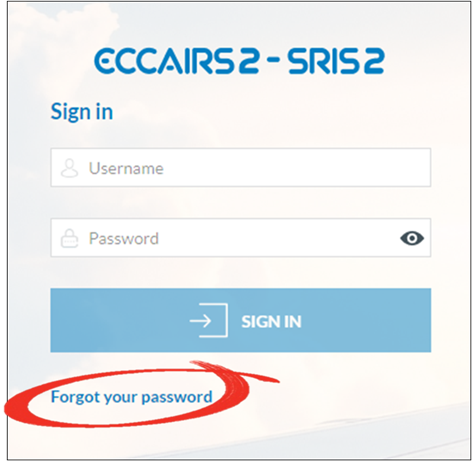
Step 3
Open the E2 logon page and click on forgot password (in an other browser that the one your are currently in)
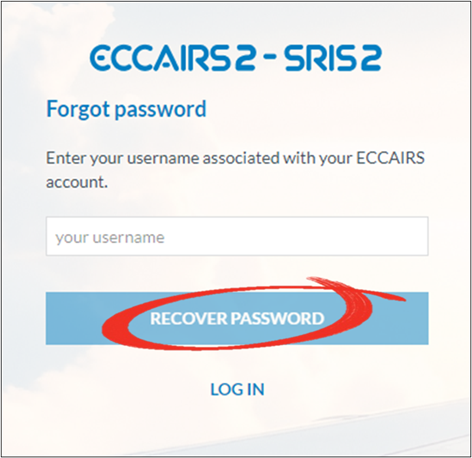
Step 4
Enter the username (not the email address) and click recover password
An email will be sent to the email address attached to the username
How to check for completeness
E2 and mandatory attributes
The first step in processing a report is verifying its completeness. While determining which fields are mandatory can be subjective, Regulation 376 specifies that certain attributes are required depending on the type of report submitted.
E2 does not prevent the submission of reports with missing mandatory fields. Instead, it issues a warning to the reporter at the time of submission, indicating which mandatory attributes are missing. The list of unfilled mandatory fields is not visible to the Authority’s occurrence officers responsible for processing the reports.
Steps to close the gap
This document outlines how to address this gap by making the missing mandatory fields accessible to occurrence officers. The solution involves five main steps:
1. Extend or create a custom taxonomy
o Add custom attributes
o Add a custom value list
2. Create the necessary queries
3. Create the necessary batch operations
4. Modify the views
5. Combine the BOs in a Batch Group (optional)
Extend or create a custom taxonomy
For every mandatory attribute that is to be checked on completeness a custom taxonomy attribute is to be created.
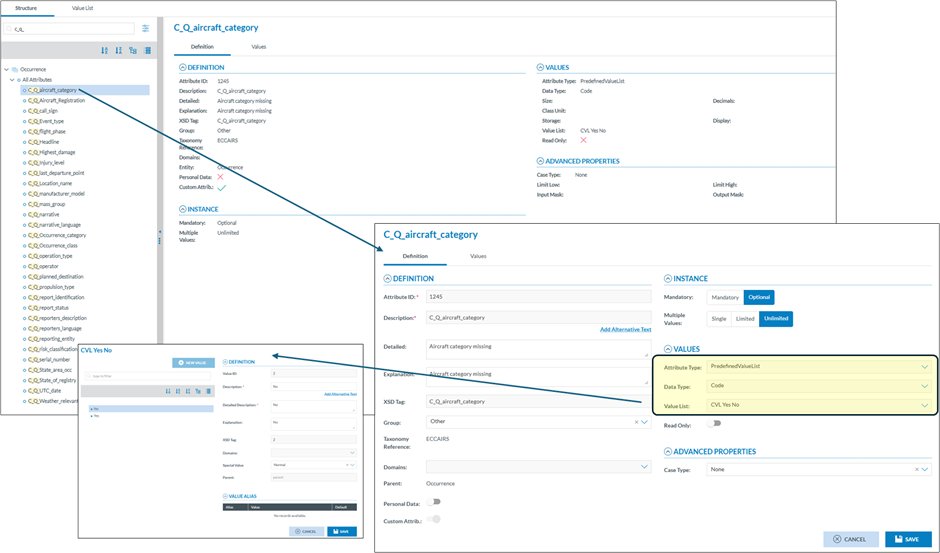
All custom attributes must be created under the Occurrence entity
Each custom attribute should be created consistently and linked to a predefined custom value list. If the value list doesn’t exist, it must be created before defining the custom taxonomy fields. If a yes/no value list is already available, it can be reused, but note that it will only contain the values "Yes" and "No."
The descriptions should be concise and meaningful, as they will later serve as labels in the view (e.g., “Aircraft category missing”).
Once all custom attributes have been created and their descriptions filled out, you can proceed to generate the custom taxonomy. While this process may be tedious, it is crucial to ensure that the custom fields are created carefully.
As a best practice, it is recommended to prefix custom attributes, as shown in the example above (e.g., “C_Q_aircraft_category”) which stands for C=Custom and Q=Quality
Create the necessary queries
In this step, all necessary queries to check for attribute completeness are created.
Again per attribute that you want to check, a query is to be created.
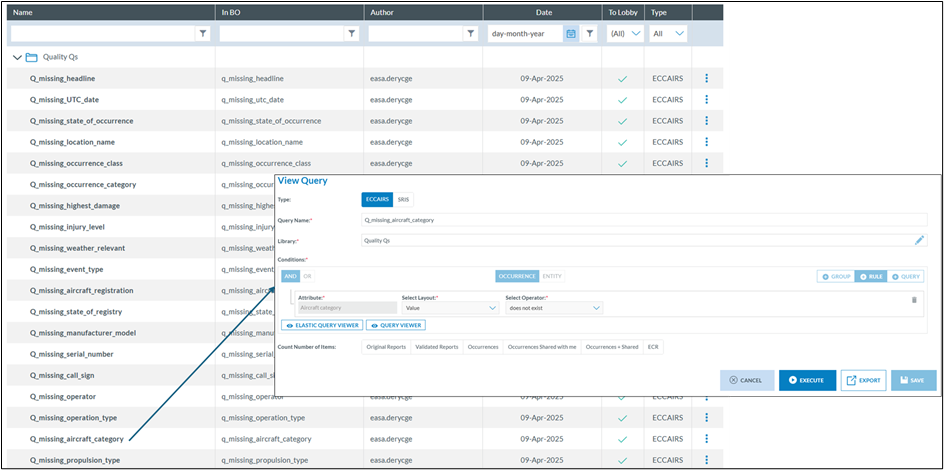
In E2, an attribute only exists if it has a value.
Therefore, using the filter "on does not exist" will return documents where the attribute is not filled out.
Tip: It’s good practice to:
- Give your queries meaningful names, ideally with a consistent prefix.
- Store queries in a dedicated library to keep things organized and improve clarity.
Create the necessary batch operations
The custom attributes have been created, the custom taxonomy has been released, and all necessary queries have been set up. The batch operations can be created.
Per attribute that you want to check, 2 batch operations are to be created.
Until the MABO functionality becomes available, you first need to reset (delete) the C_A_xxx attributes. If not done, the BO’s may generate an error indicating that the value has already been set. With the MABO, you can indicate what E2 needs to do if a value has already been set.
Resetting the C_A_xx attributes
Per attribute that you want to check, a reset BO is to be created
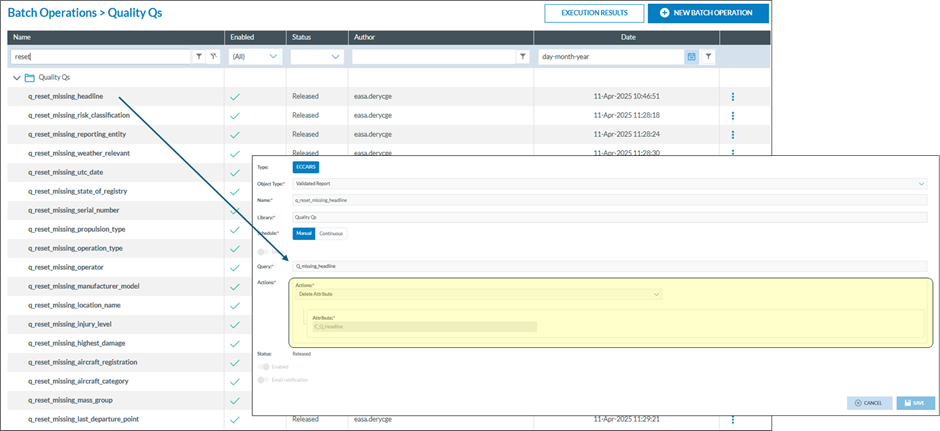
Insert the values in the C_A_xx attributes
Per attribute that you want to check, a reset BO is to be created

Here each query is filling in the appropriate custom field
Bear in mind that a new development is currently ongoing (MABA, Multi Action Batch Operation) that will combine all individual BOs into 1 BO.
Modify the views
Rendering the result of the completeness is subjective and depends how the presentation looks like
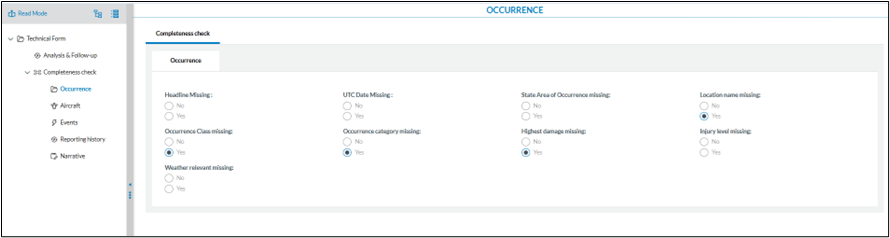
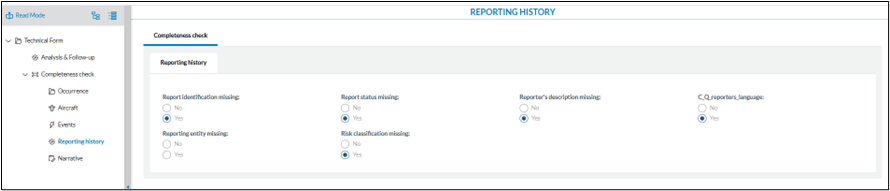
As a good practice is having separate sections containing the relevant attributes of an entity.

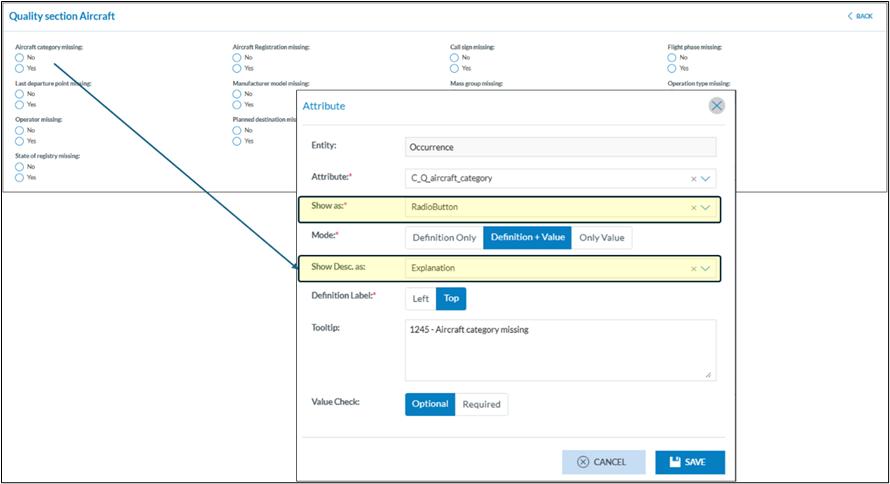
Here you see how important it is to give the custom taxonomy fields a meaningful and short description. It is here used as labels. Maybe it is also good to show the attributes as radio buttons.
Adding the dedicated sections to existing forms is the same as adding sections in other views
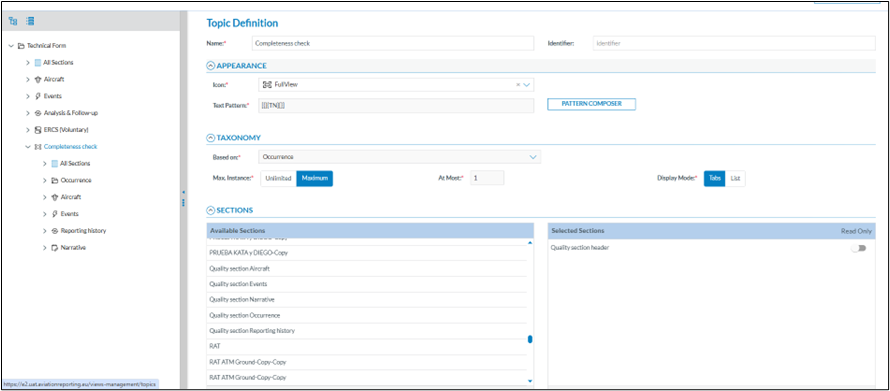
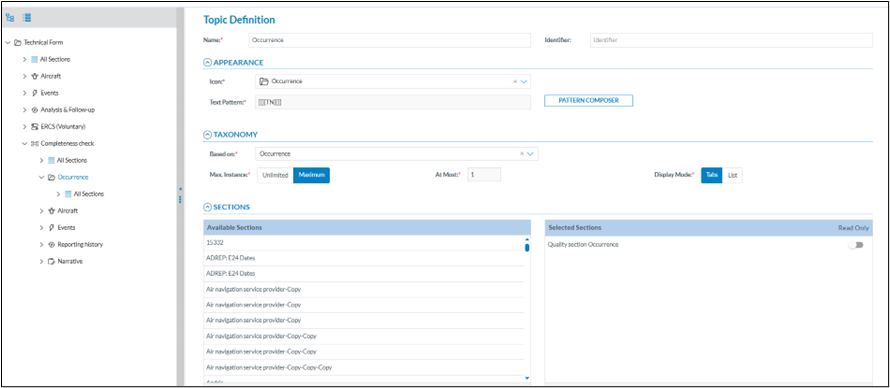
The result may then look like this
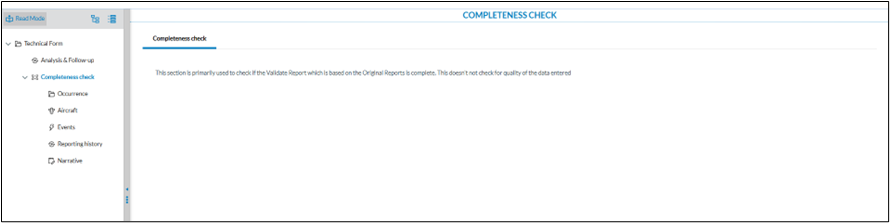
Combine the BOs in a Batch Group (optional)
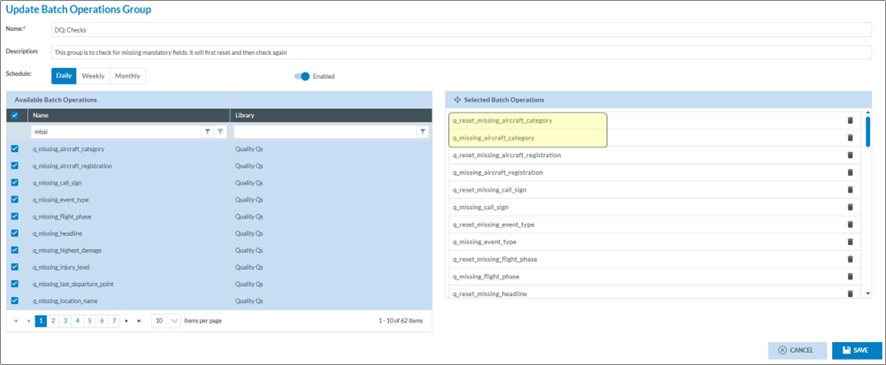
Optionally the BOs can be combined in a BO group. Bar in mind that a BO group can not be started ad-hoc, it is planned, daily, weekly or monthly.
make sure that the reset BO’s are run before the missing BO’s.
How to set up notifications
Some background
What are notifications?
Notifications in ECCAIRS 2 refer to the email messages or dashboard alerts generated by the system to inform users about specific events or actions. These notifications serve as a means of communication and provide important information related to Original Reports, Validate Reports and Occurrences being created, modified, or deleted.
Means of notifications
There are 3 means if notifications that can be used in combination.
Email Notification
When an event occurs that triggers a notification, an email is sent by the system to the users informing him about the event. The email contains a hyperlink to the Original Report, the Validated Report or the Occurrence that triggered the notification
Dashboard notification
When an event occurs that triggers a notification, the user’s dashboard will be modified. It will display the nature of the notification, whether it is an Original Report, a Validate Report, an Occurrence, or a Safety recommendation
The dashboard will also show system notifications such as when a query or a view or other was shared with the users; These notifications are system generated and fall outside the scope of this document

Setting up a notification
There are 2 levels where notifications can be setup
Setup by the authority
The National Authority Administrator(s) can setup a notification schemes within the Authority. Each user that is targeted in the scheme will be notified based on certain criteria
Accessing the Notification manager
Depending on the permissions the option to manage notifications becomes available on the home page.

The notification manager

Creating a new or updating an existing notification
Clicking on either an existing notification or clicking on new notification will open the notification setup page
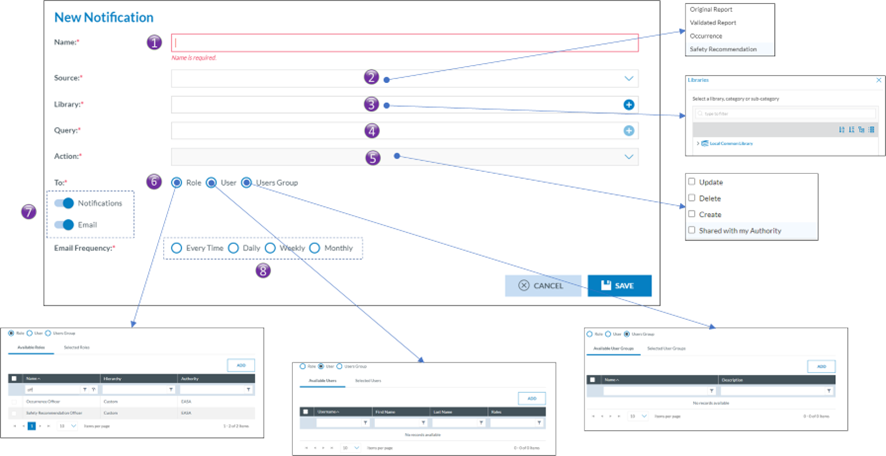
1. Name of the notification.
Every notification is to have a name
2. Source
a. Occurrence Report
b. Validated Report
c. Occurrence
d. Safety Recommendation
3. Library
Just like queries, notifications are stored in libraries.
4. Query
A query can be used to filter out those Occurrence Reports, Validated Reports, Occurrences or, Safety Recommendations for which the notification is to be triggered. Any query form the Local Common Library can be used
5. Action
a. Update
b. Delete
c. Create
6. Whom to notify
The target audience is set up in the whom to notify, Eccairs2 allows for three types of audiences.
Only users that have the permission Notification in one of their roles can be targeted. Users also having the “Reporter Role” will be exempt of being notified
a. Based on role(s)
users that have a certain role will be notified. Example all users that have the Occurrence Officer role
b. Based on user(s)
When using based on users, Eccairs 2 allows you to target certain users that need to get notified.
c. Based on user groups(s)
beside the two previous options, if user groups have been setup, then the notification can also be set up so that all users in a certain user group will receive a notification
7. Type of notification
Eccairs 2 allows for two types of notification, either by email or as a notification in the dashboard. Both can be used together
8. Frequency
a. Every time
Each time a notification is triggered, the notification will be sent to the users, either as an email or via a dashboard update, or combination thereof.
b. Daily
Each night a summary of all notifications is made, subsequently the dashboard is updated and/or email a summary email is sent. It is mostly used with the type of notification set to email.
c. Weekly
Each week a summary of all notifications is made, subsequently the dashboard is updated and/or email a summary email is sent. It is mostly used with the type of notification set to email.
d. Monthly
Each month a summary of all notifications is made, subsequently the dashboard is updated and/or email a summary email is sent. It is mostly used with the type of notification set to email.
Setup by the user
Besides the Notifications setup by the Authority, each user having the notification permission in one of his roles can also set up their own notifications.
Accessing the user notifications
Via the My account the user gains access to his account settings:

The notification list view
In the user account, in the query-based Notifications, an overview is given of all notifications that a user has been enrolled in. This list also includes the notifications that have been setup by his Authority. Via this interface a user can select not to get notified by the notification that was setup by the Authority.

Creating a new notification at user level
By clicking on New Notification, the user gains access to the notification configuration interface:
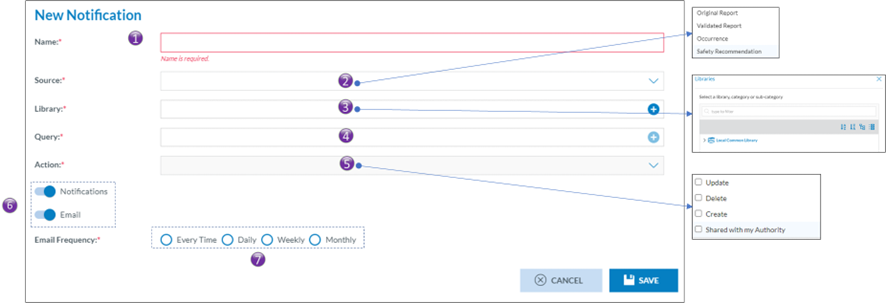
1. Name of the notification.
Every notification is to have a name
2. Source
a. Occurrence Report
b. Validated Report
c. Occurrence
d. Safety Recommendation
3. Library
Just like queries, notifications are stored in libraries.
4. Query
A query can be used to filter out those Occurrence Reports, Validated Reports, Occurrences or, Safety Recommendations for which the notification is to be triggered. Any query form the Local Common Library can be used
5. Action
a. Update
b. Delete
c. Create
6. Type of notification
Eccairs 2 allows for two types of notification, either by email or as a notification in the dashboard. Both can be used together
7. Frequency
a. Every time
Each time a notification is triggered, the notification will be sent to the users, either as an email or via a dashboard update, or combination thereof.
b. Daily
Each night a summary of all notifications is made, subsequently the dashboard is updated and/or email a summary email is sent. It is mostly used with the type of notification set to email.
c. Weekly
Each week a summary of all notifications is made, subsequently the dashboard is updated and/or email a summary email is sent. It is mostly used with the type of notification set to email.
d. Monthly
Each month a summary of all notifications is made, subsequently the dashboard is updated and/or email a summary email is sent. It is mostly used with the type of notification set to email.
Other type of notifications
Besides the notifications that are setup at Authority or user level, Eccairs2 also sends out other notifications, making the user aware of certain events. As these are system driven, the user cannot modify them
Types of other notifications
· Query sharing, an email will be sent, and a dashboard update will be performed when a query was shared to the user from another user.
· View Sharing, an email will be sent, and a dashboard update will be performed when a query was shared to the user from another user.
· User account inactivity. An email will be sent to the user when his account was inactive for 90 days.
· Delete user, an email is sent to an administrator in case a user requests that his account is to be deleted.
How to set up custom columns
Some background
What are custom columns?
The Original Report, Validated Reports, Occurrences and Safety recommendation list views allow users to see specific data fields in a tabular format, enabling them to browse, sort, filter, and export data efficiently. ECCAIRS2 offers the possibility to set up per document type which attributes can be shown in the list view. Up to 30 attributes and Custom Attributes can be added to a list view, and this per document type.
· Original Reports
· Validated Reports
· Occurrences
· Safety Recommendations
Although list views are widely used throughout ECCAIRS2, it is only the above list views that are concerned. Furthermore, the setup of custom columns is only available for Authority users, not for reporters that submit their reports.
Setting up custom columns
ECCAIRS2 has been developed so the user can setup a different list view per document type.
Defaults columns per document type
ECCAIRS2 has setup a series of default attributes in the custom column templates for each document type. These attributes will be shown in the respective list views.
| # | Original Reports | Validated Reports | Occurrences | *Safety Recommendations |
| 1 | Notify | Notify | Notify | Notify |
| 2 | E2ID | E2ID | E2ID | E2ID |
| 3 | Reporting entity | Reporting entity | Reporting entity | SRIS number |
| 4 | File number | File number | File number | SR status |
| 5 | Report identification | Report identification | Report identification | Addressee |
| 6 | Headline | Headline | Headline | Local SR number |
| 7 | Occurrence class | Occurrence class | Occurrence class | Headline |
| 8 | UTC date | UTC date | UTC date | E2 Status |
| 9 | Manufacturer/model | Manufacturer/model | Manufacturer/model | Occurrence class |
| 10 | Aircraft registration | Aircraft registration | Aircraft registration | Date issued |
| 11 | Location name | Location name | Location name | Manufacturer/model |
| 12 | Responsible entity | Responsible entity | Responsible entity | Registration |
| 13 | State/area of occ | State/area of occ | State/area of occ | Location |
| 14 | Local date | Local date | Local date | Version |
| 15 | Operator | Operator | Operator | Report link |
| 16 | Operation type | Operation type | Operation type | State/area |
| 17 | Call sign | Call sign | Call sign | Local date |
| 18 | Injury level | Injury level | Injury level | Operator |
| 19 | Fatal, passengers | Fatal, passengers | Fatal, passengers | Operation type |
| 20 | Fatal, crew total | Fatal, crew total | Fatal, crew total | Response status |
| 21 | Total fatalities | Total fatalities | Total fatalities | Last Shared ECR |
| 22 | Aircraft damage | Aircraft damage | Aircraft damage | Receiving Date |
| 23 | E2 Status | E2 Status | E2 Status | |
| 24 | Flight phase | Flight phase | Flight phase | |
| 25 | Occurrence moderator | Occurrence moderator | Occurrence moderator | |
| 26 | Version | Version | Version | |
| 27 | Report status | Report status | Report status | |
| 28 | Sent date | Receiving Date | Last Shared ECR | |
| 29 | Receiving Date | |||
| 30 | Sent date |
*Safety Recommendations only become visible if the Authority is also a SIA NAA
What attributes can be selected?
ECCAIRS2 doesn’t distinguish between ECCAIRS attributes, custom attributes or exposed meta data fields. All attributes and fields, up to 30, can be added to the custom column templates.
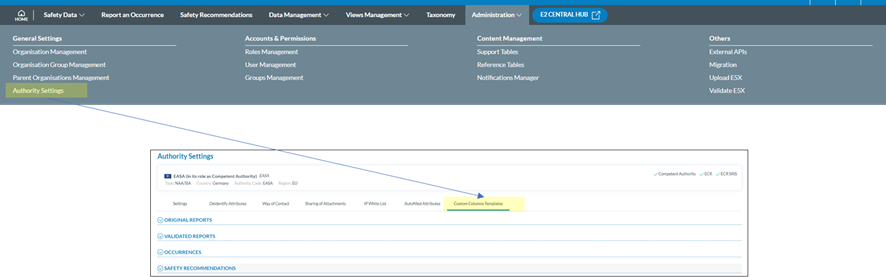
Setup at Authority level
Depending on the permissions the option to manage custom columns at Authority level becomes available on the home page.
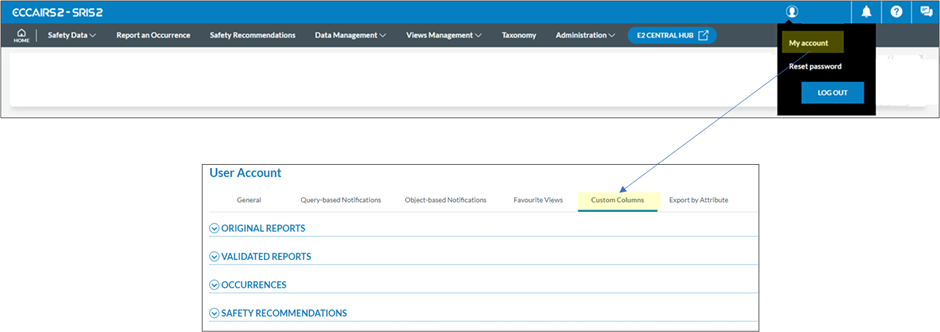
Setup at user level
Every user can configure the custom columns per document type by himself.
Interface
Although there are small nuances between the Authority and the ECCAIRS user’s setup, the interface is the same.
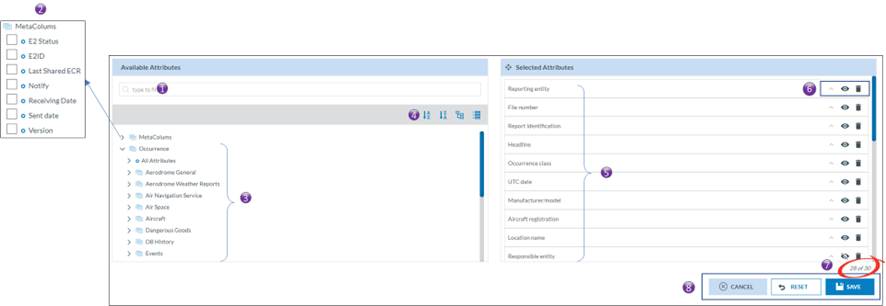
1. Allows to search through the available attributes and meta data fields.
2. Exposed meta data fields than be added to the template.
3. Available attributes. Clicking on “>” expand the entity revealing its attributes.
4. Allows the attributes to be sorted in ascending or descending order and allows to expand or collapse the full entity tree view.
5. The selected attributes in the template
6. Attribute options
a. Sort order.
b. View/hide.
c. Remove.
7. Shows how many attributes have been added to the template out of 30.
8. Interface Actions
These actions only apply to the template that is being edited
a. Cancel, will revert to the previously saved version.
b. Reset
i. For the Authority, it will set the selected attributes back to their original values.
ii. For the user, it will copy the Authority settings to the user’s template.
c. Save, will save the settings.
How to add, remove, sort, hide, and change the position of attributes and fields?
Adding
Adding an attribute or a field is done by putting a tick box in the tick box of the attribute in the list of available attributes/fields.
Removing
Removing an attribute or a field can either be done by unticking the tick box of the attribute is the list of available attributes/fields. Or by clicking on the trash can icon in the list of selected attributes
Sorting
It is possible to sort the list view according to multiple attributes/fields. By clicking on the ^ of an attribute/field the sort order will be set. A small digit will appear next to the ^ indicating that the column will be sorted. The number indicates in the sorting sequence.
For example a small digit 1 indicates that the column will be sorted first according to that column, a 2 will indicate that it will be first sorted by another column and then sorted by that.
Changing the sort order from ascending to descending can be done by clicking on the ^ again.
Viewing/hiding.
The Authority may make certain attributes and fields available to the users, yet it may decide not to show them by default. It is the user who can then decide to show them.

Changing the position of the Attributes in the list view.
When an attribute or field is added to the template it is always added at the end. Changing the position of the attribute or fields in the template can be done by dragging the attributes or field in to the right position.
What are the effects on user’s list views?
The custom column settings may influence the list views of users. There are Three cases that the custom column settings, set by the Authority, can have an influence on the Eccairs2 users.
1. A new user.
The custom column settings will automatically be copied into the new user’s custom column settings. The user can modify them whenever necessary.
2. An existing user without having changed his custom column settings.
The custom column settings will automatically be updated in the user’s custom column settings. The user can modify them whenever necessary.
3. An existing user having changed his custom column settings.
The changed authority settings do NOT have an influence on the personal preferences of the user’s custom column settings.
When a user modifies a sort order, adds/removes an attribute, or changes the order of a column, it will automatically be reflected in the user’s custom column template.
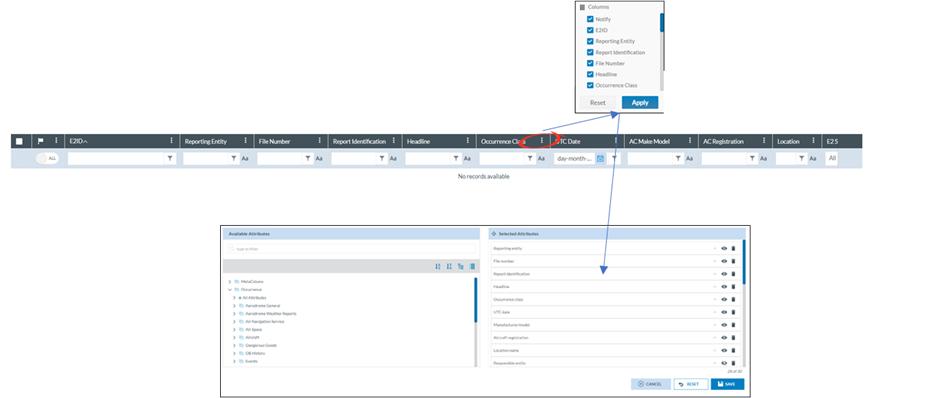
How to validate an E5X-file
Who can validate an e5x-file
Only users of registered organisations and Authority users can submit e5x-files. Therefore, it is their prerogative to also validate e5x-files and not submitting them to their Authority
In many cases users of registered organisations and Authority users have an IT service that generates an e5x-file based on data stored in a legacy system. Allowing the IT service to validate, that is check, the e5x-fle, E2 caters for e5x-file validation.
As a user from an Authority
Depending on the permissions the option to validate e5x, becomes available under the administration menu.

The Validation e5x-file interface
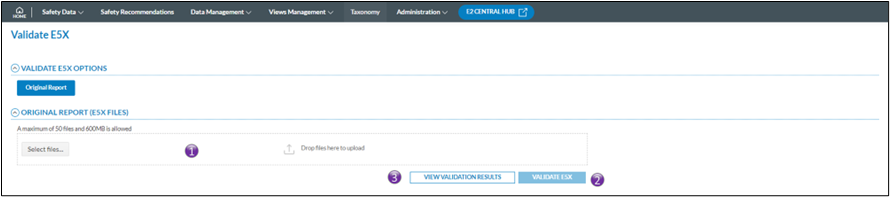
1. Click either on select files, or drag and drop the files on top of the “Drop files here”; It is possible to validate >1 e5x-file at the time
2. Click on validate e5x-file and the validation process will start. You will get an email conformation that the e5x-file(s) was (were) uploaded. The file(s) is(are) put on a processing queue, that means that they are not validated immediately.
3. View the Validations results opens the validation results window. It will give a full overview of all previously validated report request
View Validation results
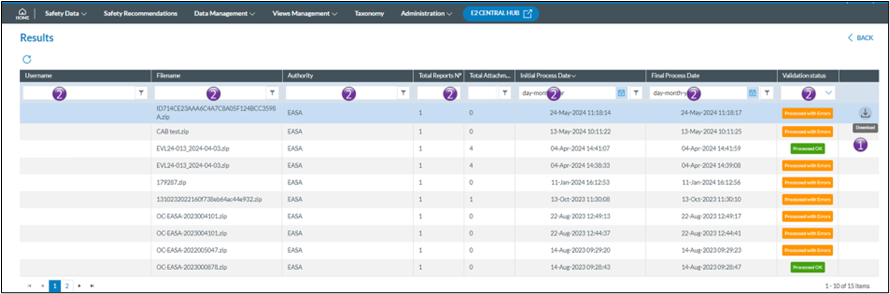

2. It is possible to limit the number of rows shown by applying filters in the column headers
Filters are type sensitive that is depending on the type of column a filter is applied, different filter methods are available
As a user from a registered organisation

The validation Interface
From the home page a direct access to the e5x validation is provided by clicking on the Upload PDF/E5X button
1. Upload PDF/E5X
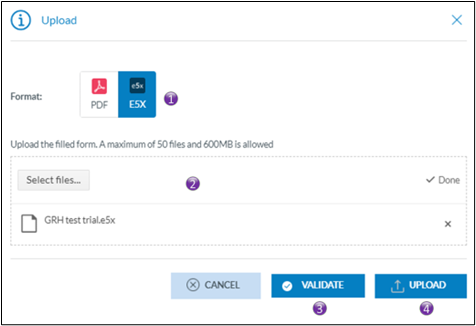
1. By selecting e5x, the validation button will appear
2. Click either on select files, or drag and drop the files on top of the “Drop files here”; It is possible to validate >1 e5x-file at the time
3. Click on validate and the validation process will start. You will get an email conformation that the e5x-file(s) was(were) uploaded. The file(s) is(are) put on a processing queue, that means that they are not validated immediately
4. This interface is also used for directly uploading e5x-files, no prior validation will be done and upon success or partial success the e5x-file will be submitted to the Authority
View validation results
2. E5X Validation results
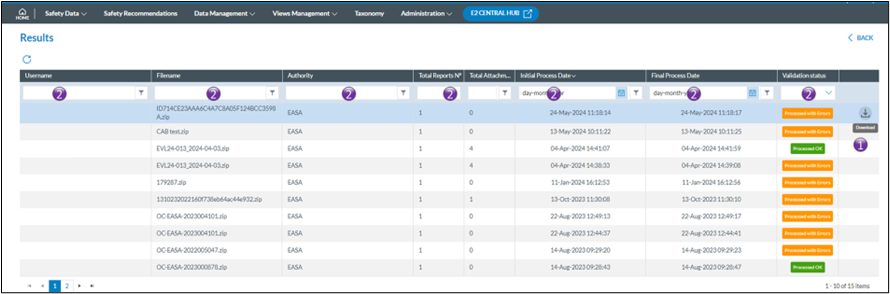

2. It is possible to limit the number of rows shown by applying filters in the column headers
Filters are type sensitive that is depending on the type of column a filter is applied, different filter methods are available
How to organise organisations in groups
Some background
What is an organisation?
An organisation refers to a specific entity or entity type involved in aviation safety reporting. Organisations represent the various reporting entities such as, airlines operators, aerodromes, maintenance organisations, air traffic control, and other entities within the aviation industry. Each organisation is assigned a unique identifier and is associated with specific attributes.
In E2, organisations are managed by the Authorities and the users, also known as reporters, are managed by both the Authorities and the Organisation managers. It is reporters that are responsible for providing information about accidents or incident by using the forms made available to them.
Reports created by an organisation user are visible to all reporters of his organisation. No organisation has access to another organisation’s reports.
How to name an organisation
Giving a meaningful name to an organization serves several important purposes. It helps to easily identify the organisation's identity and its field of activity.
Every organisation has its own unique identifier; it is good practice to include this identifier in the organisation’s name in e2. Organisations tend to change names from time to time, while their unique identifier remains the same.
Examples:
· CH.AOC.xxxx // Mountain xxx AG
· EASA.145.xxxx // Super Maintenance of Aircraft
· EASA.21J.xxxx // Continental Technologies Design GmbH
· BE/ATO-xxxx // Fantastic Air Academy
· …
By including the identifier in the name of the organisation in E2, it is easier to identify the type of organisation and eventually to add them to an organisation group.
What is an organisation group?
How to name an organisation group
Giving a meaningful name to an organization group is key. There are no golden rules as how to name the groups. Yet, consider the specific goals for which an organisation should be in a certain group.
Examples of grouping by activity
· A group containing organisation à AOC Holders
· A group containing aerodrome operators à ADR operators
· A group containing Ground handling organisations à Ground handling
What is a parent organisation?
The parent organization in ECCAIRS2 facilitates data analysis and reporting by providing a framework to track and analyse safety-related information based on the organisational structure of the overhead organisation.
An organisation such as an airline group having multiple AOCs may want to see in one glance what has been reported and to whom it has been reported to. So, providing a holistic view of safety-related data within the organization's hierarchy.
How to name a parent organisation
As there may be more parent organisations within an Authority, it is important to give a correct and meaningful name, for instance the name of the overarching or umbrella company.
How to add an organisation?
Depending on the permissions the option to manage organisation becomes available on the home page.

Create the organisation details
Click on New organisation

There are two distinctive parts
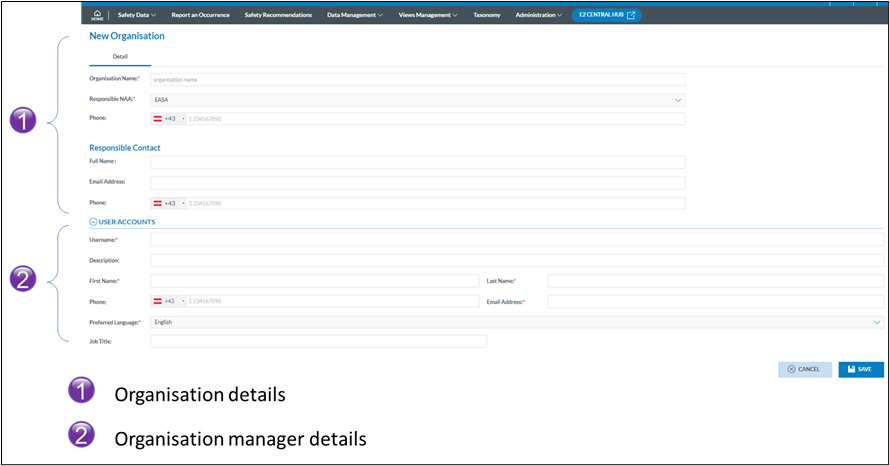
The fields marked with a red asterisk are mandatory.
Organisation details
· Organisation name: As mentioned before, it is key to give the organisation a meaningful name allowing for an easy grouping of organisations later.
· Responsible NAA: is automatically filled out as by logging in the NAA is already known
· Phone: is optional
· Responsible contact (optional): Is the contact person within the organisation that can be contacted in case of need, it doesn’t need to be an e2 user
o Full name: full name of the responsible contact
o Email address: email address of the responsible contact
o Phone: Telephone number of the responsible contact
Organisation manager details
At the same time the organisation is created, an organisation manager is created too. This person will manage the organisation’s account from with the organisation. This user has the permission to create additional organisation managers and reporters
· Username: Username need to be unique cross Eccairs 2, that is it cannot be used by any other Authority. This can be sometimes a burden as many people have the same names. As a suggestion, the approval number of the organisation can be used. This has the advantage that it is unique, and that the manager of the organisation remembers his approval number.
Example username = EASA.21J.9876
· Description: is an optional field allowing to enter a user’s description
· Creation date & Modification date; these dates are system generated and show when the account was created/last modified
· Last Activity: this shows when the user last logged on to E2
· Disabled: when a new account is created, the account is disabled until the user has activated the account. The account can also be disabled/enabled manually by the organisation manager
· Blocked: When a user has failed too many times to login to the system (wrong password), then the account is blocked and needs to be unblocked by the organisation manager.
An account is also automatically blocked after 90 days of inactivity. In needed, it is to be unblocked by the organisation manager.
· First Name and Last Name: are both mandatory fields
· Phone: is an optional field containing the telephone number of the user
· Email Address: Is the email address of the user. To this email address the activation email will be sent. It is key that this is correct, if not the user will not be able to activate the account
· Job title: is an optional field that can be used to enter the user’s job title
The activation email is sent as soon as the organisation is saved to the data base
Create an additional organisation user
For this opening the organisation for edit is required. Besides modifying some fields, this window also allows to create addition users
ECCAIRS 2 distinguishes two types of users.
1. The human user
A human Eccairs2 user refers to an individual who interacts with and utilizes Eccairs 2 to enter incident reports for his organisation and/or manages the organisations account. In this context, "human user" typically refers to reporters who use Eccairs2 for reporting purposes.
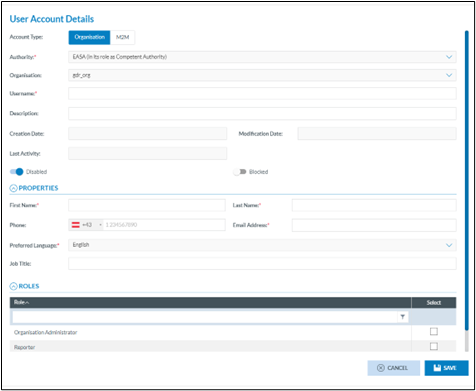
The information to be entered is like the information entered when creating the organisation manager when creating the organisation account:
· Username: Username need to be unique cross Eccairs 2, that is it cannot be used by any other Authority. This can be sometimes a burden as many people have the same names.
· Description: is an optional field allowing to enter a user’s description
· Creation date & Modification date; these dates are system generated and show when the account was created/last modified
· Last Activity: this shows when the user last logged on to E2
· Disabled: when a new account is created, the account is disabled until the user has activated the account. The account can also be disabled/enabled manually by the organisation manager
· Blocked: When a user has failed too many times to login to the system (wrong password), then the account is blocked and needs to be unblocked by the organisation manager.
An account is also automatically blocked after 90 days of inactivity. In needed, it is to be unblocked by the organisation manager.
· First Name and Last Name: are both mandatory fields
· Phone: is an optional field containing the telephone number of the user
· Email Address: Is the email address of the user. To this email address the activation email will be sent. It is key that this is correct, if not the user will not be able to activate the account
· Job title: is an optional field that can be used to enter the user’s job title
The activation email is sent as soon as the organisation is saved to the data base
When a user requests his account to be deleted, then both the blocked and the Disabled switches are set. In addition, all fields will be void except the username.
2. The machine-to-machine user
A machine-to-machine (M2M) user refers to an automated system or device that interacts with Eccairs2 without the need for human intervention. In M2M communication, machines, or devices exchange information via so called Application Programming Interface, which is a set of definitions, protocols and methods for building and integrating application.
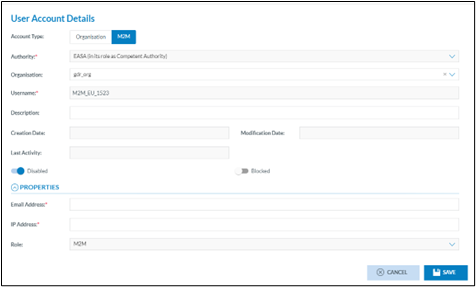
Unlike the human user, the M2M users will use a token to logon to Eccairs2 and can not gain access to the font end of the application
· Organisation: is the organisation in which the M2M user is created
· Username: the user is system generated, is unique across Eccairs2 and cannot be changed
· Description: is an optional field allowing to enter a user’s description
· Creation date & Modification date; these dates are system generated and show when the account was created/last modified
· Last Activity: this shows when the user last logged on to E2
· Disabled: when a new account is created, the account is disabled until the user has activated the account. The account can also be disabled/enabled manually by the organisation manager
· Blocked: When a user has failed too many times to login to the system (wrong password), then the account is blocked and needs to be unblocked by the organisation manager.
An account is also automatically blocked after 90 days of inactivity. In needed, it is to be unblocked by the organisation manager.
· Email address: Is the email address of the user. To this email address the activation email will be sent. It is key that this is correct, if not the user will not be able to activate the account
· IP address: when a M2M user connect to E2, the IP address from which it tries to access E2 needs to be whitelisted. This is to ensure that only recognized machine gain access to E2
Only 1 IP address can be entered in this field. If an organisation requires more than 1 IP address, then these need to be added to the authority whitelist

· Role: is the role that is assigned to the M2M user and cannot be changed.
How to add an organisation group?
Depending on the permissions the option to manage organisation groups becomes available on the home page.

How to add organisations to an organisation group?

By clicking on new organisation group, the group editing form becomes available.
Name: Is the name of the group
Description: contains a short description of the group?
There are two panes, The left pane contains all organisation within the Authority and the right pane contains all selected organisations within the group.
Adding and removing organisations can be done by selecting the organisation from the appropriate pane and clicking on the action button.
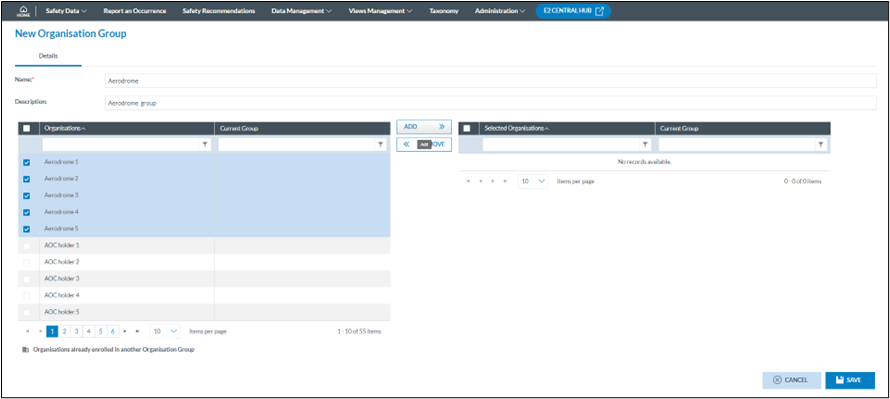
When creating or editing another group, an extra icon will appear next to those organisations that are already within another group. An organisation can only be in one group.
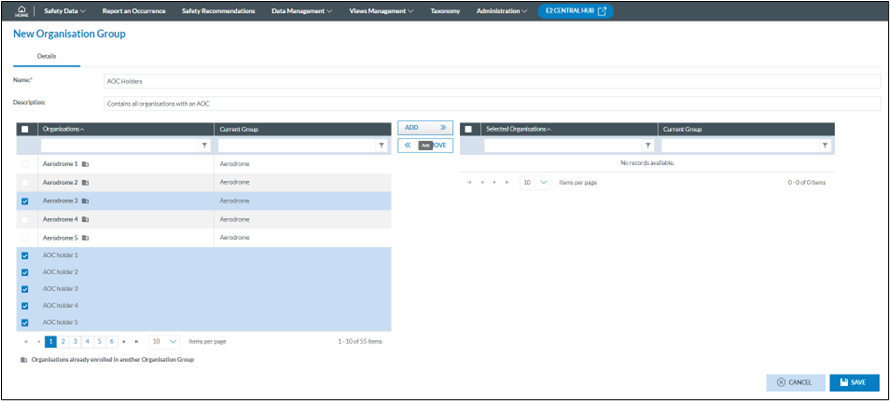
If an organisation residing in another group is added to the current group, a warning will appear. If proceeded, then the organisation is added to the current group.

How to edit an organisation group?
When hovering over the list a pencil and a trashcan icon will appear at the end of the line, the pencil will open the edit form, the trashcan will delete the group.

Edit Details
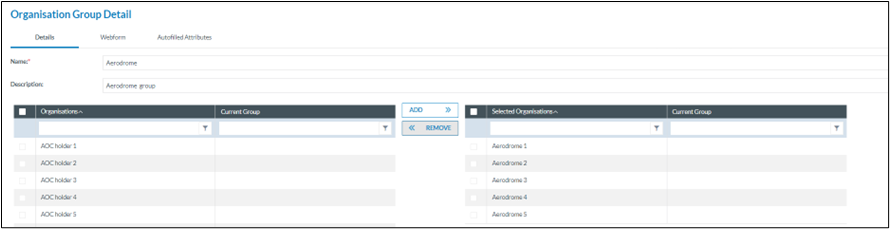
Name: Is the name of the group
Description: contains a short description of the group?
There are two panes, The left pane contains all organisation within the Authority and the right pane contains all selected organisations within the group.
Adding and removing organisations can be done by selecting the organisation from the appropriate pane and clicking on the action button.
If an organisation residing in another group is added to the current group, a warning will appear. If proceeded, then the organisation is added to the current group.

Edit Webforms
A form for incident reporting is a digital tool that allows reporters to report any incidents or accidents that occurred. The purpose of incident reporting is to help identify potential safety hazards and prevent future incidents.
Incident reporting forms typically ask for details about the nature of the incident, including the type of aircraft involved, the location and time of the incident, the weather conditions, and any other relevant details. They may also ask for information about the individuals involved in the incident, including their, job titles, and contact information.
Eccairs2 (E2) provides 5 standard reporting forms that can be made available to organisations, they are always available and can be used by any Authority and assigned to any organisation.
1. Technical
2. General Aviation
3. Aerodrome
4. ATM/ANS
5. Flight Operation
In many cases these 5 general forms are sufficient to allow organisation reporters to adequately send in their reports. Yet as these are standard forms, they may ask for irrelevant information and so clutter the form.
E2 offers Authorities to create their own web forms which will better cover their needs. These Authority defined forms will become available to be assigned to organisations when enabled.
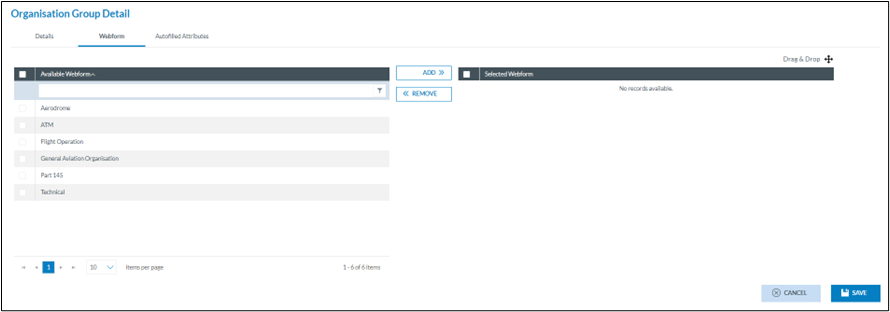
By default, any organisation has access to all enabled forms, yet this implies that reporters must select the form and may inadvertently start coding the report in a wrong form.
To circumvent this, E2 can limit the number of forms users have access to. In the example above, here is in addition an Authority developed form Part 145.
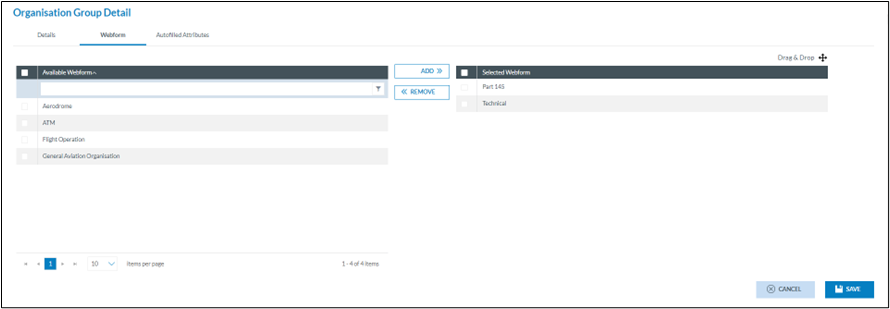
In the example above, the technical and Part 145 forms will be available to all users of the organisations in the organisation group. So, to limit the number of forms they can select from.
The advantage of assigning Authority-defined forms to an organisation group is that they allow organisations to use customised data entry forms to suit their specific needs and requirements. Tailored forms to collect the desired information can enhance the quality and accuracy of the data entered. These customisations help to eliminate unnecessary fields and ensures that essential data is captured consistently by all organisation within the group.
Edit Auto filled Attributes
Auto-filled attributes in E2 provide several advantages that contribute to more efficient data entry and improved data quality. Auto-filled attributes automatically populate certain fields with pre-defined values. This saves time for users by reducing the need for manual input. It minimizes repetitive data entry tasks, especially for common or recurring information or information that is already known
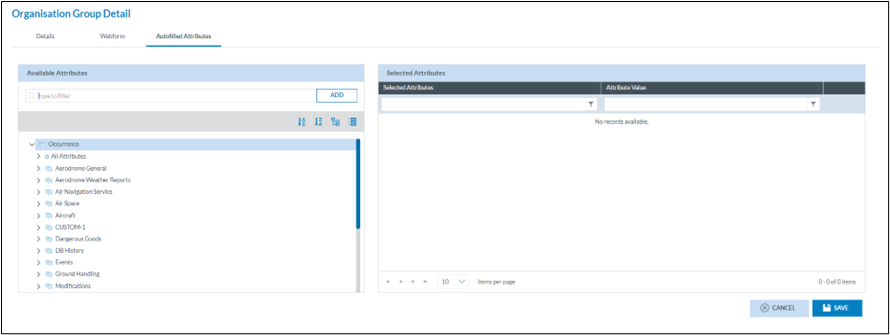
Any attribute, whether from the ECCIARS taxonomy or Custom Taxonomy can be chosen to be automatically filled out on the form.
Select the attribute that is to be automatically filled from the left pane. Either by using the search capability or by expanding the taxonomy tree.
Clicking on add will move the attribute to the right pane where it can be edited.
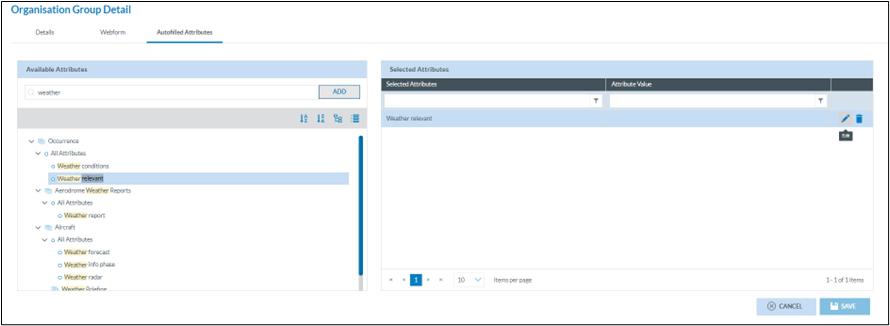
With the pencil a value to be used in the automatic filling can be entered.
There is no limitation in the number of attributes that can be automatically filled.
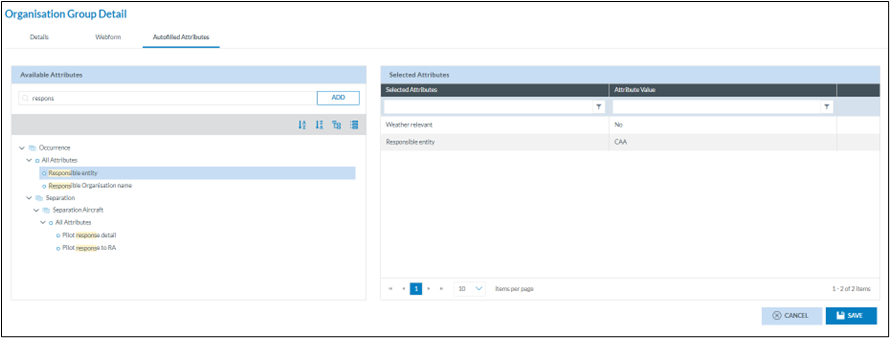
Even though an attribute has a value assigned to be automatically filled, the value will not be assigned to the attribute if the attribute is not on the form.
How to create a parent organisation?
Depending on the permissions the option to manage parent organisations becomes available on the home page.


By clicking on new parent organisation, the configuration form is shown
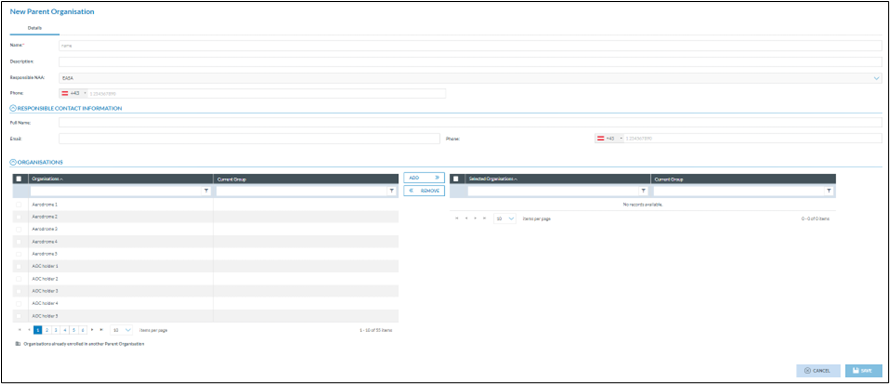
General details
Name: As there may be more parent organisations within an Authority, it is important to give a correct and meaningful name, for instance the name of the overarching or umbrella company.
Description: this free text field contains a short description of which organisations are in the parent organisation.
Responsible NAA: this is automatically filled out with the Authority in which the Parent organisation is created.
Phone: is a telephone where the Parent organisation can be reached.
Responsible contact information
Although these are optional fields, it is important to have the details of the contact person within the parent organisation. This person doesn’t necessarily have to be an E2 user
Full Name: is the first and last name of the responsible contact
Email address: is the email address of the responsible contact
Phone: is the telephone number of the responsible contact
Organisations
This area contains 2 panes.
On the left all known organisations are shown. If an organisation is already part of another parent organisation, then the name of the parent organisation is shown in the “Current Group” column of the left pane:
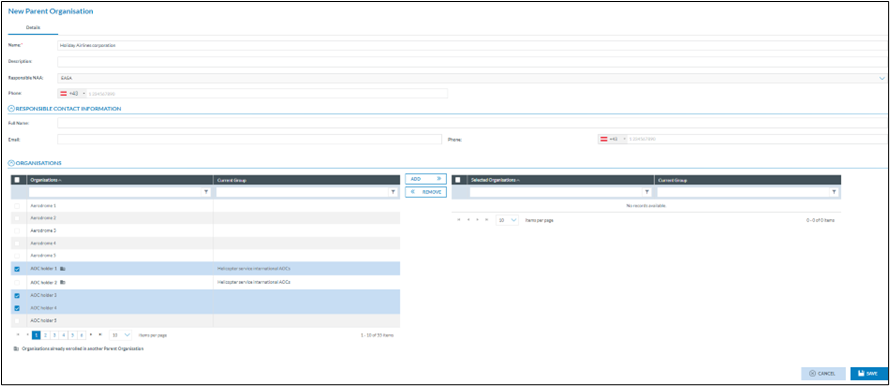
Adding/removing organisations from the parent group is done by selecting the appropriate organisations and executing the add/remove action.
In case an organisation is added which is already part of another parent organisation, a warning message will be shown.

If decided to continue, the organisation will be removed form the parent organisation and added to the current parent organisation.
How to create a Form
Some background
What is a form?
A form for incident reporting is a digital tool that allows reporters to report any incidents or accidents that occurred. The purpose of incident reporting is to help identify potential safety hazards and prevent future incidents.
Incident reporting forms typically ask for details about the nature of the incident, including the type of aircraft involved, the location and time of the incident, the weather conditions, and any other relevant details. They may also ask for information about the individuals involved in the incident, including their, job titles, and contact information.
What default forms do exist in E2?
ECCAIRS2 (E2) provides 6 standard reporting forms, they are always available and can be used by any Authority.
-
Technical
-
General Aviation
-
Aerodrome
-
ATM/ANS
-
Flight Operation
-
Individual
In many cases these 6 general forms are sufficient to allow reporters to adequately send in their reports. Yet as these are standard forms, they may ask for irrelevant information and so clutter the form.
How to get to the sections, views, and forms?
Depending on the permissions the option to manage sections, views and forms becomes available on the home page.
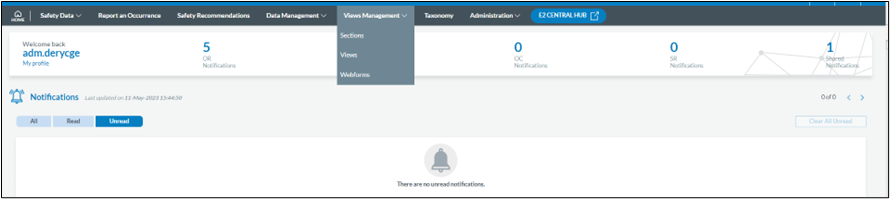
What makes up a form?
A form is based on a view, a view is made up of sections and sections contain the attributes that a user needs to fill out.
Attributes
All ECCAIRS & Custom attributes can be included in a section.
Sections
Grouping attributes logically in ECCAIRS can help to organise and categorise information in a more structured and efficient manner. This is done in sections.
Here are some steps to follow:
1. Identify the main categories of attributes: Start by identifying the main categories of attributes that are relevant to the event being reported.
For example, categories could include Occurrence, Aircraft, Crew, Aerodrome, Weather, and Air Traffic Control...
2. Determine the subcategories: Once the main categories have been identified, break them down into more specific subcategories. Each of these subcategories can be created as separate sections.
For example, under the Aircraft category, subcategories could include Airframe, Engines, Systems, and Equipment.
3. Assign attributes to each category:
For example, under the Airframe, attributes could include Manufacturer, Model, Serial Number, and Type of Wing, Year Build.
4. Organize attributes in a logical way, such as by grouping related attributes together or by organising them in a chronological or sequential order.
For example, under the Occurrence category, you might group attributes related to the time and location of the event together, followed by attributes related to the type of operation and the severity of the event.
5. Via the preview option, review, and refine: Finally, review and refine the grouping of attributes to ensure that it makes sense and is easy to understand. Adjust as needed to ensure that the data entry is logical and intuitive for users to navigate.
Overall, grouping attributes logically in ECCAIRS can help to improve the accuracy and efficiency of incident reporting, and facilitate analysis and reporting of incident data.
Reusability
First a few words on reusability. Sections are very often used in different views, so some attention needs to be paid as of their re-usability.
The reusability of sections in forms is an important feature of E2 that can help to streamline the incident reporting process and improve data accuracy. In E2, sections are pre-defined templates that contain a set of attributes relevant to a particular type of topic within an occurrence. These sections can be reused across different incident reporting forms, eliminating the need to recreate the same sections multiple times.
The reusability of sections in forms also allows for more efficient incident reporting, as users can easily select and populate the relevant sections when creating a new incident report. This reduces the time and effort required to complete incident reports, as users do not have to manually enter the same information multiple times.
It is good practice to keep the sections small. The smaller they are the more easily they can be reused.
Organising sections
Organizing sections into libraries can help to streamline the process of creating incident reporting forms and make it easier to find and reuse sections across different forms.
It is considered good practice before starting to create sections to think about how to organise them in section libraries, especially when working in teams. Libraries in E2 work like how the file explorer works. It is a tree like interface.
If sections are not part of a view, they can be moved to other parts within the libraries
Adding a branch or a subbranch to the library can be done by clicking on the + icon. Changing the name of the library branch is done by clicking on the pencil.
Creating a new section is done in 2 steps
Step 1: Create the section properties
Section properties are used to define the characteristics of a section, such as its type, taxonomy, name, description…
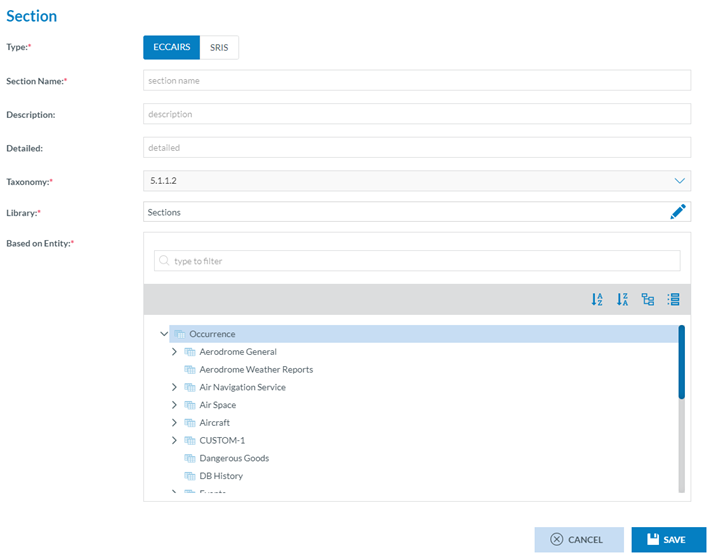
All fields marked with a little red asterisk are mandatory.
E2 caters for different types of reporting (ECCAIRS/SRIS). Each type has its own taxonomy.
The section name should accurately reflect the content of the section and make it easy to identify. Choose a clear and concise name that accurately describes the type of information that will be captured in the section.
Select the library where the section is to be saved.
The data contained in the section will be based on an entity from the taxonomy. By selecting the Entity upon the section is based will determine which attributes can be added to the section.
Example, when selecting Aerodrome general, only attributes belonging to the entity Aerodrome general will be available to be put in the section.
Step 2: Creating the section content
Find the section you want to edit and click on the three vertical little dots and select edit
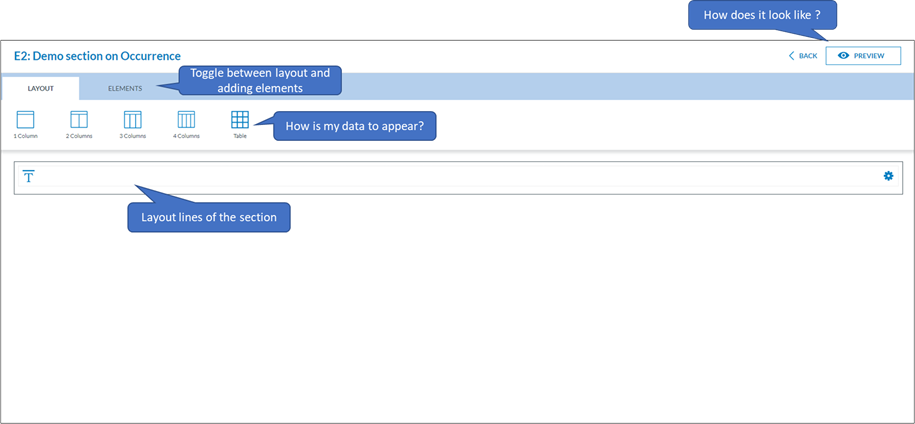
Before elements can be added as layout needs to be defined.
The section editor has 5 different types of layouts:
-
1-column, this spans the complete width of the section, it is use full if a lengthy attribute is to be filled out, such as Aircraft Make/Model
-
2-Column, this layout creates 2 columns of the same length and spreads them evenly over the length of the section
-
3-Column, this layout creates 3 columns of the same length and spreads them evenly over the length of the section
-
4-Column, this layout creates 4 columns of the same length and spreads them evenly over the length of the section
-
Table, allows you to create a table of maximum 8 columns evenly spread of the length of the section.
Adding a layout
By clicking on one of the layouts, a new layout will be added to the section.
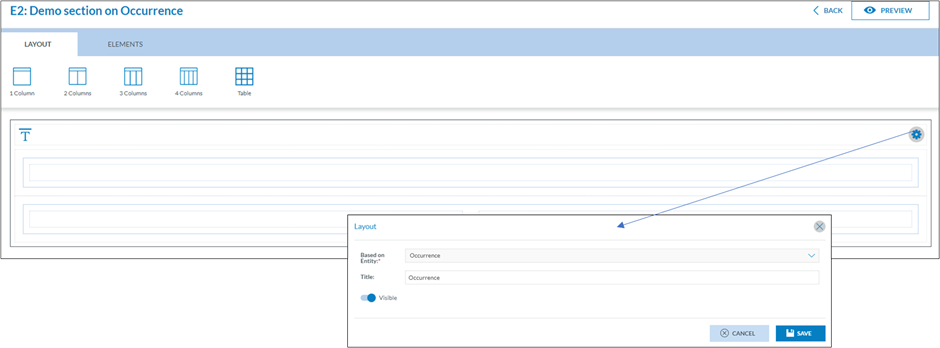
Each section has a title which can be changed or hidden by clicking on the cogwheel. By default, it will take the name of the entity upon which it was based.
The order in which layouts are added to a section is important. Once a layout has been added it can no longer be moved up or down.
Actions on a layout
There are 2 actions that can be performed on a layout.
-
Delete the layout, removes the layout including the attributes on it
-
Change the based on
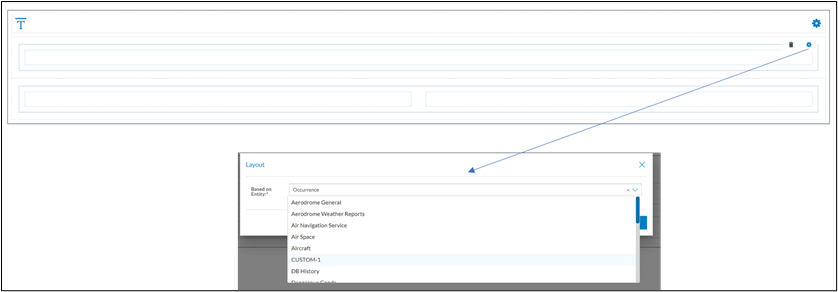
Although it indicated in the section properties that only attributes of the “Based on Entity” can be added to the section, this allows to change, just for this layout, that attributes can come from an entity 1 level below the “Based on Entity”Example if a section is based in Occurrence, a particular layout can contain data on Aircraft by changing the layout’s based on entity.
Adding elements to the layout
There are 3 types of elements you can add to the layout.
-
A free text

-
An Image
-
An attribute

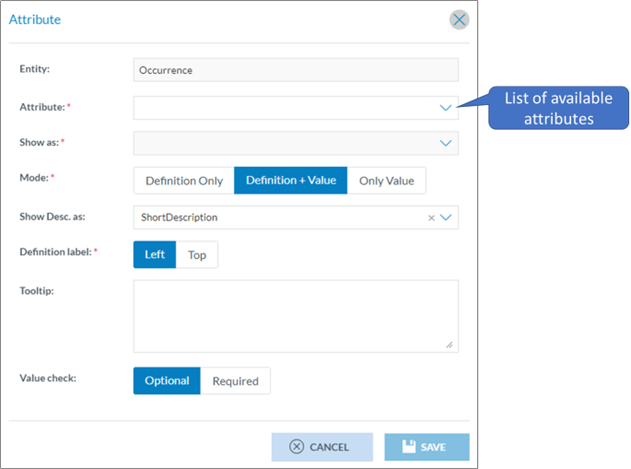
Select the type of element and drag it into the layout.
Adding an Attribute
Depending on the “Based on Entity” that was selected in the section properties or in the layout properties, the attributes that are available are shown in the drop-down list.
Depending on the attribute chosen, different types of visualisations become available.
Attributes with a value list attached
-
Combo box is a simple dropdown list that shows values in a list. This is ideal for attributes that have value lists with just 1 level, for example report source.
-
Radio button allows the user to select between a limited number of options, example Weather Relevant Yes/No.
-
Selection tree, this shows the information in a hierarchical three view structure. It is ideal for selecting values from value lists with more than 1 level. Example Aircraft make/model.
Attributes without a value list attached
-
Date, opens a calendar and allows to select a date
-
File, opens the select file interface, this is used for adding attachments
-
Hyperlink, allows to enter a hyper link and when clicked, it will open the URL
-
Label, renders the data as static text
-
Latitude & Longitude, are used to enter geographical locations in Degrees/Minutes/Seconds North and South
-
One line Text, is a single line text input, for example headline
-
Multi line text, is a multi-line input, for example the narrative, reporter’s description
-
Time, opens a time interface allowing to enter the time
Mode of the attribute defines how the attribute is to be displayed
-
Definition Only, Only the label of the attribute is show, an no value
-
Definition + Value, the label is shown, and data can be entered in the field
-
Only Value, the label is not shown, yet the value can be entered
Label position, depending on the available real estate, it is possible to either have the label displayed left of the value or above the value.
Tooltips are shown by default, their text is taken from the taxonomy and can be changed.
An attribute can be set as optional or as required. Required attributes are marked with a little red asterisk next to the label. Be aware, required attributes are soft mandatory. That is, if they are not filled out, then a warning message is displayed, and the user can either continue or add the missing information. E2 will not block submitting reports with missing mandatory fields.
Example
In this example the layout has 2 types of rows, a 1-column row and a 3-column row
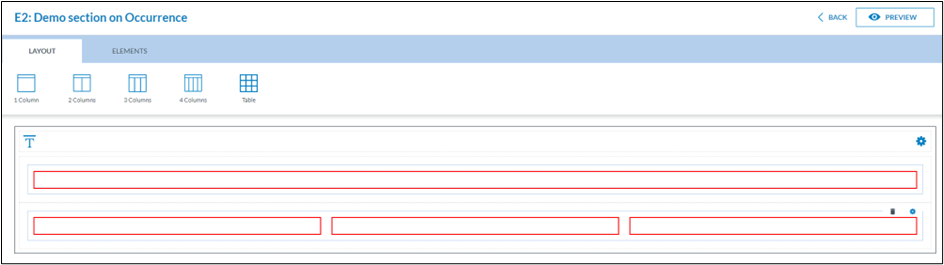
A first attribute is added, headline by dragging the attribute icon into the layout and selecting Headline when the popup-window appears.
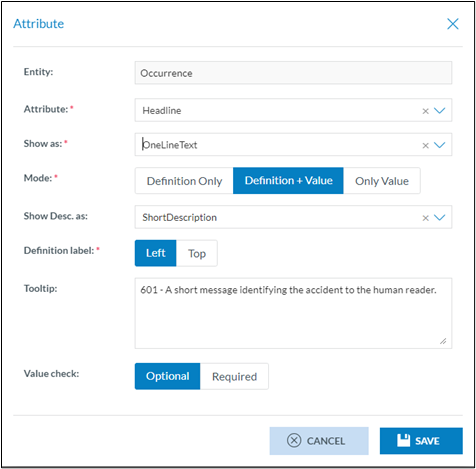
Adding a second 1-column attribute is done by dragging the Attribute icon into the layout, it will be automatically added when dropped.
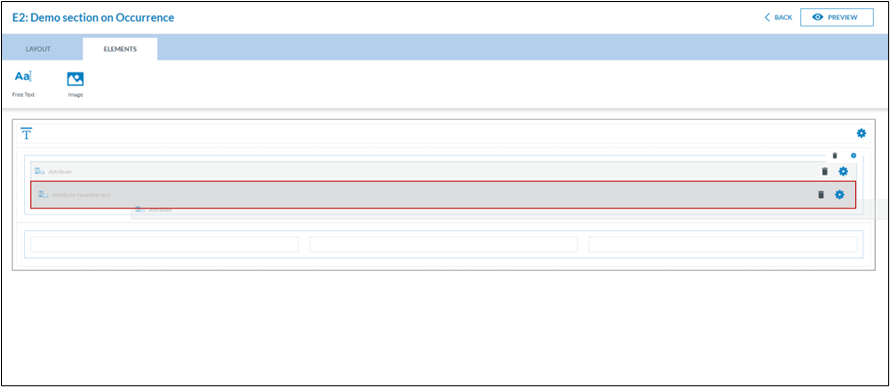
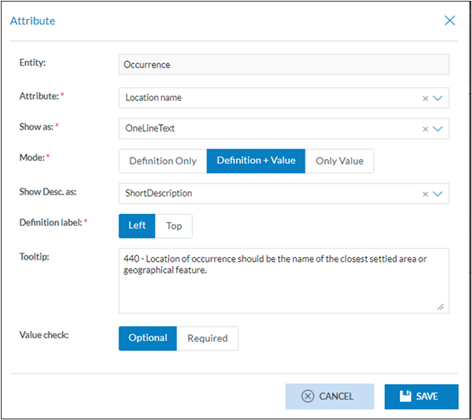
This is what the result is when previewing the section:
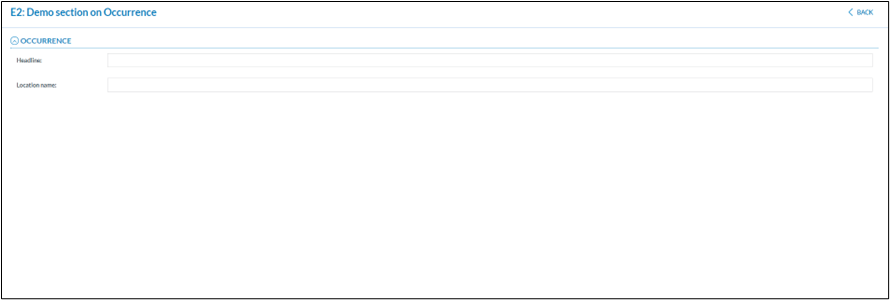
Adding attributes to the 3-column row works in a similar manner by dragging and dropping the attributes in the columns:
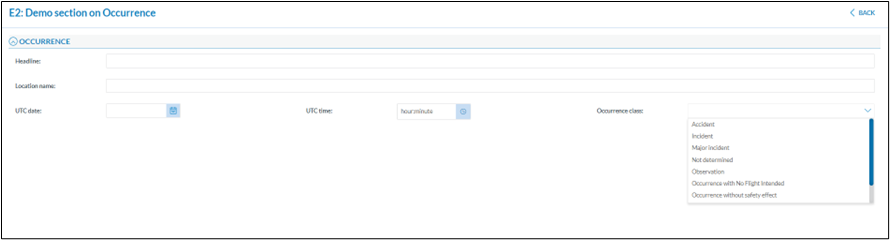
When working with multi-column rows, it is not necessary to fill out all the columns with attributes:
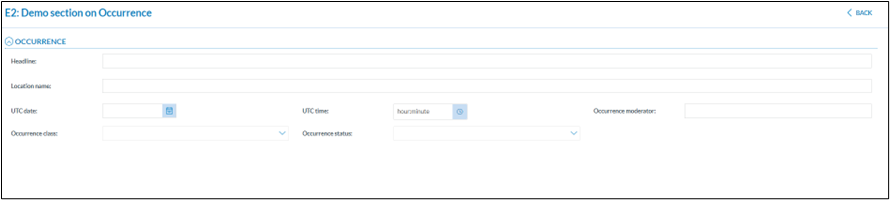
Views
In E2, views are a way to organise and display data in a particular and ordered way.
A view is a collection of sections ordered in such a way to give the user a logical manner of efficiently filling out his incident Report.
When all relevant sections have been created or are available, they can be integrated in a view. Sections can be integrated into several views.
Organising views
Organising views into libraries can help to group views together that can be assigned to users.
It is considered good practice before starting to create views to think about how to organise them in view libraries, especially when working in teams. Libraries in E2 work like how the file explorer works. It is a tree like interface.
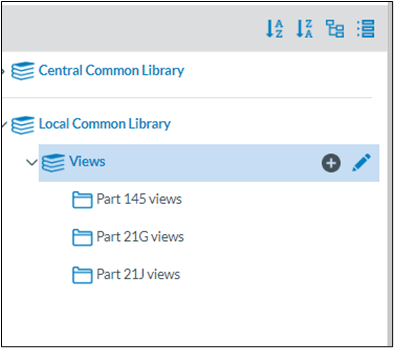
Adding a branch or a subbranch to the library can be done by clicking on the + icon. Changing the name of the library branch is done by clicking on the pencil.
Creating a new view is done in 2 steps
Step 1: Create the view properties
View properties are used to define the characteristics of a view, such as its type, taxonomy, name, description…
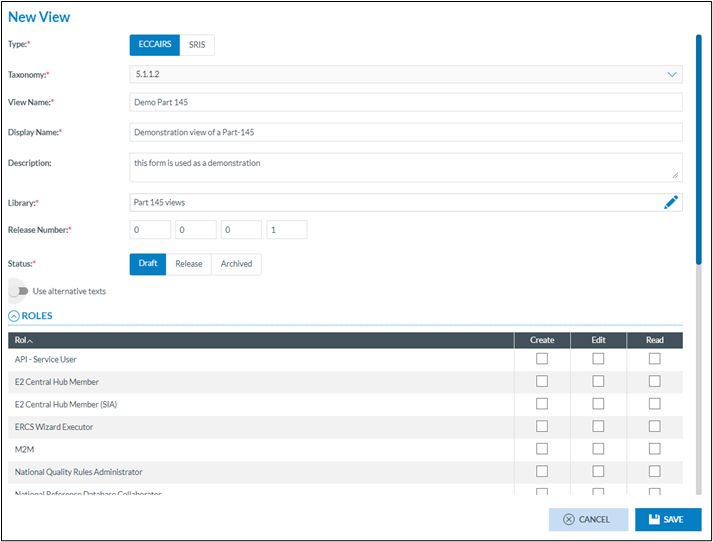
The type of the view will determine which sections that can be added to the view. Only sections of the same type can be added to the view.
The taxonomy is filled automatically and will be the current E2 taxonomy.
The view name is the name of the view in the library.
The display name is the name how the view will be shown to the end user, it doesn’t need to be the same as the view name.
Description is sometime necessary to give more information on the view, example its purpose.
The library is where the view will be saved. Hence the best practice to create a good library structure.
Release number, as through time, the view may change, sections are added, removed… this allows you to keep track of the releases. There is no automatic augmentation of numbers, it is a free text and cannot be left blank.
Status, indicates if a view is
· Draft, it is being edited and cannot be used by users
· Release, a view is available to users and cannot be modified
· Archived, a view was previously available and is decommissioned
A view can may not exist as such, it needs to be linked to at least 1 role. That is users who have this role can access the view and use it.
Saving the view, will save the view properties and will not release it, it will remain in draft until it is manually released.
Step 2: Creating the view content by adding sections
Via the three little dots at then end of the row, following actions become available
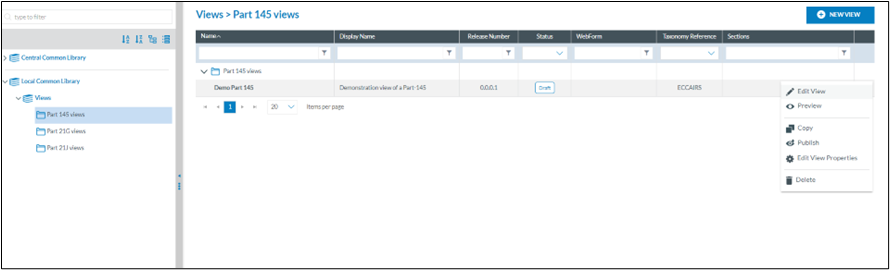
· Edit the view, open the window to add/remove sections in the view
· Preview shows how the view will look like when published
· Copy allows you to copy the view. It will create a completely new view and all sections present in the view will be copied too
· Publish will transition the view draft to released, so making it available to the users that have the role attached to the view
· Edit view properties allow to modify certain properties of the view
· Delete, deletes the view and it will no longer appear in the list. Yet all sections linked to the view will remain to exist
Edit the view
Via the three little dots in the list view, you gain access to the view editor:
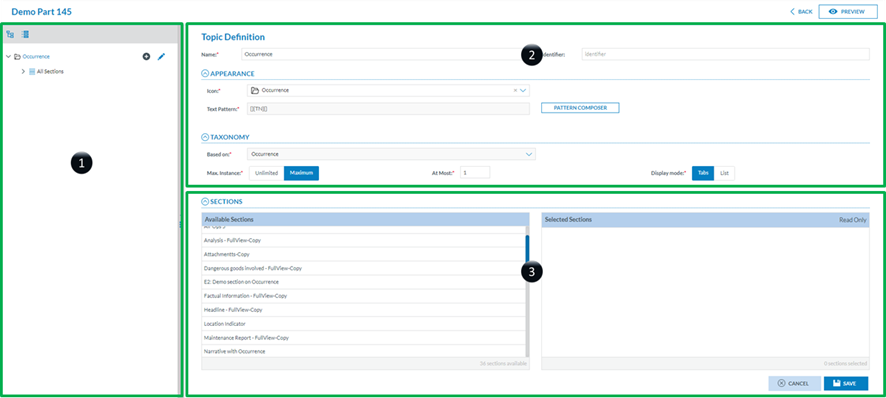
1. Is the area where new entities can be added
When creating new view, the editor starts with the occurrence level. It is always the point of entry for every view.
2. Is the area where the entity is described
· The name is the name that will be displayed in the tree view (1)
· The identifier is a free text allowing you to give the entity an identifier
· The Icon, which is mandatory, hence the asterisk, is the icon that will be placed next to the entity name in the tree view
· Text pattern. By default, the name of the entity will be shown in the tree view, yet I may be that more specific data needs to be added, such as the File Number. Or in case of an Aircraft the aircraft registration

A popup window appears when clicking on the pattern composer. Here the pattern, extra information, can be created.
All attributes that belong to the entity that is being edited are available to be put in the pattern. The additional information can be shown as a definition (label) or as a value.
The information can either be shown as
· Short description
· Description
· Explanation
· Extended
· A prefix and a postfix can be provided. This is particularly interesting if more than 1 element is part of the pattern that is being composed
· Click add will add the attribute to the pattern
Although there is no limit in the number of attributes that can be part of the pattern, yet too many, or too lengthy attributes may clutter the readability:
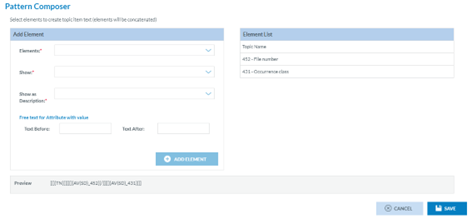
· Views are a collection of sections and sections are based on entities. To show the available sections, “Based on” needs to be selected.
· For entities that can have multiple instances, such as aircraft, events, dangerous goods… a maximum number of occurrences can be provided, or if set to unlimited the system will put a maximum of 10.
· In the event of multiple instance entities, it is possible to either this play them in a tabular format or in a list format.
· 3. Is the area showing the available and selected sections in the view for the selected entity.
On the left all available sections are shown that can be out in a view. Adding a section to a view is done by dragging the section into the selected area.
More sections can be dragged in the selected area:

Added sections can either be used for data entry or can be set as read only. In the example above, the section on weather is read only and cannot be user for data entry by the user. The setting read only is only applicable on the view that is being edited. This means that in one view the section is read only and in another view that same section can be used for data entry.
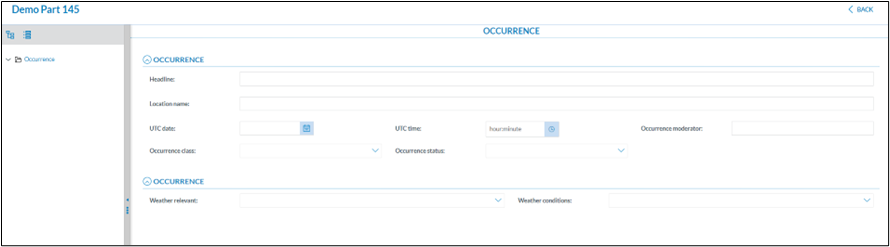
Adding an entity to the view
Before you add an entity to a view, the view must be saved
When hovering with the mouse over the occurrence, 2 icons will appear:
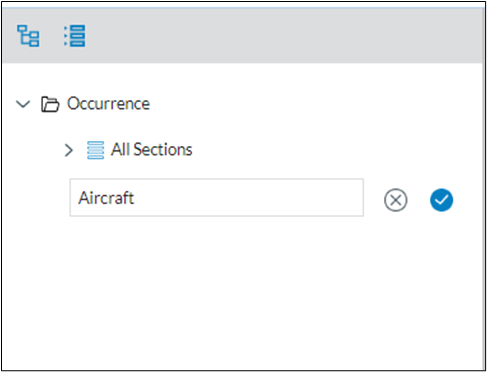
- A pencil, that allows you to modify the entity
- A + that will add an entity. By clicking this icon an empty slot will appear at the bottom of the tree.
Enter the name of entity how it is to be displayed in the tree view. This is a free text, so there is no automatic correlation between the entity name and what the entity is based on
Clicking on the tick icon will add the entity to the tree
As with the occurrence entity all relevant data is to be entered. The fields marked with a red asterisk are mandatory
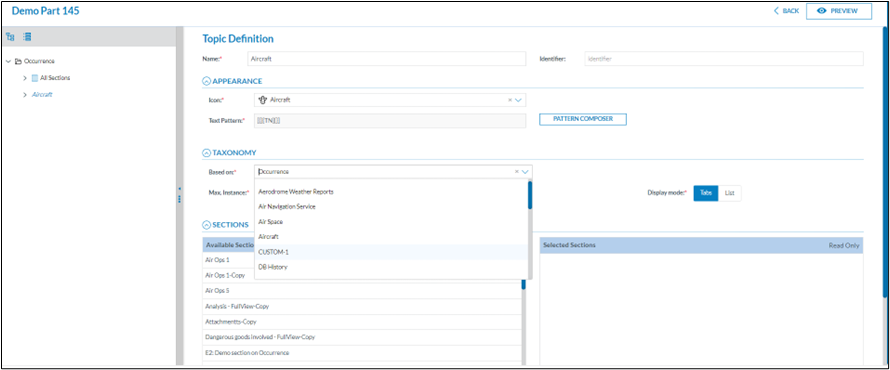
By having selected another entity, such as aircraft, that entities sections become available to be put on in the view.
In the “Based on”, is indicated upon which entity the section is based. In the example we select Aircraft from the list.
A warning message will be shown:

It is to draw you attention that other sections will become available and that the pattern composer is also going to be emptied:
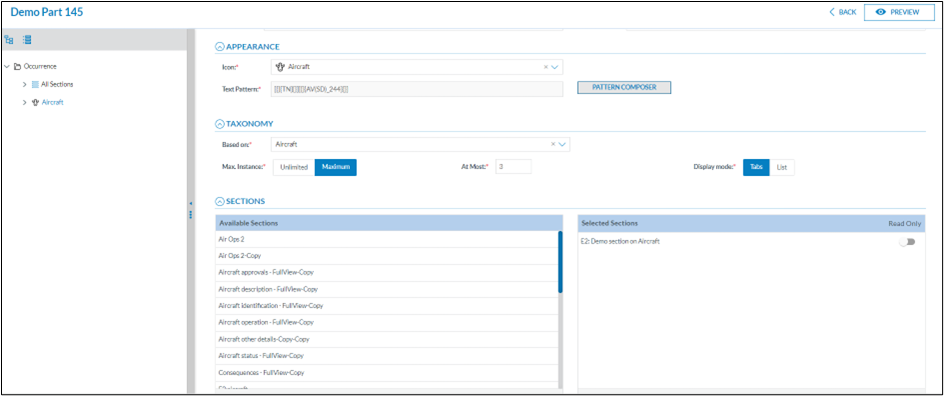
If an entity can have multiple instances in an incident report, a maximum number can be set, in this example it is set to 3 and the display is tabular.

Per entity that is added a pattern composer is available. In the next example next to the text aircraft, the Aircraft Registration number is shown.
It is important to notice that when a section is added to a view, it cannot be edited anymore unless it is removed from the view first.
As a section can be used in multiple views, then the section is to be removed from all the views before it can be edited. Hence the need for giving meaning full names to the sections
Making the view accessible to users
In the list view, the sections column, it shows which section are comprised within the view.

When via the three little dots the option “Publish view” is chosen, the view becomes available to the users who are in the role set at view level
This is how the view appears to the user
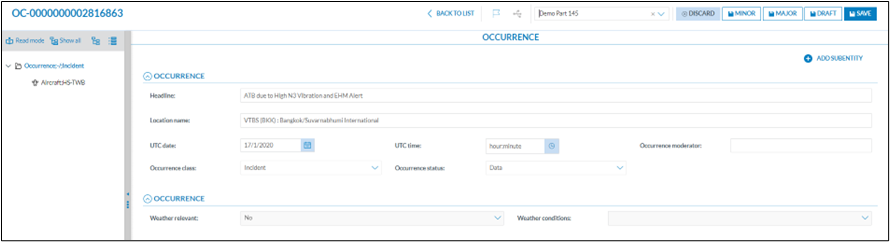
The section handling the weather was indicated as read only and is therefore greyed out
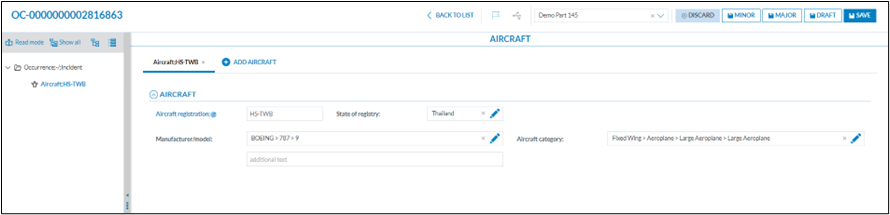
As it was set there are 3 aircraft possible an aircraft can be simply added by clicking Add Aircraft.
Turning a view into a form
Any view can be turned into a web form:
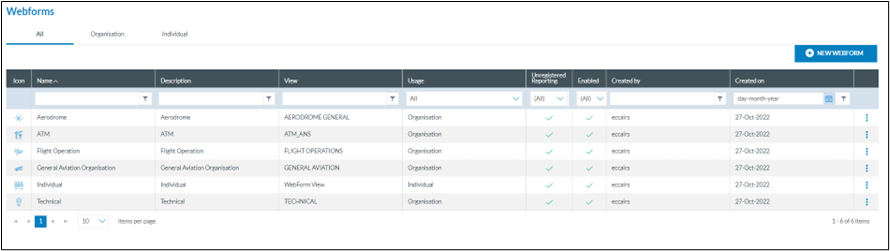
By default, ECCAIRS2 has these standard forms available
1. Technical
2. General Aviation
3. Aerodrome
4. ATM/ANS
5. Flight Operation
6. Individual
As in the list view it shows upon which views the forms are based.
The “New Webform” button opens the configuration screen to create a new web form:
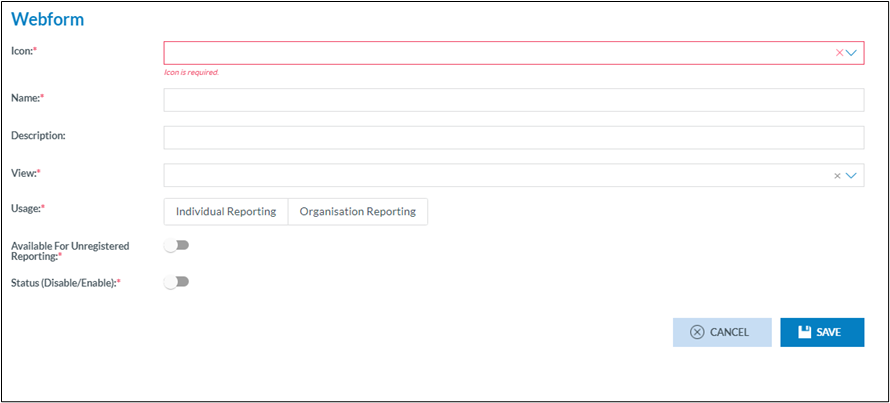
As with all interfaces, the fields marked with a red asterisk are mandatory
· Every form is to have an icon, it is a visual queue to what the form is about
· A meaning full name is necessary as this is what the end user on the aviation portal will see
· An explanation what the form tries to achieve is to be entered in the description
· In the list of views, the view upon which the form is based is to be selected
· There are 2 types of users
o An individual user, private person
o A user belonging to a registered organisation
Depending on which option is chosen, the form will become available to them
· Available for registered reporting, is to indicate if the form is also to be available to users that have not registered as private user or as a user of a registered organisation
· The status is to indicate if the form is enabled or disabled. It may well be that a form is created, yet it is opted as not to make it available to the public yet
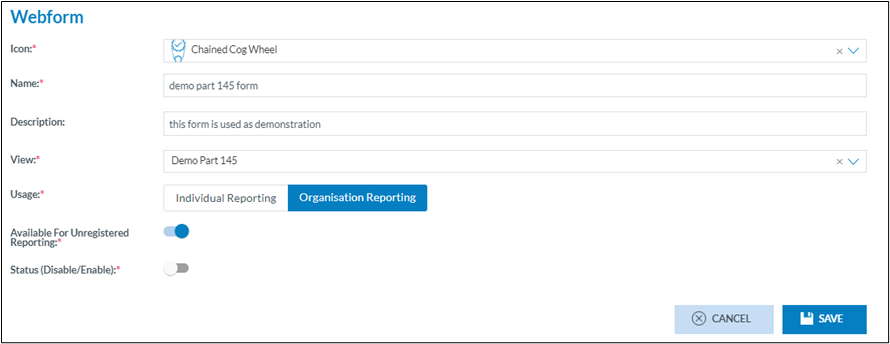
How to understand user status
Purpose
Understanding the complexity of different user statuses has long been a challenge. Moreover, a user’s status, and the way it is set, can often be interpreted in multiple ways.
This document aims to clarify the various user statuses, explain how they are assigned, and specify who has the authority to set them.
What user status do exist?

Deleted
· When a user request for his account to be deleted, all fields except his username are anonymised. Consequentially his status will be set to deleted
· When an Authority or an organisation is deleted, then all its users are deleted too.
· An organisation manager or an Authority National Security Administrator cannot delete a user account
Blocked
An account can only be blocked by an administrator. Whether it be an organisation manager or an Authority National Security Administrator. This often happens when users are nog longer active in an organisation or in an Authority.
Users trying to login with their blocked account are requested to contact the administrator.
Disabled
An account can only be disabled by the system. It is automatically done when certain conditions are met. Such as inactivity for more than 90 days. An organisation manager or an Authority National Security Administrator, cannot directly change this.
As this status can only be set by the system, the slide button is greyed out.

Who can do which actions?
Unblocking an account
It is the prerogative of organisation manager or an Authority’s National Security Administrator that can unblock an account which was previously blocked.
When unblocking an account, the user account will also be automatically enabled by the system
Deleting an organisation
Only a National Security Administrator can delete an organisation, which will set all user accounts to deleted
Deleting an Authority
Only an ECCAIRS system administrator may delete an Authority setting all user accounts, organisation and Authority users, to deleted
Re-enabling
An account that is disabled by the system and which is not blocked by an organisation manager or an Authority’s National Security Administrator can be re-enabled by the user
· The user logs in with his correct username and password. If his account is disabled, a red banner with a hyperlink to reactivate his account will be shown at the bottom of the screen
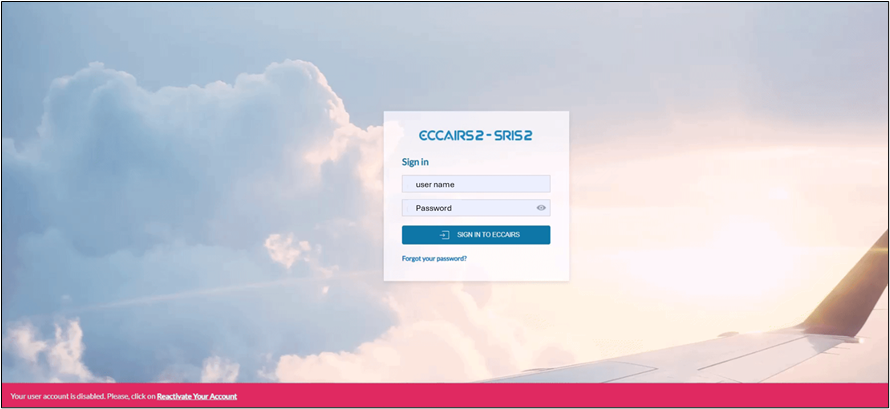
· In the next window, the username is to be entered

An acknowledge banner is shown informing the user that a reactivation email was sent to the email address linked to his account.
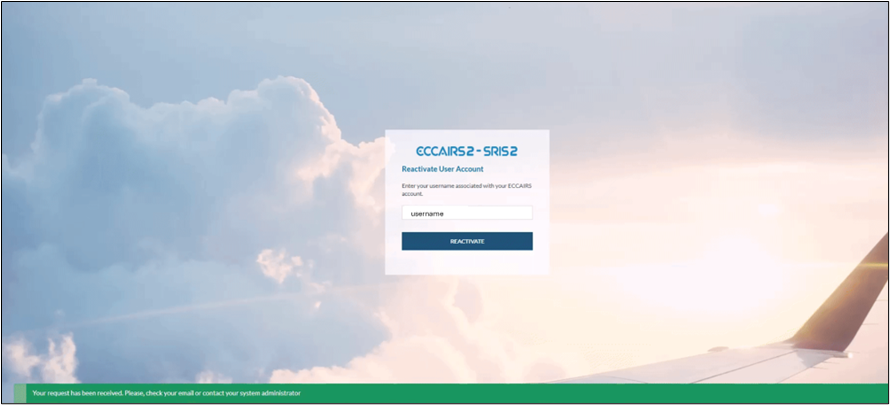
To reactivate the account, the user is to click on the “Reactivate your account” button
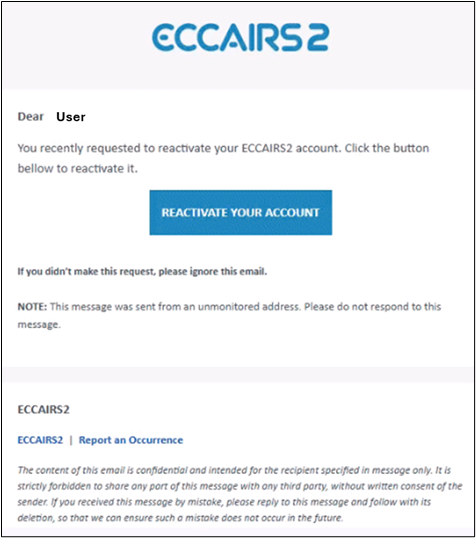
By confirming the reactivation will finalise the re-activation exercise