# 4.6. Taxonomy Management

<span lang="EN-GB">As mentioned, National Aviation Authorities and Safety Investigation Authorities can maintain their own Custom Taxonomy, which allows them to adapt their usage of E2 to their own processes.</span>

### <span style="mso-fareast-font-family: Calibri; mso-bidi-font-family: Calibri;"><span style="mso-list: Ignore;">4.6.1.<span style="font-family: Times New Roman; font-size: xx-small;"> </span></span></span>Create a Custom Taxonomy

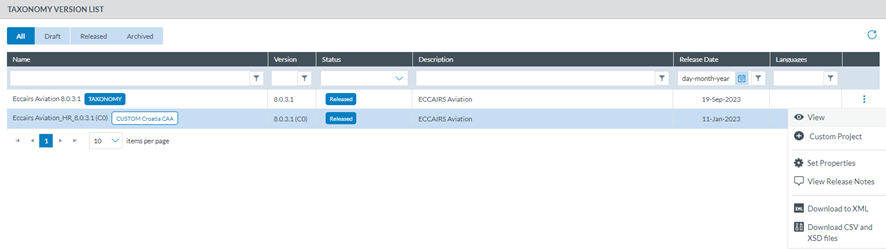
<span lang="EN-GB">National Security Administrators have to click on ‘Custom Project’ option of the 3-dots menu of the specific Central released Taxonomy of the list, if a Custom released Taxonomy does not exist yet.</span>

<span lang="EN-GB">If a Custom released Taxonomy exists for the Authority, the 'Custom Project' option of the 3-dots menu will be available on it and the system will create a Draft version of that Custom Taxonomy where the changes can be done. </span>

<span lang="EN-GB"> </span>[![image.png](https://help.ci-aviationreporting.eu/uploads/images/gallery/2025-11/scaled-1680-/pjYimage.png)](https://help.ci-aviationreporting.eu/uploads/images/gallery/2025-11/pjYimage.png)

<span lang="EN-GB" style="mso-fareast-language: EN-GB; mso-no-proof: yes;"> </span>

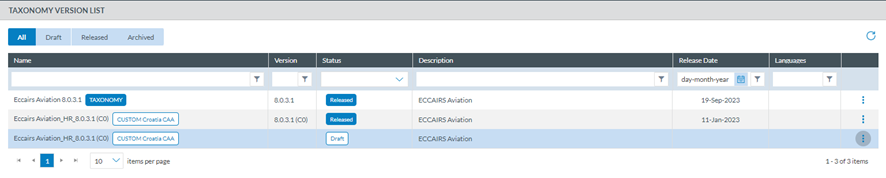
<span lang="EN-GB">Once created, the Draft version of the Custom Taxonomy will be displayed in the list of Taxonomies:</span>

[![image.png](https://help.ci-aviationreporting.eu/uploads/images/gallery/2025-11/scaled-1680-/83Iimage.png)](https://help.ci-aviationreporting.eu/uploads/images/gallery/2025-11/83Iimage.png)

<span lang="EN-GB" style="mso-fareast-language: EN-GB; mso-no-proof: yes;"> </span>

### <span style="mso-fareast-font-family: Calibri; mso-bidi-font-family: Calibri;"><span style="mso-list: Ignore;">4.6.2.</span></span>Taxonomy management - Structure

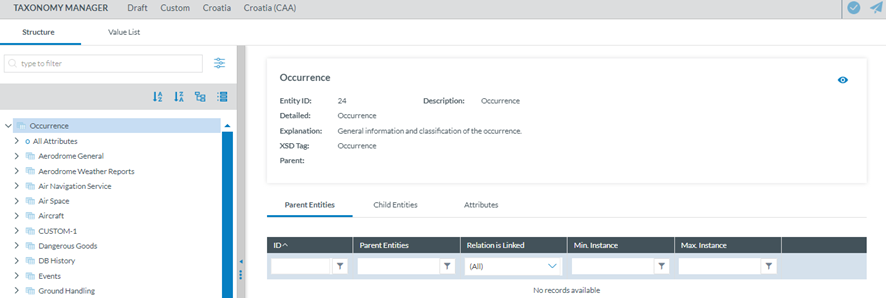
<span lang="EN-GB">National Security Administrators have to click on ‘Edit Project’ option of the 3-dots menu of the specific Draft Custom Taxonomy of the list. The system will display the editing page:</span>

[![image.png](https://help.ci-aviationreporting.eu/uploads/images/gallery/2025-11/scaled-1680-/H8simage.png)](https://help.ci-aviationreporting.eu/uploads/images/gallery/2025-11/H8simage.png)

<span lang="EN-GB" style="mso-ansi-language: EN-GB; mso-fareast-language: EN-GB;"> </span>

<span lang="EN-GB">At Authority level, only Custom Attributes and Custom Value Lists can be updated.</span>

### <span style="mso-bookmark: _Toc170415822;"><span style="mso-fareast-font-family: Calibri; mso-bidi-font-family: Calibri;"><span style="mso-list: Ignore;">4.6.3. </span></span>Attributes Management</span>

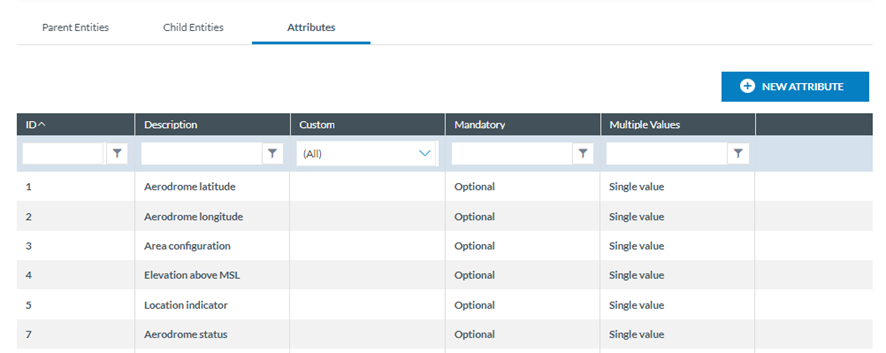
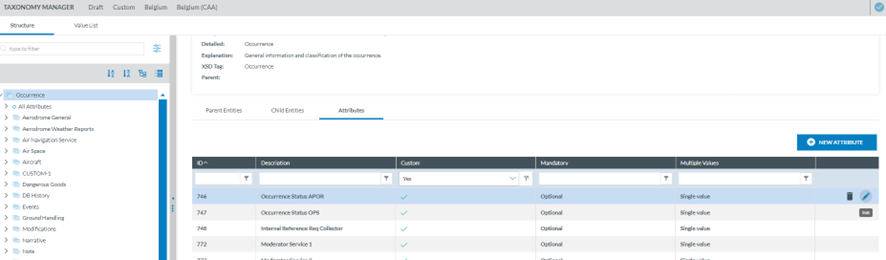
<span lang="EN-GB">National Security Administrators have to click on the Attributes tab of the specific Entity at the Entities information page, and the system will display the table of Central and Custom Attributes defined for that Entity:</span>

[![image.png](https://help.ci-aviationreporting.eu/uploads/images/gallery/2025-11/scaled-1680-/1rcimage.png)](https://help.ci-aviationreporting.eu/uploads/images/gallery/2025-11/1rcimage.png)

<span lang="EN-GB" style="mso-ansi-language: EN-GB; mso-fareast-language: EN-GB;"> </span>

<span lang="EN-GB">Above the table, there is a ‘New Attribute’ button for the Authority to create new Custom Attributes.</span>

<span lang="EN-GB">The table of Attributes provides the following columns that also work as filters:</span>

<span lang="EN-GB" style="font-family: Symbol; mso-fareast-font-family: Symbol; mso-bidi-font-family: Symbol; color: #1b3891; mso-themecolor: text1;"><span style="mso-list: Ignore;">·<span style="font: 7.0pt 'Times New Roman';"> </span></span></span><span lang="EN-GB">ID: automatically generated, mandatory and unique for each Attribute (Taxonomy code)</span>

<span lang="EN-GB" style="font-family: Symbol; mso-fareast-font-family: Symbol; mso-bidi-font-family: Symbol; color: #1b3891; mso-themecolor: text1;"><span style="mso-list: Ignore;">·<span style="font: 7.0pt 'Times New Roman';"> </span></span></span><span lang="EN-GB">Description: unique for each Attribute and mandatory</span>

<span lang="EN-GB" style="font-family: Symbol; mso-fareast-font-family: Symbol; mso-bidi-font-family: Symbol; color: #1b3891; mso-themecolor: text1;"><span style="mso-list: Ignore;">·<span style="font: 7.0pt 'Times New Roman';"> </span></span></span><span lang="EN-GB">Custom: if it is Custom Attribute, it will provide a green tick</span>

<span lang="EN-GB" style="font-family: Symbol; mso-fareast-font-family: Symbol; mso-bidi-font-family: Symbol; color: #1b3891; mso-themecolor: text1;"><span style="mso-list: Ignore;">·<span style="font: 7.0pt 'Times New Roman';"> </span></span></span><span lang="EN-GB">Mandatory: it sets if the Attribute is Mandatory or Optional</span>

<span lang="EN-GB" style="font-family: Symbol; mso-fareast-font-family: Symbol; mso-bidi-font-family: Symbol; color: #1b3891; mso-themecolor: text1;"><span style="mso-list: Ignore;">·<span style="font: 7.0pt 'Times New Roman';"> </span></span></span><span lang="EN-GB">Multiple Values: it sets if the Attribute is singled value, limited or multiple values</span>

<span lang="EN-GB">The last section of each row provides an Edit and a Delete icon.</span>

#### <span style="mso-fareast-font-family: Calibri; mso-bidi-font-family: Calibri;"><span style="mso-list: Ignore;">4.6.3.1.<span style="font-family: Times New Roman; font-size: xx-small;"> </span></span></span>Create a Custom Attribute:

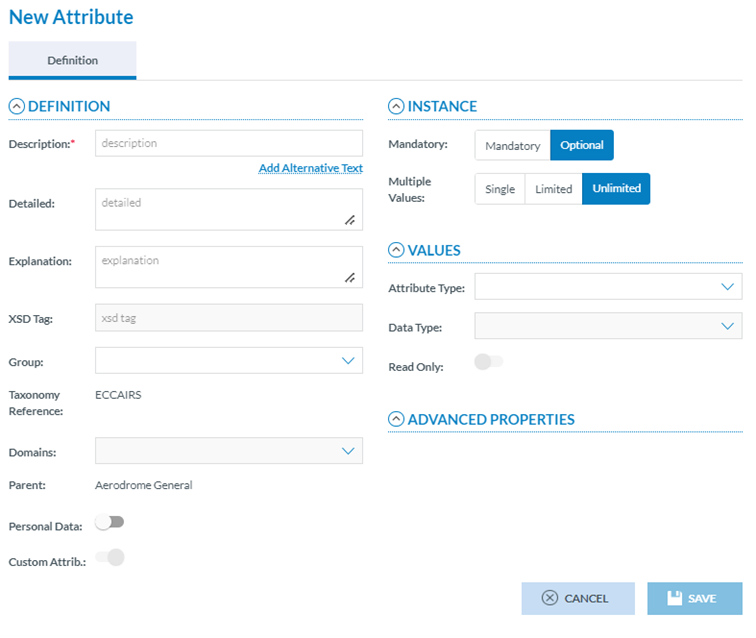
<span lang="EN-GB">National Security Administrators have to click on ‘New Attribute’ button above the table of Attributes and the system will display the New Attribute page:</span>

[![image.png](https://help.ci-aviationreporting.eu/uploads/images/gallery/2025-11/scaled-1680-/darimage.png)](https://help.ci-aviationreporting.eu/uploads/images/gallery/2025-11/darimage.png)

<span lang="EN-GB" style="mso-ansi-language: EN-GB; mso-fareast-language: EN-GB;"> </span>

<span lang="EN-GB">National Security Administrators have to fill in at least the Description which is the only mandatory field.</span>

<span lang="EN-GB">XSD Tag and Type are empty and not editable.</span>

<span lang="EN-GB">The Taxonomy Reference, Domain and the Parent are automatically set and not editable.</span>

<span lang="EN-GB">The Custom Attribute field is not editable and is set to on by default.</span>

<span lang="EN-GB">The rest are optional or editable.</span>

<span lang="EN-GB">Definition Information:</span>

<span lang="EN-GB" style="font-family: Symbol; mso-fareast-font-family: Symbol; mso-bidi-font-family: Symbol; color: #1b3891; mso-themecolor: text1;"><span style="mso-list: Ignore;">·<span style="font: 7.0pt 'Times New Roman';"> </span></span></span><span lang="EN-GB">Detailed: free text field</span>

<span lang="EN-GB" style="font-family: Symbol; mso-fareast-font-family: Symbol; mso-bidi-font-family: Symbol; color: #1b3891; mso-themecolor: text1;"><span style="mso-list: Ignore;">·<span style="font: 7.0pt 'Times New Roman';"> </span></span></span><span lang="EN-GB">Explanation: free text field</span>

<span lang="EN-GB" style="font-family: Symbol; mso-fareast-font-family: Symbol; mso-bidi-font-family: Symbol; color: #1b3891; mso-themecolor: text1;"><span style="mso-list: Ignore;">·<span style="font: 7.0pt 'Times New Roman';"> </span></span></span><span lang="EN-GB">Group: drop-down menu to select among the available groups</span>

<span lang="EN-GB" style="font-family: Symbol; mso-fareast-font-family: Symbol; mso-bidi-font-family: Symbol; color: #1b3891; mso-themecolor: text1;"><span style="mso-list: Ignore;">·<span style="font: 7.0pt 'Times New Roman';"> </span></span></span><span lang="EN-GB">Personal Data toggle: deactivated by default. If activated, the Attribute corresponds to personal data</span>

<span lang="EN-GB">Instance information:</span>

<span lang="EN-GB" style="font-family: Symbol; mso-fareast-font-family: Symbol; mso-bidi-font-family: Symbol; color: #1b3891; mso-themecolor: text1;"><span style="mso-list: Ignore;">·<span style="font: 7.0pt 'Times New Roman';"> </span></span></span><span lang="EN-GB">By default, Optional is set. National Security Administrators can update it to Mandatory.</span>

<span lang="EN-GB" style="font-family: Symbol; mso-fareast-font-family: Symbol; mso-bidi-font-family: Symbol; color: #1b3891; mso-themecolor: text1;"><span style="mso-list: Ignore;">·<span style="font: 7.0pt 'Times New Roman';"> </span></span></span><span lang="EN-GB">Multiple Values: by default, Unlimited Values is set. National Security Administrators can update it to Single or Limited</span>

<span lang="EN-GB">Values Information:</span>

<span lang="EN-GB" style="font-family: Symbol; mso-fareast-font-family: Symbol; mso-bidi-font-family: Symbol; color: #1b3891; mso-themecolor: text1;"><span style="mso-list: Ignore;">·<span style="font: 7.0pt 'Times New Roman';"> </span></span></span><span lang="EN-GB">Attribute Type: drop-down menu to select:</span>

<span lang="EN-GB" style="font-family: Wingdings; mso-fareast-font-family: Wingdings; mso-bidi-font-family: Wingdings; color: #1b3891; mso-themecolor: text1;"><span style="mso-list: Ignore;">ü<span style="font: 7.0pt 'Times New Roman';"> </span></span></span><span lang="EN-GB">Manual Entry</span>

<span lang="EN-GB" style="font-family: Wingdings; mso-fareast-font-family: Wingdings; mso-bidi-font-family: Wingdings; color: #1b3891; mso-themecolor: text1;"><span style="mso-list: Ignore;">ü<span style="font: 7.0pt 'Times New Roman';"> </span></span></span><span lang="EN-GB">Predefined Value List</span>

<span lang="EN-GB" style="font-family: Symbol; mso-fareast-font-family: Symbol; mso-bidi-font-family: Symbol; color: #1b3891; mso-themecolor: text1;"><span style="mso-list: Ignore;">·<span style="font: 7.0pt 'Times New Roman';"> </span></span></span><span lang="EN-GB">Data Type: drop-down menu depending on the Attribute Type to select:</span>

<span style="mso-bookmark: _Hlk170564024;"><span lang="EN-GB" style="font-family: Wingdings; mso-fareast-font-family: Wingdings; mso-bidi-font-family: Wingdings; color: #1b3891; mso-themecolor: text1;"><span style="mso-list: Ignore;">ü<span style="font: 7.0pt 'Times New Roman';"> </span></span></span><span lang="EN-GB">Manual Entry</span></span>

<span style="mso-bookmark: _Hlk170564024;"><span lang="EN-GB" style="mso-bidi-font-family: Calibri; color: #1b3891; mso-themecolor: text1;"><span style="mso-list: Ignore;">o<span style="font: 7.0pt 'Times New Roman';"> </span></span></span><span lang="EN-GB">Alphanumeric</span></span>

<span style="mso-bookmark: _Hlk170564024;"><span lang="EN-GB" style="mso-bidi-font-family: Calibri; color: #1b3891; mso-themecolor: text1;"><span style="mso-list: Ignore;">o<span style="font: 7.0pt 'Times New Roman';"> </span></span></span><span lang="EN-GB">Date</span></span>

<span style="mso-bookmark: _Hlk170564024;"><span lang="EN-GB" style="mso-bidi-font-family: Calibri; color: #1b3891; mso-themecolor: text1;"><span style="mso-list: Ignore;">o<span style="font: 7.0pt 'Times New Roman';"> </span></span></span><span lang="EN-GB">DateTime</span></span>

<span style="mso-bookmark: _Hlk170564024;"><span lang="EN-GB" style="mso-bidi-font-family: Calibri; color: #1b3891; mso-themecolor: text1;"><span style="mso-list: Ignore;">o<span style="font: 7.0pt 'Times New Roman';"> </span></span></span><span lang="EN-GB">Decimals</span></span>

<span style="mso-bookmark: _Hlk170564024;"><span lang="EN-GB" style="mso-bidi-font-family: Calibri; color: #1b3891; mso-themecolor: text1;"><span style="mso-list: Ignore;">o<span style="font: 7.0pt 'Times New Roman';"> </span></span></span><span lang="EN-GB">Eccairs Data Link</span></span>

<span style="mso-bookmark: _Hlk170564024;"><span lang="EN-GB" style="mso-bidi-font-family: Calibri; color: #1b3891; mso-themecolor: text1;"><span style="mso-list: Ignore;">o<span style="font: 7.0pt 'Times New Roman';"> </span></span></span><span lang="EN-GB">Eccairs Embedded Data</span></span>

<span style="mso-bookmark: _Hlk170564024;"><span lang="EN-GB" style="mso-bidi-font-family: Calibri; color: #1b3891; mso-themecolor: text1;"><span style="mso-list: Ignore;">o<span style="font: 7.0pt 'Times New Roman';"> </span></span></span><span lang="EN-GB">Eccairs Reource Locator</span></span>

<span style="mso-bookmark: _Hlk170564024;"><span lang="EN-GB" style="mso-bidi-font-family: Calibri; color: #1b3891; mso-themecolor: text1;"><span style="mso-list: Ignore;">o<span style="font: 7.0pt 'Times New Roman';"> </span></span></span><span lang="EN-GB">Latitude</span></span>

<span style="mso-bookmark: _Hlk170564024;"><span lang="EN-GB" style="mso-bidi-font-family: Calibri; color: #1b3891; mso-themecolor: text1;"><span style="mso-list: Ignore;">o<span style="font: 7.0pt 'Times New Roman';"> </span></span></span><span lang="EN-GB">Longitude</span></span>

<span style="mso-bookmark: _Hlk170564024;"><span lang="EN-GB" style="mso-bidi-font-family: Calibri; color: #1b3891; mso-themecolor: text1;"><span style="mso-list: Ignore;">o<span style="font: 7.0pt 'Times New Roman';"> </span></span></span><span lang="EN-GB">Number</span></span>

<span style="mso-bookmark: _Hlk170564024;"><span lang="EN-GB" style="mso-bidi-font-family: Calibri; color: #1b3891; mso-themecolor: text1;"><span style="mso-list: Ignore;">o<span style="font: 7.0pt 'Times New Roman';"> </span></span></span><span lang="EN-GB">Text</span></span>

<span style="mso-bookmark: _Hlk170564024;"><span lang="EN-GB" style="mso-bidi-font-family: Calibri; color: #1b3891; mso-themecolor: text1;"><span style="mso-list: Ignore;">o<span style="font: 7.0pt 'Times New Roman';"> </span></span></span><span lang="EN-GB">Time</span></span>

<span style="mso-bookmark: _Hlk170564024;"><span lang="EN-GB" style="font-family: Wingdings; mso-fareast-font-family: Wingdings; mso-bidi-font-family: Wingdings; color: #1b3891; mso-themecolor: text1;"><span style="mso-list: Ignore;">ü<span style="font: 7.0pt 'Times New Roman';"> </span></span></span><span lang="EN-GB">Predefined Value List</span></span>

<span style="mso-bookmark: _Hlk170564024;"><span lang="EN-GB" style="mso-bidi-font-family: Calibri; color: #1b3891; mso-themecolor: text1;"><span style="mso-list: Ignore;">o<span style="font: 7.0pt 'Times New Roman';"> </span></span></span><span lang="EN-GB">Code</span></span>

<span style="mso-bookmark: _Hlk170564024;"><span lang="EN-GB" style="mso-bidi-font-family: Calibri; color: #1b3891; mso-themecolor: text1;"><span style="mso-list: Ignore;">o<span style="font: 7.0pt 'Times New Roman';"> </span></span></span><span lang="EN-GB">Code and Additional Text</span></span>

<span style="mso-bookmark: _Hlk170564024;"><span lang="EN-GB" style="mso-bidi-font-family: Calibri; color: #1b3891; mso-themecolor: text1;"><span style="mso-list: Ignore;">o<span style="font: 7.0pt 'Times New Roman';"> </span></span></span><span lang="EN-GB">Code or Alternative Text</span></span>

<span style="mso-bookmark: _Hlk170564024;"><span lang="EN-GB" style="font-family: Symbol; mso-fareast-font-family: Symbol; mso-bidi-font-family: Symbol; color: #1b3891; mso-themecolor: text1;"><span style="mso-list: Ignore;">·<span style="font: 7.0pt 'Times New Roman';"> </span></span></span><span lang="EN-GB">Value List: name of the Value List to associate to Predefined Value List Custom Attributes. It can be a Value List of the Central Taxonomy or a Value List of the Custom Taxonomy</span></span>

<span lang="EN-GB">Advanced Properties Information:</span>

<span lang="EN-GB" style="font-family: Symbol; mso-fareast-font-family: Symbol; mso-bidi-font-family: Symbol; color: #1b3891; mso-themecolor: text1;"><span style="mso-list: Ignore;">·<span style="font: 7.0pt 'Times New Roman';"> </span></span></span><span lang="EN-GB">For Manual Entry Attributes (depending on the data type):</span>

<span lang="EN-GB" style="font-family: Wingdings; mso-fareast-font-family: Wingdings; mso-bidi-font-family: Wingdings; color: #1b3891; mso-themecolor: text1;"><span style="mso-list: Ignore;">ü<span style="font: 7.0pt 'Times New Roman';"> </span></span></span><span lang="EN-GB">Case type:</span>

<span lang="EN-GB" style="mso-bidi-font-family: Calibri; color: #1b3891; mso-themecolor: text1;"><span style="mso-list: Ignore;">o<span style="font: 7.0pt 'Times New Roman';"> </span></span></span><span lang="EN-GB">None</span>

<span lang="EN-GB" style="mso-bidi-font-family: Calibri; color: #1b3891; mso-themecolor: text1;"><span style="mso-list: Ignore;">o<span style="font: 7.0pt 'Times New Roman';"> </span></span></span><span lang="EN-GB">Uppercase</span>

<span lang="EN-GB" style="mso-bidi-font-family: Calibri; color: #1b3891; mso-themecolor: text1;"><span style="mso-list: Ignore;">o<span style="font: 7.0pt 'Times New Roman';"> </span></span></span><span lang="EN-GB">Lowercase</span>

<span lang="EN-GB" style="mso-bidi-font-family: Calibri; color: #1b3891; mso-themecolor: text1;"><span style="mso-list: Ignore;">o<span style="font: 7.0pt 'Times New Roman';"> </span></span></span><span lang="EN-GB">ProperCase</span>

<span lang="EN-GB" style="mso-bidi-font-family: Calibri; color: #1b3891; mso-themecolor: text1;"><span style="mso-list: Ignore;">o<span style="font: 7.0pt 'Times New Roman';"> </span></span></span><span lang="EN-GB">FirstLetter</span>

<span lang="EN-GB" style="font-family: Wingdings; mso-fareast-font-family: Wingdings; mso-bidi-font-family: Wingdings; color: #1b3891; mso-themecolor: text1;"><span style="mso-list: Ignore;">ü<span style="font: 7.0pt 'Times New Roman';"> </span></span></span><span lang="EN-GB">Limit Low</span>

<span lang="EN-GB" style="font-family: Wingdings; mso-fareast-font-family: Wingdings; mso-bidi-font-family: Wingdings; color: #1b3891; mso-themecolor: text1;"><span style="mso-list: Ignore;">ü<span style="font: 7.0pt 'Times New Roman';"> </span></span></span><span lang="EN-GB">Limit High</span>

<span lang="EN-GB" style="font-family: Wingdings; mso-fareast-font-family: Wingdings; mso-bidi-font-family: Wingdings; color: #1b3891; mso-themecolor: text1;"><span style="mso-list: Ignore;">ü<span style="font: 7.0pt 'Times New Roman';"> </span></span></span><span lang="EN-GB">Input Mask</span>

<span lang="EN-GB" style="font-family: Wingdings; mso-fareast-font-family: Wingdings; mso-bidi-font-family: Wingdings; color: #1b3891; mso-themecolor: text1;"><span style="mso-list: Ignore;">ü<span style="font: 7.0pt 'Times New Roman';"> </span></span></span><span lang="EN-GB">Output Mask.</span>

<span lang="EN-GB" style="font-family: Symbol; mso-fareast-font-family: Symbol; mso-bidi-font-family: Symbol; color: #1b3891; mso-themecolor: text1;"><span style="mso-list: Ignore;">·<span style="font: 7.0pt 'Times New Roman';"> </span></span></span><span lang="EN-GB">For Predefined Value List Attributes:</span>

<span lang="EN-GB" style="font-family: Wingdings; mso-fareast-font-family: Wingdings; mso-bidi-font-family: Wingdings; color: #1b3891; mso-themecolor: text1;"><span style="mso-list: Ignore;">ü<span style="font: 7.0pt 'Times New Roman';"> </span></span></span><span lang="EN-GB">Case type:</span>

<span lang="EN-GB" style="mso-bidi-font-family: Calibri; color: #1b3891; mso-themecolor: text1;"><span style="mso-list: Ignore;">o<span style="font: 7.0pt 'Times New Roman';"> </span></span></span><span lang="EN-GB">None</span>

<span lang="EN-GB" style="mso-bidi-font-family: Calibri; color: #1b3891; mso-themecolor: text1;"><span style="mso-list: Ignore;">o<span style="font: 7.0pt 'Times New Roman';"> </span></span></span><span lang="EN-GB">Uppercase</span>

<span lang="EN-GB" style="mso-bidi-font-family: Calibri; color: #1b3891; mso-themecolor: text1;"><span style="mso-list: Ignore;">o<span style="font: 7.0pt 'Times New Roman';"> </span></span></span><span lang="EN-GB">Lowercase</span>

<span lang="EN-GB" style="mso-bidi-font-family: Calibri; color: #1b3891; mso-themecolor: text1;"><span style="mso-list: Ignore;">o<span style="font: 7.0pt 'Times New Roman';"> </span></span></span><span lang="EN-GB">ProperCase</span>

<span lang="EN-GB" style="mso-bidi-font-family: Calibri; color: #1b3891; mso-themecolor: text1;"><span style="mso-list: Ignore;">o<span style="font: 7.0pt 'Times New Roman';"> </span></span></span><span lang="EN-GB">FirstLetter</span>

<span lang="EN-GB">National Security Administrators have to fill in the mandatory information and the needed optional information and click on ‘Save’ button. The system will save the Custom Attribute in the database and will add it to the Taxonomy browser of the Custom Taxonomy and to the table of Attributes of the specific Entity.</span>

#### <span style="mso-fareast-font-family: Calibri; mso-bidi-font-family: Calibri;"><span style="mso-list: Ignore;">4.6.3.2.<span style="font-family: Times New Roman; font-size: xx-small;"> </span></span></span>Edit a custom Attribute

<span lang="EN-GB">National Security Administrators have to click on the Edit icon of the specific Custom Attribute of the table of Attributes of the Entity and the system will display the Edit Attribute page:</span><span lang="EN-GB" style="mso-ansi-language: EN-GB; mso-fareast-language: EN-GB;"> </span>

<span lang="EN-GB"> </span>[![image.png](https://help.ci-aviationreporting.eu/uploads/images/gallery/2025-11/scaled-1680-/whLimage.png)](https://help.ci-aviationreporting.eu/uploads/images/gallery/2025-11/whLimage.png)

<span lang="EN-GB">It is like the previously explained New Attribute page with the addition of the ID, automatically generated and with the XSD Tag Generator button if the Attribute was created in the current Draft version of the Custom Taxonomy for the first time.</span>

<span lang="EN-GB">This button opens the following radio buttons:</span>

[![image.png](https://help.ci-aviationreporting.eu/uploads/images/gallery/2025-11/scaled-1680-/fSBimage.png)](https://help.ci-aviationreporting.eu/uploads/images/gallery/2025-11/fSBimage.png)

<span lang="EN-GB" style="mso-ansi-language: EN-GB; mso-fareast-language: EN-GB;"> </span>

<span lang="EN-GB" style="font-family: Symbol; mso-fareast-font-family: Symbol; mso-bidi-font-family: Symbol; color: #1b3891; mso-themecolor: text1;"><span style="mso-list: Ignore;">·<span style="font: 7.0pt 'Times New Roman';"> </span></span></span><span lang="EN-GB">Use Description: selected by default. It makes use the Description set for the Attribute to generate the XSD Tag.</span>

<span lang="EN-GB" style="font-family: Symbol; mso-fareast-font-family: Symbol; mso-bidi-font-family: Symbol; color: #1b3891; mso-themecolor: text1;"><span style="mso-list: Ignore;">·<span style="font: 7.0pt 'Times New Roman';"> </span></span></span><span lang="EN-GB">Use Identifier: if selected, the XSD Tag is generated through a Taxonomy Code.</span>

<span lang="EN-GB">National Security Administrators can update the needed fields always leaving the mandatory information filled. Then, they have to click on the ‘Save’ button and the system will update the information in the database and in the table of Attributes.</span>

<span lang="EN-GB">National Security Administrators can edit Central Attributes only to provide an Alternative Text to its description which can be shown in the Views where it is indicated. For example, to translate the Attribute Description to the Authority's preferred language. </span>

#### <span style="mso-fareast-font-family: Calibri; mso-bidi-font-family: Calibri;"><span style="mso-list: Ignore;">4.6.3.3.<span style="font-family: Times New Roman; font-size: xx-small;"> </span></span></span>Delete a Custom Attribute:

<span lang="EN-GB">National Security Administrators have to click on Delete icon of the specific Custom Attribute at the table of Attributes and the system will display a warning message, if National Security Administrators confirm the action the Custom Attribute will be deleted from the database, from the table of Attributes and from the Taxonomy browser of the specific Custom Taxonomy.</span>

<span lang="EN-GB">Only Custom Attributes created in the Draft version of the Taxonomy can be completely deleted. If an Attribute already exists in a Custom Taxonomy that has been released or a Custom Taxonomy that is archived, it cannot be deleted but inactivated.</span>

### <span style="mso-bookmark: _Toc170415823;"><span style="mso-bookmark: _Ref160643446;"><span style="mso-fareast-font-family: Calibri; mso-bidi-font-family: Calibri;"><span style="mso-list: Ignore;">4.6.4.<span style="font-family: Times New Roman; font-size: xx-small;"> </span></span></span>Taxonomy management – Value List</span></span>

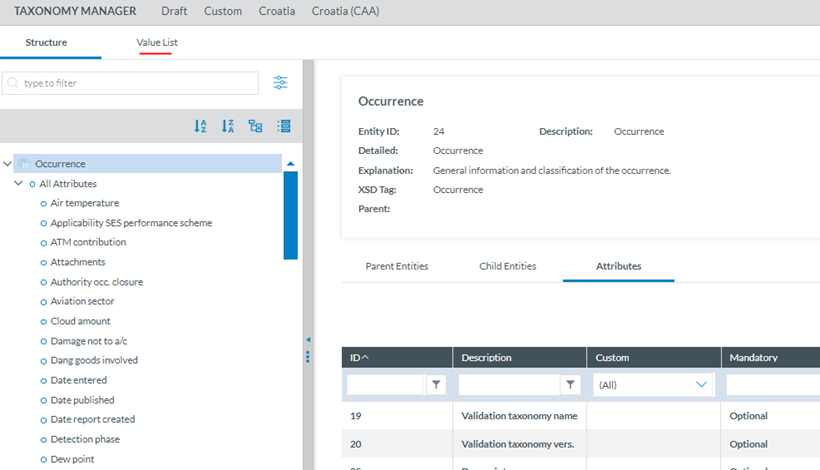
<span lang="EN-GB">Once in the Draft version of the Custom Taxonomy, National Security Administrators can click on the Value List tab:</span>

[![image.png](https://help.ci-aviationreporting.eu/uploads/images/gallery/2025-11/scaled-1680-/sIOimage.png)](https://help.ci-aviationreporting.eu/uploads/images/gallery/2025-11/sIOimage.png)

<span lang="EN-GB" style="mso-ansi-language: EN-GB; mso-fareast-language: EN-GB;"> </span>

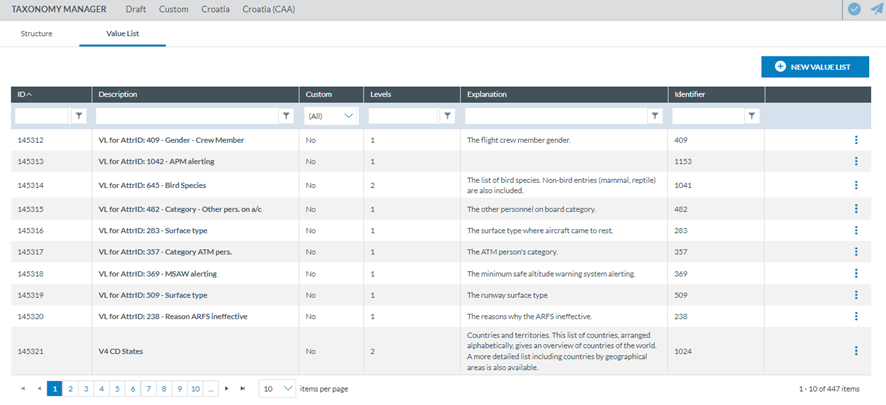
<span lang="EN-GB">and the system will display the Value List tab with the table of Value lists:</span>

[![image.png](https://help.ci-aviationreporting.eu/uploads/images/gallery/2025-11/scaled-1680-/1rfimage.png)](https://help.ci-aviationreporting.eu/uploads/images/gallery/2025-11/1rfimage.png)

<span lang="EN-GB" style="mso-ansi-language: EN-GB; mso-fareast-language: EN-GB;"> </span>

<span lang="EN-GB">Above the table there is a ‘New Value List’ button for the Authority to create new Custom Value Lists.</span>

<span lang="EN-GB">The table of Value Lists provides the following columns that also work as filters:</span>

<span lang="EN-GB" style="font-family: Symbol; mso-fareast-font-family: Symbol; mso-bidi-font-family: Symbol; color: #1b3891; mso-themecolor: text1;"><span style="mso-list: Ignore;">·<span style="font: 7.0pt 'Times New Roman';"> </span></span></span><span lang="EN-GB">ID: it is the internal id automatically generated and unique for each Value List</span>

<span lang="EN-GB" style="font-family: Symbol; mso-fareast-font-family: Symbol; mso-bidi-font-family: Symbol; color: #1b3891; mso-themecolor: text1;"><span style="mso-list: Ignore;">·<span style="font: 7.0pt 'Times New Roman';"> </span></span></span><span lang="EN-GB">Description: unique for each Value List and mandatory</span>

<span lang="EN-GB" style="font-family: Symbol; mso-fareast-font-family: Symbol; mso-bidi-font-family: Symbol; color: #1b3891; mso-themecolor: text1;"><span style="mso-list: Ignore;">·<span style="font: 7.0pt 'Times New Roman';"> </span></span></span><span lang="EN-GB">Custom: (Yes) if it is a Custom Value List belonging to the Authority's Custom Taxonomy or (No) it the Value List belongs to the Central Taxonomy</span>

<span lang="EN-GB" style="font-family: Symbol; mso-fareast-font-family: Symbol; mso-bidi-font-family: Symbol; color: #1b3891; mso-themecolor: text1;"><span style="mso-list: Ignore;">·<span style="font: 7.0pt 'Times New Roman';"> </span></span></span><span lang="EN-GB">Levels: number of levels of the Value List</span>

<span lang="EN-GB" style="font-family: Symbol; mso-fareast-font-family: Symbol; mso-bidi-font-family: Symbol; color: #1b3891; mso-themecolor: text1;"><span style="mso-list: Ignore;">·<span style="font: 7.0pt 'Times New Roman';"> </span></span></span><span lang="EN-GB">Explanation: optional</span>

<span lang="EN-GB" style="font-family: Symbol; mso-fareast-font-family: Symbol; mso-bidi-font-family: Symbol; color: #1b3891; mso-themecolor: text1;"><span style="mso-list: Ignore;">·<span style="font: 7.0pt 'Times New Roman';"> </span></span></span><span lang="EN-GB">Identifier: unique for each Value List which does not change with Taxonomy releases</span>

<span lang="EN-GB">The last section of each row provides a 3-dots menu with the options to be explained.</span>

<span lang="EN-GB">This section can provide a locker meaning the Value List is locked to an export process, it will not be unlocked unless a new version of the Value List is imported to the system or it is unlocked by the user who exported it and there is not an import process running.</span>

#### <span style="mso-fareast-font-family: Calibri; mso-bidi-font-family: Calibri;"><span style="mso-list: Ignore;">4.6.4.1. </span></span>Create a Custom Value List<span style="mso-tab-count: 1;"> </span>

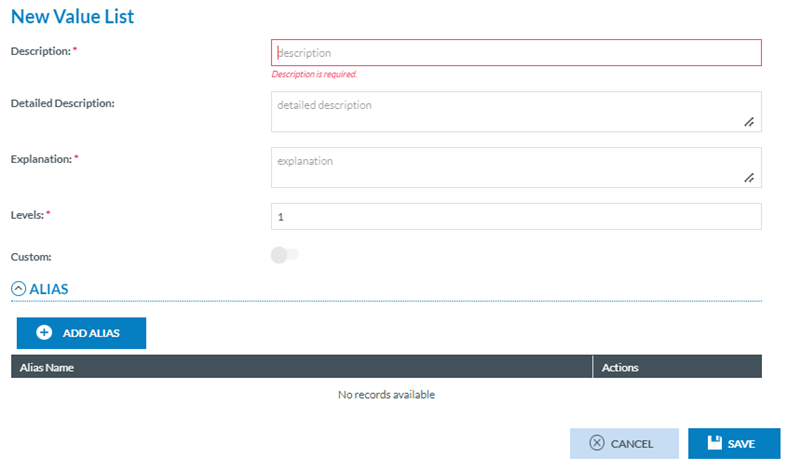
<span lang="EN-GB">National Security Administrators have to click on ‘New Value List’ above the table of Value Lists (See image above) and the system will provide the New Value List page:</span>

[![image.png](https://help.ci-aviationreporting.eu/uploads/images/gallery/2025-11/scaled-1680-/avhimage.png)](https://help.ci-aviationreporting.eu/uploads/images/gallery/2025-11/avhimage.png)

<span lang="EN-GB" style="mso-ansi-language: EN-GB; mso-fareast-language: EN-GB;"> </span>

<span lang="EN-GB">It provides the following fields:</span>

<span lang="EN-GB" style="font-family: Symbol; mso-fareast-font-family: Symbol; mso-bidi-font-family: Symbol; color: #1b3891; mso-themecolor: text1;"><span style="mso-list: Ignore;">·<span style="font: 7.0pt 'Times New Roman';"> </span></span></span><span lang="EN-GB">Description: it is mandatory and has to be unique</span>

<span lang="EN-GB" style="font-family: Symbol; mso-fareast-font-family: Symbol; mso-bidi-font-family: Symbol; color: #1b3891; mso-themecolor: text1;"><span style="mso-list: Ignore;">·<span style="font: 7.0pt 'Times New Roman';"> </span></span></span><span lang="EN-GB">Detailed Description: optional free text field</span>

<span lang="EN-GB" style="font-family: Symbol; mso-fareast-font-family: Symbol; mso-bidi-font-family: Symbol; color: #1b3891; mso-themecolor: text1;"><span style="mso-list: Ignore;">·<span style="font: 7.0pt 'Times New Roman';"> </span></span></span><span lang="EN-GB">Explanation: mandatory free text field</span>

<span lang="EN-GB" style="font-family: Symbol; mso-fareast-font-family: Symbol; mso-bidi-font-family: Symbol; color: #1b3891; mso-themecolor: text1;"><span style="mso-list: Ignore;">·<span style="font: 7.0pt 'Times New Roman';"> </span></span></span><span lang="EN-GB">Levels: number of levels. By default, the system sets 1 but it is editable to a max of 10 levels</span>

<span lang="EN-GB" style="font-family: Symbol; mso-fareast-font-family: Symbol; mso-bidi-font-family: Symbol; color: #1b3891; mso-themecolor: text1;"><span style="mso-list: Ignore;">·<span style="font: 7.0pt 'Times New Roman';"> </span></span></span><span lang="EN-GB">Custom toggle: not editable for National Security Administrators and enabled</span>

<span lang="EN-GB">Below the fields there is the Alias information with the ‘Add Alias’ button and below the structure for the table of Alias (Alias Name and Actions columns).</span>

<span lang="EN-GB">National Security Administrators have to fill in the mandatory and the needed information, including the Aliases, if required. To add Aliases, National Security Administrators have to click on ‘Add Alias’ and the system will open the Alias drop-down menu:</span>

[![image.png](https://help.ci-aviationreporting.eu/uploads/images/gallery/2025-11/scaled-1680-/j0bimage.png)](https://help.ci-aviationreporting.eu/uploads/images/gallery/2025-11/j0bimage.png)

<span lang="EN-GB" style="mso-ansi-language: EN-GB; mso-fareast-language: EN-GB;"> </span>

<span lang="EN-GB">It provides the Alias Support Table of the Administration menu. See section Support Tables for more details. National Security Administrator has to select an Alias and click on the Disk icon that will be enabled. The X icon is to discard the selection.</span>

<span lang="EN-GB">Once the Alias is selected, the Disk Save icon turns into a Delete icon:</span>

[![image.png](https://help.ci-aviationreporting.eu/uploads/images/gallery/2025-11/scaled-1680-/HErPpuimage.png)](https://help.ci-aviationreporting.eu/uploads/images/gallery/2025-11/HErPpuimage.png)

<span lang="EN-GB" style="mso-ansi-language: EN-GB; mso-fareast-language: EN-GB;"> </span>

<span lang="EN-GB">National Security Administrators can repeat the operation as many times as needed. Then they have to click on ‘Save’ button and the system will save the Custom Value List in the database and will add it to the table of Value Lists.</span>

#### <span style="mso-fareast-font-family: Calibri; mso-bidi-font-family: Calibri;"><span style="mso-list: Ignore;">4.6.4.2.<span style="font-family: Times New Roman; font-size: xx-small;"> </span></span></span>Edit a Custom Value List

<span lang="EN-GB">Only not locked Custom Value Lists can be edited. National Security Administrators have to click on ‘Edit Value List’ option of the 3-dots menu of the specific Custom Value List and the system will display the Edit Value List page:</span>

[![image.png](https://help.ci-aviationreporting.eu/uploads/images/gallery/2025-11/scaled-1680-/UBCimage.png)](https://help.ci-aviationreporting.eu/uploads/images/gallery/2025-11/UBCimage.png)

<span lang="EN-GB" style="mso-ansi-language: EN-GB; mso-fareast-language: EN-GB;"> </span>

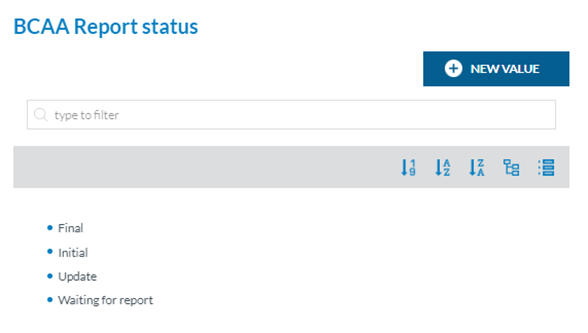
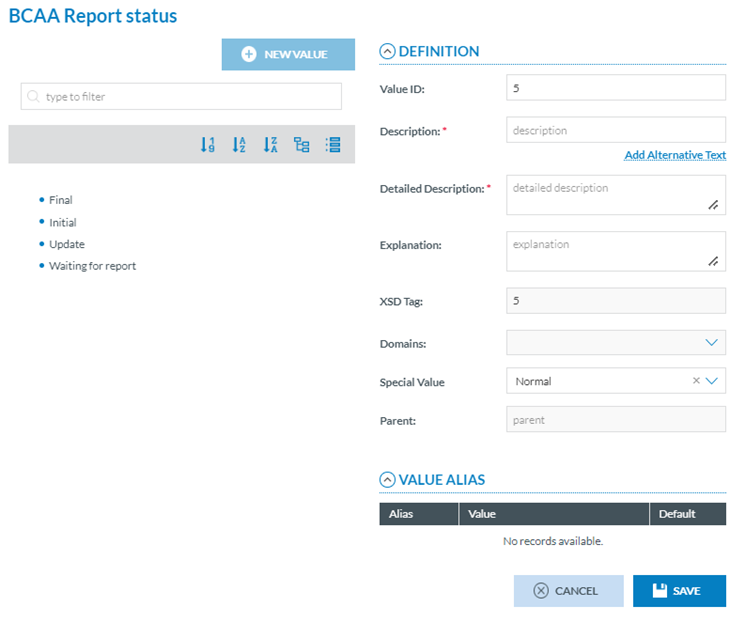
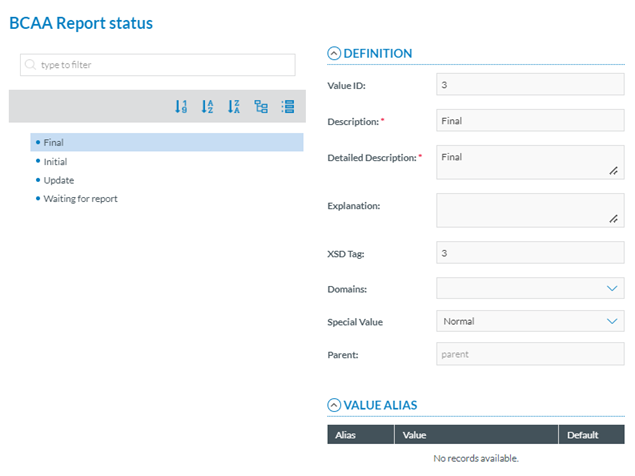
<span lang="EN-GB">National Security Administrators have to add Values to it through the New Value button. This button opens the Value information of the Custom Value List page:</span>

[![image.png](https://help.ci-aviationreporting.eu/uploads/images/gallery/2025-11/scaled-1680-/Umnimage.png)](https://help.ci-aviationreporting.eu/uploads/images/gallery/2025-11/Umnimage.png)

<span lang="EN-GB" style="mso-ansi-language: EN-GB; mso-fareast-language: EN-GB;"> </span>

<span lang="EN-GB">It provides a Definition area with the following fields:</span>

<span lang="EN-GB" style="font-family: Symbol; mso-fareast-font-family: Symbol; mso-bidi-font-family: Symbol; color: #1b3891; mso-themecolor: text1;"><span style="mso-list: Ignore;">·<span style="font: 7.0pt 'Times New Roman';"> </span></span></span><span lang="EN-GB">Value ID: numeric field and automatically generated but editable. If edited, XSD tag field, which is not editable and is based on the Value ID, will be updated with the same value</span>

<span lang="EN-GB" style="font-family: Symbol; mso-fareast-font-family: Symbol; mso-bidi-font-family: Symbol; color: #1b3891; mso-themecolor: text1;"><span style="mso-list: Ignore;">·<span style="font: 7.0pt 'Times New Roman';"> </span></span></span><span lang="EN-GB">Description: mandatory free text field</span>

<span lang="EN-GB" style="font-family: Symbol; mso-fareast-font-family: Symbol; mso-bidi-font-family: Symbol; color: #1b3891; mso-themecolor: text1;"><span style="mso-list: Ignore;">·<span style="font: 7.0pt 'Times New Roman';"> </span></span></span><span lang="EN-GB">Alternative description: which will be shown in the Views where it is indicated. Authorities can use this filed to translate the description of the value to another language.</span>

<span lang="EN-GB" style="font-family: Symbol; mso-fareast-font-family: Symbol; mso-bidi-font-family: Symbol; color: #1b3891; mso-themecolor: text1;"><span style="mso-list: Ignore;">·<span style="font: 7.0pt 'Times New Roman';"> </span></span></span><span lang="EN-GB">Detailed Description: mandatory free text field</span>

<span lang="EN-GB" style="font-family: Symbol; mso-fareast-font-family: Symbol; mso-bidi-font-family: Symbol; color: #1b3891; mso-themecolor: text1;"><span style="mso-list: Ignore;">·<span style="font: 7.0pt 'Times New Roman';"> </span></span></span><span lang="EN-GB">XSD Tag: not editable. It reproduces the information of the Value ID</span>

<span lang="EN-GB" style="font-family: Symbol; mso-fareast-font-family: Symbol; mso-bidi-font-family: Symbol; color: #1b3891; mso-themecolor: text1;"><span style="mso-list: Ignore;">·<span style="font: 7.0pt 'Times New Roman';"> </span></span></span><span lang="EN-GB">Domains: not editable for Custom Value Lists</span>

<span lang="EN-GB" style="font-family: Symbol; mso-fareast-font-family: Symbol; mso-bidi-font-family: Symbol; color: #1b3891; mso-themecolor: text1;"><span style="mso-list: Ignore;">·<span style="font: 7.0pt 'Times New Roman';"> </span></span></span><span lang="EN-GB">Special Value: drop-down menu with the following options:</span>

<span lang="EN-GB" style="font-family: Wingdings; mso-fareast-font-family: Wingdings; mso-bidi-font-family: Wingdings; color: #1b3891; mso-themecolor: text1;"><span style="mso-list: Ignore;">ü<span style="font: 7.0pt 'Times New Roman';"> </span></span></span><span lang="EN-GB">Normal: Selected by default</span>

<span lang="EN-GB" style="font-family: Wingdings; mso-fareast-font-family: Wingdings; mso-bidi-font-family: Wingdings; color: #1b3891; mso-themecolor: text1;"><span style="mso-list: Ignore;">ü<span style="font: 7.0pt 'Times New Roman';"> </span></span></span><span lang="EN-GB">None</span>

<span lang="EN-GB" style="font-family: Wingdings; mso-fareast-font-family: Wingdings; mso-bidi-font-family: Wingdings; color: #1b3891; mso-themecolor: text1;"><span style="mso-list: Ignore;">ü<span style="font: 7.0pt 'Times New Roman';"> </span></span></span><span lang="EN-GB">Other</span>

<span lang="EN-GB" style="font-family: Wingdings; mso-fareast-font-family: Wingdings; mso-bidi-font-family: Wingdings; color: #1b3891; mso-themecolor: text1;"><span style="mso-list: Ignore;">ü<span style="font: 7.0pt 'Times New Roman';"> </span></span></span><span lang="EN-GB">Unknown</span>

<span lang="EN-GB" style="font-family: Symbol; mso-fareast-font-family: Symbol; mso-bidi-font-family: Symbol; color: #1b3891; mso-themecolor: text1;"><span style="mso-list: Ignore;">·<span style="font: 7.0pt 'Times New Roman';"> </span></span></span><span lang="EN-GB">Parent: it is not editable</span>

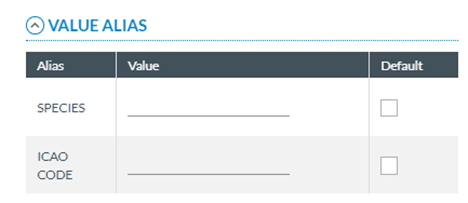
<span lang="EN-GB">It also provides a Value Alias area with the list of Aliases of the Value List, if exist:</span>

[![image.png](https://help.ci-aviationreporting.eu/uploads/images/gallery/2025-11/scaled-1680-/Sayimage.png)](https://help.ci-aviationreporting.eu/uploads/images/gallery/2025-11/Sayimage.png)

<span lang="EN-GB" style="mso-ansi-language: EN-GB; mso-fareast-language: EN-GB;"> </span>

<span lang="EN-GB">National Security Administrators have to fill in the Value and check the ‘Default’ check box if needed.</span>

<span lang="EN-GB">If no Alias had been added to this Custom Value List, to add it, National Security Administrators have to do it through the ‘Set Value List Properties’ option of the 3-dots menu of the Custom Value List at the table of Value Lists. To be explained in later sections.</span>

<span lang="EN-GB">Once National Security Administrators have filled in the mandatory information and the needed information, the system saves the information in the database and updates the information of the Custom Value List and the table of Value Lists.</span>

[![image.png](https://help.ci-aviationreporting.eu/uploads/images/gallery/2025-11/scaled-1680-/eQ0image.png)](https://help.ci-aviationreporting.eu/uploads/images/gallery/2025-11/eQ0image.png)

<span lang="EN-GB" style="mso-ansi-language: EN-GB; mso-fareast-language: EN-GB;"> </span>

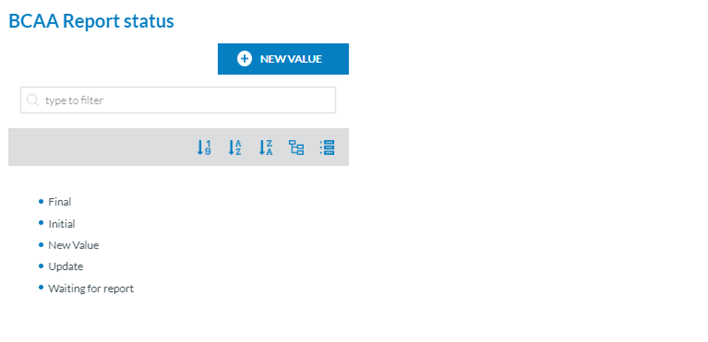
<span lang="EN-GB">To Add more values, National Security Administrators have to click on the specific Value of the left pane and the ‘New Value’ button will be activated and the right panel will disappear.</span>

[![image.png](https://help.ci-aviationreporting.eu/uploads/images/gallery/2025-11/scaled-1680-/jfaimage.png)](https://help.ci-aviationreporting.eu/uploads/images/gallery/2025-11/jfaimage.png)

<span lang="EN-GB" style="mso-ansi-language: EN-GB; mso-fareast-language: EN-GB;"> </span>

<span lang="EN-GB">Then National Security Administrators can click on ‘New Value’ to add another value.</span>

<span lang="EN-GB">National Security Administrators can update the editable information always keeping the mandatory information filled in and click on ‘Save’. The system will save the information in the database and will return to the table of Value Lists with the updated information.</span>

<span lang="EN-GB">National Security Administrators can edit Central Value Lists only to provide an Alternative Text to its values which can be shown in the Views where it is indicated. For example, to translate the Value Description to the Authority's preferred language. </span>

#### <span style="mso-fareast-font-family: Calibri; mso-bidi-font-family: Calibri;"><span style="mso-list: Ignore;">4.6.4.3. V</span></span>iew a Value List

<span lang="EN-GB">This option is only available in the 3-dots menu of the specific Custom Value List if it is locked or in the 3-dots menu of the specific Central Value List. National Security Administrators have to click on ‘View Value List’ option of the 3-dots menu and the system will display the View Value List page:</span>

[![image.png](https://help.ci-aviationreporting.eu/uploads/images/gallery/2025-11/scaled-1680-/Vm5image.png)](https://help.ci-aviationreporting.eu/uploads/images/gallery/2025-11/Vm5image.png)

<span lang="EN-GB" style="mso-ansi-language: EN-GB; mso-fareast-language: EN-GB;"> </span>

<span lang="EN-GB">It is like the previously explained editing page but it is not editable.</span>

#### <span style="mso-fareast-font-family: Calibri; mso-bidi-font-family: Calibri;"><span style="mso-list: Ignore;">4.6.4.4.<span style="font-family: Times New Roman; font-size: xx-small;"> </span></span></span>Set Custom Value List Properties

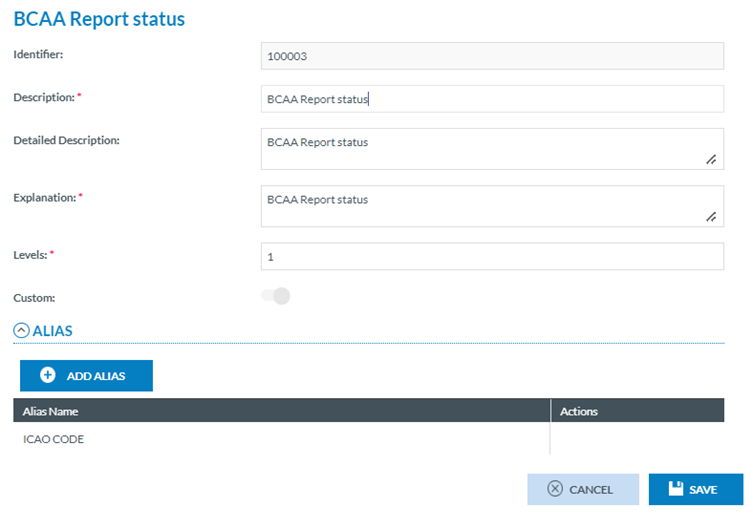
<span lang="EN-GB">National Security Administrators have to click on the Set Value List Properties option of the 3-dots menu of the table of Custom Value Lists and the system will display the Set Value List Properties page:</span>

[![image.png](https://help.ci-aviationreporting.eu/uploads/images/gallery/2025-11/scaled-1680-/o7limage.png)](https://help.ci-aviationreporting.eu/uploads/images/gallery/2025-11/o7limage.png)

<span lang="EN-GB" style="mso-ansi-language: EN-GB; mso-fareast-language: EN-GB;"> </span>

<span lang="EN-GB">The page provides the same information as the New page plus an automatically generated Identifier. The functionality works in the same terms of the creation page previously explained. </span>

<span lang="EN-GB">Note that if an Alias is removed from the list, the related values, if existing, will also be deleted.</span>

<span lang="EN-GB">National Security Administrators can update the needed fields always keeping the mandatory information field. Then they have to click on ‘Save’ button and the system will save the updates in the database and will update the table of Value Lists accordingly.</span>

#### <span style="mso-fareast-font-family: Calibri; mso-bidi-font-family: Calibri;"><span style="mso-list: Ignore;">4.6.4.5.<span style="font-family: Times New Roman; font-size: xx-small;"> </span></span></span>View Value List Properties

<span lang="EN-GB">This option is only available in the 3-dots menu of the specific Custom Value List if the Value List is locked or in the 3-dots menu of the specific Central Value List. National Security Administrators have to click on ‘View Value List Properties’ option of the 3-dots menu and the system will display the View Value List Properties page.</span>

<span lang="EN-GB">It is like the Set Value List Properties page of the previous section but it is not editable.</span>

#### <span style="mso-fareast-font-family: Calibri; mso-bidi-font-family: Calibri;"><span style="mso-list: Ignore;">4.6.4.6. </span></span>Copy Value List

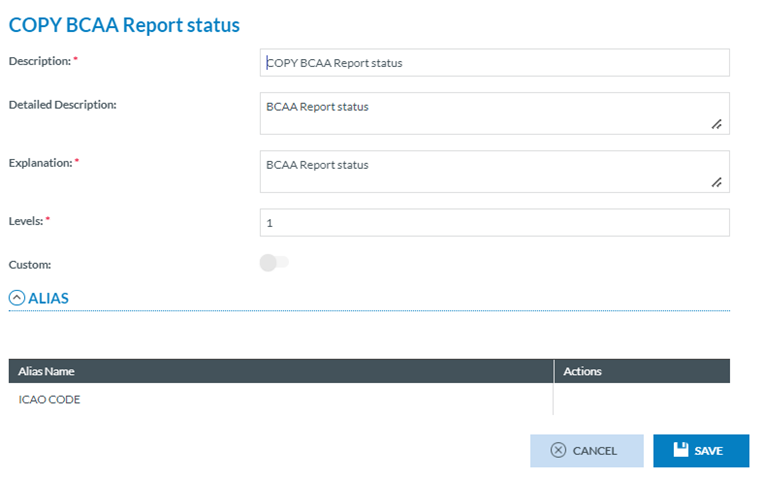
<span lang="EN-GB">National Security Administrators have to click on the Copy Value List option of the 3-dots menu of the table of Value Lists and the system will display the Copy Value List page:</span>

[![image.png](https://help.ci-aviationreporting.eu/uploads/images/gallery/2025-11/scaled-1680-/osZimage.png)](https://help.ci-aviationreporting.eu/uploads/images/gallery/2025-11/osZimage.png)

<span lang="EN-GB" style="mso-ansi-language: EN-GB; mso-fareast-language: EN-GB;"> </span>

<span lang="EN-GB">It reproduces the content of the specific Custom or Central Value List properties page and adds ‘COPY’ to the Description of the Custom Value List. National Security Administrators can update the needed fields always keeping the mandatory information filled and then they have to click on ‘Save’ button. The system will save the copied Custom Value List in the database and will add it to the table of Value Lists.</span>

#### <span style="mso-fareast-font-family: Calibri; mso-bidi-font-family: Calibri;"><span style="mso-list: Ignore;">4.6.4.7. <span style="font: 7.0pt 'Times New Roman';"> </span></span></span>Delete a Custom Value List

<span lang="EN-GB">National Security Administrators have to click on the Delete Value List option of the 3-dots menu of the table of Value Lists and the system will display a warning message, National Security Administrators have to confirm the action and the system will delete the Custom Value List from the database.</span>

<span lang="EN-GB">A Value List cannot be deleted if it is being referenced in an Attribute.</span>

<span lang="EN-GB">National Security Administrator cannot delete Central Value Lists.</span>

#### <span style="mso-fareast-font-family: Calibri; mso-bidi-font-family: Calibri;"><span style="mso-list: Ignore;">4.6.4.8. </span></span>Export a Value List to Excel

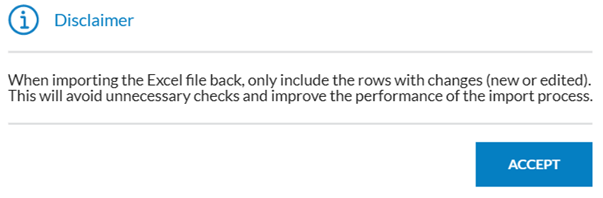
<span lang="EN-GB">National Security Administrators have to click on the Export Value List option of the 3-dots menu of the table of Value Lists and the system will display the following warning disclaimer:</span>

[![image.png](https://help.ci-aviationreporting.eu/uploads/images/gallery/2025-11/scaled-1680-/jZaimage.png)](https://help.ci-aviationreporting.eu/uploads/images/gallery/2025-11/jZaimage.png)

<span lang="EN-GB" style="mso-ansi-language: EN-GB; mso-fareast-language: EN-GB;"> </span>

<span lang="EN-GB">If National Security Administrators accept, the system will download an Excel with the Value List information; at the same time, the Value List will be locked and the system will display a locker on this Value List at the table of Value Lists.</span>

#### <span style="mso-fareast-font-family: Calibri; mso-bidi-font-family: Calibri;"><span style="mso-list: Ignore;">4.6.4.9.<span style="font-family: Times New Roman; font-size: xx-small;"> </span></span></span>Import a Value List from Excel

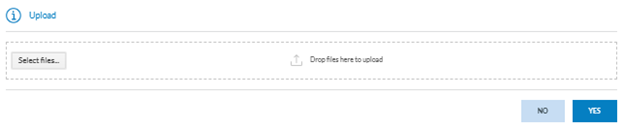
<span lang="EN-GB">National Security Administrators have to update the needed fields in the excel file of the previous section. When the file is ready, National Security Administrators have to click on the ‘Import from Excel’ option of the 3-dots menu of the specific Custom Value List at the table of Value Lists and the system will display a Select File window:</span>

[![image.png](https://help.ci-aviationreporting.eu/uploads/images/gallery/2025-11/scaled-1680-/d1yimage.png)](https://help.ci-aviationreporting.eu/uploads/images/gallery/2025-11/d1yimage.png)

<span lang="EN-GB" style="mso-ansi-language: EN-GB; mso-fareast-language: EN-GB;"> </span>

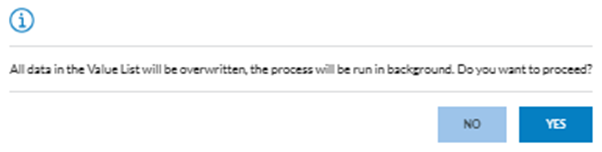
<span lang="EN-GB">National Security Administrators have to upload the file to the window through the Select Files button or by dragging and dropping it. Then, they have to click on ‘Yes’ button. The system will display a warning message:</span>

[![image.png](https://help.ci-aviationreporting.eu/uploads/images/gallery/2025-11/scaled-1680-/PIeimage.png)](https://help.ci-aviationreporting.eu/uploads/images/gallery/2025-11/PIeimage.png)

<span lang="EN-GB" style="mso-ansi-language: EN-GB; mso-fareast-language: EN-GB;"> </span>

<span lang="EN-GB">National Security Administrators have to confirm the action and the system will update the information of the Custom Value List in the database. This process can take some time so the system will send an email to the National Security Administrator when the process is finished.</span>

<span lang="EN-GB">National Security Administrators can use the export and import Value List options for Central Value List to update the Alternative Texts of the Values Description.</span>

### <span style="mso-bookmark: _Toc170415824;">4.6.5. Review and correct inconsistencies and Release a Custom Taxonomy</span>

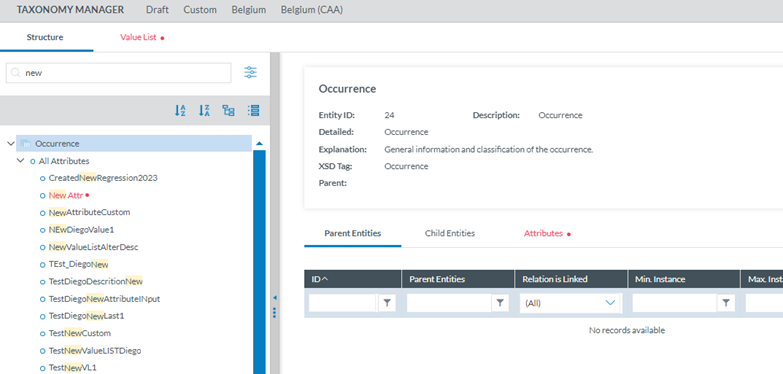
<span lang="EN-GB">National Security Administrators can check the inconsistencies of a Draft Custom Taxonomy through the Check inconsistencies icon placed on top of the Taxonomy manager:</span>

[![image.png](https://help.ci-aviationreporting.eu/uploads/images/gallery/2025-11/scaled-1680-/XaEimage.png)](https://help.ci-aviationreporting.eu/uploads/images/gallery/2025-11/XaEimage.png)

<span lang="EN-GB" style="mso-ansi-language: EN-GB; mso-fareast-language: EN-GB;"> </span>

<span lang="EN-GB">This icon </span>[![image.png](https://help.ci-aviationreporting.eu/uploads/images/gallery/2025-11/scaled-1680-/97qimage.png)](https://help.ci-aviationreporting.eu/uploads/images/gallery/2025-11/97qimage.png) <span lang="EN-GB" style="mso-fareast-language: EN-GB; mso-no-proof: yes;"> </span><span lang="EN-GB"><span style="mso-spacerun: yes;"> </span>reviews the inconsistencies, and the system will highlight in red in the Structure tab the items providing the inconsistencies, i.e.:</span>

[![image.png](https://help.ci-aviationreporting.eu/uploads/images/gallery/2025-11/scaled-1680-/FSRimage.png)](https://help.ci-aviationreporting.eu/uploads/images/gallery/2025-11/FSRimage.png)

<span lang="EN-GB" style="mso-ansi-language: EN-GB; mso-fareast-language: EN-GB;"> </span>

<span lang="EN-GB">If there are inconsistencies in the Value List tab, it is also highlighted in red.</span>

<span lang="EN-GB">Once National Security Administrators find the inconsistencies and fix them, National Security Administrators can click on the Release icon:</span>

[![image.png](https://help.ci-aviationreporting.eu/uploads/images/gallery/2025-11/scaled-1680-/wAJimage.png)](https://help.ci-aviationreporting.eu/uploads/images/gallery/2025-11/wAJimage.png)

<span lang="EN-GB" style="mso-ansi-language: EN-GB; mso-fareast-language: EN-GB;"> </span>

<span lang="EN-GB">This icon </span>[![image.png](https://help.ci-aviationreporting.eu/uploads/images/gallery/2025-11/scaled-1680-/JXZimage.png)](https://help.ci-aviationreporting.eu/uploads/images/gallery/2025-11/JXZimage.png)<span lang="EN-GB" style="mso-fareast-language: EN-GB; mso-no-proof: yes;"> </span><span lang="EN-GB">publishes the Custom Taxonomy unless there are still inconsistencies, in that case, the system will display a message warning it.</span>

<span lang="EN-GB">Instead of through this icon, National Security Administrators can click on ‘Release’ option of the 3-dots menu of the Draft Custom Taxonomy of the list. This option publishes the Custom Taxonomy unless there are still inconsistencies, in that case, the system will display a message warning it.</span>