3. Data Management
This menu of the E2 portal includes queries, batch operations, batch operations groups and word templates.
3.1. Queries
Queries are a powerful tool the Officers can use to filter occurrences, validated reports and original reports through various stages in the E2. Also, safety recommendations should be made if the officer belongs to a Safety Investigation Authority.
3.1.1. Queries overview and Libraries tree view
In the Queries section, the Administrator can create queries, share them with other users or manage queries shared by other users with the Administrator.
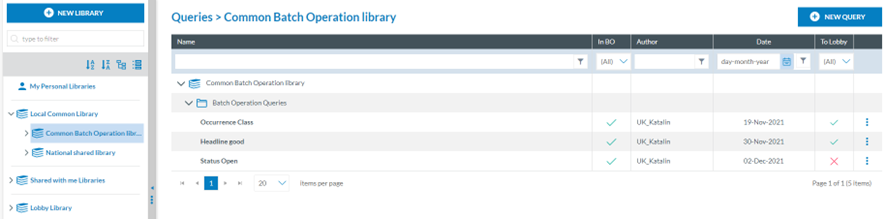
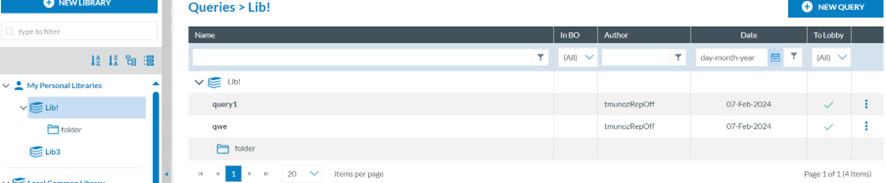
The Administrator has to open the 'Data Management’ menu at the top of the page, then click on the 'Queries' option (Data Management > Queries). The system will display the Queries menu:
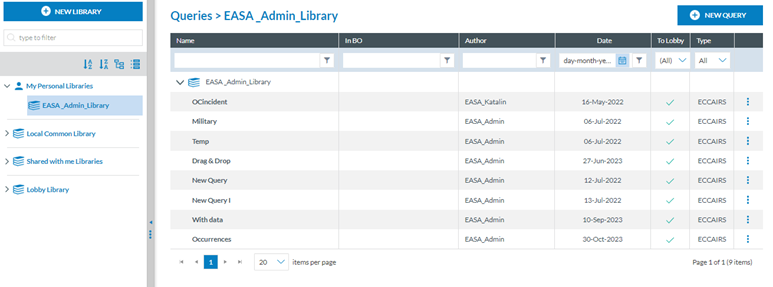
On the left panel, there is a view of the Libraries tree. It includes all the libraries available to the Administrator. Those are the folders that can have categories and subcategories. Find more information about these libraries in the Libraries section. The libraries available to the Administrator are: My Personal Libraries, the Local Common Library, the Common BO Library, the National Shared Library, and the Shared with Me Library.
Administrators can click on the corresponding libraries, and the content will be displayed in the queries overview in the right panel.
On the right, there will be the list of default Queries. It shows the first Library with the content of the Tree view, as seen in the image above. The list shows the corresponding folder or category of the library and below its subcategories if existing, and the queries.
The columns that also work as filters are the following:
· Name: It shows the category, its subcategories, and the queries if they exist. Administrators can unfold the folders through the arrows.
· The ‘BO’ column shows a green tick if the query is used in a batch operation. N/A for SRIS queries for the moment.
· Date: Creation date.
· ‘To Lobby’ column shows a green tick if the query can be exported to another environment and a red cross if it cannot be exported to another environment because it contains Custom Attributes.
3.1.2. Query builder - creation of a query
The Administrator can create queries in My Personal Libraries and the Local Common Library. The Administrator must click the 'New Query' button to create a new one in the selected library or folder. (This New Query button is unavailable when navigating through ‘Shared with me Libraries’ and ‘Lobby Libraries, whose queries can be executed and copied by Administrators but neither created nor edited nor deleted.) A new window will be displayed with the Query Builder:
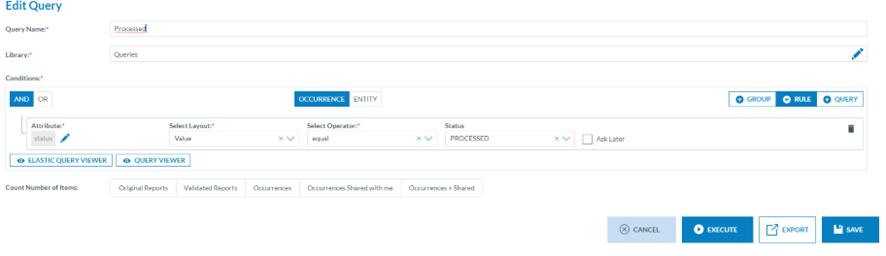
The Query Builder allows the Administrator to build queries to search original reports, validated reports, and occurrences or safety recommendations, depending on whether the Administrator’s Authority is a National Aviation Authority, a Safety Investigation Authority or both, with Attributes or metadata fields that meet the given conditions.
The queries are executed against the reports indexed in Elastic Search.
The Administrator has to fill in the unique Query Name for each Administrator query and select a Library, category or subcategory where to store the query. See the Libraries section for more information.
Before executing, exporting or saving a query from the query builder, it is required to select over which reports the query will be executed on the ‘Count Number of Items’ section:
ECCAIRS queries (based on ECCAIRS Taxonomy)
They will be activated as soon as the mandatory fields of the query are filled.
· Original Reports
· Validated Reports
· Occurrences
· Occurrence shared with me: Occurrences shared by other Authorities with my Authority.
· Occurrence + Shared: My major occurrences and the ones shared by other Authorities with my Authority
· ECR: All occurrences shared with the ECR by my own and other Authorities.
SRIS queries (based on SRIS Taxonomy)
They will be activated as soon as the mandatory fields of the query are filled.
· Safety Recommendations
· ECR: All safety recommendations shared with the ECR by mine and other Authorities.
3.1.3. Query conditions – Attributes and metadata
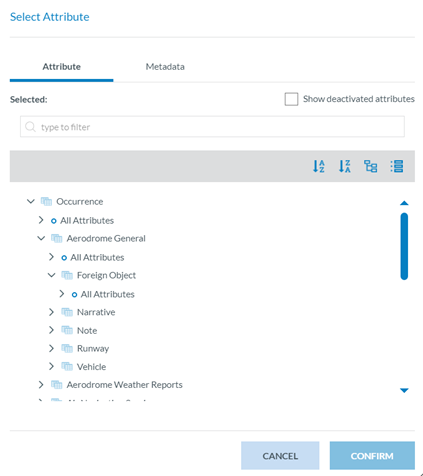
Once in the Query Builder, the Administrator has to select the query parameters to set each rule by clicking on ‘Select Attribute’ under the ‘Conditions’ section.

The system will display a modal window where the Administrator can choose between:
For ECCAIRS queries (based on ECCAIRS Taxonomy)
· Attributes: Any of the Attributes available for the Administrator’s Authority Taxonomy:
· Metadata: additional information found at the database level that can be relevant for the Administrator to query by:
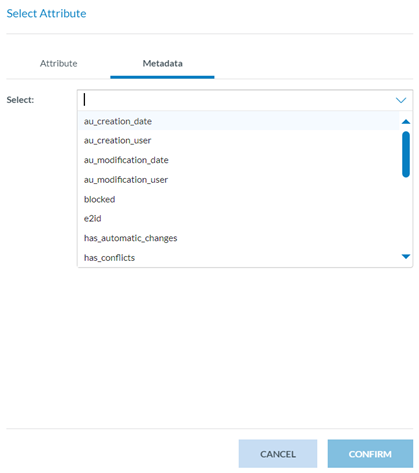
ü e2id – E2 identificator
ü Audit fields – they refer to the information of the specific version of the report
o au_creation_date
o au_creation_user
o au_modification_date
o au_modification_user
ü blocked – it is set to TRUE when a batch operation blocks the report to prevent the users from editing it
ü has_automatic_changes – it is set to TRUE when the report has had any automatic changes, coming from the OR, that no Administrator has acknowledged yet
ü has_conflicts – it is set to NOT NULL if the report (VR or OC) has any conflicts coming from an OR update
ü organisation name – the name of the Organisation of the reporter, if applicable
ü personal_details – it is set to NOT NULL if there is any personal information from the reporter.
ü receiving__date – it determines when the OR was sent to the Authority.
ü reporting_entity_id – id of the reporting Entity
ü reporting_method – what reporting method was chosen to report the OR
ü responsible_entities_id – Authority to which the report belongs.
ü Status – the report status
ü Version – version number
SRIS queries (based on SRIS Taxonomy)
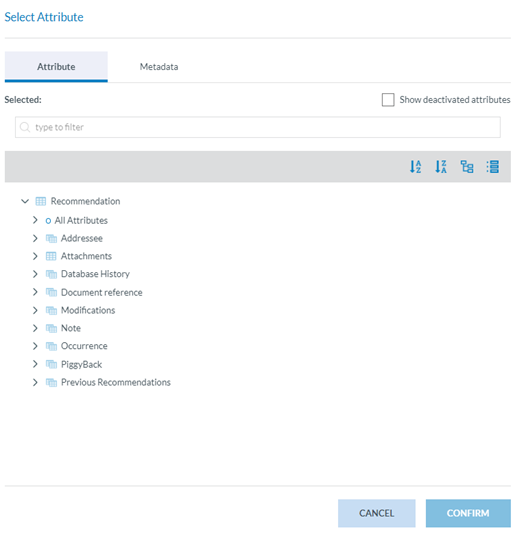
· Attributes: Any of the Attributes available for the Officer’s Authority Taxonomy:
· Metadata: additional information found at the database level that can be relevant for the Officer to query by:
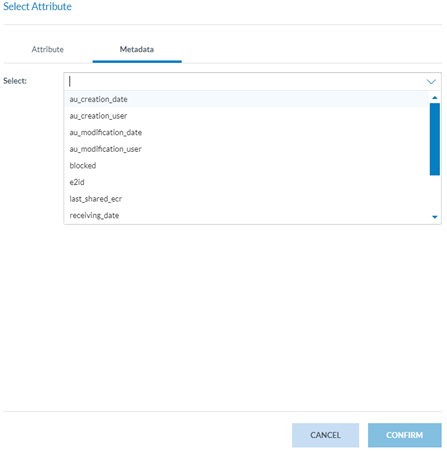
ü e2id – E2 identifier of SRs
ü Audit fields – they refer to the information of the specific version of the report:
o au_creation_date: the date when the report has been created
o au_creation_user: user who has created the report
o au_modification_date: the last date the report was updated
o au_modification_user: the previous user to update the report
ü blocked – it is set to TRUE when the report is blocked to prevent the users from editing it
ü responsible_entities_id – id of the responsible Entity (Authority in E2)
ü status – the report status
ü Version – version number
3.1.4. Query structure
The queries are made at least by one rule in a group. A rule is a condition the search made by the query has to meet.
Queries can also include various rules and or groups of rules. A query can include one or more existing queries (subqueries).
A rule contains a condition to be met concerning an Attribute or metadata field. Layouts and operators vary depending on the Attribute and metadata field type, i.e.:
If the Administrator selects Air temperature as an Attribute, the system will display ‘Value’ as the only possible selectable layout and the Select operator filter:
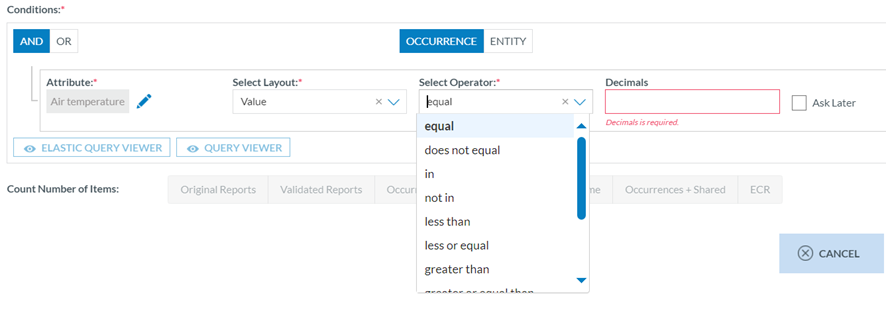
This will also generate a ‘Decimals’ field to be filled out by the Administrator.
Attributes
· Alphanumeric and Text Attributes or metadata fields can be searched in documents by a complete word using the layout ‘Value (Word)’ or by a string of characters using the layout ‘Text’. i.e.:
ü Value (Word) as in ‘Aircraft’ (complete word)
ü Text begins with ‘Airc’ (a string of characters)
|
Data Type |
Layout |
Operators |
|
Alphanumeric, Text |
Value (Word) |
equal does not equal in not in is null is not null |
|
Text |
in not in begins with does not begin with ends with does not end with is null is not null |
· Code Attributes can be searched in documents using layouts:
ü Value: selecting one or more values of the Value List
ü Level: when the Value List has more than one level, selecting all the values of a branch (level) in the Value List, starting from the selected value(s)
ü Alias: when the Value List has alias(es), selecting one of them
|
Data Type |
Layout |
Operators |
|
Code |
Value |
equal does not equal in not in is null is not null |
|
Level * if the Value List has more than one level |
equal does not equal in not in is null is not null |
|
|
Alias * if the Value List has alias(es) |
in not in begins with does not begin with ends with does not end with |
· Code and Additional Text, Code or Alternative Text Attributes can be searched in documents using layouts:
ü Value: selecting one or more values of the Value List
ü Level: when the Value List has more than one level, selecting all the values of a branch in the Value List
ü Alias: when the Value List has alias(es), select one of them.
ü Text: typing a string of characters
|
Data Type |
Layout |
Operators |
|
Code and Additional Text, Code or Alternative Text |
Value |
equal does not equal in not in is null is not null |
|
Level * if the Value List has more than one level |
equal does not equal in not in is null is not null |
|
|
Alias * if the Value List has alias(es) |
in not in begins with does not begin with ends with does not end with |
|
|
Text Used to search in the Text part of the Attribute |
in not in begins with does not begin with ends with does not end with is null is not null |
· Date and DateTime Attributes can be searched in documents using layouts:
ü Value: when searching by date or range of dates
ü Date of the Month (1-31): when searching by the day of the month
ü Date of Week (1-7): when searching by the day of the week
ü Month (1-12): when searching by the month
ü Year: when searching by year
|
Data Type |
Layout |
Operators |
|
Date, DateTime |
Value |
equal does not equal less than less or equal greater than greater or equal between not between |
|
Day of the Month (1-31) |
equal does not equal less than less or equal greater than greater or equal between not between |
|
|
Day of Week (1-7) |
equal does not equal less than less or equal greater than greater or equal between not between |
|
|
Month |
equal does not equal less than less or equal greater than greater or equal between not between |
|
|
Year |
equal does not equal less than less or equal greater than greater or equal between not between |
· Time Attributes can be searched in documents using layouts:
ü Value: when searching by hours and minutes
|
Data Type |
Layout |
Operators |
|
Time |
Value |
equal does not equal less than less or equal greater than greater or equal between not between is null is not null |
· Latitude and Longitude Attributes can be searched in documents using layouts:
ü Value: when searching by degrees, minutes and seconds or range of them
|
Data Type |
Layout |
Operators |
|
Latitude, Longitude |
Value |
equal does not equal less than less or equal greater than greater or equal between not between is null is not null |
· Decimal Attributes can be searched in documents using layouts:
ü Value: when searching by a decimal number
|
Data Type |
Layout |
Operators |
|
Decimals |
Value |
equal does not equal less than less or equal greater than greater or equal between not between is null is not null |
· Number Attributes can be searched in documents using layouts:
ü Value: when searching by an integer number
|
Data Type |
Layout |
Operators |
|
Number |
Value |
equal does not equal less than less or equal greater than greater or equal between not between is null is not null |
· ECCAIRS Resource Locator Attributes can be searched in documents using layouts:
ü File Name: When searching by the Name of an attached field
ü Description: When searching by the description given in the attached field
|
Data Type |
Layout |
Operators |
|
ECCAIRS Resource Locator |
File Name |
equal does not equal in not in is null is not null |
|
Description |
equal does not equal in not in is null is not null |
· ECCAIRS Embedded data Attributes can be searched in documents using layouts:
ü ECCAIRS number: when searching the former document's ECCAIRS number
|
Data Type |
Layout |
Operators |
|
ECCAIRS Embedded Data |
ECCAIRS number |
in not in begins with does not begin with ends with does not end with is null is not null |
· ECCAIRS Data link Attributes can be searched in documents using layouts:
ü ECCAIRS number: when searching the former document's ECCAIRS number
|
Data Type |
Layout |
Operators |
|
ECCAIRS Data Link |
ECCAIRS number |
in not in begins with does not begin with ends with does not end with is null is not null |
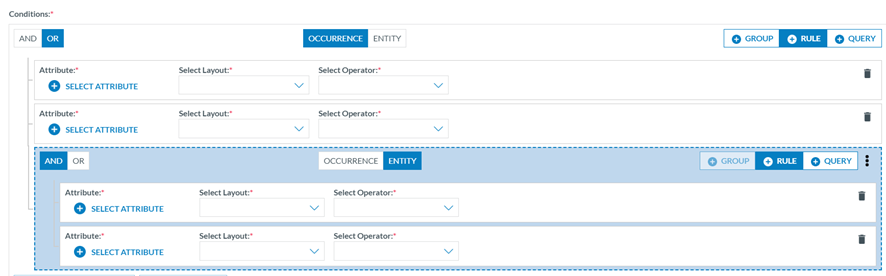
Groups can include one or more rules and one or more groups combined with AND/OR clauses. The Administrator must click the ‘Add Rule’ button to add more rules. For groups, on the ‘Group’ tab. If the Administrator wants different sets of rules to be evaluated together, the Administrator must click the 'Add group' button. The Administrator can also add groups to other groups.
Groups and rules can be rearranged, dragging and dropping them where needed.
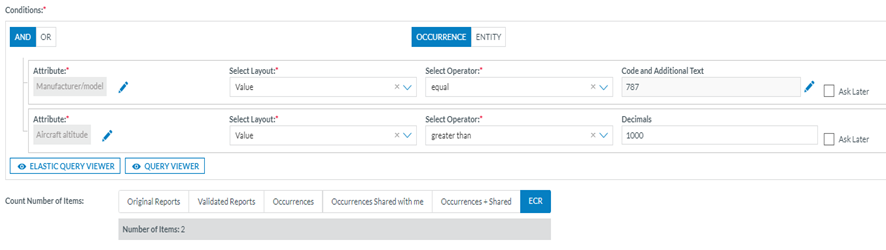
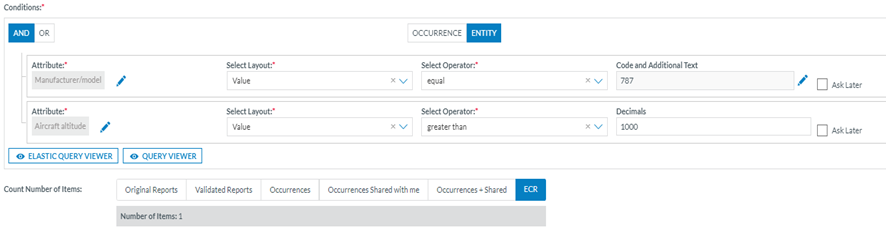
At the top centre of each group are the OCCURRENCE/ENTITY alternative tabs, which show whether conditions of the given Attributes shall be met in any instance of the Entity or if the conditions shall be met in the same instance of the Entity. Thus, when specifying restrictions in a query, the restrictions can be evaluated across all the entities of a record at once OR can be assessed to each Entity of a record one by one. By default, the restrictions of a query will be evaluated across all the entities of a record at once, with the 'Occurrence' option selected by default.
With the selector 'Occurrence/Entity', the Administrator can change that, and the restrictions will be evaluated Entity by Entity. There is a limitation in creating groups based on the restriction selected here. If a group is restricted to Entity, no more groups can be added inside that "Entity" group.
Example of search by occurrence and by Entity:
1. OCCURRENCE: If we want to obtain the Occurrences where the Manufacturer model (21) is equal to ‘BOEING > 787’ and the Aircraft altitude (22) is greater than 1000 ft, independently if the conditions are met in different aircraft of an occurrence:
2. ENTITY: If we want to obtain the Occurrences where the Manufacturer model (21) is equal to ‘BOEING > 787’ and the Aircraft altitude (22) is greater than 1000 ft when the conditions are met in the same aircraft.
The Administrator can set rules with AND/OR clauses and combine them as needed with groups by clicking on the ‘Group tab’ and selecting AND/OR clauses, i.e.:
Subqueries: The Administrator can add a subquery to the query through the ‘Query’ tab. The aim is to add an existing query available for the Administrator to the current query. When the Administrator clicks on the ‘Query’ tab, the system will display the subquery section:

The Administrator has to click on ‘Select Query’, and the system will display a window to select the subquery: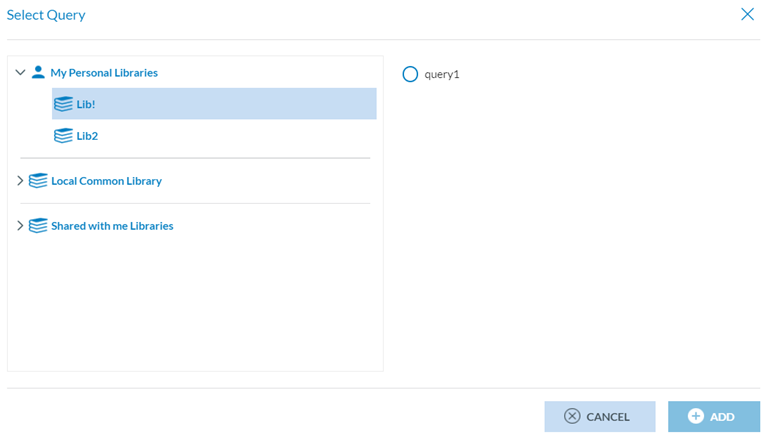
The Administrator must select a query from the available libraries and click ‘Add’. The system will add the subquery to the conditions of the current query.
3.1.5. Query action buttons
Once the query is completed, the following options are available:
· Cancel button: the system will return to the Queries page.
· Execute button: N/A to the Administrator unless they have the Officer’s role.
· Export button: N/A to the Administrators unless they have the Officer’s role.
3.1.6. Query Management
3.1.6.1. Editing a query
Only Queries of ‘My Personal Libraries’ and ‘the Local Common library’ are editable for the Administrator. If a query is associated with a BO or query-based notification, it is not editable. In those cases, the query is visible through the ‘View button’ of the 3-dot menu or by double-clicking on the query on the table of queries.
The Administrator has to double-click on the specific editable query of the queries list or click on the ‘Edit’ option of the query’s 3-dot menu, and the system will display the editing page of the query:
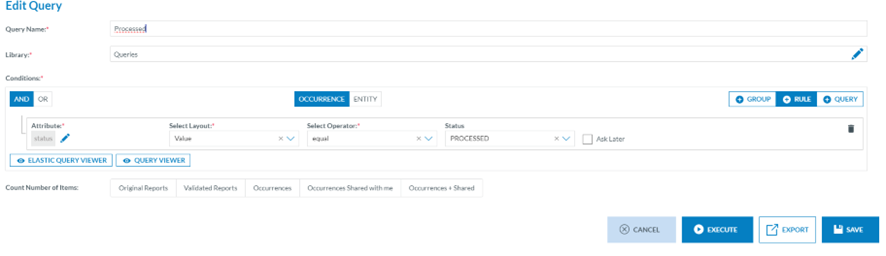
The Administrator must introduce the needed update and click ‘Save’. See Query action buttons for further details.
This page also provides:
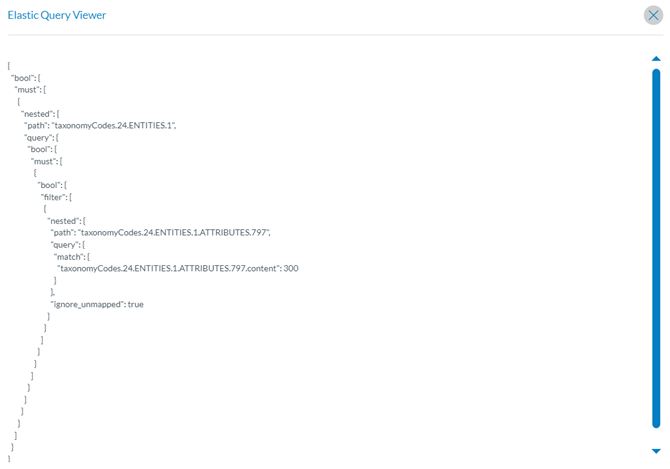
· Elastic Query viewer button: it accesses the Elastic Query Viewer window as follows,
· Query viewer button: it opens the query viewer window as follows,

3.1.6.2. Duplicating a query
All queries available to the Administrator, no matter the library or category, can be duplicated by the Administrator.
The Administrator has to click on the copy icon of the 3-dot menu of the specific query of the list of queries, and the system will display the ‘Copy Query’ window:
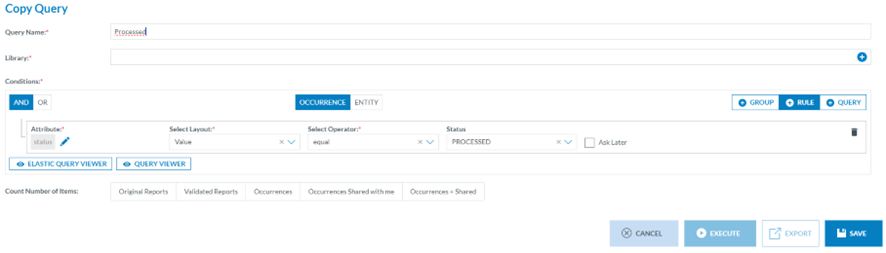
It is like the editing page above but with the mandatory Library field empty. The Administrator has to fill in the Library field with a different Library than the original one, and then the Execute and Export button will be activated. The Save button does not work unless a Library is selected. The Administrator must introduce the needed update and click ‘Save’. See the Query action buttons section for further details.
3.1.6.3. Sharing a query
The Administrator can only share queries of ‘My Personal Libraries’. Only the queries not involved in a batch operation or a query-based notification can be shared.
The Administrator has to click on the ‘Share’ option of the 3-dot menu of the specific query of the list of queries, and the system will display the Share query window:

The Administrator has to select ‘Share to User’, and then the system will display the ‘Users’ tab below.
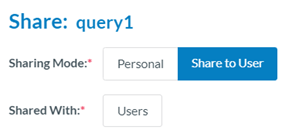
The Administrator has to click on ‘Users’, and the system will display the Available Users section:
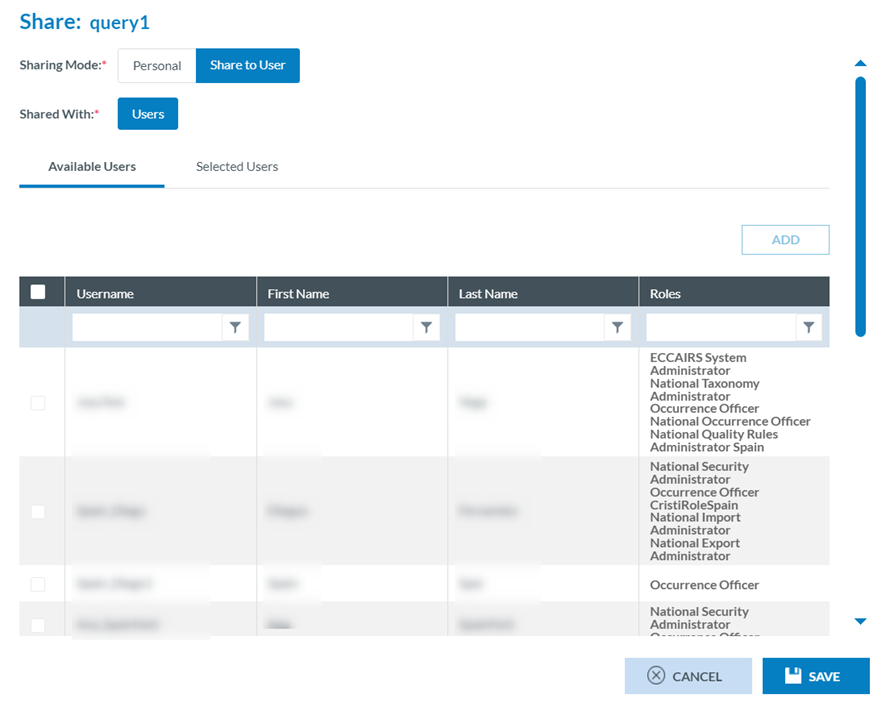
As long as there are available users, the Administrator can check the specific Users, click on the ‘ADD’ button, and then click the ‘Save’ button.
The system will save the updates of the query in the database and return to the list of queries that will have added a Shared icon to the specific query:

The Administrator then can click on the ‘Edit share’ option that will be added to the 3-dot menu of that query and add more users or remove some of them.
3.1.6.4. ‘To Lobby’ function
This functionality allows the Administrator to export the query to other E2 environments.
The Administrator can click on the ‘To Lobby’ option of the 3-dot menu of the specific query of the list of queries, and the system will display the ‘To Lobby’ window:
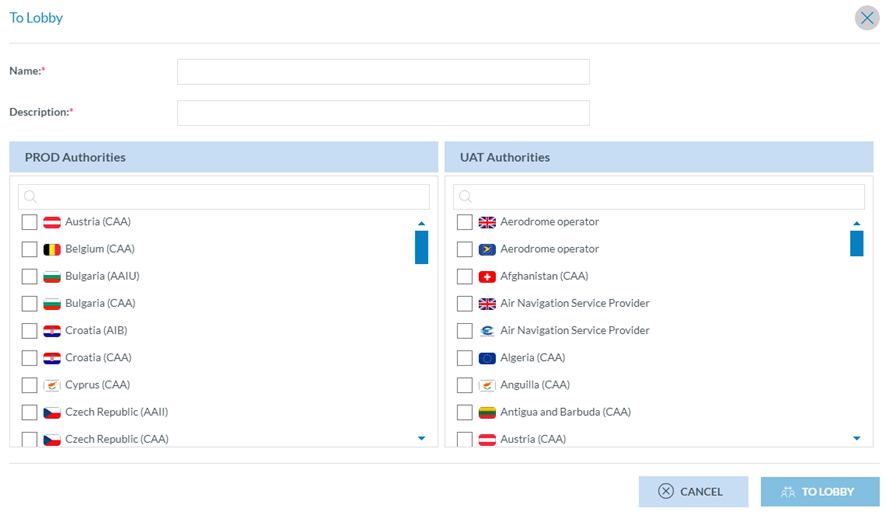
The Administrator has to fill in the mandatory Name and Description fields, select the Authorities of the environments displayed below and click on the ‘To Lobby’ button. The system returns to the queries menu and displays a message on the success of transferring the query to the specific Authority/ies Lobby library.
3.1.6.5. Deleting a query
Only My Personal Libraries and Local Common Libraries queries can be deleted by the Administrator.
They can only be deleted if not involved in a BO or query-based notification.
The Administrator has to click on the ‘Delete’ option of the specific query 3-dot menu of the list of queries. The system will delete it and update the table of queries accordingly.
3.2. Libraries
All information in this section concerning the creation and management of libraries applies to Queries, Word Templates, Batch operations, and Views.
The system provides the Libraries available to the Administrator on the left panel of the menu:

3.2.1. My Personal Libraries
The objects stored in personal libraries are only available to the owner of the libraries. The owner can decide to share a particular object from the Personal libraries or share the complete library with other Authority users. Only users with permission to execute queries will be eligible.
3.2.2. Local Common Library
The objects stored in the Local Common Library are available for all Authority users with permissions to that kind of object. Administrators can create queries in the Local Common Library.
3.2.3. Shared with me libraries
When the library owner or object has shared it with the Administrator, they appear under these users' ‘Shared with me libraries’. They can execute the queries or copy them to their Personal Libraries but can neither edit nor delete those Libraries.
3.2.4. Lobby Libraries
They are the Libraries where the Administrator receives the objects transferred through the ‘To Lobby’ functionality. The Administrator can view and execute the queries or copy them to their personal libraries but can neither edit nor delete those Libraries.
3.2.5. Creation of a library
Once in the ‘Data management’ ‘Queries’ menu, the Administrator has to click on ‘New Library’, and the system will display a modal window to create the Library:
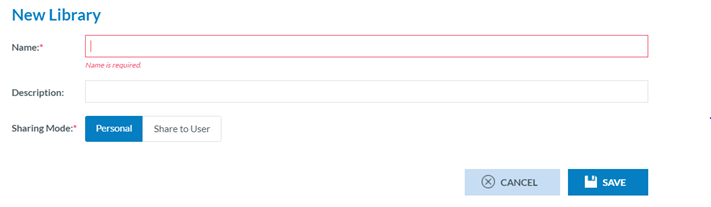
The Administrator has to fill in the mandatory Name field, the Description (if needed), and the Sharing mode, which can be ‘Personal’ or ‘Share to User’.
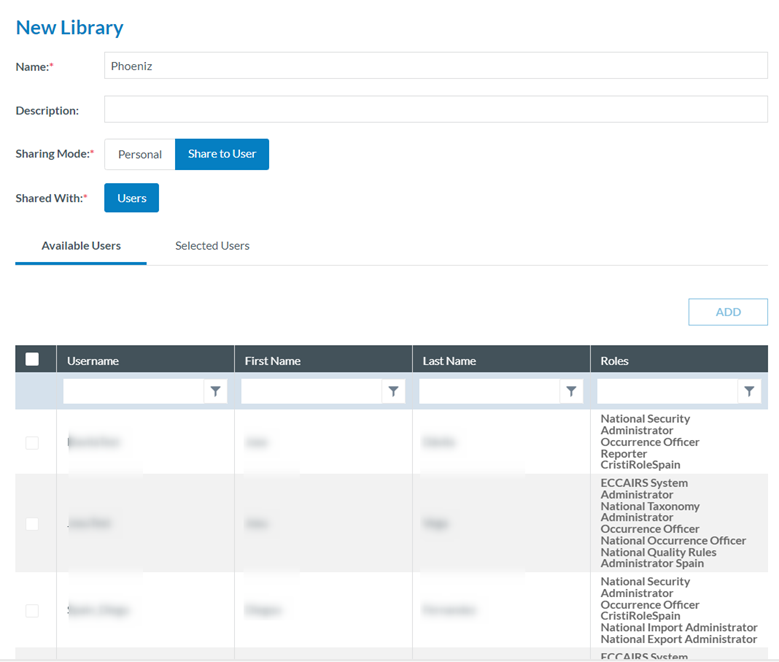
The Administrator has to select the specific users through the check box and click the ‘Add’ button, which will be activated. The selected users will be available on the ‘Selected Users’ tab.
The Administrator has to click on ‘Save’ for both Personal or Shared to User, and the Library will be saved accordingly. It will appear in the left pane under ‘My Personal Libraries’ in the Libraries tree.
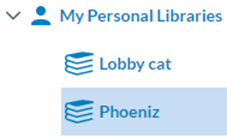
If the created library is ‘Shared to user’, it will show the ‘Shared’ icon  .
.
3.2.6. Library Management
The system provides Deletion, adding category, and editing buttons next to each library under My Personal Libraries of the Administrator.
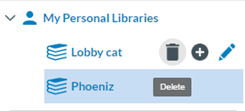
3.2.6.1. Deleting a Library:
The Administrator can only delete the Libraries under My Personal Libraries.
The Administrator has to click on the Delete icon (rubbish) next to the specific Library, and the system will delete the library from the My Personal Libraries tree as long as it no longer has any queries; otherwise, the system will display a warning message and will not delete the library. The Libraries tree will be updated accordingly.
3.2.6.2. Adding a category or folder to a Library
The Administrator can only add a category to My Personal Libraries and the Local Common Library.
The Administrator has to click on the ‘+’ button next to the specific library, and the system will display a folder below the Library:
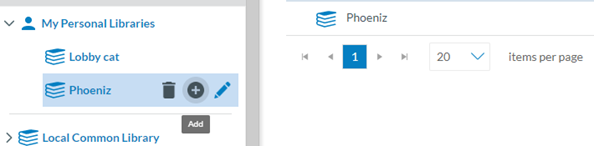
The Administrator has to type a Name and click on ‘Intro’:
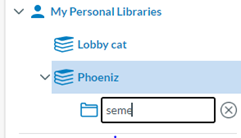
The folder or category will be added to the tree and will be available to store queries of the Administrator:
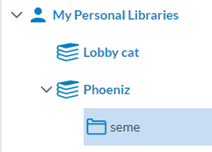
Next to the folder or category, the management buttons will appear as follows:
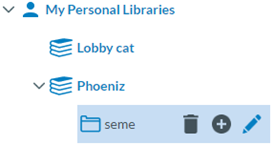
The category can only be deleted if it does not include queries or word templates.
3.2.6.3. Editing a Library
The Administrator can edit the Libraries of My Personal Libraries and the Local Common Libraries.
The Administrator has to click on the editing (pencil) icon next to the specific Library, and the system will display the editing window: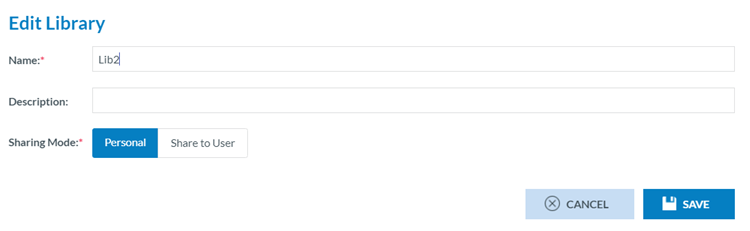
This page is the same as the library creation window in the previous section. The Administrator must update the corresponding fields and click ‘Save’. The changes will be saved in the database and Libraries tree.
3.3. Batch operations
With Batch Operations (BO), only available for National Aviation Authorities at present, the Administrator performs actions over the safety data automatically, in bulk, without needing to change each individual report. These are some examples of these actions:
· Update, insert, delete Attribute
· Process Original reports, Validated reports, Occurrences in various forms and states
The Administrator manages the BOs through the BO menu of the Data management section:
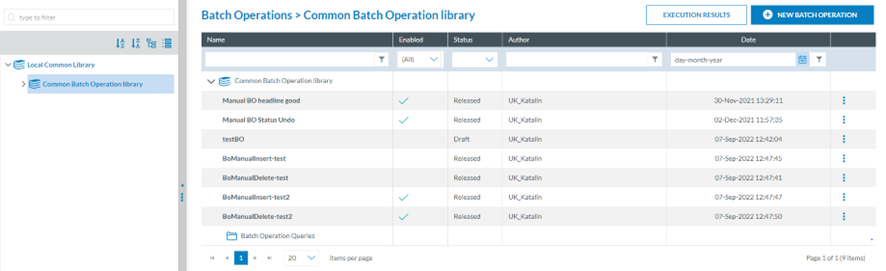
Next to the Libraries tree, the system displays the table of BOs of the Common Batch Operation library. It can include subcategories divided into columns, which also work as filters:
· Name: unique for each BO.
· Enabled: a green tick shows if it is enabled.
· Status: drafted, released or archived. The status cannot be released as long as it has not been published.
· Date: of the creation of the BO.
Review the documentation on 'How to use MABOs' for more updated information on multiple action batch operations.
3.3.1. BO Management
3.3.1.1 Create a batch operation
Once the Administrator is in the BO menu, they must click on the ‘New Batch Operation’ button above the table of BOs.
The system displays the ‘New BO’ window:
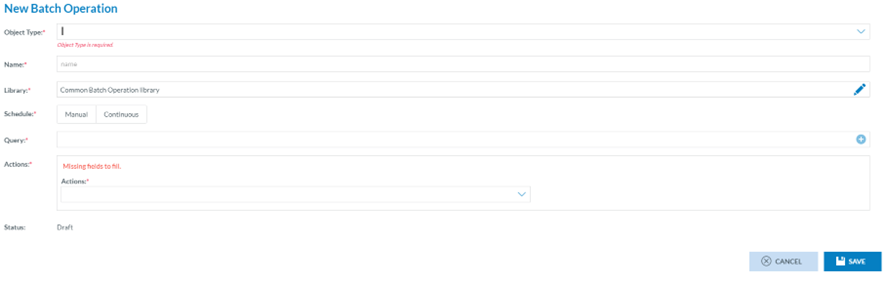
The Administrator has to fill in the following fields:
· Object type that can be OR, VR or OC
· Name: that has to be unique
· Library: it can be the Common Batch Operation library or its categories/subcategories.
· Schedule: The Administrator has to select Manual or Continuous
ü Manual: The action defined in the batch operation will be applied to the documents that meet the conditions expressed in the query of that manual batch operation when the BO is executed.
When selected, the system will display the ‘Undo toggle’ deactivated. The Administrator can leave it like that or activate it so that the system will display the ‘Minutes’ field. The Administrator has to fill it in.
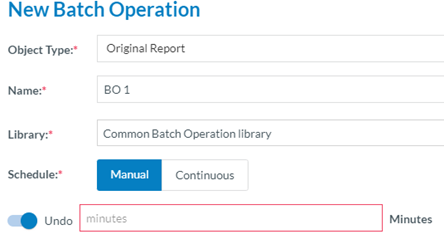
The ‘Minutes’ field sets the time the Administrator has to undo the execution of the BO’s grace period during which the action executed by the batch operation can be undone.
Manual batch operations can be based on queries with ‘Ask me later’ rules. When the ‘Undo’ is set and the BO saved, the ‘Undo toggle’ is disabled from the 3-dot menu.
ü Continuous: These are executed automatically every time a document is saved and meet the conditions expressed in the query of the continuous batch operation. One or more continuous batch operations can be triggered when the document being saved meets the conditions of each of the queries of these batch operations. In that case, they are executed in alphabetic order. In continuous batch operations, it is not possible to define a grace period during which the action can be undone and cannot be based on queries with the ‘Ask me later’ rule.
· Query: The Administrator must select among the queries in the selected library.
· Actions: Generally, batch operations actions are only applied over unlocked documents in Status=Open.
The possible actions that a batch operation can execute depend on the object type (report):
|
Document Type |
Possible Actions |
Preconditions to execute BO |
|
|
Document status |
Document version |
||
|
OR |
Process original report to validated |
OPEN |
Minor |
|
VR |
Integrate into occurrence |
OPEN |
Minor |
|
Insert, Update, Delete, Copy, Move, Merge Attributes |
OPEN |
Minor |
|
|
OC |
Share document to ECR |
OPEN |
Minor, Major |
|
Make a major version |
OPEN |
Minor |
|
|
Make a major version & Share it with ECR |
OPEN |
Minor |
|
|
Share the document with Authorities |
OPEN |
Minor, Major |
|
|
Make a major version & Share with Authorities |
OPEN |
Minor |
|
|
Unshare occurrence |
OPEN |
Minor, Major |
|
|
Insert, Update, Delete, Copy, Move, Merge Attributes |
OPEN |
Minor, Major |
|
Also, on the BO creation page, the Actions selection provides the following options:
For ORs: The Administrator will select the ‘Process as a validated report’ in the Actions menu:

For VRs:
· Concerning reports: Integrate into OC.
The Administrator selects it, and the system will display the similarity check toggle:

If the system does not find OCs similar to the VRs resulting from executing the BO query, the system will integrate those VRs into new OCs.
If the system finds similar OCs, then the system will not apply the action when the BO is executed. VRs will not be integrated into OCs.
· Concerning Attributes: The Administrator has to select between Insert, Update, Delete, Copy or Move Attributes.
ü Insert Attribute: The Administrator selects this option, and the system will display an ‘ADD’ button to select an Attribute:

The Administrator clicks on the ADD button, and the system will display the Taxonomy browser with all the Attributes available for the Administrator:
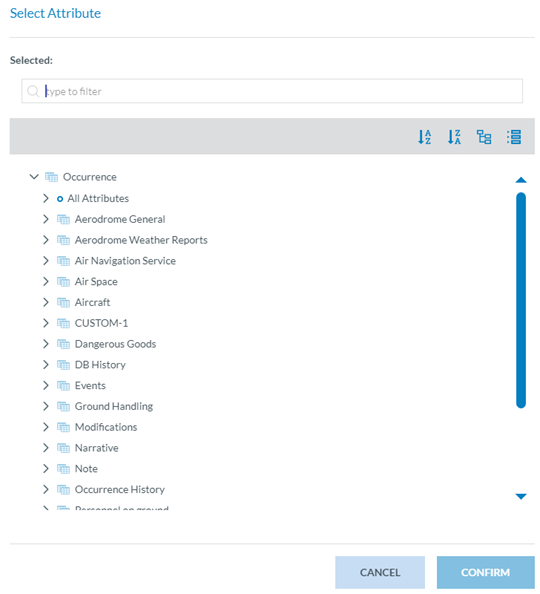
The Administrator must select the Attribute and click the ‘Confirm’ button.
When it is selected, the system will display it below the action field and will present, next to it, a field or fields to complete. In the example, a Code and Additional Text Attribute with a ‘Select Attribute value’ ADD button. This field is mandatory unless the ‘Ask me later’ check box is ticked.

The Administrator must click the ‘ADD’ button or check the ‘Ask later’ check box.
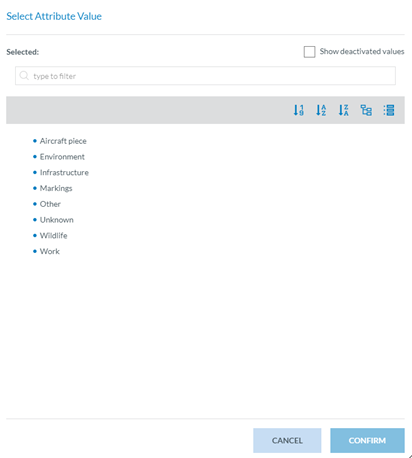
The Administrator has to select only an Attribute and click the Confirm button. The system will add the selected value to the Action section of the BO:

Below it, there will be an optional ‘additional text’ field. The ‘Selected Value’ field or fields displayed by the system match the previously selected Attribute and vary depending on that previously selected Attribute.
When executing the BO, the selected Attribute and its value will be inserted into the chosen VRs.
If Administrators check the ‘Ask later’ option instead of filling in the value when executing the BO, the system will prompt the user for the needed information.
Once the Attribute has been selected, the system allows the Administrator to add a condition through the ‘Action condition’ toggle that will display the Selected Attribute field:

The Administrator will have to select an Attribute through the ADD button. The list of Attributes will come from the same Entity as the previously selected Attribute to be inserted. The Select Layout and Select Operator menus are filled as in the section Query conditions - Attributes and metadata.
ü Update Attribute: It is to update an Attribute value of the VR. The Administrator selects the ‘Update Attribute’ on the Actions menu, and the system will display the ‘Select Attribute’ ADD button. The function is similar to the ‘Insert Attribute, ' with the only difference being in the result; when executing the BO, the system will update the value of the selected Attribute.
ü Delete Attribute: This action deletes an Attribute of the VR. The Administrator selects this option in the Actions menu, and the system will display the ‘Select Attribute’ ADD button. The system adds the selected Attribute. When executing this BO, the system will delete the selected Attribute from the VRs that meet the requirements of the BO.
ü Copy Attribute: The Administrator clicks on ‘Copy Attribute’ on the Actions menu of the BO window, and the system displays the mandatory Original field and Target field sections:

The Administrator has to click on the ADD ‘Select Attribute’ button of the Original field, and the system will display the Taxonomy browser where to select the Attribute to be copied.
Once selected, the Administrator has to click on ‘Select Attribute’ in the Target field section, and it will display a list of Attributes of the same Entity as one of the Original field Attributes.
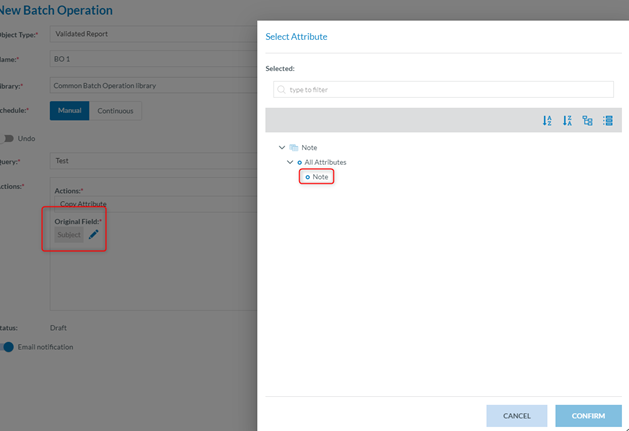
The Administrator will select the specific Attribute and click on the ‘Confirm’ button that is enabled when the Attribute is selected.
The system will display the ‘Mismatch information’ section, warning on the different sizes of the selected Attributes of the original and target fields, which can impact the success of the execution of the BO:
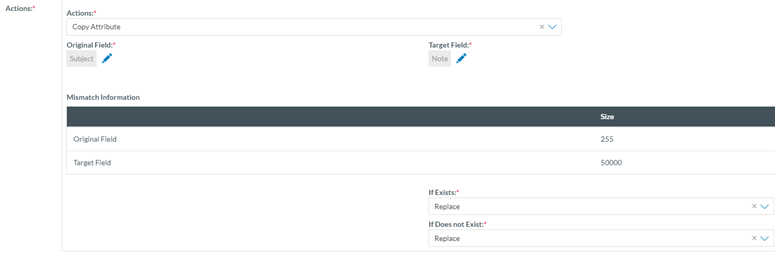
Below it, the system displays the following mandatory menus:
If it exists, the selectable values are:
o Replace: This means that if the original field Attribute exists in the VRs and meets the requirements of the BO, the system will replace it with the target field.
o Skip: This means that if the original field Attribute exists in the VRs that meet the requirements of the BO, the system will not apply the selected action to those BOs.
o Do not replace it with NULL: If the original field Attribute in the VRs meets the requirements of the BO, the system will not replace the Attribute's value with null.
If it does not exist, the selectable values for this option are:
o Replace: This means that if the original field Attribute does not exist in the VRs meeting the requirements of the BO, the system will replace it with the target field.
o Skip: This means that if the Original field Attribute does not exist in the VRs meeting the requirements of the BO, the system will not apply the selected action to those BOs.
o Do not replace it with NULL: If the Original field Attribute does not exist in the VRs meeting the requirements of the BO, the system will not replace the Attribute's value with null.
ü Move Attributes: this option moves the selected Attribute value to another Attribute of the same Entity. Thus, the Administrator has to select ‘Move Attribute’ on the Actions menu of the BO window, and the system will enable the ADD Select Attribute button. This works in the same way as the Copy Attribute option with the difference that it always replaces the Target field Attribute with the Original field Attribute, so there are options for when it exists and when it does not:
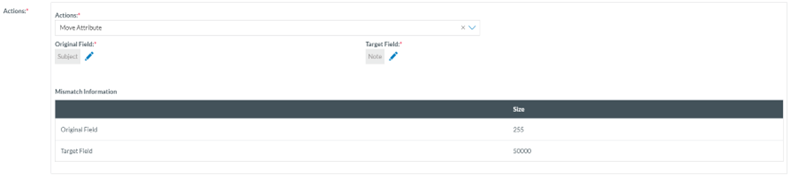
So, when the BO is executed, the original field is replaced with the target field.
ü Merge Attributes: this option allows to merge two attributes into one. The restriction that applies is that both attributes must be the same datatype. Depending on the datatype selected the options are as detailed in the following table:
|
Datatype |
Options to merge |
Target Field |
Notes |
|
Latitude and Longitude |
N/A |
N/A |
Excluded from this action. Not possible to merge them. |
|
Text |
Text + Text attributes Separator field is not mandatory and will have maximum 5 characters |
Second attribute selected to merge. Any other text attribute. |
If length of the merge exceeds the characters allowed in Target field, the string will be cut from the end until reduce it enough |
|
Number and Decimal |
Add (+), subtract (-), multiply (*), divide (/) Can be between two fields or a constant field |
Cannot be neither of the two fields used in the BO Action |
System will ignore a division by 0. Constant field can be any number (negative inclusive) |
|
Date (between two dates) |
Subtract operator only. Date 1 - Date 2 |
Any Numerical or String type |
Result can be negative |
|
Date (between one date and a constant) |
Add or subtract operators available.
|
Can be a custom attribute |
Constant field can be any number (negative inclusive) |
|
DateTime (between two dates) |
Subtract operator only. Date 1 - Date 2 |
Cannot be neither of the two fields used in the BO Action String type attributes only |
Result can be negative |
|
DateTime (between one date and a constant) |
Add or subtract operators available |
Must be a DateTime or String attribute Can be a custom attribute |
Ignore the seconds. No round ups (11:00:59 is 11:00) Constant field can be any number (negative inclusive) |
|
Time |
Add or subtract operators available |
Cannot be neither of the two fields used in the BO Action String type attributes only |
|
· Email notification toggle: if activated, it sends an email with the result of the execution of the BO.
For OCs:
· Concerning Reports:
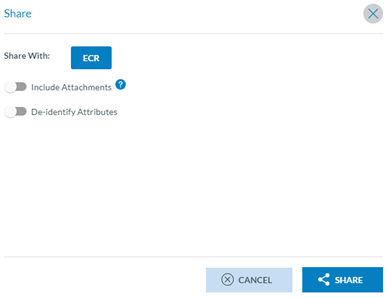
The Administrator has to decide if including the attachments through the ‘Include Attachments’ toggle is deactivated by default.
The Deidentify Attributes toggle opens a window to select the specific Attributes to be de-identified when the report is shared. The Administrator updates the Sharing settings and clicks on ‘Share’. When the Administrator executes the BO, the system will share the executed query's results with the ECR once all the mandatory fields are filled out. This action only works with OCs in the major version.
o Make a major version: This action will make the OCs meet the results of the BO query and turn it into a major version. This option only works on Open and not blocked OCs.
o Make a major version and Share it with ECR: it is the mix of the two previous options; it makes a major version and shares it with ECR. Therefore, it applies to open (not blocked) OCs. Once selected in the menu, the system displays the Share to ECR window as in the Share to ECR option explained before.
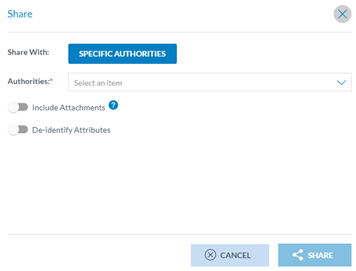
It works similarly to Share to ECR, but the Administrator has to select the specific Authorities by clicking on the Authorities drop-down menu:
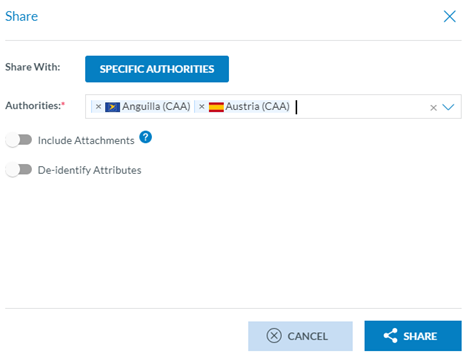
If appropriate, the Administrator must update the Attachments, de-identify Attributes, and click the ‘Share’ button. The selected Authorities will be set in the Actions field. When the Administrator executes this BO, the system will make major the OCs meeting the requirements of the query of the BO and will share them as long as they can be subject to turning into major (open and not blocked).
The status of the BO is ‘Draft’ as long as it is not saved.
Once the Administrator has filled all the mandatory fields, you must now click on the ‘Save’ button:
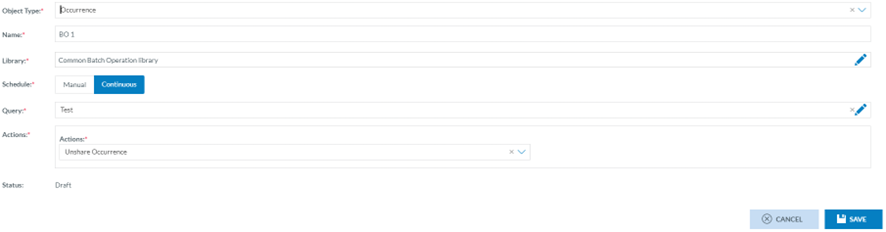
The system will save the new BO in the database and the table of BOs:

3.3.1.2. Edit a batch operation
The Administrator has to double-click on the Name of the BO in the list of BOs or click on the ‘Edit BO’ option of the 3-dot menu of the list of BOs:

The system displays the Edit BO window:
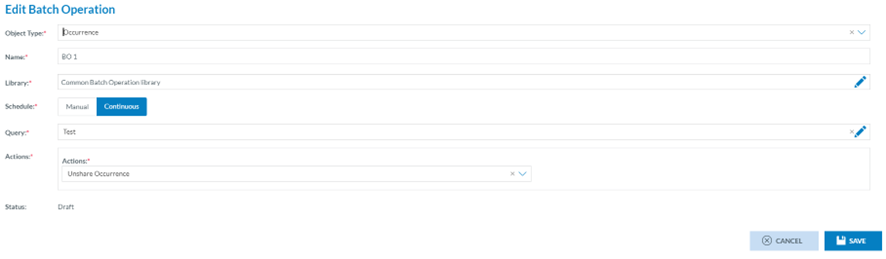
The Administrator has to update the necessary fields, leaving all the mandatory fields with content, and click the ‘Save’ button. The system will save the updates in the database, and the BO will be updated accordingly.
3.3.1.3. Copy a batch operation
The Administrator has to click on the ‘Copy BO’ option of the 3-dot menu of the BO at the table of BOs, and the system will display the Copy BO window:
It is similar to the Edit BO page, but the Name field is empty; all the fields are completed except the Name. The Administrator has to fill in the Name field and can update any of the other fields. Then, the Administrator has to click on ‘Save’.
The BO will be saved in the database with the new name and the other updates, if any. The system will return to the table of BOs, which will be updated accordingly.
The BO will be saved in the Draft version. Draft BOs can be edited, published, copied and deleted.
3.3.1.4. Publish a batch operation
Only draft BOs can be published. The Administrator has to click on ‘Publish BO’ at the 3-dot menu of the specific draft BO of the list, and the system will turn the status of the BO to ‘Released’, and the BO will be published.
The list of BOs will be updated by marking the ‘Enabled’ section of the corresponding BO with a green tick.
Once a BO is published, it can be disabled through the ‘Disable’ option of its 3-dot menu at the list of BO.
3.3.1.5. Disable a batch operation
Only published BOs can be disabled. The ‘Disable’ option will be available for this BO in the 3-dot menu of the list of BOs. The Administrator has to click on it, and the BO will be disabled.
The list of BOs will be updated, with the green tick removed from the ‘Enabled’ section of the corresponding BO.
Once the BO is disabled, if it is manual, it cannot be executed; if continuous, it stops being executed. It will only be re-executed if it has the enabled status.
3.3.1.6. Enable a batch operation
Only disabled BOs can be enabled. The ‘Enable’ option will be available for these BOs in the 3-dot menu of the list of BOs.
The list of BOs will be updated by marking the ‘Enabled’ section of the corresponding BO with a green tick.
The Administrator has to click on it, and the BO will be enabled. Once the BO is enabled, if manual, it can be executed again; if continuous, it will be continuously executed.
3.3.1.7. Archive a batch operation
Only BOs that are not draft status can be archived. The Administrator has to click on the ‘Archive’ option of the 3-dot menu of the BO at the list of BOs, and the system will archive the BO. The status will turn to ‘Archived’ in the list of BOs.
The archived BOs can be viewed, copied, and deleted but are neither edited nor published.
3.3.1.8. Manual execution
The execute option is available in the 3-dot menu of the BOs of the list only for manual and published BOs. The Administrator has to click on the option, and the system will execute the BO.
If the query of the BO has an ‘Ask later’ field, the system will display a window to fill in the field of the query:
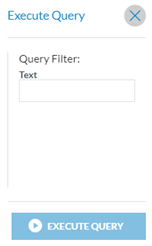
The ‘Execute query’ button will be enabled once the empty field is filled.
The system will display a message indicating if the execution was a success. If no records or only a few records meet the BO's requirements, the user will be prompted to proceed.
If the execution was a success or if the Administrator confirmed the execution after a message, then the Administrator has to click on the View results option of the 3-dot menu of that BO at the list of results, and the system will display the BO results page:

It shows the table of results of the execution in the current month. There are tabs to access the last month, last 6 months or Custom (where the Administrator can set the period).
The table provides the following information per column that can be used as filters:
· User Name: the author of the execution
· Execution Name: the system generates a unique name for each execution result, joining the Name of the BO and a correlative number
· BO Type: if manual or continuous
· Status:
ü Processed OK
ü Processed with errors: the results file will depict the errors
ü In Progress: the execution has not finished yet
ü Cancelled: BO was cancelled
ü Undo completed: the BO was completely undone
ü In the grace period (for manual BOs with the Undo toggle activated), the BO can be undone.
ü Created: the BO was just requested to be executed
ü Undo in progress: the Undo process is taking place. Once it is completed, the BO is undone.
· Number of records processed: number of records processed through the BO.
· Number of records not processed: The number of records did not meet the BO's requirements, so the query's action was not applied to them.
· Started date time: of the execution.
· Finished date time: of the execution.
· Results: it provides a download icon to download an xls file with the results of the execution:

Or:

The results file explains the number of records processed and not processed and the reasons for this. It indicates the affected reports.
The results of the specific manual BO will also be available through the Execution results page of the BO menu. See further details in the Execution results page section.
3.3.1.9. Continuous execution
The continuous BO are executed all the time; they are not applied over stored reports meeting the requirements of the BO, but over the updates of reports or new reports when saved.
The results of these BOs can be accessed through the view results option of the specific BO of the 3-dot menu of the list of BOs or the Execution results page in the following section.
3.3.1.10. Execution results page
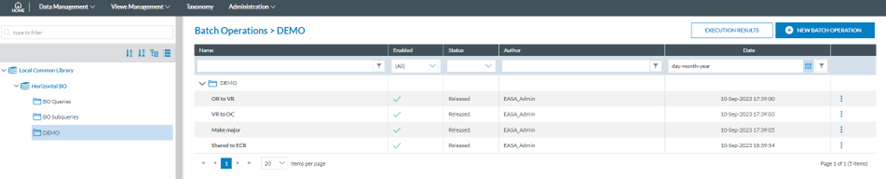
The Administrator button clicks on it, and the system displays the Execution results page:
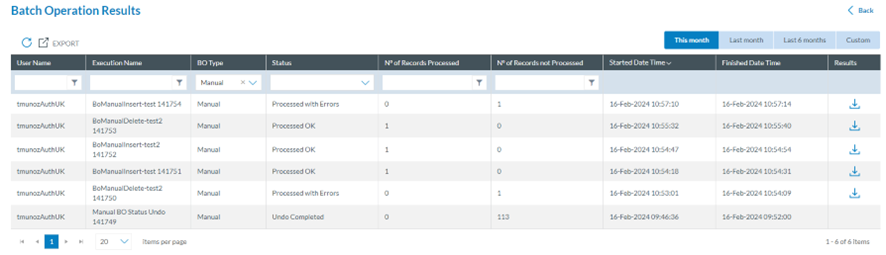
The table includes all the executions performed by the Administrator. The function is the same as that described form. See it for further details.
3.4. Batch operation groups
Batch Operations groups are composed of manual BOs that execute one after the other and can be scheduled daily, weekly or monthly overnight.
The Data management section provides a BO group menu:

It provides a table of BO groups with the following columns per each BO group row:
· Name: unique for each one
· Description: This field is optional
· Enabled: if it is already activated (green tick) or not (empty=disabled)
· Schedule: it can be daily, weekly or monthly
Above the table of BO groups, the system displays the ‘New BO group’ button.
3.4.1. BO Group Management
3.4.1.1. Create a batch operation group
The system clicks on the ‘New Batch Operation Group’ above the table of BO groups on the BO group menu page, and the system displays the ‘New Batch Operations Group’ window:
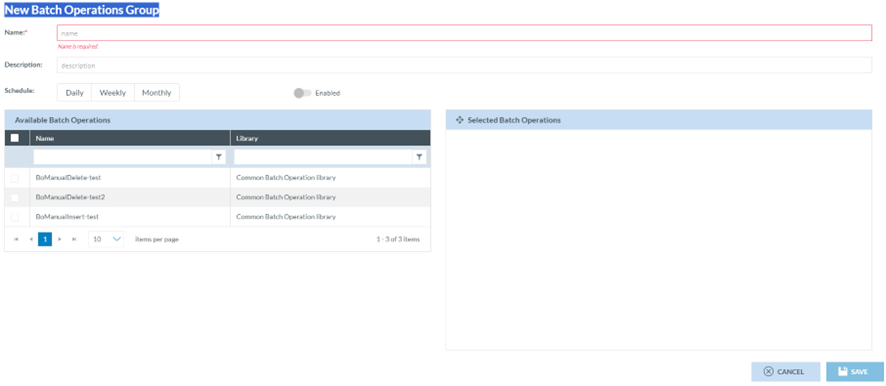
The Administrator has to fill in the mandatory fields:
· Name: unique for each BO group
· Schedule: it can be daily, weekly or monthly. The Administrator has to select one of them to enable the BO group once all the mandatory fields are complete.
· Available BOs: This is the table of BOs available for the group; they must be enabled, released, and manually BOs. They also have to provide any result when being manually executed.
Moreover, Administrators can fill out the optional Description field.
The Administrator has to activate the ‘Enabled’ toggle if appropriate. The Administrator has to select the specific BOs displayed on the ‘Selected BOs’ pane and click the ‘Save’ button.
The system will save the data in the database and add the saved BO group to the list of BO groups.
The system will trigger, if enabled, the created BO group with the selected schedule during the nights.
3.4.1.2. Edit a batch operation group
The Administrator has to click on the Edit option of the 3-dot menu of the specific BO group at the list of BO groups, and the system will display the ‘Update BO group’ page:
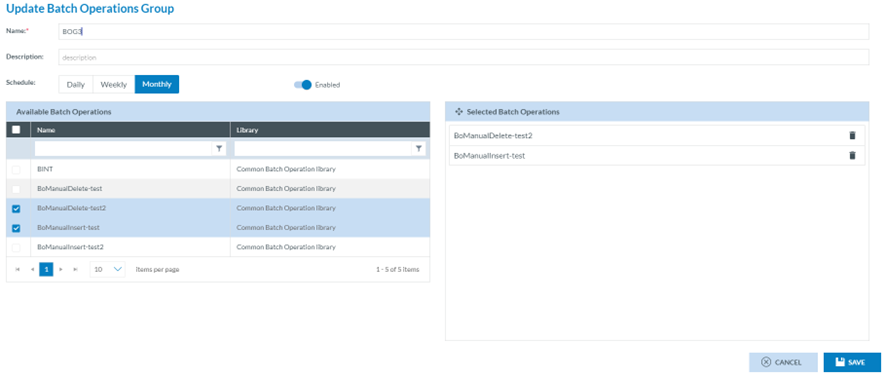
The Administrator must update the fields and click the ‘Save’ button. The system will save the update in the database, and the table of BO groups will be updated accordingly.
3.4.1.3 Delete a batch operation group
The Administrator has to click on the Delete option of the 3-dot menu of the specific BO group in the list of BO groups. The system will delete the BO group from the database, and the table of BO groups will be updated accordingly. The table will no longer display the deleted record.
3.5. Word Templates
Officers use Word Templates in ECCAIRS2 to export reports in Word format. The Word template has to include the complete path of the Attributes according to the Authority’s released Taxonomy so that the system can fill each template field with the Attribute's corresponding value in the report.
Each table in the Word Template corresponds to an Entity in the Taxonomy. i.e.:
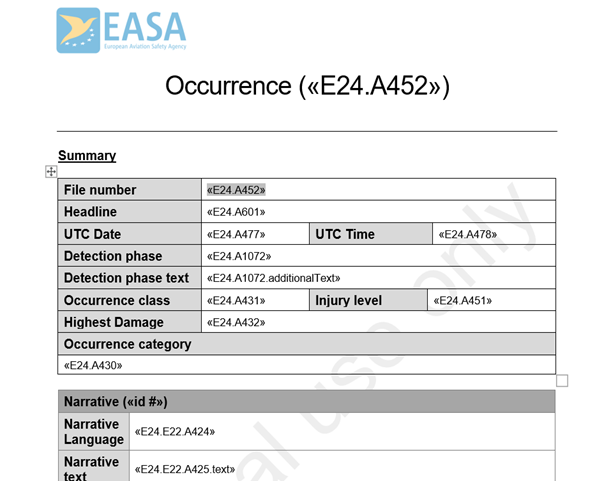
The Word Template will have tags included in token « » with the following characteristics:
· Attribute: A
· Attribute Custom: AC
· Entity: E
· Separation token: .
· ID: TaxonomyCode
Examples:
· «E1.A1» -> ENTITY.1.ATTRIBUTE.1
· «E1.E45.AC1» -> ENTITY.1.ENTITY.45.ATTRIBUTES_CUSTOM.1
Depending on the Attribute data type, it should be indicated what part of the Attribute will be included in the Word Template:
|
Attribute Data Type |
Field |
Example |
|
Date, Time, Text, Alphanumeric, Number |
content (default) |
«E1.A1» |
|
Code |
content (default) |
«E1.A1» |
|
Code and Additional Text |
content (default) additionalText |
«E1.A1» «E1.A1.additionalText» |
|
Code or Alternative Text |
content (default) alternativeText |
«E1.A1» «E1.A1.alternativeText» |
|
Decimal |
content (default) unit |
«E1.A1» «E1.A1.unit» |
|
ECCAIRS Resource Locator |
filename (default) description |
«E1.A1» «E1.A1.description» |
|
ECCAIRS Embedded Data |
eccairsNumber (default) |
«E1.A1» |
|
ECCAIRS Data Link |
eccairsNumber (default) |
«E1.A1» |
|
Latitude & Longitude |
|
«E1.A1.degree» «E1.A1.minutes» «E1.A1.seconds» «E1.A1.direction» |
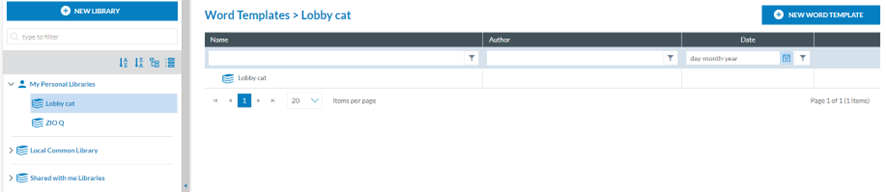
Once the Word template is configured, the Administrator can save it into E2 libraries. This is the second menu of Data management:
3.5.1. Word Template Management
3.5.1.1. Create a Word Template
The Administrator can create a Word Template (from now on WT) within ‘My Personal Libraries’ and ‘The Local Common Library’.
The Administrator has to select the specific Library or category, click on ‘New WT’ on top of the page, and the system will display a modal window to create it:
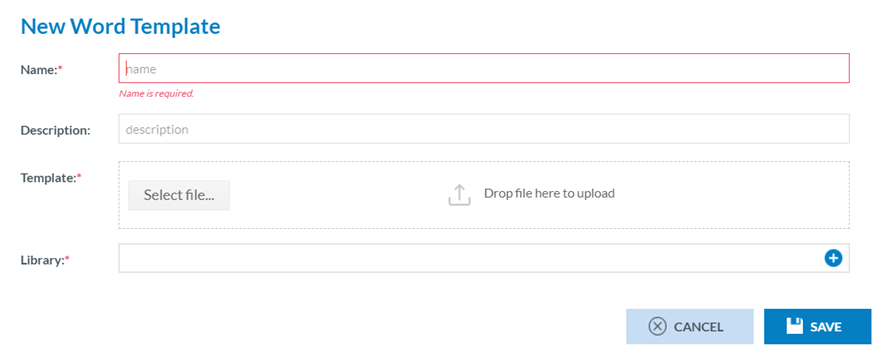
The Administrator has to fill in the Name that has to be different from the existing ones, upload the needed word file to the Template section through the ‘Select file’ button or drag and drop it to the section and select a Library, a category or a subcategory.
The description field is optional.
Then, the Administrator has to click on the ‘Save’ button. The system will save the WT in the database, return to the WTs page, and add the specific WT to the table of WTs.

The saved WT will be available to the officers in the export options for the reports in Word format. Management of the Word Templates
The WT table is divided into columns that can also work as filters:
· Name: unique for each WT
· Author: it will be the Administrator
· Date: Creation date
In the final section of each WT row, there is a 3-dot menu.
3.5.1.2. Edit a Word Template
The Administrator has to double-click on the Name of the specific WT of the list of WTs or click on the ‘Edit’ option of the 3-dot menu of the WT on the list, and the system will display the Edit window:
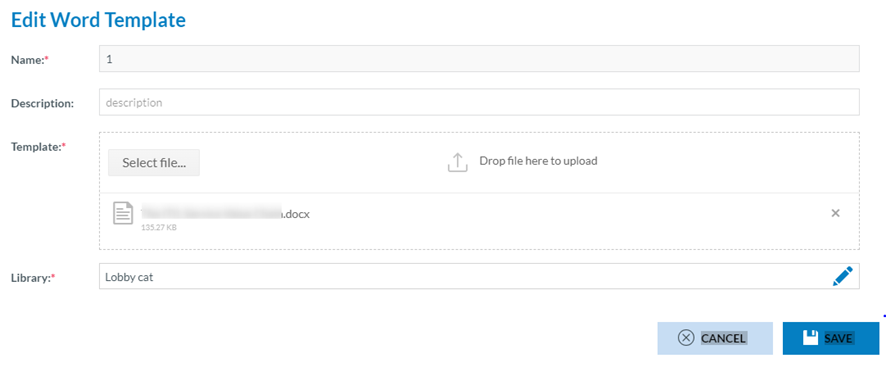
The Name field cannot be updated; only the other fields of the WT, including the library, can be updated.
The Administrator has to update the corresponding fields, leave the mandatory fields filled, and click ‘Save’. The system will save the updates in the database and return to the WT menu with the updated list of WTs.
3.5.1.3. Copy a Word Template
This option allows you to copy the Word templates.
The Administrator has to click on the ‘Copy’ option of the 3-dot menu of the WT on the list, and the system will display the Copy WT window:
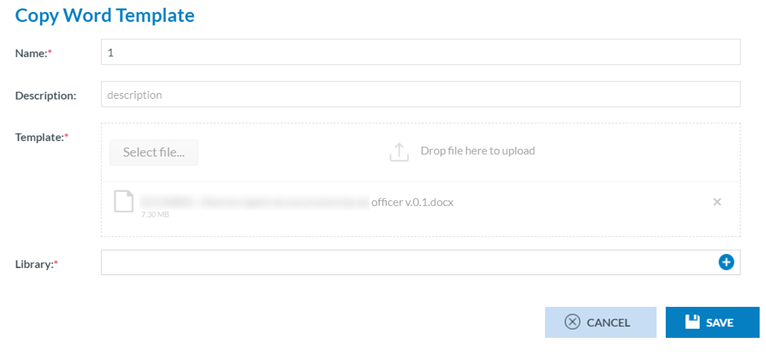
The management of this window is the same as the editing option above, with the only difference being that the Name field can be updated, and the Administrator can select a different Library than the one where the WT was stored before.
3.5.1.4. Share a Word Template
The Administrator has to click on the ‘Share’ option of the 3-dot menu of the WT on the list, and the system will display the Share WT window:

This option works the same way as the ‘Share a query’ in the Query Management section, with the only difference being what is shared.
3.5.1.5. Download a Word Template
The Administrator has to click on the ‘Share’ option of the 3-dot menu of the WT on the list of WTs, and the system will download the WT.
3.5.1.6. Delete a Word Template
The Administrator has to click on the ‘Delete’ option of the 3-dot menu of the WT on the list of WTs, and the system will delete it from the database and update the list of WTs accordingly.