1. Introduction & Accessing
1.1. Introduction
ECCAIRS 2 is the European platform designed for the efficient and secure management of occurrence reports in the field of aviation. These reports are submitted to the system by reporters or organizations, such as airlines, maintenance organisations, or other aviation stakeholders. The collection, validation, and follow-up of reports are essential tasks that contribute directly to the continuous improvement of operational safety.
The process is primarily managed by Occurrence Officers from aviation Authorities of each country. To reduce manual workload, the system also allows for the automation of repetitive or large-scale tasks through batch operations. As a result, the system requires prior configuration and ongoing maintenance, which are handled by National Security Administrator.
This document describes all the tasks a National Security Administrator can perform through the ECCAIRS Web Application once logged in. It applies to National Aviation Authorities and Safety Investigation Authorities Administrators.
Tasks that can be performed by the National Security Administrator include:
Data Management:
- Querys:
- Create, edit, and share queries with conditions.
- Integration with batch operations.
- Batch Operations:
- Automate actions on reports (e.g., update, share, process).
- Schedule manual or continuous execution.
- Word Templates: Export reports in Word format.
Taxonomy Management: Custom taxonomy management.
Views and Sections:
- Create sections and views with attributes, images, and text.
- Customize web forms for reporters.
Administration:
- Manage organizations, groups, and users.
- Set permissions, roles, and auto-filled attributes.
- Set Notifications.
- Migration of E5Z files (OC)
- Upload and Validation of E5X files (OR)
1.2. Accessing ECCAIRS2
Follow these steps to access the Reporting Portal to Report an Occurrence:
- Go to E2 Central Hub homepage.
- Click on the 'Report an Occurrence' banner.

You will be redirected to the Reporting Portal homepage.
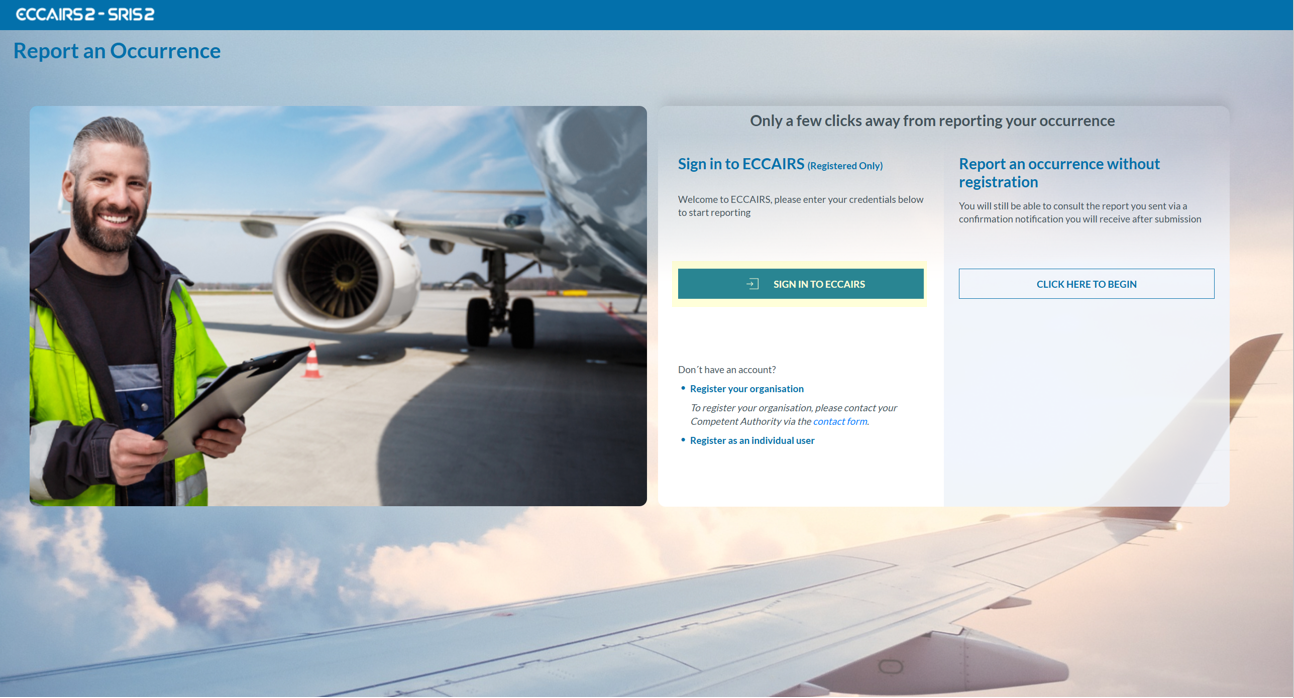
You can access the ECCAIRS 2 Web Application the by clicking on 'SIGN IN TO ECCAIRS'.
If you do not yet have an account, contact your Authority administrator to create a new one.
1.3. Sign in
Important notes
Correct Access URL
If you have created a shortcut to the URL https://api.aviationreporting.eu/idp/login, please be aware that this address points to the dedicated login server only. When accessed directly, the system does not know where to redirect the user after authentication, resulting in a failed or incomplete login process.
To ensure proper access and functionality, always use the official entry point:
Valid URL: https://e2.aviationreporting.eu
This address initiates the login flow correctly and allows the system to return you to the appropriate reporting environment after authentication.
Automatic Time Zone Configuration
For the time being it’s essential that your device’s time zone is set to automatic. If your local time doesn’t match the server time, the system may interpret your authentication token as expired—even if it was just generated.
How to ensure your time zone is set automatically:
- On Windows: Go to Settings → Time & Language → Date & Time Enable:
- “Set time automatically”
- “Set time zone automatically”
- On macOS: Go to System Preferences → Date & Time Check the box: “Set time zone automatically using current location”
- On mobile devices (Android/iOS): Make sure “Automatic date & time” is enabled in your system settings.
This configuration ensures your access token remains valid and prevents login issues related to time synchronization.
Sign in
To sign in, please follow these steps:
-
Visit the E2 Reporting Portal at https://e2.aviationreporting.eu/.
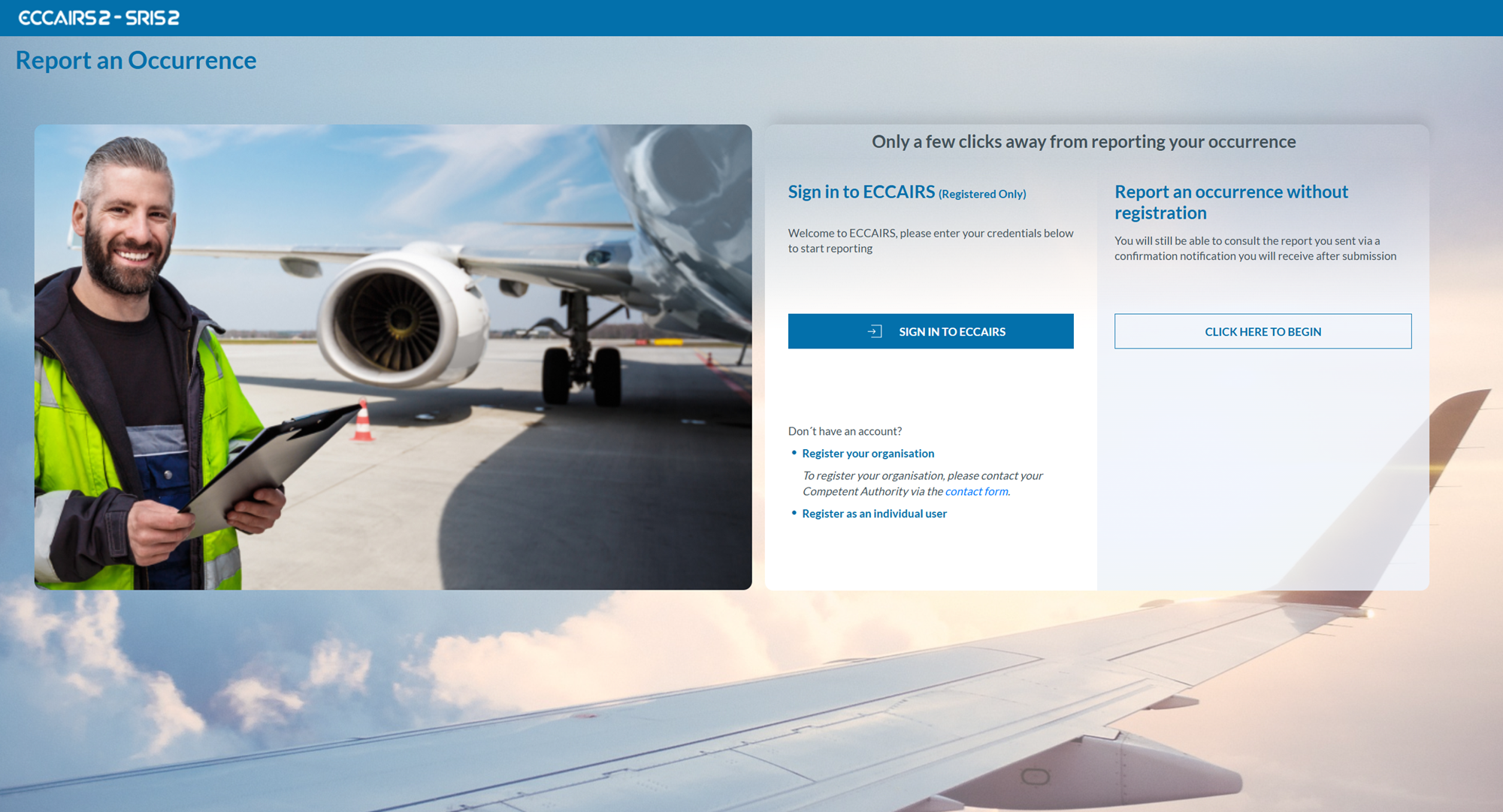
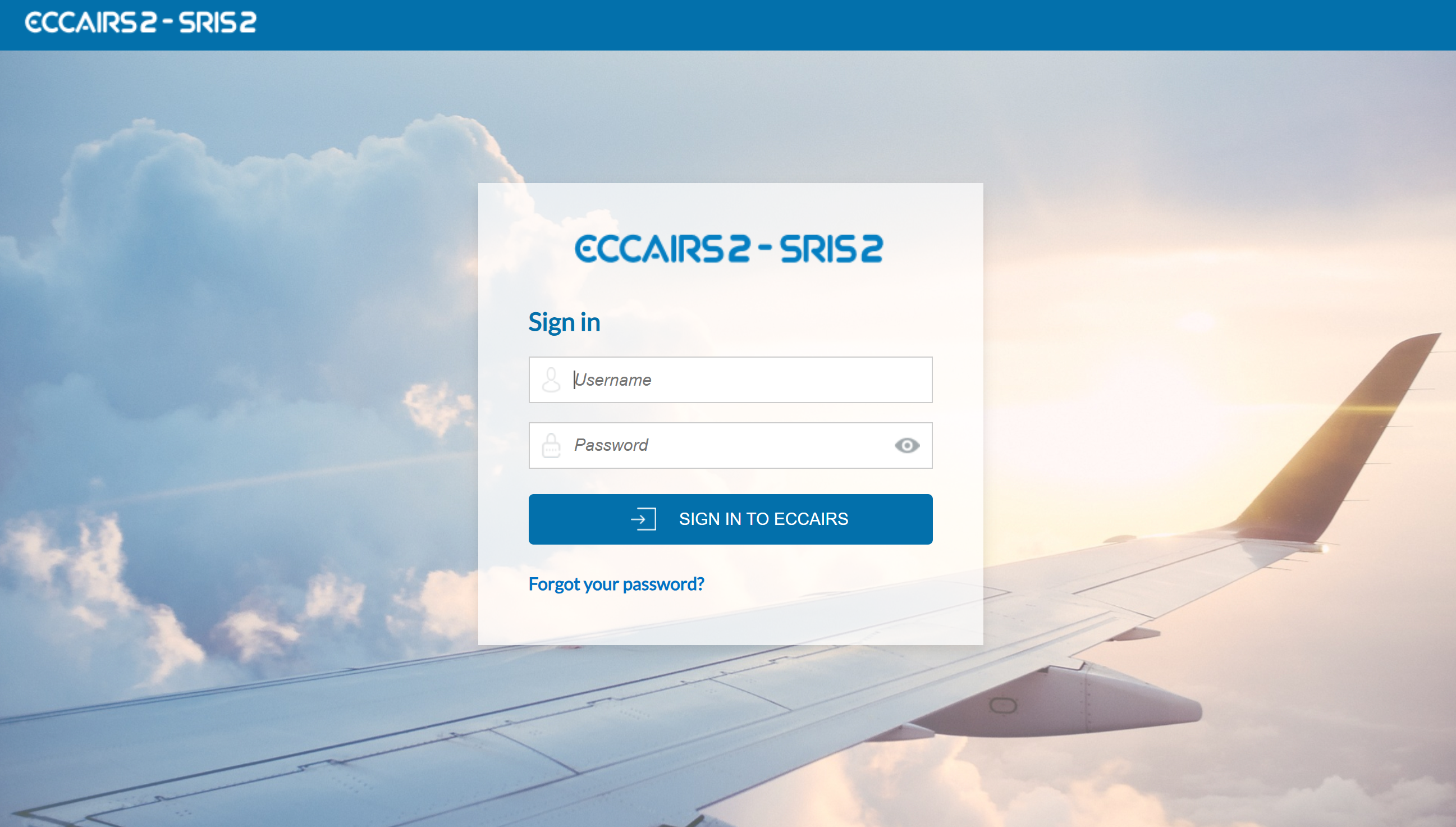
- Click on 'SIGN IN TO ECCAIRS'. You will be redirected to the following page:
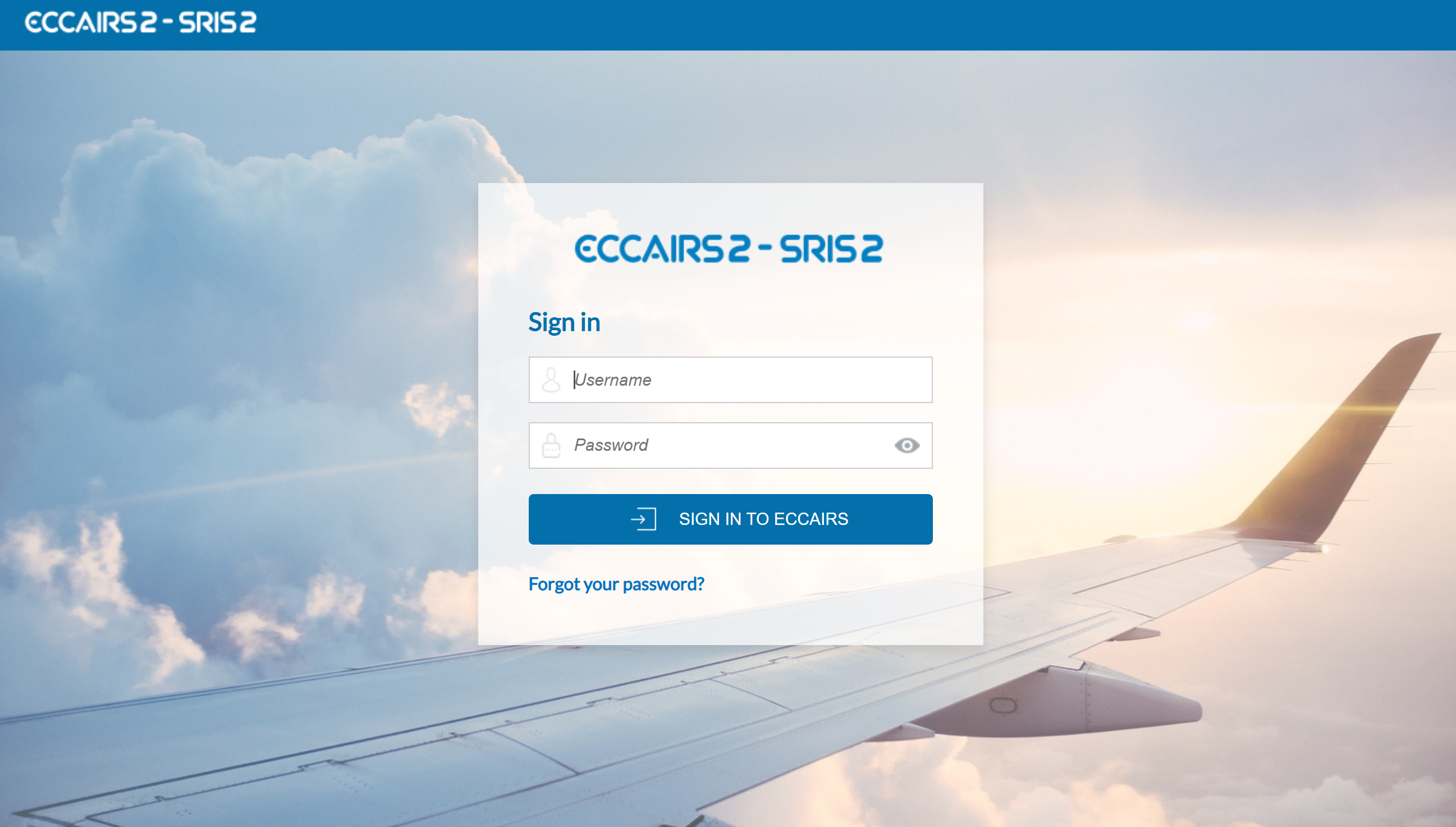
- Fill out your Username and Password.
-
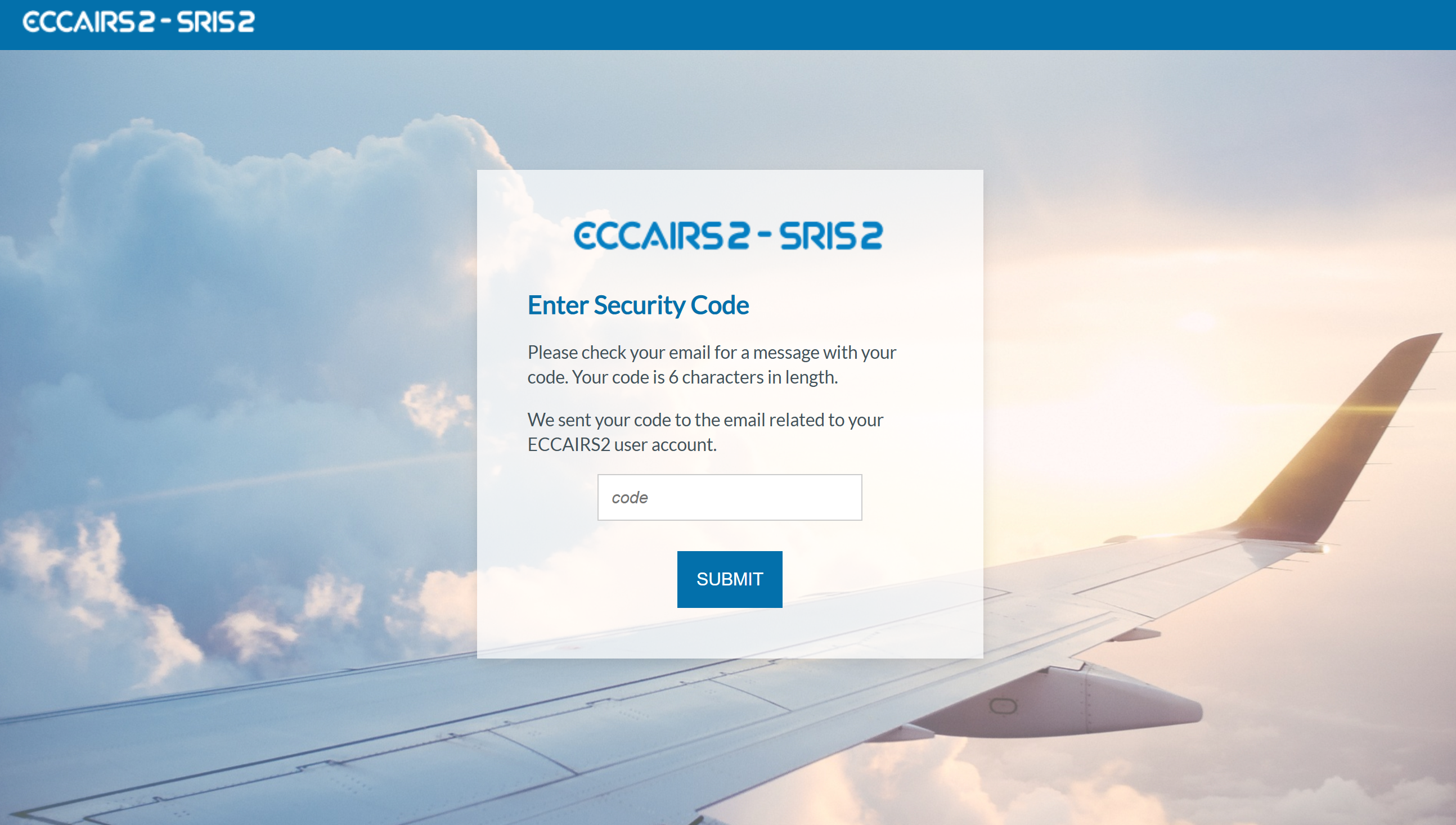
Click on 'SIGN IN TO ECCAIRS'. The system will display the following page:

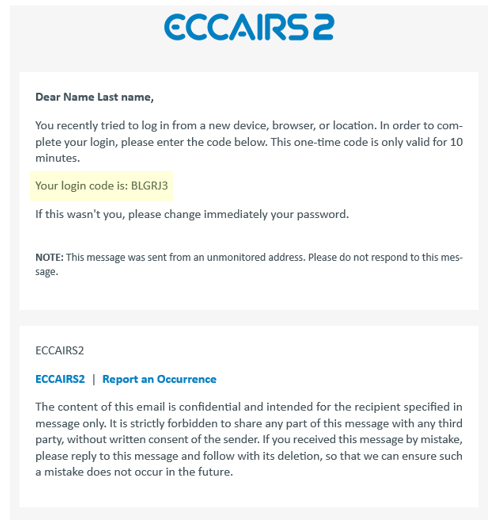
- Please check your email. The system will send a one-time security code to the email address linked to your user account. The message will be sent from the address 'do-not-reply@aviationreporting.eu'.
-
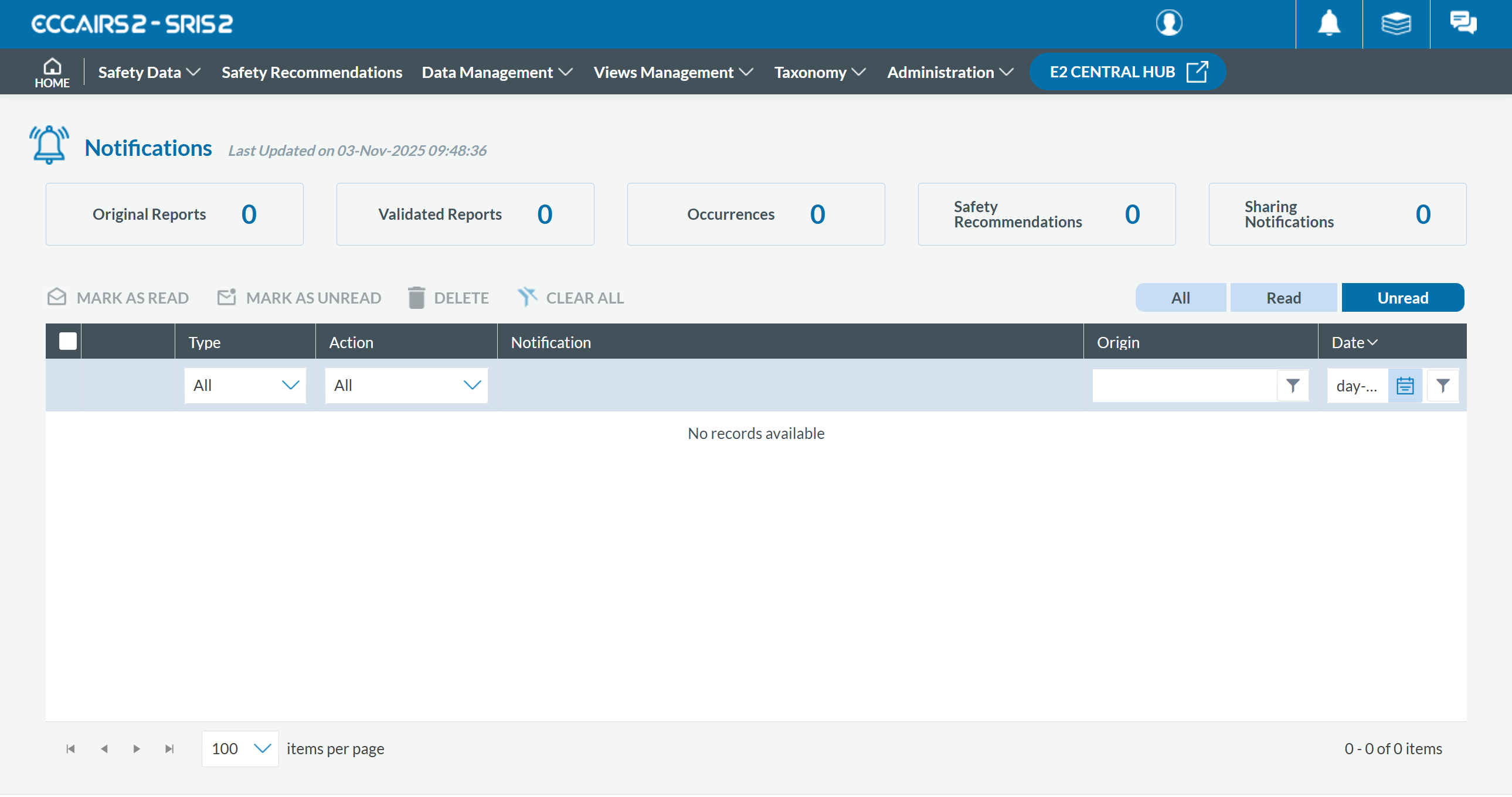
Enter your security code and click 'SUBMIT'. You will be redirected to the 'Home' page.
1.4. Reset Password
To reset your password if you've forgotten it, please follow these steps:
- Visit the E2 Reporting Portal at https://e2.aviationreporting.eu/.
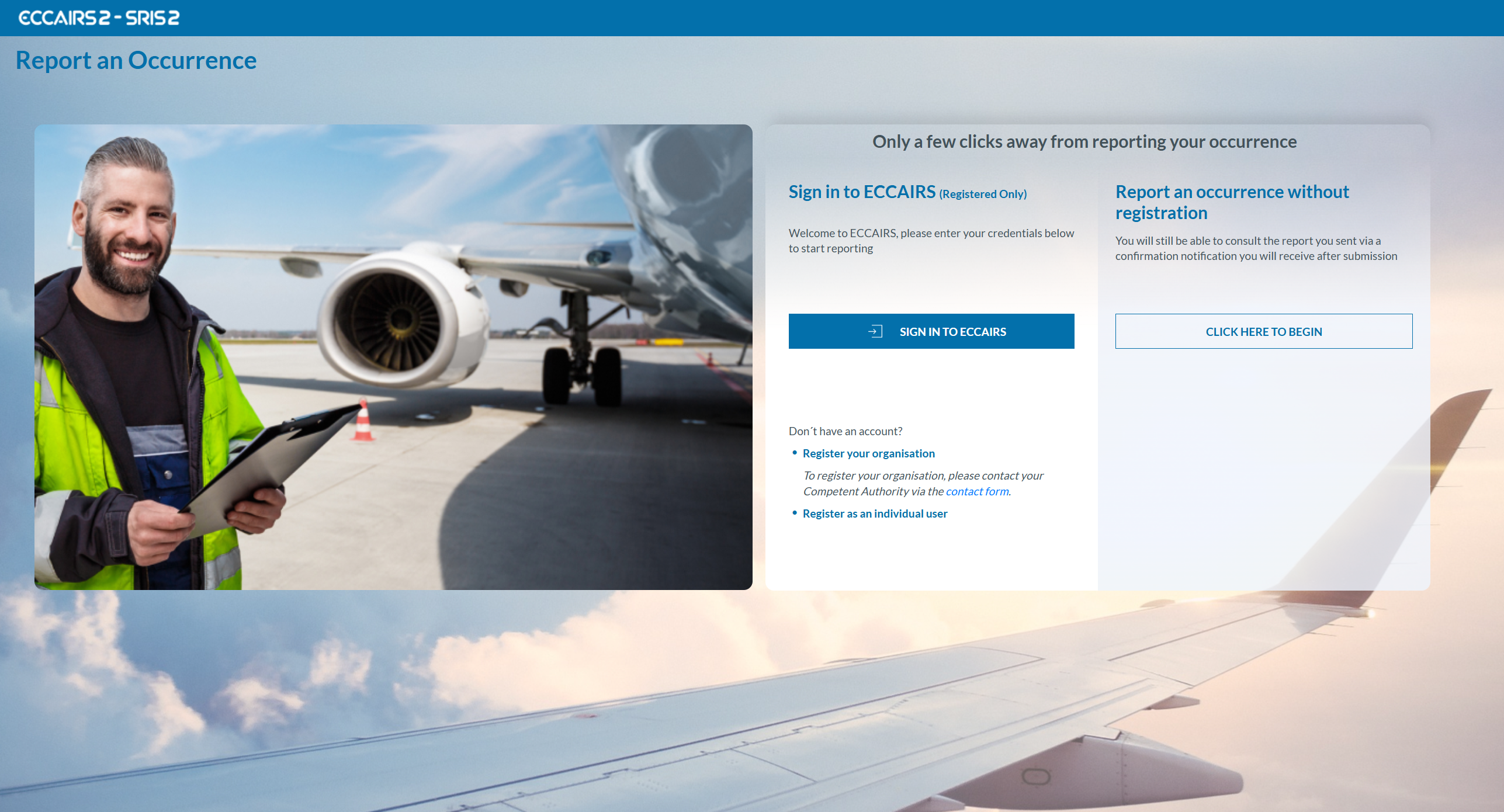
- Click on 'SIGN IN TO ECCAIRS'. You will be redirected to the following page:
-
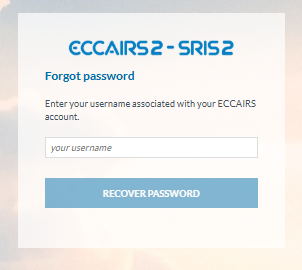
Click on the 'Forgot your password?' link and fill out your username (not your email):

- Click 'RECOVER PASSWORD'. You will receive an email with instructions on how to recover the password.
If you're already signed in, you can reset your password via your user icon:
- Click 'Reset password' The system will display:
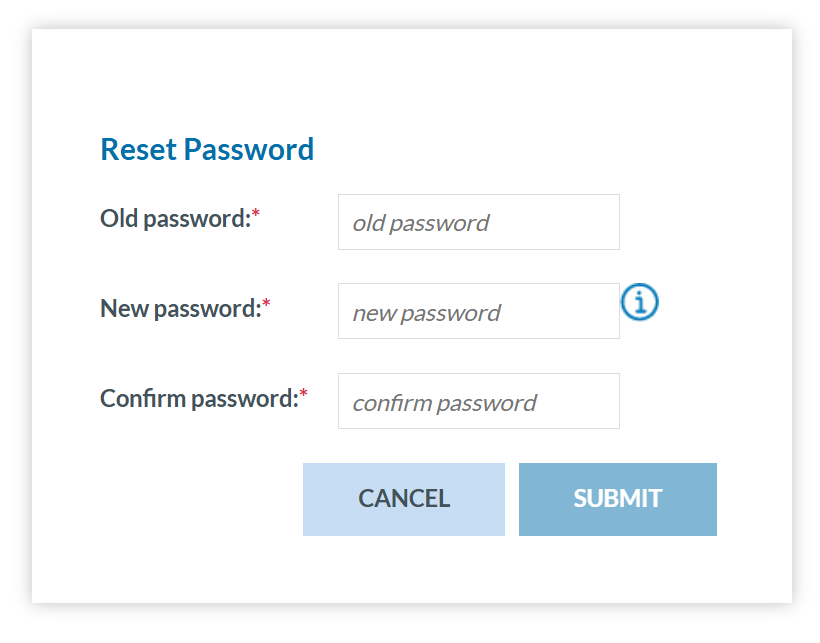
- Fill-in the formular and click 'SUBMIT'.