ECCAIRS 2 How-To's
- Version History
- How o release a taxonomy after CVLM
- How to create folders and upload files in E2 Central Hub
- How to enable or disable menus in E2 Central Hub
- How to edit a Banner
- How to create new release notes in Drupal (Video)
Version History
| Version | Date | Document | Description | E2 release |
| 0.1 | 31/10/2025 |
How to release a taxonomy after CVLM |
Initial version | 2.53 |
| 0.1 | 21/05/2025 | How to create folders and upload files in E2 central Hub | Initial version | 2.47 |
| 0.1 | 15/05/2025 | How to enable or disable menus in E2 central Hub | Initial version | 2.47 |
| 0.1 | 27/07/2023 | How to Edit Banner | Initial version | 2.28 |
| 0.2 | 20/11/2025 | How to release a taxonomy after CVLM | Migration to BookStack platform | 2.53 |
| 0.2 | 20/11/2025 | How to create folders and upload files in E2 central Hub | Migration to BookStack platform | 2.47 |
| 0.2 | 20/11/2025 | How to enable or disable menus in E2 central Hub | Migration to BookStack platform | 2.47 |
| 0.2 | 20/11/2025 | How to Edit Banner | Migration to BookStack platform | 2.28 |
How o release a taxonomy after CVLM
Abstract
The Value List Management Tool in E2 enables authorized users to create, edit, and disable values in value lists efficiently, with full tracking and collaborative functionality.
Some background
Every month, all collaborative value lists that were modified in the Collaborative Value List Manager (CVLM) must be embedded into a new taxonomy. This taxonomy update is part of the monthly E2 release.
A new taxonomy
For all actions you need to be logged in as an EASA_ECCAIRS user
Create a new draft taxonomy

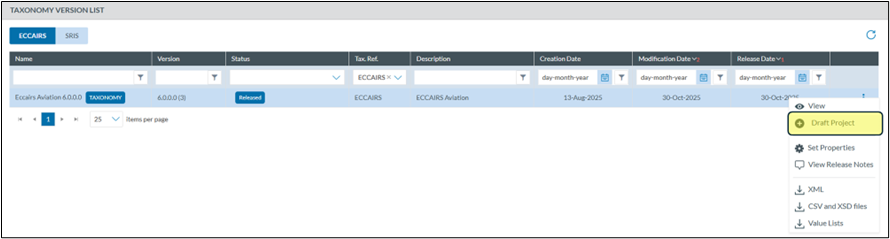
Increase the taxonomy version by setting the switch to on

Validate the delegated value lists

All snapshots that have the status “to be released” need to be validated.
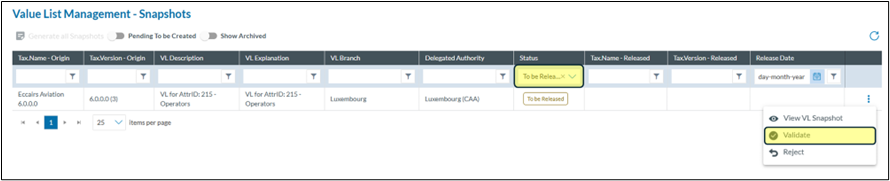
Once a snapshot is validated, it will be part of the next taxonomy release.
Check for conflicts
Before releasing the taxonomy it is key that there are no conflicts that need to be resolved
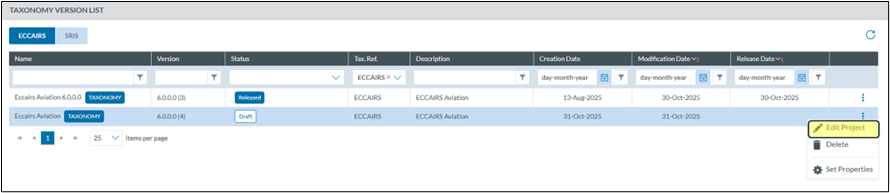

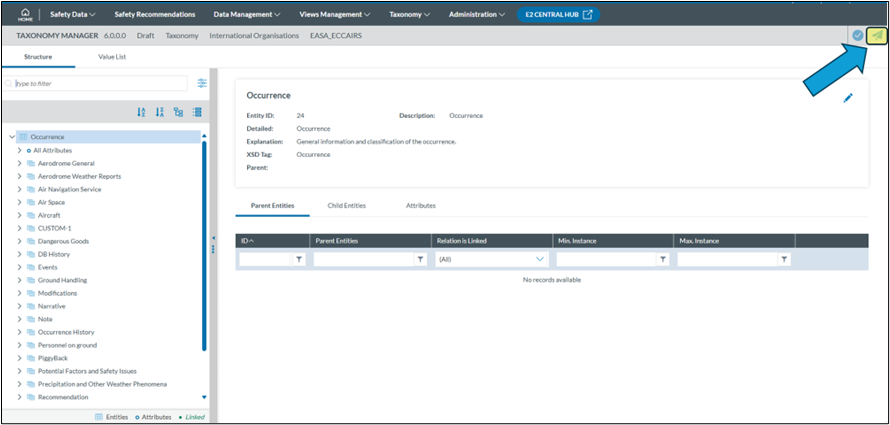
Release the taxonomy
Only when the new version of E2 is release then the new taxonomy can be released, not before
How to create folders and upload files in E2 Central Hub
Prerequisites
Having a user role of E2 Central Hub Administrator.
Steps
1. Log in UAT or PROD environment.
2. Go to E2 CENTRAL HUB

3. To create a new folder for the files:
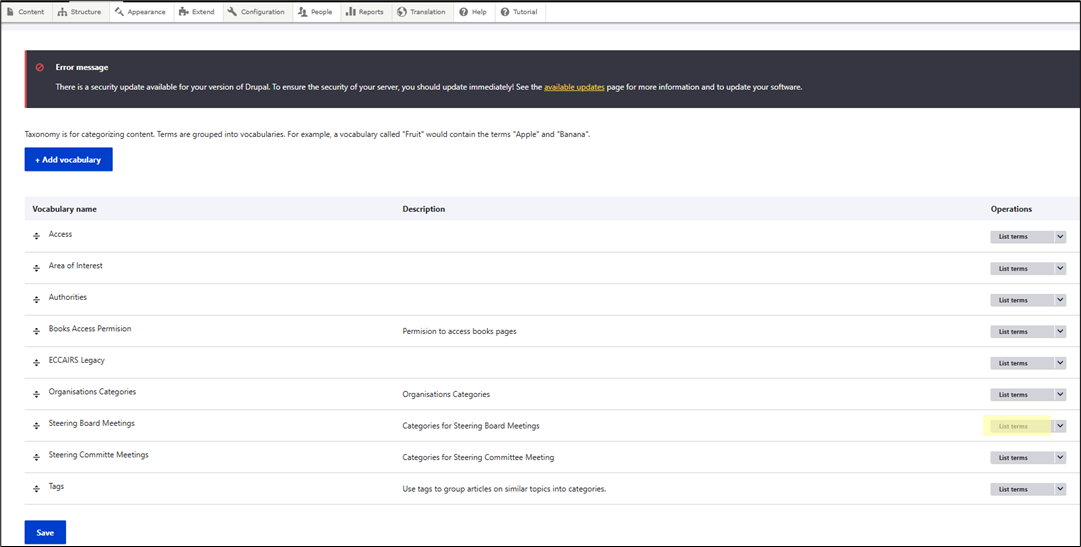
3.1. Go to Structure > Taxonomy in Drupal menu.
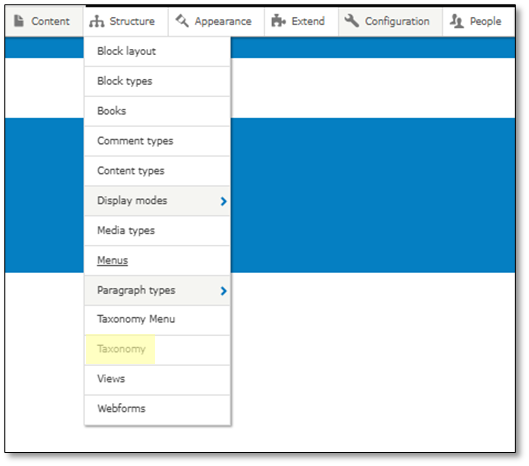
Drupal is a free and open-source content management system (CMS) and framework used for building and managing websites, online directories, e-commerce stores, and other digital content.
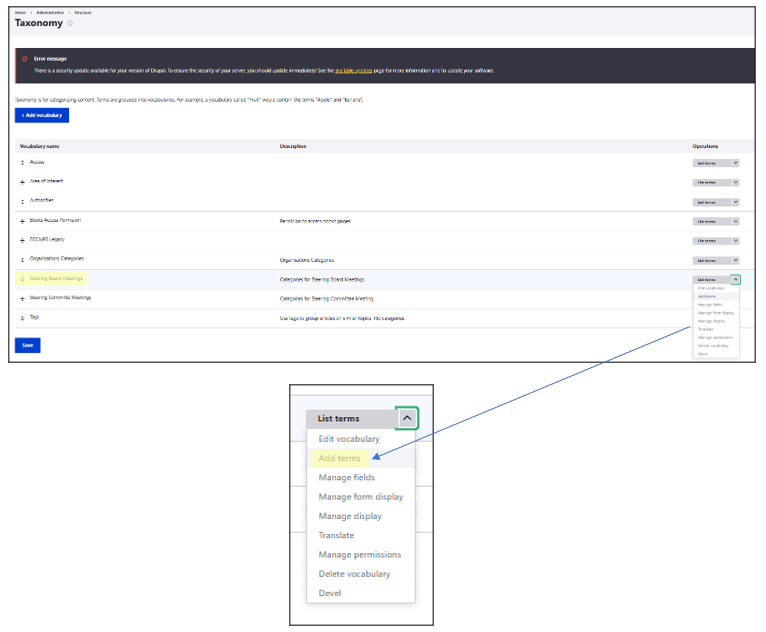
3.2. In the Taxonomy page, select “Add terms” for the desired menu (for example, Steering Board Meetings).
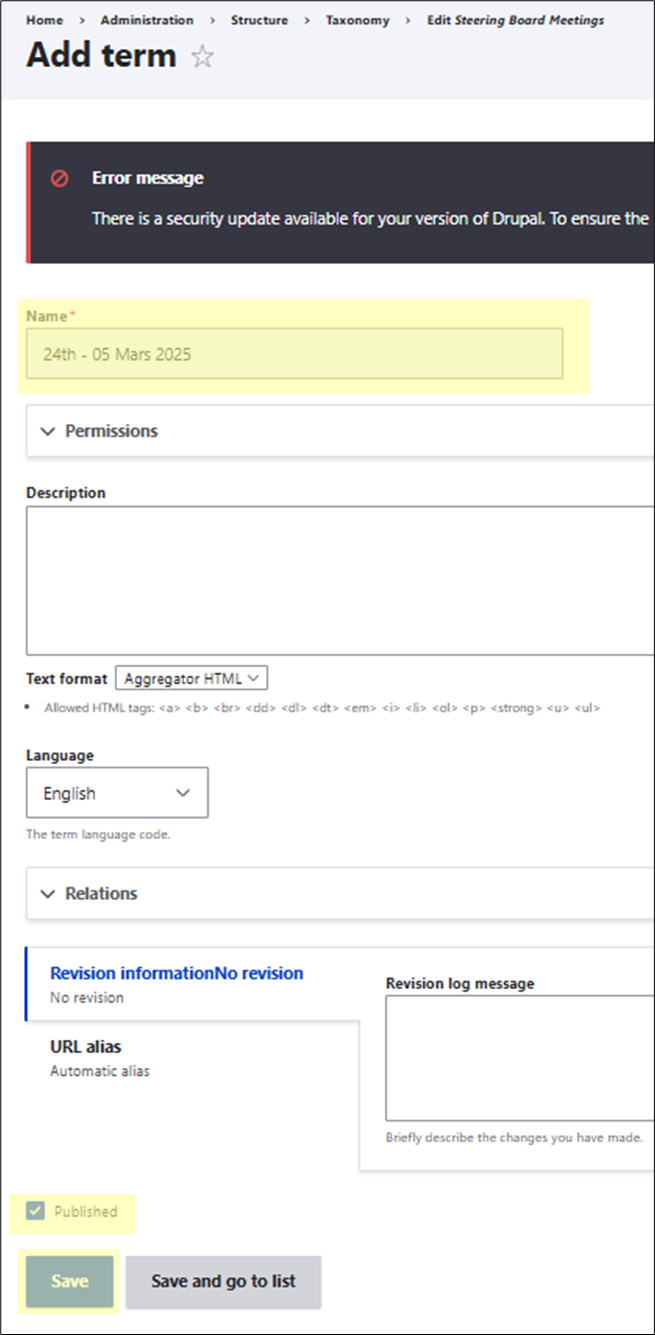
3.3. In the Add term page:
3.3.1. Complete the “Name” field with the name of the folder
3.3.2. No permissions are required to be filled
3.3.3.Make sure that the “Published” check box is ticked
3.3.4. Click on the “Save” button.
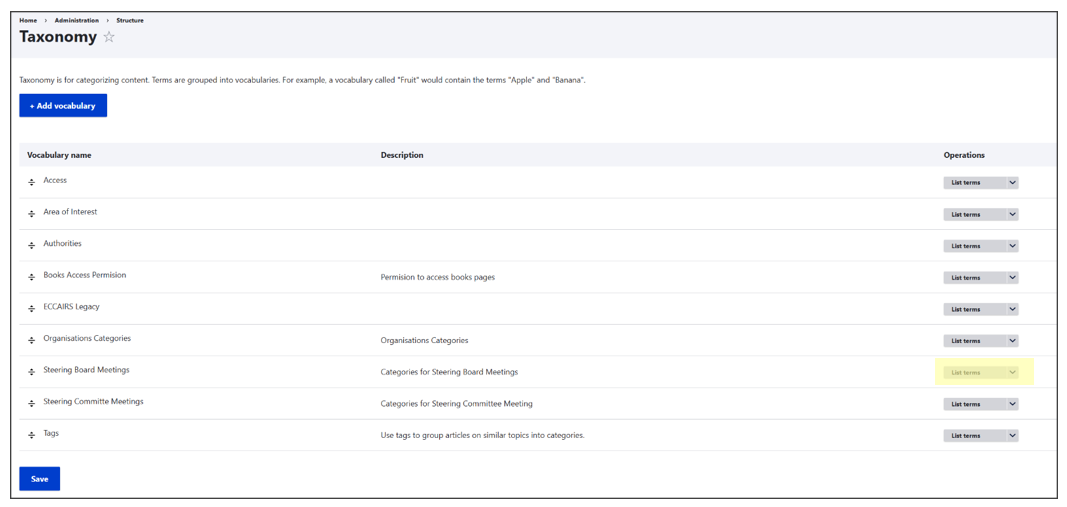
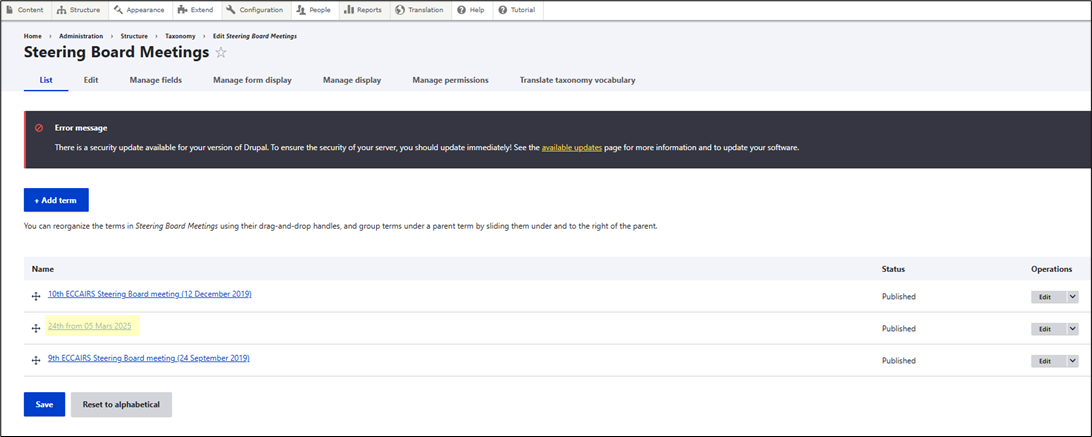
3.4. If desired, the folders that the menu contains can be listed from the Taxonomy page.
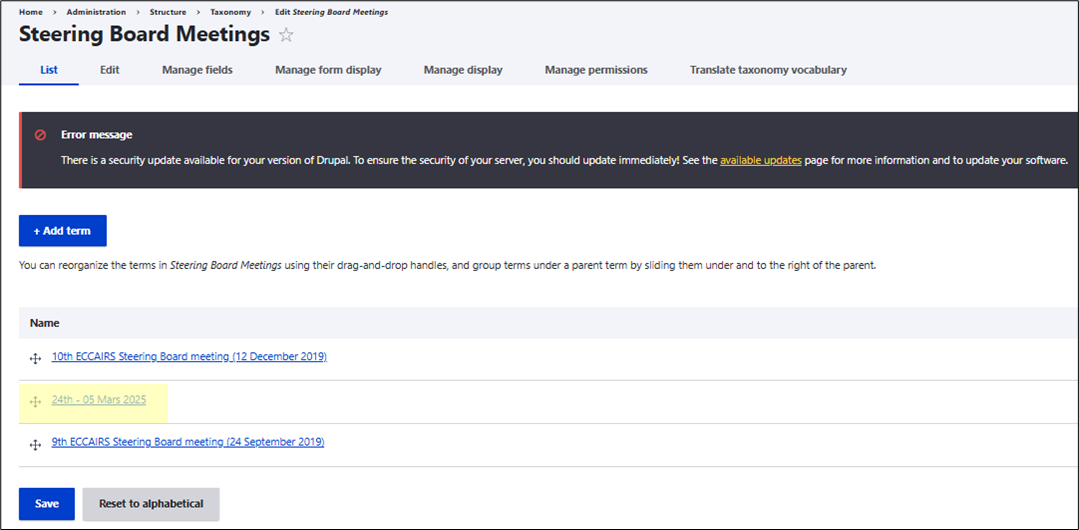
4. To upload a file on the E2 Central Hub:
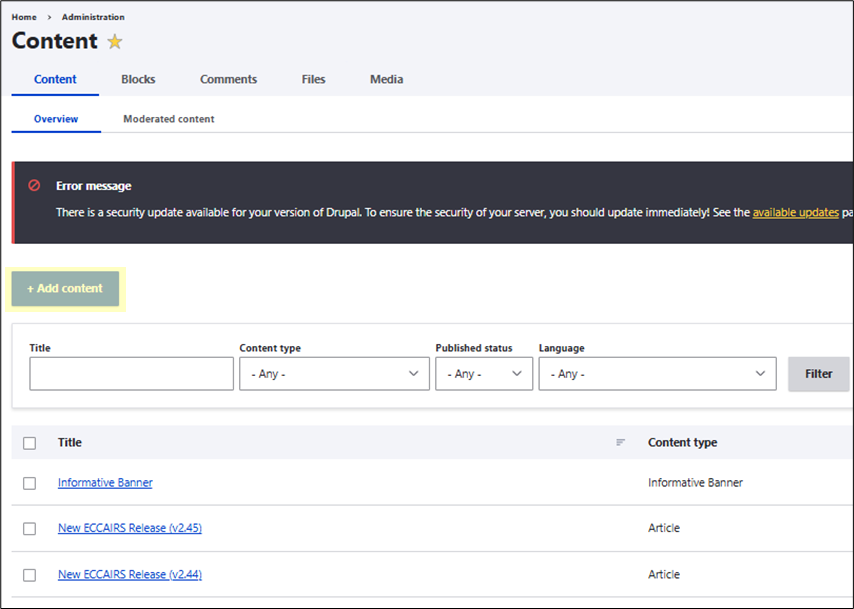
4.1. Go to Content

4.2. Select “+ Add content”
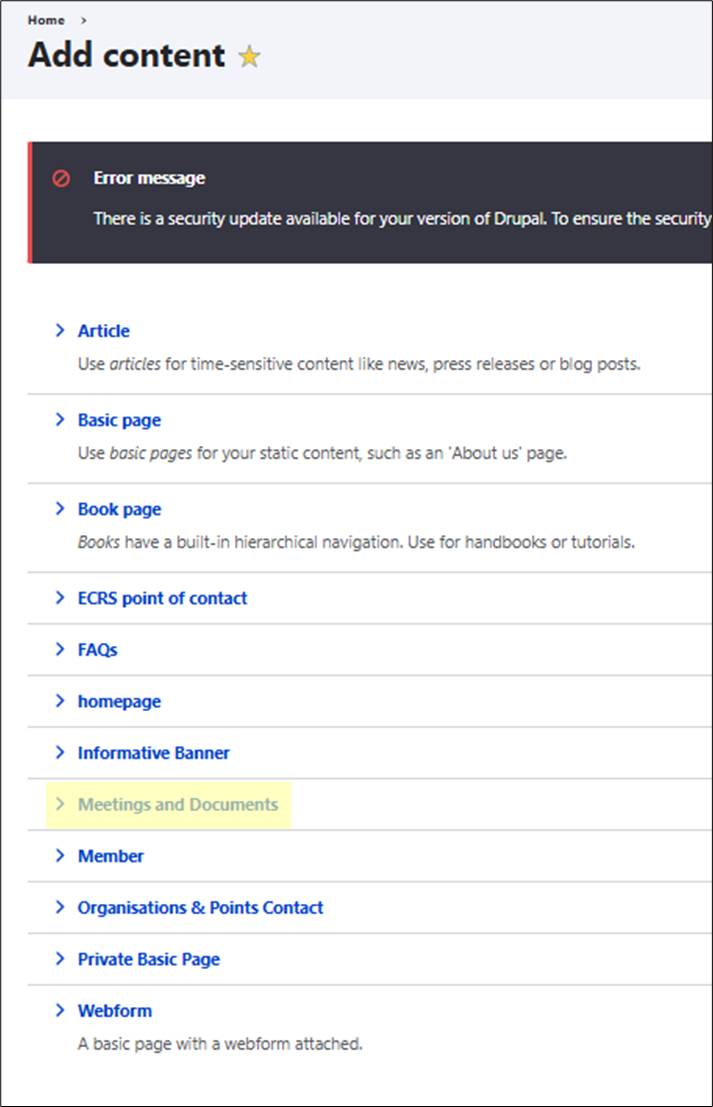
4.3. Select “Meetings and Documents”
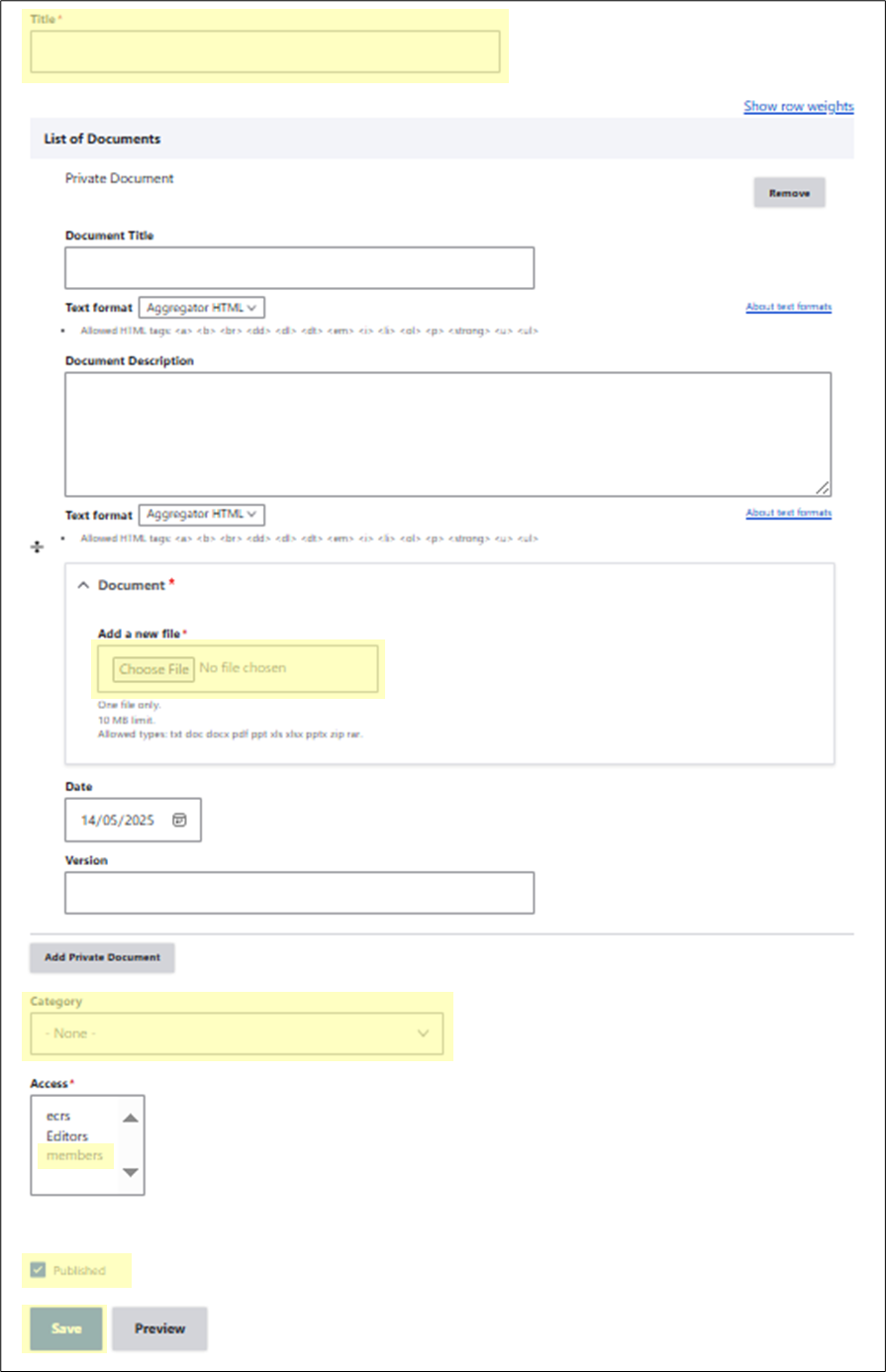
4.4. Complete the form:
4.4.1.Complete the “Title” field with the name of the file
4.4.2. Chose the file to be added
4.4.3.From the “Category” drop down menu, Select the folder to upload the file (previous one created, if desired)
4.4.4. Give “Access” to “members”
4.4.5.Make sure that the “Published” check box is ticked
4.4.6. Click on the “Save” button
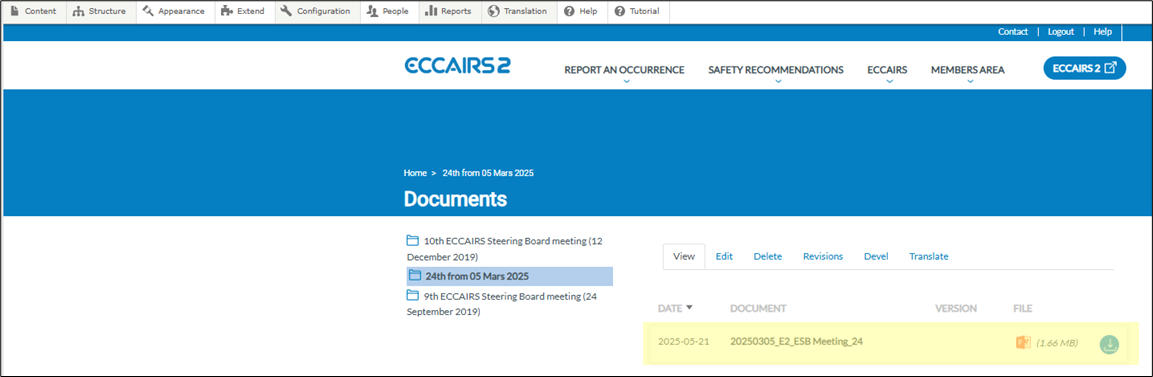
4.4.7. A confirmation with the creation of the document will be displayed.

4.5. If desired, the folders files that the menu contains can be listed from the Structure > Taxonomy page. For example, for the Steeing Board Meetings, select “List terms” and later the folder previously created.
5. Make sure that the desired menu is enabled to do that, follow the steps on How to enable or disable menus in E2 Central Hub.
How to enable or disable menus in E2 Central Hub
Prerequisites
Having a user role of E2 Central Hub Administrator.
Steps
1. Log in UAT or PROD environment.
2. Go to E2 CENTRAL HUB

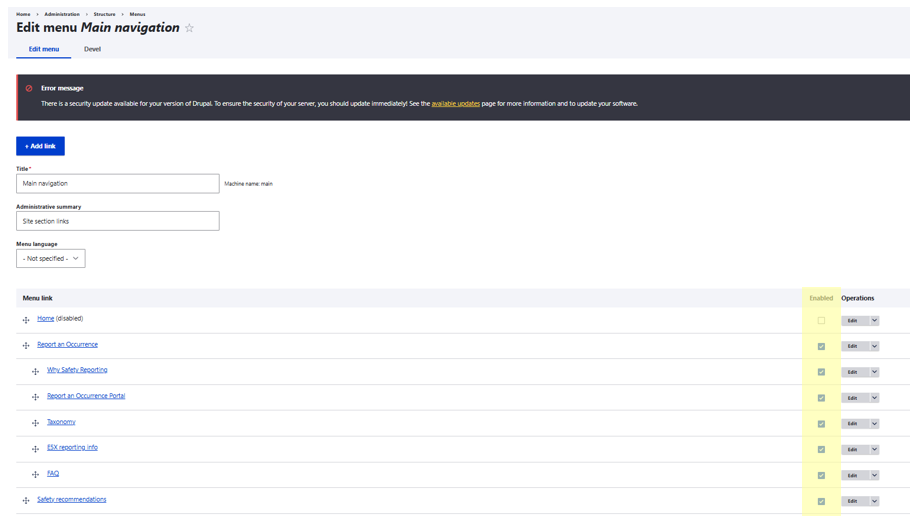
3. Go to Structure > Menus in Drupal menu.

Drupal is a free and open-source content management system (CMS) and framework used for building and managing websites, online directories, e-commerce stores, and other digital content.
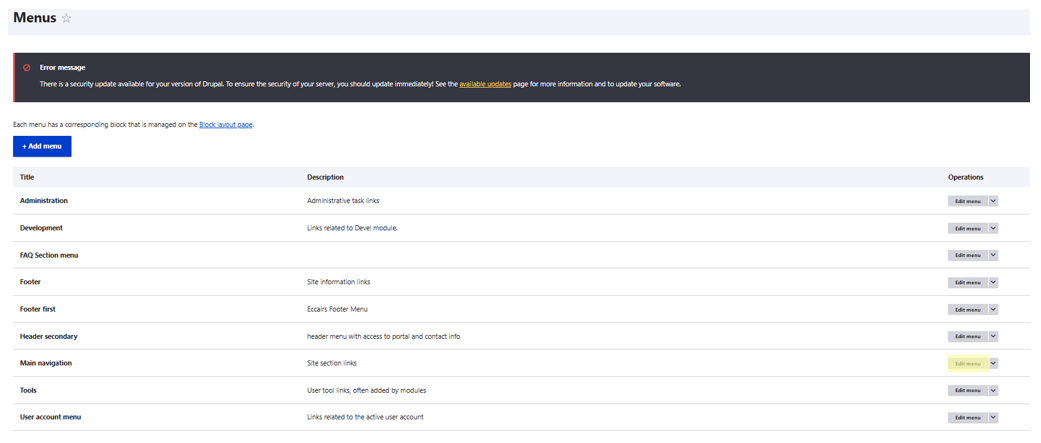
5. Here you can find the list of Main Navigation menus. In the "Enable" column on the right, you can select the menu to enable or disable it.
How to edit a Banner
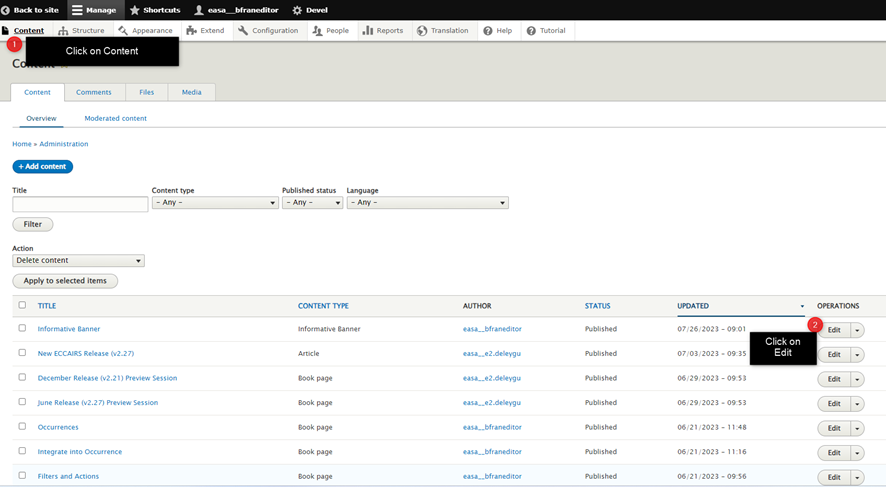
Edit the content of the Banner
· Login in Drupal
· Go to Content or type this url
o PROD - https://aviationreporting.eu/en/admin/content
o UAT - https://uat.aviationreporting.eu/en/admin/content
· Click on Edit on the ‘Informative Banner’ item
· Change the content
o Type the desired content
o Click on Save

Enable the banner
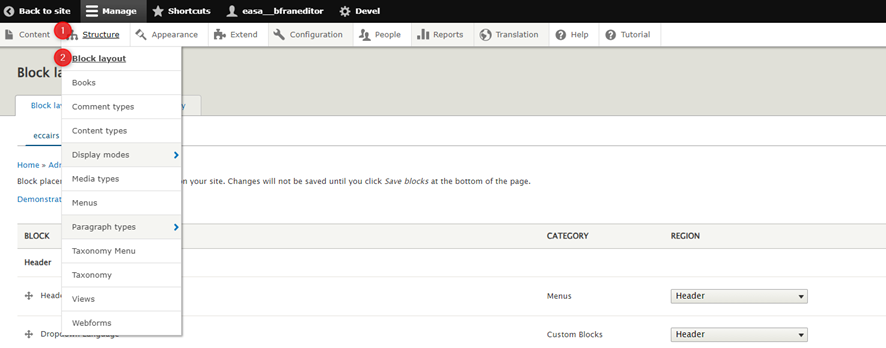
· Click on Structure and then in Block layout or type this url
o PROD - https://aviationreporting.eu/en/admin/structure/block
o UAT - https://uat.aviationreporting.eu/en/admin/structure/block
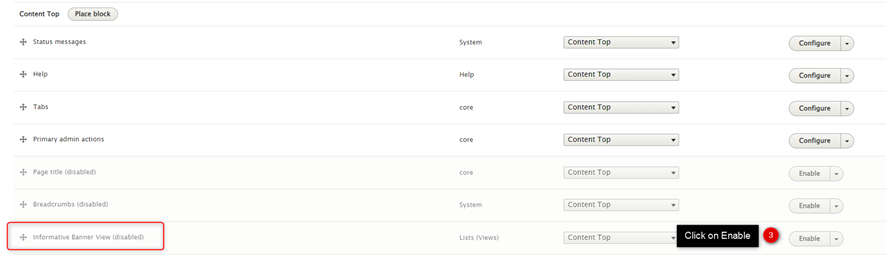
· Scroll until find the ‘Informative Banner View’ item
· Click on Enable
Disable the Banner
· Click on Structure and then in Block layout or type this url
o PROD - https://aviationreporting.eu/en/admin/structure/block
o UAT - https://uat.aviationreporting.eu/en/admin/structure/block
· Scroll until find the ‘Informative Banner View’ item
· Click on the Arrow Icon
· Click on Disable

How to create new release notes in Drupal (Video)
How to create new release notes in Drupal (combination of mid-month and end month is needed)