# 7.5. Favourite Views

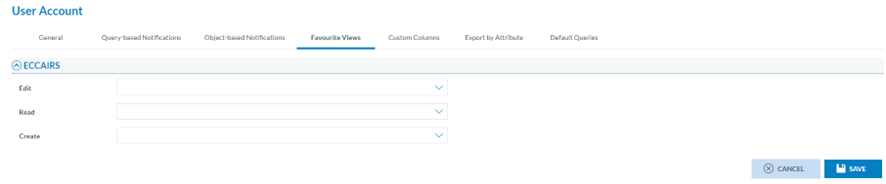
<span lang="EN-GB">Views are used to display the information contained in a record, featuring varying numbers of attributes/entities, a specific design, and other custom elements. They enable certain users within organisations to concentrate on the elements relevant to their tasks. The fourth tab of the ‘My Account’ menu opens the ‘Favourite Views’:</span>

[![image.png](https://help.ci-aviationreporting.eu/uploads/images/gallery/2025-11/scaled-1680-/DqSimage.png)](https://help.ci-aviationreporting.eu/uploads/images/gallery/2025-11/DqSimage.png)

<span lang="EN-GB" style="mso-ansi-language: EN-GB; mso-fareast-language: EN-GB;">  
</span>

<span lang="EN-GB">The page displays the following drop-down menus with the available views:</span>

<span lang="EN-GB" style="font-family: Symbol; mso-fareast-font-family: Symbol; mso-bidi-font-family: Symbol; color: #1b3891; mso-themecolor: text1;"><span style="mso-list: Ignore;">·<span style="font: 7.0pt 'Times New Roman';"> </span></span></span><span lang="EN-GB">Edit: favourite view for editing reports</span>

<span lang="EN-GB" style="font-family: Symbol; mso-fareast-font-family: Symbol; mso-bidi-font-family: Symbol; color: #1b3891; mso-themecolor: text1;"><span style="mso-list: Ignore;">·<span style="font: 7.0pt 'Times New Roman';"> </span></span></span><span lang="EN-GB">Read:<span style="mso-spacerun: yes;"> </span>favourite view for reading reports</span>

<span lang="EN-GB" style="font-family: Symbol; mso-fareast-font-family: Symbol; mso-bidi-font-family: Symbol; color: #1b3891; mso-themecolor: text1;"><span style="mso-list: Ignore;">·<span style="font: 7.0pt 'Times New Roman';"> </span></span></span><span lang="EN-GB">Create:<span style="mso-spacerun: yes;"> </span>favourite view for creating reports</span>

<span lang="EN-GB">Thus, the Officer must select a view in the specific drop-down menus and click Save in the image above. The system will save the updates in the database. When later the Officer in the OR, VR and OCs lists clicks on ‘Edit’ or accesses the Read mode or clicks on ‘New’, the system will offer the view of the specific report, the View selected in this menu. i.e. when the Officer accesses the VR menu and clicks on ‘New VR’, the system will open the ‘New VR’ page with the View selected in the ‘My Account’ tab:</span>

[![image.png](https://help.ci-aviationreporting.eu/uploads/images/gallery/2025-11/scaled-1680-/bOZimage.png)](https://help.ci-aviationreporting.eu/uploads/images/gallery/2025-11/bOZimage.png)

<span lang="EN-GB" style="mso-ansi-language: EN-GB; mso-fareast-language: EN-GB;">  
</span>