# 7.3. Query-based notifications

<span lang="EN-GB">E2 can notify selected users of the creation, update, deletion or sharing actions over ORs. VRs and OCs that meet the conditions of a query through query-based notifications. </span>

<span lang="EN-GB">This is the second tab of ‘My Account’ page:</span>

[![image.png](https://help.ci-aviationreporting.eu/uploads/images/gallery/2025-11/scaled-1680-/Mvdimage.png)](https://help.ci-aviationreporting.eu/uploads/images/gallery/2025-11/Mvdimage.png)

<span lang="EN-GB">It displays the table of query-based notifications indicating per notification row the following columns that also work as filters:</span>

<span lang="EN-GB" style="font-family: Symbol; mso-fareast-font-family: Symbol; mso-bidi-font-family: Symbol; color: #1b3891; mso-themecolor: text1;"><span style="mso-list: Ignore;">·<span style="font: 7.0pt 'Times New Roman';"> </span></span></span><span lang="EN-GB">Notification name: unique for each notification</span>

<span lang="EN-GB" style="font-family: Symbol; mso-fareast-font-family: Symbol; mso-bidi-font-family: Symbol; color: #1b3891; mso-themecolor: text1;"><span style="mso-list: Ignore;">·<span style="font: 7.0pt 'Times New Roman';"> </span></span></span><span lang="EN-GB">Source: OR, VR or OC</span>

<span lang="EN-GB" style="font-family: Symbol; mso-fareast-font-family: Symbol; mso-bidi-font-family: Symbol; color: #1b3891; mso-themecolor: text1;"><span style="mso-list: Ignore;">·<span style="font: 7.0pt 'Times New Roman';"> </span></span></span><span lang="EN-GB">Triggering action: create, update, delete or share with my Authority (only available for OCs)</span>

<span lang="EN-GB" style="font-family: Symbol; mso-fareast-font-family: Symbol; mso-bidi-font-family: Symbol; color: #1b3891; mso-themecolor: text1;"><span style="mso-list: Ignore;">·<span style="font: 7.0pt 'Times New Roman';"> </span></span></span><span lang="EN-GB">Query name: unique for each notification</span>

<span lang="EN-GB" style="font-family: Symbol; mso-fareast-font-family: Symbol; mso-bidi-font-family: Symbol; color: #1b3891; mso-themecolor: text1;"><span style="mso-list: Ignore;">·<span style="font: 7.0pt 'Times New Roman';"> </span></span></span><span lang="EN-GB">Created by: the author of the notification</span>

<span lang="EN-GB" style="font-family: Symbol; mso-fareast-font-family: Symbol; mso-bidi-font-family: Symbol; color: #1b3891; mso-themecolor: text1;"><span style="mso-list: Ignore;">·<span style="font: 7.0pt 'Times New Roman';"> </span></span></span><span lang="EN-GB">Email preferences: frequency of notification emails</span>

<span lang="EN-GB">When the user clicks on the last section of each notification row, the system displays the view and configuration icons for those notifications defined by the Authority administrator.</span>

[![image.png](https://help.ci-aviationreporting.eu/uploads/images/gallery/2025-11/scaled-1680-/jwfimage.png)](https://help.ci-aviationreporting.eu/uploads/images/gallery/2025-11/jwfimage.png)

<span lang="EN-GB" style="mso-ansi-language: EN-GB; mso-fareast-language: EN-GB;">  
</span>

### 7.3.1. View the notification:

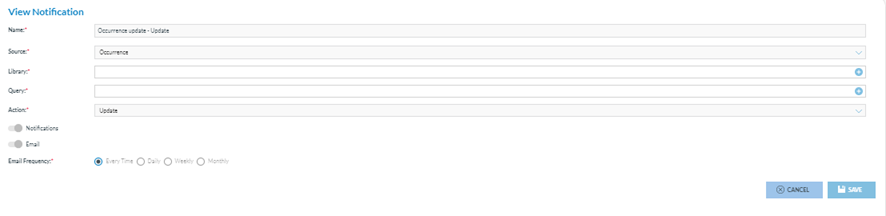
<span lang="EN-GB">The Officer clicks on the view (eye) icon in the image above, and the system displays the View notification page:</span>

[![image.png](https://help.ci-aviationreporting.eu/uploads/images/gallery/2025-11/scaled-1680-/HT6image.png)](https://help.ci-aviationreporting.eu/uploads/images/gallery/2025-11/HT6image.png)

<span lang="EN-GB">This page is not editable. It shows the following not editable fields:</span>

<span lang="EN-GB" style="font-family: Symbol; mso-fareast-font-family: Symbol; mso-bidi-font-family: Symbol; color: #1b3891; mso-themecolor: text1;"><span style="mso-list: Ignore;">·<span style="font: 7.0pt 'Times New Roman';"> </span></span></span><span lang="EN-GB">Name: unique per notification</span>

<span lang="EN-GB" style="font-family: Symbol; mso-fareast-font-family: Symbol; mso-bidi-font-family: Symbol; color: #1b3891; mso-themecolor: text1;"><span style="mso-list: Ignore;">·<span style="font: 7.0pt 'Times New Roman';"> </span></span></span><span lang="EN-GB">Source: OR, VR or OC</span>

<span lang="EN-GB" style="font-family: Symbol; mso-fareast-font-family: Symbol; mso-bidi-font-family: Symbol; color: #1b3891; mso-themecolor: text1;"><span style="mso-list: Ignore;">·<span style="font: 7.0pt 'Times New Roman';"> </span></span></span><span lang="EN-GB">Library: where the query is stored</span>

<span lang="EN-GB" style="font-family: Symbol; mso-fareast-font-family: Symbol; mso-bidi-font-family: Symbol; color: #1b3891; mso-themecolor: text1;"><span style="mso-list: Ignore;">·<span style="font: 7.0pt 'Times New Roman';"> </span></span></span><span lang="EN-GB">Query: that generates the notification</span>

<span lang="EN-GB" style="font-family: Symbol; mso-fareast-font-family: Symbol; mso-bidi-font-family: Symbol; color: #1b3891; mso-themecolor: text1;"><span style="mso-list: Ignore;">·<span style="font: 7.0pt 'Times New Roman';"> </span></span></span><span lang="EN-GB">Action: create, update, delete or share with my Authority (only available for OCs);</span>

<span lang="EN-GB" style="font-family: Symbol; mso-fareast-font-family: Symbol; mso-bidi-font-family: Symbol; color: #1b3891; mso-themecolor: text1;"><span style="mso-list: Ignore;">·<span style="font: 7.0pt 'Times New Roman';"> </span></span></span><span lang="EN-GB">Notifications toggle: to activate the notifications in the landing page.</span>

<span lang="EN-GB" style="font-family: Symbol; mso-fareast-font-family: Symbol; mso-bidi-font-family: Symbol; color: #1b3891; mso-themecolor: text1;"><span style="mso-list: Ignore;">·<span style="font: 7.0pt 'Times New Roman';"> </span></span></span><span lang="EN-GB">Email frequency toggle can be used every time, daily, weekly, or monthly.</span>

<span lang="EN-GB">The save button is deactivated.</span>

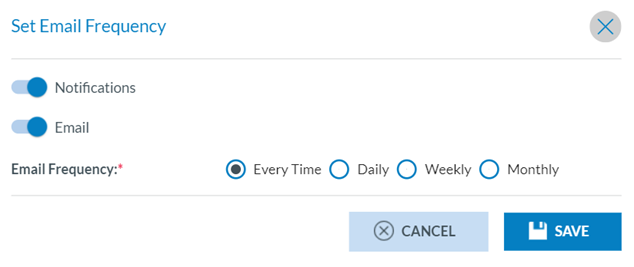
<span lang="EN-GB">The Configuration icon opens the ‘Set the notification preferences’ window:</span>

[![image.png](https://help.ci-aviationreporting.eu/uploads/images/gallery/2025-11/scaled-1680-/Or8image.png)](https://help.ci-aviationreporting.eu/uploads/images/gallery/2025-11/Or8image.png)

<span lang="EN-GB">Notifications toggle: refers to the notifications appearing on the landing page of the Officer; </span>

<span lang="EN-GB">Email toggle: refers to the reception of an email with the notifications (Every Time, Daily, Weekly or Monthly). The Officer can update the fields and click' Save' to store the updates in the database.</span>

### 7.3.2. Create a notification

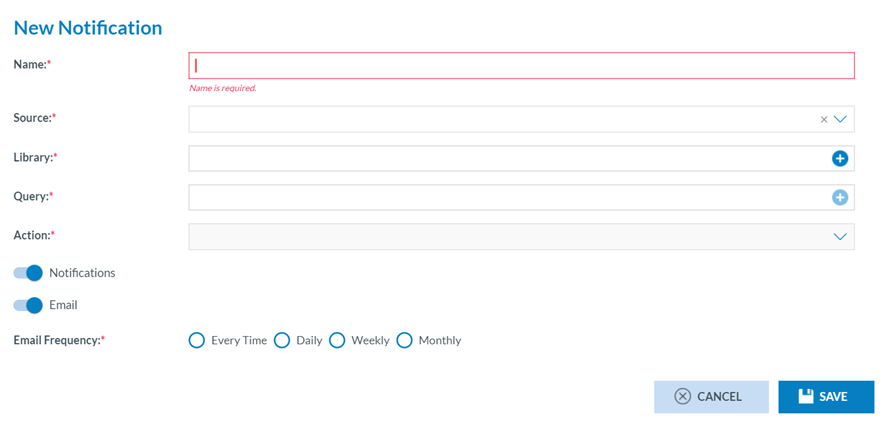
<span lang="EN-GB">Officers can create their own notifications. The Officer has to click on ‘New Notification’ above the table, and the system will display the ‘New Notification’ page:</span>

[![image.png](https://help.ci-aviationreporting.eu/uploads/images/gallery/2025-11/scaled-1680-/kfhimage.png)](https://help.ci-aviationreporting.eu/uploads/images/gallery/2025-11/kfhimage.png)

<span lang="EN-GB">The fields are the same as in the ‘View notification’ of the previous section, but all the fields will be editable except the mandatory ‘Action’, which is only editable as soon as the source is selected in the previous field.</span>

<span lang="EN-GB">Name, source, library and query are mandatory.</span>

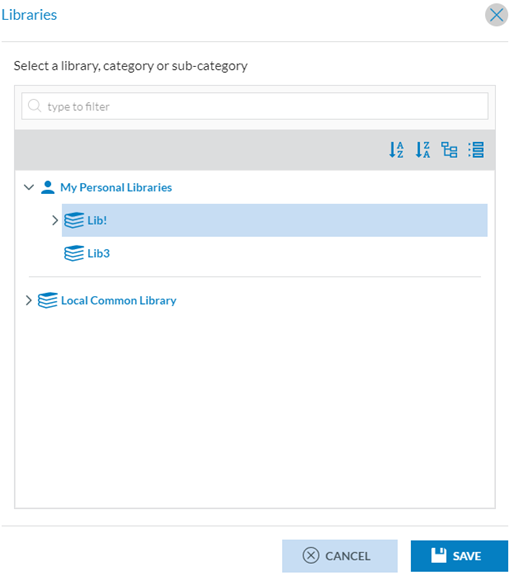
<span lang="EN-GB">The Officer has to fill in the Name, select a Source, and select a Library through the Library ‘+’ icon that opens the Library selection page:</span>

[![image.png](https://help.ci-aviationreporting.eu/uploads/images/gallery/2025-11/scaled-1680-/Hqmimage.png)](https://help.ci-aviationreporting.eu/uploads/images/gallery/2025-11/Hqmimage.png)

<span lang="EN-GB" style="mso-ansi-language: EN-GB; mso-fareast-language: EN-GB;">  
</span>

<span lang="EN-GB">The Officer has to select a Library and click on Save.</span>

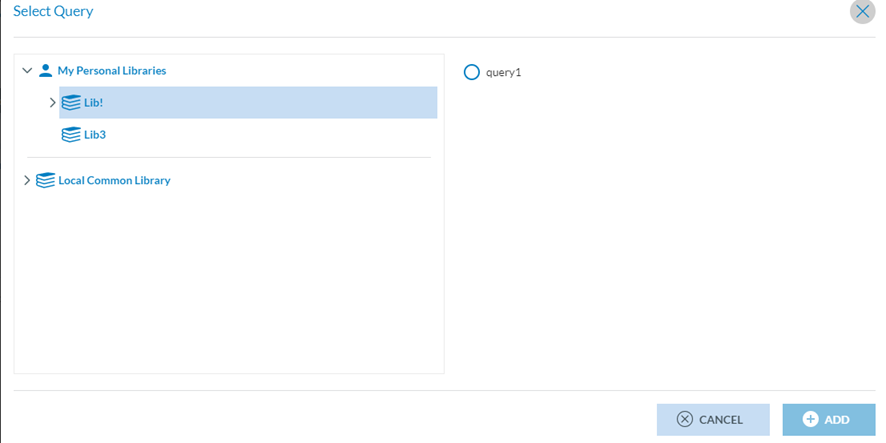
<span lang="EN-GB">Then, the Officer has to click on the ‘+’ icon of the Query field, and the system will display the queries available for the selected library:</span>

[![image.png](https://help.ci-aviationreporting.eu/uploads/images/gallery/2025-11/scaled-1680-/l6Dimage.png)](https://help.ci-aviationreporting.eu/uploads/images/gallery/2025-11/l6Dimage.png)

<span lang="EN-GB" style="mso-ansi-language: EN-GB; mso-fareast-language: EN-GB;">  
</span>

<span lang="EN-GB">The Officer has to select a query and click on ‘Add’. Then, select the ‘Action’ from the drop-down menu with the following options:</span>

[![image.png](https://help.ci-aviationreporting.eu/uploads/images/gallery/2025-11/scaled-1680-/Mjximage.png)](https://help.ci-aviationreporting.eu/uploads/images/gallery/2025-11/Mjximage.png)

<span lang="EN-GB">The Officer must check one option and set the Notifications and Email toggles as needed.</span>

<span lang="EN-GB">By default, both toggles are activated. When the Email toggle is activated, the Officer has to set the Email frequency by checking the corresponding radio button:</span>

[![image.png](https://help.ci-aviationreporting.eu/uploads/images/gallery/2025-11/scaled-1680-/zrcimage.png)](https://help.ci-aviationreporting.eu/uploads/images/gallery/2025-11/zrcimage.png)

<span lang="EN-GB">And click on the Save button below. The system will save the notification with the selected query in the database and my account's list of query-based notifications.</span>

<span lang="EN-GB">The Officer can edit and delete the notifications that have been created.</span>