# 3.3. OC Management
An occurrence (OC) can be constituted by one or multiple VRs from different reporters reporting the same safety event. The Authority Officers can share occurrences. An OC is a report of a safety event reported by one or multiple reporters through the E2 Reporting portal.
They can come from ORs validated by Officers and transformed into VRs.
They can come from VRs directly created by Officers
The Officers can directly create them in the system.
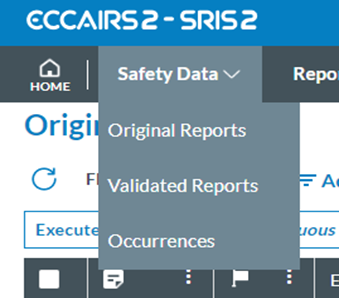
To manage them, the Officer accesses the E2 Web Application and unfolds the Safety Data menu on the left:
[](https://help.ci-aviationreporting.eu/uploads/images/gallery/2025-10/rBDimage.png)
They then select ‘Occurrences’, also known as OCs. The system displays the list of OCs:
[](https://help.ci-aviationreporting.eu/uploads/images/gallery/2025-10/w5uimage.png)
Officers can customise the OCs list as explained in the section Reports Lists.
### 3.3.1. Status and status filters
Above the list of OCs, on the right side, the system displays the filter tabs:
[](https://help.ci-aviationreporting.eu/uploads/images/gallery/2025-10/Ttyimage.png)
The list of results will restrict the OCs based on the selected tab.
· My Drafts: refers to OCs the Officer is editing. The list of OCs will show ‘Draft’ on the ‘E2 Status’ column and cannot be edited by another Authority Officer.
· In Progress: refers to ‘Open’ OCs. The list of OCs will show ‘Open’ on the ‘E2 Status’ column, and if the OC is edited by its reporter, it will show a ‘padlock’ icon.
· Shared: refers to OCs shared from the Officer's Authority to other Authorities and those shared from other Authorities with the Officer’s Authority.
· All: refers to all the OCs belonging to the Officer’s Authority regardless of status.
· ECR: refers to all OCs shared with the ECR from all the Authorities belonging to the ECR
The status of the OCs can be the following:
· Draft: The officer creates or edits an OC and they save it as a draft. All the OCs the Officer saves as a draft through the creation or edition of an OC process are saved in ‘Draft’ status. They can only be accessed by the Officer who is currently editing the report.
· Open: This means the OC has not been archived and can be edited by the officer.
· Archived: Officers can archive the OCs of the list. Once archived, they can be restored to “open” status or deleted.
### 3.3.2. 3-dot menu of the OCs – OCs features
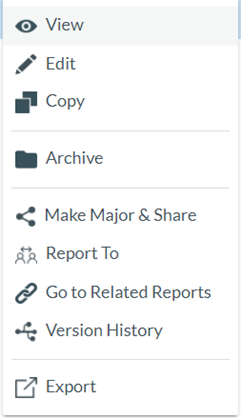
The system displays a 3-dot menu on the right side of each OC row of the list of OCs. If the Officer clicks on it, the system displays the following for ‘Open’ and not blocked OCs:
[](https://help.ci-aviationreporting.eu/uploads/images/gallery/2025-10/3qYimage.png)
### 3.3.3. View
When clicking on View in the 3-dot menu (or double-clicking in the list view on any row), the system will display the content of the OC with the view the Officer has saved in ‘My account’. See Views of My Account for further details.
Otherwise, the system displays a page where the Officer has to select the specific view for the OC:
[](https://help.ci-aviationreporting.eu/uploads/images/gallery/2025-10/Ttvimage.png)
Once a view is selected, the OC is opened in view mode.
[](https://help.ci-aviationreporting.eu/uploads/images/gallery/2025-10/Lsmimage.png)
The Officer can make a major version and share the OC by clicking the ‘Make Major & Share’ button as explained in the section Make major and share.
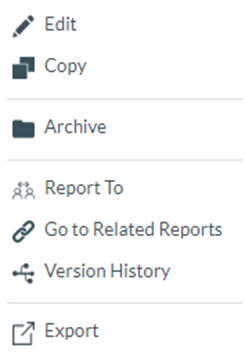
The ‘Actions’ button displays the following menu:
[](https://help.ci-aviationreporting.eu/uploads/images/gallery/2025-10/VN6image.png)
### 3.3.4. Edit
This option is only available for ‘Open’ OCs belonging to the Officer’s Authority and is not blocked. It is not available for those OCs shared with the Officer’s Authorities by other Authorities or the ECR.
When the Officer clicks on the ‘Edit’ option of the 3-dot menu of the specific OC of the list of OCs, the system will display the content of the OC with the view the Officer has saved in ‘My account’. See Views of My Account for further details.
Otherwise, the system displays a page where the Officer has to select the specific view to edit the OC:
[](https://help.ci-aviationreporting.eu/uploads/images/gallery/2025-10/0t9image.png)
The Officer selects the view in the drop-down menu, and the system displays the specific OC in Draft:
[](https://help.ci-aviationreporting.eu/uploads/images/gallery/2025-10/mXlimage.png)
Through the left panel, the Officer can access the different topics of the view.
The Officer can discard the changes made to the OC, save them as a Draft, Minor or Major version, and return them to the OCs list or save the changes on the current page. See Saving Options for further details.
### 3.3.5. Copy
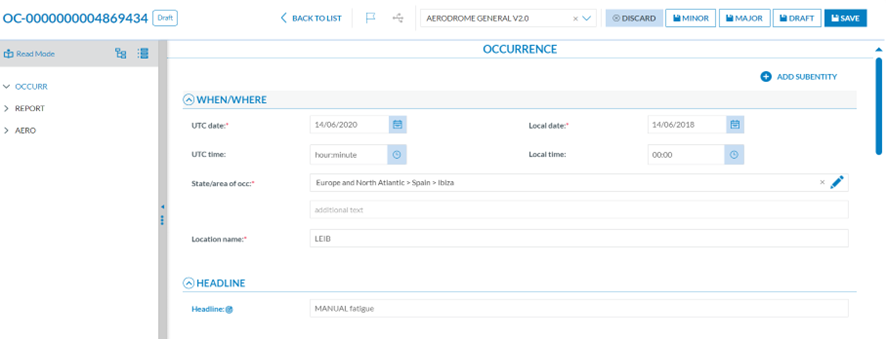
This option displays the editing page with the content of the copied OC in the view previously set through ‘My account’. See the Views section of My Account for further details. The editing page is as follows:
[](https://help.ci-aviationreporting.eu/uploads/images/gallery/2025-10/o6kimage.png)
The Officer can update the necessary fields and click on one of the saving options. See the previous sections for further details.
Although the Officer does not update any field when saving the updates, the system will assign a different E2ID and a different file number.
The Officer can discard the draft version of the new OC, save it as a Draft, Minor or Major version, and return it to the OCs list or save the changes on the current page. See Saving Options for further details.
### 3.3.6. Archive
This option is to archive VRs. See details in the Archive section.
### 3.3.7. Regularise conflicts
When this option appears in the 3-dot menu of the OC, the ‘Make major and share’ option will not appear. It can only appear when the OC is open and not blocked.
The Regularise conflicts option already depicted for VRs is also applicable for OCs since the changes made in the OR can conflict with the Officer updates in the VR and the OC updates. The functioning of the regularisation of conflicts is explained in detail in section Conflicting Reports
### 3.3.8. Create a major version and share
An OC can be shared individually with the ECR (European Central Repository) or to one or more Authorities. While a Minor version of an OC can be shared, it will not be visible to the other Authorities until it is saved as a Major version. See the [Safety data management](#_heading=h.30j0zll) section for further details about versioning in E2.
The Officer has to click on the ‘Make major and share’ option of the 3-dot menu of the specific OC in the list of OCs. The system will display the following modal window:
[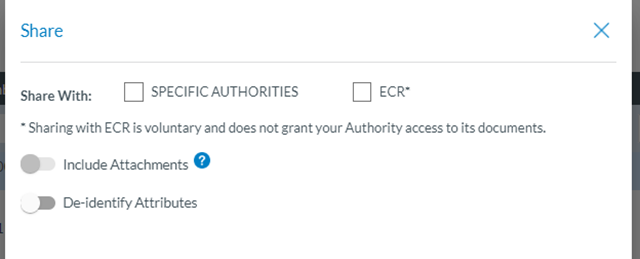](https://help.ci-aviationreporting.eu/uploads/images/gallery/2025-10/Nz2image.png)
The Officer can select the specific Authorities through the Authorities drop-down menu.
[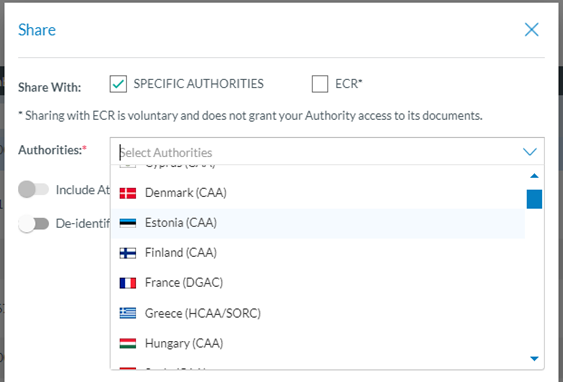](https://help.ci-aviationreporting.eu/uploads/images/gallery/2025-10/euZimage.png)
The information shared with other Authorities can be limited by selecting deidentified attributes. When the OC is shared with other Authorities, the value of the deidentified attributes is not shown when the other Authorities view the OC.
· The attributes that can be selected are defined at the Authority admin level.
· The Officer can choose which ones they want to deidentify, if any, by clicking on the option.
[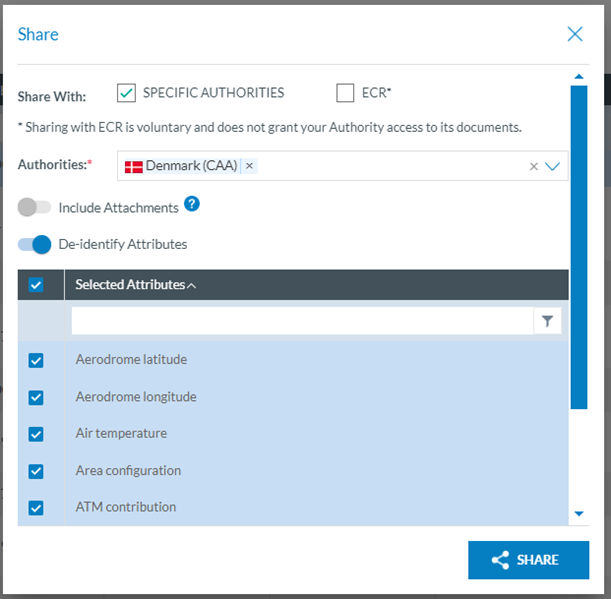](https://help.ci-aviationreporting.eu/uploads/images/gallery/2025-10/1NAimage.png)
The Authority can also indicate if attachments will be visible to other Authorities when sharing.
· The administrator defines the Authorities with which all the attachments can be shared at the Authority level.
· The Officer can choose whether they want to share the attachments by enabling the toggle.
ü If enabled, all the attachments will be shared with the Authorities previously selected in the Authority Settings option ‘Sharing of Attachments.’
[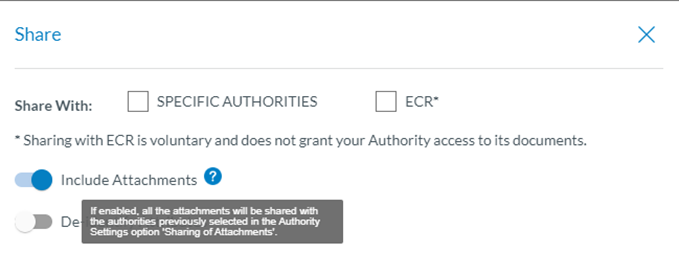](https://help.ci-aviationreporting.eu/uploads/images/gallery/2025-10/odsimage.png)
If the Officer clicks the ‘Make major and share’ option of an OC previously shared, the system will add a ‘stop sharing’ option to the modal window:
[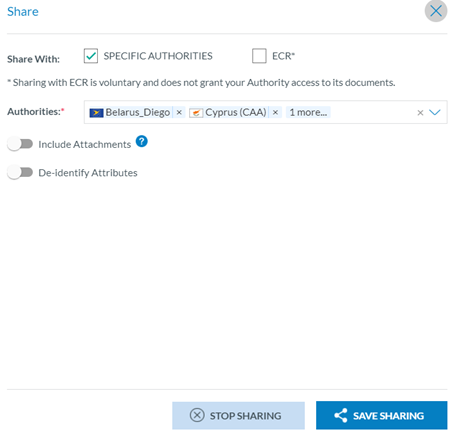](https://help.ci-aviationreporting.eu/uploads/images/gallery/2025-10/WUeimage.png)
The report will no longer be shared if the Officer clicks on it.
This option can unshare OCs shared via Batch Operations (BOs) from the OC list individually.
#### 3.3.8.1. Shared tab
The quick filter for shared elements allows the Officer to filter on Occurrences shared by the Officer’s Authority to other specific Authorities and to filter on Occurrences shared by specific other Authorities to the Officer’s Authority.
In the Advance Filter, the Officer can filter the OC Shared with specific Authorities. There are two fields (Shared From and Shared With) by Authorities. In order to see OC from the Officer's Authority shared with other Authorities, the Officer must pick its Authority in the Shared From field (by default this option is marked), and in the Shared With field the Officer can select Authorities they want to see OCs that have been shared with.
If the Officer's Authority is selected in the Shared With, that would display the OCs shared from other Authorities (selected in the Shared From field) with its Authority.
The system will display the list of results according to the specific search
[](https://help.ci-aviationreporting.eu/uploads/images/gallery/2025-10/ZUoimage.png)
It is important to advise that the filter is saved for future consults.
#### 3.3.8.2. ECR TAB
The quick filter on ECR allows the officer to directly consult the whole ECR database, constituted by all Occurrences shared by all Authorities (including the Officer’s Authority) to the European Common Repository.
OCs shared with ECR: The Officer has to click on the ‘ECR’ tab, and the system will display the OCs its Authority has shared with ECR.
### 3.3.9. Report to
This feature allows an Authority to report an Occurrence to another Authority. One of the main advantages is that it will land in the receiving Authority as an OR and can, therefore, be processed as any OR by the receiving Authority.
Updates made on the Occurrence, as long as the OC is saved as a major version, will result in updates of the OR at the receiving Authority level. If the OR has been previously validated and/or integrated into an OC, automatic updates will be applied unless any conflicts need to be resolved.
The Officer clicks on the ‘Report to’ option of the 3-dot menu, and the system will display a modal window:
[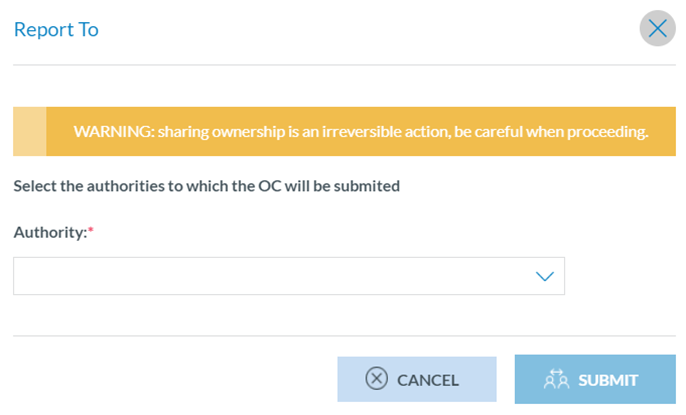](https://help.ci-aviationreporting.eu/uploads/images/gallery/2025-10/fANimage.png)
This window displays a warning: ‘Sharing ownership is an irreversible action; be careful when proceeding.’
The Officer has to select as many Authorities as needed on the ‘Authority’ drop-down menu and click ‘Submit’. The report will be submitted to the chosen Authorities as an OR, and both the OC and the OR(s) will be linked, so when there is an update in the OC it will be propagated to the OR(s).
The system will mark with a report icon the reported OC in the list of OCs:
[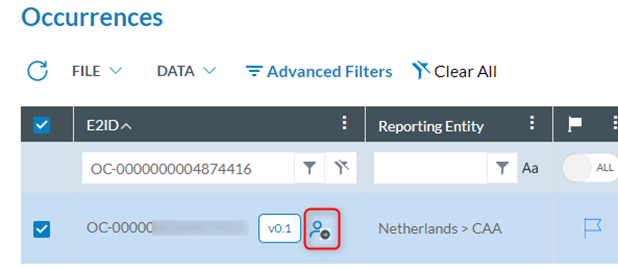](https://help.ci-aviationreporting.eu/uploads/images/gallery/2025-10/HBiimage.png)
Likewise, this icon will appear in the list of ORs for the reported ORs of the corresponding Authority. A specific filter is available to filter on ORs reported by other authorities. See Advanced filters in OR features.
### 3.3.10. Creation of an OC from scratch
The Officer can create a new OC from scratch.
As the OC is saved, the system validates if it already exists in the Authority by checking the following attributes of the ECCAIRS Central Taxonomy:
· Responsible Entity (453)
· File Number (452)
If there is a match, the system informs the user that the OC already exists.
The Officer has to access the Occurrences option under the Safety Data drop-down menu and the system will display the OCs list. Above the list of OCs and the filters, there is the ‘New Occurrence’’ button:
[](https://help.ci-aviationreporting.eu/uploads/images/gallery/2025-10/AQOimage.png)
The Officer clicks on it, and the system displays the New OC page. Based on the default view, the Officer previously set it to ‘My account’. See Views of My Account for further details.
[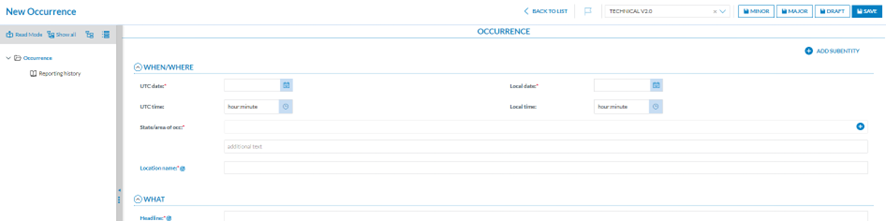](https://help.ci-aviationreporting.eu/uploads/images/gallery/2025-10/7goimage.png)
The Officer can move between topics through the navigation tree on the left page.
The Officer can discard the OC, save it as a Draft, Minor or Major version, and return to the OC list or save the changes on the current page. See Saving Options for further details.
### 3.3.11. Advanced Filters
The filters provided by the system vary depending on the selected tab. When the Officer selects ‘My Drafts’ or ‘In Progress’, the system shows the following filters:
[](https://help.ci-aviationreporting.eu/uploads/images/gallery/2025-10/aKnimage.png)
### 3.3.12. Automatic updates and Only Conflicting Reports
Section Automatic updates and Only Conflicting Reports for VRs is also applicable for OCs.
### 3.3.13. Reported toggle
It appears after clicking on ‘Advanced Filters’ in the OC menu.
It restricts the results to the OCs that have been reported to other Authorities. When the Officer activates it, the system displays the following additional filters:
[](https://help.ci-aviationreporting.eu/uploads/images/gallery/2025-10/UNFimage.png)
The Officer can select the Authority/ies to which the OC has been reported over a certain period and click the ‘Apply’ button.
The system will display the list of OCs based on the introduced parameters:
[](https://help.ci-aviationreporting.eu/uploads/images/gallery/2025-10/hysimage.png)
In the list view, next to the E2ID, the system will display a ‘Report to’ Icon. If the Officer moves the mouse over the icon, the system will display the Authority/ies to which the OC was reported.
### 2.3.14. Shared filters
When the Officer clicks on the ‘Shared’ tab above the list of OCs and then on ‘Advanced filters’, the system displays the ‘Shared From’ and ‘Shared With’ tabs to restrict the results accordingly in the list of OCs.
[](https://help.ci-aviationreporting.eu/uploads/images/gallery/2025-10/20ximage.png)
When the Officer clicks on the ‘ECR’ tab and then on ‘Advanced filters’, the system displays the "Shared From" filter.
[](https://help.ci-aviationreporting.eu/uploads/images/gallery/2025-10/eFaimage.png)